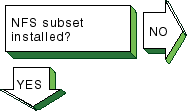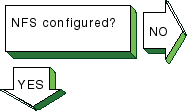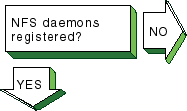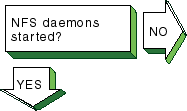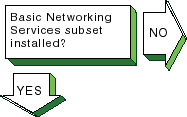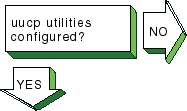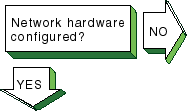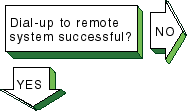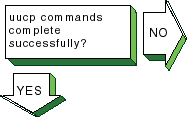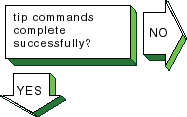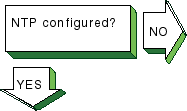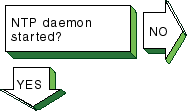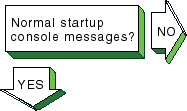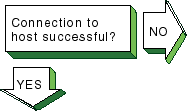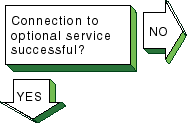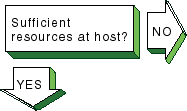
This chapter contains a diagnostic map to help you solve problems that might occur when you use the network and network services software. Use this chapter together with the appropriate documentation to solve as many problems as possible at your level.
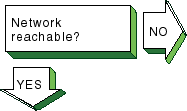
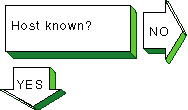
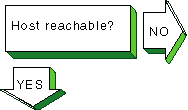
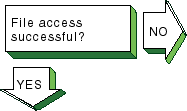
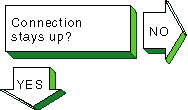
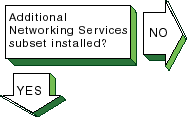
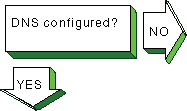
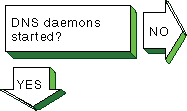
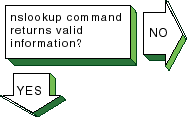
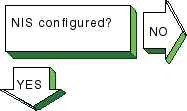
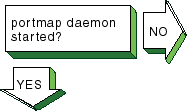
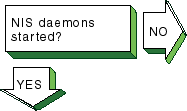
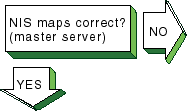
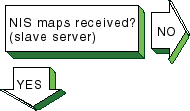
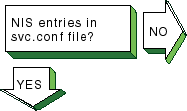
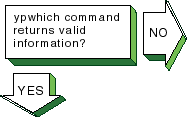
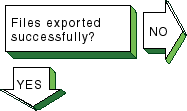
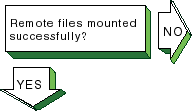
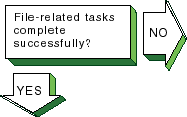
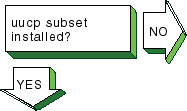
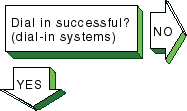
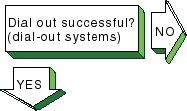
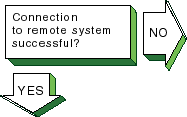
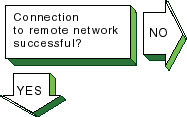
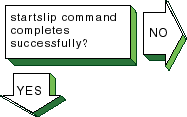
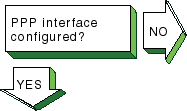
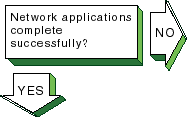
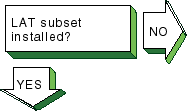
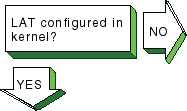
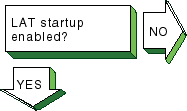
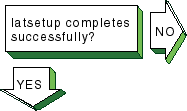
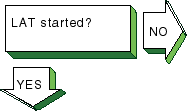
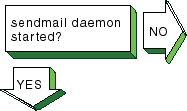
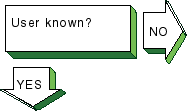
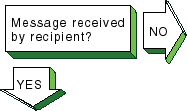
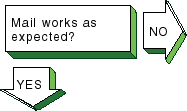
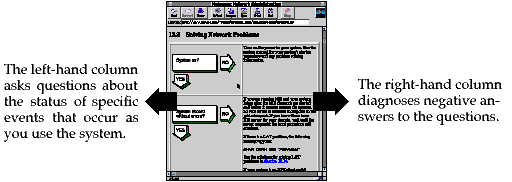
Network and network service problems can occur for a number of reasons. The diagnostic map in this chapter should help you isolate the problem. The following figure explains how to use the diagnostic map:
After you isolate the problem, the map refers you to other chapters for instructions on using the various problem solving tools and utilities. The map also refers you to other manuals for more complete diagnostic information for particular devices and software products.
You could experience problems that are not documented in this manual when you use base system network and network services software with other layered products. Each layered product has its own manual or set of manuals, which might describe solutions not provided here.
Before you start problem solving, ensure that the communications hardware is ready for use. Verify the following:
The system's physical cable connections (the Ethernet connection and the transceiver connection) are properly installed. See the documentation for your system and communications hardware device.
Event logging is enabled in order to monitor network events. See System Administration for information on starting event logging and for descriptions of the event messages.
Also check the product release notes for up-to-date information on known problems.
Table 13-1 helps you identify a starting point in the diagnostic map.
| If your problem is: | Start here: |
uucp
command error |
|
| Network command error | Section 13.12, if using a SLIP connection Section 13.13, if using a PPP connection |
| Inaccurate system time and you are using NTP | Section 13.11 |
| Getting host name information | Section 13.5, if you are using DNS/BIND Section 13.7, if you are using NIS |
| Accessing files | Section 13.9, if you are using NFS |
| Connecting to a host using LAT | Section 13.14 |
| Unknown errors | Section 13.3 |
| Sending or receiving mail | Section 13.15 |
|
|
Turn on the power to your system. See the system manual for your system's startup procedure and any problem solving information. |
|
If you are running NIS
and your system hangs after the NIS daemons are started and before it mounts
remote file systems, no NIS server is available to respond to the
If there is a LAT problem, the following message is displayed:
See the solutions for solving LAT problems in Section 13.14. If your system is an NFS client and it hangs while mounting a remote file system or directory, complete the following steps:
|
|
|
Check the
If the entry is
|
|
|
Verify that the network
daemon (
If no
|
|
|
If a remote host's network is not reachable, the following message is displayed:
Complete the following steps:
|
|
|
If a remote host is not known, the following message is displayed:
Complete the following steps:
|
|
|
If a remote host is not reachable, the following message is displayed:
Complete the following steps:
|
|
|
If a file cannot be
accessed using the
Complete the following steps:
If you are using NFS, go to Section 13.9. |
|
Problem still exists? Report your problem to Compaq. See Chapter 16. |
If the connection is broken, the following message is displayed:
Complete the following steps:
|
|
|
Verify whether the Additional Networking Services subset is installed. Enter the following command:
The following message should be displayed:
If the subset is
not installed, install it by using the
|
|
|
|
Check the
If no type is specified (double quotation marks), run the BIND Configuration application. See Section 6.3 for more information. |
|
|
Verify that the BIND
daemon (
If no
|
|
Problem still exists? Report your problem to Compaq. See Chapter 16. |
If the
|
|
| If the type is: | Go to: | |
CLIENT |
Stop. This system is not a DNS/BIND server and cannot provide name resolution to clients. | |
PRIMARY |
Section 15.3 | |
SECONDARY |
Section 15.3 | |
SLAVE |
Section 15.4 | |
CACHE |
Section 15.8 | |
|
|
Verify whether the Additional Networking subset is installed. Enter the following command:
The following message should be displayed:
If the subset is
not installed, install it by using the
|
|
|
Check the
If the entry does not exist, run the BIND Configuration application. See Section 6.3 for more information. |
|
Problem still exists? Report your problem to Compaq. See Chapter 16. |
If you attempted to
use one of the network commands (for example,
Complete the following steps:
|
|
|
Verify whether the Additional Networking Services subset is installed. Enter the following command:
The following message should be displayed:
If the subset is
not installed or is corrupt, install it by using the
|
|
Check the
If the entry does not exist, run the
|
|
|
Verify that the
If you do not find the
If the
|
|
|
To verify that a
If no
If a
If
the
Stop and start NIS by using the following commands:
|
|
Verify the information in the map. Enter the following command:
The map_name variable is the name of the NIS map. If the information is incorrect, create a new map. Enter the following commands:
The
If the
|
|
Problem still exists? Report your problem to Compaq. See Chapter 16. |
If you suspect that a slave server is not getting NIS map updates, complete the following steps on the slave server:
|
|
|
Check the
If the entry does not exist, run the
|
|
|
Check the
For the
|
|
|
Verify that the
If no
If the
|
|
|
Verify that a
If no
If a
If the
Stop and start NIS, using the following commands:
|
|
|
If the
If the
|
Problem still exists? Report your problem to Compaq. See Chapter 16. |
If an NIS command hangs, the following message is displayed on the console:
yp: server not responding for domain domainname.
The client cannot communicate with the server. Complete the following steps:
|
If the previous steps do not solve the problem, complete the following steps:
|
|
|
Verify whether the NFS subset is installed. Enter the following command:
The following message should be displayed:
If the NFS subset is not installed or is corrupt, install it by using the
|
|
Check the
If the entry does not
exist, run the NFS Configuration application.
Be sure to specify that you
will be exporting directories, even if you are going to edit the
Verify that the network software has been configured. See the solution at [Network configured?] in Section 13.3. |
|
|
Verify that the
If the
If the
|
|
|
Verify that the NFS
daemons are registered with the
If neither is registered, start NFS by using the following command:
|
|
|
To verify that the NFS daemons are running, complete the following steps:
|
|
Problem still exists? Report your problem to Compaq. See Chapter 16. |
To verify that the files are being exported, complete the following steps:
|
|
|
Verify whether the NFS subset is installed. Enter the following command:
The following message should be displayed:
If the NFS subset is not installed or is corrupt, install it by using the
|
|
Check the
If the entry does not exist, run the NFS Configuration application. See Section 8.3 for more information. Verify that the network software has been configured. See the solution for [Network configured?] in Section 13.3. |
|
|
Verify that the
If you do not find the
If
the
|
|
|
If the client cannot mount a remote file system or directory, complete the following steps:
|
|
Problem still exists? Report your problem to Compaq. See Chapter 16. |
If application programs that perform file-related tasks do not complete their tasks or take a long time in doing so, complete the following steps:
|
|
|
Verify whether the
The following message should be displayed:
If
the
|
|
Verify whether the Basic
Networking Services subset (containing the
The following message should be displayed:
If
the Basic Networking Services subset is not installed, install it by using
the
|
|
Check for entries in
the
|
|
|
Configure the network hardware as follows:
|
|
|
If you cannot dial up the remote system, check the following:
|
|
Run the
|
|
Problem still exists? Report your problem to Compaq. See Chapter 16. |
If the
|
|
|
Check the
If the entry does not exist, run
the
|
|
|
Verify that an
If no
|
|
|
If the
The
hostname
is not in the
|
|
|
If you run one of the
monitor programs and in the output from the
If the
|
Problem still exists? Report your problem to Compaq. See Chapter 16. |
If the
Complete the following steps:
If you still cannot solve the problem, complete the following steps:
|
|
|
Verify that the correct
number of Serial Line Internet Protocol (SLIP) pseudodevices are supported
in the kernel by using the
The
If you need additional SLIP
interfaces, specify them by adding the
On systems with 24 megabytes of memory, SLIP is not
configured into the kernel.
To add SLIP into the kernel, edit the system configuration
file (
See System Administration for more information. |
|
|
Configure the network hardware as follows:
|
|
If a remote system cannot dial in to your system successfully, complete the following steps:
|
|
If you cannot dial out to the remote system, complete the following steps:
|
|
|
If you cannot communicate with the remote host and none of the debug messages shows an error, complete the following steps:
|
|
|
If you can communicate with the remote host but not the network connected to the remote host, complete the following steps:
|
|
Problem still exists? Report your problem to Compaq. See Chapter 16. |
If the
|
|
|
Verify that the Point-to-Point
Protocol (PPP) is supported in the kernel by using the
If PPP is not supported, add options
|
|
Verify that the PPP interface is configured with the local and remote IP addresses and a network mask. Enter the following command:
The x variable is the interface number (0, 1, 2, ...). If the PPP interface is configured, output similar to the following is displayed:
|
|
|
Configure the network hardware as follows:
|
|
|
If you are logging messages to the console and the link comes up successfully, the following messages are displayed on the console:
If the link does not come up, check the following:
|
|
Problem still exists? Report your problem to Compaq. See Chapter 16. |
If network applications do not work successfully, this might indicate an IP-address assignment problem or a routing problem. Do the following:
|
|
|
Verify whether the Local Area Transport subset is installed. Enter the following command:
The following message should be displayed:
If the subset is not installed,
install it by using the
|
|
Verify whether the Local Area Transport is configured in the kernel. Enter the following command:
If no information is displayed, LAT is not configured in the kernel. Reconfigure the kernel with the LAT option. See System Administration for information on reconfiguring the kernel. |
|
|
Check the
If the entry does not exist,
run the
|
|
|
If
If
it is not, include it in your
|
|
|
Verify whether LAT has been started. Enter the following command:
If LAT is running, the following line is displayed:
If LAT was not started, start it. Enter the following command:
|
|
|
If LAT starts up and messages appear continually on the system console, check the following messages and perform the required steps: Message
1
This means a LAT terminal device file (tty)
does not exist and the
Edit the
If LAT terminal devices are required, create the LAT terminal
device files and corresponding entries in the
Message 2
This means the kernel was not configured
with the LAT option and the
Configure LAT into the kernel.
See
System Administration
for information
on configuring LAT into the kernel.
Remove the LAT
Message 3
The
following meanings are possible:
You are using an optional service name, such as
Verify that the optional service name defined by the
Edit the
An attempt was made to use a nonexistent LAT terminal device
(tty).
Do the following:
Edit the
If LAT terminal devices are required, create the LAT terminal
device files and corresponding entries in the
|
|
|
If the user cannot connect to or display a service from a terminal server via LAT, complete the following steps on the system:
|
|
|
If problems occur when using an optional service, complete the following steps:
|
|
|
If the user cannot connect to a host using LAT, the following messages are displayed:
The
See Section 5.3 for information. |
|
|
If a host-initiated connection fails, check that the port, host, and service names are specified correctly. Enter the following command:
If these names are not specified correctly, delete the application ports with the incorrect name. Enter the following command:
Then, add the application ports, using correct spelling. Enter either of the following commands:
See
|
|
If you print a file to a printer attached to a LAT application port, the printer is online, and no printing occurs, check the status of the print queue. Enter the following command:
The following line might be displayed:
If this line is displayed, verify whether LAT has been started. Enter the following command:
If LAT has not been started, start it. Enter the following command:
|
|
If problems are encountered
with the LAT/Telnet gateway, check the
The
Terminate the
|
Problem still exists? Report your problem to Compaq. See Chapter 16. |
If the LAT connection terminates abnormally, complete the following steps:
|
|
|
Check the
If the entry does not exist, run the Mail Configuration application. See Section 11.3 for more information. |
|
Verify whether sendmail has been started. Enter the following command:
If
|
|
If a user cannot send mail to another user, complete the following steps:
|
|
If you sent a mail message and the recipient did not receive it, complete the following steps:
|
Problem still exists? Report your problem to Compaq. See Chapter 16. |
If sendmail is not working correctly, complete the following steps:
See
Appendix G
for a list of
|