The Network File System (NFS) is a facility for sharing files in a heterogeneous environment. This chapter describes the NFS environment, how to plan for NFS, how to configure your system for NFS, and how to manage NFS servers and clients, including how to export and import file systems.
For introductory information on NFS, see
nfs_intro(7).
In the NFS environment, systems can have the following roles:
Client -- A system that imports file systems.
A client
can mount file systems by using either the
/etc/fstab
file
or the
automount
daemon.
Both methods are explained in
this chapter.
Server -- A system that exports file systems.
Your system can be set up as an NFS server, an NFS client, or both.
If your network is running NIS
or Berkeley Internet Name Domain (BIND) to distribute host information, you
do not need to list each server that is referenced in a client's
/etc/fstab
file in the client's local
/etc/hosts
file.
However, the server's host information must be in the NIS or BIND database.
Similarly, if your network is running NIS or BIND to distribute host
information and the client information is listed in the
hosts
database, you do not have to list each client that is referenced in a server's
/etc/exports
file in the server's local
/etc/hosts
file.
The
automount
daemon offers an alternative
to mounting remote file systems with the
/etc/fstab
file,
allowing you to mount them on an as-needed basis.
When a user on a system using the
automount
daemon
invokes a command that must access a remotely mounted file or directory, the
automount
daemon mounts that file system or directory and keeps
it mounted for as long as the user needs it.
When a specified amount of time
elapses (the default is 5 minutes) without the file system or directory being
accessed, the
automount
daemon unmounts it.
You specify the file systems to be mounted in automount maps. These maps may be customized to suit your environment and administered in the following ways:
Use NIS to create and distribute the automount maps.
Administer the automount maps locally.
Use a combination of both methods.
See Appendix C for information on writing automount maps.
NIS allows you to create and distribute customized maps and, typically, is used to distribute automount maps. Therefore, if NIS is used on your network to distribute automount maps, your system must be an NIS client. When NIS is used to distribute automount maps, the administrator of the NIS master server creates and administers the maps for the NIS domain.
If many clients in an environment remotely mount a file system by specifying
it in their
/etc/fstab
file, that file system is a good
candidate for inclusion in a map distributed by NIS.
Carefully constructed
automount maps can allow client systems to eliminate a large part of their
/etc/fstab
files.
If the location of a file system that is included
in a distributed automount map changes, or its server changes, the administrator
of automount maps changes the map on the NIS master server.
The change is
then propagated throughout the domain without users on the client systems
having to edit their
/etc/fstab
files.
See Section 7.3.1 for information on configuring a master NIS server to serve automount maps.
Local automount maps might be useful to you under the following circumstances:
Your system mounts remote file systems that are not typically mounted by other NIS clients.
Your network is not running NIS.
You need to test an automount map.
Administering the
automount
daemon locally is the
same as administering it when NIS distributes the maps, except that you, as
administrator of your system, create and manage automount maps.
A local
auto.master
map serves the same function
as one distributed in an NIS domain.
If a local
auto.master
is specified, the
automount
daemon consults it for the
location of other maps, their local mount points, and the mount options.
You can use an
auto.master
map that is distributed by NIS,
a local
auto.master
map, both, or neither, if the
automount
daemon is invoked correctly.
Appendix A contains a worksheet that you can use to record the information that you need to provide to configure NFS. If you are viewing this manual online, you can use the print feature to print a copy of this part of the worksheet.
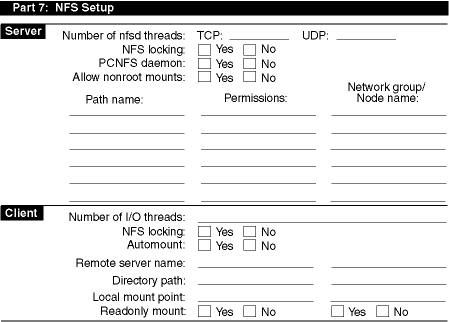
Figure 8-1 shows Part 7 of the Configuration Worksheet. The following sections explain the information you need to record in Part 7 of the worksheet.
Enter
the number of
nfsd
TCP server threads to run.
These threads
service requests from NFS clients.
The default number of 8 is adequate for
an average work load.
You can configure a combined total of 0 to 128 TCP
and UDP server threads.
See
nfsd(8)
for information on starting the
nfsd
daemon from the command line.
Enter
the number of UDP server threads to run.
The default number of 8 is adequate
for an average work load.
You can configure a combined total of 0 to 128 TCP
and UDP server threads.
See
nfsd(8)
for information on starting the
nfsd
daemon from the command line.
If you want to run the NFS lock manager (rpc.lockd) and status monitor (rpc.statd), check Yes.
Running these daemons allows users to use
fcntl(2)
and
lockf(3)
to lock file regions on NFS files (in addition to local files).
If you do
not run these daemons, users can use advisory locking primitives only on
local files.
If you want to run the PC-NFS daemon (rpc.pcnfsd), check Yes; otherwise, check No.
If you allow nonroot mounts, users on client systems who do not have root privileges can still mount the file systems or directories exported from this system. If you do not allow nonroot mounts, only the superusers on the client systems can mount file systems from this host. The default setting does not allow nonroot mounts.
The path name of the file systems or directories that you intend to export.
The permissions to assign for each exported file system or
directory.
You can specify whether a file system or directory is exported
with read-write (rw) or read-only (ro) permission, and you can map client
superuser access to a root user ID (UID) number other than the default of -2.
For more information on assigning permissions to exported file systems or
directories and on specifically mapping the root UID for clients, see
exports(4).
The network groups or individual host names to
which you will export these file systems or directories.
If you want to limit
the hosts that can import a file system or directory, you must explicitly
specify the individual hosts or network groups in the
/etc/exports
file.
If you do not specify individual hosts or network groups,
all hosts can import that file system or directory.
For information on defining
network groups, see
netgroup(4).
The number of I/O threads to run.
The default number
of 7 is recommended for optimum load generation on servers.
You can configure
from 0 to 64
nfsiod
threads.
In addition, you can start
nfsiod
threads from the
command line.
See
nfsiod(8)
for information on starting
nfsiod
threads from the command line.
If you want to run the NFS lock manager (rpc.lockd) and status monitor (rpc.statd), check Yes.
Running these daemons allows users to use
fcntl(2)
and
lockf(3)
to lock file regions on NFS files (in addition to local files).
If you do
not run these daemons, users can use advisory locking primitives only on local
files.
If the client is to run the
automount
daemon
and use automount maps, check Yes.
If the network is running the Network
Information Service (NIS), the automount maps are better administered and
served from the master NIS server.
The format of the maps is the same whether
they are local or served by the NIS master server.
For information on creating
automount maps, see
Appendix C.
Otherwise, check No.
The host names of the servers from which you are importing file systems or directories.
The complete pathnames of the file systems or directories that you want to import.
The mount point on the local system where you want the imported file systems or directories to reside.
The permissions for the imported file systems or directories
Note
If you mount your user area from a server, make sure that your UID on the client is the same as your UID on the server. NFS uses your client UID to check against file access permissions on the server. If your UID is different on the client and server, you cannot modify your own NFS mounted files (assuming that you have the permissions on the mounted files set so that only you can modify them). Since the server does the access checking, the only UID allowed to modify the files is the one that the server knows.
Use the NFS Configuration application of the Common Desktop Environment (CDE) Application Manager for configuring NFS on systems with graphics capabilities. You can configure clients, servers, and designate imported and exported filesystems.
See
nfsconfig(8X)
for more information on the NFS Configuration
Application.
To invoke the NFS Configuration application, log in as root and do the following:
Click on the Application Manager icon on the CDE front panel.
Double-click on the System_Admin application group icon.
Double-click on the Configuration application group icon.
Double-click on the NFS Configuration application icon. The NFS Configuration main window is displayed, showing available NFS service types and configured NFS service types.
To exit the NFS Configuration application, choose File then Exit.
Note
For systems without graphics capabilities, you can use the
nfssetuputility. Seenfssetup(8) for more information.
The NFS Configuration application has an extensive online help system that you can use instead of the instructions in this section to configure NFS on your system.
To configure an NFS server, do the following:
Select NFS Server Setup from the Available NFS Services list box in the NFS Configuration main window.
Click on the Configure button to display the NFS Server Setup dialog box.
Enter the number of server TCP daemons to be run in the input text field, or use the Increment or Decrement buttons to specify the appropriate number of server TCP daemons.
Enter the number of server UDP daemons to be run in the input text field, or use the Increment or Decrement buttons to specify the appropriate number of server UDP daemons.
Set the Configure for Locking check button to the on position
to specify locking configuration if the status of the
lockd
daemon is Stopped.
If the status of the daemon is Running, locking is already
set.
Click on the Configure PC NFS check button to
run the PC-NFS
rpc.pcnfsd
daemon.
If you run the PC-NFS daemon, you must export to the client the directories
you want to mount on the PC client.
Also, you must export the
/usr/spool/pcnfs
directory to the PC client to enable the client to utilize network
printing.
For information on exporting directories, see
Section 8.4.1.
Set the Allow Non-Root Mounts check button to the on position to allow file systems to be mounted by users other than root if the status of the daemon is Stopped. If the status of the daemon is Running, mounting by non-root users is already set.
Click on Commit to accept the configuration and start the appropriate daemons.
Click on Close to close the NFS Server Setup dialog box.
If your system will be an NFS client, see Section 8.3.2 for information on configuring an NFS client. If your system will export or import directories, go to Section 8.4.1 or Section 8.5.1, respectively.
To configure an NFS client, do the following:
Select NFS Client Setup from the Available NFS Services list box in the NFS Configuration main window.
Click on the Configure button to display the NFS Client Setup dialog box.
Enter the number of client daemons to be run in the input text field, or use the Increment or Decrement buttons to specify the appropriate number of client daemons.
Set the Configure for Locking check button to the on position
to specify locking configuration if the status of the
lockd
daemon is Stopped.
If the status of the daemon is Running, locking is already
set.
Set the Configure for Automount check button to the
on position to configure the
automountd
daemon
if the status of the daemon is Stopped.
If the status of the daemon is Running,
automounting is already configured.
See
Section 8.1.2
for
information on automount and
Appendix C
for information
on automount maps.
Enter appropriate arguments to the
automountd
daemon in the Automount arguments input text field.
You can later change the
automount
daemon argument
list by using the
rcmgr
command to set the
AUTOMOUNT_ARGS
variable.
For more information, see
automount(8)
and
rcmgr(8).
Click on Commit to accept the configuration, start the appropriate daemons, and update the status of the daemons.
Click on Close to close the NFS Client Setup dialog box.
If you want to import directories, go to Section 8.5.1.
This section describes how to perform the following NFS server tasks:
You might have to reconfigure NFS on your system, whether to make a client system a server system or to increase the number of NFS threads. See Section 8.2 for this information.
Exporting a file system or directory makes it available for client systems on the network to mount remotely. If you want your system to be an NFS server and to export file systems and directories, be aware that your system will be less secure. However, depending on how you export your files, you can minimize the security risks.
Note
To make a change to the exports file and have it take effect immediately, send the
mountddaemon a HUP signal. Otherwise,mountdwill reread theexportsfile the next time it receives a mount request from an NFS client or ashowmount -erequest.
To export a file system using the NFS Configuration Application, do the following:
Log in as root.
Click on the File Sharing button in the NFS Configuration main window to display the File System Sharing main window.
Select FileShare then Share Local File to display the Share Local File dialog box.
Enter the full pathname of the directory to be exported in the Directory input text field.
Select whether the file has read only or read/write access and whether all hosts or only selected hosts can have access. By default, the file is exported read/write to all hosts.
Click on the down arrow icon to display the expert options. By default, no root access is allowed and the anonymous UID is 2.
Click on Apply. Repeat steps 3, 4, and 5 if you want to export additional files.
Click on OK to close the Share Local File dialog box.
Select File Sharing then Exit to close the File System Sharing main window.
To export a file system or directory, do the following:
Edit the
/etc/exports
file on your system
and create an
entry for the file system or directory to be exported.
The
following example shows entries from a sample
/etc/exports
file:
/usr/local [1] /usr/staff/doe host3 [2] /usr/staff -ro host7 [3] /usr2 host7 host3 host1 [4] /usr/scratch -rw=host2 [5] /usr/src -rw=host1:host2 host5 host7 [6]
Exports the
/usr/local
file system.
It
can be mounted remotely (read-write) by any NFS client on the network.
[Return to example]
Exports the
/usr/staff/doe
subdirectory.
It can be mounted remotely (read-write) only by host3.
[Return to example]
Exports the
/usr/staff
file system.
It
can be mounted remotely (read-only) only by host7.
Client host7 also has read-only
access to
/usr/staff/doe
exported in the second entry.
[Return to example]
Exports the
/usr2
directory.
It can be
mounted remotely (read-write) only by host7, host3, and host1.
[Return to example]
Exports the
/usr/scratch
file system to
all hosts.
Only host2 is allowed read-write access.
[Return to example]
Exports the
/usr/src
file system to host1,
host2, host5, and host7.
Only host1 and host2 are allowed read-write access.
[Return to example]
See
exports(4)
for more information on the
/etc/exports
file.
Check that the NFS server daemons
mountd,
portmap, and
nfsd
are running, using the
ps
command as follows:
#ps -e | grep daemon_name
If they are running, go to the next step. If they are not running, start them by using the following commands:
#/sbin/init.d/nfs start#/sbin/init.d/nfsmount start
Verify the exported files by using the
showmount
-e
command.
The file system or directory is exported automatically when a mount request is received.
NFS servers use the standard operating system file access protection scheme. This scheme protects files from all users except root. An NFS client sends user and group IDs to the server along with an NFS file access request. The server uses this information to allow or disallow the request.
The
/etc/exports
file
defines an export list for each file system and directory that a client can
mount.
When creating entries in the
/etc/exports
file,
remember the following:
Make only one entry for each exported file system or directory; multiple entries are not supported.
Each entry exports that directory and all subdirectories in it, except for those subdirectories that reside in a file system (disk partition) different from the exported directory.
File systems and directories are exported with read-write access by default.
If no remote system (client) names are specified for a file system or directory, any client on the network can mount that file system or directory.
If one or more client names are specified for a file system or directory, only those clients can mount the exported file system or directory.
If you start the
mountd
daemon with the
-i
option, only
those hosts in the
server's host database are allowed mount access.
If you start the
mountd
daemon with the
-d
or
-s
option, only those clients in the same domain or subdomain,
respectively, are allowed mount access.
Exporting specific directories to specific clients provides more security than does exporting an entire file system to all clients.
Protect sensitive exported data on the server by making the data files owned and accessible only by root, and do not allow superusers on client systems root access over NFS.
The
-public
option can only be specified
by one exported file system.
Halting export of a directory or file system prevents client systems from accessing the particular directory or file system. You can still export other directories or file systems.
To halt the export of a directory or file system, do the following:
Delete from the
/etc/exports
file the entry
for the directory or file system you do not want to export.
Verify that the entry is no longer in the exports list by using the following command:
#showmount -e
If you do not want to export any directories or file
systems, stop the
nfsd
daemon by using the following commands:
#ps -e | grep nfsd#kill -9 process_id
By default under NFS, a superuser (root) on a client system does not have superuser privileges on the server and cannot do the following:
Access remotely mounted files and directories whose permissions do not allow world access.
Change the ownership of remotely mounted files (run the
chown
command).
For security reasons, you typically should not allow a remote superuser access to your system as superuser unless both the remote host and superuser are trusted. However, in a friendly network environment, you can explicitly allow superuser access over the network.
To
allow a superuser on a client access to your server system, edit the
/etc/exports
file on your server and add the
-root=0
option to the entry you want to make available.
The
-root=0
option maps the remote superuser's identification to UID 0.
All
future mount requests will be honored with root mapping.
By default, this
option allows superuser access from any client system on the network.
To restrict
the superuser access to specific systems, use the
-root=host_list
option, where
host_list
is a list of host names.
See
exports(4)
for more information.
By default,
NFS servers regard superusers and those users without UNIX authentication
(personal computer systems) as anonymous users.
This class of users can only
access files that are accessible to the world.
To prevent anonymous users
from accessing file systems or directories, use the
-anon=-1
option.
If you still want to allow client superusers access to
the file systems or directories, specify the
-root
option in addition to the
-anon
option.
The
-root
option overrides the
-anon
option for client superusers only.
A superuser on a client system can assume the identity of any other user on the client system by substituting the UID number. The client superuser could then have the access rights of another user on the server. Therefore, to protect sensitive exported data on the server, make root the owner of the data files and do not export the directory or file system with root mapping. This is useful if you need to export other files in the file system.
The following example shows entries in an
/etc/exports
file:
/usr/games -root=0 host8    [1]
/usr/templates -root=host8    [2]
Exports the
/usr/games
file system.
It can
be mounted remotely (read-write) only by the client system host8.
However,
the client superuser has superuser access to the file system.
The superuser's
UID is 0 (zero).
[Return to example]
Exports the
/usr/templates
file system.
It can be mounted remotely (read-write) by any client in the network.
However,
only the superuser on host8 has superuser access to the file system.
[Return to example]
If the
/usr/spool/mail
directory is remotely mounted from the server, you
might not be able to send mail to superuser (root) on the server.
The reason
is most systems do not export the
/usr/spool/mail
directory
with the
root=0
option.
To enable clients to send mail
to root, set the root and admin aliases to the login name or names of the
system administrators for that system.
Then, users can address all mail intended
for the administrators of that system as follows:
admin@system
To enable clients to send mail to root, follow these steps:
Edit the
/var/adm/sendmail.cf
file and
add the alias name admin to the following line:
CN MAILER-DAEMON postmaster
The line should then look as follows:
CN MAILER-DAEMON postmaster admin
This adds the name admin to the class N.
Alternatively, you can run the Mail Configuration application and add admin as a local user. See Chapter 11 for more information.
Edit the
/var/adm/sendmail/aliases
file,
add the login names
of the system administrators, and redefine
(alias) the name root to be admin.
Restart the
sendmail
daemon by using the
following command:
#/sbin/init.d/sendmail restart
If you are enabling clients to send mail to root, remember the following:
All systems in the local area network (LAN) should follow this convention. Mail for root or admin on any system can be automatically directed to any user login on any system.
A
/usr/spool/mail/root
mailbox is not created
or used.
The following example shows the steps involved in enabling clients to send mail to root.
#vi /var/adm/sendmail/sendmail.cf[1]
.
.
.#vi /var/adm/sendmail/aliases[2]
.
.
.#/sbin/init.d/sendmail restart[3]
Opens the
/var/adm/sendmail/sendmail.cf
file to add the admin alias.
[Return to example]
Opens the
/var/adm/sendmail/aliases
file
to add the login names and root alias.
[Return to example]
Restarts the
sendmail
daemon.
[Return to example]
The following example shows entries in the
/var/adm/sendmail/aliases
file for the system administrators John, Mary, and Joe:
admin:john,mary,joe
root:admin
Only privileged users can attach to Internet domain source ports known as privileged ports. By default, NFS does not check to see if a client is bound to a privileged port. You might want to activate NFS server port monitoring to be sure that file access requests were generated by the client kernel rather than forged by an application program.
Although this operating system enforces the privileged port convention, some operating systems do not. If hosts running a different operating system are on your network, activating port checking might not improve security, but could prevent those systems from functioning properly as NFS client systems.
To start NFS server port monitoring, enter the following command:
#/usr/sbin/nfsportmon on
To stop source port monitoring, enter the following command:
#/usr/sbin/nfsportmon off
Monitoring the NFS load allows you to see the number of NFS requests, both client and server, being executed on the local machine. You should periodically monitor NFS requests to determine whether you need additional NFS server threads.
To monitor NFS requests, use the
nfsstat
command
with the following syntax:
nfsstat -n
See
nfsstat(8)
for more information on monitoring NFS load.
The following example shows the client and server activity on a local machine:
#/usr/bin/nfsstat -nnfs: calls badcalls 69228 0 Server nfs V2: null getattr setattr root lookup readlink read 1 0% 24 0% 0 0% 0 0% 60 0% 0 0% 5 0% wrcache write create remove rename link symlink 0 0% 58030 83% 20 0% 0 0% 0 0% 0 0% 0 0% mkdir rmdir readdir statfs 0 0% 0 0% 0 0% 2 0% Server nfs V3: null getattr setattr lookup access readlink read 0 0% 667 0% 1009 1% 2598 3% 101 0% 200 0% 1408 2% write create mkdir symlink mknod remove rmdir 1280 1% 376 0% 71 0% 200 0% 0 0% 676 0% 70 0% rename link readdir readdir+ fsstat fsinfo pathconf 100 0% 100 0% 468 0% 0 0% 1750 2% 2 0% 0 0% commit 10 0% Client nfs: calls badcalls nclget nclsleep 224664 0 224664 0 Client nfs V2: null getattr setattr root lookup readlink read 0 0% 51328 22% 1069 0% 0 0% 41643 18% 455 0% 28793 12% wrcache write create remove rename link symlink 0 0% 64665 28% 589 0% 1052 0% 352 0% 250 0% 250 0% mkdir rmdir readdir statfs 171 0% 170 0% 2689 1% 1814 0% Client nfs V3: null getattr setattr lookup access readlink read 0 0% 2038 0% 2180 0% 8534 3% 430 0% 450 0% 3136 1% write create mkdir symlink mknod remove rmdir 3158 1% 1048 0% 243 0% 450 0% 1 0% 1848 0% 242 0% rename link readdir readdir+ fsstat fsinfo pathconf 452 0% 350 0% 1240 0% 0 0% 3506 1% 3 0% 0 0% commit 75 0%
Your system can be an NFS client if the following conditions exist:
Your system can reach an NFS server over the network.
Your system's host or network group name is included in the
server's
/etc/exports
file, or the server is exporting
a file system to all systems on the network.
This section describes how to perform the following NFS client tasks:
You
can mount a remote file system or any subdirectory within a remote file system
onto a local mount point.
While mounted, it is treated as a file system by
the local system.
The file system or subdirectory must also be entered in
the remote system's
/etc/exports
file.
To mount a remote file system or directory on a system with graphics capabilities, use the NFS Configuration Application as follows:
Click on the File Sharing button in the NFS Configuration main window to display the File System Sharing main window.
Select FileShare then Share Remote File to display the Share Remote File dialog box.
Enter the full pathname of the directory in the Get Directory input text box.
Enter the host name of the system from which you are importing the directory in the From Host input text box.
Enter the local mount point in the Put Files In input text box. If the local mount point does not exist, one is created by default.
Note
Place mount points to different servers in separate directory trees. Some directories (such as
/usr) in complex production environments might be too large for you to adhere strictly to this recommendation. In such cases, try to minimize the number of mount points to different servers that occur in any given directory.
If you want to mount this file at each time your system starts,
click on
Make Permanent.
This creates an entry in
the
/etc/fstab
file.
If you want to select NFS options, click on the down arrow icon. By default, files are imported with the following options: read-write, hard, retry in foreground, and noninterruptable. See Section 8.5.1.4 for list of some options.
Click on Apply. If you want to import additional files, go to step 3 and repeat the succeeding steps.
Click on OK to close the Share Remote File dialog box.
Select File Sharing then Exit to close the File System Sharing main window.
See
nfsconfig(8X)
for more information.
To manually mount a remote file system or directory, do the following:
Create a directory (mount point) on the local system.
Typically, people create a directory with the same name as the remote host because it is easier to remember where the remotely mounted file systems and directories reside.
Mount the remote file system or directory by using either of the two following mount command formats:
mount -t nfs
[server_name:/filesystem /mount_point]
mount -t nfs
[filesystem@server_name /mount_point]
The following example mounts the reference pages from the remote
host host2 onto the local directory
/mnt:
#mount -t nfs host2:/usr/ref /mnt
Verify that the file system or directory is mounted by entering
the
mount
command with no arguments.
The mounted file
systems and directories are displayed as in the following example:
#/usr/sbin/mount/dev/ra0a on / (rw) /dev/ra0g on /usr (rw) host2:/usr/ref on /mnt type nfs (rw, hard, intr) host7:/usr on /host7 type nfs (rw, hard, nintr)
If you are mounting a remote layered product for the first time, create the necessary symbolic links by executing the appropriate linking script or scripts. Ask the server administrator for the location of the linking scripts and the command syntax to use to invoke them.
Use this step for Compaq layered products and third-party layered products that have been created in accordance with Compaq guidelines. See Programming Support Tools for information on creating linking scripts for layered products.
To automatically mount a remote file system or directory at startup time, do the following:
Log in as root.
Edit the
/etc/fstab
file and create an
entry for each file
system or directory
to be mounted.
For example, the following entry in the
/etc/fstab
file causes the
/usr
file system on the remote
host host7 to be mounted automatically at startup time on the local system
in the
/host7
directory:
/usr@host7 /host7 nfs rw,bg 0 0
The
bg
option causes remote
mount requests to be tried once in the foreground and then retried in the
background if the initial mount fails.
See
Section 8.5.1.4
for a list of some of the options.
See
fstab(4)
for information on
the
/etc/fstab
file format.
Mount the new directory or file system by entering the
mount -a
command.
The files will be mounted automatically each time the system is rebooted.
If you are mounting a remote layered product for the first time, create the necessary symbolic links by executing the appropriate linking script or scripts. Ask the server administrator for the location of the linking scripts and the command syntax to use to invoke them.
Use this step for Compaq layered products and third-party layered products that have been created in accordance with Compaq guidelines. See Programming Support Tools for information on creating linking scripts for layered products.
Occasionally, a server system will go down or be slow to respond to client NFS requests; when you mount the file system, choose one of the following mount command options to control how NFS operations are to proceed under those conditions:
bg
-- Remote mount requests are tried
once in the
foreground.
If they fail, the requests are then retried
in the background.
The default is to retry remote mount requests in the foreground.
If any server listed in the
/etc/fstab
file is not currently
available, your system will not finish booting until the server becomes available.
soft
-- Operations fail with an error
code (ETIMEDOUT).
Do
not use this option with
file systems mounted as read-write or when running executable files, unless
you are sure the application is testing return codes.
hard
-- Operations do not fail: they
continue to try until
they either succeed or are
stopped.
This is the default.
When you use the interrupt option,
intr, with the
hard
option, you can type an interrupt character and prevent your
system from indefinitely attempting to reach an unreachable server system.
The
intr
option is the default with the
hard
option.
See
mount(8)
for further information on
mount
command
options.
The
automount
daemon allows you to automatically mount a remote file
system or directory at the time of access.
If you are using
automount, determine whether you are using local automount maps or NIS-distributed
automount maps.
See
Section 8.1.2
for a description of local
and NIS-distributed automount maps.
To use local automount maps, do the following:
Log in as root.
Create a local
auto.master
map in the
/etc
directory.
See
Appendix C
for information
on creating automount maps.
Note
If you are modifying an existing
auto.mastermap, you must stop and restart theautomountdaemon in order to read the revised map.
Create the local maps for your system.
Start the
automount
daemon by using the
NFS Configuration Application.
See
Section 8.3.2
for information
on starting the
automount
daemon.
When the
automount
daemon starts, it uses the local
auto.master
file to determine the location of other maps, their
local mount points, and the mount options.
If the NFS Configuration Application indicates that the
automount
daemon is already running, do the following:
Set the Configure for Automount check box to the off position.
Select Commit.
Set the Configure for Automount check box to the on position.
Select Commit.
Select Close to close the NFS Client Setup dialog box.
To use NIS-distributed automount maps, do the following:
Set up your system as an NIS client. See Section 7.3.3 for information on setting up an NIS client.
Start the
automount
daemon by using the
NFS Configuration Application.
See
Section 8.3.2
for information
on starting the
automount
daemon.
All automount maps are served from the NIS master server in the domain.
When the
automount
daemon starts, it uses the master
auto.master
file to determine the location of other maps, their
local mount points, and the mount options.
If the NFS Configuration Application indicates that the
automount
daemon is already running, do the following:
Set the Configure for Automount check box to the off position.
Select Commit.
Set the Configure for Automount check box to the on position.
Select Commit.
Select Close to close the NFS Client Setup dialog box.
See
automount(8)
for information on the
automount
command and its arguments.
You can specify arguments for the
automount
daemon from the command line, in a local
auto.master
map,
in an NIS-distributed
auto.master
map, or some combination
of the three.
However, it is important to know that the
automount
daemon reads and carries out its instructions in the following
order:
Command line information, such as additional mount points or replacements to entries in a master map, are read first. Command line information takes precedence over instructions in any maps -- local or NIS-distributed.
Instructions in a local
auto.master
map
(specified with the
-f
option) are read next.
The
information in the local master map overrides information in an NIS-distributed
master map.
Information in the NIS-distributed master map is read last.
When you invoke the
automount
daemon without any
options, it looks for a distributed NIS map called
auto.master.
If it finds one, it checks the master map for information about the location
of other maps, their local mount points, and the mount options.
If it does
not find one, and if no local
auto.master
is specified,
the
automount
daemon exits.
You can pass command arguments to the
automount
daemon
from the NFS Configuration Application, the command line, or from an entry
in the
/etc/rc.config
file in one of the following ways:
Specify all of the arguments to the
automount
command on the command line.
For example:
#automount /net -hosts \/home /etc/auto.home -rw,intr \/- /etc/auto.direct -ro,intr
Include the information in the previous example in an NIS-distributed
auto.master
map:
/net    -hosts
/home   /etc/auto.home          -rw,intr
/-      /etc/auto.direct        -ro,intr
If this NIS
auto.master
map is distributed, typing the
automount
command at the superuser prompt (#) produces the same results as the previous
command line.
Include the
automount
command information
in a local
auto.master
file and use the
-f
option to instruct the
automount
daemon to consult
the local
auto.master
file first for instructions.
The
-f
option instructs the
automount
daemon
to consult the local master map first and then the NIS-distributed master
map.
(The
-m
option instructs the
automount
daemon to ignore the NIS-distributed master map completely, if
there is one.) For example:
#automount -f /etc/auto.master
Specify mount points on the command line, in addition to those
included in the local
auto.master
file.
For example:
#automount -f /etc/auto.master \/src /etc/auto.src -ro,soft
Nullify one of the entries in the local
auto.master
map.
For example:
#automount -f /etc/auto.master /home -null
Replace an entry in the local
auto.master
map with one of your own.
For example:
#automount -f /etc/auto.master \/home /mine/auto.home -rw,intr
See
automount(8)
for more information on the
automount
command and its options.
To unmount a remote file system or directory, do the following:
Unmount the remote file system or directory by using the
umount
command with the following syntax:
umount
{ [ filesystem directory ] }
Verify that the file system or directory is unmounted by entering
the
mount
command with no arguments.
The mounted file systems and directories are displayed.
See
umount(8)
for more information on
umount
command options.
The following command unmounts the
/mnt
local directory,
containing the reference pages mounted in
Section 8.5.1.2:
#umount /mnt
The following command unmounts all NFS file systems:
#umount -A -t nfs
The following command unmounts all file systems exported from host2:
#umount -h host2