The Domain Name Service (DNS) is a mechanism for resolving unknown hostnames
and Internet Protocol (IP) addresses that originate from sites on your company's
intranet or the Internet.
A database lookup service that is part of the DNS
daemon searches for the unknown hosts in local and remote
hosts
databases, which are distributed networkwide by the DNS.
The implementation of DNS in Tru64 UNIX is based on Version 4.9.3 of the Berkeley Internet Name Domain (BIND) service, which is maintained by the Internet Software Consortium.
This chapter describes the DNS environment, how to plan for DNS, how
to configure your system for DNS, and how to manage DNS servers and clients.
For introductory information on DNS, see
bind_intro(7).
For additional information
about BIND service, visit the Internet Software Consortium website at
www.isc.org.
In the DNS environment, systems can have the following roles:
Primary server -- A system that is an authoritative source for information about a zone or zones and that maintains the master copy of the DNS database for the zone or zones.
This system runs the
named
daemon, answers requests
from clients and other servers, caches information, and distributes the databases
to secondary servers.
Secondary server -- A system that is an authoritative source for information about a zone or zones, but does not maintain the master copy of the DNS database for the zone or zones. Instead, a secondary server loads its database files from the primary server and periodically polls the primary server to ensure that its databases are up to date.
This system runs the
named
daemon, provides backup
for the primary server, answers requests from clients and other servers, and
caches information.
Slave server -- A server that might be an authoritative source for information about a zone or zones, but is restricted as to how it obtains information about zones for which it is not authoritative.
This system runs the
named
daemon and answers queries
from other servers and clients from its authoritative data and cache data.
If the information is not present, it forwards queries to a list of systems
called forwarders specified in its
named.boot
file.
The
queries are forwarded to each forwarder system until the list is exhausted
or the query is satisfied.
Slave servers store the information they receive
until the data expires.
Caching server -- A system that is not authoritative
for any zones.
This system runs the
named
daemon and services
queries from other servers and clients by asking other servers for the information
and caching the information it receives.
Information is stored until the data
expires.
Client -- A system that queries a server for host name
and address
information, interprets responses, and passes information to requesting
applications.
The client is also called a resolver.
A client does not run
the
named
daemon.
DNS runs on each system in your network. You must decide what role each system will play within the DNS environment that you are creating. For each domain, select one host to be the primary server; there can be only one primary server for each domain. Select one or more hosts to be secondary, slave, and caching servers. The rest of the hosts should run as DNS clients.
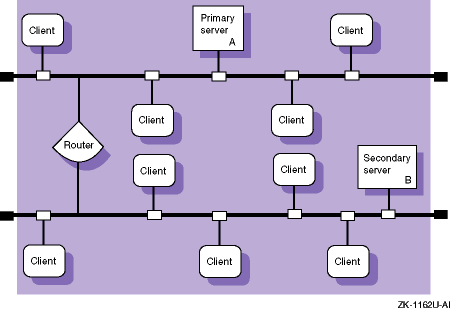
Figure 6-1 shows a domain in which there are two servers, one on each subnet, and multiple clients. Server A has primary authority for the zone and maintains the database files for the zone. Server B has secondary authority for the zone, obtaining a copy of the zone database from Server A and answering queries from clients.
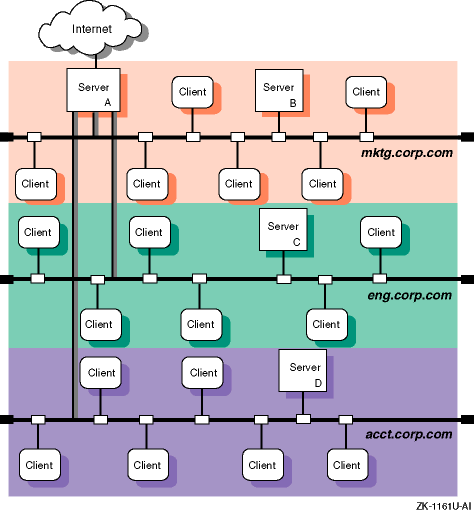
Figure 6-2
shows a domain in which there are
three zones:
mktg.corp.com,
eng.corp.com,
and
acct.corp.com.
Server B has primary authority for zone
mktg.corp.com
and secondary authority for each of the other two
zones.
Server C has primary authority for zone
eng.corp.com
and secondary authority for each of the other two zones.
Server D has primary
authority for zone
acct.corp.com
and secondary authority
for each of the other two zones.
Server A is both a router and a caching server.
As a caching server, it caches information it receives from queries out of
the parent domain.
Appendix A contains a worksheet that you can use to record the information that you need to provide to configure DNS. If you are viewing this manual online, you can use the print feature to print a copy of this part of the worksheet.
Figure 6-3 shows Part 5 of the Configuration Worksheet. The following sections explain the information you need to record in Part 5 of the worksheet.
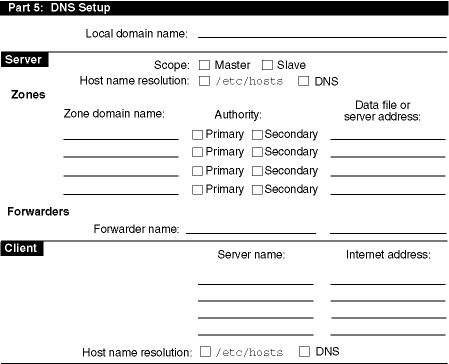
The parent domain name of which your local system is a part.
For example, if your system's domain name is
cxcxcx.abc.xyz.com, your local domain name is
abc.xyz.com.
If you want to restrict your system to query a specific list of systems (forwarders) only, check Slave; otherwise, check Master.
The first source in resolving host name queries on your system.
If you want to query DNS first, check DNS.
If you want to query the
/etc/hosts
file first, check
/etc/hosts.
The name of the top-level domain in the zone.
If the server is a primary authority for information about the zone (maintains the zone database file), check Primary. If the server is a secondary authority for information about the zone, check Secondary.
For a server that is a primary authority for information about a zone, the pathname of the file that is the master copy of zone information.
For a server that is a secondary authority for information about a zone, the pathname of the file that is to contain zone information obtained from the primary server. This is optional, but useful when the server restarts. Instead of waiting to obtain information from a primary server, which might not be available, the secondary server can restart using the information in the data file.
For a server that is a secondary authority for information about a zone, the address of the server that has primary authority for the zone domain.
The host name of a system or systems to which your server will forward queries that it cannot resolve locally. When the server receives a query that it cannot answer from its cache, it sends the query to a forwarder for resolution. If the forwarder cannot answer the query, the server might contact other servers directly. If you checked Slave in the Scope field, you must include forwarder names; otherwise, forwarders are optional.
The name of a server to contact for host name resolution. Specify up to three servers.
A corresponding IP address for the server or servers.
The first source in resolving host name queries on your system.
If you want to query DNS first, check DNS.
If you want to query the
/etc/hosts
file first, check
/etc/hosts.
Use the BIND Configuration application of the Common Desktop Environment (CDE) Application Manager to configure DNS on systems with graphics capabilities. You can configure the following systems:
Primary server
Secondary server
Caching server
Slave server
Client
See
bindconfig(8X)
for more information on the BIND Configuration
application.
To invoke the BIND Configuration application, log in as root and do the following:
Click on the Application Manager icon on the CDE front panel.
Double-click on the System_Admin application group icon.
Double-click on the Configuration application group icon.
Double-click on the BIND Configuration application icon. The BIND Configuration main window is displayed, showing available DNS service types and configured DNS service types.
Note
You must first set up the primary server; then, you can configure the other systems in any order.
To exit the BIND Configuration application, choose File then Exit.
Note
For systems without graphics capabilities, you can use the
bindsetuputility. Seebindsetup(8) for more information.
The BIND Configuration application also has an extensive online help system. You can use it instead of the instructions in this section to configure DNS on your system.
To configure a server, do the following:
Select Server from the Available BIND Services Types field in the BIND Configuration main window.
Click on the Configure button to display the Configure Server dialog box.
Click on the appropriate radio button in the Scope field. If you click on the Slave radio button, go to step 8.
Enter the domain name in the Local Domain input text box.
Indicate the order in which to resolve host name queries in the Host
Name Resolution field.
Click on the first radio button if you want to query
DNS before checking the
/etc/hosts
file.
Click on the
second radio button if you want to check the local
/etc/hosts
file before querying DNS; this is recommended.
Alternatively, you can run the
svcsetup
script to
customize service order selection.
See
Section 6.4
and
svcsetup(8)
for information on modifying the
svc.conf
file.
If your system does not have authority for any zone, go to step 8.
For servers that have authority for a zone or zones, do the following:
Click on Zones to display the Zones Served dialog box.
Click on Add to display the Add Zone dialog box.
Enter the domain name in the Domain text box.
Click on the Primary radio button if this system is the primary server for this zone. Click on the Secondary radio button if this system is a secondary server for this zone.
If you are primary or secondary authority for this zone, enter
the name of the zone data file in the Data File input text box.
If you are
using an existing
/etc/hosts
file to create the database,
this is the name of the data file you create after you exit the BIND Configuration
application.
If this system is a secondary server for this zone, enter the IP address of the primary server in the Server Addr input text box.
Click on OK to accept the configuration, add the zone to the list of zones served, and close the Add Zone dialog box. Repeat step 7b and all subsequent steps in this sublist for other zones for which you have authority.
Click on OK to accept the configuration and close the Zones Served dialog box.
If you want to forward queries to a specific server or servers (forwarders) for resolution, do the following:
Click on Forwarders to display the Forwarders dialog box.
Enter the name or IP address for the new forwarder in the
Forwarder input text box.
If you enter a host name, it must be included in
the
/etc/hosts
file.
Click on Insert to place the new forwarder address at the end of the list. Repeat step 8b and this step for each forwarder.
Click on OK to accept the list of forwarders and close the Forwarders dialog box.
If you want to start the
named
daemon,
do the following:
Click on Name Daemon to display the Configure Named Daemon dialog box.
Click on OK to accept the configuration, start the
named
daemon, and close the Configure
named
Daemon
dialog box.
If you do not want to start the
named
daemon
now, use the following command to start the daemon manually in a terminal
window after you are finished with the BIND Configuration application:
#/sbin/init.d/named start
Click on Commit to accept the configuration and start the appropriate daemons.
Click on Close to close the Configure Server dialog box.
You can also use the BIND Configuration application to modify your server
configuration.
See the online help and
bindconfig(8X)
for more information.
If your system is a primary authority for information about a zone or
domain and you want to create the database from an existing
hosts
file, do the following:
Copy the
hosts
file that you want to convert
to the DNS
hosts
database into the
/etc/namedb/src
directory.
To create the source file from which the
hosts
database
will be created, update the primary server's local
/etc/hosts
file and then copy it into the
/etc/namedb/src
directory.
Note that if a system, host1 for example, is in your DNS domain
and is running DNS but is not included in the primary server's
hosts
database, other systems in the domain cannot obtain the IP address
of host1.
See
Example 6-1
for a list of sample
/etc/hosts
file entries.
Note
Note that the file that you copy into the
/etc/namedb/srcdirectory must be namedhosts.
To convert the
hosts
file in
/etc/namedb/src
directory to the appropriate DNS format, enter the
following commands:
#cd /etc/namedb#make hosts
127.0.0.1 localhost
120.105.5.1 host1
120.105.5.2 host2
120.105.5.3 host3
120.105.5.4 host4
120.105.5.5 host5
To configure a DNS client, do the following:
Select Client from the Available BIND Services Types field in the BIND Configuration main window.
Click on Configure to display the Configure Client dialog box.
Enter the domain name in the Local Domain input text box.
Click on the Host Name text field and enter a host name for the name server.
Click on the Address text field and enter the IP address for the name server.
The addresses are placed in the
/etc/resolv.conf
file, where the resolver uses them to determine the IP addresses of name servers
it should query.
Click on the appropriate button to add the host name to the
list of name servers.
If the address is not in the
/etc/hosts
file, a dialog box appears asking you if you want to add it.
To add other
name servers, go to step 4 and repeat the steps that follow.
Indicate the order in which to resolve host name queries in the Hostname
Resolution Order field.
Click on the First radio button if you want to query
DNS before checking the
/etc/hosts
file.
Click on the
Second radio button if you want check the local
/etc/hosts
file before querying DNS; this is recommended.
Alternatively, you can run the
svcsetup
script to
customize service order selection.
See
Section 6.4
and
svcsetup(8)
for information on modifying the
svc.conf
file.
Click on Commit to accept the configuration and start the appropriate daemons.
Click on Close to close the Configure Client dialog box.
You can also use the BIND Configuration application to modify your client
configuration.
See the online help and
bindconfig(8X)
for more information.
You can modify the
/etc/svc.conf
file without running
the BIND Configuration application.
To do this, you invoke the
svcsetup
script using the following command:
#/usr/sbin/svcsetup
Once invoked, use the following steps to edit the
/etc/svc.conf
file:
Press Return following the informational messages to continue.
Press Return to choose the
m
option from
the Configuration Menu.
Choose option 2 from the Change Menu.
Option 2 corresponds
to the
hosts
database.
Enter the number that corresponds to the order in which you
want the services running on your system queried for
hosts
data.
Listing local first means that the local
/etc/hosts
file is searched first for the requested information.
If the information is
not found locally, then DNS servers, NIS servers, or both, are queried, depending
on which options you choose.
Note
For better performance, the first service that your system queries for all databases should be local, regardless of what services you are running.
Choose option 3, 4, 5, or 6 to configure the
svc.conf
file so that DNS serves
hosts
information.
The
svcsetup
script indicates that it is updating
the
/etc/svc.conf
file.
When
svcsetup
is finished updating the file, the script notifies you and the system prompt
(#) is displayed.
Occasionally
you may need to update the DNS data files; for example, you may need to add
a host to the data files.
To do this, use the
bindconfig
application as follows:
Select Server from the Available BIND Services Types field in the BIND Configuration main window.
Click on Modify to display the Configure Server dialog box.
Click on Zones to display the Zones Served dialog box.
Click on the zone whose data file you want to modify from the list.
Click on Modify to display the Modify Zone dialog box.
Click on Resource Record to display the Resource Record dialog box.
Click on Add to display the Add Resource Record dialog box.
Choose the parameters to change.
Click on OK to close the Add Resource dialog box and add the new resource record to the list of resource records.
Click on OK to close the Resource Record dialog box.
Click on OK to close the Zones Served dialog box.
Click on Commit to close the Configure Server dialog box.
Alternatively, to update a data file, you can do the following:
Edit the
/etc/namedb/src/hosts
file to
add the new host.
Change to the
/etc/namedb
directory and
enter one of the following commands:
#make hosts#make all
After you edit the
hosts
file and enter the
make
command, the DNS conversion scripts (which are in the
/etc/namedb/bin
directory) do the following for you:
Create the new hosts databases:
hosts.db
and
hosts.rev.
Place the new databases in the
/etc/namedb
directory.
Send a signal to the
named
daemon to reload
all databases that have changed.
Note
If you have manually entered mail exchanger (MX) records in the
hosts.dbfile, these records are lost. You should edit thehosts.dbfile and add the MX records.
The DNS database conversion scripts also increment the serial number field of the start of authority (SOA) entry in the database file. When the secondary servers poll the primary server and see that the serial number field has changed, they know to refresh their data.
The process is the same for all of the valid files in the primary server's
/etc/namedb/src
directory.
Scripts are provided to create the
hosts.db
and
hosts.rev
databases.
There are several ways
that you can obtain information about host names, IP addresses, and user information
from a system using the DNS service.
The following sections provide an introduction
to two commands:
nslookup
and
whois.
You can use the
nslookup
command to noninteractively and interactively query the
DNS service for information about hosts on local and remote domains.
You
can also find information about DNS resource records such as mail exchanger
(MX), name server (NS), and so forth.
For a noninteractive query, use the following syntax:
nslookup
hostname
The output is the server name and address and the host name and address.
For an interactive query, use the following syntax:
nslookup
The output is the default server name and address and the
nslookup
prompt, a greater than sign (>).
For example, to obtain information about MX, you need to query
nslookup
interactively, supplying a valid domain name.
The following
example shows how to find the mail recipient for the domain
corp.com:
#nslookupDefault Server: localhost Address: 127.0.0.1>set querytype=mx>corp.comServer: localhost Address: 127.0.0.1 findmx.corp.com preference = 100, mail exchanger = gateway.corp.com gateway.corp.com inet address = 128.54.54.79>[Ctrl/D]#
A good way to learn how to use the
nslookup
command
is to experiment with it.
To obtain a list of the interactive
nslookup
command options, enter a question mark (?) at the
nslookup
prompt.
For further information, see
nslookup(1).
The
Network Information Center (NIC)
whois
service allows you
to access the following information about a domain:
The name of the domain
The name and address of the organization responsible for the domain
The domain's administrative, technical, and zone contacts
The host names and network addresses of sites providing the DNS for the domain
The registered users in the domain
For example, to use the NIC
whois
service to obtain
information about a domain named
compaq.com, use the
whois
command and specify the domain name as follows:
#whois compaq.comRegistrant: Compaq Computer Corporation (COMPAQ-DOM) P.O. Box 692000 Houston, TX 77269 Domain Name: COMPAQ.COM
.
.
.
The InterNIC Registration Services database contains ONLY non-military and non-US Government Domains and contacts. Other associated whois servers: American Registry for Internet Numbers - whois.arin.net European IP Address Allocations - whois.ripe.net Asia Pacific IP Address Allocations - whois.apnic.net US Military - whois.nic.mil US Government - whois.nic.gov
To query other
whois
servers, use the
-h
option:
#whois -h whois.nic.gov whitehouse.govWhitehouse Public Access (WHITEHOUSE-DOM) 725 17th Street NW Room NEOB 4208 Washington, DC 20503 Domain Name: WHITEHOUSE.GOV Status: ACTIVE Domain Type: Federal
.
.
.