The UNIX-to-UNIX Copy Program (UUCP) is a group of programs that enables batched, error-free file transfer and remote command execution between two UNIX systems. UUCP is typically used to transfer electronic mail, network nets, and public domain software over low-speed, low-cost communications links. Tru64 UNIX implements the HoneyDanBer version of UUCP.
This chapter describes:
The UUCP Environment
How to plan for UUCP
How to configure your system for UUCP
How to manage UUCP
For general information about UUCP see
uucp_intro(7).
For information
on how to use UUCP, see the
Command and Shell User's Guide.
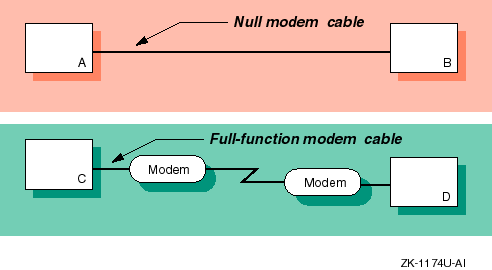
In the UUCP environment, systems can be connected to each other in the following ways:
Directly connected to each other, if they are in close proximity.
Connected through modems and a telephone network, if they are not in close proximity.
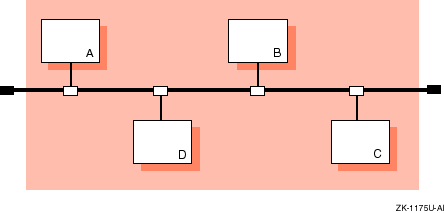
Connected through a local area network (LAN), if they are not in close proximity.
Figure 9-1 shows two simple UUCP configurations. Figure 9-2 shows a sample UUCP configuration on a LAN in which Host A has a TCP/IP connection with Host C.
This section describes those tasks you need to do before configuring UUCP.
In verifying the correct hardware, you are verifying both the cables and modems, if used.
Make sure you are using the correct cable to connect to the serial port of your system. If you do not, you might experience signal degradation and the software will fail to function properly.
If the two systems are in close proximity to each other, use one of the null modem cables listed in Table 4-1.
If the two systems are connected through modems and telephone lines, see Table 4-6 for a list of modem cables to use. When using modems with UUCP, make sure that both the local and the remote modems are correctly configured.
UUCP can also be configured to run over TCP/IP local area networks (LANs).
For information on running UUCP over a LAN, see
uucp_manual_setup(7).
UUCP configuration consists of the following parts:
Defining connection information for your system
Defining dial-up information for outgoing calls
Defining information for receiving incoming calls
The type of information you need depends on the types of connections you plan to set up and use.
Appendix A contains a worksheet that you can use to record the information that you need to provide to configure UUCP.
Figure 9-3 shows Part 8A of the Configuration Worksheet.
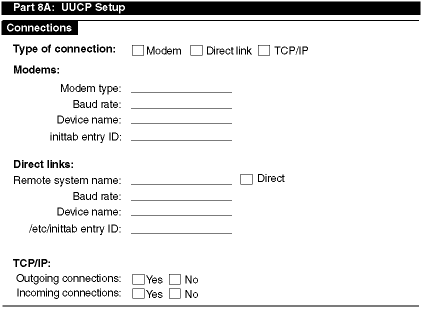
If you are viewing this manual online, you can use the print feature to print a copy of this part of the worksheet. The sections that follow explain the information you need to record in Part 8A of the worksheet.
The types of connections you want to configure. You can configure one or all of the following connections:
Modems -- Modems enable you to use UUCP over analog transmission facilities, which include telephone lines.
Direct (hardwired) links -- Direct hardwired links connect systems with cables.
TCP/IP -- Connections using the TCP/IP protocol.
For modem connections, supply the following information:
The type of modem you want to use.
The supported devices
are listed in the
/usr/lib/uucp/Devices
file.
For more
information, see
uucp_manual_setup(7).
The speed at which the modem is to operate; for example: 1200, 2400, 9600, or any.
The name of the tty device that you want the modem to use,
as listed in the
/dev
directory.
If you are unsure of the
terminal device, see
port(7).
The process ID for the
uugetty
process
entry in the
/etc/inittab
file.
The
uugetty
process sets up speed, terminal flags, and the line discipline for managing
terminals.
For more information, see
uugetty(8).
Note
The
uugettycommand should only be run on RS-232 lines, not printer or console lines.
For direct link connections, supply the following information:
The type of direct link. If you want to connect to a specific remote system, enter the name of the remote system. This restricts connections to that system only.
If you want to connect to any system to which you have a direct hardwired connection, check Direct.
The speed at which the direct link is to operate; for example: 1200, 2400, or 9600.
The name of the tty device that you want the direct link to
use, as listed in the
/dev
directory.
If you are unsure
of the terminal device, see
port(7).
The process ID for the
uugetty
process
entry in the
/etc/inittab
file.
The
uugetty
process sets up speed, terminal flags, and the line discipline for managing
terminals.
For more information, see
uugetty(8).
Note
The
uugettycommand should only be run on RS-232 lines, not printer or console lines.
For TCP/IP connections, supply the following information:
If you want to configure UUCP to place outgoing calls over
TCP/IP, check Yes.
When you enable UUCP to place outgoing calls over TCP/IP,
an entry for TCP/IP is added to the
/usr/lib/uucp/Devices
file.
Otherwise, check No.
If you want to configure UUCP to accept incoming calls over
TCP/IP, check Yes.
When you enable UUCP to accept incoming calls over TCP/IP,
the
/etc/inetd.conf
file is modified.
In addition, you
must stop and restart the
inetd
daemon to be able to accept
UUCP calls over TCP/IP.
Otherwise, check No.
Figure 9-4 shows Part 8B of the Configuration Worksheet.
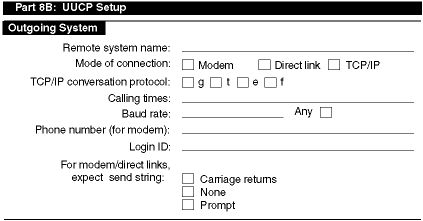
If you are viewing this manual online, you can use the print feature to print part of the worksheet. The following sections explain the information you need to record in Part 8B of the worksheet.
The name of the remote system to which you plan to connect.
The mode of the connection. Check modem, direct hardwired, or TCP/IP. You must configure the mode of the connection with the information from Section 9.2.2.1.
For TCP/IP connections, the TCP/IP conversation protocol, which can be one of the following:
g
-- Specifies to use the default
protocol, which provides error checking.
t
-- Presumes an error-free channel
and therefore is not reliable for use with modem connections.
e
-- Used to communicate with sites
that are running both Tru64 UNIX and other UNIX versions of UUCP.
f
-- Relies on flow control of the
data stream.
It is meant for working over links that can virtually be guaranteed
to be error free, specifically X.25/PAD links.
The times when your system is allowed to connect to the remote host. You can select the following times:
Any time of any day
Evenings -- Monday to Friday 5 p.m. to 8 a.m.; Saturday and Sunday, all day
Any three nights -- You can choose the three nights from the following:
Monday to Friday, 11 p.m. to 8 a.m.
Saturday, all day
Sunday, until 5 p.m.
Never
The baud rate that corresponds to a device you configured
in the
/usr/lib/uucp/Devices
file, or you can specify
any, if the device can be used at any speed.
For modem connections, the telephone number of the remote system. You can enter the complete telephone number or a dialing prefix and the telephone number.
A dialing prefix is defined in the
/usr/lib/uucp/Dialcodes
file.
The
/usr/lib/uucp/Dialcodes
file contains
dial code abbreviations and partial phone numbers that complete the telephone
entries in the
/usr/lib/uucp/Systems
file.
Entries in
the
/usr/lib/uucp/Dialcodes
file contain an alphabetic
prefix attached to a partial phone number that can include, for example, access
codes, area codes, and exchange numbers.
If you know the dialing prefix, enter it on the worksheet. If none is defined, enter it and the sequence of numbers to be associated with the prefix.
The login name for your system on the remote system.
This
must match the information in the
/etc/passwd
file on the
remote system.
Ask the administrator of the remote system for the login name
and password that is assigned to your system on the remote system.
The administrator
of the remote system must include the login name and password for your system
in the remote system's
/etc/passwd
file.
Note
Although the password for the login ID on the remote system is required in order to configure UUCP, do not write the password on this worksheet to protect system security.
The expect-send string to be used immediately before performing the login on the remote system. You can choose one of the following:
To send a series of carriage returns before expecting any characters from the remote system
To specify no expect-send strings
To be prompted to enter expect-send strings
Modems usually use a series of carriage returns as an expect-send string.
For more information on
expect-send
strings,
see
Systems(4).
Figure 9-5 shows Part 8C of the Configuration Worksheet.
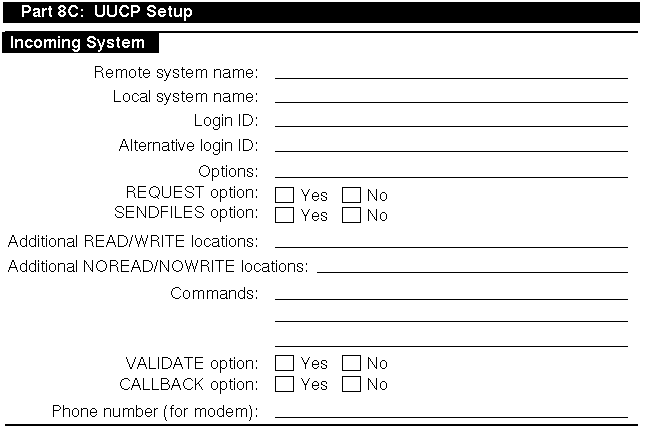
If you are viewing this manual online, you can use the print feature to print a copy of this part of the worksheet. The sections that follow explain the information you need to record in Part 8C of the worksheet.
The name of the remote system you want to allow to establish incoming UUCP connections.
The name of your system. The default provided is the name that you assigned your system at installation.
The login ID for the remote system.
The login ID is automatically
added to the
/etc/passwd
file on your system.
By convention, the login ID that you assign to a remote system establishing incoming connections is the system name prefixed with a U (uppercase u). For example, if you specify machine1 for incoming connections, the login ID, by convention, is Umachine1; however, you can select any login ID.
You also have the option of adding a comment to the
/etc/passwd
file for this login ID.
You have the option to assign more than one login ID for each incoming system. Assigning multiple logins to a remote system allows you to maintain better access control for users on the remote system. With multiple logins, you can grant privileged users on the remote system more access on your system than you do to nonprivileged users. With multiple logins, you can assign multiple sets of permissions.
You must provide this information to the administrator of each remote system that will connect to your system as an incoming system.
If you want a remote system to ask for any queued work on the local system that is meant for that remote system, check Yes; otherwise, check No.
If you check Yes, remote system users can transfer files to and execute commands on a local system more easily. If security is a consideration, you can restrict this access so that the local system retains control of file transfers and command executions initiated by remote systems.
If you want the local system to try to send queued work to the calling remote system after the remote computer finishes transferring files to or executing commands on the local system, check Yes; otherwise, check No.
Security considerations at your site might require that you limit a
remote system's access to the local system by using the default value
CALL
for this option.
If you do not specify pathnames in the
READ
and
WRITE
options,
uucp
permits files
to be transferred only to the
/usr/spool/uucppublic
directory.
However, if you specify pathnames in these options, you must enter the pathname
for every source and destination.
If you enter a pathname in either option,
you must also explicitly specify the public directory if you want the
uucico
daemon to be allowed to place files in that location.
These options allow you to explicitly specify directories
and files on the local system to which the remote system cannot transfer data.
These are exceptions to the
READ
and
WRITE
options.
A list of commands the remote system is allowed to run on
the local system.
If you list a set of commands, that list comprises the new
default command set for the systems listed in the MACHINE entry of the
/usr/lib/uucp/Permissions
file.
The default is the command
rmail
only.
If you want the calling remote system to use a specific ID and password, check Yes; otherwise, check No.
If you use this option, no other ID from the remote system can call
in.
Several systems, however, can use the same ID.
The
VALIDATE
option is meaningful only when the login ID and password are protected.
If you want the local system to contact the remote system before the remote system can transfer any files to the local system, check Yes; otherwise, check No.
If both systems use the
CALLBACK
option in their
respective
Permissions
files, they will never be able to
communicate with each other.
For modem connections, the phone number and speed of the modem attached to the local system. You must provide this information to the administrator of each remote system that will connect to your system as an incoming system.
After you complete the required
UUCP planning (Section 9.2), use the
uucpsetup
script to configure UUCP.
To invoke the
uucpsetup
script,
log in as superuser and either choose the UNIX-to-UNIX Copy Program (UUCP)
option from the Setup Menu or enter the following command:
#/usr/sbin/uucpsetup
The
uucpsetup
script prompts you for information
required to configure connections, incoming systems, and outgoing systems.
Table 9-1
summarizes the various
uucpsetup
command syntaxes:
| Use this command: | If you want to: |
uucpsetup |
Configure connections, incoming systems, and outgoing systems |
uucpsetup -i |
Configure the incoming systems only |
uucpsetup -m |
Modify UUCP connections |
uucpsetup -o |
Configure the outgoing systems only |
uucpsetup -p |
Configure the
Poll
file |
For information about other options, see
uucpsetup(8).
The following sections provide information on how to configure connections,
incoming systems, outgoing systems, and the
Poll
file.
After
you invoke
uucpsetup, use the the information you gathered
in
Section 9.2.2.1
to configure UUCP connections.
The following guidelines explain how to answer some of the script questions:
Device names -- The script lists the available device names. Enter the last letter or number of the device that you want the modem to use. For example, if you want to use tty01, enter 1.
/etc/inittab
entry ID -- The script
prompts you for the
Identifier
field and asks if
this entry will be used in shared mode.
It automatically supplies information
for the other fields.
No two processes can have the same ID.
The following example illustrates how to select the process ID (PID) u4:
Select an ID for the process in /etc/inittab fileFor example type 'u1':u4
The ID that you select is checked against those that exist in the
/etc/inittab
file.
If the ID that you assign exists, the
uucpsetup
script prompts you to enter another ID.
You must also indicate whether the system will use the modem or direct line in shared mode.
For more information on the
/etc/inittab
file, see
inittab(4).
After you invoke the
uucpsetup
script, use the the information you gathered in
Section 9.2.2.2
to configure UUCP for outgoing systems.
This enables you to use UUCP to connect
to other remote systems.
If you are doing a complete UUCP setup, the
uucpsetup
script prompts you for information on outgoing systems when you finish configuring
connections.
The following guidelines explain how to answer some of the script
questions:
Phone number -- If you choose a dialing prefix and the
telephone number, the script prompts you to enter a prefix to be defined in
the
/usr/lib/uucp/Dialcodes
file.
After you enter the
prefix, the script prompts you for the meaning of the prefix.
Enter the sequence
of numbers that you want the system to substitute for the prefix.
The following
example illustrates how to define the prefix btown to be the dialing sequence
1617772:
Enter the prefix for the Dialcodes file; for example "boston"stands for 9=16171234 :btownWhat telephone number does the prefix stand for; Please includethe long distance access code, area, or country codes;for example type 9=1617123 :9=1617772
The 9 in this example is used to obtain a secondary dial tone. The 9 is site specific; it can be different for your site. The equal sign (=) is used with the 9, or number for your site, and means "wait for the dial tone." Following the equal sign (=) is the rest of the number. Enter the rest of the number.
Password -- For security considerations, the password is not written on the worksheet. However, when the script prompts for it, you must enter it.
If you define an outgoing TCP system, edit the
/etc/uucp/Systems
file and add an entry for the remote system.
The remote system
name must be the fully qualified name.
After you invoke the
uucpsetup
script, use the the information you gathered in
Section 9.2.2.3
to configure UUCP for incoming systems.
This enables specific remote systems
to connect to your system using UUCP.
If you are doing a complete UUCP setup, the script prompts you for information on incoming systems when you are done configuring outgoing systems.
The first time you add an incoming system, the Incoming Systems Configuration menu prompts you for the name of the system you want to add. After you add an incoming system, this menu offers you the following choices:
Specify a remote system name.
Specify options for all the other systems not specified in
the
Permissions
file but listed in the
Systems
file.
Neither.
If you choose this option, the script terminates
and the defaults for the options are not entered in the
Permissions
file.
The following guidelines explain how to answer some of the script questions:
Password -- The script invokes the
vipw
command for you to enter the password for the incoming system.
Press Return
and, after viewing the entry in the
/etc/passwd
file, exit
the editing session by entering
:wq.
Then supply a password
for the new entry:
Invoking 'vipw'. Press RETURN to continue...[Return]root:fQPPWjF20Dfso:0:1:Charles Root:/:/bin/csh nobody:*Nologin:4294967294:4294967294:anonymous NFS user:/: daemon:*:1:1:Mr Background,,,:/: uucp:No Login:2:2:UNIX-to-UNIX Copy:/usr/spool/uucppublic:\ /usr/lib/uucp/uucico bin:*:3:4:Mr Binary:/bin: marcy:5jW0VXKeP6n1E:1242:15:Marcy Darcy,,,:\ /usr/users/marcy:/bin/false Umachine1:H/kj951Fq12ub:2:2:uucp login:/usr/spool/uucppublic:\ /usr/lib/uucp/uucico ~ ~ ~ "/etc/ptmp" 15 lines, 933 characters:wq15 password entries, maximum length 100 You must enter a password Changing password for Umachine1. New password: Retype new password:
You must provide this information to the administrator of each remote system that will connect to your system as an incoming system.
Commands -- The script prompts you for each command separately.
If you define an incoming UUCP system and your system uses NIS, edit
the
/etc/passwd
file and add the wildcard (+:) as the last line (if not there already).
After you invoke the
uucpsetup
script with the
-p
option, you configure
the
/usr/lib/uucp/Poll
file by completing the following
steps:
Enter 1 (Configure the Poll file) from the Poll File Configuration Menu.
Enter the name of the remote system, which has been configured
in the
/usr/lib/uucp/Systems
file as an outgoing system.
Enter the sequence of hourly intervals. For example, to have the system polled every 4 hours, enter 0 4 8 12 16 20.
Press Return to update the
Poll
file.
To add another system to the
Poll
file,
enter y; otherwise, press Return to exit
uucpsetup.
Monitoring the file transfer queue enables you to determine the status of several types of networking operations, including jobs that have been queued on a local system for transfer to a remote system. General users and system administrators can monitor the file transfer queue.
To get queue status manually, use the
uustat -q
command.
This command lists the jobs (waiting to execute or currently executing) queued for all systems. If a status file exists for a system, its date, time, and status information are reported.
The
uustat
command also allows you to do the following:
Get information about the status of mail activities.
Control
uucp
jobs queued to run on remote
systems.
Check the status of
uucp
connections to
other systems, using the
-m
flag.
Cancel transfer requests, using the
-k
flag.
Monitor requests for file transfers generated with the
uucp
and
uuto
commands, and requests for command
executions generated with the
uux
command.
See
uustat(1)
for more information on
uustat
flags.
The following example shows all jobs in the current queue: one command file for system host4, three command files for system host6, and two command files for system host8. The command files for system host6 have been in the queue for 2 days.
#uustat -qhost4 1C Sat May 9 11:12:30 1992 SUCCESSFUL host6 3C(2) Sat May 9 11:02:35 1992 CAN'T ACCESS DEVICE host8 2C Sat May 9 10:54:02 1992 NO DEVICES AVAILABLE
You can automatically receive status information about the
uucp
file transfer queue.
To enable this mechanism, edit the
/usr/spool/cron/crontabs/uucp
file and delete the comment character
(#) from the beginning of the following line:
# 48 8,12,16 * * * /usr/lib/uucp/uudemon.admin > /dev/null
48 |
Represents minutes |
8,12,16 |
Represents hours based on 24-hour clock notation |
* * * |
Three asterisks are placeholders representing the day of the month, the month of the year, and the day of the week |
The
cron
daemon
will run the
uudemon.admin
shell script daily at 48 minutes
past the hours 8, 12, and 16; that is, at 8:48 a.m., 12:48 p.m., and 4:48
p.m.
The
uudemon.admin
script sends mail to the
uucp
login ID containing queue status information.
Note
These times are the defaults. You can change the time to fit the needs of your site by editing the line in the
/usr/spool/cron/crontabs/uucpfile.
You can also manually run the
uudemon.admin
script.
If you do, you should run it at least once a day.
When examining queue status, check the
number and age of the file-transfer and command execution requests queued
in the
/usr/spool/uucp/system_name
directory.
In some cases, queued jobs remain in the queue for some time,
essentially going undelivered.
The status information you need to check includes:
The age in days of the oldest request in each queue
The number of times the local system has tried and failed to reach the specified computer
The reason for the failure to contact the specified system
See Appendix F for error messages and solutions.
If necessary, delete the files in the queue, either manually or automatically. See Section 9.5 for information on deleting files.
Each system connected by UUCP has the following spooling directories:
The
/usr/spool/uucp/system_name
directory is the UUCP spooling directory.
It contains queued local requests
for file transfers and command executions on remote systems.
These files
are removed by the
uucp
program after they are transferred
to the designated system.
The
/usr/spool/uucppublic
directory is
the UUCP public directory.
When a user transfers a file to a remote system
or issues a request to execute a command on an other system, the files generated
by these UUCP commands are stored in the public directory on the designated
system.
Depending upon the size of your installation and the number of files
sent to the local
/usr/spool/uucppublic
directory by users
on remote systems, the public directory can become quite large.
Similarly,
if requests are not transferred to remote systems for whatever reasons, the
spooling directory could also become quite large.
Therefore, part of UUCP
management is to clean up the spooling directories and conserve disk resources.
To clean up the spooling directories manually, do the following:
Log in as root.
Remove files by using the
uucleanup
command,
with the
following
syntax:
uucleanup
[options...]
The
uucleanup
program performs the following tasks:
Informs the system manager of requests to send files to and receive files from remote systems that the local system cannot contact.
Warns users about requests that have been waiting in the spooling directory for a given period of time. The default is 1 day.
Returns to the original sender mail that cannot be delivered.
Removes all other files older than a specified number of days from the spooling directory.
Note
Depending on the size of your installation and the available storage space on the local system, you can set the age limit for any length of time. However, you should allow files to remain in the spooling directory for at least the default number of days.
See
uucleanup(8)
for more information on the
uucleanup
command options.
The following example deletes all old files in the UUCP spooling and public directories for system host2 on the local system:
#uucleanup -shost2
Although automatic cleanup is not enabled when UUCP is installed, you can enable it by doing the following:
Log in as root.
Edit the
/usr/spool/cron/crontabs/uucp
file and delete the comment character (#) from the beginning of the following
line:
# 45 23 * * * ulimit 5000; /usr/lib/uucp/uudemon.cleanu > /dev/null
45 |
Represents minutes |
23 |
Represents hours based on 24-hour clock notation |
* * * |
Three asterisks are placeholders representing the day of the month, the month of the year, and the day of the week |
The
cron
daemon will start the
uudemon.cleanu
shell script daily at 45 minutes after hour 23; that is, at 11:45
p.m.
The shell script in turn starts the
uucleanup
program.
This time is the default.
You can change the time to fit the needs of your
site by editing the line in the
/usr/spool/cron/crontabs/uucp
file.
You can instruct the
cron
daemon to run the
uudemon.cleanu
shell script daily, weekly, or at longer intervals,
depending on the number of
uucico
and
uuxqt
transactions that occur on the local system.
The
uudemon.cleanu
script incorporates the actions of the
uucleanup
program and performs the following additional tasks:
Locates and deletes empty directories and files older than
30 days from the
/usr/spool/uucppublic
directory.
This
helps keep the local file system from overflowing when users send files to
the public directory.
If the local system does not have enough storage space
to accommodate a large
/usr/spool/uucppublic
directory,
you can change the 30-day default to a shorter time period by modifying the
uudemon.cleanu
shell script.
Cleans up all the
uucp
spooling directories,
including the public directories, unless you direct it to clean up only the
directories of a specific system by issuing the
uucleanup -s
system_name
command.
Updates archived log files, removing log information more
than 2 days old.
The script removes log files for individual
computers from the
/usr/spool/uucp/.Log
directory, merges
them, and places them in the
/usr/spool/uucp/.Old
directory,
which contains old log information.
Mails a summary of the status information gathered during the current day to the UUCP login ID. You can modify the script to send status information to other login IDs, such as root.
The operating system allots UUCP a specified amount of storage space
for any one log file; the number of blocks is determined by the default
ulimit
value.
If the
uudemon.cleanu
script fails
to execute because the
ulimit
value is set too low for
the requirements of the local system, you should increase the value.
See
uudemon(8)
for more information on command options.
When removing files from the queue, observe the guidelines for the following files:
Execute files -- Usually, you can remove execute files
that have been in the
queue for at least 2 days, using either the
uucleanup
or
uudemon.cleanu
script.
The execute files
are still queued because the data files required to execute the specified
command on the designated system were not transferred.
Since data files are
generally sent at the same time as execute files, the transfer probably failed
at the point of destination.
Execute files are named
X.filename
and data files are named
D.filename.
Command files -- Before removing old command files, make
every possible
effort to establish the connection and transfer the files.
You
can then remove these files by using either the
uucleanup
or
uudemon.cleanu
script.
Command files are named
C.filename.
The
uucp
program creates a
log file for each remote system with which your local system communicates.
Each time you use the networking utilities facility,
uucp
places status information about each transaction in the appropriate log file.
Log file names can be in either of the following forms:
/usr/spool/uucp/.Log/daemon_name/system_name
/usr/spool/uucp/.Log/command_name/system_name
| daemon_name | Represents either
uucico
(called by the
uucp
and
uuto
commands) or
uuxqt
(called by the
uux
command) |
| command_name | Represents either
uucp
or
uux |
| system_name | Represents the name of the system with which your local system is communicating |
To
display individual log files, use the
uulog
command, with
the following syntax:
uulog
[options...]
You can use the
uulog
command to display a summary
of
uucp
and
uux
requests by user or
by system.
See
uulog(1)
for more information on the
uulog
command and its options.
Instead
of viewing the log files individually, you can have the
uudemon.cleanu
script automatically append these log files to one primary log
file, and then view only the one log file.
The
uudemon.cleanu
script combines the
uucico,
uuxqt,
uux, and
uucp
log files on a system and stores
them in a directory named
/usr/spool/uucp/.Old.
By default,
the
uudemon.cleanu
script saves log files that are up to
2 days old.
You can change the default by modifying the
-o2
option in the following line in the
uudemon.cleanu
script:
uucleanup -D7 -C7 -X2 -o2 -W1
If storage space is a problem on a particular system, consider reducing
the number of days that the files are kept in the individual log files.
See
Section 9.5
for information on setting up the
uudemon.cleanu
script.
The following command displays the log file for
uucico
requests for system host2:
#uulog -s host2
The following command displays the log file for
uuxqt
requests for system host1:
#uulog -x host1
The following command displays the last 40 lines of the file transfer
log for system host6 and executes a
tail -f
command.
Press Ctrl/C to terminate the command.
#uulog -f host6 -40
The following two system log files
are affected by the
uucp
program:
The
/usr/adm/sulog
file contains a history
of superuser
(su) command usage.
The
uudemon
entries in the
/usr/spool/cron/crontabs/uucp
file each use the
su
command.
The
/usr/adm/cron/log
file contains a history
of all the
processes generated by the
cron
daemon.
Both files can grow quite large over a period of time. Purge these files periodically to keep them at a reasonable size. See System Administration for information on these files.
The
Maxuuxqts
file, located in the
/usr/lib/uucp
directory, limits the number of
uuxqt
processes running
simultaneously on a local system.
Typically, the file requires no configuration
or maintenance unless the system on which it is installed is utilized frequently
and heavily by users on remote systems.
To change the number of
uuxqt
processes on the system,
edit the
Maxuuxqts
file and change the ASCII number to
meet the needs of your installation; the default is 2.
In general, the larger
the number, the greater the potential load on the local system.
When users issue
uucp
commands to copy files and execute remote commands, the files containing
these work requests are queued for transfer in the local
/usr/spool/uucp/system_name
directory.
The
uucp
daemon
uusched
schedules the transfer of these files.
To
schedule jobs, start the
uusched
daemon by using the
uusched
command, with the following syntax:
uusched
[options...]
The following options are available:
-x
debug_level |
Produces debugging information about the
progress of the
uusched
activity.
The valid range for
the debugging level is 0 to 9, with a default of 5.
Higher numbers produce
more detailed debugging information. |
-u
debug_level |
Passes the
-x
debug_level
specification on to the
uucico
daemon, which then produces debugging output about the file-transport
activities. |
Although you can start the
uusched
daemon manually, the preferred method is to start it automatically
at specified intervals by using the
uudemon.hour
shell
script, which is stored in the
/usr/lib/uucp
directory.
The shell script, in turn, is started periodically by the
cron
daemon, based on instructions in the
/usr/spool/cron/crontabs/uucp
file.
The
/usr/lib/uucp/Maxuuscheds
file limits the number of remote systems
that the
uucico
program can contact at any one time.
This
file is used in conjunction with the
uusched
daemon and
the lock files in the
/usr/spool/locks
directory to determine
the number of systems currently being polled.
The
Maxuuscheds
file requires no configuration or
maintenance unless the system on which it is installed is utilized frequently
and heavily by users on remote systems.
You use this file to help manage
system resources and load averages.
The
Maxuuscheds
file contains an ASCII number that
you can change in order to meet the needs of your installation; the default
is 2.
In general, the larger the number, the greater the potential load on
the local system.
See
uusched(8)
for more information on the
uusched
command and its options.
The following command starts the
uusched
daemon manually
as a background process:
#/usr/lib/uucp/uusched &
The
uudemon.hour
shell script is used in conjunction with the
Poll
file, the
uudemon.poll
shell script, and
the
/usr/spool/cron/crontabs/uucp
file to initiate calls
to remote systems.
Specifically,
uudemon.hour
calls programs
involved in transferring files between systems at specified hourly intervals.
You can instruct the
cron
daemon to run the
uudemon.hour
shell script
at specified hourly intervals.
The frequency at which you run the script
depends on the amount of file transfer activity originating from the local
computer.
Although the
uudemon.hour
shell script is not enabled
when UUCP is installed, you can enable it by doing the following:
Log in as root.
Edit the
/usr/spool/cron/crontabs/uucp
file and delete the comment character (#) from the beginning of the following
line:
# 25,55 * * * * /usr/lib/uucp/uudemon.hour > /dev/null
25,55 |
Represents minutes past the hour |
* * * * |
Four asterisks are placeholders representing the hour interval, the day of the month, the month of the year, and the day of the week |
The
cron
daemon will run the
uudemon.hour
script at 25 minutes past the hour and again at 55 minutes past
the hour; for example, at 8:25 a.m.
and 8:55 a.m., 9:25 a.m.
and 9:55 a.m.,
and so on.
These times are the defaults.
You can change the time to fit the needs
of your site by editing the line in the
/usr/spool/cron/crontabs/uucp
file.
If users on the local system initiate a large number of file transfers,
you might need to specify that the
cron
daemon should start
the
uudemon.hour
script several times an hour.
If the
number of file transfers originating from the local system is low, you can
probably specify a start time once every 4 hours, for example.
The
uudemon.poll
shell script is used in conjunction
with the
Poll
file, the
uudemon.hour
shell script, and the
/usr/spool/cron/crontabs/uucp
file
to initiate calls to remote systems.
The
uudemon.poll
shell script polls the systems listed in the
/usr/lib/uucp/Poll
file.
In addition, it creates command files for the systems listed in the
Poll
file.
The time at which
you run the
uudemon.poll
script depends on the time at
which you run the
uudemon.hour
script.
You generally schedule
the polling shell script to run before the hourly script.
This schedule enables
the
uudemon.poll
script to create any required command
files before the
cron
daemon runs the
uudemon.hour
script.
Although the
uudemon.poll
script is not enabled when
UUCP is installed, you can enable it by doing the following:
Log in as root.
Edit the
/usr/spool/cron/crontabs/uucp
file and delete the comment character (#) from the beginning of the following
line:
# 20,50 * * * * /usr/lib/uucp/uudemon.poll > /dev/null
20,50 |
Represents minutes past the hour |
* * * * |
Four asterisks are placeholders representing the hour interval, the day of the month, the month of the year, and the day of the week |
The
cron
daemon will run the
uudemon.poll
script at 20 minutes past the hour and again at 50 minutes past
the hour, for example, at 8:20 a.m.
and 8:50 a.m., 9:20 a.m.
and 9:50 a.m.,
and so on.
These times are the defaults.
You can change the times at which the
cron
daemon executes the
uudemon.poll
script
to correspond to the times you set up for the
uudemon.hour
script.
You should instruct the
cron
daemon to run the
uudemon.poll
script about 5 to 10 minutes before running the
uudemon.hour
script.