The Tru64 UNIX system supports point-to-point connections using the following protocols:
Serial Line Internet Protocol (SLIP)
Point-to-Point Protocol (PPP)
This chapter describes both environments, how to plan for both environments, how to configure your system for both environments, and how to manage both environments.
The Serial Line Internet Protocol (SLIP) is a protocol used to
run IP over serial lines between two hosts.
You can connect the two hosts
either directly or over telephone circuits using modems.
TCP/IP commands
(such as
rlogin,
ftp, and
ping) can be run over the SLIP connection.
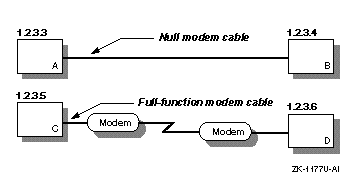
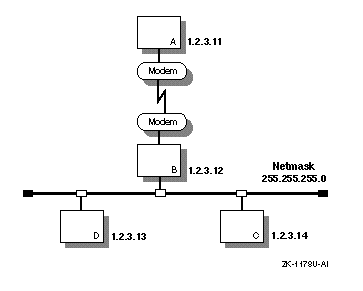
In the SLIP environment, systems can be directly connected to each other, if they are in close proximity, or connected through modems and a telephone network, if they are not. Figure 4-1 shows both of these simple SLIP configurations. Figure 4-2 shows a SLIP connection between two systems with HOSTB acting as a gateway system.
This section describes the tasks you must complete before configuring SLIP.
When you verify the hardware, you verify both the cables and modems, if used.
Make sure you use the correct cable to connect to the serial port of your system. If you do not, you might experience signal degradation and the software will fail to function properly.
If the two systems are in close proximity to each other, use one of the null modem cables listed in Table 4-1.
| Cable Number | Description |
BC22D-xx
[Footnote 2]
|
Asynchronous null modem cable (male DB25 pin to female DB25 pin cable) |
BC22R-xx
[Footnote 2] |
RS-232 null modem cable (male DB25 pin to female DB25 pin cable) |
BC24C-xx
[Footnote 2] |
25-wire null modem cable (male DB25 pin to female DB25 pin cable) |
BC29Q-xx
[Footnote 2] |
Male DB9 pin to female DB9 pin cable |
If the two systems are connected through modems and telephone lines, see Table 4-6 for a list of modem cables to use.
When using modems with SLIP, adhere to the following guidelines:
Use modems that can handle a serial port speed of 38,400 bits per second (bps). If the modems you plan to use cannot handle a serial port speed of 38,400 bps, you should set them to the highest speed to which they can be set.
Use modems that are V.34bis compliant with V.42bis compression. Alternatively, you can use modems that support the Microcom Network Protocol (MNP) because both V.42bis and MNP implement a subset of the other protocol.
Set the modems to 8 bits, no parity, and connect them to the telephone network.
Use hardware control flow, if possible. High-speed modems often fall back to a lower data rate when line degradation occurs.
Note
Do not use software flow control (XON/XOFF). It will corrupt the data stream causing the TCP layer over IP to issue retransmit requests for overruns.
After you verify the communication hardware, you set up the system to run SLIP. Appendix A contains a worksheet that you can use to record the information that you need to provide to configure SLIP. If you are viewing this manual online, you can use the print feature to print part of the worksheet.
Figure 4-3 shows Part 3A of the Configuration Worksheet. The following sections explain the information you need to record in Part 3A of the worksheet.
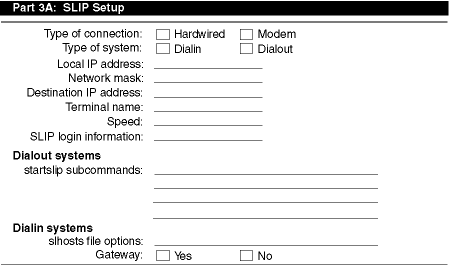
Check Hardwired if the two systems are connected by a null modem cable, such as BC22D-xx. Check Modem if the two systems are connected by modem cables, modems, and telephone network.
Check Dial-in if the system is to answer calls from remote systems. Check Dial-out if the system is to place calls to a remote system.
Your system's SLIP interface IP address.
Each SLIP interface
must have an IP address.
For more information on SLIP, see the
Technical Overview
and
startslip(8).
Your network's subnetwork mask. This must be the same for both systems. See Section 2.2 for more information on the network mask.
The destination system's SLIP interface IP address.
The name of a valid terminal device in the
/dev
directory that has a cable connection.
This can be either the full path name
(for example,
/dev/tty00) or the name in the
/dev
directory (for example,
tty00).
For more
information on the terminal line specification, see
startslip(8).
If you are
unsure of the terminal device, see
port(7).
The serial port speed used to connect the systems to each
other or a system and the modem.
The default speed is 9600 bps.
For more information
on the speed, see
startslip(8).
The login information for the SLIP connection. This includes user name, password, and login sequence; for example, the login prompt used on dial-out connections.
For dial-out systems,
Table 4-2
shows the minimum
startslip
subcommands to specify in a
setup script file that you create.
Table 4-3
shows the optional
startslip
subcommands.
| Subcommand | Information Required |
myip |
Your system's IP address. |
dstip |
The destination system's IP address. |
netmask |
The network mask for the subnetwork. |
hardwired |
None. Specifies that the two systems are connected by a null modem cable. |
modemtype |
The type of modem used, unless you have a direct connection. |
opentty |
The serial line and line speed. |
dial |
The telephone number to dial. |
expect |
The information that you expect to receive on the serial line; for example, login sequences. |
send |
The information that you want to send on the serial line. |
connslip |
Configured the network interface and attaches the serial line to the network interface. |
| Subcommand | Description |
debug |
This generates debugging messages to the log file specified. |
gateway |
Specifies that the destination system is a gateway to another system on a LAN. |
icmpsup |
Suppresses Internet Control Message Protocol
(ICMP) traffic.
ICMP traffic (such as that generated by the
ping
command) is not permitted to be sent over the SLIP connection.
This frees line bandwidth for more critical traffic. |
tcpcomp |
Compresses TCP headers before they are sent over the SLIP connection. Compressing the TCP header allows for faster data transfers. The remote system must support this option to decompress the headers when they arrive at the remote end. |
tcpauto |
The local system compresses TCP headers when it detects that the remote system is compressing them. This option can be useful if you do not know whether the remote system is doing TCP header compression. |
Note: If the
tcpauto
option is enabled on both systems, TCP header compression does
not occur.
One of the two systems must explicitly enable TCP header compression. |
See
startslip(8)
for a complete list of the
startslip
subcommands.
For dial-in systems,
Table 4-4
shows
a list of options for each SLIP link specified in the
/etc/slhosts
file.
| Option | Description |
debug |
This generates debugging messages to the
daemon.log
file. |
icmpsup |
Suppresses Internet Control Message Protocol
(ICMP) traffic.
ICMP traffic (such as that generated by the
ping
command) is not permitted to be sent over the SLIP connection.
This frees line bandwidth for more critical traffic. |
tcpauto |
The local system compresses TCP headers when it detects that the remote system is compressing them. This option can be useful if you do not know whether the remote system is doing TCP header compression. This is the default. |
tcpcomp |
Compresses TCP headers before they are sent
over the SLIP connection.
Compressing the TCP header allows for faster data
transfers.
The remote system must support this option to decompress the headers
when they arrive at the remote end.
Do not specify the
tcpcomp
and
tcpauto
options together. |
See
slhosts(4)
for more information.
For dial-in systems, if your system is to act as a gateway for a dial-out system to access the LAN, check Yes; otherwise, check No.
To configure SLIP, you must have verified the communications hardware and completed the configuration worksheet. A system in a SLIP environment can have one of the following roles:
Dial-in system
Dial-out system
You edit some system files and use the
startslip
program to configure both dial-in connections and dial-out connections.
If the system is to answer calls from remote systems, you want to establish a dial-in connnection. To configure a dial-in system, log in as root and complete the following steps:
Set up your modem for dial-in access. See Section 4.3.2 for more information.
Note
It is best to use a
gettyprocess for SLIP dial-in access.
Edit the
/etc/passwd
file and create a
dedicated entry for a SLIP user.
For the login shell field, specify
/usr/sbin/startslip.
The login name you specify here is used to
find an entry in the
/etc/slhosts
file; for example:
slip1:password:10:20:Remote SLIP User:/usr/users/guest:/usr/sbin/startslip
Edit the
/etc/slhosts
file and create an
entry for the login name using the information from the worksheet.
The
/etc/slhosts
file entry has the following syntax:
login_name remote_ip local_ip netmaskoption
For example, if Host D is the dial-in system in Figure 4-1, the entry is as follows:
slip1 1.2.3.6 1.2.3.5 255.255.255.0 nodebug
See
slhosts(4)
for more information.
Edit the
/etc/inittab
file and create an
entry for each terminal device that is to run SLIP.
For example:
modem:3:respawn:/usr/sbin/getty /dev/tty00 M38400 vt100
See
inittab(4)
for more information.
Issue the
init q
command to start the
getty
process immediately.
If the dial-in system will be a gateway for the dial-out system
to
reach
other systems on the LAN, the dial-in system must be configured as an IP router
and must also run
gated.
See
Chapter 2
for basic network setup information.
If any problems occur while using SLIP, see Chapter 13.
If the system is to place calls to a remote system, you want to establish a dial-out connection. To configure a dial-out connection, log in as root and complete the following steps:
Verify that there is an entry for your modem name in the
/etc/acucap
file.
If your modem does not have an entry in the
/etc/acucap
file, do the following:
Copy an entry similar to that of your modem.
Modify the modem attributes to match your modem's attributes.
Set up
the modem for dial-out access by including the
AT commands listed in
Table 4-5
in the synchronization
string (ss) of the entry.
The other modem settings can
remain as they are.
| Command | Description |
at&c1 |
Normal Carrier Detect (CD) operation. Tells the modem to not raise Carrier Detect until it sees Carrier Detect from the other modem. |
at&d2 |
Normal Data Terminal Ready (DTR) operation. This tells the modem to hang up the line when DTR drops; for example, when the user logs off the system. |
ate1 |
Turns on echoing. |
atq0 |
Displays the result codes. |
ats0=0 |
Does not answer the phone. |
In addition, include the debug option (db).
With
debugging turned on, the modem will provide you with additional information
with which to tune the modem attributes in the file.
See
acucap(4)
for more information.
If you use
getty
to provide access to the
system from a modem and a
getty
process is already running,
do the following:
Edit the
/etc/inittab
file and change the
Action field of the modem entry from
respawn
to
off
as follows:
modem:23:off:/usr/sbin/getty /dev/tty00 M38400 vt100
See
inittab(4)
for more information.
Issue the
init q
command to terminate the
getty
process.
Create a file that contains
startslip
subcommands
for SLIP dial-out connections by doing the following:
Copy the sample script file from the
startslip(8)
reference
page to a new script file.
Use the
tip
command to dial out and log
in to the remote system, writing down the exact prompt and login sequence
on the worksheet.
Edit the script file; modify the
expect
subcommands with the prompt and login information; and modify other subcommands
with information from the worksheet.
Note
The sample script file specifies the
debugsubcommand and a debug file name at the beginning of the file.
See
startslip(8)
for a complete list of subcommands and a sample
script file.
Invoke the
startslip
command with the
-i
filename
option.
The
filename
is the name of the file containing the
startslip
subcommands.
After making the connection,
startslip
runs in the
background.
The telephone number (if any) and the process ID are logged in
the
/var/run/ttyxx
.tel-pid
file.
If any problems occur while using SLIP, see Chapter 13.
To terminate a SLIP dial-out connection, do the following:
Determine the process ID of the
startslip
process to kill by using the following command:
#cat /var/run/ttyxx.tel-pidphonenum 8021455 pid 821
In the previous command,
ttyxx
specifies the terminal line used for the SLIP
connection.
If multiple SLIP connections are active on your system, there
will be multiple files in the
/var/run
directory.
Kill the
startslip
process by using the
following command and specifying the process ID returned in step 1:
#kill 821
Alternatively, you can turn off your modem to terminate the dial-out connection.
The Point-to-Point Protocol (PPP) provides a standard way to transmit datagrams over a serial link and a standard way for the systems at either end of the link (peers) to negotiate various optional characteristics of the link. Using PPP, a serial link can be used to transmit Internet Protocol (IP) datagrams, allowing TCP/IP connections between the peers.
The Tru64 UNIX PPP subsystem is derived from public domain ppp-2.2, and supports IP datagrams. See RFC 1661, RFC 1662, RFC 1332, and RFC 1334 for more information about PPP.
Systems using PPP can be directly connected to each other if they are in close proximity; or connected through modems and a telephone network if they are not. Figure 4-4 shows two simple PPP configurations with PPP connections between two systems.
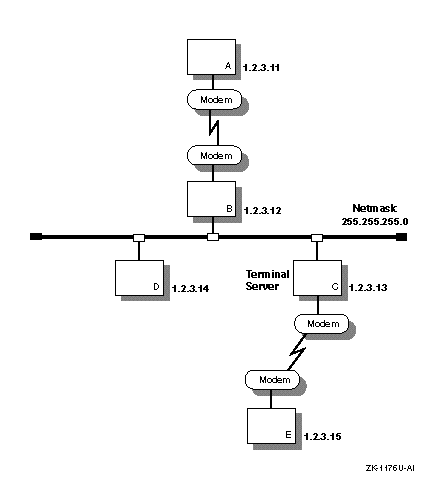
Figure 4-5 shows two PPP connections. The first is between host A and host B, with host B acting as a gateway system. The second is between personal computer E and host D through terminal server C. The latter configuration might be common for employees working at home and dialing in to a system at work.
When
you invoke the
pppd
daemon you can specify PPP options
on the command line.
In addition, the following files on a system can contain
PPP options:
/etc/ppp/options
-- This file contains
system default options that are read before user default options and command
line options.
This file contains any options that you want
pppd
to use whenever it is run.
If authentication is required, add
the
auth
and
usehostname
options to
this file.
Note
If the
/etc/ppp/optionsfile does not exist or is unreadable bypppd, the daemon will not run. Only root should be able to write to this file.
/etc/ppp/options.tty.xx
--
This file contains options specific to the serial port
/tty.xx.
$HOME/.ppprc
-- This file contains
the user default options that are read before command line options.
See
pppd(8)
for a description of
pppd
options.
PPP provides two protocols for authenticating hosts and for authenticating your host system to others:
Password Authentication Protocol (PAP)
Challenge Handshake Authentication Protocol (CHAP)
All protocols exchange secrets in order to complete the authentication
process.
PAP secrets
are contained in the
/etc/ppp/pap-secrets
file; CHAP secrets
are contained in the
/etc/ppp/chap-secrets
file.
Only
root should be able to read these files.
The
/etc/ppp/pap-secrets
and the
/etc/ppp/chap-secrets
files for PAP
and CHAP have the following format:
client server secret
[ip_address ...]
client -- Name of the machine to be authenticated.
server -- Name of the machine requiring the authentication.
secret -- Password or CHAP secret known by both client and server.
IP address -- Zero or more IP addresses that the client may use (this field is only used on the server).
For example, if a LAN-connected host named
work
requires
authentication, and a host named
home
connects to it and
authenticates itself using CHAP, the
/etc/ppp/chap-secrets
file on each machine will contain an entry similar to the following:
home work "an unguessable secret" home.my.domain
Note
The
/etc/pppdirectory contains files of secrets used for authentication, and should not be in a partition that is exported using NFS and accessible by other hosts.
If authentication is required, the
/etc/ppp/options
file must contain the
auth
and
usehostname
options.
For more information about CHAP and PAP authentication, see the
pppd(8)
reference page.
This section describes the tasks you must complete before configuring PPP.
Verify that you have the hardware to connect to the serial port of your system. If the two systems are in close proximity to each other, use one of the null modem cables listed in Table 4-1.
If the two systems are connected through modems and telephone lines, see Table 4-6 for a list of modem cables to use. The modems are set to 8 bit, no parity, and connected to the telephone network.
To verify that PPP is supported in the kernel, enter the following command:
#sysconfig -s | grep ppp
If PPP is not loaded and configured, do the following:
Log in as root.
Rebuild the kernel by running the
doconfig
utility and selecting the Point-to-Point (PPP) option.
Make a backup copy of the current
/vmunix
kernel file.
Copy the newly-created
/sys/HOSTNAME/vmunix
kernel file to the
/vmunix
file.
Add the following entry to the
/etc/sysconfigtab
file by using the
sysconfigdb
utility:
ppp:
nppp=2
This provides for two PPP connections. If your system requires more PPP connections, increase the number.
Reboot the system.
After you verify PPP support in the kernel, you configure PPP by performing a sequence of steps. Appendix A contains a worksheet that you can use to record the information that you need to provide to configure PPP. If you are viewing this manual online, you can use the print feature to print part of the worksheet.
Figure 4-6 shows Part 3B of the Configuration Worksheet. The following sections explain the information you need to record in Part 3B of the worksheet.
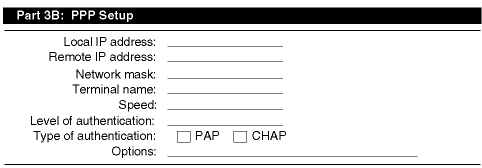
The local system's IP address. For systems connected to a local area network (LAN), this address is already assigned if you configured your network software; it is the IP address of the LAN interface.
If you have a standalone system, you must assign it an IP address. If you are using PPP to link your system to a host that is connected to the Internet, assign the local system an address that is on the same subnetwork as the remote host. If the other host is not connected to the Internet, assign the local system any IP address.
The remote system's IP address.
Your network's subnetwork mask. This must be the same for both systems. See Section 2.2 for more information on the network mask.
The name of any valid terminal device in the
/dev
directory.
This can be either the full path name (for example,
/dev/tty01) or the name in the
/dev
directory
(for example,
tty01).
If you are unsure of the terminal
device, see
ports(7).
The speed of the modem (or null modem) used to connect the systems and the terminal line specification. If your modem automatically senses the line speed or if you are using a null modem cable between hosts, you can specify any speed up to the maximum supported by the hosts. This is usually 38400 bps.
The level of authentication required. In general, if your system is connected to a LAN, you should require that the remote host authenticate itself and restrict the remote host's choice of IP address, based on its identity. Otherwise, a remote host might impersonate another host on the local subnet.
Note
If you are configuring PPP for the first time, do not enable authentication until you can successfully establish a link.
If you are using PAP authentication, check PAP. If you are using CHAP authentication, check CHAP.
Options to supply the
pppd
daemon.
The following options might be useful:
defaultroute
-- If your system is
standalone and you are connecting to the Internet through the remote system,
add a default route via the remote host by specifying this option.
asyncmap
-- If the serial line is
not completely 8-bit transparent, specify this option;
asyncmap 200a0000
is appropriate if the serial link includes a
telnet
link.
mru
-- To improve performance for
multiple IP connections, reduce the MRU (maximum receive unit) on the local
and remote systems.
It is best to specify the
mru 296
option.
See
pppd(8)
for additional options.
After you complete the PPP planning tasks, you can
establish a PPP connection between your local system and a remote system.
Establishing a PPP connection between two systems means setting up a serial
link and running the
pppd
daemon on both ends of the link.
In a PPP environment, a system can be a dial-in system or a dial-out system.
Guidelines for running the
pppd
daemon are as follows:
If you want the local address of the PPP link to differ from
the IP address for the local host's Ethernet or other broadcast interface,
put the desired address on the
pppd
command line, followed
by a colon.
For example:
local_addr:
Do not use the
ifconfig
command to configure
the addresses of the
ppp
interface.
The
pppd
daemon assigns addresses and identifies the interface as running.
Whether you run
pppd
manually on the remote
machine or use a script file on the local machine to run
pppd
on the remote machine, do not provide a device name to
pppd;
it uses the controlling tty by default.
If the system will place calls to a remote system, you should to establish a dial-out connection. After you connect your modem to a serial port on your system, do the following:
Verify that you can communicate with the modem. Do the following:
Edit the
/etc/remote
file and copy the
kdebug
entry.
Modify the new entry, providing a system name, the terminal
device name (tty00
or
tty01
depending
on your system), the speed, and parity.
See
remote(4)
for more information.
Use the
tip
command to access the modem
as follows:
%tip system_name
The
system_name
is stored in the
/etc/remote
file.
If your modem is using the AT command language, enter the following command:
AT [RETURN]
If the modem is not in quiet mode, it responds with an
OK
message.
Contact the administrator of the remote system or your Internet Service Provider (ISP) and obtain the following information:
Your remote IP address and netmask, unless the remote system assigns the IP address dynamically
Characters that might need to be escaped
Instructions on how to log in and use the remote service
This information is used to create a
chat script,
which automates the dial-out process.
A chat script is a file that contains
a list of commands used by the
chat
program to direct the
modem what number to dial and what information to send to the remote system
to start the
pppd
daemon.
Note
You can use the
tipcommand to dial out and log in to the remote system to collect additional information about the process. Write down the exact prompt, login sequence, andpppdstart-up sequence for use in thechatscript.
Create a
chat
script to automate the dial-out
process.
Each entry in a
chat
script has the following
format:
[string_chat_expects string_chat_sends]
For example, the following file named
/etc/ppp/chat-script
contains the following information:
"" atdt2135476   [1]
CONNECT   [2]
login: myname   [3]
Password: "\qmypassword"   [4]
"$ " "\qpppd"   [5]
The
chat
program
expects nothing and sends a dial command to the modem.
[Return to example]
The
chat
program
expects a
CONNECT
message and sends a carriage return (implied).
[Return to example]
The
chat
program
expects the
login:
string and sends the
myname
string.
[Return to example]
The
chat
program
expects the
Password:
string and sends the
mypassword
string.
The
\q
prevents
chat
from logging the password when you use the
-v
option.
[Return to example]
The
chat
program
expects the
$
(the shell prompt) and sends
pppd
to start the
pppd
daemon on the remote machine.
The
\q
cancels the effect of the previous
\q.
[Return to example]
chat(8)
reference page for more information on
chat
and
chat
scripts.
Edit the
/etc/ppp/options
file and include
the following
pppd
options as required by the remote system
or ISP:
defaultroute   [1]
asyncmap 0   [2]
mru 296   [3]
netmask dd.dd.dd.dd   [4]
lcp-echo-interval 60   [5]
lcp-echo-failure 5   [6]
noipdefault   [7]
crtscts   [8]
debug   [9]
If your system is standalone and you are connecting to the Internet through the remote system, specify this option to add a default route via the remote host. [Return to example]
If the serial line is not completely 8-bit
transparent, specify this option;
asyncmap 200a0000
is
appropriate if the serial link includes a
telnet
link.
[Return to example]
Reduces the maximum receive unit (MRU) on the local and remote systems to improve performance for multiple IP connections. [Return to example]
Sets the interface netmask to the specified value. Your ISP should provide this information. [Return to example]
Sends a Link Control Protocol (LCP) echo request frame to the remote system every 60 seconds to determine whether the link to the remote system is still active. [Return to example]
If the local system does not receive
a response from the remote system after 5 LCP echo request frames,
pppd
considers the link broken and disconnects.
[Return to example]
Specifies that the remote system (ISP) is to provide the local system an IP address, unless an IP address is specified explicitly on the command line or in an options file. [Return to example]
Enables hardware flow control on the serial device. If the modem does not support hardware flow control, do not add this entry. See your modem documentation to verify this information. [Return to example]
Enables debugging.
All log messages are sent
to the file specified in the
/etc/syslog.conf
file.
After
your connection is working correctly, remove this entry from the PPP options
file.
[Return to example]
pppd(8)
for a complete list of
pppd
options.
If necessary, create a PAP or CHAP secrets file, the format of which is discussed in Section 4.2.1.2.
Edit the
/etc/syslog.conf
file to enable
message logging, as follows:
Note
Whitespace in the
/etc/syslog.conffile, as in the following procedure, must consist of tab characters. Spaces are not acceptable. Seesyslogd(8) for further information.
Add the
local2
facility (used by the
pppd
daemon and the
chat
program) to the line
that specifies
/dev/console
as the message destination,
as follows:
kern.debug;local2.notice /dev/console
In this example, the
notice
severity level is
specified.
For more information about this severity level and logging system
messages in general, see the
System Administration
guide.
Add the following entry to the file to create a
ppp-log
file.
Note that any whitespace in this file must consist
of tab characters:
local2.debug /etc/ppp/ppp-log
Save the edits and close the file.
Stop and restart the
syslogd
daemon by
entering the following commands:
#/sbin/init.d/syslog stop#/sbin/init.d/syslog start
Invoke
pppd
on the local system to connect
to the remote system.
For example, the following command starts a link on
tty01
and specifies the
connect
option to run
the
chat
program using the specified
chat
script file.
%pppd /dev/tty01 38400 connect 'chat -f /etc/ppp/chat-script'
Issue the following command to monitor the
ppp-log
file and to determine whether the PPP connection is active:
%tail -f /etc/ppp/ppp-log
If problems occur while using PPP, see Chapter 13.
If the system will answer calls from remote systems, you should establish a dial-in connnection. To configure a dial-in system, complete the following steps after you connect your modem to a serial port:
Set up your modem for dial-in access. See Section 4.3.2 for more information.
Edit the
/etc/passwd
file and create a dedicated entry for a PPP user.
For the login shell field,
specify
/usr/sbin/startppp; for example:
ppp1:password:10:20:Remote PPP User:/usr/users/guest:/usr/sbin/startppp
Edit the
/etc/inittab
file and create an
entry for each terminal device that is to run PPP.
For example:
modem:3:respawn:/usr/sbin/getty /dev/tty00 M38400 vt100
See
inittab(4)
for more information.
Issue the
init q
command to immediately
start the
getty
process.
If the dial-in system will be a gateway for the dial-out system
to
reach
other systems on the LAN, the dial-in system must be configured as an IP router
and must run the
gated
daemon.
Edit the
/etc/gated.conf
file and delete the
nobroadcast
option (if specified)
in the
rip
statement.
See
Chapter 2
for
basic network setup information and
gated.conf(4)
for
gated
options.
Edit the
/etc/ppp/options
file and include
the following
pppd
options required to support dial-in
access for all remote users:
netmask dd.dd.dd.dd   [1]
proxyarp   [2]
crtscts   [3]
asyncmap 0   [4]
:remote_ip_address   [5]
debug   [6]
Sets the interface netmask to the specified value. [Return to example]
Adds an entry to the local system's Address Resolution Protocol (ARP) table containing the IP address of the remote system and the Ethernet address of the local system. [Return to example]
Enables hardware flow control for the serial port. [Return to example]
If the serial line is not completely
8-bit transparent, specify this option;
asyncmap 200a0000
if the serial link includes a telnet link.
[Return to example]
Specifies an IP address for the remote system.
If you want to specify options for each serial port, create a
/etc/ppp/options.ttyxx
file and include
the remote IP address and any other options that apply to that specific serial
port.
See
pppd(8)
for a complete list of
pppd
options.
[Return to example]
Enables debugging.
All log messages
are sent to the file specified in the
/etc/syslog.conf
file.
After your connection is working correctly, remove this entry from
the PPP options file.
After an incoming call is received and a connection established,
startppp
runs in the background.
The process ID is logged in the
/etc/ppp/pppxx
.pid
file.
[Return to example]
If problems occur while using PPP, see Chapter 13.
To terminate the PPP link, send a TERM or INTR signal
to one of the
pppd
daemons by issuing the following command:
#kill `cat /etc/ppp/pppxx.pid`
In the previous command,
pppxx
specifies the
pppd
used for the PPP connection.
The
pppd
specified in the command notifies related
pppd
daemons to terminate (clean up and exit).
If
pppd
is attached to a hardware serial port connected
to a modem, it should receive a HUP signal when the modem hangs up, which
causes it to clean up and exit.
This action depends on the driver and its
current settings.
The Tru64 UNIX system enables you to use a variety of modems for point-to-point connections to systems that are not in close proximity to each other. These connections can be Serial Line Internet Protocol (SLIP), Point-to-Point Protocol (PPP), and UNIX-to-UNIX Copy Program (UUCP) connections. In addition, these connections can be basic dial-out/dial-in connections; for example, you can log in to a remote system to perform remote system administration.
This section presents general guidelines for using modems on Tru64 UNIX systems for all types of connections. See Section 4.1.2.1 for specific information on SLIP and PPP connections and see Chapter 9 for information about UUCP connections.
You must use the correct cable to connect a modem to the serial port. Use of an incorrect cable might result in signal loss and associated software errors. Table 4-6 lists the cables you should use to connect modems. The cable connector is either 25-pin or 9-pin, depending on the type of serial port on your system. See the hardware documentation for your system if you are uncertain about the type of serial port.
Note
DECconnect cables do not provide a sufficient number of wires for full modem control; do not use them.
| Cable Number | Description |
BC22E-xx
[Footnote 3]
|
16-wire modem cable (male DB25 pin to female DB25 pin cable) |
BC22F-xx
[Footnote 3] |
25-wire modem cable (male DB25 pin to female DB25 pin cable) |
BC29P-xx
[Footnote 3] |
Male DB25 pin to female DB9 pin cable |
| PC modem cable | Male DB25 pin to female DB9 pin cable |
After you obtain the correct cable and connect your modem to it and the telephone network, do the following:
Edit the
/etc/remote
file and create an
entry similar to the
kdebug
entry.
For example, if your modem is connected to the tty00
port and you will use a speed of 38,400 bps to access the modem, create an
entry similar to the following:
b38400:dv=/dev/tty00:br#38400:pa=none
Note
Some modems set their speed to the serial port rate. Be sure to access the modem using the same speed that you will specify to the
gettyoruugettyutility. Otherwise, you might not be able to log in because of a mismatch.
Use the
tip
command to access the modem
as follows:
tip b38400
The
tip
utility responds
with a
connected
message.
You can now communicate with
the modem.
If your modem is using the AT command language, enter the following command:
at [Return]
If the modem is not in quiet mode, it responds with an OK message.
Set up the modem for dial-in access. Table 4-7 lists the AT commands required. Most of these command settings are the default settings.
| Command | Description |
at&c1 |
Normal Carrier Detect (CD) operation. Tells the modem not to raise Carrier Detect until it sees Carrier Detect from the other modem. |
at&d2 |
Normal Data Terminal Ready (DTR) operation. This tells the modem to hang up the line when DTR drops. For example, when the user logs off the system. |
atq1 |
Sets the modem to quiet mode. Result codes are not sent to the system. |
ate0 |
Echo off.
This prevents modem from echoing
the login prompt issued by the
getty
process. |
ats0=n |
Specifies the number of rings to wait before answering. If n = 0 (zero), the modem will not answer. |
at&w0 |
Saves the current modem settings in NVRAM. |
Tru64 UNIX supports both hardware and software flow control. If the system supports hardware flow control, set the modem and the serial line to use hardware flow control by using the appropriate commands. If hardware flow control is not supported, you should use software flow control.
Edit the
/etc/inittab
file and create an
entry for the modem.
If you want to use the modem line in nonshared mode,
create an entry similar to the following:
modem:23:respawn:/usr/sbin/getty /dev/tty00 M38400 vt100
If you want to use the modem line in shared mode (for dial-out
and dial-in connections), use the
uugetty
utility instead
of the
getty
utility and create an entry similar to the
following:
modem:23:respawn:/usr/lib/uucp/uugetty -r -t 60 tty00 38400
If you specify a speed greater than 9600 bps, you must edit
the
/etc/uugettydefs
file and create an entry for the speed
you want.
With the
uugetty
utility, you can use the
tip
and
cu
utilities, but differences in file
locking might prevent the use of third-party utilities.
Note
If you want to use the
uugettyutility, you must install the UNIX-to-UNIX Copy Facility subset.
As root, start the
getty
or
uugetty
process by entering the following command:
init q
The
getty
or
uugetty
process starts, then goes to sleep, waiting for someone to dial
in to the system.
After you obtain the correct cable and connect your modem to it and the telephone network, do the following:
Verify that there is an entry for the modem specified with
the
modemtype
subcommand in the
/etc/acucap
file.
If an entry does not exist, do the following:
Copy an entry similar to that of your modem.
The following
entry is for a US Robotics modem for use in shared mode with
tip:
us|US|US Robotics (28.8 fax/data modem):\
      :cr:hu:ls:re:ss=AT\rATE1Q0&C0X0&A0\r:sr=OK:\
      :sd#250000:di=ATD:dt\r:\
      :dd#50000:fd#50:os=CONNECT:ds=\d+++\dATZ\r\dATS0=2\r:\
      :ab=\d+++\dATZ\r\dATS0=2:
Modify the modem attributes to match those of your modem and
include the debug option (db).
With debugging turned on,
the modem will provide you with additional information with which to tune
the modem attributes in the file.
See
acucap(4)
for more information.
Create an entry in the
/etc/remote
file
for the system you want
to call.
Among the information you can supply is the terminal
device name, speed, and the
/etc/acucap
file that defines
your modem.
For example, the following two entries are for the modem specified
in step 1a:
tip38400:tc=us38400   [1]
us38400|38400 Baud dial out via US Robotics modem:\   [2]
      :el=^U^C^R^O^D^S^Q@:ie=#%$:oe=^D:\   [3]
      :dv=/dev/tty00:br#38400:ps=none:at=us:du:      [4]
Points to the
us38400
entry specifying shared capabilities for modems.
[Return to example]
First line of the
us38400
entry.
[Return to example]
Defines end-of-line characters, and input and output end-of-file marks. [Return to example]
Defines the device to open for the connection,
the speed, the parity, the name of the
/etc/acucap
entry,
and the dial-up line.
[Return to example]
remote(4)
for more information.
If you use the
getty
utility to provide
access to the system from a modem and a
getty
process is
already running, do the following:
Edit the
/etc/inittab
file and change the
Action field of the modem entry from
respawn
to
off
as follows:
modem:23:off:/usr/sbin/getty /dev/tty00 M38400 vt100
See
inittab(4)
for more information.
Issue the
init q
command to terminate the
getty
process.
Use the
tip
command, specifying the
-baud_rate
flag and the telephone number to dial out as follows:
tip -38400 8881234
In this example,
tip
strips the minus sign (-) from the baud rate and concatenates
the
tip
command name and the baud rate to create the string
tip38400.
Then,
tip
searches the
/etc/remote
file for the entry matching the string.
The entry in the
/etc/remote
file points to the capability information in the
us38400
entry to initialize the modem.
You can specify the telephone number on the command line to share the same modem attributes for outgoing connections that have different telephone numbers.
When you log off the remote system and exit
tip,
the saved settings are restored, and the modem is ready for the next user.
If used in shared mode, the modem is available for dial-in access.