The Tru64 UNIX mail system enables users to send mail to other users, whether on the same system, same network, or the other side of the world. This chapter describes:
The Tru64 UNIX mail system and its components
Guidelines for configuring and administering mail on a standalone system or across an enterprise
Mail configuration planning
Mail configuration
Day-to-day management tasks
For additional introductory information on mail, see also
mail_intro(7),
the
sendmail
book by O'Reilly & Associates, and the
Sendmail Installation and Operation Guide.
The guide is located
at the following URL:
http://uwsg.ucs.indiana.edu/usail/mail/op/op.html.
The implementation of mail in Tru64 UNIX is based on
sendmail
Version 8.8.8 from Sendmail, Inc.
In the mail environment, systems can have the following roles:
Standalone -- A mail standalone system is one that processes, sends, and delivers mail locally. This is useful for configurations of from 1 to 6 systems. In small LAN configurations of two or more systems, one system serves the mailbox to the other systems using NFS. In this case, NFS must be configured on all systems.
Client -- A mail client system is a system that sends all mail to a mail server for processing and delivery. If the addressee is on the client system, the mail is delivered there. If not, the mail is forwarded to the destination system.
Server -- A mail server system is a system that receives mail from clients in a local domain for processing and delivery to other domains, the Internet, or other networks. In addition, the server also receives mail from other domains for delivery.
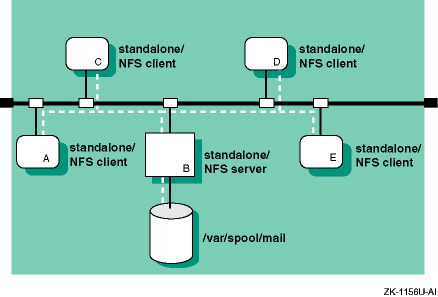
Figure 11-1
shows a sample standalone configuration
on a LAN in which all hosts are configured as mail standalone systems.
Host
B is also an NFS server, exporting the
/var/spool/mail
directory to hosts A, C, D, and E.
Hosts A, C, D, and E are also NFS clients,
importing the
/var/spool/mail
directory from host B.
The hosts must also have identical information in their
passwd
and
aliases
files.
This information can be
distributed either by using NIS or by manually editing the files on each system.
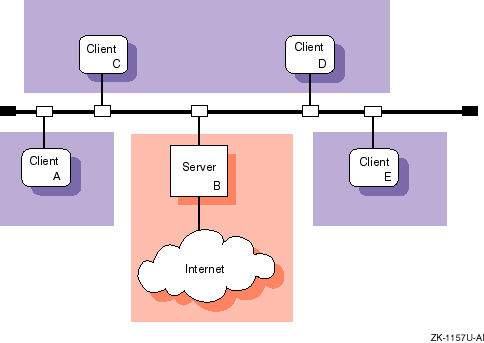
Figure 11-2 shows a sample client/server configuration in which host B is configured as a mail server and hosts A, C, D, and E are configured as mail clients. This is useful in larger enterprise networks that consist of multiple domains and connections to the Internet or other networks.
This configuration also provides for the creation of a natural hierarachy of mail servers in large enterprise networks with multiple domains. Mail clients in each domain would direct all traffic to one or more mail servers, depending on the number of clients in the domain. Each domain's servers would then forward mail to the enterprise's top domain servers for forwarding to the Internet. Since almost all of your local domain's mail traffic goes through the servers, this simplifies administration and problem resolution in that you only have to manage the servers.
The connection to the Internet in Figure 11-2 could be direct or through a local access provider. Business configurations would typically use firewalls and dedicated mail servers. If using a firewall, ensure the firewall and the mail server are configured to work with each other. See the documentation for your firewall product for more information.
If users need to send mail between systems that use different mail protocols, such as DECnet, SMTP, and UUCP, you should designate specific server systems in your network to perform that function. These server systems are also known as mail relays.
Additional mail configurations are possible, but they require more effort to plan for and to configure. See the sendmail book by O'Reilly and Associates and the Sendmail Installation and Operation Guide for more information.
In implementing a client/server mail environment, you need to decide how to:
Direct outgoing mail to the servers
Handle incoming mail to the domain
Deliver mail to clients
Handle DECnet mail
This section describes each of these topics.
To
direct outgoing mail to a server, you include the DNS mail exchanger (MX)
entry in the
/etc/namedb/hosts.db
file.
This entry specifies
a system in the local domain that can deliver mail to systems not directly
connected to the local network.
Using MX to route mail has the following
benefits:
You can define an MX record to point to all of the mail servers in your local domain. If a mail server is inaccessible, mail can be delivered to another host listed in the MX record.
You can use MX records to define a system to be a mail exchanger for an inaccessible remote system. Then, if you send mail to the remote, inaccessible host, instead of being queued on your local system and periodically resent, the mail is sent to the mail exchanger and queued there until the host is restored.
For information on adding entries to the
/etc/namedb/hosts.db
file, see
Section 6.5
and
bind_manual_setup(7).
To simplify the handling of incoming mail to a domain and to ensure reliability, you should use domain-based addresses in your environment. Mail sent over the Internet is usually addressed in the following format:
username@hostname.domain
For example:joe@host1.nyc.big.com
Using domain-based addresses, this address appears as follows:
joe@nyc.big.com
Mail is sent to the local domain
nyc.big.com
instead
of to the specific host within that domain
host1.nyc.big.com;
the return address is also
@nyc.big.com.
Then, the mail
servers within the local domain decide how to deliver the mail to the user's
account.
Domain-based addresses make it easier to manage your mail environment. You can change your mail system (that is, move user accounts and replace or move systems) without disrupting your mail delivery. These changes are transparent to users sending mail to your systems.
Once mail is delivered to the domain, you can deliver it to clients using either of the following mechanisms:
Deliver the mail to the
/var/spool/mail
directory on each client.
Deliver the mail to the server and use NFS to serve the mail directory to each client.
In order to deliver mail to each of the clients, each server in the domain must have an aliases file that contains entries for each user on the client. For example:
username1: username1@client1
username2: username2@client1
See Section 11.1.4 for information on distributing the aliases file.
For standalone and server systems, use the Network Information System (NIS) to distribute the mail aliases file from one machine. In a LAN environment with standalone systems, distribute the mail aliases file from the system that is also the NFS server. In a client/server environment, distribute the aliases file to the servers in the domain. In either case, sharing the aliases file among systems simplifies administration in that you only need to update one aliases file, instead of several.
For client systems, do not distribute the aliases file and, if using
NIS, do not put a
yp
entry for the aliases database in
the
svc.conf
file.
If you are using multiple server
systems in a domain, make sure that the
passwd
information
is identical on each system.
For security reasons and to ensure correct mail
delivery, you should do this by manually editing the
passwd
file on each server system.
When you set up a mail server system, you must consider that the mail address formats for DECnet Phase IV and DECnet/OSI are different from those for TCP/IP. Therefore, you need to establish a mapping scheme to translate mail addresses when sending mail between a DECnet node and a TCP/IP node.
The mapping scheme used by the Tru64 UNIX version of the
sendmail
program for DECnet Phase IV is to encapsulate DECnet addresses
inside a pseudodomain.
For example, a typical DECnet Phase IV address has
the following format:
nodename::username
Mail addressed in this format is mapped to an address in the following format:
username@nodename.pseudodomain.top.domain
The variables represent the following:
The user name.
The DECnet node name.
An arbitrary string that specifies the DECnet pseudodomain. The pseudodomain can be an arbitrary string, but it must be used consistently throughout your organization. All of your mail systems must be configured to use the same string for the pseudodomain.
Usually, your company's domain name; for example,
abc.com.
The mapping for DECnet/OSI uses a similar scheme. A typical DECnet/OSI address has the following format:
username@namespace:.site.nodename
Mail addressed in this format is mapped as follows:
username@nodename.site.namespace.pseudodomain.top.domain
As with DECnet Phase IV, the pseudodomain can be an arbitrary string. However, if you use both DECnet Phase IV and DECnet/OSI within your organization the pseudodomain names should be different.
Some environments that support both DECnet Phase IV and DECnet/OSI use the DECnet Phase IV syntax for handling DECnet-based mail. This simplifies the mail administration task. In order to implement this, all DECnet-OSI nodes must have a unique Phase IV Synonym and must be configured to use the Phase IV Synonym. You can reconfigure a DECnet/OSI host by typing the following command line:
#ncl set session control application mail11 Node Synonym=true
See the DECnet/OSI documentation for more information.
This section describes those tasks you need to do before configuring mail.
Depending on the protocols supported by your mail server, verify that the following required subsets are installed and configured:
DECnet
DECnet/OSI
X.25 (PSInet)
UUCP
See the documentation for each product for installation and configuration instructions. For UUCP, verify that the UUCP subset is installed by entering the following command:
#setld -i | grep OSFUUCP
If it is not installed, install it by using the
setld
command.
For more information on installing subsets, see
setld(8), the
Installation Guide,
or the
System Administration
manual.
The following table lists specific mail configurations and the network service required:
| If you want to: | Configure this service: |
| Distribute the aliases file | NIS |
| Use domain-based addressing | DNS/BIND |
To verify if NIS is needed, enter the following command as root:
#grep NIS_CONF /etc/rc.config
If the output returns as
NIS_CONF="YES",
then NIS is required to distribute the
aliases
file.
To
see if DNS is needed, enter the following command as root:
#grep BIND_SERVERTYPE /etc/rc.config
If the output returns as
BIND_SERVERTYPE="CLIENT"
or
BIND_SERVERTYPE="SERVER", then DNS is
needed to use domain-based addressing.
After you install and configure the required protocols and services, you configure mail using the Mail Configuration application. Appendix A contains a worksheet that you can use to record the information that you need to complete the tasks in this book. If you are viewing this manual online, you can use the print feature to print a copy of this part of the worksheet.
Mail configuration consists of:
Defining the standalone, client, or server system
Defining the protocol information (server systems only)
Figure 11-3 shows Part 10A of the Configuration Worksheet. The following sections explain the information you need to record in Part 10A of the worksheet.
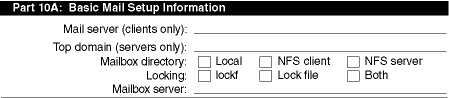
The fully qualified name of your mail server; for example,
foo.dec.com.
The name of the highest level domain in your organization
that uniquely identifies your organization.
For example, if the server domain
name is
nyc.big.com, the top domain is
big.com.
If the server domain name is
cs.big.univ.ac.uk,
the top domain is
big.univ.ac.uk.
The location of the mailbox directory.
For standalone and client systems, if the mailbox directory is on the local system, check Local. If it is on a remote system and is to be mounted on the local system using NFS, check NFS Client. If the local system is to export mail boxes to NFS clients, check NFS Server.
For server systems, check Server to make the mailbox directories available
to other systems.
If you do not want to share the mailbox directories, check
Local.
In this case, use the
aliases
command to send each
user's mail to the appropriate system.
See
Section 11.7
and
aliases(4)
for more information.
The type of file locking to use on the mailbox.
For standalone and client systems, if the host with the mailbox directory is a Tru64 UNIX system, check lockf; this provides the best performance. If you are not sure what operating system the host with the mailbox directory is running, check Lock file. If you want to use both, check Both.
Note
The locking mechanism you select must match the mechanism used by the NFS server. If you are not sure how the locking mechanisms are set on the NFS server, ask the administrator of the NFS server.
For server systems, if you checked Local as the mailbox location, check lockf. If you checked Client as the mailbox location, check Lock file. If you checked Server as the mailbox location, check Both.
The name of the system that exports the mailbox to your local system.
Figure 11-4 shows Part 10B of the Configuration Worksheet. The following sections explain the information you need to record in Part 10B of the worksheet.
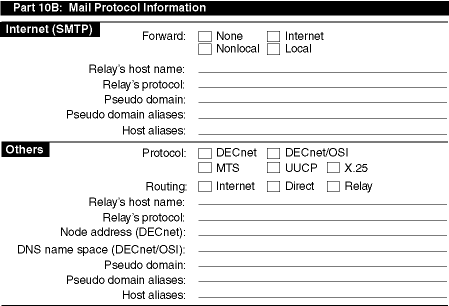
For SMTP only, the type of mail that must be forwarded to a relay. If the local host has direct access to the Internet and does not forward any mail, check None. If the local host must forward all mail addressed outside of the top domain, check Internet. If the local host must forward all messages addressed outside of the local Internet domain, check Nonlocal. If the local host must forward all mail, including local domain mail, check Local.
The name of the host that will process mail for the protocol.
The name of the protocol the relay host uses to forward messages to the gateway.
An arbitrary string that specifies the pseudodomain (DECnet, DECnet/OSI, and MTS only). The pseudodomain name must be unique for each protocol and must be used consistently throughout your enterprise.
Any synonyms for your pseudodomain (DECnet, DECnet/OSI, UUCP, and MTS only).
The alternative names that other systems might use to direct mail to your host.
If your system will serve as a gateway for other mail protocols, you will need to collect the following information:
The type of mail protocol to support. Available protocols include the following:
DECnet
DECnet/OSI
Internet Mail Protocol (SMTP) (required)
Message Transport System (MTS)
UUCP
X.25 (PSInet)
For DECnet, DECnet/OSI, UUCP, MTS, and X.25 only. If mail for the particular protocol is to be forwarded over the Internet to an unspecified gateway, check Internet. The Internet depends on DNS to select an appropriate relay; therefore, do not specify a relay hostname for the Internet.
If the particular protocol is installed on this server, check Direct. If mail requiring the particular protocol is to be forwarded to another system for processing, check Relay. Complete the Relay's Hostname and Relay's Protocol fields.
The name of the host that will process mail for the protocol.
The name of the protocol the relay host uses to forward messages to the gateway.
The DECnet address for this machine (DECnet only).
The complete DNS name space name for this node (DECnet/OSI only). The syntax of the DNS name space is as follows:
namespace:.site.nodename
Use the Mail Configuration application of the Common Desktop Environment (CDE) Application Manager to configure mail on systems with graphics capabilities. You can configure the following systems:
Standalone systems
Client systems
Server systems
To start the Mail Configuration application, do the following:
Log in as root.
Click on the Application Manager icon on the CDE desktop.
Double-click on the System_Admin application group icon.
Double-click on the Configuration application group icon.
Double-click on the Mail Configuration application icon in the Configuration group. The Mail Configuration main window is displayed, showing available Mail service types and configured Mail service types.
To exit the Mail Configuration application, choose File then Exit.
See
mailconfig(8X)
for more information.
Note
For systems without graphics capabilities, you can use the
mailsetuputility. Seemailsetup(8) for more information.
The Mail Configuration application has an extensive online help system that you can use, instead of the instructions in this section, to configure mail on your system.
To configure mail for a standalone system, do the following:
Select Standalone from the Available Mail Service Types list box in the Mail Configuration window
Click on the Configure button to display the Standalone Setup dialog box.
If your system will not use NFS to import or export the mailbox
file (/var/spool/mail), go to step 8; the default settings
are applicable for your mail configuration.
Otherwise, click on Mailbox Setup button to display the Mailbox Setup dialog box.
If your system imports its mailbox using NFS, click on NFS Client for Mailbox Directory. If your system distributes its mailbox to NFS clients, click on NFS Server.
If you clicked on Client for Mailbox Directory, do the following:
Click in the Mailbox Server field and enter the server name.
Click one of the following Locking mechanisms: lockf, Lock Files, or Both.
If you clicked on Server for Mailbox Directory, click on Both as the Locking Mechanism setting.
Click on OK to complete the mailbox setup and close the Mailbox Setup dialog box.
Click on Commit to save the changes.
Click on Restart in the confirmation dialog box to restart
the
sendmail
daemon and enable the changes.
Click on Close to close the Standalone Setup dialog box.
To configure a mail client, do the following:
Select Client from the Available Mail Service Types list box in the Mail Configuration window.
Click on Configure to display the Client Setup dialog box.
Click in the Mail Server input text box and enter the name of the mail server.
Click on the Mailbox Setup button to display the Mailbox Setup dialog box.
Click on NFS Client for the Mailbox Directory.
If your site does not use NFS to share system mailbox directories, click on Local instead of NFS Client, and then go to step 7.
Click in the Mailbox Server input text field and enter the name of the mailbox server.
Click on one of the following Locking mechanisms: lockf, Lock Files, or Both.
Click on OK to complete the mailbox setup and close the Mailbox Setup dialog box.
Click on Commit to save the changes.
Click on Restart in the confirmation dialog box to restart
the
sendmail
daemon and enable the changes.
Click on Close to close the Client Setup dialog box.
Mail servers are part of a network and process mail for clients. To configure a mail server, do the following:
Select Server from the Available Mail Service Types list box in the Mail Configuration window.
Click on the Configure button to display the Server Setup dialog box.
Select the mail protocol you want to configure from the Available Protocols list box. The Internet Mail Protocol (SMTP) protocol is the only required protocol configuration. Configure additional protocols as necessary.
Click on the Configure button to display the protocol setup dialog box for the protocol you selected.
For the SMTP protocol, click on the type of forwarding for this server. If you click on None, go to step 11; otherwise, go to step 7.
For the DECnet, DECnet/OSI, MTS, UUCP, and X.25 protocols, click on a Routing type. If you click on Internet or Direct, go to step 9. If you click on Relay, go to step 7.
If you are forwarding mail to another system for processing, click in the Relay's Hostname input text field and enter the name of the host that will process mail requiring this protocol; otherwise, continue with step 9.
If you are forwarding mail to another system for processing, click on the Relay's Protocol option menu and select the protocol used to communicate with the Relay.
For the DECnet, DECnet/OSI, and MTS protocols, in the Pseudo Domain text input field, enter the domain name used to identify mail that requires the selected protocol.
For the DECnet, DECnet/OSI, MTS, UUCP, and X.25 protocols, to add aliases for the pseudodomain, click on Pseudo Domain Aliases and do the following:
Enter the alias name in the Pseudo Domain Alias text input field and click on Add.
Repeat the previous step as many times as necessary.
Click on Commit to close the Pseudo Domain Aliases dialog box.
To add aliases for this mail server, click on Host Aliases and do the following:
Enter the alias name in the Host Alias text input field and click on Add.
Repeat the previous step as many times as necessary.
Click on Commit to close the Host Aliases dialog box.
For the DECnet protocol, click in the Node Address field and
enter the DECnet node address (area.node) for this server, for example,
32.958.
For the DECnet/OSI protocol, click in the DNS Name Space field and enter the name space of the node, which is usually the token before the colon (:) in a DECnet Phase V address.
Click on OK to close the Setup dialog box for the protocol you selected. The Server Setup dialog box is active.
Configure another protocol if necessary. Repeat steps 3 through 15 for each additional protocol.
Click on the Mailbox Setup button to display the Mailbox Setup dialog box.
Click on a Mailbox Directory.
If your site does not use NFS to distribute the system mailbox directories, click on Local instead of NFS Server, and then go to step 19.
If you selected NFS Client as a Mailbox Directory, enter the
name of the mail server in the Mail Server input text box.
Be sure to include
the domain.
For example, for a server named
mailhub, the
server name with domain might be
mailhub.nyc.dec.com.
Click on one of the following Locking mechanisms: lockf, Lock Files, or Both.
Click on OK to complete the mailbox setup and close the Mailbox Setup dialog box.
Click on Commit to save the changes.
Click on Restart in the confirmation dialog box to restart
the
sendmail
daemon and enable the changes.
Click on Close to close the Server Setup dialog box.
The operating system includes the following mail utilities:
The
mail,
binmail
utility
(the default) --
Used by the
sendmail
utility to deliver mail
locally.
Because the
mail
utility has root setuid permission,
it handles delivery of all mail to a user's local mailbox located in the
/var/spool/mail
directory.
See the
Command and Shell User's Guide
and
mail(1).
The
mailx,
Mail
utility --
A combination
of the Berkeley Software Distribution's (BSD) and UNIX System Laboratories,
Inc.'s System V Release 4 (SVIDI) mail utilities.
The
mailx
utility depends on the
binmail
utility for delivery to
a user's mailbox.
It has more user features than the
binmail
utility.
See the
Command and Shell User's Guide
and
mail(1).
The
dtmail
utility -- The default
mail program in the
Common Desktop Environment.
This utility uses
sendmail
as the transport and stores information in much the same way as
the
mailx
utility.
In addition, it offers MIME support.
See the
Common Desktop Environment: User's Guide
and
dtmail(1).
The message handler utility
mh
--
It and its associated
commands are included in the optional RAND Corporation Mail Handler subset.
The message handler is composed of several shell commands where each command
handles a specific function.
For example, the
inc
command
reads new mail and the
comp
command creates a message.
Like the
mailx
utility,
mh
depends on
the
mail
utility for delivery to a user's mailbox.
The
mh
utility provides a graphical interface with the
xmh
command.
It also provides the Post Office Protocol (POP).
See
xmh(1X)
and
mail_manual_setup(7)
for more information on
xmh
and POP, respectively.
For more information on
sendmail, see
sendmail(8),
sendmail.cf(4),
and
sendmail.m4(8).
Monitoring the mail queue enables you to determine the status of several types of networking operations, including jobs that have been queued on a local system for transfer to a remote system. General users and system administrators can monitor the mail queue.
To display the contents of the mail queue, use the
mailq
command.
This command lists the number of requests and the queue ID, the
message size, the date the message entered the queue, and the sender and recipient
for each request.
Alternatively, you can also use the
sendmail -bp
command.
See
mailq(1)
for more information.
If a major host is off line for a period of time, the number of entries in the queue might be quite large, causing the performance of the mail environment to suffer. To remedy this, you will have to archive the queue. See Section 11.6 for information.
The following example shows two requests in the mail queue:
#mailqMail Queue (2 requests) --QID-- --Size-- -----Q-Time----- ------------Sender/Recipient------------ AA04956 1442 Tue Aug 24 10:12 <blaise> (Deferred) <corcoran@host1.corp.com> AA08618* (no control file)
When a major host is off line for a number of days,
the mail queue might grow to be quite large.
As a result, the
sendmail
utility spends a lot of time sorting the large queue, severely
affecting the mail environment performance.
Archiving the mail queue enables
your mail environment to function normally while the major host is off line.
To archive the mail queue, do the following:
Log in as root.
Change to the
/var/spool
directory by using
the
cd
command.
Move the
mqueue
directory to the
old.mqueue
directory by using the
mv
command.
Make a new
mqueue
directory by using the
mkdir
command.
Change the directory's permission code to 775 by using the
chmod
command.
Restart the
sendmail
utility by using the
following command:
#/sbin/init.d/sendmail restart
After the major host returns on line, process the old mail queue by using the following command:
#/usr/sbin/sendmail -oQ/var/spool/old.mqueue -q
When the queue is empty, remove it by using the following command:
#rm -r /var/spool/old.mqueue
Depending on how you choose to administer and distribute alias information on standalone or server systems, there are two ways to provide alias information for use in the mail environment:
/var/adm/sendmail/aliases
file
NIS aliases database
By default, the
/var/adm/sendmail/aliases
file permissions
code is 644.
This means that global users cannot change and write the changes
to the file.
While this creates a reasonably secure system, it leaves the
maintenance of the list of global users up to the system administrator.
You can distribute responsibility for maintenance by doing the following:
Create a local alias file for a global maintainer in a directory. Both the file and the directory must be accessible by another maintainer.
Create an entry in the
/var/adm/sendmail/aliases
file that includes the additional alias file.
The entry has the
following form:
alias_name: :include:filename
The filename is the full path name and file name of the alias file.
Build a new version of the alias file by using the
newaliases
command.
See
aliases(4)
for more information.
You can also use the NIS aliases database to administer and distribute alias information for use in the mail environment. To use the NIS aliases database, do the following:
Install and configure NIS, if this is not already done, by
using the
nissetup
script.
Edit the
svc.conf
file by using the
svcsetup
script, and modify the aliases entry to include
yp
(NIS).
Edit the NIS aliases map to include the alias information you want.
See Chapter 7 for information on configuring NIS and Section 7.4.4 for information on updating an NIS map.
You can display statistics about mail traffic
on your system by using the
mailstats
command as follows:
#/usr/sbin/mailstats
At any time, you can initialize the statistics file by issuing the following commands:
#cp /dev/null /var/adm/sendmail/sendmail.st#chmod 666 /dev/null /var/adm/sendmail/sendmail.st
To add a new host to the mail environment, do the following:
Configure the network and network services. See Chapter 2 for more information.
If you are using DNS MX records in your environment, you must update the DNS data files. See Section 6.5 for more information.