This chapter describes the basic Tru64 UNIX network environment, including how to configure:
Ethernet
Token Ring
Fiber Distributed Data Interfaces (FDDI)
Automatic network adapter failover (NetRAIN)
Various network daemons in order to operate in a TCP/IP network environment
In addition, this chapter describes some of the commands you use to monitor the network environment.
For information about point-to-point connections, see Chapter 4.
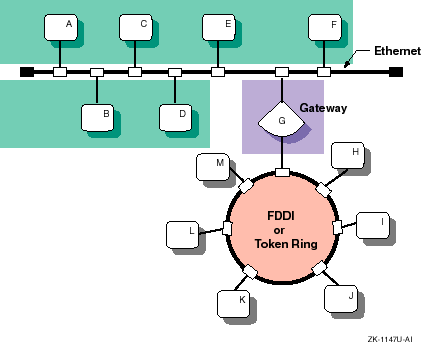
Figure 2-1 shows a sample corporate network in which there is an Ethernet backbone and an FDDI or Token Ring network connected to it through a gateway.
You configure the network components by using the Network Configuration application. Appendix A contains a worksheet that you can use to record the information that you need to configure the network components.
Figure 2-2 shows Part 1A of the Configuration Worksheet. The following sections explain the information you need to record in Part 1A of the worksheet.
If you are viewing this manual online, you can use the print feature to print a copy of this part of the worksheet.
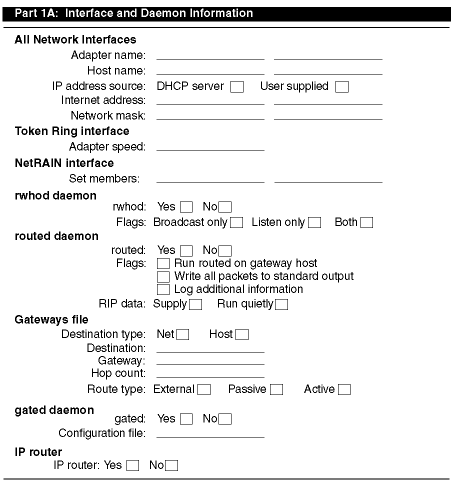
The device names of the network interfaces. The following table contains a list of selected network interfaces that are supported on Tru64 UNIX:
| Interface | Device Name |
Ethernet |
|
Fiber Distributed Data Interface (FDDI) |
|
Token Ring |
|
Note that if you configuring a NetRAIN interface, as documented in
Section 2.4, the adapter name is the virtual device name
of your NetRAIN set (nr).
The fully qualified host name assigned to your system or NetRAIN interface. A fully qualified host name contains the host name and the domain name, with host name and each level of the domain name separated by a period (.). Ask the network administrator for a unique host name.
The source of your system's network address for Ethernet, FDDI, and NetRAIN interfaces only. If your network uses a Dynamic Host Configuration Protocol (DHCP) server to assign IP addresses to systems at boot time, check the DHCP server box. If you plan to assign an IP address and network mask as part of system configuration, check the User supplied box.
The Internet Protocol (IP) address of your system or NetRAIN interface. You should have obtained an IP address for your network from InterNIC Registration Services. After you receive your network's address, you must assign a unique IP address and host name to each system on your network.
To obtain an Internet address for your network, contact:
American Registry for Internet Numbers
4506 Daly Drive, Suite 200
Chantilly, VA 20151
Voice: (703) 227-0660
FAX: (703) 227-0676
Email: reg-services@arin.net (for general information)
hostmaster@arin.net (for IP address registrations)
WWW: http://www.arin.net
In Europe, you can contact:
RIPE Network Coordination Center
Singel 258
1016 AB Amsterdam
The Netherlands
Voice: +31 20 535 4444
FAX: +31 20 535 4445
E-mail: ncc@ripe.net (for general information)
hostmaster@ripe.net (for IP address registrations)
WWW: http://www.ripe.net
In Asia and the Pacific region, you can contact:
Asia Pacific Network Information Center
Level 1, 33 Park Road
P.O. Box 2131
Milton, QLD 4064
Australia
Voice: +61 7 3367 0490
FAX: +61 7 3367 0482
E-mail: hostmaster@apnic.net (for general information and IP address registrations)
WWW: http://www.apnic.net
Note
You should register your network even if you do not intend to connect to the Internet network. Then, if you decide to connect to the Internet network later, you will not have to change all the host addresses on your network.
Your network's subnet mask. Subnetworks allow the systems on a local area network (LAN) to be known by one address to the Internet network, while being known locally by a set of addresses. Subnetworks can represent logical groupings of hosts, or different physical networks. If your network uses subnetwork routing, each system on the network must have the same subnet mask defined. Use the following table to help identify your subnet mask. If you are not using subnetworks, the n is zero (0); otherwise, the n is greater than zero and less than or equal to 255.
| Class | IP Address Range | Subnet Mask |
| A | 0.0.0.0 to 127.0.0.0 | 255. n.n.n |
| B | 128.0.0.0 to 191.0.0.0 | 255.255. n.n |
| C | 192.0.0.0 to 223.0.0.0 | 255.255.255. n |
If you are connecting your system to an existing network that is using subnetwork routing, ask the network administrator for the correct subnet mask.
If your system supports token ring, the speed of your system's token ring adapter. Two speeds are supported: 4Mb/s and 16Mb/s. The default speed is 16Mb/s.
The device names of the network interfaces that are part of the NetRAIN set, as discussed in Section 2.4. When one interface ceases to function, NetRAIN will fail over to another interface on this list.
If you want to run the
rwhod
daemon, check Yes; otherwise, check No.
Running the
rwhod
daemon allows you to use the
rwho
and
ruptime
commands.
If the
rwhod
daemon is to send
rwho
packets and ignore incoming packets, check Broadcast Only.
If the daemon is to collect incoming packets, but not broadcast
rwho
packets, check Listen Only.
If the daemon is to do both, check
Both.
Running
the
routed
daemon allows your system's internal routing
tables for the Routing Information Protocol (RIP) to be updated automatically.
If you want to run the
routed
daemon, check
Yes; otherwise, check No.
Note
You can choose the
routeddaemon orgateddaemon, but not both.
Specifies how you want
routed
to run.
You can run
routed
on a gateway host, write all packets
to standard output, or log debugging information.
Check the options you want.
See
routed(8)
for more information.
If
routed
is to supply RIP information,
check Supply; otherwise, check Run Quietly.
If the route is to a network, check Net. If the route is to a specific host, check Host.
The destination name or IP address (in dotted-decimal format).
The name or address of the gateway host to which messages should be forwarded.
The hop count, or number of gateways, from the local network to the destination network.
If the gateway is expected to exchange RIP routing information,
check Active.
If the gateway is not expected to exchange routing information,
check Passive.
If the gateway is to notify
routed
that
another routing process will install the route (it is not advertised through
RIP), check External.
Running the
gated
daemon allows your system's internal routing tables for different
routing protocols to be updated automatically.
If you want to run the
gated
daemon, check
Yes; otherwise, check No.
Note
You can choose the
routeddaemon orgateddaemon, but not both.
The name of an alternate configuration file.
By default,
gated
uses the
/etc/gated.conf
file.
You
can configure your system as an IP router if you have more than one network
interface installed and configured.
In addition, you must have configured
either
routed
or
gated.
If you want the system to run as an IP router, check Yes; otherwise, check No.
Figure 2-3 shows Part 1B of the Configuration Worksheet. The following sections explain the information you need to record in Part 1B of the worksheet. If you are viewing this manual online, you can use the print feature to print a copy of this part of the worksheet.
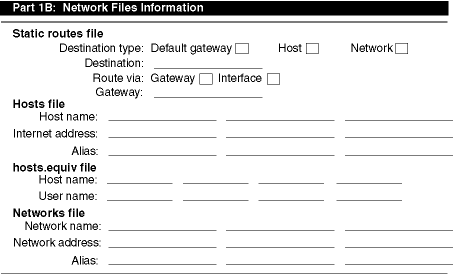
The specific path, as stored in the
/etc/routes
file, from your system to another host or network.
A static route is not
updated by network software.
If you want to route to a default gateway, check
Default Gateway; to a host, check Host; or to a network, check Network.
The name or IP address of the route destination.
For default
gateway, the default destination is
default.
If you are routing through a gateway, check Gateway. If you are routing through an interface, check Interface.
The name or IP address of the gateway or interface.
The names of other hosts on the network to be added to the
/etc/hosts
file.
If your network is running a distributed database lookup service (DNS/BIND
or NIS), you do not need to list each host on your network in your
/etc/hosts
file.
However, it is a good idea to list four or five
systems on the network designated as DNS/BIND or NIS servers in your
/etc/hosts
file.
The IP addresses of other hosts on the network to be added
to the
/etc/hosts
file.
The aliases, if any, of other hosts on the network to be added
to the
/etc/hosts
file.
The name of the trusted hosts to be put in the
/etc/hosts.equiv
file.
Systems listed in the
/etc/hosts.equiv
file are logically equivalent to, and therefore treated exactly the same as,
the local system.
Setting up an
/etc/hosts.equiv
file is optional,
but, if you choose to have one on your system, you need to create it and add
the names of any trusted hosts.
The name of a user on a trusted host.
The official Internet name of the network.
The IP address of the network.
The unofficial names used for the network to be added to the
/etc/networks
file.
Use the Network Configuration application of the Common Desktop Environment (CDE) Application Manager to configure network components on systems with graphics capabilities. You can configure the following components:
Network interfaces (Ethernet, FDDI, and Token Ring)
Static routes file (/etc/routes)
gated
daemon
routed
daemon
rwhod
daemon
IP router
Hosts file (hosts)
Host equivalent file (hosts.equiv)
Networks file (/etc/networks)
See
netconfig(8X)
for more information on the Network Configuration
application.
To invoke the Network Configuration application, log in as root and do the following:
Click on the Application Manager icon on the CDE front panel.
Double-click on the System_Admin application group icon.
Double-click on the Configuration application group icon.
Double-click on the Network Configuration application icon. The Network Configuration main window is displayed, showing available network components and configured network components.
To exit the Network Configuration application, choose File then Exit.
Note
For systems without graphics capabilities, you can use the
netsetuputility. Seenetsetup(8) for more information.
The Network Configuration application has an extensive online help system that you can use, instead of the instructions in the following section, to configure network components on your system.
Use the following procedure to configure the Ethernet, FDDI, or Token Ring network interface. For information about how to configure NetRAIN, see Section 2.4.
Select an interface from the Available Network Components list box in the Network Configuration main window. All network adapters that are installed on the system are listed in the list box.
Click on the Configure button to display the Configuring Interface dialog box for the selected interface.
Set the Interface Configuration Enable check button to the On position to enable the interface.
Enter the name of the interface in the Host Name field. If this is the first or only network interface you are configuring and there is a default host name, the utility displays the default.
For the Ethernet interface, do the following:
To obtain the IP address data from the DHCP server, set the Use DHCP Server radio button to the On position. Otherwise, set the User Supplied Value radio button to the On position and enter the IP address and network mask data in the appropriate fields.
Click on the down arrow button to display the advanced configuration parameters for the selected interface.
Click on the Multicast check button to enable the reception
of
multicast packets.
See
map-mbone(7)
for more information on multicast routing.
Click on the check boxes for the appropriate interface options.
Go to step 8.
For the FDDI interface, do the following:
To obtain the IP address data from the DHCP server, set the Use DHCP Server radio button to the On position. Otherwise, set the User Supplied Value radio button to the On position and enter the IP address and network mask data in the appropriate fields.
Click on the down arrow button to display the advanced configuration parameters for the selected interface.
Click on the check boxes for the appropriate interface options.
Enter the broadcast address for the interface in the Broadcast Address field.
Go to step 8.
For the Token Ring interface, do the following:
Enter the IP address for the host device in the IP Address field.
Enter the mask variable for the interface in the Network Mask field.
Click on the button in option box to display a menu of token ring adapter speeds. Select the appropriate adapter speed: 4 or 16.
Click on the down arrow button to display the advanced configuration parameters for the selected interface.
Enter the broadcast address for the interface in the Broadcast Address field.
Go to step 8.
Click on Commit.
Click on Yes to save the changes and start the interface.
Click on Close to close the Configuring Interface dialog box.
You can also use the Network Configuration application to modify and disable network interfaces. See the online help for more information.
To configure the
rwhod
daemon, do the following:
Select the Rwho Daemon from the Available Network Components list box in the Network Configuration main window.
Click on the Configure button to display the Configuring Rwho Daemon dialog box.
Set the rwhod Daemon Enable check box to the On position.
Click on the appropriate
rwhod
flag.
Click on Commit.
Click on Yes to save the changes and start the daemon.
Click on Close to close the Configuring rwho Daemon dialog box.
You can also use the Network Configuration application to modify and
disable the
rwhod
daemon.
See the online help for more
information.
To configure the
routed
daemon, do the following:
Select the Route Daemon from the Available Network Components list box in the Network Configuration main window.
Click on the Configure button to display the Configuring Route Daemon dialog box.
Set the routed Daemon Enable check box to the On position.
Set the
routed
flags to the On position
as needed.
Set the Supply RIP Data radio button to the On position if
the
routed
daemon will run on a gateway host and supply
Routing Information Protocol (RIP) data.
Set the Run Quietly radio button
to the On position if the
routed
daemon will not supply
RIP information.
Click on Gateways File. The Gateways dialog box is displayed. Do the following:
In the Destination Type field, set the net radio button to the On position if if the destination is a network. Set the host radio button to the On position if the destination is a host.
Enter the destination name, IP address, or
default
in the Destination field.
Enter the name or IP address of the gateway host in the Gateway field.
Enter the hop count in the Hop Count field.
Set the appropriate Route Type radio button to the On position.
Click on Add. Repeat steps a through f for additional gateways.
Click on Commit and Close to save the changes and close the Gateways dialog box.
Click on Commit.
Click on Yes to save the changes and start the routed daemon.
Click on Close to close the Configuring Route Daemon dialog box.
You can also the Network Configuration application to modify and disable
the
routed
daemon and entries in the
gateways
file.
See the online help for more information.
See
routed(8)
and
gateways(4)
for more information about the
routed
daemon and the
gateways
file.
To configure the
gated
daemon, do the following:
Select the Gate Daemon from the Available Network Components list box in the Network Configuration main window.
Click on the Configure button to display the Configuring Gate Daemon dialog box.
Set the gated Daemons Enable check box to the On position.
Enter the name of the
gated
configuration
file in the Configuration File field.
Note
To configure the
gateddaemon, you must set up the/etc/gated.conffile in the format specified ingated.conf(4). A default/etc/gated.conffile is provided when you install the software.
Click on Commit.
Click on Yes to save the changes and start the daemon.
Click on Close to close the Configuring Gate Daemon dialog box.
You can also use the Network Configuration application to modify and
disable the
gated
daemon.
See the online help for more
information.
See
gated(8)
and
gated.conf(4)
for more information about the
gated
daemon the
gated.conf
file.
In order to function as an IP router,
your system must have two network interfaces installed and configured and
must have the
routed
or
gated
daemon
configured.
To configure the system as an IP router, do the following:
Select IP Router from the Available Network Components list box in the Network Configuration main window.
Click on the Configure button to display the Configuring IP Router dialog box.
Set the IP Router Enable check box to the On position.
Click on Commit.
Click on Yes to start the IP Router.
Click on Close to close the Configuring IP Router dialog box.
You can also use the Network Configuration application to deconfigure the system as an IP router. See the online help for more information.
To configure the
routes
file, you add entries (static routes) to the
routes
file.
Do the following:
Select the Static Routes File from the Available Network Components list box in the Network Configuration main window.
Click on the Configure button to display the Static Routes dialog box.
Set the appropriate Destination Type radio button to the On position.
For host and net destinations:
Enter the full name or IP address of the destination network or host in the Destination field.
Set one of the Route Via radio buttons to the On position. Click on the Gateway button if the route is through a gateway; click on the Interface button if the route is through an interface.
For a gateway, enter the full name or IP address of the gateway host to which messages will be forwarded in the Gateway field.
Click on Add to accept the entry. Repeat steps 3 through 6 for additional static routes.
Click on Commit and click on Close to save the current changes and close the dialog box.
You can also use the Network Configuration application to modify and
delete entries in the
routes
file.
See the online help
for more information.
See
routes(4)
for more information about the
routes
file.
To
configure the
hosts
file, do the following:
Select the Host File from the Available Network Components list box in the Network Configuration main window.
Click on the Configure button to display the Hosts dialog box.
Enter the official host name in the Host Name field.
Enter the IP address of the new host in the Host Address field.
If an unofficial name or names (aliases) are assigned to the new host, enter the names in the Aliases field.
Click on Add to accept the entry. Repeat steps 3 through 6 for additional hosts.
Click on Commit and Close to update the
hosts
file and close the Hosts dialog box.
You can also use the Network Configuration application to modify and
delete entries in the
hosts
file.
See the online help for
more information.
See
hosts(4)
for more information about the
hosts
file.
To configure the
hosts.equiv
file,
do the following:
Select the Host.equiv File from the Available Network Components list box in the Network Configuration main window.
Click on the Configure button to display the Hosts.equiv dialog box.
Enter the host name in the Host name field.
Note
You cannot add a host that is not on the network.
Enter the name of a user on the remote host.
Click on Add to accept the entry. Repeat steps 3 through 5 for additional hosts.
Click on Commit and Close to update the
/etc/hosts.equiv
file and close the Hosts.equiv dialog box.
You can use the Network Configuration application to modify and delete
entries in the
hosts.equiv
file.
See the online help for
more information.
See
hosts.equiv(4)
for more information about the
hosts.equiv
file.
To configure the
networks
file, do the following:
Select the Network File from the Available Network Components or Configured Network Components list box in the Network Configuration main window.
Click on the Configure button to display the Networks dialog box.
Enter the official network name in the Net Name field.
Enter the IP address of the network in the Net Address field.
If an unofficial name or names (aliases) are assigned to the new network, enter the aliases in the Aliases field.
Click on Add to accept the entry. Repeat steps 3 through 6 for additional networks.
Click on Commit and Close to update the
/etc/networks
file and close the Networks dialog box.
You can also use the Network Configuration application to modify and
delete entries in the
networks
file.
See the online help
for more information.
See
networks(4)
for more information about the
networks
file.
The Redundant Array of Network Adaptors (NetRAIN) interface provides a mechanism to protect against certain kinds of network connectivity failures.
NetRAIN integrates multiple network interfaces on the same LAN segment into a single virtual interface called a NetRAIN set. One network interfaces in the set is always active while the others remain idle. If the active interface fails, one of the idle set members comes online with the same IP address within an adjustable failover time period.
This section describes how to configure the hardware and the network interfaces for a NetRAIN set.
Before you set up the NetRAIN virtual interface, note the following hardware restrictions and configuration tips:
You must construct a NetRAIN set out of interfaces that are currently idle, that is, the interfaces cannot be marked as "up" in the Network Configuration application and cannot be configured with any upper layer protocol (for example, IP, LAT, or DECnet/OSI).
You must use two or more of the same type of network interface (FDDI, ATM LAN Emulation, or Ethernet) dedicated to a single LAN segment. If you use Ethernet adaptors, they must all be of the same speed.
You should run separate cables from each network adapter to the appropriate hub or concentrator to provide physically redundant paths back to the network. This reduces the chance of network failure due to cables being accidentally unplugged.
You might need to adjust the timeout values to ensure that
NetRAIN will detect and respond to network failure successfully.
You can tune
these parameters with the
sysconfig
command, the
ifconfig
command, or the
ioctl
system call.
See
the
nr(7),
ifconfig(8),
sysconfig(8),
dxkerneltuner(8), and
sys_attrs_netrain(5)
reference pages for details.
By default, these parameters are tuned for operation over Ethernet, but it is possible that the default values and other suggested timeout values will not work in your environment. For example, if you are connected to a switch, failover time might depend on the switch and its configuration.
You must use UNI Version 3.1 when running NetRAIN over LANE to obtain acceptable failover times with some ATM switches, including the Gigaswitch. If you use UNI Version 3.0, the failover time might be long because the T309 timer is set to 90 seconds by default on some switches. If the T309 timer is adjustable on your switch, you can set the T309 timer to 10 seconds as in UNI Version 3.1 to try to achieve acceptable failover times.
In addition, licensing schemes that use a network adapter's Media Access Control (MAC) address to uniquely identify a machine can be affected by how NetRAIN changes the MAC address.
All network drivers support the
SIOCRPHYSADDR
ioctl
that fetches MAC addresses from the interface.
This ioctl returns two addresses
in an array:
This is the permanent address that is taken from the small PROM that each LAN adapter contains.
This is the address that the network responds to on the wire.
Licensing schemes based on MAC addresses should use the default hardware
address returned by the
SIOCRPHYSADDR
ioctl; do not use
the current physical address because NetRAIN modifies this address for its
own use.
See the reference page for your network adapter (for example
ln(7)
and
tu(7))
for a sample program that uses the
SIOCRPHYSADDR
ioctl.
To configure a NetRAIN interface, log in as root and enter the following
ifconfig
command:
#ifconfig netrain-interface-id IP-address netmask network-mask add interface-id,interface-id
For example, to create a NetRAIN set called
nr0
with
two FDDI interfaces called
fta0
and
fta1,
you might enter the following command:
#ifconfig nr0 18.240.32.40 netmask 255.255.255.0 add fta0,fta1
Or, to create a NetRAIN set called
nr1
with two ATM
LANE interfaces, you might enter this command:
# ifconfig nr1 18.240.32.41 netmask 255.255.255.0 add elan0,elan1
After you create the NetRAIN set, use the
ifconfig
command as documented in
Section 2.4.2
to determine
if the NetRAIN interface is running.
To have the NetRAIN interface start each time you boot your system,
add the
ifconfig
command and parameters as shown in the
previous examples to the
inet.local
file.
See
inet.local(8)
for more information.
To check which member of a NetRAIN set is the active interface, use
the
ifconfig
command.
For example:
#ifconfig nr0nr0: flags=8c63 NetRAIN Attached Interfaces: ( fta0 fta1 ) Active Interface: ( fta0 )inet 18.240.32.40 netmask ffffff00 broadcast 18.240.32.255 ipmtu 4352
This example shows that:
The virtual interface
nr0
is running;
its IP address is 18.240.32.40.
The NetRAIN set consists of two physical interfaces,
fta0
and
fta1.
NetRAIN is currently using
fta0
for communication.
If NetRAIN determines that
fta0
is not active, it will
switch to the next interface in the set,
fta1.
NetRAIN activity is also logged in the
kern.log
file.
Interface access filtering provides a mechanism for detecting and preventing IP spoofing attacks. To enable interface access filtering on an interface, do the following:
Create an
/etc/ifaccess.conf
file and add
entries against which the source address of input packets are checked.
Use the
ifconfig
command with the
+filter
parameter to enable access filtering on the network interface.
See
ifaccess.conf(4)
and
ifconfig(8)
for more information.
You use the
netstat
command to monitor the status of the local host by viewing
the contents of network-related data structures.
You can select several forms
of display; each allows you to specify the type of information you want to
emphasize.
To monitor the local host's network status, use the
netstat
command with the following syntax:
netstat
[options...]
Table 2-1
shows the
netstat
command options.
| Option | Function |
-A |
Displays the address of any associated protocol control blocks. |
-a |
Includes information for all sockets. |
-f
address_family |
Includes statistics or address control block reports for the specified address family. |
-I
interface |
Displays information about the specified interface. |
-i |
Provides status information for autoconfigured interfaces. |
-m |
Displays information about memory management usage. |
-n |
Lists network addresses in number form rather than symbolic form. |
-r |
Lists routing tables. |
-s |
Provides statistics per protocol. |
-t |
Displays the time until the interface watchdog
routine starts (for use with the
-i
option). |
The
-I
option provides statistics for a specific interface.
See
Appendix B
for an example of using the
-I
option to monitor Ethernet, Fiber Distributed Data Interface (FDDI), and token
ring interfaces, and a description of the counters, status, and characteristics.
The
-i
option provides statistics on each configured
network interface.
Outgoing packet errors (Oerrs) indicate
a potential problem with the local host.
Incoming errors (Ierrs) indicate a potential problem with the network connected to the
interface.
See
netstat(1)
for more information on this command.
The following example shows normal output (no
Ierrs
or
Oerrs) from the
netstat
command with
the
-i
option:
%netstat -iName Mtu Network Address Ipkts Ierrs Opkts Oerrs Coll ln0 1500 <Link> 8324125 0 8347463 0 237706 ln0 1500 16.31.16 host1 8324125 0 8347463 0 237706 fza0* 4352 <Link> 0 0 0 0 0 sl0* 296 <Link> 0 0 0 0 0 sl1* 296 <Link> 0 0 0 0 0 tra0 4092 <Link> 34 0 20 0 0 tra0 4092 16.40.15 host21 34 0 20 0 0 lo0 1536 <Link> 909234 0 909234 0 0 lo0 1536 loop localhost 909234 0 909234 0 0
You use the
fddi_config
command to display and modify the FDDI adapter parameters.
To display the FDDI adapter parameters, use the
fddi_config
command with the following syntax:
fddi_config
-i interface_name -d
To modify the FDDI adapter parameters, do the following:
Log in as root.
Use the
fddi_config
command and options
as follows:
fddi_config
[options...]
Table 2-2
shows the
fddi_config
command options.
| Option | Function |
|
Changes or displays the FDDI characteristics for interface_name. You must provide the interface name. |
|
Determines how often the driver counters are updated by the DEFTA adapter. The default is 1 second. Setting the interval time to zero (0) disables counter updates. (For the DEFTA (fta) FDDI interface only.) |
-d |
Displays the FDDI interface parameters you can set. |
|
Sets the error rate threshold of Link Error Monitor (LEM). The LEM error rate threshold is 1×10-n, where n ranges from 5 to 8, inclusively. The default LEM threshold is 1×10⁻⁸. |
-p [1|0] |
Sets the ring purger state for the specified FDDI interface. A value of 1 enables the ring purger ability; a value of 0 disables it. |
-r restricted_token_timeout |
Sets the Restricted Token Timeout parameter, defining how long a single restricted mode dialog can last before being terminated. The range for this parameter is from 0 to 10000 milliseconds. The default value is 1000 milliseconds. |
-t token_request_time |
Sets the Request Token Rotation Time (T_req) for interface_name. T_req is used during the ring initialization process to negotiate a Target Token Rotation Time (TTRT) for the ring. The range for this parameter is from 4.0 milliseconds to 167.77208 milliseconds. The default value is 8.0 milliseconds. |
-v valid_transmit_time |
Sets the Valid Transmission Time (TVX) timer for a specific FDDI interface. The range for the TVX timer is from 2.35 milliseconds to 5.2224 milliseconds. The default is 2.6214 milliseconds. |
-x [1|0] |
Enables (1) or disables (0) full-duplex operation for the interface. If the full-duplex operation is enabled, the interface can be in one of the following states: Idle, Request, Confirm, or Operational. (For the DEFTA (fta) FDDI interface only.) |
See
fddi_config(1)
for more information on this command.
The following example shows how to display the FDDI interface parameters you can set:
%/usr/sbin/fddi_config -i fza0 -dfza0 ANSI FDDI settable parameters Token Request Time: 0.0000 ms Valid Transmission Time: 0.0000 ms LEM Threshold: 0 Restricted Token Timeout: 15.8314 ms Ring Purger State: (null) fza0 Full Duplex Mode: Disabled fza0 Counter Update Interval: 10 sec
The following example shows how to change the Token Request Time (TRT) value for the fza0 interface to 10.2:
#fddi_config -t10.2 -i fza0
The following example shows how to turn the ring purger off:
#fddi_config -p 0 -i mfa0
Source routing is a bridging mechanism that systems on a token ring LAN use to send messages to a system on another interconnected token ring LAN. Under this mechanism, the system that is the source of a message uses a route discovery process to determine the optimum route over token ring LANs and bridges to a destination system. The source system stores the optimum routes in its source routing table.
When
the system is booted with the DETRA adapter installed and configured, token
ring source routing is initialized by default.
To manage token ring source
routing, use the
srconfig
command and options as follows:
srconfig
options...
Table 2-3
shows the
srconfig
command options.
All
srconfig
command options are case
insensitive; type them in uppercase, lowercase, or mixed case.
The short form
for each flag is indicated by uppercase letters.
| Option | Function |
-DElentry mac_address
[Footnote 1]
|
Deletes a source routing table entry. |
-DISEntry mac_address
[Footnote 1] |
Disables a source routing table entry. This marks the entry as Stale. |
-RAttr |
Displays the source routing attributes. |
-RCounter |
Displays the source routing counters. |
-REntry mac_address |
Displays a specific source routing table entry. |
-RTable |
Displays the source routing table. |
-SETAgetimer timer
[Footnote 1] |
Sets the value of the Source Routing Aging Timer, specifying the length of time a source routing table entry remains valid until being marked as invalid or Stale. If not set, the system default is 120 seconds. |
-SETDsctimer timer
[Footnote 1] |
Sets the Source Routing Discovery Timer, specifying the amount of time a route discovery process can take before it terminates. If not set, the system default is 5 seconds. |
-SETMaxentry value
[Footnote 1] |
Sets the maximum number of entries allowed in the source routing table. The range for this entry is a multiple of 256 from 1024 to 2048. This parameter can be increased, but not decreased. If not set, the system default is 1024. |
-u |
Specifies that the MAC addresses are in uncanonical
form.
This option can be used with the
-DElEntry
mac_address
,
-DISEntry
mac_address
, and
-RTable
options only. |
-Zcounter |
Sets the source routing counters to zero. |
See
srconfig(8)
for more information on this command.
The following example increases the number of routing table entries
from 1024 to 1280 by using the shortened form of the
-SetMaxEntry
option:
#srconfig -setm 1280Current SR Table size is : 1024 New SR Table size is : 1280
The following example displays the source routing attributes by using
the shortened form the
-RAttr
option:
#srconfig -raSource Routing is enabled Current SR Aging Timer : 120 Current SR Discovery Timer : 10 Current SR Table size is : 1024
The following example displays the source routing counters by using
the shortened form of the
-RCounter
option:
#srconfig -rcARE Frames Sent : 00000001 ARE Frames received : 00000000 Route Discovery Failures : 00000001
The following example displays all entries, with MAC addresses in canonical
form, in the source routing table, by using the shortened form of the
-RTable
option.
The backslash (\) character is included for
formatting purposes and does not appear in the actual output.
#srconfig -rtTarget Node MAC Address 00-00-0C-01-08-E9 (ip = 130.180.4.3) \ Have Route [1] Routing Information: SRF, length 8, direction 0,largest frame \ 4472 octets [2] Route Descriptors: 021C 7FFC 0220 0000 0000 0000 0000 0000 [3] Target Node MAC Address 00-00-C9-10-1B-F5 On Ring [4] Target Node MAC Address 08-00-2B-2C-F1-F9 (ip = 130.180.4.2) \ Stale (Have Route) [5] Routing Information: SRF, length 8, direction 0,largest frame 4472 octets Route Descriptors: 021C 7FFC 0220 0000 0000 0000 0000 0000 Target Node MAC Address 00-00-C9-0B-33-80 Stale (On Ring)
Have Route
indicates
the source system has a valid path to the destination system.
[Return to example]
Information returned by the destination system in response to the route discovery process. [Return to example]
The LAN segments and bridges that constitute the path to the destination system. [Return to example]
On Ring
indicates the
destination system is on the same ring as the source system and does not need
source routing.
[Return to example]
Stale
indicates the entry
is invalid and needs to be updated by the route discovery process.
[Return to example]
The following example displays all entries, with MAC addresses in noncanonical
form, in the source routing table by using the shortened form of the
-RTable
option.
The backslash (\) character is included for
formatting purposes and does not appear in the actual output.
#srconfig -rt -uTarget Node MAC Address 00:00:30:80:10:97 (ip = 130.180.4.3) Have Route Routing Information: SRF, length 8, direction 0,largest frame 4472 octets Route Descriptors: 021C 7FFC 0220 0000 0000 0000 0000 0000 Target Node MAC Address 00:00:93:08:D8:AF On Ring Target Node MAC Address 10:00:D4:34:8F:9F (ip = 130.180.4.2) Stale \ (Have Route) Routing Information: SRF, length 8, direction 0,largest frame 4472 octets Route Descriptors: 021C 7FFC 0220 0000 0000 0000 0000 0000 Target Node MAC Address 00:00:93:D0:CC:01 Stale (On Ring)
By default, the DETRA adapter uses an IP maximum transfer unit (MTU) size of 4092 bytes. In a multivendor environment with different adapters using different IP MTU sizes, the bridges connecting different networks can be set up to forward smaller packet sizes. As a result, bridges might drop packets or remote hosts might reject packets. If either occurs on your network, reduce the IP MTU size for all hosts on the network and ensure that all hosts use the same size.
The following command displays the DETRA interface IP MTU size as 4092 bytes:
%ifconfig tra0tra0: flags=9863<UP,BROADCAST,NOTRAILERS,RUNNING> inet 16.141.208.3 netmask ffffff00 broadcast 16.141.208.255 ipmtu 4092
The following command changes the IP MTU size of DETRA interface to 2044 bytes:
%ifconfig tra0 ipmtu 2044