A hardware product kit is developed to deliver software support for hardware on a customer's system. This chapter describes how to prepare a hardware product kit, the additional files required for the kit, and how to test the installation of the kit.
A hardware product kit includes the kernel modules that let your operating system support new or upgraded hardware, and it enables you to install hardware support without reinstalling or updating the base operating system. However, you must reboot your system to rebuild the kernel so that it includes the modules that support your new hardware. To support the new hardware and the hardware product kit software, the customer may need to install or update to Version 4.0F of the operating system before installing the hardware product kit software.
The kernel modules and the kit support files are distributed on CD-ROM as a hardware product kit and can be installed either directly from the distribution media or loaded onto a Remote Installation Services (RIS) area for installation by RIS clients over a local area network (LAN).
Follow these steps to create and test a hardware product kit:
Read Chapter 1 for an overview of product kits.
Design the kit structure as described in Section 2.1.
Populate the source directory as described in Section 2.2 and read about the file considerations for hardware product kits in Section 2.2.2.
Read Chapter 3 for information about creating subset control programs.
Read Chapter 4 to group files into subsets, create the master inventory and key files, and build files into subsets.
Create the additional files required for hardware product kits as described in Section 5.1.
Create a subset control program as described in Section 5.2.
Create the kit distribution media as described in Section 5.3.
Test the hardware product kit as described in Section 5.4.
A hardware product kit requires that you create the following files on the distribution media to make the hardware product accessible during initial system installation and bootstrap:
A
A
name.kit
file (where
name
represents the device or product name) is provided on the
hardware product kit and is located on the distribution media only.
This
file must ship in the
EDG100.
The file is used to control the actions of the system's boot utility
to allow the kernel to boot with the new hardware support software off the
distribution media for the installation.
The file is placed in the
root
directory on the hardware product kit distribution media after
creating the kit media with the
gendisk
utility.
The content
of the distribution
name.kit
file specifies the location of the module files for the hardware on the distribution
media.
This file is not part of the installed product and does not need to
be part of the product inventory.
Each hardware product kit on the distribution
media must have its own
name.kit
file.
See Section 5.1.1 for more information about the format and contents of this file.
A
A
name.kit
file (where
name
represents the device or product name) is installed with
the kit software onto the target system.
This file controls the boot link
of the kernel from the installed target disk allowing the target system kernel
to boot with the new hardware support software.
The format of this file is
the same as the format of the
name.kit
file on the distribution media, but the location of the module
files is specified as the location of the hardware support files on the installed
disk.
This file is a required part of the installed product and needs to be
part of the product inventory.
See Section 5.1.1 for more information about the format and contents of this file.
Additional installed
name.kit
files
If there are any other hardware product kits on the same distribution
media, you must create a separate
name.kit
files (where
name
represents the device or product name).
This file must ship in the
instctrl
directory and
contains the path to the expanded subset files starting from the
kit
directory (for example,
gendisk
utility when a Direct CD-ROM (DCD) distribution media is
built.
Using the example in this chapter, this file would be called
EDG100.root.
A
portion of the
/etc/sysconfigtab
file
The contents are passed to the kernel and logically are appended to
the contents of the
/etc/sysconfigtab
file read from the
base disk.
This database defines attributes of the modules configured by the
boot utility.
The contents of this file are described in
Section 2.2.2.
A
kitname.kk
file
A
kitname.kk
file (where
kitname
is the product name) must be in the
instctrl
subdirectory so that the hardware product kit can be installed
into a RIS area.
The
kitname.kk
file is created automatically by the
gendisk
utility when
the
kk=true
option is used in conjunction with the
dd=
option in the
/etc/kitcap
file.
See
Section 5.1.2
for more information about
the
kitname.kk
file.
See the
kitcap(4)
reference page for more information about the format of the
/etc/kitcap
file.
The
HW.db
module database file
The module database file describes the list of subsets that need to
be installed for each kernel module.
There is only one
HW.db
file on each piece of shipped media (CD-ROM or disk), and it contains information
about all of the hardware product kits on the media.
This file must be located
in the
root
directory of the distribution media.
See
Section 5.1.3
for more information about the format and content
this file.
The
hardware_kit.hw
hardware support file
The hardware support file contains information about each of the product
kits available on the shipped media.
There is only one
hardware_kit.hw
file on each piece of distribution media, which contains information
about all the hardware products supported by the kits on the media.
The
hardware support file must be named
hardware_kit.hw.
This
file must be located in the
root
directory of the distribution
media.
See
Section 5.1.4
for more information
about the format and content of this file.
An installed
hardwarename.hw
hardware support file
The
hardwarename.hw
file
is installed with the kit onto the target system and contains information
about the hardware product supported by the installed kit.
There should be
one
hardwarename.hw
file for
each piece of hardware supported by the installed kit.
Each file must be part
of the inventory of the subset that contains the associated hardware support.
This file must ship in the
EDG100.
See
Section 5.1.5
for more information about
the format and contents of this file.
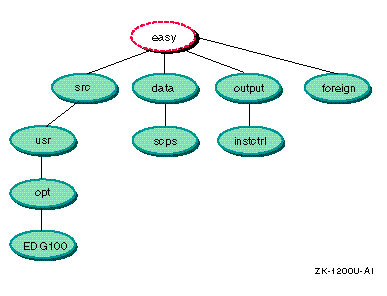
Figure 5-1
shows the directory structure for
the
EDGgraphics
device driver product.
In this figure,
the top level directory (drawn with dashed lines),
easy,
is an existing directory under which the developer created the hierarchy directories.
In the example,
EDG
is the three letter product code assigned
to the sample graphics device driver produced by
EasyDriver, Inc..
The following sections describe the contents of the
name.kit,
kitname.kk,
HW.db,
hardware_kit.hw,
and
hardwarename.hw
files.
The format of the distribution and the installed
In the distribution
In the installed
/opt
directory (that is, it must
be on the root file system).
This file is a required part of the installed
product and must be part of the product inventory.
Commands in the distribution
name.kit
file describe how the
boot
utility needs to
modify the bootstrap link process to boot this kit off the distribution media.
When bootstrap linking the kernel, this file controls where hardware product
modules are found during the boot process.
When bootstrap linking from a hardware
product kit, the
boot
utility sets the default directory
to the media
root
directory.
During a normal boot process,
the default is
/sys/BINARY
on the system disk.
Commands
in the distribution
name.kit
file indicate which modules should be added, removed, or replaced in the kernel.
Note
The kernel will not allow two kernel modules to have the same name. To avoid kernel module naming conflicts with other OEMs and the base operating system, it is recommended that you prepend your three letter product code to your module names. For example, the module name for the sample hardware product in this chapter is
EDGgraphics.mod.
Modules needed for the kernel must reside in the
./opt/PROD_CODE/sys/BINARY
directory, so that they can be
accessed at boot time.
Kernel modules for the fictitious graphics device
driver used in this chapter are located in
./opt/EDG100/sys/BINARY.
Note
Module files for hardware product kits must be compressed with the
objZutility. Do not use thecompressorgziputilities to compress module files for hardware product kits. See theobjZ(1) reference page for more information.
Table 5-1
shows the format of the commands
in the
name.kit
file.
| Format of Command | Description |
+[device:][/path/]file.mod |
Adds
file.mod
from the
root
or the specified device.
You
can specify a full path or accept the default. |
-[/path/]file.mod |
Deletes (or subtracts)
file.mod
from the module list on the default path
for
file.mod.
Each module in
the kit file must be removed before it is added in case the module already
exists. |
file.mod=[device:][/path/]new.mod |
Replaces
file.mod
on the default path with the module you specify. |
Each kernel module listed in the
name.kit
file first must be removed with the
-
operator
and then added with the
+
operator.
If kernel modules
are just added and you already have an older version of the hardware product
on the system, the bootlink will fail because the kernel module already exists.
The
+
operator does not replace a module if it already
exists.
Therefore, to protect against this, it is recommended to first remove
the module and then add it to make sure you get the latest version of the
module in the kernel.
The hardware product kit for the
EDGgraphics
device
driver supplies a
name.kit
file
which first removes and then adds the
EDGgraphics.mod
single
binary module to the kernel.
In
Example 5-1, the sample
name.kit
file is referencing the
/opt/EDG100/sys/BINARY
directory on the installed system, not on the distribution media.
-/opt/EDG100/sys/BINARY/EDGgraphics.mod
+/opt/EDG100/sys/BINARY/EDGgraphics.mod
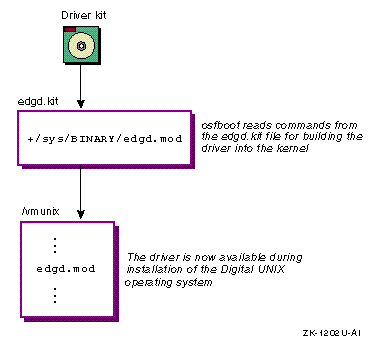
Figure 5-2
shows how the distribution
name.kit
file works with boot utility software during
the installation of a hardware product kit.
In the figure, the kit contains a
name.kit
file called
edgd.kit.
The
edgd.kit
file instructs the system's boot utility to build and configure
a temporary kernel that includes the
EDGgraphics
device
driver.
Upon completion, this temporary kernel makes the
EDGgraphics
device driver available to handle user and system requests of a
specific hardware device during the installation of the operating system.
By default, all hardware product kits should contain a
kitname.kk
file in the
instctrl
directory.
The file can be empty, but it must exist.
This file indicates to RIS that
a hardware product kit exists on the distribution media.
When the
ris
utility finds this file, you are prompted for a hardware product
kit name to add to the RIS area.
This file is automatically created by the
gendisk
utility when it finds the
kk=true
option
in the
/etc/kitcap
file.
The
HW.db
file is the module database file.
This file only is needed
when you are creating a hardware product kit.
The file describes how to map
a kernel module to a list of subsets that need to be installed.
The installation
process uses this description to determine what subsets need to be loaded
from the hardware product kit and if the kernel needs to be rebuilt after
the subsets have been loaded.
The module database file must be named
HW.db, and
it must be located in the
root
directory of the hardware
product media.
The file must contain one entry (and only one) per kernel module.
For example, if the hardware product kit has seven kernel modules, each module
will have one entry in the
HW.db
file.
There can be only one
HW.db
file on each piece of
distribution media you are shipping.
If you are planning to ship several hardware
product kits on the same CD-ROM, the module database file will contain one
entry for each kernel module for each kit.
For example, if you shipped two hardware product kits, with the first
kit having three kernel modules and the second kit having five kernel modules,
the
HW.db
file would have eight entries.
The syntax for the
HW.db
file uses the following
conventions:
Lines beginning with the # character are comment lines. All text after the # (number or pound sign) character is ignored. Blank lines are also ignored.
Each entry must be on a single line. Line continuation, carriage return, and line feed characters are not permitted.
Example 5-2
shows a sample
HW.db
file.
The format for a file entry is:
Module name
Kernel build requirements enclosed in curly braces. Values are { 0 } or { 1 } - 0=no build; 1=build required
List of subsets enclosed by { } (curly braces) and separated by spaces
    /EasyDriver/opt/EDG100/sys/BINARY/EDGgraphics.mod
    {1}
    {EDGBASE100 EDGDOC100}
The
hardware_kit.hw
file is the hardware support
file.
This file only is needed when you are creating a hardware product kit.
The file contains information about each of the product kits available on
the distribution media and it is used by the Update Installation process.
The hardware support file must be named
hardware_kit.hw,
and it must be located in the
root
directory of the distribution
media.
The file must contain one entry (and only one) per piece of hardware
supported by the kit.
If the hardware product kit contains support for several
pieces of hardware, each piece of hardware will have one entry in the hardware
support file.
Even if the media only contains one subset, every piece of hardware
supported on the media must have one entry in the file.
There only can be one
hardware_kit.hw
file per piece
of media you are shipping.
If you are planning to ship several hardware product
kits on the same CD-ROM, the hardware support file will contain one entry
for each piece of hardware supported by each kit on the media.
For example, if you shipped two hardware product kits, with the first
kit containing support for two pieces of hardware and the second kit containing
support for seven pieces of hardware, the
hardware_kit.hw
file would have nine entries.
The syntax for the
hardware_kit.hw
file uses the
following conventions:
Lines beginning with the # (pound sign or number) character are comment lines. All text after the # character is ignored. Blank lines are also ignored.
Each entry must be enclosed in { } (curly braces).
Each field in an entry must be enclosed in { } (curly braces).
Entries and fields can span lines without the use of a line continuation character.
The format for an entry contains four fields:
Vendor name
Hardware name
Name of kit file containing the necessary kernel modules for the hardware
List of releases under which the product is supported (space
separated).
Do not include the letter
V
in front of the
release number.
The vendor and hardware name must be unique when combined and must match
the name to be used in the
hardwarename.hw
file, described in
Section 5.1.5.
Each product release supported by the kit must map to at least one release
of the operating system as shown in
Example 5-3.
Operating
system release versions use the format {MajorNumber}.{MinorNumber}[VariantLetter].
{
    {Easy Driver Inc.}
    {EDG Graphics Device Driver}
    {/EasyDriver/usr/opt/EDG100/sys/hardware/edgd.kit}
    {4.0F}
}
The
hardwarename.hw
file is the installed hardware support
file.
The file contains information about each of the product kits and it
is installed onto the user's system.
The file must be part of the subset inventory
file and is used by the Update Installation process to determine what hardware
product has been installed.
Each piece of supported hardware installed on
the user's system needs to have a unique
hardwarename.hw
file containing the subsets that were installed
to support the hardware.
The installed hardware support file must use a unique combination of
vendor and hardware identification for the file name and must use the
.hw
extension.
For example, for the EasyDriver graphics device driver,
the file might be called
edgdriver.hw.
The file must be located in the
./usr/opt/PROD_CODE/sys/hardware
directory relative to the top of the
hardware product kit for each piece of supported hardware.
For example, using
our sample hardware scenario, the
edgdriver.hw
file is
in the
./usr/opt/EDG100/sys/hardware/
directory.
Each piece of hardware in each of the hardware product kits on the media
should have its own
hardwarename.hw
file.
This enables the subsets to be built so that only files that contain
entries for the hardware product support will be installed.
As an example, assume that the EDG graphics device driver product has
two subsets,
EDGBASE100
and
EDGLSM100.
The
EDGBASE100
subset supports two pieces of hardware,
ATM_V1 and ATM_V2, and the
EDGLSM100
subset supports a
hardware product called LSM_V1.
If a user installs the
EDGBASE100
subset, the installed hardware support file should contain entries
for both ATM_V1 and ATM_V2, but should not contain an entry for LSM_V1.
The
installed hardware support file for the
EDGLSM100
subset
only would have an entry for the LSM_V1 product.
You could also have ATM_V1 and ATM_V2 as single entries in separate
installed
hardwarename.hw
files.
Each file would be listed as inventory for the
EDGBASE100
subset and would be installed along with the subset.
The installed
hardwarename.hw
file can contain more than one entry,
but having an installed hardware support file for each entry will provide
maximum flexibility when building the subsets.
The syntax for the
hardwarename.hw
file uses the following conventions:
Lines beginning with the # (pound or number sign) character are comment lines. All text after the # character is ignored. Blank lines are ignored.
Each entry must be enclosed in { } (curly braces).
Each field in an entry must be enclosed in { } (curly braces).
Entries and fields can span lines without the use of a line continuation character.
The format for an entry contains four fields:
Vendor name
Hardware name
Name of kit file containing the necessary kernel modules for the hardware
Releases under which the product is supported (space separated) are in the format {MajorNumber}.{MinorNumber}[VariantLetter]
As described in
Section 5.1.4, the vendor
and hardware name must be unique when combined and must match the name used
in the
hardware_kit.hw
file .
Each product release supported
by the kit must map to at least one release of the operating system, as shown
in
Example 5-4.
{
    {Easy Driver Inc.}
    {EDG Graphics Device Driver}
    {EDGBASE100 EDGDOC100}
    {4.0F}
}
In addition to the optional processing described in Section 3.4, a subset control program for a hardware product kit such as a device driver also must configure the driver into the kernel. When building subset control programs for a hardware product kit, such as a device driver, you can choose one of the following configuration strategies:
Write one subset control program for a kit that contains the software subset associated with the single binary module for a statically configured driver
Write one subset control program for a kit that contains the software subset associated with the single binary module for a dynamically configured driver
Write one subset control program for a kit that contains the software subsets associated with the device driver that can be statically or dynamically configured
Example 5-5
shows the subset control program for the
single binary module associated with the
EDG graphics
device
driver.
The user can configure this single binary module into the kernel
either statically or dynamically.
The subset control program runs the
doconfig
utility to configure the driver into the kernel.
#!/sbin/sh
#
#
#  EDGBASE100.scp - Install the files associated with the EDGgraphics
#  device driver.  This driver, implemented as a single binary
#  module (EDGgraphics.mod file), can be statically or dynamically
#  configured into the kernel.
#

case "$ACT" in [1]
C)
    case $1 in
    INSTALL)  [2]
        echo "*****  EDG Graphics Product Installation Menu *****"
        echo "*****                                 *****"
        echo "1. Install the static device driver subset."
        echo "2. Install the dynamic device driver subset."

        echo" Type the number for your choice [] "

        read answer
        case ${answer} in
            1)  [3]
            # Register the files associated with the static
            # EDG graphics device driver product.
            kreg -l EasyDriverInc EDGBASE100 /opt/EDG100/sys/BINARY[4]

            # Merge the files associated with the statically configured
            # EDG graphics device driver product to the customer's
            # /etc/sysconfigtab database
            sysconfigdb -m -f /opt/EDG100/etc/sysconfigtab EDGgraphics [5]

            echo "The rest of the procedure will take 5-15 minutes"
            echo "to rebuild your kernel, depending on the processor"
            echo "type."
            echo ""
            echo "Starting kernel rebuild... "
            if doconfig -c $HOSTNAME [6]
                then
                echo "Kernel built successfully"
            else
                1>&2 echo "Error building kernel."
                return 1
            fi
            ;;

            2)  [7]
            # Merge the files associated with the dynamically configured
            # EDG graphics device driver product to the customer's
            # /etc/sysconfigtab database
            sysconfigdb -m -f /opt/EDG100/etc/sysconfigtab EDGgraphics [8]

            # Load the EDG graphics device driver and create the device
            # special files
            sysconfig -c EDGgraphics [9]

            echo "The EDG graphics device driver was added to your
            echo "/etc/sysconfigtab database." [10]
            ;;
        esac
        ;;

    DELETE) [11]
        echo "***** EDG Graphics Product Removal Menu *****"
        echo "*****                                *****"
        echo "1. Delete the static EDG graphics device driver subset."
        echo "2. Delete the dynamic EDG graphics device driver subset."

        echo" Type the number for your choice [] "

        read answer
        case ${answer} in
            1)
            kreg -d EDGBASE100 [12]

            # Delete the EDG graphics device driver's entry from the
            # /etc/sysconfigtab database

            sysconfigdb -d EDGgraphics [13]

            echo "The rest of the procedure will take 5-15 minutes"
            echo "to rebuild your kernel, depending on the processor"
            echo "type."
            echo ""
            echo "Starting kernel rebuild... "

            if doconfig -c $HOSTNAME [14]
                then
                echo "Kernel built successfully"
            else
                1>&2 echo "Error building kernel."
                return 1
            fi
            ;;

            2)
            # Make sure the EDG graphics device driver is not currently
            # loaded
            sysconfig -u EDGgraphics  [15]

            # Delete the EDG graphics device driver's entry from the
            # /etc/sysconfigtab database
            sysconfigdb -d EDGgraphics [16]
             ;;
        esac
        ;;
    esac
    ;;
esac
exit 0
Examines the
ACT
environment
variable to select the action the subset control program should take.
[Return to example]
Displays a menu of installation options during
the
C INSTALL
phase.
The user can install the driver for
static configuration or dynamic configuration.
[Return to example]
The system performs a static configuration if the user chooses menu item 1. [Return to example]
Invokes the
kreg
utility
to register the driver files with the kernel.
The
kreg
utility registers a device driver product by creating the
/usr/sys/conf/.product.list
file on the customer's system.
This file contains registration
information associated with the static device driver product.
The subset control
program calls
kreg
with the following arguments:
The
-l
flag
This flag indicates that the subset was loaded, and it directs
kreg
to register the device driver product as a new kernel extension.
Company name
The company name is
EasyDriverInc.
The
kreg
utility places this name in the company name field of the customer's
/usr/sys/conf/.product.list
file.
Software subset name
The software subset name for this device driver product is
EDGBASE100.
The subset name consists of the product code, subset
mnemonic, and three digit version code.
The
kreg
utility
extracts information from the specified subset data and loads it into the
customer's
/usr/sys/conf/.product.list
file.
Directory name
The directory on the customer's system where
kreg
copies the files associated with this driver product is
/opt/EDG100/sys/BINARY.
The
kreg
utility places this directory in the
driver files path field of the customer's
/usr/sys/conf/.product.list
file.
Refer to the
kreg(8)
reference page for more information.
[Return to example]
Adds the
/opt/EDG100/etc/sysconfigtab
file fragment for the statically configured driver to the system's
/etc/sysconfigtab
database by calling the
sysconfigdb
utility with the following arguments:
The
-m
flag
This flag causes
sysconfigdb
to merge the device
driver entry to the customer's
/etc/sysconfigtab
database.
The
-f
flag
This flag precedes the name of the
sysconfigtab
file
fragment whose device driver entry is to be added to the
/etc/sysconfigtab
database.
This flag is used with the
-a
flag.
The
sysconfigtab
file fragment
The kit developer at EasyDriver, Inc.
specifies the path
/opt/EDG100/etc/sysconfigtab
to indicate the location of the
sysconfigtab
file fragment for the
EDGgraphics
device driver.
Device driver name
The kit developer at EasyDriver, Inc.
specifies
EDGgraphics
as the name of the device driver whose associated information is
added to the
/etc/sysconfigtab
database.
This name is
obtained from the
entry_name
item of the
sysconfigtab
file fragment, as described in
Writing Device Drivers: Tutorial.
Runs the
doconfig
utility
to configure the driver into the kernel.
The subset control program returns
an error if
doconfig
fails for any reason.
[Return to example]
Performs a dynamic configuration if the user chooses menu item 2. [Return to example]
Calls the
sysconfigdb
utility
to add the driver's
sysconfigtab
file fragment to the system's
/etc/sysconfigtab
database.
[Return to example]
Calls the
sysconfig
utility
with the
-c
option to reconfigure the system and
include the
EDGgraphics
device driver.
The
-c
option causes the
sysconfig
utility to dynamically
configure the driver into the system that is running and to create device
special files.
The name of the driver as specified in the
sysconfigtab
file fragment follows the option.
[Return to example]
Displays a message notifying the user that the driver has been added to the system. [Return to example]
Displays a menu of options for deleting subsets
during the
C DELETE
phase.
The user must tell the
setld
utility whether the subset to be deleted represents a statically
configured driver or a dynamically configured driver.
The way the driver
was configured determines how the driver is deleted.
[Return to example]
Calls the
kreg
utility
to deregister the driver with the kernel if the user chooses menu option 1
(delete a statically configured driver).
When the
kreg
utility is called with the
-d
flag, it deletes the entry
for the specified layered product from the customer's
/usr/sys/conf/.product.list
file.
In this case, the layered product is the
EDGgraphics
device driver, represented by the
EDGBASE100
subset identifier.
[Return to example]
Calls the
sysconfigdb
utility with the
-d
flag, which deletes the
static
EDGgraphics
kernel subsystem from the customer's
/etc/sysconfigtab
database.
[Return to example]
Runs the
doconfig
utility
to reconfigure the kernel.
The subset control program returns an error if
doconfig
fails for any reason.
[Return to example]
Calls the
sysconfig
utility
with the
-u
flag to deconfigure the dynamically configured
EDGgraphics
kernel subsystem from the system that is running if
the user chooses menu item 2 (delete a dynamically configured driver).
[Return to example]
Calls the
sysconfigdb
utility
with the
-d
flag to delete the dynamically configured
EDGgraphics
kernel subsystem from the customer's
/etc/sysconfigtab
database.
[Return to example]
To prepare a hardware product kit, edit the
/etc/kitcap
file to describe the kit, and then run the
gendisk
utility with the
-d
option.
The
gendisk
utility creates a kit in Direct CD-ROM (DCD) format
as specified in the
/etc/kitcap
entry.
The
/etc/kitcap
file is a database for kit descriptors.
This database contains
product codes, media codes, and the names of the directories, files, and
subsets that make up product description.
Example 5-6
shows a sample
kitcap
record for a hardware product kit.
Notice the use of the
kk=true
and
rootdd=
options.
EDG100HD:c:/: \
  dd=/EasyDriver/kit,kk=true,rootdd=..:EasyDriver_edg_driver: \
 /easy/output:instctrl:EDGBASE100
Example 5-7
shows a sample
kitcap
record for a CD-ROM with multiple hardware products.
In
Example 5-7, the
,rootdd=..
entry overrides the default and places the expanded subset files in the product-specific
directory of
/EasyDriver.
By default, expanded subset files
(in DCD format) are placed at the top of the media's file system.
EDG100HD:c:/: \
  dd=/EDG100/kit,kk=true,rootdd=..:EasyDriver_edg_driver_V1.0: \
 /easy100/output:instctrl:EDGBASE100: \
  dd=/EDG200/kit,kk=true,rootdd=..:EasyDriver_edg_driver_V2.0: \
 /easy200/output:instctrl:EDGBASE200:
Refer to the
kitcap(4)
reference page for more information about the
format of the
/etc/kitcap
file.
Note
Each kit must be contained in a subdirectory of the root media which only can be one level deep. For example, a kit is located in
/mnt/EasyDriverwhere/mntis the mount point andEasyDriveris the subdirectory under which the kit files are located.
The following instructions describe how to assemble the files to create the distribution media. The hard disk serves as the master for the kit. You can then burn the kit onto a CD-ROM by following the instructions that came with your CD-ROM burner.
Note
When testing a DCD kit, be sure to reference the kit media at its mount point. For instance, if you decide to use a spare disk for creating a media master area, you must reference your kit to the mount point of the device.
Perform the following steps to create a kit on a hard disk for the
EDG100
product:
Determine the device where the master media is located.
The
following example uses the disk located at
rz1.
Erase any existing label on the disk (this destroys the data on the disk):
#disklabel -z rz1
Write a disk label to the disk:
#disklabel -wr rz1 rz26L
Note
Before running the
gendiskutility in the next step, make sure you have added the name of the system you are using to theroot(/).rhostsfile. You will need an entry for the host name androotaccount, otherwise thegendiskutility fails with aPermission deniederror.
Run the
gendisk
utility to move the kit
onto the disk.
In this example, the system name is
visier.
#gendisk -d EDG100 /dev/rz1aGenerating EDG100 Kit from visier on /dev/rz1a WARNING: this will remove any information stored in /dev/rz1a Are you sure you want to do this? (y/n):yDo you want to clean the entire disk first? (y/n):n
When the
gendisk
utility asks if you want to clean
the disk, always answer
n.
Otherwise, the
gendisk
replaces the current disk label with a default label.
The output of the
gendisk
utility is similar to the
following:
Preparing /dev/rz1a
done.

Checking /dev/rz1a
/sbin/usf_fdck /dev/rz1a
** /dev/rz1a
File system unmounted cleanly - no fsck needed

Mounting /dev/rz1a on /usr/tmp/cd_mdt8344

Writing Images (dd=/).

	Image instctrl...done.
	Image EDGBASE100...done.

Verifying Images (dd=/).

	Image instctrl...done.
	Image EDGBASE100...done.

Kit EDG100 done.

Cleaning up working directories.
Unmounting /dev/rz1a
Mount the disk in preparation for making hardware product kit modifications:
#mount /dev/rz1a /mnt#cd /mnt
Verify that the
kitname.kk
and
instctrl
directory:
#cd ./EasyDriver/kit/instctrl#ls *.kk *.root
Copy the
name.kit,
HW.db, and
hardware_kit.hw
files from the kit-building area to the disk:
Note
The backslash (
\) in this example represents a line continuation character. Do not include it in the command line.
#cp /kit_area/edgd.kit \ /mnt/EasyDriver/usr/opt/EDG100/sys/hardware/edgd.kit#cp /kit_area/HW.db /mnt/HW.db#cp /kit_area/hardware_kit.hw /mnt/hardware_kit.hw
Unmount the disk:
#umount /mnt
Before shipping a hardware product kit to customers, it is recommended that you test the kit using the same procedures that your customers will use on hardware configurations that resemble your customers' systems.
There are four separate tests that you should run to test the completeness of a hardware product kit:
Use the
setld
utility
to verify that the subsets have been built correctly
and that the files get installed into the correct locations on the target
system.
Use the bootlink process to test that all of the modules are in the correct locations to allow the system to add support to the boot linked kernel.
Use the
hw_check
utility
to verify that the
HW.db,
Use the
ris
utility
to add a hardware product kit into a RIS area to verify that
the correct files are present on the kit.
Then, test the area by registering
a client system to it and starting a Full Installation of the client system.
The following sections describe how to set up and perform these four test cases.
To test a hardware product kit using the
setld
utility,
the system on which the test is run must be running the same version of the
operating system for which the hardware product kit was built.
That is, if
the hardware product kit was built for Version 4.0F of the operating system,
the target system must be running Version 4.0F.
Follow these steps to test the hardware product kit using the
setld
utility.
The purpose of this test is so that you can test
the location of the installed product files as you defined them in the master
inventory file.
Log in as the user
root
from multiuser
mode on the system to be tested.
Mount the hardware product kit using the
mount
command:
#mount -r /dev/rz3a /mnt
Use the following
setld
command syntax
to install each subset on the distribution media:
#setld -l location subset_name
In
the command syntax
location
is the path to the
./kit
directory on the hardware product kit (for example,
/mnt/EasyDriver/kit), and
subset_name
is the name of the subset (for example,
EDGBASE100).
If
you want to install more than one subset, separate each subset name with a
space.
Using these examples, the command line looks like this:
#setld -l /mnt/EasyDriver/kit EDGBASE100
Successful output of the
setld
utility is similar
to the following:
Checking file system space required to install specified subsets:

File system space checked OK.

1 subset(s) will be installed.

Loading 1 of 1 subset(s)...

EDG Graphics Device Driver Files
  Copying from /mnt/EasyDriver/kit (disk)
  Verifying

1 of 1 subset(s) installed successfully.

Configuring "EDG Graphics Device Driver Files " (EDGBASE100)
If there is an error during subset installation, the
setld
utility displays a message explaining the error.
Details for verification
errors are in the
/var/adm/smlogs/fverify.log
file.
After the
setld
utility has finished installing
and configuring each subset, verify that the files for each subset (including
any
This section contains procedures for testing the installation of a hardware product kit on a system that already is running Version 4.0F of the operating system.
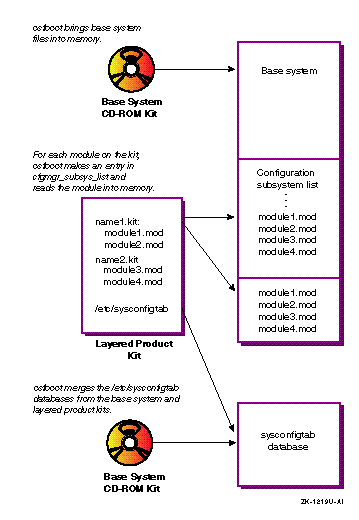
Figure 5-3
shows how the
boot
utility
builds a kernel to include a hardware product kit.
Follow these steps to use the bootlink process to install a hardware product kit onto a system that is running Version 4.0F of the operating system:
Log in as the user
root
or use the
su
command to gain superuser privileges.
Back up the operating system.
Use the
shutdown
command to halt your system
and bring it down to console mode:
% shutdown -h now
Enter the following command to turn off automatic reboots at the console prompt:
>>> set auto_action halt
Power down your system, install the new hardware, and power up your system.
Enter the following command at the console prompt:
>>> boot -fl fa -fi "/GENERIC" sys_disk
In the previous example:
The
-fl fa
defines the boot flags:
f
for a hardware product kit and
a
for multiuser
mode.
The
-fi "/GENERIC"
tells the kernel to
bootlink using the file
/GENERIC.
The optional
sys_disk
argument
is the console device name of the system disk of the system that is running.
You only need this argument if your
bootdef_dev
console
variable is not set to your running system disk.
Enter the CD-ROM console
device name, for example,
DKA500, at the following prompt:
Enter Device Name:
Enter the hardware product kit name at the following prompt:
Enter Kit Name:
Enter the name of the hardware product kit
that you want to install and press
[Return].
This is the full
path and file name of the
name.kit
file.
Insert the CD-ROM containing hardware product kit into the CD-ROM drive when you see the following prompt:
Insert media for kit 'device:hw_kit_name', press Return when ready:
In this example, device:hw_kit_name is the device name you entered in Step 7 and the hardware product kit name you entered in Step 8 .
When you press the
[Return]
key, the
boot
utility reads the selected hardware product kit file into memory.
Do one of the following at the
Enter Kit Name:
prompt:
If you are installing another hardware product kit from the same CD-ROM, enter the kit name, press [Return], and return to Step 9.
If you are not installing another hardware product kit just press [Return] and continue.
Do one of the following
at the
Enter Device Name:
prompt:
If you are installing another hardware product kit, enter the CD-ROM device name, press [Return], and go back to Step 8.
If you are not installing another hardware product kit, just press [Return] and continue.
Because you are adding hardware support to a running system, and the system disk is your boot media, just press [Return] at the following prompt:
Insert boot media, hit <return> when ready:
The generic kernel modules are read so that the bootlink process can build the kernel in memory in the next step.
The
boot
utility links the kernel objects,
and issues the following prompt.
Insert the CD-ROM into the drive and press
[Return].
Insert media for kit 'dev_name:hw_kit_name', press Return when ready:
In this prompt dev_name is the CD-ROM device name you entered in Step 7 and hw_kit_name is the hardware product kit name that you entered in Step 8.
This step is performed for every device and every kit name entered in Step 7 through Step 11.
Because the boot media is still your installed system disk, press [Return] at the following prompt:
Insert boot media, press Return when ready:
The
boot
utility loads and configures the hardware product kit.
Note
If you installed more than one hardware product kit from different media on the same device, the
bootutility may prompt you for the location of some of the hardware support subsets. If you see this prompt, load the appropriate CD-ROM into the CD-ROM drive and enter the appropriate console device name.
Enter the name of the kernel configuration file at the following prompt:
Enter a name for the kernel configuration file. [SYS_NAME]:
In the previous prompt, SYS_NAME is the name of your existing kernel configuration file, usually your system name in upper case characters. Two things may happen here:
If you select the existing kernel configuration file name,
you are asked to confirm your selection.
If you confirm your selection of
the existing file name, the old kernel configuration file is backed up to
SYS_NAME.bck.
If the
boot
utility prompts you to rebuild
the kernel:
You see a prompt similar to the following:
*** KERNEL OPTION SELECTION ***

    Selection   Kernel Option
--------------------------------------------------------------
        1       System V Devices
        2       Logical Volume Manager (LVM)
        3       NTP V3 Kernel Phase Lock Loop (NTP_TIME)
        4       Kernel Breakpoint Debugger (KDEBUG)
        5       Packetfilter driver (PACKETFILTER)
        6       Point-to-Point Protocol (PPP)
        7       STREAMS pckt module (PCKT)
        8       Data Link Bridge (DLPI V2.0 Service Class 1)
        9       X/Open Transport Interface (XTISO, TIMOD, TIRDWR)
        10      ISO 9660 Compact Disc File System (CDFS)
        11      Audit Subsystem
        12      ACL Subsystem
        13      Logical Storage Manager (LSM)
        14      Advanced File System (ADVFS)
        15      All of the above
        16      None of the above
        17      Help
        18      Display all options again
--------------------------------------------------------------

Enter the selection number for each kernel option you want.
For example, 1 3 [16]:
The options you see depend upon the software
subsets that you have installed.
See the
Installation Guide
for information
about selecting kernel options and the
doconfig(8)
reference page for
information about the kernel build process.
After selecting kernel options, you see a prompt similar to the following:
You selected the following kernel options:

	System V Devices
	Logical Volume Manager (LVM)
	NTP V3 Kernel Phase Lock Loop (NTP_TIME)
	Kernel Breakpoint Debugger (KDEBUG)
	Packetfilter driver (PACKETFILTER)
	Point-to-Point Protocol (PPP)
	STREAMS pckt module (PCKT)
	Data Link Bridge (DLPI V2.0 Service Class 1)
	X/Open Transport Interface (XTISO, TIMOD, TIRDWR)
	ISO 9660 Compact Disc File System (CDFS)
	Audit Subsystem
	ACL Subsystem
	Logical Storage Manager (LSM)
	Advanced File System (ADVFS)

Is that correct? (y/n) [y]:
Respond as follows:
If the list is correct, enter
y
and
continue to the next step.
If the list is not correct, enter
n
to return to Step
14a
and select kernel
options again.
The
boot
utility asks if you want to edit
the
/usr/sys/conf/SYS_NAME
kernel
configuration file.
For information about editing this file, refer to the
Installation Guide.
Usually, there is no reason to edit this file.
The
boot
utility rebuilds your operating
system kernel and reboots with the new kernel.
After a successful reboot,
you see the operating system login window.
Log in as the user
root
and use the
setld -i
command to verify that your hardware product kit is installed
Check to make sure that the installed files are where you want them to be and that the hardware product is operational.
Check to make sure that the
/GENERIC
file was rebuilt correctly by issuing the following command for each module
file that was loaded:
# cat /GENERIC | grep -e module_name.mod
In
the previous example,
.mod
file was supplied in the
/opt
directory,
the full path and file name should be in the
/GENERIC
file.
When you perform an Update Installation, the process automatically checks for any installed hardware product kits and lets you know:
If an existing hardware product kit will continue to operate correctly with the new version of the operating system.
If an existing hardware product kit is integrated into the new version of the operating system. If so, the hardware product kit will be removed as part of the Update Installation and will be replaced by the functionality shipped with the operating system.
If an existing kit is not supported in the new version of the operating system.
This section describes two test cases in which to test the validity of a hardware product kit during an Update Installation.
Follow these steps to test the format of the
*.hw
files:
Note
The following test assumes that you have performed the bootlink test as described in Section 5.4.2.
Log in as the user
root
to the same system
where you performed the boot link test.
Mount the Version 4.0F operating system CD-ROM from multiuser mode:
#mount -r /dev/rz9a /mnt
Run the
hw_check
utility:
#/usr/lbin/hw_check /mnt
A successful test shows output similar to the following:
Checking for installed supplemental hardware support...


The following hardware was installed using a supplemental

hardware kit and will continue to work under the new

operating system without any modifications.


        EDG Graphics Device Driver


Press RETURN to continue...
Note
If you do not see this message, the most likely cause of the error is an incorrect value in the supported release field of the
hardwarename.hwfile (for example,./usr/opt/EDG100/sys/hardware/edgd.hw). See Section 5.1.5 for information about the format of this file.
Next, follow these steps to run the
hw_check
utility
which tests the kit just as if you were performing an Update Installation.
This test sets up a scenario where an existing kit is not supported in the
new release of the operating system.
This procedure assumes that you have
already tested the kit with the
bootlink
utility as described
in
Section 5.4.2.
Log in as the user
root
to the same system
where you tested the kit with the
setld
utility.
Use the editor of your choice to modify the installed system's
/usr/opt/PROD_CODE/sys/hardware/hardwarename.hw
file and change the value in the supported release
field to
XXX.
For example, assume this is the original
installed
hardwarename.hw
file:
{

    {Easy Driver Inc.}

    {EDG Graphics Device Driver}

    {EDGBASE100 EDGDOC100}

    {4.0F}

}
Change the supported release field as shown in this example:
{

    {Easy Driver Inc.}

    {EDG Graphics Device Driver}

    {EDGBASE100 EDGDOC100}

    {XXX}

}
Changing the support release field to
XXX
indicates that the hardware product kit is supported only under
operating system version
XXX.
Changing this field should
trigger the appropriate warning logic in the Update Installation process because
XXX
is not a valid release format.
Run the
hw_check
utility to start the test:
#/usr/lbin/hw_check /mnt
The output of the
hw_check
utility is similar to
the following:
Checking for installed hardware product kits...

The Update Installation has detected that the hardware
product kit listed below is loaded on your system and
is not supported in the new release of the operating
system (V4.0F).  In order for the update to
complete successfully, you must provide the distribution
media that contains the V4.0F version of the hardware
product listed below.  The update install process will
verify that the media you provide contains
the correct software.

      Easy Driver Inc. EDG Graphics Device Driver

Enter kit location (e.g.: /dev/rz3c or /mnt)
Enter the kit location, for example
/mnt
The output is similar to the following:
The kit located at /mnt contains support for hardware
that is currently installed on your system and is not
supported under the new version of the operating
system V4.0F.  In order for your hardware
to continue to function properly you will be asked
to supply the following kit file names when the update
installation reboots the system for the first time.
Be sure to record these file names for future use
within the update install process.  Each kit file
will only need to be entered once for all of the
associated hardware support to be loaded.

  Easy Driver Inc. EDG Graphics Device Driver
 (Kit File: /EasyDriver/usr/opt/EDG100/sys/hardware/edgd.kit)

Press <RETURN> to continue...
The test is successful when you see this message.
Otherwise,
the
hw_check
utility displays an error message to describe
the problem.
You must correct the problem and start the test over.
To install a hardware product kit into a RIS area, you must extract the base operating system into the RIS area first. Follow these steps to extract the base operating system into a new RIS area and then add the hardware product kit to the new area:
Log in to the RIS server, and start the RIS utility:
# /usr/sbin/ris
Choose
INSTALL software products
from the
RIS Utility Main Menu.
*** RIS Utility Main Menu *** Choices without key letters are not available. a) ADD a client d) DELETE software products i) INSTALL software products ) LIST registered clients ) MODIFY a client ) REMOVE a client s) SHOW software products in remote installation environments x) EXIT Enter your choice:i
Choose
Install software into a new area
from the RIS Software Installation Menu.
RIS Software Installation Menu: 1) Install software into a new area 2) Add software into an existing area 3) Return to previous menu Enter your choice:1You have chosen to establish new remote installation environment.
Enter the location of the base operating system distribution
media.
In this example, the location is
/mnt/ALPHA/BASE.
Enter the device special file name or the path of the directory where the software is located (for example, /mnt/ALPHA/BASE) or press <Return> to exit:/mnt/ALPHA/BASE
Select the Boot-Link method to create the base product:
Select the type of DIGITAL UNIX base product to create.
If the software you are offering supports add-on hardware that is needed
to boot the client system, select "boot-link" as the type of RIS area to
create. Otherwise, select "standard". If you select "boot-link", the
software will be extracted (or copied) to the RIS area, because symbolically
linked RIS areas do not support this feature.

Choose one of the following options:
    1)  Standard boot method
    2)  Boot-Link method

Enter your choice:  2
The base operating system is extracted into the new RIS area.
The
ris
utility displays a list of subset extraction messages
and the base product that has just been extracted to the RIS area.
       Media extraction complete
The new environment is in /var/adm/ris/ris0.alpha

Building Network Bootable Kernel........Done

The following software now exists in RIS product area
/var/adm/ris/ris0.alpha:
     1   'DIGITAL UNIX V4.0F Operating System ( Rev nnn )'
Choose
INSTALL software products
from the
RIS Utility Main Menu to extract the hardware product kit into the RIS area
you have just created:
*** RIS Utility Main Menu *** Choices without key letters are not available. a) ADD a client d) DELETE software products i) INSTALL software products ) LIST registered clients ) MODIFY a client ) REMOVE a client s) SHOW software products in remote installation environments x) EXIT Enter your choice:i
Choose
Add software into an existing area
from the RIS Software Installation Menu.
RIS Software Installation Menu: 1) Install software into a new area 2) Add software into an existing area 3) Return to previous menu Enter your choice:2
The
ris
utility displays the names of any existing
RIS environments.
Enter the number that represents the new RIS environment where you just extracted the base operating system.
You have chosen to add a product to an existing environment.

Select the remote installation environment:

    1) /usr/var/adm/ris/ris0.alpha
         'DIGITAL UNIX V4.0F Operating System ( Rev nnn )

Enter your choice or press RETURN to quit: 1
Enter the location of the hardware product kit that you want
to install.
In this example, the location is
/mnt/kit.
The location you enter is the name of the top-level directory of the kit followed
by the
kit
directory.
Enter the device special file name or the path of the directory where the software is located (for example, /mnt/ALPHA/BASE) or press <Return> to exit:/mnt/kit
The
ris
utility searches the distribution media for
the
Select the option to
Integrate with Base product
and include product
to integrate the kit with the base product.
The kit you have specified has been identified as a DIGITAL
UNIX kernel kit. This type of kit may contain software which is
needed during the booting of the kernel for the installation, due
to required hardware support. If you need to add this kit to the
base, select the option to integrate the kit. You may otherwise
choose to add this kit to the RIS area as a separate product.

1)  Integrate with Base product and include product
2)  Include as separate product
3)  Return to Main Menu

Enter your choice:1
NOTE
If you do not see this message, the hardware product kit is not structured correctly. The most likely cause is a missing
./kit/instctrl/*.kkfile or specifying an invalid location in the previous step. Make sure all kit files are located in the appropriate directories, then, start this test over.
Select the version of the base operating system into which you want to integrate the kit:
Please select one of the following products to add the kit to. 1 'DIGITAL UNIX V4.0F Operating System ( Rev nnn )' Enter your selection or <return> to quit:1
Decide whether you want to either extract the software onto
the system or just create symbolic links to the software.
In this example,
the option to
Extract software
is selected.
Choose one of the following options: 1) Extract software from /mnt/EDG100/kit 2) Create symbolic link to /mnt/EDG100/kit Enter your choice:1
The
ris
utility lists all the subsets associated
with the software kit.
Select the subsets you want to install.
In this example, the
EDG100
kit contains only one subset.
The subsets listed below are optional: There may be more optional subsets than can be presented on a single screen. If this is the case, you can choose subsets screen by screen or all at once on the last screen. All of the choices you make will be collected for your confirmation before any subsets are extracted. 1) EDG Graphics Device Driver Version 1 Or you may choose one of the following options: 2) ALL of the above 3) CANCEL selections and redisplay menus 4) EXIT without extracting any subsets Enter your choices or press RETURN to redisplay menus. Choices (for example, 1 2 4-6):1
Confirm your software selection:
You are installing the following optional subsets: EDG Graphics Device Driver Version 1 Is this correct? (y/n):y
The
ris
utility integrates the hardware
product kit software and the base system.
No user interaction is needed at
this time.
Checking file system space required to extract selected
subsets:

File system space checked OK.
Extracting EDGBASE100...
Media extraction complete.


The following software now exists in the RIS product area
/var/adm/ris/ris0.alpha:
1   'DIGITAL UNIX V4.0F Operating System ( Rev nnn )' with
    'EDG Graphics Device Driver Version 1'

2   'EDG Graphics Device Driver Version 1'
The hardware product has been extracted into the RIS area and installed into a new version of the base operating system.
If you choose
SHOW software products in remote installation
environments
from the RIS Utility Main Menu, you will see that there
are now two products in the new RIS area: the current version of the operating
system with support for the
EDGgraphics
device driver and
the
EDGBASE100
hardware product kit.
After adding the base operating system and hardware product kit to a RIS area, the hardware product subsets are now available. However, before a client can perform an installation from this RIS area, you must register the client, as described in the following steps:
Log in to the RIS server.
Start the ris utility:
# /usr/sbin/ris
Choose
Add a client
from the RIS Utility
Main Menu.
*** RIS Utility Main Menu *** Choices without key letters are not available. a) ADD a client d) DELETE software products i) INSTALL software products ) LIST registered clients ) MODIFY a client ) REMOVE a client s) SHOW software products in remote installation environments x) EXIT Enter your choice:a
Through a series of prompts, the
ris
utility lets
you know what information you need to enter and gives you the opportunity
to exit from the procedure.
Enter
y
to continue if you have the
information you need:
You have chosen to add a client for remote installation
services.

The following conditions must be met to add a client:

        1. You must know the client processor's hostname
        2. The client's hostname must be in your system's
           host database(s).
        3. You must know whether the client is on an
           Ethernet, FDDI, or Token Ring network.
        4. You must know the client's hardware Ethernet,
           FDDI, or Token Ring address if the client is
           registering to install operating system software.
        5. If the client and the server reside on different
           subnets, you will need the address of the
           gateway(s) that the client can use to
           communicate with the server.

Do you want to continue? (y/n) [y]: y
Enter the client's host name.
In this example, the host name
is
aruba:
Enter the client processor's hostname or press RETURN
to quit: aruba

The existing environment is /usr/var/adm/ris/ris0.alpha
Enter the products you want the client system to be able to
install.
In this example, the base system that includes kernel support for
the
EDGgraphics
device driver and the
EDG
product itself are selected:
Select one or more products for the client to install from /usr/var/adm/ris/ris0.alpha: Product Description 1 'DIGITAL UNIX V4.0F Operating System ( Rev nnn )' w/ 'EDG Graphics Device Driver Version 1' 2 'EDG graphics Device Driver Version 1' Enter one or more choices as a space-separated list (for example, 1 2 3):1 2
Confirm your selection at the following prompt:
You chose the following products:

   1    'DIGITAL UNIX V4.0F Operating System ( Rev nnn )' w/
        'EDG Graphics Device Driver Version 1'
   2    'EDG Graphics Device Driver Version 1'

Is that correct? (y/n) [y]:y
Enter the network type and the client processor's hardware network address:
Network type:
        1) Ethernet or FDDI
        2) Token Ring

Enter your choice: 1

Enter the client processor's hardware network address.
For example, 08-00-2b-02-67-e1: 01-47-2b-e2-3a-43
Client registration is complete.
You may exit from the
ris
utility.
The client system can now boot over the network from the RIS area, using the kernel that contains the hardware product subsets. For example:
>>> boot -fl fa boot_device
In the previous example:
The
-fl fa
defines boot flags
f
for a hardware product kit and
a
for multiuser
mode.
The
boot_device
represents the
console network boot device name.
The device name depends on the processor
type, but it is usually
ewa0.
Use the
show dev
command at the console mode prompt to determine the boot device
for your processor.
The boot procedure installs the kernel from the RIS area and then performs a Full Installation by loading the operating system subsets and the subsets from the hardware product kit.
For more information about RIS, see the guide to Sharing Software on a Local Area Network. For more information about booting a system over the network, see the Installation Guide.