The Event Manager is a comprehensive event management system. In addition to providing traditional event handling facilities, it unifies its own events and events from other channels to provide a single source of information, simplifying the task of monitoring system activity. The Event Manager includes a graphical event viewer and a full set of command line tools. It is integrated into the SysMan Menu application suite and the SysMan Station.
The following topics are covered in this chapter:
An overview of Event Manager (Section 13.1)
How to set up and customize Event Manager (Section 13.2)
How to use Event Manager to assist in the administration of your system (Section 13.3)
Troubleshooting common Event Manager problems (Section 13.4)
A critical part of a UNIX system administrator's job is to monitor the state of the system, and to be ready to take action when certain unusual conditions occur. Examples of such conditions are when a disk fills or a processor reports hardware errors. It is also important to verify that certain routine tasks run successfully each day, and to review certain system configuration values. Such conditions or task completions are known as system events.
An event is an indication that something interesting has occurred - an action has been taken, some condition has been met, or it is time to confirm that an application is still operational. A particular event may be interesting to the administrator or to some other class of system user. A system event could also be significant to other system entities, such as:
System monitoring software
Operating system software
End-user application programs
Hardware components
Entities interested in events can be part of either the local system or a remote system.
When a system component has something interesting to report, it makes the information available through an event channel, which is any facility used to publish or retrieve event information. Examples of event channels are:
Log files, where messages are stored in a file that is usually in ASCII text format
Event management systems
Programs that you run to obtain a snapshot of status information
An event management system is an active event channel and as such, it provides services for distributing, storing, and retrieving event information.
The operating system supports a number of channels
through which system components can report event and status information.
Verify
the information available at each channel regularly to be sure that the system
is operating normally.
The system logger,
syslog, and the
binary error logger,
binlog, are familiar examples of event
management systems.
They provide simple event distribution facilities for
other components to use, and their daemons actively manage the event information
they receive.
By contrast, the
cron
daemon's log file,
/var/adm/cron/log, is an example of a passive event channel.
The
cron
daemon writes new event information to the end of its file,
and takes no special action to notify interested entities when it does so.
Apart from
syslog
and
binlog,
there are several other log files stored in various locations on the system.
To facilitate management of these log files, the Event Manager provides a single
point of focus for multiple event channels by combining events from all sources
into a single event stream.
The system administrator can either monitor the
combined stream in real time or view historical events retrieved from storage.
The Event Manager viewing facilities include a graphical event viewer, which is
integrated with the SysMan Menu and SysMan Station, and a full set
of command line utilities, which enable you to filter, sort, and format events
as needed.
You can configure Event Manager to automatically notify you (or other
system entities) of selected conditions.
The Event Manager encapsulates
syslog
and
binlog
instead of replacing them.
These channels remain in place, and
continue to handle the same set of events as they always did.
However, with Event Manager
the other channels are much more accessible.
13.1.1 Features of the Event Manager
Event Manager provides the following features:
Facilities for users and applications to post and monitor events
Support for other event channels, including
syslog
and
binlog
Support for encapsuling custom event channels
Integration with DECevent and Compaq Analyze for translation of binary error log events
Compaq Analyze is a rules-based hardware fault management diagnostic tool that provides error event analysis and translation
Integration of a graphical event viewer with the SysMan application suite
Choice of summary or detailed event data, including online explanations
A full set of command line utilities that you can use to post and handle events from shell scripts and from the command line
Configurable event logger that allows full control over which events are logged and optimizes storage space used by identical events
Configurable event forwarding that enables you to automatically notify other system entities of selected events
Log file management that automatically archives and purges log files daily
Support for the application programming interface (API) library
Centralized access to event information
Configurable authorization for posting or accessing events
13.1.2 Understanding Event Manager Events
An Event Manager event is a binary package of data that contains a set of standard data items, including a name, a timestamp, and information about the poster. An event may contain variable data, which is named and supplied by the poster. For example, an event reporting the failure of a device may hold variables containing the path name and type of the device. Events are created and posted by an Event Manager posting client, and distributed to other clients by the Event Manager daemon. Then, a receiving process can extract and process the information contained in the event.
Although the Event Manager logger captures posted events and stores them
in a system log file, you can easily capture your own set of events and store
them in your own file for later analysis.
You use the
evmwatch
monitoring utility, or reconfigure the logger to capture your own events.
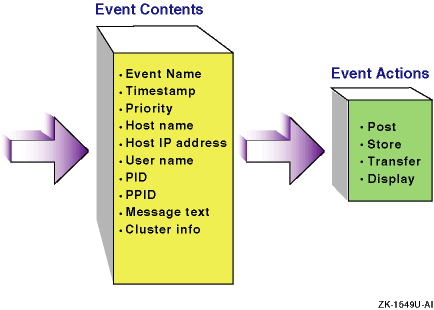
Figure 13-1
shows a graphical representation of an
event.
The Event Contents box shows items, such as the process identifier
(PID) and the name of the host system on which the event was generated, that
may be included in the event.
The Event Actions box shows some of the possible
actions performed on any event.
Figure 13-1: Event Model
The Event Manager includes command line utilities that understand the format
of the event, and which you use to perform basic operations at the command
prompt or in shell scripts; you cannot view an event directly with a text
viewer (for example,
more
) because an event is a package
of binary data.
You can use Event Manager commands to:
Retrieve events from storage, sort them into a preferred order, and format them for display
Watch for new events being posted
Post new events
The Event Manager command line utilities are designed to be used together
in pipelines.
For example, you may pipe a set of events from a file into the
sort utility, pipe the output into the formatting utility, then pipe the output
of that command into the
more
command, or redirect it to
a file.
Section 13.3
provides examples of using Event Manager
commands to monitor and review event activity.
After the event file is converted to text form, you can use other standard
utilities to analyze it.
For example, you may display just the event names,
and then pipe the display into the
sort -u
and
wc -l
commands to determine how many different types of events are
in the file.
13.1.3 Event Manager Components
This section describes how the different parts of Event Manager interact.
It also describes the system files used to run Event Manager and any files created
by Event Manager during normal operations.
Figure 13-2
shows
a model of the system.
Figure 13-2: Event Manager Component Model
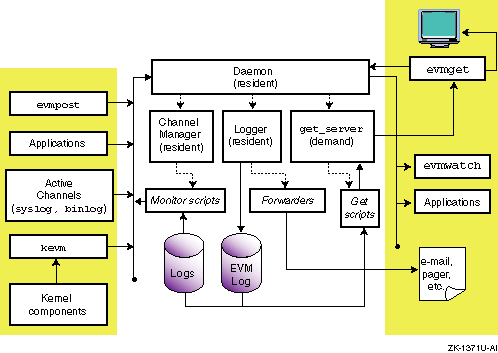
In Figure 13-2, client components involved in posting events are shown at the left, Event Manager system components are in the center, and client components involved in subscribing to and retrieving of events are at the right. Active event channels post events directly to Event Manager. Passive event channels do not post events and must be polled for information. These channels are depicted by the log files handled by the monitor scripts.
The primary
component of the Event Manager is the
evmd
daemon, which is
initialized when the system is booted to run level 2; see
Chapter 2
for information on run levels.
For event management to function during system
startup, the initialization of the daemon and its child processes is synchronized
as follows:
When you boot the system, some kernel components post events as part of their initialization sequences. Because the Event Manager daemon is not yet running, these events are queued in kernel memory until the daemon is ready to accept them.
The Event Manager daemon starts early in the run level 2 initialization sequence of system startup; see Chapter 3 for information on the system run levels. The daemon then:
Starts the logger
Starts the channel manager
Listens for connection requests from clients
After the logger establishes its listening connection and is ready to log events, the daemon begins accepting posted events from kernel and user-level posters.
The Event Manager logger program,
evmlogger, runs
as a resident process.
It is configured to subscribe to a selected set of
events, and to store them in managed log files for later retrieval.
The logger
is also configured by default to:
Write high-priority events to the system console
Send mail to the system administrator when high-priority events occur
The Event Manager logger,
evmlogger, is
an essential system component and should never be deconfigured from the system
because some system components rely on its operation.
The resident channel manager process,
evmchmgr, is
configured to run periodic channel-monitoring scripts, which post events when
they detect noteworthy activity in the channel.
The channel manager also runs
the daily log cleanup functions.
The
get server process,
evmget_srv, is a transient (demand)
process that executes event retrieval scripts for the various event channels.
The
evmd
daemon runs an instance of
evmget_srv
whenever a user runs the
evmget
command.
Entities on the left side of the model create posting connections to the daemon in order to post events. After it receives events from the posters, the daemon merges them with corresponding event templates from its template database, and distributes them to its subscribing clients.
The following occur on the right side of the model:
The
evmwatch
and other application programs
that need to receive event information as it happens create subscribing connections
to the daemon and pass filter strings to it to specify their event subscriptions.
The
evmget
command, which a user can run
to retrieve historical event information from log files, creates a service
connection and passes a filter string to specify the set of events to be retrieved.
The daemon then runs an instance of the
get
server to handle
the request.
The e-mail and pager actions are examples of forwarding commands, which the logger may execute in response to the occurrence of certain events.
13.1.3.1 Event Manager Command Line Utilities
Event Manager provides a number of command line utilities both for administering the Event Manager system itself and for use in posting or obtaining events. Table 13-1 describes the general user commands. Detailed information is available from the reference pages. See Section 13.3 for examples of how to use these commands to monitor and review event activity.
Table 13-1: Event Manager Command Line Utilities
| Command | Description |
Retrieves stored events from a configured set of log files and event channels, using channel-specific retrieval functions |
|
Accepts a file or stream of text event sources and posts them to the Event Manager daemon for distribution |
|
Accepts one or more Event Manager events and outputs them in the requested format |
|
Reads a stream of events and sorts them according to supplied criteria |
|
Subscribes to events specified and outputs them as they arrive |
Table 13-2
lists the Event Manager
administrative commands, which are usually invoked during system initialization.
The individual command reference pages discuss other conditions under which
the command is used.
Table 13-2: Event Manager Administrative Utilities
| Command | Description |
The Event Manager daemon automatically starts the Event Manager channel manager. It executes the periodic functions defined for any channel. |
|
The Event Manager daemon receives events from posting clients and distributes them to subscribing clients, that is, clients that have indicated they want to receive the events. The daemon is a critical system facility that starts automatically at system boot. Do not terminate it. The Essential Services Monitor (ESM)
daemon,
|
|
The Event Manager daemon automatically
starts the Event Manager logger.
The logger receives events from the daemon and
writes them to each of the logs whose filter string they match.
The
|
|
This command posts control events, which instruct the Event Manager components to reload their configuration files. When you modify an Event Manager configuration file you must use this command to load the new configuration. |
|
This command starts the Event Manager daemon. It is intended for use by the system startup scripts, but you can also use it to restart Event Manager should it terminate for any reason. Under normal operation, the esmd daemon restarts the Event Manager daemon automatically. |
|
This command stops the Event Manager daemon, preventing entities from posting or subscribing for events. It is intended for use by the system shutdown scripts. Do not use this command under normal circumstances, because Event Manager is required for many system functions to operate correctly. In most circumstances, the esmd daemon restarts the Event Manager daemon automatically. |
13.1.3.2 Event Manager Application Programming Interface
The Event Manager
API library,
libevm.so, contains an extensive range of
event management functions.
This library enables programmers to design programs
that interface with the Event Manager.
The API functions enable programs to post
events, send requests and notifications to the daemon, or receive responses
and information from the daemon.
The use of these interfaces is described
in the
Programmer's Guide; see
EVM(5)13.1.3.3 Event Manager System Files
Event Manager creates or uses the following system files; they are
described in terms of executable files, configuration files, and log files.
Executable Files
Executable files for Event Manager administrative commands are located in
the
/usr/sbin
directory.
General (that is, user) command executable files are located in the
/usr/bin
directory.
Initialization files are located in the
/sbin/init.d
directory.
Configuration Files
Base Event Manager configuration files are located in the
/etc
directory; they are listed here.
/etc/evmdaemon.confThis file
is a text file that contains commands used to configure and start the Event Manager.
See
Section 13.2.2.1
and
evmdaemon.conf(4)
/etc/evmchannel.confThe event
channel configuration file, which is read by the channel manager,
evmchmgr, and the
evmshow
command.
This file
describes all the channels through which events can be posted and retrieved.
See
Section 13.2.2.2
and
evmchannel.conf(4)
/etc/evmlogger.confThe configuration
file for the logger,
evmlogger.
It contains commands used
to direct the display, forwarding, or storage of events.
See
Section 13.2.2.3
and
evmlogger.conf(4)
/etc/evm.authThis file is
used to control access to events and event services.
See
Section 13.2.3.2
and
evm.auth(4)
Log Files, Working Files, and Local Installation Files
Log files, working files, and local installation files are located in
the following subdirectories of
/var/evm.
/var/evm/socketsThis CDSL
directory contains a domain socket node,
evmd, and a related
lock file,
evmd.lck.
Local clients use this socket for
connection.
/var/evm/evmlogThis CDSL directory
contains the event logs created by the default Event Manager logger configuration.
Log files in this directory have names in the format
evmlog.yyyymmdd[_nn], where
yyyymmdd
is the date of the log, and
_nn
is a sequential generation number.
A new log generation starts
if the log reaches its configured maximum size during the course of the day,
or if the logger finds an error in the current file.
The day's first log
file has no generation number.
A new log file is started automatically when
it receives the first event after midnight, system time.
This directory also contains a lock file,
evmlog.dated.lck, and a generation control file,
evmlog.dated.gen,
the latter containing information about the current generation number.
See
Section 13.2.4
for more information on managing log files.
/var/evm/adm/logfilesThis
CDSL directory contains output message logs created by the resident components
of Event Manager: the daemon, logger, and channel manager.
New files are created
each time Event Manager starts.
Old files are renamed by appending the suffix ".old" to their names, overwriting any previous old files.
These message logs are encapsulated by Event Manager's
misclog
event channel, so their contents are visible through
evmget
and the event viewer.
/var/evm/sharedThis directory is a work directory that holds temporary files required for client authentication.
/var/evm/adm/templatesThe directory is provided for installation of local and third-party event template subdirectories. This directory is connected to the system template directory by a symbolic link.
/var/evm/adm/channelsThe directory is provided for installation of local and third-party event channel scripts.
/var/evm/configThis directory
and its subdirectories contain secondary configuration files for various Event Manager
components.
In this release, only the logger supports secondary configuration
files; see
evmlogger.conf(4)
/var/evm/adm/filtersThe directory is provided for installation of local and third-party event filter files.
/var/run/evmd.pidThis file
contains the daemon process identifier (PID), that is saved by the
evmd
daemon for future actions, such as stopping Event Manager.
/var/run/evmlogger.infoThis
file contains the logger's PID and information about the log files being
managed.
The
evmlog
channel retrieval and daily cleanup
functions use this information.
System-supplied Definition Files
System-supplied definition files for templates, channels, and filters
are located in the following subdirectories of the
/usr/share/evm
directory.
Do not modify these files.
/usr/share/evm/channelsThis
directory contains a subdirectory for system-supplied event channels such
as
binlog,
syslog, and
evmlog.
Each subdirectory contains scripts that define the services available
for that channel.
/usr/share/evm/filtersThis directory contains system filter files.
/usr/share/evm/templatesThis directory contains system event template files and subdirectories.
The following subsystems or optional components also provide event handling capabilities:
syslogd) The system logger logs text messages on behalf of the kernel and many user-level
system components.
In addition to storing events in its own log files, the
default configuration of the
syslogd
daemon forwards selected
events to Event Manager for further storage and distribution.
Event Manager stores
syslog
events in the
evmlog
files to reduce the
overhead of retrieval from potentially very large text files.
See
syslogd(8)
binlogd)The binary error logger logs system errors and
configuration information in binary format.
Events are translated by the DECevent
translation facility (dia), or by Compaq Analyze (ca) depending on the system type.
In addition to storing events
in its own log files and distributing them to its own clients, the
binlogd
daemon forwards events to Event Manager for further distribution.
Event Manager retrieves binary error log events from storage through the
binlog
event channel functions.
See
binlogd(8)
DECevent
is a rules-based translation and reporting utility that provides event translation
for binary error log events.
Event Manager uses DECevent's translation facility,
dia, to translate binary error log events into human-readable form.
Compaq Analyze performs a similar role on most EV6 series processors.
See
ca(8)
13.2 Administering Event Manager
The role of the administrator in running Event Manager involves the following principal activities:
Starting and stopping Event Manager, described in Section 13.2.1
Configuring Event Manager, described in Section 13.2.2
Controlling who is allowed to post or access events, described in Section 13.2.3
Managing log files, described in Section 13.2.4
Providing event reporting facilities for other system users, described in Section 13.2.5
Installing new products that use Event Manager capabilities, described in Section 13.2.6
For information on using the Event Manager, see
Section 13.3.
13.2.1 Starting and Stopping Event Manager
The Event Manager is started automatically at system startup and is stopped when the system is shut down.
The Essential Services Monitor (ESM) daemon, esmd, maintains the availability
of essential system daemons, including the Event Manager daemons, by automatically
restarting them.
See
esmd(8)
To stop Event Manager, it is necessary to acquire the process identifier of the ESM daemon. Use the following procedure to stop the Event Manager:
Acquire the process identifier (PID) of the ESM daemon.
# ps -aef | grep esmd | grep -v grep
1. root    48  1  0.0  Apr 22 ??  0:00.09 /usr/sbin/esmd
In this example the PID is 48.
Use the
kill
command to stop the ESM daemon.
# kill -STOP PID
Use the
evmstop
command to stop the Event Manager.
# /usr/sbin/evmstop
Use the following procedure to start the Event Manager and ESM daemon.
Use the
evmstart
command to start the Event Manager.
# /usr/sbin/evmstart
Use the
kill
command to restore the operation
of the ESM daemon; be sure to use the same
PID
that you used to stop ESM daemon.
# kill -CONT PID
You do not need to stop and start Event Manager when you want to change
the Event Manager configuration.
In this instance, change the configuration, then
issue the
evmreload
command.
See
evmreload(8)13.2.2 Configuring Event Manager
Configuring Event Manager means establishing and maintaining its configurable resident components:
The Event Manager daemon,
evmd
The channel manager,
evmchmgr
The logger,
evmlogger
Each component recognizes a configuration file that directs its operations.
When you install the operating system, Event Manager is configured to run with default configuration options that are suitable for most installations automatically. However, you can change the configuration for your system if, for example:
An event channel is to be added or modified
The log file archive and expiration options need to be changed
An alternate logging directory is established
Remote access to Event Manager facilities is to be enabled
Event Manager is preconfigured to use both DECevent and Compaq Analyze
to translate binary logger (binlogd) events.
Whenever
the configuration changes because a new file is loaded or because a change
is made, the configuration must be reestablished by running the
evmreload
command.
See
evmreload(8)
Configuration files are described in the following sections and in
the corresponding reference pages.
13.2.2.1 Event Manager Daemon Configuration
The Event Manager daemon reads the
/etc/evmdaemon.conf
configuration file at system startup and whenever you issue a reload
request by using the
evmreload
command.
For a complete
description of the contents and syntax of the configuration file, see
evmdaemon.conf(4)Example 13-1: Sample Event Manager Daemon Configuration File Entries
# Event template directory:
sourcedir "/usr/share/evm/templates"     [1]

# Start the Event Manager Logger       [2]
start_sync "/usr/sbin/evmlogger -o /var/run/evmlogger.info \
            -l /var/evm/adm/logfiles/evmlogger.log"

# Start the Event Manager Channel Manager      [2]
start_sync "/usr/sbin/evmchmgr -l \/var/evm/adm/logfiles/evmchmgr.log"

# Event retrieval service definition:
service       [3]
 {
   name          event_get
   command       "/usr/sbin/evmget_srv"
 }

# Set up an activity monitor.
activity_monitor       [4]
  {
   name            event_count
   period          10
   threshold       500
   holdoff         240
  }
remote_connection false       [5]
This statement identifies the top of the directory hierarchy for all event template files. [Return to example]
These commands start the
evmlogger
and the
evmchmgr
components as synchronized
clients, ensuring that both clients complete their subscription requests before
the daemon accepts any events from posting clients.
The command line options
for these commands define the clients' log files and, in the case of the logger,
an output file that is used to make operational details available to the
evmlog
event channel functions.
[Return to example]
These statements define the
event_get
event retrieval service, which the
evmget
command
uses to retrieve events.
[Return to example]
These statements define an activity monitor. In this example, if 500 or more events are received during any ten minute period, the daemon posts a high-priority event to alert the system administrator. Activity monitoring (counting of events) is then suspended for the hold-off period of four hours (240 minutes). [Return to example]
This line sets the
remote_connection
to
false
to disable connection to this system
by remote Event Manager clients.
See
evmdaemon.conf(4)
If you make any changes to the configuration file you must run the
evmreload
command to make the Event Manager daemon aware of these changes.
See
evmreload(8)13.2.2.2 Event Manager Channel Configuration
An event channel is a source of event information.
The channel configuration file,
/etc/evmchannel.conf, defines
a set of event channels and the functions that operate on them, for use by
the channel manager, the
evmshow
command, and the event
retrieval process.
For a complete description of the contents and syntax
of the channel configuration file, see
evmchannel.conf(4)Example 13-2: Sample Event Manager Channel Configuration File
# Global path for channel functions
path   /usr/share/evm/channels      [1]

# Time-of-day at which daily cleanup function will run
cleanup_time 02:00:00    [2]

# ==================================
# Event channel:  EVM log
# ==================================
channel
  {    [3]
    name        evmlog    [4]
    path        /usr/share/evm/channels/evmlog       [5]
    events      *       [6]
    fn_get      "evmlog_get"   [7]
    fn_details  "evmlog_details"
    fn_explain  "evmlog_explain"
    fn_monitor  "evmlog_mon"
    fn_cleanup  "evmlog_cleanup 7 31"        [8]
    mon_period  15:00  # Monitor every 15 minutes       [9]
   }
This line declares the
/usr/share/evm/channels
directory as the default path for all channel functions.
This
path is prefixed to the names of any channel functions defined in this file
that do not begin with a slash (/) character, unless the
channel group supplies its own path value.
[Return to example]
This line defines a daily 2:00 am cleanup for all channels. [Return to example]
This line specifies a configuration group that defines an event channel. [Return to example]
This line specifies that the name of the
channel is
evmlog.
[Return to example]
This line overrides the default path
/usr/share/evm/channels
defined at the global level.
[Return to example]
In this line, the asterisk (*)
indicates that the channel provides default event handling, meaning that its
functions are invoked to provide details and explanations for any events whose
names do not match the events value of any other channel.
[Return to example]
Any line beginning with
fn_
defines a script that runs for each function.
[Return to example]
The argument values on this line are passed to the cleanup program to control its operation. In this example, log files older than 7 days are compressed and those older than 31 days are deleted. The meanings of the arguments are specific to individual channel functions, and may not be the same in all cases. [Return to example]
This line sets the monitoring period, which
causes the
/usr/share/evm/channels/evmlog/evmlog_mon
function
to be invoked every 15 minutes.
[Return to example]
The Event Manager logger handles storage and forwarding
of events, according to entries in the
/etc/evmlogger.conf
configuration file.
For a complete description of the contents and syntax
of this file, see
evmlogger.conf(4)Example 13-3: Sample Event Manager Logger Configuration File Entries
# Main log file:
eventlog {    [1]
    name        evmlog   [2]
    logfile     /var/evm/evmlog/evmlog.dated   [3]
    type        binary   [4]
    maxsize     512  # Kbytes    [5]

    # Uncomment the following "alternate" line and set the
    # logfile path to specify an alternate logfile in case
    # of write failures.
    # The path must specify an existing directory.
    #alternate  /your_alternate_fs/evmlog/evmlog.dated   [6]

    # Log all events with priority >= 200, except binlog events:
    filter       "[prio >= 200] & (! [name @SYS_VP@.binlog])"  [7]

    # Suppress logging of duplicate events:
    suppress    [8]
    {   filter      "[name *]"
        period      30    # minutes
        threshold   3     # No. of duplicates before suppression
    }
}
# Forward details of high-priority events to root:
forward {    [9]
    name      priority_alert    [10]
    maxqueue  200   [11]

    # Don't forward mail events through mail
    filter  "[prio >= 600] & ![name @SYS_VP@.syslog.mail]"   [12]

    suppress    [13]
    {   filter  "[name *]"
        period  120    # minutes
        threshold   1  # No. of duplicates before suppression
    }

    # This evmshow command writes a subject line as the first
    # line of output, followed by a detailed display of the
    # contents of the event.
    # The resulting message is distributed by mail(1).
    command "evmshow -d -t 'Subject: EVM ALERT [@priority]: @@' |
    mail root"    [14]

    # Limit the number of events that can be queued for this
    # command:
    maxqueue        100
}
# Secondary configuration files can be placed in the following
# directory.  See the evmlogger.conf(5) reference page for
# information about secondary configuration files.
configdir       /var/evm/adm/config/logger
This line begins an event log configuration group. [Return to example]
This line provides a
name
for the the event log.
Other portions of the configuration file may reference
this name.
[Return to example]
This line specifies that the log files are
stored in the
/var/evm/evmlog
directory.
Each day, when
the log for that day is first written, the
dated
suffix
is replaced by the date in the format
yyyymmdd.
[Return to example]
This line specifies that the
type
of events written to this log are binary Event Manager events, rather
than formatted (ASCII text) events.
[Return to example]
This line specifies the maximum size of the log file in kilobytes (KB). In this case, if the size of the current log file exceeds 512 KB the logger closes it and begins a new log file, with a sequentially numbered suffix (for example, _2) appended to the file name. [Return to example]
If this line is not commented out (by
#) and the sample path is replaced by the path name of an existing
write-enabled directory, an alternate log file is opened in this directory
if the primary directory becomes write-disabled.
[Return to example]
This line establishes the filtering conditions
for events, determining which events are logged by this event log.
See
EvmFilter(5)@SYS_VP@
entry
is a macro that is replaced with
sys.unix
when the file
is read.
[Return to example]
These statements define the suppression
parameters for this event log.
In this case, suppression of a particular event
begins if three or more duplicate events are received within 30 minutes.
Suppression
of duplicate events saves space in the log file.
See
evmlogger.conf(4)
This line establishes conditions for forwarding events to the root user. An event forwarder executes a specified command string when selected events occur. It is useful for notifying the system administrator when a significant error occurs. [Return to example]
In this line,
name
identifies
the forwarder.
[Return to example]
The
maxqueue
queue_limit
keyword limits the number of events that a forwarder
can queue while a previous event is being handled.
If the maximum number
of events is already queued when a new event arrives, the new event is ignored
by this forwarder.
If not specified, this keyword has a default value of
100 events.
If you specify a value greater than 1000 events, the logger automatically
limits it to 1000 events.
[Return to example]
This line establishes filtering for the events. As with an event log definition, the filter string specifies the set of events that are handled by this forwarder. To prevent an event loop from occurring if the mailer posts high-priority events, signifying a possible problem in the mail subsystem, mail events are explicitly excluded from this forwarder. [Return to example]
These lines suppress multiple forwarding of events. The suppression mechanism for a forwarder is similar to that for an event log. Here, the purpose is to prevent the command from being sent multiple times in a short period because of the same event being posted repeatedly. In the example, a particular event is forwarded once every two hours at most. [Return to example]
This line defines the command that executes
when an event is handled by the forwarder.
The event is piped into the command's
stdin
stream.
The result of this command is shown in the comments
preceding the command line.
[Return to example]
If you make any changes to the logger configuration file you must run
the
evmreload
command to make the changes known to the
logger; see
evmreload(8)
See
Section 13.3.13.3
for details of remote logging
configuration.
13.2.2.4 Secondary Logger Configuration Files
Secondary logger configuration files enable you to add event logs or
forwarders without modifying the primary configuration file,
/etc/evmlogger.conf.
This feature ensures that any problems with secondary files do
not affect the primary configuration.
It enables you to safely experiment
with different logger configurations.
Should the logger encounter a syntax
error in a secondary configuration file, it displays an error message and
rejects the file.
The primary configuration file and any additional (and correct)
secondary files are processed and Event Manager functions correctly.
The
secondary configuration directory feature also allows individual system components,
products and applications to install or change logfiles and forwarders by
installing or replacing files, rather than having to insert or maintain lines
in the primary configuration file.
You can uninstall entries by removing
the file.
The default and recommended location of secondary configuration files
is the
/var/evm/adm/config/logger
directory, or a subdirectory
of that directory.
You can place the configuration file elsewhere and create
a symbolic link to it from the default directory.
Although supported, it
is recommended that you avoid adding
configdir
lines to
the primary configuration file.
Your secondary configuration files must have
file name suffix
.conf
and the file syntax must follow
the rules stated in
Section 13.2.2.3.
It is important that you give appropriate permissions to the secondary
logger configuration files and directories.
The logger runs with superuser
privileges and can execute commands specified in any secondary configuration
file.
For this reason, the logger rejects any configuration files that do
not have the correct permissions and posts a warning event.
See
evmlogger.conf(4)
In a cluster environment, the logger configuration files are shared
by all the cluster members.
If you require a member-specific event log or
forwarder, you can specify it in a secondary configuration file.
Create a
context-dependent symbolic link (CDSL) in the secondary configuration directory
to reference the file.
See
mkcdsl(8)13.2.2.5 Changing the Buffer Size to Prevent Missed Events
If missing events becomes a problem, then you can increase the receive buffer size by changing a system parameter.
The receive buffer size is set to the default system socket buffer maximum. Enter the following command to determine the current size of this parameter:
# /sbin/sysconfig -q socket sb_max
To change the runtime value of this parameter, enter the following command:
# /sbin/sysconfig -r socket sb_max=new-value
This change remains in effect until the next reboot and affects only new Event Manager connections.
Use the
sysconfigdb
or
dxkerneltuner
utilities to effect the change on a permanent basis.
See
sysconfigdb(8)dxkerneltuner(8)13.2.3 Security Considerations
Security is an important consideration when dealing with events, for the following reasons:
Uncontrolled access to certain event information may provide an unauthorized user with sensitive information about system operation.
Posting certain events may cause critical system actions, for example, application failover or system shut down, to occur.
Traditionally, event information security is maintained by restricting read access to log files and limiting certain posting operations to the root user. Because the Event Manager daemon and event retrieval facilities provide alternate means of access to all events, both as they are posted and after they are logged, the daemons also provide a way to limit access, so that events are seen only by authorized users. You can enable access control by providing authorization facilities and using authentication techniques.
You must be careful to avoid compromising security when writing executable functions to be used in the Event Manager environment. See the Programmer's Guide manual for more information about protecting channel functions.
As described in
Section 13.2.3.3, the Event Manager can
be accessible remotely to specified users.
13.2.3.1 User Authentication
The Event Manager daemon authenticates the identities
of all local system users before accepting any connection request.
In a cluster,
users requesting a connection from another node of the same cluster are also
authenticated.
See
Section 13.2.3.3
for information about
remote connections, including authentication of remote users.
13.2.3.2 User Authorization
Access to events is controlled by the Event Manager authorization file,
/etc/evm.auth.
The root user can authorize individual users or groups of users to do the following:
Post selected events
Access (subscribe to or retrieve from storage) selected events
Execute selected services
By default,
all events are protected.
Event rights are granted by supplying, for each
event class, a list of users who have the specified right or who are explicitly
denied rights.
A plus sign (+) that is not followed by a user list implicitly
grants the right to all users.
A minus sign (-) that is not followed by a
user list implicitly denies the right to all users.
The root user has implicit
posting and access rights to all events unless explicitly denied them.
Example 13-4
shows sample entries in an authorization file.
See
evm.auth(4)Example 13-4: Sample Event Manager Authorization File Entries
# ===================
#      EVENTS
# ===================

event_rights {    [1]
   class        @SYS_VP@.evm.control   # EVM control events
   post         root
   access       +
}

event_rights {    [2]
   class        @SYS_VP@.evm.msg.admin  # EVM admin message
   post         root
   access       "root, group=adm"
}

event_rights {    [3]
   class        @SYS_VP@.evm.msg.user   # EVM user message
   post         +
   access       +
}

# ===================
#      SERVICES
# ===================

service_rights {    [4]
   service      event_get
   execute      +
}
Only the root user can post the class of
events that have names beginning with
sys.unix.evm.control.
Such events are accessible by all users.
The
@SYS_VP@
entry
is a macro that is replaced with
sys.unix
when the file
is read.
[Return to example]
Only the root user can post the class of
events that have names beginning with
sys.unix.evm.msg.admin.
Such events can be accessed by root or other users in the
admin
group.
[Return to example]
All users can post or access the class of
events that have names beginning with
sys.unix.evm.msg.user.
[Return to example]
All users can execute the
event_get
service.
[Return to example]
If you make any changes to the authorization file you must run the
evmreload
command to make the Event Manager daemon aware of the changes.
13.2.3.3 Remote Access with Authentication
Event Manager can be accessible to clients that are running on remote systems, allowing you to monitor and retrieve events from a central system. This access can be universal, or limited to specific systems. Also, individual users on remote systems can be allowed, or given or denied permission, to subscribe to events, post events, and retrieve events.
You can make a remote connection by specifying a host name or IP address
by using the
-h
option with the
evmwatch,
evmget
and
evmpost
command line utilities.
Alternatively,
you can specify a remote host name in the event viewer's Get Events From...
dialog box.
See
Section 13.3.11
for information on the event viewer.
There are two files that control remote access:
/etc/evmdaemon.confIf the
value for
remote_connection
is
true,
remote access is allowed.
If this value is
false
(the default
value), remote access is denied.
/etc/evm.authThe
remote_host
settings in this file control which remote systems are
allowed access, which users on those remote systems are allowed or denied
access, and the authentication method,
callback
or
open, to be used.
Setting Remote Hosts, Users, and Authentication
After setting the value of
remote_connection
in the
/etc/evmdaemon.conf
file to
true, you may need
to refine access by remote host systems and users.
The
remote_host
settings in the
/etc/evm.auth
file allow you
to do so.
The
remote_host
settings have the following format.
remote_host  {
             host           "list of one or more host names"
             authentication authentication-type
             port           port-number
             users          "user specification"
             }
These parameters may appear in any order, but the host specification is usually first. These parameters are described further.
hostThe specification for the host parameter is a list of one or more hosts that are permitted access to the Event Manager on the local host. You can give the host name or IP address for the host in this list; however, the host may not be a cluster alias. The list of hosts can be separated by space characters or commas if the list is enclosed in double-quotes. Otherwise, use commas to separate the host names. The following are examples of acceptable host lists:
  host "hostA hostB hostC"
  host "hostM, hostN"
  host hostX,hostY,hostZ
authenticationThis argument
specifies the type of authentication to be used when accessing the hosts listed.
There are two types:
evm_open
and
evm_callback.
Specifying
evm_open
allows open access to the
remote host.
Specifying
evm_callback
means that authentication
is performed and the remote host is contacted to verify the user's identity.
Both authentication types may be specified.
In this case, the local
host determines if the remote host can use
evm_callback.
If so,
evm_callback
is used; otherwise,
evm_open
is used.
This is illustrated in an
example
at the end of this section.
portThe port number specifies the TCP/IP port.
usersThis argument determines which users on a remote system can access the local host and which local authorizations they have. There are several variations of this specification. The simplest form is the individual login of the remote user, as follows:
users adam
This means that remote user adam has the same authorization on the local host as the local user adam.
You can use the equals sign (=) to map a remote user
to a local user.
Thus, the remote user remo has the same authorization as
local user lcal.
users remo=lcal
The hyphen or minus sign (-) before the remote user
name indicates that this user is denied access.
users -eve
The plus sign (+) means all users.
Here, it means
that all remote users have the same authorization as the local login nobody.
users +=nobody
In another form, the plus sign maps every remote user to their local equivalent:
users +=+
These user specifications may be used in combination. For example, the following specification means that root has root authorization, and everyone else, except cain, has the same authorization as the local user nobody; the remote user cain is denied access.
        users   root
        users   cain-
        users   +=nobody
Examples
In the following example, systems systemA, systemB, and systemC are allowed remote access to this machine using callback authentication. Every user on these remote systems maps to user1 on the local system.
remote_host {
            host  "systemA, systemB,systemC"
            users  +=user1
            authentication  evm_callback
            }
In this example, systems systemA, systemB, and systemC are allowed remote access to this machine using callback authentication. Every user on these remote systems, except for user2 and user3, maps to user1 on the local system; user2 and user3 are denied access explicitly.
remote_host {
            host  "systemA, systemB,systemC"
            users  +=user1
            users  -user2
            users  -user3
            authentication  evm_callback
            }
In this example, systems systemA, systemB, and systemC are also allowed remote access to this machine using callback authentication. Every user on these remote systems is mapped to his or her equivalent on the host system, except user2 who is denied access.
remote_host {
            host  "systemA, systemB,systemC"
            users  +=+
            users  -user2
            authentication  evm_callback
            }
All systems are allowed remote access with callback authentication in the following example. While every other remote user maps to the local "special_user", root is denied access.
remote_host {
            host +
            users  +=special_user
            users  -root
            authentication  evm_callback
            }
In this example, systemA and systemB are allowed remote access using open authentication. All users are able to access the Event Manager.
remote_host {
            host  "systemA, systemB"
            authentication evm_open
            }
In the following example, five remote systems
may access the Event Manager on the local host, but the extent of access differs.
Only the root and adm users on the remote systems julius, augustus, and caesar
have access to the Event Manager; when any of these systems attempts to establish
a connection for those users, the local Event Manager determines whether they
can use
evm_callback
authentication.
If so, that is used;
otherwise,
evm_open
is used.
All users on the remote systems
plato and socrates map to themselves, and only the
evm_callback
authentication is used.
remote_host {
        host  "julius augustus caesar"
        users  root
        users  adm
        authentication  evm_callback
        authentication  evm_open
        }

remote_host {
        host  plato,socrates
        users  +=+
        authentication  evm_callback
        }
The Event Manager channel manager,
evmchmgr, provides log management capability through the channel
fn_cleanup
function.
You can define this capability for any channel
through the channel configuration file,
evmchannel.conf.
See
Section 13.2.2.2
for more information on this file.
By default, channel cleanup functions run when Event Manager starts, and
then run at 2:00 am each day.
You can change the time of day by editing the
cleanup_time
value in the channel configuration file.
When a cleanup
is scheduled, the channel manager scans the event channel list, and executes
the
fn_cleanup
command for each channel identified in the
file.
The
evmlog
cleanup function,
evmlog_cleanup, takes two arguments:
The archive period, which has a default value of 7 days.
The delete period, which has a default value of 31 days.
The function uses the
find
utility to locate and
compress (zip) all logs older than the archive period, and to delete any archived
files older than the delete period.
You can change the period values by editing
the function definition in the channel configuration file.
Setting either
of these values to zero disables the corresponding function.
The default channel configuration also provides a similar cleanup function
for the SysMan Station message log files, through the
misclog
event channel.
You can manage the
syslog
and
binary
error log channels by using entries in the
crontab
file.
The binary error log file typically is not managed on a daily
basis; the channel's cleanup function posts a daily Event Manager event reporting
the size of the log.
If the log is growing significantly, review the log
entries; if necessary, use the cleanup options in
binlogd
to initiate a cleanup.
See
binlogd(8)
The
evmget
command does not
retrieve
evmlog
events that are stored in archived (zipped)
logs.
To retrieve events from archived logs you must first uncompress them
with the
gunzip
command; see
gunzip(1)13.2.5 Event Templates
An event template is a centrally held description of an event. The template is used:
To register the event with the Event Manager daemon, so that the event is posted
To hold centralized information, avoiding the need to have it hard-coded into an application
Event template definitions are held in template files, which are text
files stored in directories subordinate to (or linked to) the system template
directory,
/usr/share/evm/templates.
If you have installation-specific
or third-party event templates, load them as follows:
Create an appropriately-named subdirectory of the local template
directory,
/var/evm/adm/templates, and copy the event templates
into it.
Run the
evmreload
command, specifying the
-d
option to signal the Event Manager daemon to reload its internal template
database.
To be recognized by Event Manager, template files require specific ownership
and permissions.
See
evmtemplate(4)
Each time an event is posted, the Event Manager daemon looks in its internal
template database for a template event whose name matches the posted event.
It then retrieves any centralized data items held in the template event, and
combines them with the items the program supplied when it posted the event,
to yield a merged event for distribution to subscribers.
13.2.6 Installing New Event Manager Clients
You can add new events to the event set as new applications are installed and as new administrative scripts are developed to use the facilities. As events are added it may be necessary to modify Event Manager configuration and authorization files, and to add new templates. See Section 13.2.2 for a discussion of the various configuration files. See Section 13.2.3.2 for information on changing the authorization for new users.
Add new event templates as follows:
Create new template files as described in Section 13.2.5.
Copy the template files to the
/var/evm/adm/templates
directory or to a subdirectory.
Run the
evmreload
command, specifying the
-d
option, to signal the Event Manager daemon to reload its internal template
database.
See
evmtemplate(4)
See the
Programmer's Guide
for more information about developing Event Manager
client applications.
13.2.7 Configuring binlog Event Translation Utilities
There are two utilities that provide event translation, Compaq Analyze and DECevent. Newer processors do not support DECevent; they support only Compaq Analyze.
Compaq Analyze is a rules-based hardware fault management diagnostic tool that provides error event analysis and translation. The multi-event correlation analysis feature of Compaq Analyze provides the capability to analyze events that are stored in the system's event log file and to analyze events from other systems, including other operating systems such as OpenVMS and Windows NT.
DECevent is a rules-based translation and reporting utility that provides
event translation for binary error log events.
Event Manager uses DECevent's
translation facility,
dia, to translate binary error log
events into human-readable form.
Although the Event Manager infrastructure directly recognizes events only
in its own Event Manager format, events are posted through other channels, such
as the
binlogd
daemon.
These events can be passed to Event Manager
within a wrapper Event Manager event by inserting the lower-level event into the Event Manager
event as variable data.
The whole package is then passed to Event Manager without Event Manager
having any knowledge of the content or format of the variable.
The binary logger daemon,
binlogd, uses this approach
to make its own events available through Event Manager.
When the
binlogd
daemon receives an event from the operating system it first stores
the event in its own log file and distributes it to its own clients.
It then
creates an Event Manager event whose name begins with
sys.unix.binlog, and adds a variable called
binlog_event, which
contains the
binlogd
event data.
Finally, it posts the
package to the Event Manager daemon for further distribution.
The Event Manager daemon
deals with the package as it would any Event Manager event, and has no direct
knowledge of the contents of the
binlog_event
variable.
When you request a detailed view of an event, either by running the
evmshow
-d
command from the command line or by selecting
Details...
in the event viewer's event summary window, Event Manager
runs the detailed display program defined for the event in the
/etc/evmchannel.conf
file.
The resulting display always begins
with an explanation of the event and a detailed view of its contents.
If
the event is a
binlogd
event, this display is followed
by a translation of the contents of the
binlog_event
variable.
This translation is useful for troubleshooting a system problem.
Example 13-5
shows a detailed display of a
binlogd
event, including a DECevent translation.
Example 13-5: A binlogd Event Showing the DECevent Translation
=================== Binary Error Log event ====================
Event Manager event name: sys.unix.binlog.op.shutdown
 Binary error log events are posted through the binlogd
 daemon, and stored in the binary error log file,
 /var/adm/binary.errlog. This event is posted by the shutdown(8),
 halt(8), and reboot(8) commands when the system is being shut
 down. The message includes details of the user who initiated
 the shutdown.
===============================================================
Formatted Message:
    System shutdown msg:  System rebooted by root:
Event Data Items:
    Event Name        : sys.unix.binlog.op.shutdown
    Priority          : 200
    Timestamp         : 26-Jan-2000 20:54:36
    Host IP address   : 16.69.224.11
    Host Name         : kopper
    Format            : System shutdown msg: $message
    Reference         : cat:evmexp.cat:300
Variable Items:
    subid_class = 301
    message = "System rebooted by root:"
    binlog_event = [OPAQUE VALUE: 96 bytes]
============================ Translation =====================
DECevent version: V3.2

Logging OS                       2. operating system
System Architecture              2. Alpha
Event sequence number          752.
Timestamp of occurrence             26-JAN-2000 20:54:36
Host name                           kopper
System type register      x0000000F  AlphaStation 600 or 500
Number of CPUs (mpnum)    x00000001
CPU logging event (mperr) x00000000
Event validity                   1. O/S claims event is valid
Event severity                   5. Low Priority
Entry type                     301. Shutdown ASCII Message Type
SWI Minor class                  9. ASCII Message
SWI Minor sub class              2. Shutdown
ASCII Message                    System rebooted by root:
===============================================================
Event Manager obtains the
binlogd
event translation by
passing the event to either DECevent or Compaq Analyze.
If neither of
these programs is available, or if the translation attempt fails, the translation
area of the display shows a message indicating the failure.
Several factors govern the type of
binlogd
event
translation that is available on any given system:
DECevent is available for older-generation Alpha processor platforms, including some early EV6 platforms. Compaq Analyze must be used to translate events for newer EV6 platforms.
If DECevent is to be used for translation, the DECevent
event formatter utility,
/usr/sbin/dia, must be installed
on the local system.
If the utility is not installed on your system, you
need to install it from the Associated Products CD-ROM.
Consult your installation
documentation for more information.
If your system is supported by Compaq Analyze
you do not need to install DECevent.
Unlike DECevent, Compaq Analyze uses a client/server model and it is not necessary to install it on every system that it uses. If your site has licensed Compaq Analyze to run on only a small number of systems, those systems can still provide translation services for other systems. If you need to use a remote Compaq Analyze server to do translations, you must edit the local channel configuration file, as described below.
Newer processors produce
binlogd
events
with a new header format that differs from the format produced by earlier
platforms.
The newer format events are known as Common Event Header (CEH)
events.
If your system does not produce CEH events you cannot use Compaq Analyze
to translate them, and you must install the DECevent formatter utility,
/usr/sbin/dia.
If your system uses DECevent or uses a Compaq Analyze server running
on the local system for
binlogd
event translation, you
do not need to change the standard configuration.
If you plan to use a Compaq Analyze
server running on a remote system, you need to edit the
/etc/evmchannel.conf
file.
In a default installation, the
fn_details
line for the
binlog
event channel is configured as follows:
fn_details "binlog_details -decevent -ca localhost"
This
line instructs Event Manager to use DECevent to provide translations if it is
available; otherwise Event Manager attempts to connect to a Compaq Analyze server
running on the local host.
If neither of these options is successful, Event Manager
attempts to run Compaq Analyze in standalone mode and, if this fails, no
translation is done.
It is advisable to leave these options in place as the
first two items in the list, but if you have other systems running the Compaq Analyze
server you can choose to append further
-ca
items.
In the following example, Event Manager tries in turn DECevent, Compaq Analyze
on the local system, Compaq Analyze on the remote system
gandalf, and finally Compaq Analyze on the remote system
tigger.
(This line is broken at the backslash (\) to fit the page, and
appears as a single line in the file).
fn_details  "binlog_details -decevent -ca localhost -ca gandalf \
-ca tigger"
After you edit the configuration file, run the
evmreload -c
command to make the Event Manager channel manager aware that the file
is updated.
Event Manager does not start the Compaq Analyze server; it must be running on the selected system already for the translation to succeed. The server usually starts automatically when the system is initialized. For more information, see the Compaq Analyze documentation.
See
Section 13.4
for procedures that enable
you to determine whether either translation utility is available on your system.
13.3 Using Event Manager in System Administration
The ability of Event Manager to monitor multiple event sources
and combine them into a single event stream makes it a very useful means of
monitoring system activity.
By default, the logger is configured to send
mail to the root user when events with a priority of 600 (alert) or greater
are posted.
You should review the full event log on a daily basis by using
the event viewer or command line utilities.
You can configure the logger
to take other actions, such as sending a pager message according to any criteria
you choose.
You can monitor events at your terminal as they occur by using
the
evmwatch
command.
The following sections illustrate the commands you can use to monitor
and review event activity.
As you become familiar with the Event Manager command
set, you build up a set of favorite commands, shell scripts, and filters
that help you to keep track of what is happening on your system.
13.3.1 Displaying Events Using evmshow
Because an Event Manager event is a binary data package, it must be converted
to text before you can display it on a terminal.
The
evmshow
command reads binary Event Manager events from its
stdin
stream
or from a named file, and outputs the same events in text form to
stdout.
For example, you may display the contents of a file containing Event Manager
events by using the following command:
# cat my_events | evmshow | more
This command displays the events from the log file in the default manner,
that is, it takes the format data item from each event, expands it with the
values of any variables it references, and displays it.
References to variables
are identified by a dollar sign ($).
Therefore,
if the
my_events
file contains an event with a format
data item of
AdvFS: AdvFS domain
$domain
is full, and the event also contains a variable named
domain
with a value of
root_domain, the corresponding
line of the output is:
AdvFS: AdvFS domain root_domain is full
This information tells you what happened, but not when it happened,
or the importance of the event.
You can modify the output of the
evmshow
command to include any data items in the event, including
its timestamp and priority, by using the
-t
option to
specify a show-template.
A show-template is a text string that indicates which
data items you want to be displayed for an event, and how you want them to
be displayed.
The following example illustrates the use of a show-template to display
an event with a timestamp, a priority, and the formatted event message.
In
the show-template, the names of the items to be displayed are each preceded
by an at sign (@) .
Two at signs (@@)
indicate that the event's format item should be expanded and displayed.
The
second line shows the output for the domain full event.
In the output, the
event priority is surrounded by brackets, and there are two spaces before
the message text, exactly as specified in the show-template:
# cat my_events | evmshow -t "@timestamp [@priority]  @@" | more
22-Jun-2000 11:22:27 [600] AdvFS: AdvFS domain root_domain is full
You can set up your own show-template to display the items that are
important to you, in any format you want.
See
EvmEvent(5)EVM_SHOW_TEMPLATE
and use fewer keystrokes at the command line.
The following Korn
shell (ksh) commands are equivalent to those in the previous
example:
#export EVM_SHOW_TEMPLATE="@timestamp [@priority] @@"#cat my_events | evmshow | more
If you want more information about an event, you can request a detailed
display, including an explanation and a full dump of its contents, by using
the
evmshow
command with the
-d
option.
The following example shows a detailed display of the AdvFS domain full event:
# cat my_events | evmshow -d | more
============================ EVM Log event =======================
EVM event name: sys.unix.fs.advfs.fdmn.full

    This event is posted by the AdvFS filesystem to provide
    notification that the specified AdvFS domain is full.  No more
    space is available for writing.       [1]
==================================================================

Formatted Message:
    AdvFS: AdvFS domain root_domain is full       [2]

Event Data Items:      [3]
    Event Name        : sys.unix.fs.advfs.fdmn.full
    Cluster Event     : True
    Priority          : 600
    PID               : 1177
    PPID              : 724
    Timestamp         : 22-Jun-2000 11:22:27
    Host IP address   : 0.0.0.0
    Host Name         : x.x.example.com
    User Name         : root
    Format            : AdvFS: AdvFS domain $domain is full      [4]
    Reference         : cat:evmexp.cat:450

Variable Items:       [5]
    domain (STRING) = "root_domain"

======================================================================
The explanation of the event. In some cases, this data field contains a recommended action to rectify a problem. [Return to example]
The Formatted Message section. [Return to example]
The Event Data Items section, which lists
all the standard data items contained in the event.
See
EvmEvent(5)
The items shown here are typical of many events, but sometimes some of these are missing, and occasionally you may see additional items. For example, most events are not distributed across all nodes of a cluster, and so in most cases the Cluster Event item is not displayed. [Return to example]
The
Format
data item
is almost the same as the content of the Formatted Message data item, but
it includes a reference to a variable called
domain,
indicated by the
$
symbol preceding it.
[Return to example]
The Variable Items section, which contains the value of the domain variable. [Return to example]
See Section 13.3.12.2 for information on how to select events for detailed display.
You can use the
evmshow -x
command to display the
explanation alone.
Alternatively, use the
-x
and
-t
options together to provide a summary of the event followed immediately
by its explanation.
For example:
#cat my_events | evmshow -x -t "@timestamp [@priority] @@" | more \21-Jun-2002 11:22:27 [600] AdvFS: AdvFS domain root_domain is fullThis event is posted by the AdvFS filesystem to providenotification that the specified AdvFS domain is full.No more space is available for writing.
The examples in this section show how to display Event Manager
events that are contained in a single log file.
You can display events that
are stored in the various system log files, or monitor them as they occur
by using the
evmget
and
evmwatch
commands,
which are introduced in
Section 13.3.3
and
Section 13.3.6.
Most systems produce a large number of events, many of which report normal operation. Use event filters to limit the display to a set of events that you consider interesting. Section 13.3.2 introduces the Event Manager filtering facilities.
Regardless where the events come from, you use the
evmshow
command to format them for display.
See
evmshow(1)13.3.2 Introducing Event Filters
This section introduces event filters and relates them to the
evmshow
command examples from the previous section.
Filtering is
used more extensively in later sections, which describe event retrieval and
monitoring techniques.
The full filter syntax is defined in
EvmFilter(5)
An Event Manager event filter is a text string that tells Event Manager which
events you want to retrieve.
For example, the filter string
[priority
>= 600]
selects events that have a priority of 600 or higher.
A
filter can be very simple, but the filter language is powerful, and with some
practice you can easily build and store a filter expression that defines precisely
the set of events that you want to monitor.
Filters are used by several of
the Event Manager command line utilities, by the Event Manager logger, and by system
daemons and client applications.
The
evmshow,
evmget
and
evmwatch
commands support the
-f
option which you
use to specify a filter string.
You can select the events to be displayed
from the
my_events
file, as shown in the following example:
# export EVM_SHOW_TEMPLATE="@timestamp [@priority]  @@"
# cat my_events | evmshow -f "[priority >= 600]" | more
(The preceding example was introduced in Section 13.3.1.) In this example, the -f option specifies the filter, and selects events that have a priority of 600 or higher. The command reads all events from the file, but returns only those events that match the filter string.
If you know the names of the events you want to retrieve, you can specify them in a filter, as shown in the following example:
# cat my_events | evmshow -f "[name sys.unix.fs.advfs.fdmn.full]" | more
You can use wildcard characters in place of name components as follows:
An asterisk (*) character matches zero
or more complete components
A question mark (?) matches exactly one
complete component
For example, use the following command to shorten the preceding example command:
# cat my_events | evmshow -f '[name *.advfs.fdmn.full]' | more
The wildcard asterisk matches the components
sys.unix.fs.
To avoid any possibility that the shell expand the
wildcard character with filenames, enclose the filter string in single quotes
instead of the double quotes.
This is always a wise precaution when special
characters are used in shell commands.
When you filter by name, Event Manager assumes that there is a wildcard
.*
at the end of the name string, even if it is not included in
the command.
Therefore, you may receive events with more name components than
you specify.
The following two commands are equivalent to each other, but
the final wildcard (.*) in the first command is unnecessary:
#cat my_events | evmshow -f '[name *.advfs.*]'#cat my_events | evmshow -f '[name *.advfs]'
You can find the names of events by specifying
@name
as one of the items in your show-template when you run the
evmshow
command.
Use the filter syntax to combine multiple conditions into a single filter
with the
AND,
OR
and
NOT
keywords, and you can use parentheses to group conditions.
The following example
command selects all events whose names include the component
advfs, and that have a priority of 600 or higher:
# cat my_events | evmshow -f '[name *.advfs] and [priority >= 600]'
The following command also selects events with the name component
binlog, regardless of their priority.
In the following example,
the keyword
priority
is abbreviated to
pri,
and
name
is abbreviated to
na.
Most
filter keywords can be abbreviated as described in
EvmFilter(5)
# cat my_events | evmshow -f '([na *.advfs] and [pri >= 600]) or [na *.binlog]'
The examples in this section illustrate the most commonly used filter
keywords.
When you are familiar with applying filters to the
evmshow
command and the Event Manager commands described in the following sections,
you can use the more advanced filter features to create and save useful filters,
and to increase your ability to select the events that are most interesting.
Advanced filter techniques are described in
Section 13.3.12,
and the full syntax is given in
EvmFilter(5)13.3.3 Retrieving Stored Events Using evmget
System log files store events in many different formats and with different
levels of detail, making it difficult to produce an ordered view of all events
by using traditional system utilities.
You can use the
evmget
command to produce an ordered view by retrieving events from each of the various
log files, converting them to Event Manager events if they are not already in
that form, and returning a single stream of Event Manager events.
Using the
evmshow
command, then you can turn the Event Manager event stream into
a display format.
The following command pipeline uses the
evmget
command
to retrieve all system events, and passes them to the
evmshow
command for display:
# evmget | evmshow -t "@timestamp [@priority] @@" | more
The
evmget
command makes a service connection to
the Event Manager daemon, which starts a new copy of the get-server program,
/usr/sbin/evm_getsrv.
The get-server program reads the channel
configuration file, and runs the
get
function, usually
a shell script, for each channel configured in the channel configuration file,
/etc/evmchannel.conf.
This configuration file is described in
Section 13.2.2.2.
The
get
function does the following:
Reads the channel's log file
Converts the events into EVM format
Feeds events back to the
evmget
command
which writes them to its
stdout
stream
After all the channel
get
functions run and all the
events are returned, the get-server daemon and the
evmget
command both terminate.
Note
Even though events may be stored in log files as lines of text, or in a special binary format, the
evmgetcommand returns all events in the form of binary Event Manager events, which can be passed toevmshowfor display. If you send the output ofevmgetdirectly to your terminal, the command displays an error message because the binary output cannot be displayed properly and could affect the settings of your terminal. If you pipe the output into another command, such asmoreorpg, theevmgetcommand is unable to detect the error, and random characters are displayed.
Like the
evmshow
command, the
evmget
command supports a filter option to allow you to limit the events it returns.
For example, the following command displays only high-priority events:
# evmget -f '[pri >= 600]' | evmshow | more
It is more efficient to specify a filter with the
evmget
command than with the
evmshow
command.
This is because
the
evmget
command passes its filter string to the event
channel's
get
function, which only returns events that
match the filter.
Fewer events are passed back through the get-server daemon
to the
evmget
command, and the commands operate faster
because they transfer and process fewer events.
If you want to save retrieved events for later analysis, or to copy
them to another system, you can redirect the output of the
evmget
command into a file.
For example:
# evmget -f '[pri >= 600]' > my_events
Saving the binary output of the
evmget
command provides
greater flexibility than saving the text output of the
evmshow
command.
At a later time you can sort and filter the binary file and pass
it to the
evmshow
command to view it in any format you
like.
When you experiment with the
evmget
command , the
events appear in batches, probably with all the binary error logger events
appearing first.
Within each batch, the events are likely to be ordered chronologically.
This is because the binlog event channel is specified first in the default
channel configuration file, so its
get
function runs first.
Each
get
function feeds its events back to the
evmget
command in turn, and the
evmget
command
outputs them in the order in which it receives them.
Because you usually
want to see events in some order (often, but not always, chronological order)
you need to pipe the events through the
evmsort
command,
which is described in
Section 13.3.4.
Section 13.3.5
introduces using the
evmget
command with the
-A
option, which makes it possible to retrieve, sort, and display events
without building a pipeline.
Depending on the size and type of your system and the number of events
being logged, event retrieval may take a noticeably long time.
This is because
each retrieval operation requires every channel's
get
function
to read through its log files, convert its events to Event Manager events, and
then apply the filter string (if any) to determine whether the event is passed
back to the
evmget
command.
The larger the log files,
the longer this process takes.
Careful log file management helps to speed
up the process.
If you know that you want to display events that belong to
a particular event channel, you can shorten the process by using the
evmget -C
command to display only the specified channel.
For example:
# evmget -f '[pri >= 600]' -C binlog | evmshow | more
In this example, the
get
function runs only on the
binlog
channel, so the command completes its task quickly.
A filter
string is specified to return events that have a priority greater than 600.
You can determine what channels are configured by using the
evminfo
-lc
command, or by examining the channel configuration file.
See
evminfo(1)13.3.4 Sorting Events Using evmsort
The
evmsort
command takes a stream of Event Manager events
as input, sorts them into the requested order, and writes them to its
stdout
stream.
The command is most useful in sorting the output
from the
evmget
command, but it can be used to sort Event Manager
events from any source.
See
evmsort(1)
Section 13.3.3
explained that the events retrieved
by the
evmget
command are output in batches, corresponding
to the event channel configuration.
You can use the
evmsort
command to sort the events into a preferred order, before passing them to
the
evmshow
command for display.
The following example
shows a typical command sequence:
#export EVM_SHOW_TEMPLATE="@timestamp [@priority] @@"#evmget -f '[pri >= 600]' | evmsort | evmshow | more
By default, the
evmsort
command sorts events into
chronological order, so the previous command is suitable for most cases.
You can use the
-s
option to declare a sort specification
if you want the events sorted differently.
A sort specification is a text
string that defines one or more sort keys, which are the data items on which
you want to sort the events.
The specification is a list of data item names,
separated by colons (:).
For example:
priority:timestamp
The preceding specification sorts events by timestamp within priority, so the first group of events that are returned are those with the lowest priority, sorted in their order of occurrence. You may use this specification as follows:
# evmget -f '[pri >= 600]' | evmsort -s "priority:timestamp" | evmshow | more
The default sort order is ascending, but you can change it to descending
for an individual item specifier by appending a minus sign (-).
You can explicitly request ascending order by specifying a plus sign (+).
For example, the following command displays the highest priority
events first (descending order), but within each priority range the events
are sorted oldest first (ascending order):
# evmget -f '[pri >= 600]' | evmsort -s "priority-:timestamp+" |
evmshow | more
For consistency with the show-template syntax, the
evmsort
command allows you to precede each item specifier with an at (@) character, as described in
Section 13.3.1.
There is no requirement to do this, and it does not affect the operation.
When you establish your sorting preferences, you can create a new default
sort sequence by setting the environment variable
EVM_SORT_SPEC.
The following Korn shell (ksh) commands are equivalent
to the previous example:
#export EVM_SORT_SPEC="priority-:timestamp+"#evmget -f '[pri >= 600]' | evmsort | evmshow | more
You can override the value of the
EVM_SORT_SPEC
variable
at any time by supplying a different sort specification with the
-s
option.
13.3.5 Using the -A Option to Simplify the Command String
The Event Manager commands are designed to be building blocks, with each command doing one specific operation. This gives you great flexibility in developing shell scripts to manipulate event information. When you enter commands from the command line you may prefer to simplify the command.
The most common command sequence for event retrieval is the
evmget
command, piped into the
evmsort
command,
piped into the
evmshow
command.
You can then pipe the text
output into the
more
command to display the output.
Consider
the following example:
# evmget -f '[pri >= 600]' | evmsort -s "priority-:timestamp+" |
evmshow | more
You can simplify the preceding command by using the
evmget
-A
command option, which automatically pipes the command output
to other Event Manager commands.
For example, you can use the
-A
option to simplify the previous command example as follows:
# evmget -A -f '[pri >= 600]' -s "priority-:timestamp+" | more
When the
evmget -A
command
starts, it automatically runs the
evmsort -A
command, and
pipes its output into that command.
When the
evmsort
command
starts, the
-A
option causes it to start the
evmshow
command, piping events into it for display.
You can supply a sort
specification with the
-s
option and a show-template with
the
-t
option.
These options are passed along to the
evmsort
command and
evmget
commands respectively.
The
evmwatch
command supports the
-A
described in
Section 13.3.6.
13.3.6 Monitoring Events Using evmwatch
You can use the
evmwatch
command to monitor event
activity through a terminal window.
This command is an Event Manager subscribing
client.
It makes a connection to the Event Manager daemon, sends it a subscription
request, and waits to receive events.
As events arrive, the
evmwatch
command writes them to the standard out stream (stdout) as binary Event Manager events.
You cannot display the output of the
evmwatch
command
because it is a stream of binary events.
You must use the
evmshow
command to format the events.
The following example monitors all
events, and displays them on your terminal as they occur:
evmwatch | evmshow -t "@timestamp [@priority] @@"
Depending on your system type, and the level of event activity, this command may run for a while before any events are displayed. The command continues to run until you terminate it to regain control of your terminal, usually by pressing [Ctrl/c].
When a system is operating correctly, many of the events posted are
low-priority informational events.
You may want to filter these events out,
particularly if your system has a high level of event activity.
You can do
this by supplying a filter to the
evmwatch
command:
# evmwatch -f "[priority >= 400]" |
evmshow -t "@timestamp [@priority]  @@"
This example watches for events with a priority of error or higher. You can change the filter string to exclude any set of events that occur regularly and are uninteresting. Alternatively, you may need to watch for a particular set of events.
The preceding examples do not show the output of
evmshow
piped into
more
for display, because
evmwatch
is a realtime monitor.
The
evmwatch
command
displays events as they occur, rather than displaying them from a file.
A
command like
pg
or
more
may wait for
the operator to intervene before reading more data from its input pipe; over
time, this could lead to congestion in the pipeline.
The Event Manager daemon
cannot wait for its client (the
evmwatch
command) to clear
its backlog; this results in the
evmwatch
command missing
events.
You should display the output from the
evmwatch
command directly on a terminal window, instead of using of piping commands
to
more
or
pg; also use the scrollbar
to review the event list.
Avoid piping the output of the
evmwatch
command into
the
evmsort
command because the
evmsort
command cannot sort events until it reads to the end of its input.
As a monitoring
program, the
evmwatch
command usually waits for input
until it is killed explicitly.
As a result, if you pipe the output of the
evmwatch
command directly into the
evmsort
command,
there is no output from the
evmsort
command.
The
-A
option simplifies the command string by running
the
evmsort
command and the
evmshow
command automatically.
The
evmwatch
command also supports
the
-A
option and automatically runs the
evmshow
command when you use it.
You can specify a show-template as an
option to the
evmwatch
command as follows:
# evmwatch -A -f "[priority >= 400]" -t \"@timestamp \
[@priority]  @@"
As with the
evmget
command, you can capture a set
of interesting events in a file, to review later.
It is more useful to store
events in binary form than in text form, so you should send the output of
the
evmwatch
command directly to a file, as shown in the
following example, rather than piping it into the
evmshow
command first.
# evmwatch -f "[priority >= 400]" > my_events
The
evmwatch
command supports additional options
that are useful for monitoring events from within a shell script.
See
evmwatch(1)13.3.7 Posting Quick Message Events Using evmpost
Although most events are likely to be posted by system and application software, there may be times when you want to post an event from the command line or from a shell script. For example, you may want to post a message event in the system log to note that a task is complete, or that you noticed something interesting. Making an entry in the system log makes it easy to establish when other events occurred relative to your entry.
You can post an event by using the
evmpost
command.
The simplest form of this command is the quick message form, which you can
specify by using the
-a
(administrator) or
-u
(user) option.
To post a message, you supply the message on the command
line as a quoted string:
# evmpost -a "Fire drill started - evacuating computer room"
Administrative quick messages are posted with the name
sys.unix.evm.msg.admin, so you can search for them with a name filter:
# evmget -f '[name *.msg.admin]' |
evmshow -t 'timestamp [@priority]  @@'
27-Jun-2000 15:40:49 [200]  EVM admin msg: Fire drill started - evacuating computer room
By default, the message is posted as a notice event, with a priority of 200. You can change the priority with the -p option. For example, setting the priority to 400 categorizes the message as an error event:
# evmpost -p 400 -a  \
"Users reporting possible network problems"
By default, only the root user or members of the
adm
group can post events with the
-a
option, although you can
make it available to other privileged users by editing the authorization file,
/etc/evm.auth, as described in
Section 13.2.3.2.
Any user can specify the
-u
option to post messages in the
same way.
If necessary you can restrict this privilege to trusted users by
editing the authorization file.
13.3.8 Listing Registered Events
You register events by adding template file entries as described in
Section 13.2.5, and running the
evmreload
command
with the
-d
option to make them known to the Event Manager daemon,
or restarting the system.
You can use the
evmwatch -i
command to retrieve a
list of registered events.
Pipe the output from the
evmwatch -i
command to the
evmshow
command to display the event templates
in any desired format.
For example:
# evmwatch -i | evmshow -t "@name [@priority] @format" -x
Templates
are returned as binary Event Manager events which you can either redirect into
a file or pipe to the
evmshow
command for display.
In
the preceding example, the show-template (-t
option) displays
the name of the event, the priority, and the message format.
The
-x
option causes each summary line to be followed by an explanation
of the event.
Because you are displaying templates (not real system events) you specify a command sequence that requests only the event's message format, not an expanded message. In the output, the summary lines display the messages with names of variables rather than their values. For example you may see the following summary line and explanatory text:
sys.unix.fs.advfs.fdmn.bal.error [400] AdvFS: Balance error on AdvFS domain $domain
  This event is posted by the balance(8) command to indicate that an
  error has occurred while balancing the domain.

  Action: Please see balance(8) for further information.
In this example, the
$domain
variable
is replaced by the domain name when you use the
evmget
command to retrieve a posted instance of the event.
If you do not want to see all registered events, use a filter to limit
the output of the
evmwatch
command to the events in which
you are interested:
# evmwatch -i -f '[name *.evm]' | evmshow -t "@name \
[@priority] @format" -x
13.3.9 Posting Events from a Shell Script
Use the
evmpost
command to post a newly registered
event, by passing event information to the command in source (text) format.
A full description of the event syntax is provided in
evmpost(1)
Create a template file and verify its syntax.
Install the template file and make it known to the Event Manager daemon.
Update the authorization file to allow the events to be posted.
Write shell script commands to post the event.
The
Programmer's Guide
gives event design guidelines.
You should be familiar
with the concepts described in that book before you begin designing a new
event.
In this example, the backup script posts one of two events,
local.admin.backup.ok
with a priority of 200 (notice) and
local.admin.backup.failed, with a priority of 400 (error).
The
failure event includes a variable item named
result_code,
to hold the exit code returned by the backup program.
The variable is an
8-bit unsigned integer, and in the template it has a dummy value of zero.
This dummy value is replaced with an actual value when the event is posted.
The template file syntax is described in the
evmtemplate(4)
The following procedure describes how to create and post a new event:
Create the
/var/evm/adm/templates/local
directory if it does not exist.
Use a text editor, such as
vi, to create
the following text file:
# This file contains EVM event templates for local
# backup notification events.
event {
  name local.admin.backup.ok
  format "BACKUP: Backup completed OK"
  priority 200
}

event {
  name local.admin.backup.failed
  format "BACKUP: Backup failed - code $result_code"
  var {name result_code type UINT8 value 0}
  priority 400
}
Save the file in the
/var/evm/adm/templates/local
directory with the name
backup.evt.
You can install new template files in any directory under
/var/evm/adm/templates, but name subdirectories and template files
according to the names of your events for ease of identification.
Keeping
a small number of closely-related event templates in a single template file
simplifies maintenance.
Verify the template syntax.
The syntax of a template file
is identical to the syntax used to post an event, so you can use the
evmpost
-r
command to verify the syntax.
The
-r
option instructs the
evmpost
command not to
post the event, but to validate the syntax, convert the input into binary Event Manager
events, and then write the Event Manager events to its standard output (stdout) stream.
Use the
evmpost
-M
command option to prevent the merging of template items into the event, or
to add any environmental items such as a timestamp or host name.
As with any stream of binary Event Manager events, you can use the
evmshow
command to verify the output of the
evmpost
command.
To do this, enter the following command:
# cat /var/evm/adm/templates/local/backup.evt |
 evmpost -r -M | evmshow -t "@priority @@"
If you created the file correctly, the following output is displayed:
200 BACKUP: Backup completed OK
400 BACKUP: Backup failed - code 0
Verify that the file is owned by
root
or
bin, and that its permissions are set to
0400,
0600,
0440
or
0640.
Correct
the permissions by using the
chown
command and the
chmod
command if necessary.
Run the following command to instruct the Event Manager daemon to reload its configuration:
# evmreload -d
If the command displays an error message, correct the problem and reenter the command. The most likely problem is that the ownership or permissions of the file are incorrect.
Verify template registration by using the
evmwatch
-i
command option, which retrieves templates from the Event Manager
daemon's database.
The
evmwatch
command outputs the templates
in the form of binary Event Manager events; you can use the
evmshow
command to display them.
You need to show only the names of the events to
be sure that they are registered correctly, as shown in the following example:
# evmwatch -i -f "[name local.admin.backup]" |
 evmshow -t "@name"
local.admin.backup.ok
local.admin.backup.failed
Update the authorization file,
/etc/evm.auth,
to allow the events to be posted.
Add the following lines to ensure that
only the root user can post the events and any user can see the events:
# Local backup events:
event_rights {
   class        local.admin.backup
   post         root
   access       +
}
Only the first three components of the name are specified. These components are common to the two new events, and when either of the events is posted its name matches this entry,
Run the
evmreload -d
command option, so
that the daemon recognizes the new authorizations.
Verify that the events were logged correctly by using the following commands:
# echo 'event {name local.admin.backup.ok}' | evmpost
# echo 'event {name local.admin.backup.failed}' | evmpost
# evmget -f '[name local.admin.backup]' |
 evmshow -t '@timestamp [@priority]  @@'

28-Jun-2002 15:21:39 [200]  BACKUP: Backup completed OK
28-Jun-2002 15:21:40 [400]  BACKUP: Backup failed - code 0
In the
preceding example, the
evmpost
command reads the source
input from its standard input (stdin) stream, converts
it to an Event Manager event, and posts it.
The output from the final command
shows the posted events.
It includes the priorities specified in the template
file because the Event Manager daemon merges the template information into each
event as it is posted.
The value of the code in the second event is zero,
because that is the dummy value supplied in the template file, and that value
was not overridden in the posted event.
In the backup script the value is
set to something other than zero.
Add the posting commands to your backup script, as shown in the following example:
#! /bin/sh
# This shell script runs the backup operation
# and posts an event to indicate success
#or failure.

do_backups  # Performs the backup operation
if [ $? -eq 0 ]
then
 # success
 echo 'event {name local.admin.backup.ok}'| evmpost
else
 # failure
 RES=$?
 evmpost << END
 event {
   name local.admin.backup.failed
   var { name result_code type UINT8 value $RES }
    }
END
fi
In the preceding example, the input to the
evmpost
command for the success event is simple, so it is supplied on the
same line by using the
echo
command.
For the failure event,
the value of the
result_code
variable must be supplied
also.
To supply this value, the shell's
<<
syntax
provides a more structured multiline form of input.
Both forms of input
supply source code input to the
evmget
command through
its standard input (stdin) stream.
See
evmpost(1)13.3.10 Understanding the Event Manager Mark Event
When you review or monitor event activity, you observe the following event that occurs every 15 minutes:
26-Jun-2000 08:57:45 [200] EVM: Mark event
The
evmlog
event channel posts this event
to ensure that there is periodic event activity.
If your system has a problem
and you need to determine when it was last operational, you can look for mark
commands in the system log by using the following command:
# evmget -f "[name *.evm.mark]" | evmshow -t "@timestamp @last_timestamp  @@"
26-Jun-2000 00:57:35 26-Jun-2000 04:42:40  [16 times] EVM: Mark event
26-Jun-2000 04:57:41 -  EVM: Mark event
26-Jun-2000 05:12:41 -  EVM: Mark event
26-Jun-2000 05:27:41 -  EVM: Mark event
26-Jun-2000 05:42:41 26-Jun-2000 09:12:45  [15 times] EVM: Mark event
If the default logger configuration file is in use, you usually see
three individual mark events, followed by a single event preceded by [n
times], where
n
is a number up to 16.
This
is the result of the logger's suppression facility, which minimizes wasted
space by combining multiple events over a period of up to four hours.
The
normal timestamp value shows the first occurrence of a combined event, and
the
last_timestamp
data item shows the time of the last
occurrence.
The example includes the
last_timestamp
data
item in the show-template, which displays the last mark event, posted at
09:12:45.
This mark event tells you that the system was operational
at that time.
To disable mark event posting, edit the channel configuration file to make either of the following changes:
Comment out the
evmlog
channel's
fn_monitor
entry to disable it completely
Change the
mon_period
value for the channel
to change the frequency with which the event is posted
See
Section 13.2.2.2
and
evmchannel.conf(4)evmlogger.conf(4)13.3.11 Viewing Events Using the SysMan Event Viewer
The SysMan graphical event viewer provides a simple and convenient interface to the system event logs. The event viewer is an integral part of the SysMan system management suite; you can use it in a variety of graphical domains, including an X Windows display or a character cell terminal, as a PC application, or from a Web browser. You can launch the viewer from the SysMan Station also. See Chapter 1 for information about using SysMan.
To launch the event viewer from the command line, enter the
sysman
command, then open the Monitoring and Tuning menu branch.
Select the View Events option to start the event viewer.
To launch the event
viewer directly from CDE, open the tool drawer on the CDE front panel and
select in turn System_Admin, DailyAdmin, and Event Viewer.
When you run the event viewer for the first time a warning message may
indicate that events are filtered to show only high priority events.
If your
system is operating normally it is likely that no events are displayed in
the event summary window.
To choose the events you want to see, select
Filter...
at the bottom of the window, and change the filter criteria
in the Filter window.
If you want to see all stored events, make sure that
all the check boxes at the left side of the window are in the unchecked state,
and select
OK.
If your system produces a high level of
event activity you can reduce the number of events shown, and the time taken
to display them, by checking the Priority box and adjusting the priority range.
Setting the range to 400-700 displays all events with a priority of
error
and higher.
Setting the low end of the range to 300 includes
warning events in the display.
You can check any of the buttons at the left of the Filter window to
include additional criteria in the display filter.
Each time you make a change
you must select
Apply
to apply the change to the event
list, or select
OK
to apply the change and return to the
main viewer window.
The Filter dialog window offers an intuitive and convenient way for
you to build an event filter string without having to type it.
If you are
familiar with the filter syntax and you want to make better use of its power,
you can enter a filter string through the Advanced Filter dialog box, which
you access by selecting
Options...
at the bottom of the
main event window.
You can also save a filter string and reuse it later.
For more information about the filter syntax, see
EvmFilter(5)
One of the most important features of the viewer is the ease with which
you can display a detailed view of any event.
Simply select the event in
the summary window and select
Details...
to see all the
information available, including explanation text and, in the case of a
binlog
event, the translation from DECevent or Compaq Analyze.
From the Event Details window you can browse through the event list without
returning to the main window.
You can change the viewer display, including the source of events, by
selecting
Customize...
and
Options....
To change the order in which events are displayed, select
Sort....
Select
Help...
from any window for detailed
information about the viewer and its facilities.
Note
The event viewer does not monitor event activity in real time. To display an updated view of the event list, select
Refreshfrom the main window.
See
sysman(8)evmviewer(8)13.3.12 Advanced Selection and Filtering Techniques
The following section describes some additional filtering techniques that you can use to further improve event selection, so that you receive only the events in which you are interested.
How to filter events according to their time of posting (Section 13.3.12.1)
How to filter using the
event-id
identifier
(Section 13.3.12.2)
How to filter using reserved component names (Section 13.3.12.3)
How to use filter files (Section 13.3.12.4)
You can filter for events according to the time at which they were posted
by using the timestamp,
before,
since, and
age
keywords.
You may find that the
age
keyword is the easiest of these keywords to use, and the most
useful for everyday operation.
When you use the
timestamp
keyword, you must supply a string that defines a time range in the following
way:
year:month-of-year:day-of-month:day-of-week:hours:minutes:seconds
You can use an asterisk (*)
as a wildcard character for any of the components, so to select events that
occurred on July 6, 2002 you may use the following commands:
# export EVM_SHOW_TEMPLATE="@timestamp [@priority] @@"
# evmget -A -f '[timestamp 2002:7:6:*:*:*:*]' | more
The
asterisks (*) in the final four components indicate that
you are interested in all events that occurred on that day, no matter what
time they occurred.
Also, you can specify one or more ranges in any position,
as shown in the following command:
# evmget -A -f '[timestamp 2002:*:*:1-3,5:*:*:*]' | more
The fourth component specifies the day of the week. Searching for events with posting times in the range 1-3 or 5 yields all events that were posted on a Monday, Tuesday, Wednesday or Friday in the year 2002.
The
before
and
since
keywords
use similar specifier strings, but you cannot use wildcard characters and
there is no day of the week indicator.
For example, the following command
finds events that were posted after 3:00p.m.
on July 6, 2002:
# evmget -A -f '[since 2002:7:6:15:0:0]' | more
The
age
keyword provides a more convenient and intuitive
way to select events according to their timestamps.
As a system administrator
you may be most interested in recent events that indicate a system problem.
You can combine the event filter's
priority
and
age
keywords to find such events.
For example, the following command
sequence shows all events with a priority of error (400) or higher, that occurred
either yesterday or today (the age of the event is less than 2 days):
# evmget -A -f '[pri >= 400] and [age < 2d]' | more
In the preceding example,
2d
specifies
events that are less than 2 days old.
You can specify an age in seconds (s), minutes (m), hours (h),
days (d), or weeks (w).
See
EvmFilter(5)
You can use a more complex filter to return events that occurred within a more specific period. The following example finds error events that occurred more than 3 days ago, but less than 6 days:
# evmget -A -f '[pri >= 400] and ([age < 6d] and [age > 3d])' | more
See
EvmFilter(5)13.3.12.2 Using the Event-Id to Select Events for Detailed Display
Using the
evmshow -d
command option to display events
can result in a large amount of output and you may want to limit the number
of displayed events.
Events that are posted through Event Manager contain a sequential
identifier known as the
event-id.
You can use the
event-id
to select a specific event or a range of events for detailed
display.
The
event-id
is not guaranteed to be unique within
any particular set of events because the daemon's counter is set to zero each
time it is restarted.
To ensure that an event is unique, you must also use
the timestamp when selecting events as shown in the following example:
# evmget -A -f '[age < 1d]' -t "@timestamp @event_id @@" | more
15-Apr-1999 14:19:06 0  EVM daemon: Configuration completed
15-Apr-1999 14:19:06 1  EVM daemon: Initialization completed
15-Apr-1999 14:19:06 2  EVM logger: Logger started
15-Apr-1999 14:19:06 3  EVM: Mark event - initial
15-Apr-1999 14:19:06 5  EVM logger: Started eventlog /var/evm/evmlog/evmlog.19990415
[1]               [2]
.
.
.
The
age
filter keyword
selects all events that have occurred today, as indicated by the timestamp
in the first column of data.
[Return to example]
The
@event_id
specifier
in the show template instructs the
evmshow
command to display
the
event-id
for each retrieved event, which is shown in
the second column of data.
[Return to example]
When the
event-ids
are displayed, you can select
the interesting events.
For example, use the following command to display
details of the initial mark event, which has an
event-id
of
3
in the preceding example output:
# evmget -f '[age < 1d] and [event_id = 3]' | evmshow -d | more
You can select a range of events by using a more complex filter as shown in the following example:
# evmget -f '[age < 1d] and [event_id >= 1] and [event_id <= 3]'|
 evmshow -d | more
Choose the time range carefully to select the right set of events.
If
you recently rebooted your system, specify a filter of
[age <
2h]
to select events occurring within the preceding 2 hours.
The most convenient way to select events for detailed display is to
use the event viewer described in
Section 13.3.11.
13.3.12.3 Searching for Reserved Component Names
Some event names include reserved component names as name extensions.
These components begin with an underscore character (_),
and usually are followed by a component that identifies the item for which
the event is being posted.
For example, the names of many hardware-related
events include the component
_hwid, followed by the numeric
hardware identifier of the item.
Reserved component names are appended automatically
as an extension to the event name.
The name is appended, followed by the value
for the named variable.
This is done for every reserved component name.
For
example, an event with the name
@SYS_VP@.temperature_high
and the variable
_degrees
with the value 212 would be observed
as an event with the name
@SYS_VP@.temperature_high._degrees.212.
You can search for all such events by using the following command:
# evmget -A -f '[name *._hwid]' | more
If you know the hardware identifier of a specific device, you can narrow the search for events related to that device by using a command similar to the following:
# evmget -A -f '[name *._hwid.4]' | more
You can save a useful filter in a file and recall it by using the Event Manager's
indirect filter facility.
Filter files have names with the suffix
.evf, and can contain any number of named filters.
For example,
the following filter file entry selects all
binlog
events
that refer to SCSI devices:
filter {
    name "scsi"
    value "[name @SYS_VP@.binlog.hw.scsi]"
    title "Binlog SCSI events"
}
In this example, the
@SYS_VP@
is a standard Event Manager
macro that is replaced by
sys.unix
when the filter is used.
To use indirect filtering, specify the at sign (@),
followed by the name of the file containing the filter instead of a filter
string, as shown in the following example:
# evmget -A -f @binlog
You
do not need to include the
.evf
suffix when you specify
a filter file name in such commands.
The previous example uses the first filter in the file, but you can choose a different filter by specifying its name as follows:
# evmget -A -f @binlog:scsi
You can include as many filters as you like in a single file, or you
can keep each filter in its own file.
The preceding example specifies the
binlog
filter, which is included in Event Manager.
Other filters are
provided in the
/usr/share/evm/filters
directory.
Use
these files as examples for establishing your own filter library.
The
evmshow -F
command option provides an easy way
for you to see the contents of a stored filter.
The
-F
option
causes the
evmshow
command to display the filter string
and then exit without reading any events.
In the following example, the
evmshow
command displays the contents of the filter named
scsi, stored in the
binlog.evf
file:
# evmshow -f @binlog:scsi -F
( [name sys.unix.binlog.hw.scsi] )
See
evmfilterfile(4)
Note
Do not edit the filter files provided in the
/usr/share/evm/filtersdirectory. Your changes may be overwritten without warning by a future installation update.
13.3.13 Logging and Forwarding Events
The response to an event is any action determined by your site-specific needs and conditions. This response can range from activating alarms or paging responsible personnel, to making a log entry or ignoring an expected occurrence of a regular activity.
You can configure the event processing sequence to perform a series of dependent tasks, by using an event output by one task as the trigger to activate the next process. Event Manager provides an interface to the response activity through the logging facility. The available options are event storage and event forwarding.
The Event Manager
logger,
evmlogger, started automatically by the Event Manager
daemon, is responsible for the following:
Displaying selected events on the system console or other device
If a terminal device is indicated as the
logfile
in the configuration file, all events meeting the filter specifications of
an
eventlog
statement are formatted for display on the
terminal.
(See
Section 13.2.2.3
for a discussion of the
configuration file.)
Storing selected events in one or more log files
Forwarding selected events to interested parties in some other form
By default, the logger handles events posted through its local daemon, but you can also configure it to handle events posted on remote systems; see Section 13.2.3.3 for more information.
The
logger is an ordinary Event Manager client that is controlled through a configuration
file.
The default is the
/etc/evmlogger.conf
file, described
in
Section 13.2.2.3.
See
evmlogger.conf(4)evmlogger(8)13.3.13.1 Logging Events
All events meeting the specifications of an
eventlog
group in the configuration file are written to the event log.
See
Section 13.1.3.3
for the default location of this file and the naming
conventions.
As shown in
Example 13-3,
you can include a
suppress
group specification in an
eventlog
statement in the configuration file.
When you include such
a statement, events meeting the suppression criteria are not entered in the
log.
One instance of the event is stored, with additional data indicating
the number of events and the time of the first and last occurrence of the
event.
See
evmlogger.conf(4)13.3.13.2 Using Forwarding to Handle Events Automatically
If you want to automate the handling of selected events, you can configure the Event Manager logger to forward the event by executing a command. For example, you can mail the event information to a paging service, or invoke an event-handling application program.
By default, the logger is configured to mail high priority events to
the root user.
You can use that default forwarding command as an example for
developing your own actions.
See
Section 13.2.2.3
and
evmlogger.conf(4)
All events meeting the filter specifications of a
forward
statement in the configuration file are written to the standard input (stdin) of the command specified in the statement.
The command is
the name of a shell script, a single UNIX command, a series of UNIX commands
(pipeline), or any other executable statement.
The following operations are
typically specified as a forwarding action:
Specifying the
mail
command or
mailx
command, or another command line mail processor, to send a
mail message to a responsible person or paging service
Invoking additional software that causes emergency shutdown procedures to commence
Invoking a dependent process that is waiting for the event to occur
When configuring the logger to forward an event, note the following:
The event selected for forwarding is piped into the configured
forwarding command.
If your commands need to deal with text information, the
evmshow
command must be the first command in the pipeline so that
the event is converted to text form.
The logger executes the forwarding command asynchronously, meaning that it starts the command and then continues with its normal operation without waiting for the command to finish. The following behaviors are normal:
If multiple forwarders are specified in the logger's configuration file, and the same event is to be handled by more than one forwarder, the logger starts each forwarding command without waiting for the others to finish, so the commands may execute simultaneously.
If the logger receives another event to be processed by a
forwarding command, and the command is still processing the previous event,
the logger queues the new event.
When the command finishes, the logger restarts
it, passing it the new event.
By default, the logger queues up to 100 events
for each forwarding command.
You can increase this limit by specifying a
MAXQUEUE
keyword in the forwarder's configuration.
See
evmlogger.conf(4)
Event text may include characters such as quotes, which have special meaning to the shell. Be sure to post test versions of the event to verify that your command executes correctly under realistic conditions.
You must take care that the forwarding command does not itself result in the posting of events which would cause an event loop. For example, if you use mail to forward events, the forwarder's filter must exclude mail events.
Use the logger's secondary configuration file facility for adding forwarders
or other configuration items as described in
Section 13.2.2.4.
13.3.13.3 Logging Events from Remote Systems
By default, the logger only subscribes for events that are posted through its local daemon. You can configure the logger to log or forward events posted on other systems by adding one or more remote_hosts sections to your configuration. The best way to do this is to specify remote connections in a secondary configuration file. See Section 13.2.2.4 for information about secondary configuration files.
The logger reports the status of remote connections by posting an event each time it establishes, loses or reestablishes a connection.
Example 13-6
shows a sample remote_hosts section.
See
evmlogger.conf(4)Example 13-6: Sample Logger Configuration File Entries for Remote Logging
remote_hosts {
        name            appsys_hosts                  [1]
        hostnames       appsys1,appsys2
        hostnames       appsys3                       [2]
        targets         appsys_log                    [3]
        filter          "[priority >= 400]"           [4]
        retry           10                            [5]
    }

    eventlog {                                        [6]
        name            appsys_log
        logfile         /eventlogs/applog.dated
        explicit_target yes                           [7]
        filter          all                           [8]
    }
The
name
keyword identifies
this group.
[Return to example]
The
hostnames
lines specify the list of remote hosts to which the logger subscribes.
This
list can be split across multiple lines, and each line can include any number
of hosts.
[Return to example]
The
targets
line
indicates that events received from the remote nodes listed in this group
are logged in the event log defined by the eventlog group named
appsys_log.
Targets can be either event logs or forwarders.
[Return to example]
The
filter
line specifies
that all events with a priority of 400 or greater that are posted on any of
the remote systems are logged.
[Return to example]
The
retry
line specifies
that the logger should attempt to reconnect once every ten seconds if a connection
to any of the remote hosts cannot be established or is subsequently lost.
[Return to example]
This is the
eventlog
group that is targeted by the sample remote_hosts section.
[Return to example]
Setting the
explicit_target
keyword to
yes
(or
true)
ensures that this eventlog group only logs events that are received through
remote_hosts
groups that specify its name in a target line.
Events
received from the local daemon are not handled by this group.
[Return to example]
Setting the filter for the log to
all
ensures that it logs all events that are received from the
remote hosts.
The filter strings specified by the
remote_hosts
group restricts the set of events that are received.
[Return to example]
If you change the configuration, remember to run the
evmreload
-l
command to make the logger recognize the changes.
If you specify a
remote_hosts
section in a TruCluster
environment, the individual loggers running on the various cluster nodes each
establish the same set of remote connections, and the events are logged separately
on each node of the cluster.
If you want to change this behavior, use the
mkcdsl
command to establish member-specific versions of the secondary
configuration file.
See the
mkcdsl(8)13.4 Troubleshooting Event Manager
If you suspect that Event Manager
is not operating correctly, the first step is to examine the message files
in the
/var/evm/adm/logfiles
directory.
Messages in these
files are displayed also through the Event Manager viewer and
evmget, as part of the
misclog
event channel.
The following list describes some common problems and the initial steps to take in trying to resolve such problems:
Kernel events are not being posted
Verify the Event Manager daemon log file for errors by using the following command:
# more /var/evm/adm/logfiles/evmdaemon.log
Examine for the presence of the kernel interface pseudodevice by using the following command:
# ls -l /dev/kevm
If this pseudodevice is not present, create it by using the following command:
# dsfmgr -vF
A subscribing application fails to receive expected
events
Verify that the poster is authorized to post these events by examining the authorization file with the following command:
# more /etc/evm.auth
Verify that the event is registered by using the following command:
# evmwatch -i -f `[nameevent_name]' |
  evmshow -t "@name"
If the events are still
not shown, run
evmreload
and examine it again.
If they
are still not visible, verify that the template files are correctly installed.
Verify that the subscriber is authorized to access these events, by using the following command:
# more /etc/evm.auth
Verify that the expected events are actually being posted by using the following command:
# evmwatch | evmshow -t "@name @@"
Run
the program that posts the event, and verify that the preceding
evmwatch
command displays them correctly.
A posting program is unable to post events
Verify that the Event Manager daemon is running by using the following command:
# ps -aef | grep evmd
Verify that the poster is authorized to post these events by examining the authorization file by using the following command:
# more /etc/evm.auth
Verify that the event is registered by using the following command:
# evmwatch -i -f `[nameevent_name]' |
  evmshow -t "@name"
If the events are still
not shown, run the
evmreload
command and examine it again.
If they are still not visible, verify that the template files are correctly
installed.
Expected syslog or binlog events are not visible
through Event Manager
You must either be logged in as root or belong to the
adm
group in order to access
syslog
and
binlog
events.
By default, Event Manager only retrieves
binlog
events
that were posted within the last 8 days.
If you want to see older
binlog
events, edit the channel configuration file,
/etc/evmchannel.conf.
In the
binlog
channel group, the default
fn_get
line includes the option
-r 8d, meaning
that events for only the past 8 days are retrieved.
You can either remove
this option completely to see all
binlog
events or change
the 8 to some other value.
Use the
ps
command to verify that the
binlogd
and
syslogd
daemons are running.
Be sure that the
/etc/syslog_evm.conf
file is configured
to forward the events you expect to see.
Use the following commands to test communication with
syslog
and
binlog:
# evmwatch | evmshow &
# logger "test syslog message"
# logger -b "test binlog message"
Event retrieval through evmget or the event viewer
is slow
Examine the sizes of all log files, particularly the
evmlog
files (/var/evm/evmlog), the binary error log
(/var/adm/binary.errlog), and the SysMan Station daemon
log files (/var/adm/sysman/sysman_station/logs).
Use the
ls -L
command when listing file sizes to
ensure that you see the file itself and not a symbolic link or a context-dependent
symbolic link (CDSL).
See
binlogd(8)cron
utility to perform a regular archiving
task.
You can reduce the sizes of the
evmlog
files by changing
configuration values in the
/etc/evmlogger.conf
file and
the
/etc/evmchannel.conf
file.
Expected events are not being logged
Examine the event priority. Only events with a priority of 200 or higher are logged by the Event Manager logger.
Cannot post or subscribe to events through a remote
daemon
Ensure that remote access is configured and if it is not:
Set
remote_connection
to
True
in the remote daemon's configuration file.
Verify that the remote host is specified by the
/etc/evm.auth
file.
You can use the following command:
# grep remote-host /etc/evm.auth
If the specified authentication type is
evm_callback, try changing it to
evm_open
temporarily.
If
this is successful, the problem may be with the specification of the remote
hosts or user mapping (that is, the local user may not exist or have the desired
permissions).
For further information, see
Section 13.2.3.3.
Be sure to reset the authentication type to
evm_callback.
Run the following command:
# evmreload -d
Be sure to consider the security implications of enabling a remote connection. See Section 13.2.3 for more information about security.
Invalid filter message from remote connections
This may happen when an attempt to connect to a remote system to retrieve or monitor events results in an invalid filter message, even though the same filter works correctly when used on the local system.
The filter syntax changes with new releases of the operating system,
and newer keywords or abbreviations may not be recognized by older versions.
Log in to the remote system and review
EvmFilter(5)
Binlog events are not being translated
Use the following procedures to troubleshoot the absence of a translation utility:
Run the following command:
# usr/sbin/dia
If DECevent
is installed, this command displays the translated contents of the current
binary error log file,
/var/adm/binary.errlog.
If the
dia
command is not found, use the
following command to test the status of the DECevent software subset (the
distribution kit):
# setld -i | grep OSFDIA
This command returns the string
OSFDIABASE***
when the DECevent Base Kit (Translation/Analysis)
is installed.
If it is not installed, mount the installation media and use
the
setld
command to install the subset.
See
setld(8)
Verify the presence of Compaq Analyze as follows:
Use the following command to see if the Compaq Analyze director service is running on the local host:
# ps agx | grep desta
If the
desta
daemon is not running, the Compaq Analyze
utility may be installed but not running or properly configured.
To verify
that Compaq Analyze is installed, look for the binaries by using the following
command:
# ls /usr/opt/compaq/svctools/bin/desta*
If you do not find the binaries, install Compaq Analyze from
the distribution media by using the
setld
command.
Contact
your Sales and Support organization or your local vendor for information on Compaq Analyze.
evmlogger: Missed receipt of
number
events
This error occurs when events overflow the receive buffer, whose size is set to the default system socket buffer maximum. You can alter this value as follows:
Use the
sysconfig
command to determine
the current value of the
sb_max
system parameter.
# sysconfig -q socket sb_max
Estimate the new buffer size.
Change the runtime value for this parameter with the following command:
# sysconfig -r socket sb_max=newvalue
This change remains in effect until the next reboot.
When you decide to make this change permanent, use either
sysconfigdb
or
dxkerneltuner
to change the value
of
sb_max.