The operating system provides a number of methods and utilities you can use to perform administration tasks from initial configuration (setup) to ongoing maintenance and customizing your system environment. This chapter provides:
An overview of administrative methods and utilities (Section 1.1)
Pointers to other documentation available for the administrative utilities, such as online and Web-based help (Section 1.2)
An explanation of the system setup utilities that are displayed automatically during the first root login to a system, that is, after a full installation (Section 1.3)
An introduction to the different administrative methods and utilities (Section 1.4)
A description of the administrative utilities that you launch from the Common Desktop Environment (CDE) (Section 1.5)
An introduction to the SysMan Menu (Section 1.6)
A description of the SysMan Menu command line interface (Section 1.7)
An introduction to the SysMan Station (Section 1.8)
A discussion of HP Insight Manager, which you can use to view system status, and launch the SysMan Menu and the SysMan Station from a Web browser (Section 1.9)
Configuration information for the SysMan Menu and SysMan Station clients so that you can launch them directly from Windows on a PC (Section 1.10)
A discussion on setting up a serial line console to access a remote system using a modem line (Section 1.11)
1.1 Overview of the SysMan Menu and Other Utilities
SysMan Menu utilities are independent of user environments, which can be as follows:
X-compliant user environments, such as CDE.
Microsoft® Windows® user environments running on a Personal Computer (PC), such as Windows 98 and Windows NT®.
Web-based management using a Web browser, such as Internet Explorer, and HP Insight Manager.
A terminal, or terminal window running under any of the previous user environments. In this case, terminal curses mode is used to display and use SysMan utilities.
For example, you can perform administrative tasks on a remote UNIX® system from a personal computer running Microsoft Windows NT using the SysMan Menu and SysMan Station clients running as Java applications. The utilities are consistent in appearance no matter what user environment is used.
Although you can use different methods to perform the same tasks, it is important to note that there may be minor differences in the options provided, depending which administrative utilities you use and how you invoke them. For example, many SysMan Menu utilities are designed to run in different user environments, and therefore contain no graphical elements such as icons. The X11-based utilities, designed to run in a windowing environment such as CDE, often contain graphical elements and support windowing features such as drag-and-drop. Examples of these are:
Account Manager (dxaccounts) to administer
user accounts and groups
Kernel Tuner (dxkerneltuner) to customize
your UNIX kernel
File Sharing (dxfileshare) to share local
directories and mount remote shares
Other legacy utilities, retained for backwards compatibility, are designed
for use in character-cell terminals only.
However, when invoked from the SysMan Menu,
these utilities also run in any of the supported user environments.
An example
is the NIS configuration utility,
nissetup, which appears
on the SysMan Menu as
Configure Network Information Services(NIS).
In contrast to the X11-compliant utilities, the SysMan Menu utilities are not as highly functional and graphical. They enable you to perform the basic administrative tasks, independent of user environment. They also offer a greater breadth of administrative functions. The following usage constraints apply:
There also may be minor differences in the appearance and
layout of the SysMan Menu utilities, depending what user environment you
are using.
For example, invoking
Shutdown the system
when
in the X11 CDE user environment displays the shutdown delay selection as a
slider bar.
You use the mouse button to select this bar and drag it to set
a longer time.
When the same utility is invoked in a character-cell terminal,
the slider bar is replaced by a field in which you type a number representing
the shutdown delay time.
There are also functional differences between administrative
utilities.
Some SysMan Menu utilities do not offer all the options available
in the analogous command line (or X11-compliant) utility.
For example, when
managing user accounts, you can use the
useradd
command
to set default characteristics that all newly created accounts inherit.
You
cannot set these characteristics from the SysMan Menu Accounts utilities.
As a general rule, the SysMan Menu utilities provide the most frequently
used options, while the command line interface (CLI) provides all options.
The advantage for the system administrator is that the SysMan Menu
and SysMan Station provide a single consistent presentation format for
administrative utilities, no matter where the administrator is located and
what user environment is available.
For example, you can log on to a remote
UNIX system from your local PC and use the same familiar utilities to perform
administrative tasks.
You also can connect to any system using HP Insight Manager across
the Web to view the system status and launch the SysMan Menu and the SysMan Station
to perform tasks on the remote system.
1.2 Related Documentation
This guide does not document how to invoke and complete all fields in
a given administration utility, but describes how you use the utility to
perform administrative tasks.
It includes examples of use, but not for all
user environments or options.
The following sections provide pointers to more
detailed information on invoking and using administration utilities and methods.
Documentation for the various options is provided in the following formats:
reference pages, online help, and web-based help.
1.2.1 Reference Pages
Each utility has its own reference page that describes how to invoke
the utility and the available options for that utility.
For example,
sysman_cli(8)
Reference pages also document the user environment options for a particular
utility.
You may be able to invoke an administrative utility in several different
user environments, or you may only be able to invoke it in one.
1.2.2 Online Help
Each utility provides an online help volume that describes how you use it and gives a detailed description of the available options in a utility. Online help also identifies valid data that the user must supply, and provides reference information and definitions of terminology. The online help is accessed from a button on the first window of a utility, or from the CDE help library by invoking the library icon on the CDE front panel. System Management is the first help volume available.
In some graphical user environments, context-sensitive help is provided
for the options and fields.
As you move the pointer over the screen, a brief
description of the screen fields or option buttons is displayed in a message
field.
In a
curses
user environment, a help message is
displayed as you move between fields and options with the Arrow keys or Tab
key.
See
curses(3)
Command line utilities have help that describes the command syntax.
This usually is invoked with the
-h
or
-help
flag, or simply by entering the command without any arguments and parameters
and pressing the Return key.
1.2.3 Web Based Help
When you configure and invoke the Netscape viewer as described in the Installation Guide, the home page defaults to the following:
file:/user/doc/netscape/Tru64_UNIX.html.
This page contains links to the following information:
The online documentation for the operating system.
A link to
file:/user/doc/netscape/SYSMAN/index.html, the HP Insight Manager Web-based Management page.
The following information
on administering the operating system is available from this page:
Using SysMan Menu and the SysMan Station.
Using an X-capable user environment such as CDE.
Using a personal computer (PC) running Microsoft Windows. This section provides links to the client software that you must download to your PC.
The SysMan Menu is running in Web/Java mode if it was launched from a web browser or from the SysMan Station. The SysMan tasks are running in Web/Java mode if they were launched from a web browser, SysMan Station, or from an instance of the SysMan Menu running in Web/Java mode.
To view online help for the SysMan Menu or any of the Menu tasks when running in Web/Java mode (such as from a PC), the HP Insight Manager daemon must be running on the server to which you are connecting. To start the daemon, run the following command on the server as root:
# /sbin/init.d/insightd start
You
can find out which system is the server by looking at the title bar of the
window from which you launched the
help
command.
The SysMan Station also requires the
insightd
daemon to display online help.
Links to product information on the World Wide Web.
When HP Insight Manager is configured, you also can connect to the Web agents of any system in the local network domain that is running the HP Insight Manager agents. For example, to connect to the local host on a UNIX system, invoke Netscape and specify the following URL in the Location field:
http://<host>:2301
Where
<host>
is either the fully qualified
network name of the system, such as
bender.fut.ram.ma,
or the TCP/IP address, such as
111.22.333.11.
The port
is always
:2301.
See
Section 1.9
for
more information on configuring HP Insight Manager.
Choose HP Insight Manager Agents and then select
Summary?
to access
the HP Insight Manager Web-based user guide.
There are restrictions on using HP Insight Manager, depending on your user environment.
See
Section 1.9
for information.
1.3 Setting Up Your System
The initial configuration of your system (setup) usually is performed as a postinstallation task and System Setup is invoked automatically at first root (superuser) login after an installation. During installation, you may have used some of the utilities documented in this chapter. You use the same utilities for initial setup as you do for ongoing maintenance and custom configuration of your system.
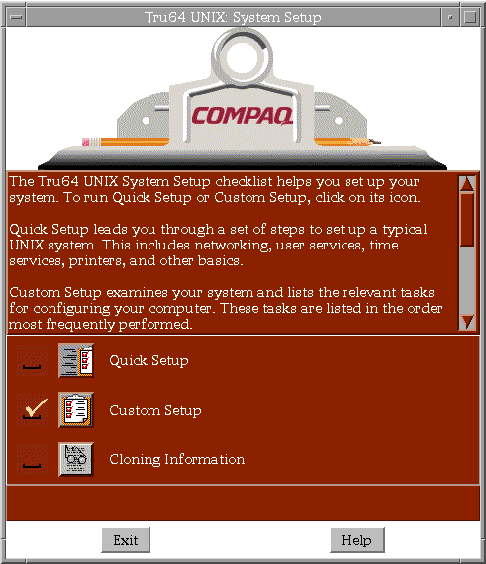
The System Setup utility (also known as the clipboard) is presented as a graphical user interface if your system has a graphics board and you are running an X11 user environment such as the default CDE. If you first log in at a character-cell terminal, System Setup is presented as a text interface.
Figure 1-1
shows the System Setup in graphical format.
Figure 1-1: System Setup Graphical User Interface
You can invoke System Setup at any time to modify the existing system
configuration, simply by typing
setup
at the command line,
or by invoking the System Setup icon in the CDE Application Manager -
System Admin folder.
The following options are provided:
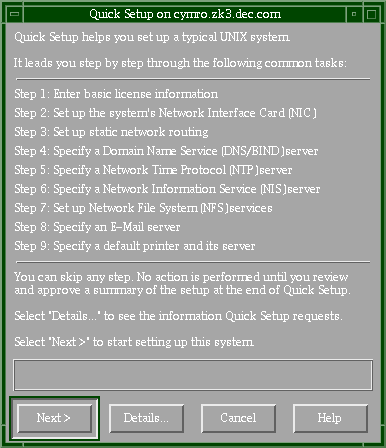
Enables you to complete basic configuration of system services such as networking, mail, and printers. This option is useful if you want to get a system up and running quickly, leaving advanced configuration options for later. Figure 1-2 shows the initial quick setup window.
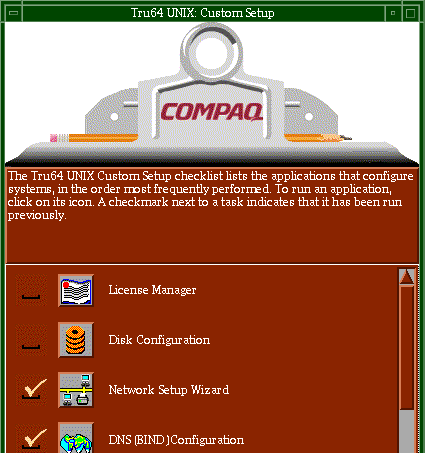
Enables you to run a wide range of system configuration utilities to perform all the Quick Setup tasks and run additional setup options such as custom disk configuration or set up the point-to-point protocol.
Figure 1-3 shows part of the Custom Setup graphical interface.
This option provides
a link to information on the SysMan Menu option to clone your system configuration
so that it can be applied to other systems.
See the
Installation Guide — Advanced Topics
manual
and
sysman_clone(8)
See
Section 1.5.2
for more information.
1.4 Administrative Methods
Most of the tasks described in this manual can be accomplished by using one or more of the following methods. Because of its versatility in different user environments, SysMan is the recommended method of performing system administration tasks.
The SysMan Menu
The SysMan Menu integrates most available system administration utilities in a single menu that enables you to run the utilities from:
Any local or remote character-cell terminal
Any X11-compliant windowing environment, such as CDE
Microsoft Windows on a personal computer (PC)
The Web browser using HP Insight Manager
See Section 1.6 for more information.
The SysMan Station
The SysMan Station is a graphical representation of a system (or
cluster) that enables you to monitor system status from the CPU down to the
level of individual system components such as disks.
You also can view and
monitor logical groups such as file systems or AdvFS domains and create customized
views.
When viewing any system component, you can obtain detailed information
on its properties or launch utilities that enable you to perform administrative
tasks on the component.
Unlike the SysMan Menu, the SysMan Station
requires a graphics capability and cannot be run from the character-cell or
curses
user environments.
See Section 1.8 for more information.
Graphical user interfaces in the CDE Application Manager - System_Admin
A set of X11-compliant graphical user interfaces (GUIs) that run under
CDE or other X11-compliant windowing environments.
Use of the GUIs requires
a graphics (windowing) terminal or workstation, and the installation of the
windowing software subsets.
These graphical utilities support features of
the windowing environment, such as using cut-and-paste to create duplicated
versions of user accounts in
dxaccounts.
See Section 1.5 for more information.
Command line scripts
For compatibility reasons, older administrative utilities have been
preserved in most cases.
Some command line utilities have migrated to become
the new command line options.
For example, the
adduser
script is still available, but it is superseded by the following utilities:
The SysMan Menu Accounts utilities, which provide tasks enabling you to manage users and groups in local and NIS environments.
The
useradd
command line utility, which
you run from a character-cell terminal.
The Account Manager graphical user interface, available from
Application Manager - Daily Admin in the CDE environment, or by invoking
dxaccounts
from a terminal window.
(The interface runs in other
X-compliant windowing environments)
The Accounts option on the SysMan Menu, available from
Application Manager - System_Admin in the CDE environment, or by invoking
sysman
from a terminal window.
You should migrate your system administration processes from the older
command line scripts to the appropriate SysMan Menu method.
These command
line utilities have been moved to optional
OSFRETIREDxxx
subsets.
See the
Installation Guide
for information on installing the retired
command subsets.
Serial line console
In addition to networked methods of administration, the serial line console provides a dial-up facility that enables you to connect to remote systems through a modem. See Section 1.11 for more information.
Manual file changes by editing system files (not recommended)
Traditionally, experienced UNIX system administrators have used a combination
of individual shell commands, scripts, and utilities, or simply edited the
system files.
Most sections of this manual describe the various system files
that are updated or modified when you perform an administrative task, and
you may still want to make manual changes.
The use of system utilities maintains
the integrity and consistency of system files such as
/etc/sysconfigtab.
We recommend that you use the appropriate utilities to update
system files so that the structure of these files is preserved.
Important considerations are:
Many system files are now special
symbolic links, created to facilitate clusters.
If these links are broken,
the system cannot be joined to a cluster in future without recreating the
links.
See
Chapter 6
and
hier(5)
Many system components write data both to text and binary files, and their administrative utilities often recreate the binaries. Other system information often is preserved so that when you update your system it can be recovered and used again, saving you time and effort on administering the system.
Individual systems
are capable of being joined into clusters and many UNIX system files have
been modified recently to provide latent support for clusters.
For example,
the
rc.config
file now has two related files,
rc.config.common
and
rc.config.site, which can
store run-time configuration variables.
Using the
rcmgr
utility ensures the integrity and consistency of these files.
During
an update installation, the installation process merges changed information
into existing system files.
The
.new..*
and
.proto..*
files may be important in this process.
See the
Installation Guide — Advanced Topics
manual for more information.
1.5 Administrative Utilities Under CDE
The Common Desktop Environment (CDE) is the default X11 windowing user environment, although the utilities described in the following sections run on other X11-compliant user environments. After you complete the full installation, the System Setup graphical user interface is displayed to guide you through the process of configuring the system for initial use. From System Setup, you invoke the same graphical user interfaces (GUIs) that you use regularly to administer and customize the system. System Setup is described in Section 1.5.2.
Many of the administrative utilities that you invoke from within CDE start a SysMan Menu task option. However, some of the utilities are graphical, and either have no analogous SysMan Menu option, or offer features that only can be used under CDE. Examples are:
CDE Setup, used to configure the CDE environment.
Disk Configuration (diskconfig), an application
that you use to configure disk partitions.
Archiver (dxarchiver), an application used
to create
tar,
pax, or
cpio
archives.
You can use drag-and-drop to easily add folders to an
archive.
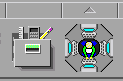
Under CDE, The GUIs are located in
the Application Manager, which is the tool drawer option on the CDE front
panel, as shown in
Figure 1-4.
The icon next to the
tool drawer only appears on the CDE front panel for the root login and is
used to invoke the SysMan Station as described in
Section 1.8.
Figure 1-4: CDE Tool Drawer and SysMan Station Icons
If you are using an X11-compliant user environment other than CDE, invoke the individual GUIs from the command line as shown in the following examples:
# /usr/sbin/X11/dxaccounts

# /usr/sbin/X11/dxarchiver
1.5.1 Accessing SysMan Under CDE
In CDE, certain SysMan Menu utilities are available in the Application Manager folder, which you can access as follows:
From the CDE Front Panel, select the arrow for the SysMan
Applications panel.
You can see this arrow above the icon for the SysMan Station,
shown in
Figure 1-4.
When you select this arrow, the
panel appears as shown in
Figure 1-5.
Figure 1-5: SysMan Applications Panel
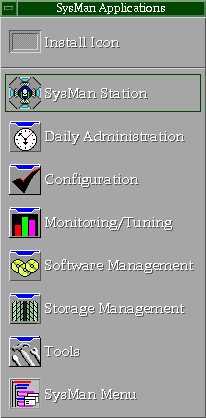
From this panel you can select one of the following icons, to launch a utility or open a folder containing more administration utilities:
Launch the SysMan Station, which is described in Section 1.8. This icon appears on the front panel of a root login to CDE, as shown in Figure 1-4.
Select a folder icon, such as Configuration to open the applications folders, which contain utilities described in Appendix A.
Launch the SysMan Menu.
From the CDE Front Panel by selecting its tool-drawer icon,
shown in
Figure 1-4.
When the top-level folder is opened,
double click on the
System_Admin
group to access
System Setup, the
Welcome to SysMan
online help
volume, and the five utility groups.
See
Section 1.5.2
for more information.
Online help is available for the SysMan Menu utilities without actually
running any utility.
Select the
Help Manager
icon on the
CDE front panel to invoke the online help browser.
The browser includes help
volumes for CDE, the CDE Desktop, and System Management.
You also can customize
your CDE workspace with the
Create Action
utility in the
Desktop_Apps
folder.
Customized icons enable you to start SysMan
applications directly from the workspace.
See the
CDE Companion
manual
for more information.
In other X-Windows environments, the SysMan utilities can be
invoked from the command line.
See
sysman_intro(8)
More information is available from these reference pages:
sysman(8)Describes the SysMan Menu and explains how to invoke it for various environments. See Section 1.6.
sysman_station(8)Describes the SysMan Station and explains how to invoke it. See Section 1.8.
sysman_cli(8)Describes the command line option for SysMan Menu, and defines the command options. See Section 1.7.
System Setup guides you through the process of configuring the system
for initial use.
System Setup is a graphical representation of a clipboard
that contains an icon for each configuration application.
After the initial
root login following a full installation, System Setup is invoked automatically,
prompting you to complete system configuration tasks.
The initial window contains
two options, Quick Setup and Custom Setup.
1.5.2.1 Quick Setup
This option provides a step-by-step guide (or wizard) that navigates you through a typical system configuration. Use Quick Setup to perform a basic configuration, which may be all that is required for some systems. You can perform any advanced or site-specific configuration tasks at a later time using the Custom Setup.
The Quick Setup wizard guides you through the following tasks:
Entering your software licenses (PAKs)
Configuring the network interface card (NIC)
Configuring static network routing
Specifying the following networking services and naming servers:
Domain Name Service (DNS, formerly BIND)
Network Time Protocol (NTP)
Network Information Service (NIS, formerly YP or Yellow Pages)
Network File System (NFS)
Configuring a default local or remote printer and server
You can skip any options that you do not require, details of
which are provided later in this section.
1.5.2.2 Custom Setup
This option invokes a version of System Setup that contains an
icon for each configuration application.
You can select only the options you
require for your site-specific configuration or custom configuration, for
example configuring a system as a server.
Not all configuration applications
are available on all systems.
The file
/etc/checklist.desc
contains a list of configuration applications.
When you select an icon, the appropriate SysMan Menu utility, X11-based GUI, or character-cell script is invoked. The following list describes the available utilities:
Invokes the License Manager (dxlicenses) , which enables you to register the Product Authorization
Keys (PAKs or licenses) for the operating system and any layered software
applications.
Paper copies of software licenses are provided with the product
media.
See
dxlicenses(8)lmf(8)
Invokes Disk Configuration (diskconfig), which enables you to configure and administer disk
devices on the system.
See
diskconfig(8)disklabel(8)
Invokes the SysMan Menu Network Setup Wizard, which
is a guide that leads you through the process of configuring and administering
networking components on the system.
See
sysman(8)network_manual_setup(7)
Configuring network interface cards (NIC)
Setting up static routes and
configuring the
/etc/routes
file
Setting
up routing services -
gated,
routed,
or an IP router
Set up remote who services
(rwhod)
Set up a DHCP server (joind)
Specifying the contents of the
/etc/hosts.equiv
file
Specifying the contents of the
/etc/networks
file
In addition to the options offered in the Network Setup Wizard, you also may need to set up other options, such as NTP, depending on your site-specific networking requirements. See the Network Administration: Connections manual and the Network Administration: Services manual for more information.
Selecting
Configure system as a DNS client
invokes
the DNS Client Configuration utility, which enables you to configure the domain
name server (DNS).
See
bindconfig(8)network_manual_setup(7)
Invokes the
nissetup
script, which enables you to configure NIS, the network information service.
This is also known as
ypsetup.
See
nissetup(8)network_manual_setup(7)
Invokes the SysMan Menu
and presents the
Network File Systems (NFS)
utilities,
which enables you to configure and administer NFS components on the system.
See
sysman(8)nfs_intro(4)
Invokes the
dxfileshare
option, which enables you to access and share file systems.
See
dxfileshare(8)
Invokes the SysMan Menu
Network Time Protocol Configuration
option, which enables you to
configure network time.
See
sysman(8)ntp(1)ntp_intro(7)
Invokes the SysMan Menu and presents the
Serial Line Networking
options, which enables you to configure options and secrets files
for the point-to-point protocol (PPP).
See
sysman(8)ppp_manual_setup(7)pppd(8)
See the entry
for PPP and
startslip(8)
Invokes the Account Manager (dxaccounts)
GUI, which enables you to create user accounts and manage groups for both
UNIX and Windows NT domain users on client PCs.
See
dxaccounts(8)adduser(8)
Invokes the Mail Configuration utility, which
enables you to configure the system to send and receive electronic mail.
See
sysman(8)mail_intro(7)mailconfig(8)
Invokes the
latsetup
script, which enables you to configure the Local Area Transport service.
See
latsetup(8)lat_intro(7)
Invokes the
uucpsetup
Connections Configuration script, which enables you to configure
UNIX to UNIX connections and modems.
See
uucpsetup(8)uucp_intro(7)
Invokes the SysMan Menu
Configure line printers option, which enables you to configure local and remote
printers.
See
sysman(8)printconfig(8)lprsetup(8)
Invokes the SysMan Menu
Security
utilities, which enable you to configure base or enhanced
security.
See
secconfig(8)
Invokes the SysMan Menu
Security
utilities, which
enable you to configure the audit subsystem.
See
auditconfig(8)
Invokes the SysMan Menu
option
Configure Division of Privileges (DOP), which enables
you to assign privileges to nonprivileged users so that they can run utilities
that usually are run only by the root user.
See
dop(8)sysman(8)
Invokes
the
prestosetup
script, which enables you to configure
Prestoserve.
See
presto(8)presto_setup(8)
Invokes a script that enables you to configure Asynchronous Transfer Mode (ATM).
Invokes a utility that you use to enable and configure the HP Insight Manager.
You do not need to use all the options presented on System Setup, and you can opt to defer any option to a later time. If you choose to defer any configuration options and exit from System Setup, you need to invoke System Setup manually from the Application Manager - System Admin folder, from the SysMan Menu, or from the command line as follows:
# /usr/sbin/sysman
# /usr/sbin/checklist
# /usr/sbin/setup
SysMan integrates most system administration utilities and makes them available under several different user environments. You can access utilities from the SysMan Menu, a hierarchical, task-oriented menu interface.
All the tasks in the SysMan Menu can be performed from an X11-capable display, a personal computer running Microsoft Windows, such as Windows NT Version 4.0, or a character cell terminal. There are several ways to start the SysMan Menu:
To start the SysMan Menu from a CDE desktop:
Log in as root and choose the SysMan Menu icon from the CDE front panel's SysMan Applications panel.
Choose the SysMan Menu icon from the System Management group in the Application Manager.
To start the SysMan Menu from a command prompt in a terminal window, enter the following command:
# /usr/sbin/sysman
To start the SysMan Menu from the SysMan Station,
select the system icon in a view window and then choose
SysMan_Menu
from the SysMan Station Tools menu.
You can start a specific task directly from the command line using its
name in the menu or its accelerator, which is a unique keyword for each option
in the sysman menu.
For example, to run the task that invokes the menu option
Configure Division of Privileges (DOP), use its accelerator
dopconfig
and enter the following command at the system prompt:
# /usr/sbin/sysman dopconfig
Use the following command to obtain a complete listing of the available tasks and their accelerators.
# /usr/sbin/sysman -list
The SysMan Menu contains a text list of options organized in a hierarchy
(or tree).
Each option appears as a branch on the tree, leading to suboptions,
which may be further branches or end in a task.
You can collapse or expand
each option if suboptions are available, as indicated by a character preceding
each menu item.
The plus sign (+) indicates that further
menu items are available; the minus sign (-) indicates
that the branch is fully expanded.
Tasks at the end of a branch are preceded by a vertical bar (|) indicating that no further expansion of the branch is possible
and you only can select a task to invoke an administrative utility.
Figure 1-6
shows the SysMan Menu invoked in
the CDE user environment.
The contents of this menu may be different on your
system:
Figure 1-6: The SysMan Menu
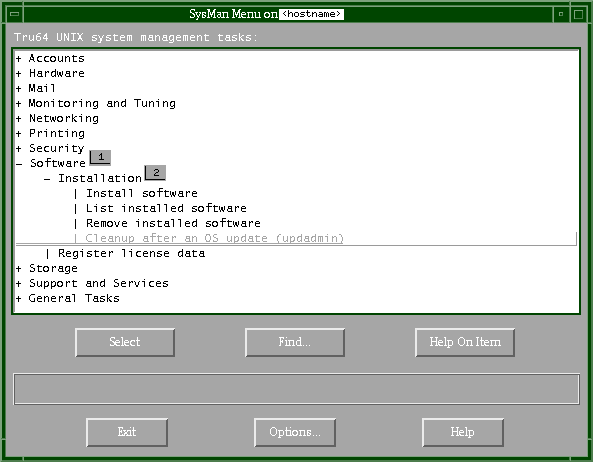
As shown in
Figure 1-6,
the
Software
branch (label 1) is expanded fully, showing
the
Installation
branch and the
Register license
data
task.
The
Installation
branch (label 2)
contains several tasks such as
Install software
and
List installed software.
When you select a task, the appropriate
utility is invoked.
How you move through and select menu items or invoke tasks is dependent
on the user environment that you are using such as a
curses
terminal or a windowing environment.
When using a terminal, you use the arrow
keys or Tab key to move around the menu, highlighting options and buttons
as you move.
Use the Enter key to select an item, which expands a branch
or select a task to invoke the associated utility.
When using a mouse in a
windows environment, you can move the pointer to a branch or task and double
click MB1 to expand a branch or select a task and invoke the associated utility.
See the online help for detailed instructions on navigating through the utilities.
The following options appear on the SysMan Menu:
Chooses the highlighted item. Selecting a branch expands or contracts it. Selecting a task invokes the associated utility.
Invokes the search window, enabling you to search on a keyword and find associated tasks.
Invokes context-sensitive help on any branch or task.
Closes the SysMan Menu window.
Provides options for configuring the SysMan Menu display, such as displaying the accelerators.
Invokes general help on the SysMan Menu.
Context-sensitive help also is displayed in the pane located between
the two rows of buttons.
This online help describes the content of the window
as you move the mouse pointer or use the Tab key to move to an item.
Selecting
a task invokes its associated utility in a format that is most appropriate
for your current user environment, such as the X11-compliant windowing
environment or
curses
format in a character-cell terminal.
More information is available in
sysman(8)1.7 Using the SysMan Command Line
The
sysman -cli
utility is a command line alternative
to the SysMan Menu, which enables you to implement SysMan Menu tasks
from the command line, view SysMan data, or write scripts to customize
your configuration tasks.
When you set up different parts of the system,
such as configuring the network using SysMan Menu tasks, you are manipulating
system configuration files such as
/etc/rc.config.common
or
/etc/hosts.
The
sysman -cli
utility
enables you to view and manipulate entries in these files directly from the
command line or from within a shell script.
You must have root privileges to use the
sysman -cli
options, although unprivileged users can use it to view system setup data.
See
dop(8)
A brief introduction to the many features of the
sysman -cli
utility is presented here.
See
sysman_cli(8)/usr/examples/systems_management/sysman_cli.
Some command line examples
follow.
You can use the
sysman -cli
command to display all
the manageable components in the Menu.
For example, the following command
is used to list the main components in the SysMan Menu hierarchy:
# sysman -cli -list components

Component(s):
  account_management
  atm
  auditconfig
  bindconfig
  bttape
  ciconfig
  clsschl
  doprc
.
.
.
networkedSystems
.
.
.
The following command displays the groups included
in the
networkedSystems
component:
#  sysman -cli -list group -comp networkedSystems
Component: networkedSystems
  Group(s):
    hostEquivalencies
    hostEquivFileText
    hostFileText
    hostMappings
    joinMappingService
    componentid
    digitalmanagementmodes
The following command
displays the current data values in the
hostMappings
group
of the component
networkedSystems.
This data is the content
of the
/etc/hosts
file.
# sysman -cli -list values -group hostMappings /
-comp networkedSystems
Component: networkedSystems
  Group: hostMappings
    {} {} 127.0.0.1 localhost
    argnot {local host} 16.140.112.139 argnot.xxx.yyy.com
    jason server 16.140.112.3 jason.xxx.yyy.com
    fleece {backup server} 16.140.112.28 fleece.xxx.yyy.com
    {} {} 150.2.3.4 newshst.pubs.com
For every option
in the SysMan Menu, the
sysman -cli
command lets you
view and manipulate system data without invoking the utilities.
For example,
the following command shows how you can remove a host from the
/etc/hosts
file:
# sysman -cli -delete row -group hostMappings /
-comp networkedSystems

Please enter key 1 [systemName]: newshst.pubs.com
Please enter key 2 [networkAddress]: 150.2.3.4
You are prompted to enter key data that
enables the utility to identify the correct entry in the
/etc/hosts
file.
Because the SysMan Menu options sometimes work on data
that is stored in tables, you need to identify the correct row in the table
to delete or modify.
Every row has some unique identifiers, called keys, which
you must specify with the
sysman -cli
command option.
If
you do not supply the keys, you are prompted to enter them.
The following
command shows how you determine the keys for a particular table:
# sysman -cli -list keys -group hostMappings -comp /
networkedSystems


Component: networkedSystems
  Group: hostMappings          Keys: systemName,networkAddress
You also can use
sysman -cli
commands to add or remove
user data entries from the system data files that are updated by the SysMan Menu.
For example, the following command adds a mail user interactively:
# sysman -cli -add row -comp mailusradm -group mailusers


Attribute Name: user_name (key attribute)
Attribute Description: user name
Attribute Type: STRING(8), Default Value:
Enter Attribute Value: davisB

Attribute Name: nis
Attribute Description: NIS User
Attribute Type: INTEGER, Default Value: 0
Enter Attribute Value ( to use default): 1

Attribute Name: mail_type (key attribute)
Attribute Description: mail user type
Attribute Type: INTEGER ENUM /
   { 0=Local/pop, 1=Secure Pop, 2=IMAP, 3=Secure IMAP }, /
Default Value: 0
Enter Attribute Value ( to use default): 2

Attribute Name: acl
Attribute Description: acl list
Attribute Type: INTEGER ENUM /
   { 0=all, 1=read, 2=post, 3=append }, Default Value: 0
Enter Attribute Value ( to use default): 0

Attribute Name: quota
Attribute Description: user name
Attribute Type: STRING(8), Default Value:
Enter Attribute Value:

Attribute Name: passwd
Attribute Description: password
Attribute Type: STRING(20), Default Value:
Enter Attribute Value: change_me

Attribute Name: orig_mailtype
Attribute Description: original mail user type
Attribute Type: INTEGER ENUM /
  { 0=Local/pop, 1=Secure Pop, 2=IMAP, 3=Secure IMAP }, /
Default Value: 0
Enter Attribute Value ( to use default):

#:
You also can enter the command as a single line, specifying all attribute values as follows:
# sysman -cli -add row -comp mailusradm -group mailusers /
  -data "{davisB} {1} {2} {0} {0} {pls_chg} {1}"
The SysMan Station enables you to monitor a system, group of systems, or an entire cluster and administer system resources. You also can launch the SysMan Menu or invoke utilities directly from the Tools menu, or by selecting the icon representing a system component, and pressing MB3 to display a menu of options that apply to the selected device. Unlike the SysMan Menu, the SysMan Station is a highly graphical interface, and only can run in a windowing user environment such as CDE or Microsoft Windows.
Note
You only can connect between compatible server and client versions of the SysMan Station. An attempt to connect to an incompatible server, results in an error message or dialog similar to the following:
System Management Server on host host name running version N,
This client running incompatible version N
Upgrade your client software to the appropriate version by downloading it from the server.
This section provides a brief introduction to the main features of the SysMan Station, including customized views. See the online help for SysMan Station for more information.
To start the SysMan Station fom CDE:
Log in as root and select the SysMan Station icon from the CDE Front Panel or from the SysMan Applications subpanel. (This assumes the default CDE configuration, where the SysMan Station icon appears on the Front Panel under the SysMan Applications subpanel.)
Choose the SysMan Station icon from the System Management group in the Application Manager.
To start SysMan Station from the command prompt, enter:
#sysman -station
After invoking SysMan Station, you are connected to the local
host.
The main SysMan Station window appears similar to the example shown
in
Figure 1-7, except that the default display shows the
Filesystems..., Network..., Storage, and System...
options that can be monitored.
These options are known as attention groups.
Figure 1-7: SysMan Station Main Window
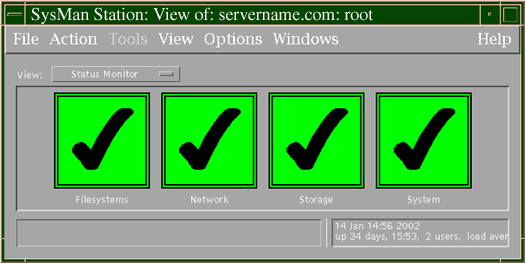
You can obtain event data for any of these groups by moving the pointer to an attention group, and double—clicking MB1. A window displaying a list of events is displayed.
The SysMan Station is a graphical representation of the system, in a hierarchical (tree) structure. For example, in the Storage option, you can view all disks on all buses for all processors on the system. You can select a specific device to monitor, and invoke utilities to administer that device. You can display many details (properties) of individual devices. SysMan Station also enables you to create a customized view of a system or an attention group such as storage devices. You can launch your custom views quickly and verify device status.
The main window of SysMan Station provides the following features:
The Status pane lets you monitor attention groups. Status options are described in Section 1.8.1
The Views pane lets you select a particular view of system components. View options are described in Section 1.8.2. This pane also displays any customized views that you create with SysMan Station.
Menu options lets you change views or select tasks. These options are described in Section 1.8.3. That section also contains brief instructions on saving customized views.
1.8.1 Using SysMan Station Status Options
When you invoke the SysMan Station, the Status pane displays a large check mark icon if the status of the attention group is normal. If the status degrades, the icon changes color, becoming a cross (X) on a red background to indicate a serious problem. These icons also enable you to instantly display any system events posted by any component in the attention group.
The default attention groups that you can monitor are:
Any UFS file systems or AdvFS domains.
The network and devices connected to the
local host, such as
tu0.
Storage devices connected to buses and
device interfaces, such as
floppy, the floppy drive unit
that is connected to an
fdi
interface such as
fdi0.
The events associated with the system components.
1.8.2 Using SysMan Station Views
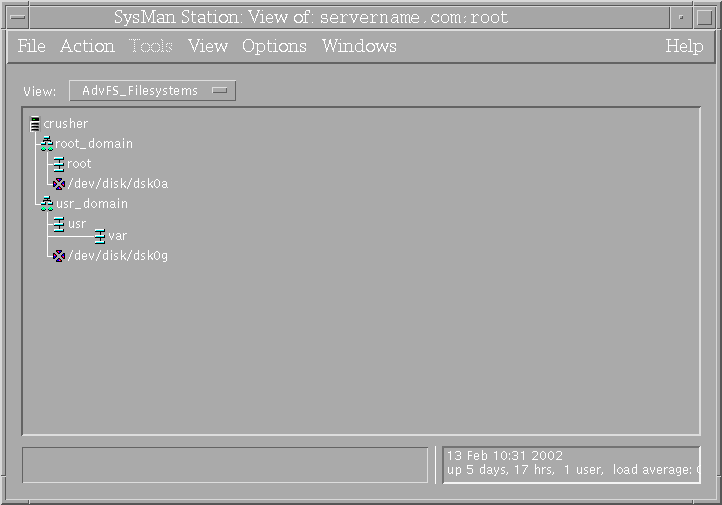
The Views option menu provides a list of attention groups that can be displayed. You can select any menu option to display the Status monitor or a window showing the hierarchical structure of the group in the Views Pane. These groups are:
A view of all AdvFS domains.
Figure 1-8 shows a typical AdvFS domains view on a small single-disk system.
Figure 1-8: AdvFS_Filesystems View
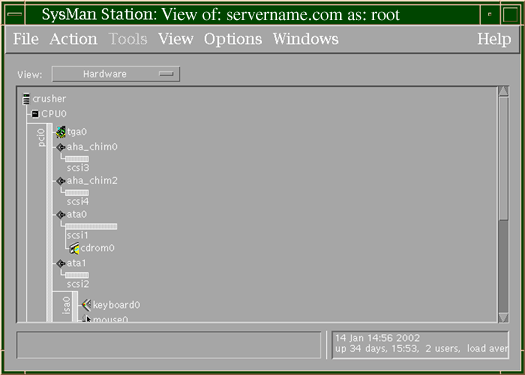
Displays a view of all devices, from the CPU down to individual disks.
Figure 1-9 shows a typical hardware view on a small single-processor system.
In the previous example, you can see the system buses, and the various
devices attached to a bus, such as the CD-ROM reader
cdrom0.
Displays a view of the file systems that are currently mounted, in a similar format to the AdvFS_Filesystems view.
Displays a view of all (UFS, AdvFS) file systems available, in a similar format to the AdvFS_Filesystems view.
You can customize views and save them so that you only monitor those parts of the system that are most important to you, or run applications to administer the components displayed in a view. When you customize a view, you have the opportunity to save it, and assign it an icon as described in Section 1.8.3.
In any of the system component screens, you can click MB1 on any component to select individual system components and expand or collapse sections of the display hierarchy. On selecting a component, MB3 displays a menu that contains one or more of the following options (depending on whether an option applies to the object that is selected):
Display or remove the subcomponents under a component. For example, select the Expand option when selecting a SCSI bus, and all the attached devices are displayed.
Select Contract to remove the displayed devices.
Allows you to prevent
some components and their subcomponents from being displayed, or to reveal
hidden components.
For example, select the Hide option when selecting a PCI
bus such as
pci0.
All the devices attached are hidden.
This means that you cannot display the devices by double clicking MB1 on the
bus or by selecting the Expand menu option.
Select Unhide Children to enable the display of the PCI bus devices.
Displays any administration or configuration utilities that can be launched for a component. For example, you can select a disk device, and launch the disk configuration utility.
Additional detail about the characteristics and current configuration settings for the selected device.
Options are dimmed when they are unavailable.
1.8.3 Using SysMan Station Menu Options
The main window of the SysMan Station offers the following pull-down menus and options, provided to enable keyboard selection rather than using a mouse:
This menu contains options to close the SysMan Station and exit, or to connect to another system.
This menu enables you to customize the Status view by removing an entire attention group, such as the Filesystems... attention group.
This option enables you to further customize SysMan Station by selecting the initial window.
This menu enables you to cycle between the different displayed views.
You are prompted to save your custom view before you exit SysMan Station. Then you can assign a name and an icon to the custom view. When you next invoke SysMan Station, your custom view is added to the Views pane.
The component views provide pull-down menus of the following options:
Provides options to print the current screen, create a new connection, close the current window and to exit from SysMan Station.
Offers options to change the grouping of components and the default appearance of displays, such as Expand and Hide.
Provides a launch point for any SysMan Menu utilities that are applicable to the selected component. The content of this window varies, depending on the type of component or device that is selected. The menu is blank if no utilities are applicable to the component, or if nothing is selected.
Allows you to control the current system view, and switch or cycle between views.
Allows you to control the appearance of the views, such as the icon size.
Allows you to invoke other windows, such as the main window.
You are prompted to save your custom view before you exit SysMan Station. Then you can assign a name and an icon to the custom view. When you next invoke SysMan Station, your custom view is added to the Views pane.
See
Section 1.10
for information on installing the SysMan Station
under Microsoft Windows.
1.9 HP Insight Manager
HP Insight Manager is a Web-based management utility that enables you to look across a heterogeneous computing environment and access information about any device connected to the network. Devices can be computer systems, networked printers, or network components such as routers. You can obtain information about the configuration of systems and their components or peripherals and, in some cases, perform certain administrative tasks such as asset management, asset security, work load management, and event management.
In its present implementation, HP Insight Manager provides a consistent wrapper for SysMan and other UNIX based utilities, enabling you to manage supported systems from a Web browser. On a PC or server running Windows NT, you can view details of devices and invoke administrative tasks. On a UNIX system, you can use HP Insight Manager to view details of devices, but you must invoke the SysMan Menu or SysMan Station to perform administrative tasks.
HP Insight Manager features are fully implemented in some operating environments, but are not yet implemented in others. This means that you can use many features on Windows NT systems, but you cannot use certain features onTru64 UNIX.
The main server component of HP Insight Manager is HP Insight Manager, a software console that provides full administrative services for Windows NT. The console communicates with any device in the local area network or domain that is running the agent. In this context, a device is any entity connected to the network. It can be a computer system with all its peripheral devices, a networked printer, or a router. Any network entity that has an address and can run the agents can communicate with the XE server, although some devices may require additional hardware.
A device must have an operating environment that is recognized by HP Insight Manager so that you can manage it using the web browser. Such an operating environment must be able to communicate device information to the WBEM network, and to receive and execute instructions sent from other (authorized) devices in the WBEM network.
The operating environments must be able to run HP Management Agents, which communicate with each other using a standard protocol. Devices, and their operating environments, provide information about hardware and software status using a data model, such as a Management Information Base (MIB) and Simple Network Management Protocol (SNMP). These can be thought of as a database of objects, with attributes and values, representing the manageable components of a device.
HP Insight Manager uses its standard protocol to poll a device for such data, and present it to the user in a consistent format, no matter how different the database. It is this standard protocol that puts a consistent wrapper around the device data that can be obtained (or manipulated).
In an environment consisting of client PCs and UNIX servers or Windows NT servers, you can use HP Insight Manager as your common interface to administrative tasks. For example, as an authorized (root) user working at your PC, you can invoke HP Insight Manager to view the general system status of an AlphaServer running the UNIX operating system, then to examine the specific status of a peripheral, such as the status of file systems on a disk. You also can launch a SysMan Menu task to perform operations on that file system.
You use HP Insight Manager by connecting your Web browser to a port on any system
in the local area network that is running the agents.
For example, if your
UNIX system has the host name and address of
trout.cu.da.com,
enter the following URL in the Location (or address) field of the browser:
HTTP://trout.cu.da.com:2301
You also can specify the TCP/IP
address, such as
20.111.333.10
in place of the host name
and address.
After you connect to a system, you can view the local system,
status, or select other hosts on the local network.
You also can connect to
another host by selecting its address from the list of local devices.
See
insight_manager(5)1.10 Using SysMan on a Personal Computer
In addition to using Java applets
as described in the
insight_manager(5)
This feature supports Microsoft Windows, MacOS, and Linux.
Full information
on this feature, together with an address from which you can download the
required software, is provided in a Web page available from the UNIX system.
This page is located at
http://<host>:2301/SysMan_Home_Page, where
<host>
is the host name and address or the TCP/IP address.
The procedure is as follows:
Use the Netscape Web browser on the PC to launch the
.../SysMan_Home_Page
page.
A link to this page is provided on the
default UNIX home page, by selecting the Tru64 UNIX SysMan icon.
Scroll down the page until you reach the section titled PC SysMan Client Software.
Verify the requirements and restrictions, noting any requirements for your client system. For example, you must be using the Internet Explorer Web browser on the client system.
Download the requisite software.
You are prompted to either save the kits to a location on your client system, or run them directly. The latter option begins installation and configuration of the software, using the typical Windows installation process. For example, you are prompted for a location for the installed software. You can create shortcuts in the existing Program group, a new Program group, in the Start menu, on the desktop, or in a folder of your choice.
When the installation process is complete, SysMan Station and SysMan Menu are listed as Java applications in the location you chose. Launch the required application.
When you launch either application, a dialog box opens, giving you the following connect options:
Enter the name and address or TCP/IP number for the host that you want to work on. The local host is displayed by default.
Select whether you want to log in as yourself, or as a new user. For example, if you are logged in to your client system as yourself, you may need to connect as new user root in order to perform privileged tasks on the host.
Check this box and specify a display address if you want to redirect the output display.
When you select OK, the application window opens (the time to start up depends on the current network speed and traffic). Then you can use the SysMan Station or SysMan Menu as described in the preceding sections.
1.11 Setting Up a Serial Line Console
You can manage remote systems through
a modem connection.
A serial line console enables you to connect a local terminal
to the remote system console through modems attached to your local system
and to the communications port
COMM1
of the remote system.
The local system can be any terminal or terminal emulation device that enables
a modem connection such as a dumb terminal, an X terminal window, or a personal
computer (PC).
To perform administrative tasks, you must be able to log in
as root (or as an account with administration privileges).
This connection is referred to as the console port. The terminal connection supports a limited set of communication rates up to 57,600, depending on the console firmware supported by your processor. Currently, this feature is only available on systems that support modems as console devices, such as the AlphaServer 1000A. See your system hardware documentation to find out if your system has such capabilities.
The console port enables you to do the following:
Connect to a remote system using a utility such as
tip,
telnet, or a PC terminal emulation utility
Remotely boot or shut down a system and observe all the boot messages
Start the kernel debugger and observe debugging messages
Perform any system administration tasks using commands and utilities
Running the Environment
Configuration Utility (ECU) on the remote system causes the modem to disconnect.
For this reason, you should use the ECU to complete any environment configuration
before setting up and using a modem as a console device.
1.11.1 Setting Up a Console Port
The following sections provide an overview of the steps required
to set up a serial line console port and set up the remote modem for dial-in.
It is assumed that your local (dial-out) modem is installed and configured
for use already.
1.11.1.1 Connecting the Modem to COMM1
The
CONSOLE
environment variable on the remote system
should be set to
serial.
See the hardware documents supplied with your modem for connecting the
modem to your system.
See
modem(7)cons
entry in
/etc/inittab
file should be modified so that the
getty
or
uugetty
process sets up the COMM port correctly.
This line is similar
to the following example:
cons:1234:respawn:/usr/sbin/getty console console vt100
This line should be changed as follows if you are using a modem set to run at a baud rate of 38,400 as a console device:
cons:1234:respawn:/usr/sbin/getty console M38400 vt100
1.11.1.2 Setting the Configurable DCD Timer Value
The serial driver has been modified to allow the Carrier Detect (DCD) timeout value to be configurable. The default value for this timer is 2 seconds, which is in accordance with the DEC STD-052 standard and is acceptable for most modems. This timer is used to determine how long the driver must wait when the DCD signal drops, before declaring the line disconnected and dropping the DTR and RTS signals. Some modems expect DTR to drop in a shorter time interval; see your modem documentation to verify the interval.
The timer can be modified by the
/etc/sysconfigtab
file or the
sysconfig
command to set the timer to 0 (no
timeout period), 1, or 2 seconds.
To set the timer via the
/etc/sysconfigtab
file, edit the file and include the following:
ace:
  dcd_timer=n
n can be 0, 1, or 2.
The syntax for modifying the timer via the
sysconfig
command is as follows:
# sysconfig -r ace dcd_timer=n
n can be 0, 1, or 2.
By modifying the value with the
sysconfig
command,
the setting is lost when the system is rebooted.
To preserve the setting
across reboots, edit the
/etc/sysconfigtab
file.
1.11.1.3 Setting the Console Environment Variables
The
COM1_MODEM,
COM1_FLOW, and
COM1_BAUD
console environment variable settings must be equivalent to the
getty
or
uugetty
settings used when you created
your system file entries for the modem.
See your hardware documentation for information on how to set the console environment variables. Typically, the variables are set when the system is shut down and in console mode, as shown in the following example:
>>> set COM1_MODEM ON
>>> set COM1_FLOW SOFTWARE
>>> set COM1_BAUD 9600
Valid settings are as follows:
COM1_MODEM: ON or OFF
COM1_FLOW: NONE, HARDWARE, SOFTWARE, BOTH
COM1_BAUD: See your system hardware documentation.
Changing the baud rate, flow control, or modem setting (for example,
using the
getty
command), causes those values to be propagated
down to the console level; the environment variables change automatically.
1.11.1.4 Verifying the Modem Setup
Dial the remote system and obtain a login prompt or console prompt,
if the system is not booted.
Log out or disconnect and ensure that the line
hangs up correctly.
Dial in again to ensure that you can reconnect.
1.11.2 Initiating a Console Port Connection
You can initiate a connection between the local and remote systems by
different methods.
A
tip,
kermit, or
cu
connection can be initiated from a terminal or X-terminal window
or you can use a PC-based terminal emulator.
For example, use the
tip
command as follows:
# tip [telephone number]
# tip cons
Where
telephone_number
is the telephone number of the remote system, including
any prefixes for outside lines and long-distance codes.
The second line is
an example of an entry in the
/etc/remote
file, which you
can use to specify details of remote systems and tip settings.
After you have initiated the dial-out command, and the two modems have
established a connection, the word
connect
is displayed
on your local terminal window.
Press the Return key and the console prompt
(>>>) or the
login:
prompt is displayed.
See
tip(1)1.11.2.1 Using the Console Port
After you have access to the system and are logged in to a privileged account, you can perform any of the administration tasks described in this volume that do not require access to a graphical user interface, such as using commands and running utilities. The following features may be useful for remote administration:
uucpThe UNIX to UNIX
system copy utility for copying scripts and files to the remote system.
See
uucp(1)
ikdebugA kernel debugging
tool,
ikdebug
can be invoked and used remotely.
See
ikdebug(8)/etc/remote
file to correct the baud rate.
For example you may need to change
the baud rate from 9600 baud in the following lines:
# access line for kernel debugger
kdebug:dv=/dev/tty00:br#9600:pa=none:
See the Kernel Debugging manual for more information.
1.11.2.1.1 Turning Off Console Log Messages
The
syslogd
daemon now has an internal switch to disable and enable
messages to the console.
This feature is invoked by the
-s
flag on the
syslogd
command line, or by running the following
command:
# /usr/sbin/syslog
See
syslog(1)1.11.2.1.2 Shutting Down the Remote System
When you shut down the remote system, the modem connection is dropped. To avoid this, use the following command before you shut down the system:
# stty -hupcl
See
stty(1)
When the shutdown is complete, you still have access to the console
prompt.
1.11.2.1.3 Ending a Remote Session
To end a remote session from the operating system shell prompt, type
[Ctrl/d]
to log out and terminate the remote session.
Otherwise, type
[+++]
to put the modem into local command level, and type
[ATH]
followed by the Return key to hang up the connection.
1.11.3 Troubleshooting
If you have problems setting up your systems and connecting, verify the set up as follows:
The local modem does not dial out.
Examine the cables and connections and ensure that the telephone lines are plugged into the correct sockets, and that you have a dial tone.
The remote modem fails to answer.
Ensure that the remote modem is set to auto-answer,
ATS0=n, where
n
is the number of rings before the modem
answers.
See
modem(7)
The remote modem answers and then disconnects.
This is most likely because of incorrect settings for dial-in access.
See
modem(7)
The remote modem answers but only random characters are printed.
This problem usually is caused by a mismatch between the baud rate of
the COMM port and that of the modem.
See
modem(7)
The connection is dropped when the remote system is shut down
by the
shutdown
command.
The
stty
attribute
hupcl
is at
the default setting.
To prevent the line from disconnecting during a shut
down, use the following command:
# stty -hupcl