This chapter describes how to gather information for, then set up and administer the print services. You can set up and administer the print services immediately after a new installation or an upgrade to a new version of the operating system, or you can wait until later. The files and utilities that you use to administer the print services are discussed in this chapter.
During initial configuration of your system after a full installation,
you see a checklist titled
System Setup.
On this menu
is an option for
Printer Configuration, which runs the
printconfig
graphical user interface.
See
Section 8.3.2
for more information.
The following topics are discussed in this chapter:
An overview of the administrative tasks, describing the different configuration methods and the setup utilities that you can use (Section 8.1)
An overview of the information gathering required for printer configuration (Section 8.2)
A description of how to use different utilities to set up
physically-connected, remote, and networked printers, including descriptions
of the
printconfig
and
lprsetup
utilities.
(Section 8.3)
Routine print system maintenance, such as adding and removing printers or controlling print jobs. (Section 8.4)
Reference information on advanced topics such as the structure of system files, spooling, daemons, error reporting, and print filters (Section 8.5)
Current restrictions on the use of certain print filters (Section 8.6)
Information that enables you to test printers and resolve problems (Section 8.7)
8.1 Print Administrative Tasks
There are two categories of print administration tasks: setting up the print system and maintaining the print system:
Perform these tasks to set up the print system initially:
Connect the printer to the system. This may be a physical connection or access through a network.
Add information about the printer in the
/etc/printcap
file.
Create the required device files and spooling directories.
Start the print daemon,
lpd.
Optionally initiate printer accounting.
Verify printer installation and perform a test printing.
After a printer is set up and running on your system, you need to:
Perform routine managment tasks, including adding new printers and changing the characteristics of existing printers.
Administer the print queues and files as needed.
Control the daily operations and throughput of print jobs.
The tools that you use to perform these operations are described
in
Section 8.1.6.
8.1.1 Printer Connection Methods
Depending on your local system configuration, you have several methods for installing and connecting printers, for example:
Connection to a shared network printer across a local area network (LAN) or a local area transport (LAT) connection or through TCP/IP.
Installation of a single physically-connected printer is the simplest installation. There are serial or parallel hardware ports at the rear of the system to which you connect a printer with a cable; see the printer documentation for a description of the hardware installation.
Any user on the local system can access the printer.
Connection to a printer directly connected to another system on the network.
The remote option requires that your system can access and use services on the system to which the printer is connected.
Connection to Personal Computer (PC) print queues when using the Advanced Server for UNIX (ASU).
This application is used to manage mixed environments incorporating PCs and UNIX systems. When ASU is installed, you have additional options to configure PC print queues and share printers between PC clients.
8.1.2 Printer Administration Methods
There are also several printer administration methods, each of which
provides certain advantages.
8.1.2.1 Using the Printer Configuration utility (printconfig)
This utility features a graphical user interface, which is recommended if you are a first-time user and for setting up a system quickly. This utility is part of the standard set of system administrative tools. See Chapter 1 for general information on these tools.
When ASU is installed,
printconfig
also enables you
to manage PC printers.
The operating system supplies drivers and configuration files a number
of third-party printers.
The
printconfig
utility automatically
displays a list of all the supported printers and enables you to configure
them quickly.
Note
There are restrictions on using
printconfigwith older/etc/printcapfiles. Seefor information. printcap(4)
8.1.2.2 Using the lprsetup utility
This command line utility that you run from a terminal provides backwards compatibility with previous releases.
The
lprsetup
utility performs the same tasks as
printconfig, but does not support PC printers, even if ASU is installed.
Invoking the command line option of
printconfig
initiates
the
lprsetup
utility.
The
lprsetup
utility does not support the management
of PC printers under Advanced Server for UNIX (ASU), although ASU itself offers
features for PC queue management.
8.1.2.3 Manually editing system files
Experienced system administrators may want to manage printers by editing
the
/etc/printcap
file directly; for example, you may
want to clone a particular printer configuration across a number of systems
or merge parts of one system's printcap file with another.
The information
in this chapter is useful for performing such tasks.
It is recommended that
you use
lprsetup
or the
printconfig
utility to manage individual print queue entries.
Note
The
/var/spool/lpdfile is a special link used in a TruCluster Server environment. It cannot be used as a spool directory. You must take care not to break this link when manually editing a file. See the section on CDSLs in Chapter 6.
8.1.3 Advanced Printing Software
The Advanced Printing Software is an optional subset on the Associated
Products CD-ROM.
For information about this software, see the
Installation Guide.
When the Advanced Printing Software is installed, you must configure a gateway,
as described in
Section 8.3.2, to run Advanced Printing
Software and the print daemon
lpd
on the same system.
You can run Advanced Printing Software with
lpd
disabled,
in which case it receives all inbound remote print requests (on socket 515)
instead of LPD.
However, with this configuration, local
lpd
commands such as
lpr
do not work.
8.1.4 Related Documentation
Additional documentation on using printer configuration tools is available
in
manuals,
reference pages, and
online help.
8.1.4.1 Manuals
The following lists references to information on using printer configuration tools in the Tru64 UNIX operating system documentation set.
The Network Administration: Connections manual provides information connections used by networked printers.
The Writing Software for the International Market manual provides information on internationalization support for printers that offer local-language capabilities, such as support for Asian languages.
The Common Desktop Environment: User's Guide and Common Desktop Environment: Advanced User's and System Administrator's Guide manuals provide information on setting up printer services in the Common Desktop Environment.
Other Tru64 UNIX documentation references include the Installation and Administration Guide, which describes ASU features for managing PC print queues.
The Advanced Printing documentation provides information about using the Advanced Printing Software, which is included as an optional component of the Tru64 UNIX operating system. The Advanced Printing Software User Guide describes how to submit jobs to your printer using the command line interface. It also shows you how to set up your local print environment and monitor jobs you have submitted. This manual is also packaged with the software kit, as is the following companion documentation:
Advanced Printing Software System Administration and Operation Guide
Advanced Printing Software Command Reference Guide
Advanced Printing Software Release Notes
Advanced Printing Software Installation Guide
Also, be sure to see the printer manufacturer's documentation for information
on installing the printer and for required software settings such as data
communication (baud) rates.
This is particularly important if you are attempting
to configure a printer that is not in the list of supported devices.
The printer
documentation provides information that you may need to provide to the configuration
utility to use any of the printer's special capabilities, such as tray selection.
Usually, you see your printer included in the list of supported devices when
you use an installation utility (or if you look in the
/usr/lbin/lprsetup
directory).
If your printer is not defined by a file in that directory,
and the manufacturer does not provide information for using the printer, use
the generic settings provided by the configuration tools.
Access to printer
capabilities often is restricted when you use a generic configuration.
8.1.4.2 Reference Pages
The reference pages listed here provide further information regarding utilities, files, and daemons.
lpc(8)Controls the operation of the line printer
system.
For each line printer configured in the
/etc/printcap
file, the
lpc
command may be used for disabling or enabling
a printer; disabling or enabling the printer spooling queue; rearranging the
order of jobs in a spooling queue or finding the status of printers, their
associated spooling queues, and the printer daemons.
ports(7)Contains information about the printer
ports that you use to connect printers to a system, and how they map to printer
device special file names in
/dev.
printconfig(8)lprsetup(8)Contain information about the configuration tools and their command line options.
printcap(4)lprsetup.dat(4)Contain information about the system files in which printer configuration information is located.
wwpsof(8)pcfof(8)Contain information about generic print filters.
The
wwpsof(8)
The
pcfof(8)
lpd(8)Contains information about the print daemon.
latcp(8)Contains information about the local area transport (LAT) control utility. This utility is used for adding services, such as print services, to a host and is only of interest if you are using networked printers.
lpr(1)pr(1)lprm(1)lpq(1)lpstat(1)Describe the commands used to print files. See the Command and Shell User's Guide for information on using these commands.
lptest(8)Describes the printer test pattern utility.
ppdof(8)Describes the text to PostScript print filter.
services(4)Describes the format of the
/etc/services
file where you can define the service ports for TCP/IP
printing.
The Printer Configuration application (printconfig)
features an online help volume that explains its use.
The
lprsetup
utility has command line help.
8.1.5 System Files
The following system files contain printer configuration information.
Some files, such as
/var/spool, are defaults or UNIX
conventions.
You can use your own preferred file names and locations.
/etc/printcapContains the data on configured printers.
/usr/lbin/lprsetupThe
/usr/lbin/lprsetup
directory contains a series of files (*.lpd), each of which contains the configuration data for a supported
(known) printer.
The name of each file corresponds to the printer name.
This
information is compiled into the
/etc/lprsetup.dat
file
and transferred to the
/etc/printcap
file when a printer
is installed and configured for use.
/etc/lprsetup.datThe
/etc/lprsetup.dat
file is a compilation of the files in the
/usr/lbin/lprsetup
directory.
/usr/spoolThis file is a
symbolic link that points to
/var/spool
(see below).
This symbolic link is used to satisfy the legacy programs such as
mail
and
uucp.
/var/spoolThis directory
is the default directory where print jobs are stored temporarily during printing.
The spool queue is identified by the
sd
entry for a device
in
/etc/printcap.
Keep newly-created spool directories under
/var/spool;
/var
is defined for variable data.
/var/spool/lpd
This file
is a symbolic link that points to
/var/spool/cluster/members/{memb}/spool/lpd.
This is a member-specific spool directory on node of a cluster;
a standalone system is considered as a single node cluster (member0).
The
lock file
lpd.lock
is stored in this directory.
/usr/adm/lpd*errThe
/usr/adm/lpd*err
files are the error log files for each installed
printer.
These are only created if error logging is enabled.
/var/admThe
/var/adm
directory contains printer accounting files when accounting is
enabled.
These files have a file name format of
/var/adm/<printer>acct_sum, where
<printer>
is the name that you assign to the printer
during installation.
/usr/lbin/lpdThe
/usr/lbin/lpd
file is the line printer daemon.
Configuration files
are located in the
/var/spool/*
(or
/usr/spool/*) directory.
/devThe
/dev
directory contains the local UNIX socket
/dev/printer.
This socket is created by the
lpd
daemon and exists for
as long as the parent
lpd
is running.
The following utilities are also available for use in your printer environment:
lpcThe line printer control
utility enables you to manage print queues and control access to printers;
it also allows you to examine printer description files for potential configuration
errors.
See
lpc(8)
pacThe printer/plotter accounting
utility formats the data from printer accounting log files and displays it
or stores it in a text file.
See
pac(8)acct(8)
The Print Manager graphical
user interface, located under
Desktop_Apps
in the CDE Application
Manager, enables you to perform the following tasks.
See its online help for
information on how to use these graphical interfaces to manage print queues,
control access to printers, and customize your view of the printer data.
These features are similar to features offered by the
lpc
utility and the
lpq
or
lpstat
commands,
which you can run from the command line in a terminal.
The Print Screen graphical user
interface, located under
Desktop_Apps
in the CDE Application
Manager, enables you to print all or a portion of the display, or save it
to a file.
See its online help for information.
The printer icon
on the CDE front panel allows you to select printers and manage print queues
locally.
You also can run
Printer Configuration
(printconfig) from CDE Application Manager - Configuration,
in addition to invoking it from SysMan Menu or the SysMan Station.
The latter user environments use graphical tools remotely or from a different
workstation such as a PC or another UNIX system.
See the CDE documentation
for information on setting environment variables such as
LPDEST
to assign system default printers in CDE environments.
Before adding a printer, you need to gather the information about the
printer that you enter when using the
lprsetup
or
printconfig
utilities.
The information required depends on whether
the printer is remote, a direct connection, or a network connection using
LAT or TCP/IP:
If your system is part of a network, contact your local network administrator
or see the
Network Administration: Connections
and
Network Administration: Services
manuals for information
required when adding or accessing a network printer.
8.2.1 Network and Direct Printer Connections
The following list identifies the information you need when installing a direct physical connection, or a network connection using LAT or TCP/IP.
Determine the printer type from
lprsetup.dat(4)/usr/lbin/lprsetup
directory if you have
added third party printers.
Usually, the name embossed on the printer is similar,
such as LN03, however the printer type for the DECLaser 5100 is
ln09.
The
printconfig
utility displays a list
of supported devices, including PC printer options if ASU is installed.
You can assign
one or more aliases for the printer.
An alias is a name that you can use with
printer commands.
For example, if your local system is named
alfie2, you can assign that as an alias and use that name when printing
files as follows:
# lpr -Palfie2 prt_accounting.txt
This depends on how the printer is connected to your system. It can be:
A networked print server device.
Connected to a port at the rear of the system box.
Connected as a Local Area Transport port or service. (See the Network Administration: Connections manual for more information.)
This depends on the Connection type:
For the TCP/IP connection type, you need the TCP address, in one of two formats:
@node/portThe printer host
(or node) name followed by either the port number such as 9100 for an LN32,
or the service name defined for this port in the
/etc/services
file.
If no service name is defined, you must use the port number.
For example
@alfie.nic.ccc.com/ln32port
maps to the entry
ln32port
9100/tcp
in
/etc/services.
The entry
@alfie.nic.ccc.com/9100
directly specifies a port number, and no
service entry in
/etc/services
is required.
@tcp_address/portThe TCP/IP
address in
nnn.nnn.nnn.nnn
format, followed by the port
number (such as 9100 for an LN32) or the service name defined in
/etc/services.
For example
@123.321.123.321/9100.
For the Direct connection type, this entry
specifies the device file name in the
/dev
directory.
For example, if you connected the printer cable to the 9-pin socket
labeled 1 or COMM1, the corresponding device special file is
/dev/tty00.
For the LAT connection type,
printconfig
supplies a default
/dev/lat
port or service
name, LAT server node name, or LAT port name.
(See the
Network Administration: Connections
manual for more information.)
Most of these options are not required to complete a basic installation and you can accept the defaults. However, the owner's manual for your printer may state requirements for certain settings, such as the communications baud rate. Communications rates can depend on features such as the length and type of printer cable that you chose for the installation.
The advanced options are set as symbols in the
/etc/printcap
file and
printcap(4)printconfig, the online
help provides a description of the symbols.
This screen scrolls down to list all available options and also contains default entries, which you can override if required.
The most commonly used options are:
Choose the default, or enter your preference, if you want to use printer accounting to track print consumables.
If your printer specifies communication rate requirements you can enter it here. You can sometimes increase the default rate to improve printer throughput.
Set the restrictions here if you want to control the volume and quantity of print jobs.
If you want default values for certain page layout characteristics, set the characteristics here. Supported layouts may depend on printer restrictions and capabilities. See the owner's manual for the printer.
Specify the locations here if you want certain directory and file locations for print spooling or for error output.
The following is a list of the information you need when installing a remote printer:
You can assign
one or more aliases for the printer.
An alias is a name that you can use with
printer commands.
For example, if the remote system is named
alfabet, you can assign that name as an alias and use that name when printing
files as follows:
# lpr -Palfabet prt_accounting.txt
The host name for the remote
system, such as
alfabet.ccc.nic.com
The name of the printer on
remote system, such as
lp0, or a valid alias.
These options are not required for a basic installation. Remote printing allows you to configure a few advanced options (or deconfigured, such as error logging). See Section 8.2.1 for more information. Most advanced options are not passed on to the remote system.
The
Generic_Remote_LPD
is the printer type that needs
to be selected for remote printing setup.
8.3 Configuring Printers
The following sections describe the information you need in order to
use the
printconfig
utility to connect a printer to your
computer; there is also a section that describes how to use the
lprsetup
utility to configure a printer.
Before proceeding, verify that the printer is connected to your system physically, accessible on the network (for remote printing), and functions as described in the owner's manual. A good strategy for avoiding installation problems is to accept the default data presented by the configuration utility. After you have the printer working, you can read about the advanced options and use the same utility to tune your configuration, as required.
You must have the Printer Support Environment subset installed. To see if you have this subset installed, enter:
# setld -i | grep OSFPRINT
If the
OSFPRINT
subset is installed, the following information
is displayed:
OSFPRINT540 installed Local Printer Support (Printing Environment)
If the
OSFPRINT
subset is not installed, see the
Installation Guide
for information on adding this, or any, subset with the
setld
utility.
The following lists the printer configurations discussed in this section:
Using printconfig to Configure TCP/IP Printing (Section 8.3.1)
Installing a Physically-Connected Printer with printconfig (Section 8.3.2)
Setting Up Remote Printers with printconfig (Section 8.3.3)
Configuring PC Print Queues with printconfig (Section 8.3.4)
Using lprsetup to Install a Printer (Section 8.3.5)
You can invoke
printconfig
from CDE, or from the
command line; see
printconfig(8)
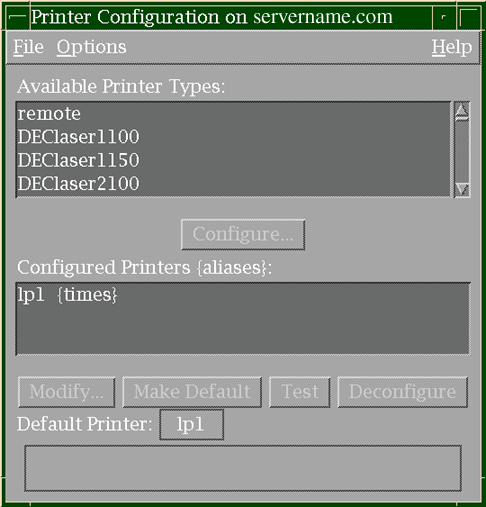
Figure 8-1
shows the Printer Configuration (printconfig) main window.
Figure 8-1: Printconfig Main Window
8.3.1 Using printconfig to Configure TCP/IP Printing
TCP/IP printing allows you to submit print jobs to a printer that is directly connected to the network. To use this feature, your printer must contain a network interface card or be connected to a print server or terminal server, and you must register it with a TCP/IP node name and node address.
With TCP/IP printing, the local host manages print jobs in the same
way as it does for a directly connected printer.
The only difference is that
with TCP/IP printing, the local print daemon (lpd
Although multiple hosts can talk to a single printer connected to the
network in this way, the hosts are handled on a first-come, first-served basis.
Therefore, TCP/IP printing is not the same as remote printing, in which the
remote host or printer manages a print queue on the remote site and listens
for network connections on socket 515 (as specified in the entry for
printer
in
/etc/services).
8.3.1.1 Using printconfig for TCP/IP Printer Configuration
TCP/IP printing allows you to submit print jobs to a printer that is directly connected to the network as a host device. See Section 8.3.1 for information on TCP/IP printing. Gather the information as described in Section 8.3.
Invoke
printconfig
as described previously.
In this window you use the data you have gathered to select the printer type, for example:
Select
Compaq LN32
Choose the Configure option
Because the printer is treated as a physically—connected printer,
the next window is Printer Config: Local Printer Settings.
The next available
printer name is displayed, such as
lp4.
Complete the fields
as follows:
Printer Aliases, such as the name of the local host or perhaps
something to help users to identify the printer type and physical location,
such as
LN32_office23.
You also can specify this value as
@nodename/servicename, where
servicename
is defined in
/etc/services
and associated with the printer's TCP/IP port.
The Connection type, which is TCP.
Finally, you need to specify the Device pathname as a port
number or service, which in this case is the network address of the printer,
such as
@alfie.nic.ccc.com/9100
or
@123.321.123.321/9100.
Choose Commit to write the options to the
/etc/printcap
file.
For a basic TCP/IP printer configuration, that is all you need to do. If you decide to use advanced options, such as setting print job limits, choose the Advanced option to display the "Printer Config: Local Printer Settings: Advanced" window.
After committing the configuration, you are returned to the Configuration on host name window, and the printer now appears in the list of configured printers. Use the Test option to print a test page to the printer. If you do not get any output, review the data carefully and refer to the troubleshooting section.
It may be necessary to configure the printer for its TCP/IP address.
This may involve making entries on a hardware console panel or using
telnet
or a web browser to communicate with the printer.
See your
printer documentation for more information.
The remaining option on the window Configuration on host name is Make Default, which enables you to choose any configured printer as the default printer for this system. Printing a job without specifying the print queue causes the job to be printed on this printer.
Select the required printer and choose Make Default.
The current default
printer is displayed in the field labeled Default Printer.
8.3.1.2 Additional Manual Steps Required for Setting Up TCP/IP
Use the following steps, which describe how to set up TCP/IP printing on a local host, in addition to the information in the previous section.
Set up the printer.
Assign a TCP/IP address and node name
to each printer with a network card.
Also, determine the TCP/IP socket number
on which the printer listens for connection requests.
You can either specify
a name that is defined in the
/etc/services
file, or
directly specify the port number assigned to the printer.
If you want to create
a service name, you need the socket number in Step 2b when you edit the
/etc/services
file.
Table 8-1
lists the socket numbers for
five Compaq printers, one Lexmark printer, and one Hewlett-Packard printer.
Table 8-1: TCP/IP Socket Numbers
| Printer | Socket Number |
| DEClaser 3500 (LN14) | 10001 |
| DEClaser 5100 (LN09) | 10001 |
| HP Printers | 9100 |
| Digital_LN17 | 2501 |
| Lexmark Printers | 9100 |
| Compaq LN16 | 9100 |
| Compaq LN32 | 9100 |
To obtain the socket number for other printers, see your printer documentation under the network card. Some printers may allow you to specify this number yourself.
Configure the local host. This step describes the utilities that you need to run and the files that you need to modify on the local host in order to configure TCP/IP printing. You must have superuser privileges to perform the following tasks:
Assign the following values to the
ct
and
lp
variables:
ct=tcp
lp=@nodename/servicename
Replace
nodename
with the name of the printer's node as registered for
use on your network.
Replace
servicename
with either
the name that you choose to enter in the
/etc/services
database in the next step or the port number (for example,
lp=myHPLaserjet/9100) .
If you want to modify an existing
/etc/printcap
printer entry to use TCP/IP printing, edit the
/etc/printcap
file and modify the values for the
ct
and
lp
variables.
You also can remove the values for the
xs,
xc,
fs, and
fc
control variables.
These variables establish settings that are relevant to the serial port driver
but are ignored by the network socket driver.
Configure the services database.
You must register a service
name and
tcp
port number (socket number) in the
/etc/services
database file.
Enter the socket number that you
determined when you configured the printer in step 1 and associate it with
a service name of your choice.
For example, to configure the services database
for a DEClaser 3500, you add the following line to the
/etc/services
file:
declaser3500 10001/tcp
The
user-defined string
declaser3500
represents the service;
it is the same string that you entered as the
servicename
in the
/etc/printcap
file in step 2a.
Save the changes
to the
/etc/services
file.
Do not modify the
/etc/services
file if you provided
the port number in step 2a.
Configure the remote hosts database.
The
nodename
value that you specified as part of the
lp
variable value in the
/etc/printcap
file must be known
by your local host's network management services; therefore, you must enter
the
nodename
and its network address in the
/etc/hosts
database file.
If you are running a BIND server for
remote host names, you do not necessarily need to add the printer's node name
to the
/etc/hosts
file, though if there is ever a problem
with the BIND server, an entry in
/etc/hosts
is a useful
fallback.
After configuration, TCP/IP printing is used like local and
remote printing.
From the command line, execute the
lpr
command specifying the node name of the printer, command options, and file
names.
You also can view the printer status and submit print jobs with the
CDE print utilities.
8.3.2 Installing a Directly Connected Printer with printconfig
This section describes how to install a directly connected printer
using the
printconfig
utility.
The example given is a DEClaser
5100 printer installed using the graphical user interface.
It assumes that
you have made all the physical connections and gathered the required information.
You also can use
printconfig
to modify a printer configuration
or remove a printer.
These other tasks are described in
Section 8.4.
Note
Do not use
printconfigif you are modifying an/etc/printcapfile on a system running Version 3.2 or older. There are incompatibilities in older/etc/printcapfiles that may causeprintconfigto corrupt the file. Uselprsetupinstead.
A typical installation of a printer (after the hardware is installed) takes about ten to fifteen minutes, including time required to gather the data.
The recommended action is to accept the default values for an initial
printer installation.
Then you can use
printconfig
to modify
the configuration later if required.
Invoke
printconfig
as described previously.
You must have superuser privileges to run the
printconfig
utility.
Depending on the type of printer you are adding and the information
you provide, the utility may do the following:
Create, or edit the existing
/etc/printcap
file
Create a spooling directory
Create an error log file
Create an accounting file
Create the device special files
Prompt you to modify previously selected symbols
When you run the
printconfig
utility, the
first display is the main window titled
Printer Configuration
on
host name.
In this window you select the printer
type using the data already gathered as described in
Section 8.2:
Select
Digital_DEClaser_5100
Choose the Configure option
Because this is not a remote printer, the next window is
Printer Config: Local Printer Settings.
The next available Printer
name is displayed (lp0
if this is the first printer that
you are configuring on this system).
In this window you enter:
The printer alias names, such as the name of the local host
or perhaps something to help users to identify the printer type, such as
local_DL5100.
The connection type.
Because you have connected the cable
to a local serial port such as
COMM1, you must choose the
Direct option.
Finally, you need to specify the Device pathname, which is
the special device file that maps to the serial port.
The device file
/dev/tty00
maps to the
COMM1
port.
Choose Commit to write the options to the
/etc/printcap
file.
For a basic printer configuration, that is all you need to do. If you decide to use advanced options, such as setting print job limits, choose the Advanced option to display the "Printer Config: Local Printer Settings: Advanced" window. See Section 8.5.
After committing the configuration, you are returned to the
Printer Configuration on
host name
window,
and the printer now appears in the list of configured printers.
Use the Test
option to print a test page to the printer.
If you do not get any output,
review the data carefully and see
Section 8.7.
The remaining option on the
Printer Configuration on
host name
window is Make Default, which enables you to choose
any configured printer as the default printer for this system.
Printing a
job without specifying the print queue causes the job to be printed on this
printer.
Select the required printer and choose Make Default. The current default printer is displayed in the field labeled Default Printer.
Your printer is now ready for use.
Test the printer's capabilities with
appropriate files, such as PostScript or color graphics files.
The printer
utilities described in
Section 8.1.6
can verify printer
and queue status.
8.3.3 Setting Up Remote Printers with printconfig
A remote printer refers to a printer that is directly connected to a
remote host or is otherwise treated as local by the remote host.
You can connect
remote printers directly to the network if their network cards emulate the
remote
lpd
protocol, so they appear as remote hosts with
a printer attached.
You configure your local print queue so that print jobs are sent to
the remote host over the network.
These jobs are then printed on the remote
host.
If you are setting up a remote printer from a remote system, list the
local system (the client) in the
hosts.lpd
file or
hosts.equiv
file of the remote system (the host).
See
Section 8.2
for information on the data that you
need to gather before performing this task, then invoke
printconfig
as described previously (the remote queue is the same queue as
the example created in that section).
The following illustrates how to use
printconfig
to create some remote print configurations:
Select
remote.
Choose the Configure option.
Note
Because this is a remote printer, the next window is
Printer
Config: Remote Printer Settings
. The next available printer name is displayed (lp0if this is the first printer that you are configuring on this system).
Enter the printer alias names, such as the name of the remote host and printer type.
Enter the remote system name.
Enter the remote printer name.
For example in
Section 8.3.2,
a printer
lp0
was added to the system.
Choose Commit to write the options to the
/etc/printcap
file.
For a basic printer configuration, that is all you need to do. Choose the Advanced option to display the "Printer Config: Local Printer Settings: Advanced" window if you decide to use advanced options, such as setting print job limits. Because the printer is remotely configured, you can specify only a small number of advanced options that affect local processing, such as the local error log file and spooling directory.
After committing the configuration, you are returned to the
Printer Configuration on
host name
window,
and the printer now appears in the list of configured printers.
Use the
Test
option to print a test page to the printer.
If you do not get
any output, review the data carefully and see
Section 8.7.
8.3.4 Configuring PC Print Queues with printconfig
If the Advanced Server for UNIX (ASU) is installed and running, you
can configure client PC printer queues.
ASU also offers features for configuring
and managing print queues.
See
Installation and Administration Guide
for more information on
using ASU.
You must have at least one printer configured in your
/etc/printcap
file before you can create a printer share queue
for PC clients.
Invoke
printconfig
as described previously.
When
you invoke
printconfig
under ASU, an available printer
type is the
Advanced_Server_Shared_Printer_Queue.
Choose
this option and the next window displayed is titled
"Printer Config:
Advanced Server Shared Print Queue Setting".
There are only three
options on this window:
Enter
a queue name such as
psq1
Enter a comma-separated list of
device names such as:
lp0,lp2
Enter any comments or notes on queue use and restrictions.
Select
OK
to create the queue and return
to the
printconfig
main window.
The new queue is displayed.
To test the status of the queue, use the following ASU command and examine the output for the queue name as shown in the example:
# net share
.
.
.
Share name  Resource             Remark
----------  ------------------   ------------------------
psq1        lp0, lp2             Spooled
You may need to perform other ASU tasks to make the queue available
to PC systems.
See the ASU documentation for more information.
8.3.5 Using lprsetup to Install a Printer
Use the
lprsetup
utility to install a printer locally
(directly connected to your computer) using the
lprsetup
utility.
You also can use
lprsetup
to modify a printer's
configuration or remove a printer.
These other tasks are described in
Section 8.4.
The recommended action is to accept the default values for an initial printer installation.
The printer described in the following example is an LN03R.
You can run
lprsetup
by entering
/usr/sbin/lprsetup
at the command prompt in a terminal window.
You must have superuser
privileges to run
lprsetup.
Depending on the type of printer
you are adding and the information you provide, you can use
lprsetup
to:
Create, or edit the existing
/etc/printcap
file
Create a spooling directory
Create an error log file
Create an accounting file
Create the device special files
Prompt you to modify previously selected symbols
When you run the
lprsetup
script, the first display
is the main menu:
# /usr/sbin/lprsetup
Tru64 UNIX Printer Setup Program

Command < add modify delete exit view quit help >:
Table 8-2
lists the
lprsetup
command options.
Table 8-2: lprsetup Options
| Command | Description |
add |
Adds a printer |
modify |
Modifies an existing printer's characteristics |
delete |
Removes an existing printer from your configuration |
exit |
Exits from the
lprsetup
program |
view |
Displays the current
/etc/printcap
file entry for the printer you are configuring |
quit |
Exits from the
lprsetup
program |
help |
Displays online help about the
lprsetup
program |
You can abbreviate any command option with its initial letter.
You can enter information at each prompt or press [Return] to select the default information provided. (In most instances, you can accept the defaults.) You also can enter a question mark (?) to get a description of the information you specify at the prompt.
Note
Some of the symbols displayed by
lprsetupare not supported by the operating system. Seefor information on the supported symbols. printcap(4)
The following example shows how to use the
lprsetup
command to set up an LN03R printer on the local system.
Some tables are truncated
to shorten the example:
# /usr/sbin/lprsetup
Tru64 UNIX Printer Setup Program
Command  < add modify delete exit view quit help >: add
Adding printer entry, type '?' for help.
Enter printer name to add [lp1] : [Enter]

Printer Types:

  1. Compaq Advanced Server ClientPS
  2. Compaq Advanced Server ClientText
  3. Compaq LN16
  4. Compaq LN32
  5. Digital Colormate PS
  6. Digital DEClaser 1100
  7. Digital DEClaser 1150
  8. Digital DEClaser 2100
  9. Digital DEClaser 2150
 10. Digital DEClaser 2200
 11. Digital DEClaser 2250
 12. Digital DEClaser 2300
 13. Digital DEClaser 2400
 14. Digital DEClaser 3200
 15. Digital DEClaser 3250
 16. Digital DEClaser 3500
 17. Digital DEClaser 5100
 18. Digital LA100
 19. Digital LA120
 20. Digital LA210
 21. Digital LA280
 22. Digital LA30N

Press 'ENTER' to continue scrolling, type '(q)uit' to end scrolling: [Enter]
 23. Digital LA30N A4
(and so on until)
 59. Digital LN03
 60. Digital LN03R
 61. Digital LN03S
 62. Digital LN03S-JA
 63. Digital LN15
 64. Digital LN15 A4
 65. Digital LN17
 66. Digital LN17 A4

Press 'ENTER' to continue scrolling, type '(q)uit' to end scrolling: q

Help Types:

  ?         - General help
  printer?  - Specific printer type information

Enter index number, help type, '(q)uit', or 'ENTER' [Generic Unknown type]: 60

You chose printer type 'Digital LN03R'.
Is that correct? [y]:y

Enter printer synonym: marks
Enter printer synonym: [Enter]

Set device pathname 'lp' [] ? /dev/tty01

Do you want to capture print job accounting data ([y]|n)? y

Set accounting file 'af' [/usr/adm/lp1acct]?[Enter]

Set spooler directory 'sd' [/usr/spool/lpd1] ? [Enter]

Set printer error log file 'lf' [/usr/adm/lp1err] ? [Enter]

Set printer connection type 'ct' [dev] ? [Enter]

Set printer baud rate 'br' [9600] ? [Enter]
After you respond to each of the prompts,
lprsetup
prompts you to determine if you want to change any of the values assigned
to the various symbols in your
/etc/printcap
file or
if you want to specify any additional symbols.
For example, you can set a
specific page length or width.
If you want to make any changes or add information,
enter the appropriate symbol name.
See
printcap(4)
Enter the name of the printcap symbol you wish to modify.  Other
valid entries are:
        'q'     to quit (no more changes)
        'p'     to print the symbols you have specified so far
        'l'     to list all the possible symbols and defaults
The names of the printcap symbols are:

 af  br  cf  ct  df  dn  du  fc  ff  fo  fs  gf  if  lf  lo  lp
 mc  mj  mx  nc  nf  of  on  pl  pp  ps  pw  px  py  rf  rm  rp
 rs  rw  sb  sc  sd  sf  sh  st  tf  tr  vf  xc  xf  xn  xs  ya
 yd  yj  yp  ys  yt

Enter symbol name: q

        Printer #1
        ----------
Symbol  type  value
------  ----  -----
  af    STR    /usr/adm/lp1acct
  br    INT    9600
  ct    STR    dev
  fc    INT    0177777
  fs    INT    03
  if    STR    /usr/lbin/ln03rof
  lf    STR    /usr/spool/lp1err
  lp    STR    /dev/tty01
  mx    INT    0
  of    STR    /usr/lbin/ln03rof
  pl    INT    66
  pw    INT    80
  rw    BOOL   on
  sd    STR    /usr/spool/lpd1
  xc    INT    0177777
  xf    STR    /usr/lbin/xf
  xs    INT    044000

Are these the final values for printer 0 ? [y] y
Next, the
lprsetup
script prompts you to add comments
to the
/etc/printcap
file.
Enter
n
at the prompt if you do not want to add comments.
Enter
y
at the prompt if you want to add comments.
At the number sign (#) prompt,
enter your comment.
Press
[Return]
or
[Enter]
at the number sign (#) prompt to exit.
The comments are inserted directly
above the
printcap
entry in the
/etc/printcap
file.
Adding comments to printcap file for new printer, type '?' for help.
Do you want to add comments to the printcap file [n] ? : y
Enter comments below - Press ENTER on empty line to exit
# Use this printer for drafts only
# [Enter]

Set up activity is complete for this printer.
Verify that the printer works properly by using
the lpr(1) command to send files to the printer.
Command < add modify delete exit view quit help >: exit
See
lprsetup(8)8.3.6 Advanced Printing Software Print Symbols
When setting up Advanced Printing Software, you should select the
Generic_Remote_LPD
printer type and set the following print symbols:
rmSpecify
@dpa
to indicate that jobs submitted to this printer are directed to the Advanced
Printing Software inbound gateway.
The inbound gateway submits the job to
an Advanced Printing Software spooler.
rpSpecify the name of the Advanced Printing Software logical printer.
See the
Advanced Printing
System Administration and Operation Guide
for more information.
8.4 Routine Print System Maintenance
The first part of this chapter showed you how to set up the first printer
on a system.
The following sections describe the routine administrative tasks
for a print system that is set up.
You can use the
printconfig
and the X11-compliant (CDE) or command line tools to perform these tasks.
The tasks described in the following sections are:
Adding additional new printers to the system (Section 8.4.1)
Modifying characteristics of existing printers (Section 8.4.2)
Removing printers from the system (Section 8.4.3)
Controlling printer operations by using the CDE tools or the
lpc
command (Section 8.4.4)
Enabling printer accounting (Section 8.4.5)
If you manually remove printers from the
/etc/printcap
file, you also have to manually remove spooling, accounting, and
error directories and files.
8.4.1 Adding Printers
After you set up one printer, you can add other local, remote and networked printers at any time. Gather the information about each printer as described in Section 8.3.
You can add printers by running
printconfig, or
you can add printers manually by performing the following steps:
Create a printer spooling directory, if it does not already exist. See Section 8.5.2.6.2.
Modify the
/etc/printcap
file and edit
it to include a description of the printer using the configuration data from
the file in
/usr/lbin/lprsetup
that corresponds to the
printer.
See
Section 8.5.1.
Create an accounting file and a log file and enable printer accounting. See Section 8.4.5. Set the protection and ownership of this file appropriately.
Ensure that the
/etc/inittab
file does not invoke
the
getty
process on serial lines that have printers attached.
If you use
printconfig, this is done for you.
8.4.2 Modifying Printer Configuration
To modify a printer's configuration, run
printconfig
and choose the configured printer.
Then choose Modify to display the Settings
window.
If you change the name of the spooling directory, the accounting file,
or the error log file,
printconfig
prompts you to verify
that the information is correct before it deletes the original information.
To modify a printer's configuration manually, edit the
/etc/printcap
file and modify the printer entry.
See
Section 8.5.1
and
printcap(4)/etc/printcap
file symbols.
8.4.3 Removing Printers
To remove a printer, run the
printconfig
utility
and choose the printer that you want to delete, then choose Deconfigure.
Then
you are prompted for confirmation that you want to delete the error log file
and the accounting file.
Several printers can share an accounting file.
If
you have such shared files, do not delete them.
The
lprsetup
command line utility does not delete
the comments when you remove a printer if you included comments for the printer
in the first line of its
/etc/printcap
file entry.
You
can edit the
/etc/printcap
file and delete the comments.
To remove a printer manually, edit the
/etc/printcap
file and delete the entry that relates to the printer.
Manually delete the
accounting and log file and the spooling directory if no longer required.
You also can use
lpc
and the CDE print management
tools to temporarily control access to printers and queues.
See
Section 8.4.4.
8.4.4 Controlling Local Print Jobs and Queues
To manage the flow of print jobs and the contents of local print queues,
you can use the
lpc
command line utility.
If CDE is your local user environment, you also can manage print jobs using the Print Manager located in the CDE Application Manager - Desktop_Apps folder. See the online help for information on how to use these graphical user interfaces and to the Common Desktop Environment: User's Guide and Common Desktop Environment: Advanced User's and System Administrator's Guide.
You can use the
lpc
command to:
Enable and disable printers and spooling queues
Change the order of queued jobs
Display the status of the printer, queue, and daemon
You must have superuser privileges to perform some
lpc
commands, for example, the
disable
command.
Note
You can use the
lpccommand only to manage print queues that are local to your system. Although a remote printer has both a local queue and a remote queue, thelpccommand manages only the local queue.
There are several command arguments that you can specify with the
lpc
command.
You also can use the
lpc
command
interactively.
If you enter the
lpc
command without any
command arguments, the
lpc>
prompt is displayed.
After
that, you can enter command arguments.
The
lpc
command has the following syntax:
/usr/sbin/lpc
[argument]
[
all
| printer...
]
Some of the command arguments allow you to specify
all
to indicate all the printers or to specify one or more
printer
variables to indicate a specific printer.
Table 8-3
lists the command arguments of the
lpc
command.
Table 8-3: lpc Command Arguments
| lpc Argument | Description |
help
[argument] |
Prints a one-line description of the specified
lpc
command argument.
If an
argument
variable is not specified, the list of arguments is displayed. |
?
[argument] |
Same as the
help
argument. |
abort |
Terminates an active
lpd
daemon and then disables printing.
This prevents the
lpr
or
lp
command from starting a new
lpd
daemon. |
check |
Examines the printer description file and other components of the printing environment for potential configuration errors for each named printer |
clean |
Removes any temporary files, data files, and control files (for example, files that do not form a complete printer job) from the specified print spooling directory. |
disable |
Turns off the specified print spooling queue.
This prevents the
lpr
or
lp
command
from entering new jobs in the queue. |
down
message... |
Turns off the specified print queue, disables
printing, and enters the specified message in the printer status file.
You
do not need to quote the message because remaining arguments are treated the
same as
echo.
You can use the
down
argument
to take down a printer and inform users.
If a printer is down, the
lpq
command indicates that the printer is down. |
enable |
Enables spooling for the specified printers.
This enables the
lpr
or the
lp
command
to enter print jobs in the spooling queue. |
exit |
Exits from
lpc. |
quit |
Exits from
lpc. |
restart |
Attempts to start a new
lpd
daemon for the specified printer.
This argument is useful if some abnormal
condition causes the daemon to terminate unexpectedly and leave jobs in the
queue.
If this occurs, the
lpq
command indicates that
no daemon is present.
If a daemon is hung, you must kill the process, then
restart the daemon by using the
restart
argument. |
start |
Enables printing and starts a spooling daemon for the specified printer. |
status
[printer] |
Displays the status of the specified printer
daemon and queue.
The
status
argument shows if the queue
is enabled, if printing is enabled, the number of entries in the queue, and
the status of the printer's
lpd
daemon.
If a printer name
is not supplied, information about all printer daemons and queues is displayed. |
stop |
Stops a spooling daemon after the current job is complete and disables printing. |
topq
printer |
Puts print jobs in the queue in the specified order. You can specify the print jobs by also specifying a request_ID variable or a username variable. |
up |
Enables all printing and starts a new printer
daemon.
Cancels the
down
argument. |
The following example shows that the
lpd
daemon is
active on the printer named
tester
and there is one entry
in the queue:
# /usr/sbin/lpc
lpc> status tester
tester:
        printer is on device '/dev/tty02' speed 9600
        queuing is enabled
        printing is enabled
        1 entry in spool area
lpc>
See
lpc(8)8.4.5 Enabling Printer Accounting
Printer accounting allows you to charge users for printing services and to determine the amount of printer usage.
Note
Accounting is provided only for unformated text files; it is not provided for preformatted files such as PCL and PostScript.
There are two types of printer accounting:
Printer user accounting provides information about printer use according to the system and user name that issues the print request.
Printer summary accounting
provides information about the amount of media (number of printed pages or
number of feet of roll paper or film) the printer produces.
Specify the
pac
command with the
-s
option to produce printer
summary accounting information.
The printer accounting files default to the
/var/adm
directory.
Adding a printer with the
lprsetup
command
creates the accounting file you specify.
The
/usr/adm/lpd/lpacct
file is the default accounting file.
The
printconfig
utility provides default accounting
files in the Advanced Options.
If you do not require accounting, you can remove
these entries during printer configuration or at any later date using the
Modify option.
If you add a printer manually, you must create the accounting
file.
Note
User
admowns the/var/adm/lpddirectory and it belongs to theadmgroup. Useradmalso owns printer accounting files, which have a protection mode of 644 and belong to thesystemgroup.
In the printer's
/etc/printcap
entry, the
af
parameter specifies the name of the accounting file.
The accounting
process uses this file to record the number of pages printed by each user
on each printer.
The name of the accounting file is unique for each printer
on your system.
Use the
pac
utility to display information
in the printer accounting files.
User
daemon
owns the accounting
file, and it is a member of the
daemon
group.
The correct
file ownership is set automatically if you use the
printconfig
utility to specify the printer accounting file.
The
af
parameter is not applicable for remote printer entries.
Accounting is accomplished through programs called print filters.
The
printconfig
utility suggests a default print filter.
The
ifprint filter symbols is needed for accounting.
For example:
if=/usr/lbin/ln03rof
If you want to use separate accounting
files for each printer on your system, ensure that the file names are unique.
An unlimited number of printers can share an accounting file but you cannot
specify an accounting file for remote printers.
The print daemon owns the
accounting files.
If you specify an accounting file, intermediate directories
are created automatically as needed.
8.5 Reference Information
The following sections discuss the information you need to configure
a printer, on the line printer daemon (lpd), and on the
print system files.
The system files are created automatically if you use
printconfig
as described in
Section 8.3.2.
You also can create and modify the files manually.
If you do so, you
also must manually change the
/etc/printcap
file so the
changes can take effect.
8.5.1 The /etc/printcap File
The
lpd
daemon uses information in the
/etc/printcap
database file to print requests.
Each entry in the
/etc/printcap
file describes a printer.
You specify printer characteristics
using two-letter abbreviations called print symbols.
The print symbols are
described in this section and in
printcap(4)lprsetup
utility modifies the
/etc/printcap
file.
The default printer is named
lp
and it can be used
as an alias for any type of printer, local or remote.
The names
lp0,
lp1, and so on are default printer names
that
printconfig
provides.
You can use or ignore them as
you want.
The following examples show
/etc/printcap
entries
for a TCP/IP connected printer, an LPD remote printer, a serial printer, and
a parallel printer.
TCP/IP connected
printer example

 lp0|myprinter|hp8000:\
         :ct=tcp:\
         :if=/usr/lbin/ppdof +OPageSize=Letter +Chplj8000.rpd:\
         :lf=/usr/adm/lp0err:\
         :lp=@myprinter.com/9100:\
         :mx#0:\
         :of=/usr/lbin/ppdof +OPageSize=Letter +Chplj8000.rpd:\
         :pl#66:\
         :pw#0:\
         :rw:\
         :sd=/usr/spool/lpd0:
         :xf=/usr/lbin/xf:
LPD Remote printer example

lp0|remote:\
        :lf=/usr/adm/lp0err:\
        :lp=:\
        :rm=system:\
        :rp=queue:\
        :sd=/usr/spool/lpd0:
Note
Most of the printcap options for this configuration are disabled
Serial port example

lp0|myprinter|la75:\
        :af=/usr/adm/lp0acct:\
        :br#9600:\
        :ct=dev:\
        :fc#0177777:\
        :fs#03:\
        :if=/usr/lbin/la75of:\
        :lf=/usr/adm/lp0err:\
        :lp=/dev/tty00:\
        :mx#0:\
        :of=/usr/lbin/la75of:\
        :pl#66:\
        :pw#80:\
        :rw:\
        :sd=/usr/spool/lpd0:\
        :xc#0177777:\
        :xf=/usr/lbin/xf:\
        :xs#044000:
Parallel port example

lp0|myprinter|la75:\
        :af=/usr/adm/lp0acct:\
        :ct=dev:\
        :if=/usr/lbin/la75of:\
        :lf=/usr/adm/lp0err:\
        :lp=/dev/lp0:\
        :mx#0:\
        :of=/usr/lbin/la75of:\
        :pl#66:\
        :pw#80:\
        :sd=/usr/spool/lpd0:\
        :sh:\
        :xf=/usr/lbin/xf:
The following example shows an
/etc/printcap
entry
for both a local printer and a remote printer.
The callouts describe the symbol
entries:
#
#
lp|lp0|0|dotmatrix|mary:\
      :af=/usr/adm/printer/lp.acct:\
      :br#9600:\
      :ct=dev:\
      :fc#0177777:\
      :fs#023:\
      :if=/usr/lbin/la75of:\
      :lf=/usr/adm/lperr:\    [1]
      :lp=/dev/tty01:\
      :mx#0:\
      :of=/usr/lbin/la75of:\
      :pl#66:\
      :pw#80:\
      :sh:\     [2]
      :sd=/usr/spool/lpd:\
      :xc#0177777:\     [3]
      :xf=/usr/lbin/xf:\
      :xs#044000:\
#
sqirrl|3r3|ln03r3|postscript3|In office 2T20:\
      :lp=:rm=uptown:rp=lp:sd=/var/spool/printer/ln03r3:mx#0:\ [4]
#
Specifies a symbol with alphabetic characters. [Return to example]
Specifies a symbol that represents a Boolean expression. [Return to example]
Specifies a symbol with a numeric value. [Return to example]
Specifies an entry for a remote printer.
The
lp,
rm,
rp, and
sd
symbols are
required for remote printers for which you are a client.
[Return to example]
The first line of a printer entry contains the fields that specify the printer primary reference name and printer name synonyms. This first line and these fields are required for every printer, both local and remote.
The printer reference name is the name that you subsequently use in order to specify printing to this printer. You can give each printer as many alternative reference names as you want, separating each field on the first line by using a vertical bar (|). The first line must end with a colon (:).
Note
A local printer entry in the
/etc/printcapfile should have the default printer reference namelp0so that print jobs can have a destination when printer reference names are not specified in print commands.
The remaining lines of each printer entry contain the descriptive symbols and values that define the printer's configuration. Symbols are two-character mnemonics and you can specify them by using an equal sign (=) and alphabetic characters or with a number sign (#) and a numeric value. Some symbol names have Boolean equivalents, which do not use parameters. You can specify the symbols on one line or on individual lines, but you must separate them with colons (:).
To make the
/etc/printcap
file easy to read, you
can place a colon (:) at the beginning of a line and a backslash (/\) at the
end of a line to separate the symbols.
See
printcap(4)printcap
symbol names, the type of values they accept, default values, and descriptions
of the symbols.
8.5.2 Data in /etc/printcap
The following sections describe the information typically required for
a printer entry in the
/etc/printcap
file.
8.5.2.1 Printer Name
The printer name is the name by which you want to identify the printer
through the
lpr
command.
For example:
# lpr -Pprintername
The
lprsetup
utility uses an internal numbering scheme from 0 to 99.
The next available number is the default name.
You can choose the default
by pressing the
[Enter]
key or by entering any other alphanumeric
name that is appropriate.
The
lprsetup
utility always
assigns at least two printer synonyms.
The default number
N
is one synonym.
The string
lp
plus the default number (lpN) is the other system-assigned synonym.
If the default number is 1, the two assigned names are
1
and
lp1.
You can queue jobs to this printer using either
of the following commands:
# lpr -P1
# lpr -Plp1
You also can assign your own synonyms and use them to direct jobs to printers.
The first printer that
lprsetup
sets up has the names
0
and
lp0.
The name
lp
is
reserved for the default printer (that is, the printer used when none is specified
in an
lpr
command).
If you have only one printer or are entering the first of many printer
names, the first name has a printer number of 0.
This is recognized as your
system's default printer if it has an additional name of
lp.
Ask your network administrator for the names of the remote printers
on the network.
8.5.2.2 Printer Type
The printer type corresponds to the product name of the printer, such
as the LN03 laser printer.
If you are using the
lprsetup
utility, printers are listed by type; only supported types are listed.
These
printers have some default values already included in the setup utility.
The supported printer types are defined in the files in the
/usr/lbin/lprsetup
directory.
See
lprsetup.dat(4)
You can set up unlisted printers by selecting the
Generic_Unknown
printer type and responding to the prompts, using values similar
to those for supported printers.
When specifying the printer type, you must use full command names and
printer names.
The default printer type is
Generic_Unknown.
To install third-party printers, see the documentation that came with
the printer.
8.5.2.3 Printer Synonyms
The printer synonym is an alternate name for the printer.
Some examples
include
draft,
letter, and
LA-75 Companion Printer.
You can enter as many alternate names
for a printer as you like, but the total length of the line containing all
the names must be less than 80 characters.
When entering printer synonyms
that can consist of many names, the entry process is terminated when you either
enter a blank line or enter a line containing only white space.
In command line mode, after entering a synonym, you are prompted again. If you do not want to enter any more synonyms, press [Enter] to continue.
Each synonym (including the printer number) identifies the printer to
the print system.
For example, if you chose the synonym
draft
for a printer, the following command prints files on this printer:
$ lpr -Pdraft files
The special printer synonym
lp
specifies the default
printer.
8.5.2.4 Device Special File
The device special
file provides access to the port on the computer to which the printer is connected.
The device special file is used if the printer is connected directly to a
local serial or parallel port.
In this case, you must equate a printer device
logical name to the printer's device special file name by using the
lp
symbol in the
/etc/printcap
file.
For example:
lp=/dev/lp0
The installation procedure creates some device special files for the
hardware that is connected to your computer.
Usually, the device special files
for parallel printers are named
/dev/lpn
(for example:
lp0,
lp1,
lp2), and the device special files for serial line printers are named
/dev/ttynn
(for example:
tty00,
tty01,
tty02).
The
n
and
nn
variables specify the number
of the printer.
On most systems, the device names map to default physical
ports (connectors).
Table 8-4
shows the mapping of device names to default
physical ports.
Table 8-4: Communication Ports and Printer Device Special Files
| Device Special File | Communication Type | Connector Label |
/dev/lp0 |
parallel | printer, or lp |
/dev/tty00 |
serial | COMM1 or 1 |
/dev/tty01 |
serial | COMM2 or 2 |
If only one 9-pin serial connector is provided on a system, it is not always labeled as such. Some systems also use graphical icons instead of labels. See the owner's manual for the system for more information.
Note
If the port is used for logins, the
lprsetupscript turns off the terminal line established by thegettyprocess.
For TCP/IP printers, specify the
lp
symbol with an
asterisk character (@) followed by the
printer
hostname
and either a port or service name as shown here:
lp=@printer hostname/servicename
lp=@printer hostname/portnumber
The
printer hostname
is the network name
or address that specifies the TCP/IP address of the printer's network interface.
A
portnumber
is an integer TCP port number that
your printer uses for raw socket printing.
A
servicename
is a name you define in the
/etc/services
file.
The service definition includes the service name, the protocol "tcp",
and the port number that your printer uses for raw socket printing.
To illustrate
this, consider this entry in the
/etc/services
file:
print_port_9100 9100/tcp # printer port 9100
Also consider this entry for the
/etc/printcap
file:
lp1|1|myprinter:\
          :lp=@printer123.sf.ourcomp.com/print_port_9100:\
          :lf=/usr/adm/lp1err:\
          :if=/usr/lbin/ppdof +OPageSize=Letter +Chplj9000.rpd:\
          :mx#0:\
          :of=/usr/lbin/ppdof +OPageSize=Letter +Chplj9000.rpd:\
          :pl#66:\
          :pw#0:\
          :rw:\
          :sd=/usr/spool/lpd1:\
          :xf=/usr/lbin/xf:
The
ct
parameter specifies the type of connection to the printer.
You
can connect a printer directly to your computer from a port or terminal line.
You can access networked printers that are connected to a LAT (Local Area
Transport) terminal server or to a remote host.
If you are using
lprsetup, the choices for the connection type are:
devfor local devices
latfor LAT devices
tcpfor TCP/IP devices
In
/etc/printcap, the
sd
parameter
specifies the spooling directory where files are queued before they are printed.
Each spooling directory is unique.
All
printcap
file
entries must specify a spooling directory, both local and remote.
When the
spooling directory is created with
printconfig, intermediate
directories are created as necessary.
Each printer must have its own spooling directory located under the
/usr/spool
directory.
The spooling directory acts as a printer's
spooling queue; it contains the files that are queued for printing on that
printer.
A printer spooling directory should have the same name as the printer
reference name and is located on the system attached to the printer.
The
printer reference name is the name that you specify to print on a particular
printer.
If you are using
lprsetup, the utility supplies the
default value
/usr/spool/lpdn.
The
n
variable specifies the printer number.
For
example, the default name of the spooling directory for a second line printer
is
/usr/spool/lpd2.
Each printer entry in the
/etc/printcap
file must
specify a spooling directory even if the printer is connected to another system
or is on another network.
You specify a spooling directory with the
sd
symbol.
For example:
sd=/usr/spool/local_printer1
sd=/usr/spool/network_printer1
sd=/usr/spool/remote_printer1
Note
Do not put subdirectories under
/usr/spool/lpdor/var/spool/lpd. Do not rename or delete this pathname because it is a CDSL used by the parent lpd process and is unique for each node in a cluster. See the section on CDSLs in Chapter 6
8.5.2.6.1 Spooling Directory Files
A spooling directory contains a
status
file and
a
lock
file that are created by the
lpd
daemon when a file is queued for printing.
The
/usr/spool/lpd/lpd.lock
file contains the process identifier of the parent
lpd
process that listens for print jobs request on the local
/dev/printer
socket and the network socket 515.
The processes that
actually print the jobs are child daemons forked by the parent.
Their process
identifiers are stored in the
lock
file in the spool
directory, such as
/usr/spool/local_printer1/lock.
The
lock
file is used to regulate the creation
of a child process, or
lpd
daemon, for job processing
in a single queue, so that only one queue daemon runs at a time.
The
lock
file contains the process identification number of the daemon
that is currently running and the control file name of the job currently being
processed.
The
status
file contains a line that describes
the current printer status.
This line is displayed if a user inquires about
printer status.
If a printer whose status is queried is not active, the status
message written to standard output is
no entries.
Two additional
temporary files may appear in the spooling directory:
.no_daemonThis file is created when the queue has entries and no daemon is running and no files in the spooling directory are removed or have changed in the past ten seconds.
.seqThis file, created by
the
/usr/bin/lpr
command, generates job numbers in sequence
starting from zero.
When the
lpd
daemon is activated as a result of a
print request, it looks in the printer spooling directory for a
lock
file.
If a
lock
file is not found, the
lpd
daemon creates one and writes the identification number and
the control file name on two successive lines in the file.
The
lpd
daemon then scans the printer spooling directory for control
files whose names begin with
cf.
Control files specify
the names of print files that users have submitted and contain printing instructions
for these files.
Each line in a control file begins with a key character
that indicates what to do with the remainder of the line.
The key characters
and their meanings are described in detail in
lpd(8)
Note
Job control files (they begin with
cf) are first created as temporary files, which begin withtf. If the job creation process terminates abnormally, temporary control files may be left behind. You should delete these files because they interfere with future job creation when the job number in the.seqfile equals any value used in the temporary control file name.
Data files, whose names usually begin with
df, also
are located in the spooling directory.
Data files contain the job to be printed.
The job data may or may not be modified by a print filter, which is specified
in
/etc/printcap
by anif
or by
of
if
if
is omitted.
After a file is printed, the
lpd
daemon removes the
control and data files from the printer spooling queue, updates the status
file, and sets up the next file in the spooling queue for printing.
For example, if users submit jobs to a printer named
milhaus, the following command lists the files that are stored in the spooling
directory:
# ls -l /usr/spool/local_printer1
-rw-rw----   1    root      75  Jan 17  09:57  cfA0220mothra
-rw-rw----   1    root      96  Jan 17  10:03  cfA143harald
-rw-rw----   1    root  199719  Jan 17  09:57  dfA0220mothra
-rw-rw----   1    root    9489  Jan 17  10:03  dfA143harald
-rw-r--r--   1    root      20  Jan 17  10:06  lock
-rw-rw-rw-   1  daemon     113  Jan 17  10:00  status
8.5.2.6.2 Creating a Spooling Directory
If you want to manually add a printer, use the
mkdir
command to create the spooling directories for each printer.
Set the spooling
directory permission mode to 775.
Set the directory's group and ownership
mode to the name
daemon.
For example:
# cd /var/spool
# mkdir ./printers
# mkdir ./printers/lp1
# cd printers
# chmod 775 lp1
# chgrp daemon lp1
# chown daemon lp1
# ls -l lp1
drwxr-xr-x  2  daemon  daemon  24  Jan 12  1994  lp1
The baud rate applies to directly connected serial line printers only.
The baud rate is the maximum rate at which data can travel between the
data source and the printer (for example, 4800 or 9600).
The default baud
rate for your printer should appear in the printer documentation.
If you
reset this baud rate yourself during the installation of the printer hardware,
the rate that you set on the printer must match the rate that you enter in
the
/etc/printcap
file.
8.5.3 Line Printer Daemon
Printers are controlled
by the line printer daemon,
lpd, which is located in the
/usr/lbin
directory.
Printing cannot take place unless the
lpd
daemon is running.
The
lpd
daemon has many
functions:
Handles printer spooling conjunction with the
lpr
and
lprm
commands.
Spooling is the mechanism by which a
file is placed in a queue until the printer can print the file.
Scans the
/etc/printcap
file to determine
printer characteristics.
Uses specific print filters for print requests. Print filters translate an input format into a printer-specific output format.
After a system reboot, prints any files that were not printed when the system stopped operating.
When you use the
lpr
command, it copies files
into the spooling directory and activates the
lpd
daemon.
Requests are printed in the order in which they enter the queue.
A copy of
the file remains in the queue until the printer is ready to print it; then
the
lpd
daemon removes the file from the spooling queue
after it sends the job to the printer.
After you install and boot your system, the
lpd
daemon
usually is started by the
/sbin/init.d/lpd
utility.
You
can start and stop the
lpd
daemon with the following commands:
/sbin/init.d/lpd
[-l]
start
/sbin/init.d/lpdstop
The
-l
option causes the
lpd
daemon to log valid requests from the network.
This option is useful for
debugging.
To test whether the line printer daemon is running, enter:
# ps agx | grep /usr/lbin/lpd | grep -v grep
Errors logged by the
lpd
daemon
are logged to
/var/adm/syslog.dated/<date>/lpr.log
(or
/var/adm/syslog.dated/current/lpr.log, which is a symbolic link to the most recent log file).
The directory
<date>
is named for the date and time that the logs were saved.
A typical log file entry is as follows:
Apr 15 16:36:28 cymro lpd[1144]: ERROR -- lpr: cannot open printer description file
Apr 15 16:36:28 cymro lpd[1144]: ERROR -- exiting ...
Apr 15 16:36:46 cymro lpd[1130]: ERROR -- lpq: cannot open printer description file
Apr 15 16:36:46 cymro lpd[1130]: ERROR -- exiting ...
#
Monitor log files regularly for errors and deleted (or archive)
the logs to prevent them from filling up the available disk space.
You can
establish a regular clean up procedure using the
cron
utility.
You also can control the severity level of the messages that are posted to
lpr.log
by specifying only the required priorities in the file
/etc/syslog.conf.
See the
syslogd(8)
The
lf
parameter specifies the log file where most
print filter errors are reported.
The default log file, if one is not specified,
is
/dev/console.
If you have more than one printer on
your system, give each log file a unique name.
When the error log file is
created using
printconfig, intermediate directories in
the pathname are created as necessary.
The
lpd
daemon logs most of its printer errors to
the error log file rather than the error file specified by the
lf
parameter.
Therefore, specifying an error log file is optional.
If you used
lprsetup
to install the printer, the utility
provides the default value
/usr/adm/lpd/lperr.
If you
do not specify an error log file, errors are logged to
/dev/console.
The error log file is specified with the
lf
symbol
in the
/etc/printcap
file.
For example:
lf=/var/adm/lpd/lpderr
Error log files usually are located in the
/var/adm
directory.
Local printers can share an error log file, but you should specify
the file in each
/etc/printcap
file printer entry.
8.5.5 Print Filters and Filter Directories
The filters for the
lpd
daemon translate the data
that you want to print into the format appropriate for your printer.
In many
cases the filter is specified to match a specific printer.
For example, use
the
ln03rof
filter to print files with the LN03R printer.
When both input and output filters are specified, input filters process
job data being sent to the printer and output filters process banner page
data generated by the
lpd.
You can specify many filters
as either input or output filters, and each operates differently depending
on whether they are called as input or output filters.
These filters are
specified in the
/etc/printcap
file as follows:
if=/usr/lbin/ln03rof
of=/usr/lbin/ln03rof
Input filters are also responsible for printer accounting, which enables you to keep a record of printer usage for text jobs (not for PostScript printing). See Chapter 10 for information on configuring printer accounting.
If only an input filter is specified, it filters the job data and the banner page data, and performs accounting.
If only an output filter is specified, it filters the job data in addition to the banner page data, but no accounting is performed.
These actions can be summarized by the following table.
| Filter | Job Data | Banner Page Data | Accounting | |
| Both input and output filters | ||||
| Input filter | x | x | ||
| Output filter | x | |||
| Input filter only | x | x | x | |
| Output filter only | x | x | ||
See
lpd(8)
See
lprsetup.dat(4)/usr/lbin/lprsetup
directory.
For
printers not listed in
lprsetup.dat(4)
Note
Manufacturers of many third party printers that provide Tru64 UNIX support supply filters that are installed by their own installation software. It is recommended that third party printer software, and the queues that they create, be modified by the printer manufacturer only.
Flag bits specify characteristics about data transmission from the host to the printer and, if possible, from the printer to the host on a serial line only (LAT and RS232). Data that is passed from the printer to the host may include stop and start status information, which tells the host that the printer input buffer can accept input or that it is about to overflow.
Delays are specific times used to slow the transmission of the next group of characters to the input buffer. Delays give the printer mechanism time to perform operations such as a carriage return, newline, tab, and form feed.
Flag bits are cleared with the
fc
symbol and set
with the
fs
symbol.
All printers do not use all the flag
bits, but you must either set the bits or clear them.
See the manual for the
printer for specific information about flag bits.
The flag bits are specified as octal numbers in a 16-bit word.
Octal
values are preceded with the number zero (0).
To clear all the bits, specify
the value 0177777 with the
fc
symbol.
To set all the bits,
specify the value 0177777 with the
fs
symbol.
Clear all
bits by using
fc#0177777) before you call the
fs
symbol.
To set or clear any groups of bits, specify the octal
sum of the combined bits for the number of flag bits.
The following is an example of flag bit specifications:
fc#0177777
fs#0141
In this example,
fc#0177777
clears all
bits and the
fs
symbol is set to
0141
specifying the
OPOST,
ONLRET, and
OFILL
flag bits.
Table 8-5
lists each flag bit name, its octal
value, and its description.
Table 8-5: Flag Bits
| Flag | Octal Value | Description |
OPOST |
0000001 | Enable output processing |
ONLCR |
0000002 | Map NL to CR-NL |
OLCUC |
0000004 | Map lower case to upper case |
OCRNL |
0000010 | Map CR to NL |
ONOCR |
0000020 | No CR output at column 0 |
ONLRET |
0000040 | NL performs CR function |
OFILL |
0000100 | Use fill characters for delay |
OFDEL |
0000200 | Fill is DEL, else NUL |
NLDLY |
0001400 | Newline delay |
NL0 |
0000000 | |
NL1 |
0000400 | |
NL2 |
0001000 | |
NL3 |
0001400 | |
TABDLY |
0006000 | Horizontal tab delay |
TAB0 |
0000000 | |
TAB1 |
0002000 | |
TAB2 |
0004000 | |
TAB4 |
0006000 | |
CRDLY |
0030000 | Carriage Return delay |
CR0 |
0000000 | |
CR1 |
0010000 | |
CR2 |
0020000 | |
CR3 |
0030000 | |
FFDLY |
0040000 | Form feed delay |
FF0 |
0000000 | |
FF1 |
0040000 | |
BSDLY |
0100000 | Backspace delay |
BS0 |
0000000 | |
BS1 |
0100000 | |
OXTABS |
1000000 | Expand tabs to spaces |
See
tty(7)8.5.7 Mode Bits
Mode bits specify details about the capability of a particular terminal
and usually do not affect printer operation.
Mode bits are cleared with the
xc
symbol and set with the
xs
symbol.
Some printers
use all the mode bits, so you either must set them or clear them.
The mode
bits are specified as octal numbers in a 16-bit word format.
You should clear
all bits by specifying
xc#0177777
before you specify the
xs
symbol.
See
tty(7)
The following is an example of mode bits specifications:
xc#0177777
xs#044000
As shown in the previous example,
xc#0177777
clears all bits and the
xs
symbol is set to
044000
specifying the
ECHO
and
ECHOCTL
mode bits.
Table 8-6
lists a description of each mode bit.
Table 8-6: Mode Bits
| Mode | Octal Value | Description |
ECHOKE |
0000001 | Echoes KILL by erasing the line |
ECHOE |
0000002 | Visually erase characters |
ECHOK |
0000004 | Echoes NL after KILL |
ECHO |
0000010 | Enable echoing |
ECHONL |
0000020 | Echoes NL even if ECHO is off |
ECHOPRT |
0000040 | Echo erased chars between and / |
ECHOCTL |
0000100 | Echo control characters as ^(char) |
ISIG |
0000200 | Enable special chars INTR, QUIT and SUSP |
ICANON |
0000400 | Enable canonical input |
ALTWERASE |
0001000 | Use alternate word erase algorithm |
IEXTEN |
0002000 | Enable FLUSHO and LNEXT |
XCASE |
0040000 | Canonical upper/lower presentation |
8.5.8 Remote Printer Characteristics
For users to access a printer from a remote system, both the local system
and the remote system require printer information in their
/etc/printcap
files.
On the local system attached to the printer, security
is controlled by the entries in
/etc/hosts.lpd
or
/etc/hosts.equiv.
Optionally you can specify the
rs
symbol, which specifies
a Boolean value that takes only a true (yes) or false (no) value, along with
the other printer configuration symbols.
If you define the value as true,
remote users must have an account on the local system that is attached to
the printer.
If you define the value as false, remote users can access the
local printer if the local printer is listed in the
/etc/hosts
file.
See
Section 8.5.1
for an example of an
/etc/printcap
file.
On the remote system, you must specify the
rm,
rp,
lp, and
sd
symbols.
The
rm
symbol specifies the name of the system attached
to the printer.
For example:
rm=deccom
The
rp
symbol specifies the printer spool name on
the remote system.
For example:
rp=ln03lab
For remote printers, specify the
lp
symbol without
a value:
lp=
The
sd
symbol
specifies the spooling directory.
For example:
sd=/usr/spool/lpd
Tru64 UNIX provides print filters for generic and for local-language
use.
8.6.1 The pcfof Print Filter
The
pcfof
print filter is designed to accommodate
many different printers through the use of a printer control file (PCF).
PCF
files contain printer control strings to set up and select printer-specific
features such as paper tray selection, duplexing, and printing orientation.
The filter is designed to work with text, ANSI, PCL, and auto-sensing multilanguage
PostScript printers, but does not work with PostScript-only printers.
PCF files are text files. You can use any text editor to modify an existing file to customize printing behavior or create a new file for an unsupported printer. PCF files provided in Tru64 UNIX are replaced during an installation update, so you should take care that you preserve any customizations in backups. Using a file name prefix for new or modified PCF files prevents potential file name conflicts. For example, copy file names before customizing as follows:
# cp ln32.pcf my_ln32.pcf
The print filter is located in
/usr/lbin
and the PCF printer specific files are in
/usr/lbin/pcf.
The file
template.pcf
provides documentation
on the PCF file format.
8.6.2 The wwpsof Print Filter
The
wwpsof
filter uses settings in a printer customization
file (PCF) to find the font glyphs for local language characters and then
embeds the font data in the PostScript file.
The filter uses PostScript outline
fonts, if installed on the local system, or bitmap fonts, which the filter
obtains through a font server.
This feature supports print jobs that contain
multinational character sets and you do not need to send such jobs to special
printers.
See
wwpsof(8)i18n_printing(5)8.6.3 Known Restrictions of Filter Use
The following are current restrictions on the use of print filters:
TCP/IP printing works when printing within a local subnet; however, printing in complex networks across one or more routers may cause reliability problems. You may need to configure network cards in the printer in order to identify the router. See the printer documentation for information.
Printing non-PostScript files with some PostScript and non-PostScript filters may yield unexpected results.
Table 8-7
lists the filters which may
cause problems.
Table 8-7: Non-PostScript and PostScript Filters
| Filter Name | Filter Type |
| lpf | Non-PostScript |
| la75of | Non-PostScript |
| la324of | Non-PostScript |
| lqf | Non-PostScript |
| hplaserof | PostScript |
To provide expected behavior with older printers, these non-PostScript
filters maintain a dependence on the serial port driver to automatically supply
carriage returns after line feeds when you specify the (octal) 020 bit to
the
fs
control variable in the
/etc/printcap
file.
Because this control bit is not interpreted by the network socket driver, the formatting behavior supplied by the serial port driver is absent. Therefore, non-PostScript files that are not preformatted for the printer may not print as in serial-port-connected configurations. In particular, this may affect ASCII text files that do not contain embedded carriage-returns.
Most printers using the
lpf,
la75of,
la324of, and
lqf
non-PostScript
filters do not provide network interface card support.
However, users who
use serial-and-parallel-port to network-port converters may still have problems.
(An example is the HP RapidPrint network interface box, which
allows printers to behave like TCP/IP printers.)
The
hplaser4psof
PostScript filter works
for PostScript files and for preformatted non-Postscript files (like PCL files),
but it may produce unexpected results for files that are not preformatted
(such as ASCII text without embedded carriage-returns).
Some filters designed to work with character-set printing (such as ASCII) may not work for TCP/IP printing.
8.7 Testing and Troubleshooting Printers
A checklist for diagnosing printer
problems is provided in this section.
Most printer errors are logged in the
/var/adm/syslog.dated/current/lpr.log
file while some are logged
in the
/usr/adm/lperr
file.
The
printconfig
window Printer Configuration on
host
contains an option to send test output to the printer immediately
after configuration is complete.
If the output is not printed, follow the
troubleshooting steps described in this section.
You also can test a printer by using the
lpr
command
to print a few pages of text.
You should test any special printer features
that you intend to use regularly on this printer, for example, PostScript
or double-sided print.
See
lpr(1)
The
lptest
command writes a ripple test pattern to the standard output,
or you can direct the output to a printer.
A pattern that contains all 96
printable ASCII characters in each column is printed using 96 lines.
In the
pattern, each printed character is displaced rightward one character column
on each successive line.
This test is also useful for ascertaining the number
of lines per page and the default page parameters.
You can use the ripple
test pattern to test printers, terminals, and drive terminal ports during
debugging.
The
lptest
command has the following syntax:
/usr/sbin/lptest
[length[count]]
Use the
lptest
command if you need quick output of
random data.
For example:
# /usr/sbin/lptest |lpr -P3r44
See
lptest(8)
If a problem occurs on an existing printer or when adding a printer to a system, diagnose the problem as follows:
See the error log files specified in Section 8.5.4.
Examine the physical connections and if possible, swap the cable.
Verify all part numbers to ensure that cables and connectors are appropriate and suitable for the configuration. Cable length can affect the available baud rate or communications method.
Most printers have internal test and print test options. Use these test options to verify the hardware.
Review the printer configuration, ensuring that the data entered
is appropriate for the device.
If the entries appear correct, try a generic
or pass through filter to print a simple ASCII text file.
Review the manufacturer's
documentation to check the settings.
Ensure that the correct settings are
recorded in the
/etc/printcap
file.
See
Section 8.5.1.
Ensure that the printer daemon is present by using the following command:
# ps agx | grep /usr/lbin/lpd
Sometimes, the parent
lpd
process becomes hung, or a child process does.
If the daemon
is not running, use the
kill
-9
command
on each process, or using the stop and start commands described in
Section 8.5.3.
Using the
-l
option with
/usr/lbin/lpd
causes the daemon to log requests from the network.
This flag is useful for
debugging problems with remote printers.
See
lpd(8)
Examine the queue status and printer status using the CDE
graphical tools or the
lpc
command line utility to ensure
that printer and queue are enabled and available.
If queues are stalled, try
resetting the queues (see
Section 8.4.4).
If print jobs
are being created and queued, try configuring a different local or remote
printer.
Ensure that the appropriate spooling or device files exist and that ownership and access are correct (see Section 8.5.2.6.1).
Use the
lpc check
printername
command to examine for configuration problems in the
/etc/printcap
file and elsewhere.
For networked and remote printers, you also have to ensure that the systems are properly connected and authorized to transfer print jobs. See the Network Administration: Connections manual for information on network troubleshooting.