15 Solving Network and Network Services Problems
This chapter contains a diagnostic map to help you solve problems that
might occur when you use the network and network services software.
Use this
chapter together with the appropriate Compaq documentation to solve
as many problems as possible at your level.
15.1 Using the Diagnostic Map
Network and network service problems
can occur for a number of reasons.
The diagnostic map in this chapter helps
you to isolate the problem.
The following figure explains how to use the diagnostic
map:
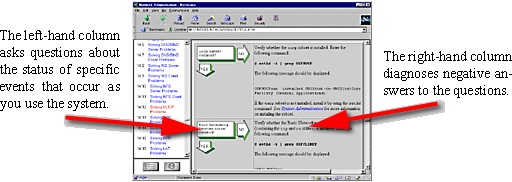
After you isolate the problem, the map refers you to other chapters
for instructions on using the various problem solving tools and utilities.
The map also refers you to other manuals for more complete diagnostic information
for particular devices and software products.
You could experience problems that are not documented in this manual
when you use base system network and network services software with other
layered products.
See the documentation for the other products for additional
information.
15.2 Getting Started
Before you start problem solving, ensure that the communications hardware
is ready for use.
Verify the following:
The system's physical cable connections (the Ethernet connection
and the transceiver connection) are properly installed.
See the documentation
for your system and communications hardware device.
Event logging is enabled in order to monitor network events.
See
System Administration
for information on starting event logging and for descriptions
of the event messages.
Also see the product release notes for up-to-date information on known
problems.
For solving IPv6 network problems, you must also be familiar with the
following terms before you start problem solving:
- on-link node
An on-link
node is attached to the same subnetwork as your system.
This subnetwork can
be a LAN, a serial connection running PPP, or an IPv6 over IPv4 configured
tunnel.
There are no IPv6 routers between your system and the on-link node.
For the configured tunnel, the on-link node is the node at the destination
end of the tunnel.
- off-link node
An off-link
node is not attached to the same subnetwork as your system.
There is at least
one IPv6 router between your system and the off-link node.
In
Figure 3-3, if your system were Host A,
Host B is an on-link node, and Host C and Host D are off-link nodes.
Table 15-1
helps you identify a starting point in
the diagnostic map.
Table 15-1: Problem Solving Starting Points
15.3 Solving IPv4 Network Problems
|
|
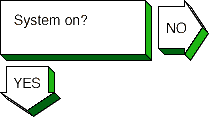
Turn on the power to your system.
See the
system manual for your system's startup procedure and any problem solving
information. |

|
If you are running Network Information
Service (NIS) and your system hangs after the NIS daemons are started and
before it mounts remote file systems, no NIS server is available to respond
to the
ypbind
request.
If you know there is an NIS server
for your domain, wait until the server responds; the boot procedure will
continue.
If there is a Local Area Transport (LAT) problem, the
following message is displayed:
getty: cannot open "/dev/ttyxx"
See the solutions for solving LAT problems
in
Section 15.17.
If your system is a Network File System
(NFS) client and it hangs while mounting a remote file system or directory,
complete the following steps:
Inspect the cable and connection between your system and the
network.
Wait until all the servers listed in the
/etc/fstab
file are available on the network; your system will then continue
booting.
If you want your system to continue booting even if an NFS
server is down, do the following:
Halt the system.
Boot the system to single-user mode and run the
fsck
command on the local file systems.
Edit the
/etc/fstab
file and add the
bg
(background) option to the server entries.
See
Chapter 10
for the correct format of an
fstab
entry with the
bg
option.
Reboot the system with the following command:
# /sbin/reboot
If the
bg
option is specified in the
fstab
file entry,
the remote file system or directory is automatically mounted when the server
is running and begins functioning as an NFS server.
|
|
|
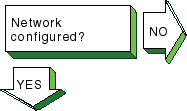
Follow these steps to see if your network
is configured:
If your system is new to this environment and you recently
configured it for use on a network, verify that the network adapter mode is
set correctly at the console level.
For example, if you have a 10base2 Ethernet
network and your system is configured to use 10baseT Ethernet, your system
fails to see the network until you set the appropriate console variable.
See
the prerequisite tasks for a full installation in the
Installation Guide
for
more information.
Use the
rcmgr
utility to display the value
of the
NUM_NETCONFIG
entry in the
/etc/rc.config
file:
# rcmgr get NUM_NETCONFIG
If the value is
0,
run the SysMan Menu utility to configure your network.
See
Section 2.3
for more information.
|
|
|
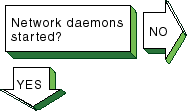
Verify that the network daemon (inetd) is running.
Enter the following command:
# ps -e | grep inetd
If
no
inetd
daemon is running, start it, using the following
command:
# /sbin/init.d/inetd start
|
|
|
If a remote host's network is not reachable,
the following message is displayed:
network is unreachable
Complete the following steps:
Ensure that the network devices are configured properly on
the local host, using the
netstat -i
command.
See
Section 2.3
for information on configuring network devices.
Verify that the routing tables on the local host are correct,
using the
netstat -r
command.
Trace the path looking at each Internet Protocol (IP) router's
routing tables to find an entry for the remote host's network.
Repair the
incorrect IP router's routing tables.
(This step requires a thorough knowledge
of your topology.)
Verify that the local host's address-to-name translation for
the remote host is correct.
See the solutions for
[Host known?].
Inspect the routers along the path to the remote host to determine
whether they have security features enabled that prevent you from reaching
the remote host.
|
|

|
If a remote host is not known, the
following message is displayed:
unknown host
Complete the following steps:
Verify that the user is trying to reach the remote host using
a valid host name.
Verify that the remote host is in another name domain and
that the user specified the full domain name.
If your site uses the Domain Name System (DNS) for name-to-address
translation, look in the
/etc/svc.conf
file to see if
bind
is specified as a service for the
hosts
database entry.
If it is not, edit the file and add it.
Also, verify that
the DNS service has information about the remote host.
See the solutions
for solving DNS/BIND client problems in
Section 15.8.
If your site uses NIS name service for name-to-address translation,
look in the
/etc/svc.conf
file to see if
yp
(NIS) is specified as a service for the
hosts
database
entry.
If it is not, edit the file and add it.
Also, verify if the NIS service
has information about the remote host.
See the solutions for solving NIS
client problems in
Section 15.10.
If your
/etc/svc.conf
file lists
local
as the only name-to-address translation mechanism, the
/etc/hosts
file does not have information on the remote host.
See
System Administration
for more information.
|
|

|
If a remote host is not reachable,
the following message is displayed:
host is unreachable
Complete the following steps:
Inspect the cabling between the local host and the network.
Verify that the remote host is running, using the
ping
command.
Make sure that the network devices are configured properly
on the local host, using the
netstat -i
command.
See
Section 2.3
for information on configuring network
devices.
Verify that the routing tables on the local host are correct,
using the
netstat -r
command.
Use the
ping
command to determine whether the IP router is reachable.
Verify that the local host's address-to-name translation for
the remote host is correct.
See the solutions for
[Host known?].
Inspect the routers along the path to the remote host to determine
whether they have security features enabled that prevent you from reaching
the remote host.
|
|
If a file cannot be accessed using
the
rcp
or
rsh
commands, the following
message is displayed:
permission denied
Complete the following steps:
Verify that the user is intended to have access to the remote
host.
The remote host might be intentionally preventing remote access.
Verify that the correct host and user definitions exist in
the user's
.rhosts
file on the remote host.
Verify that the
/etc/hosts.equiv
file is
set up correctly.
Verify that the directory and file protection on the files
to be copied or the
.rhosts
file on the remote system are
correct.
If you are using NFS, go to
Section 15.12.
|
|


Problem still exists? Report it to your service representative.
See
Chapter 18. |
If the connection is broken, the following
message is displayed:
connection timed out
Complete the following steps:
Test the network to determine whether the problem is on the
local host, remote host, or a host on the path between the two.
See
Chapter 16
for more information on testing the network.
After you identify the host with the problem, do the following:
Confirm that the network device is properly configured.
Verify
that the broadcast address and address mask for the local host are correct.
See
Section 2.3
for information on configuring network devices.
Make sure the local host's
/etc/hosts
file
has the correct IP address for the local host.
Make sure the cabling from the local host to the network is
intact and properly connected.
If connected over a local area network (LAN), verify that
the Address Resolution Protocol (ARP) entries are correct and that the system
is properly connected to the LAN.
If connected over a wide area network (WAN), verify that the
system is properly connected to the WAN and that the modems are working properly.
|
15.4 Solving IPv6 Network Problems
|
Turn on the power to your system.
See
the system manual for your system's startup procedure and any problem solving
information. |
|
If you see network-related errors or
warnings during boot, complete the following steps:
Disable IPv6 during system boot by issuing the following command:
# rcmgr set IPV6 "no"
Reboot the system.
If the problems persist, go to
Section 15.3.
Start IPv6 by issuing the following command:
# /usr/sbin/rcinet inet6
If
the problems reappear, look in the
/etc/rc.config,
/etc/ip6rtrd.conf, and
/etc/routes
files for
possible errors.
|
|
Verify that the IPv6 support you want
is configured in the kernel.
Enter the following command:
# sysconfig -s ipv6 | grep configured
If
nothing is displayed, the IPV6 option is not configured in the kernel.
Reconfigure
the kernel by using the
doconfig
command.
See
Section 3.4.1
for more information.
If you want to use configured tunnels, verify
that the IP tunneling support is configured in the kernel.
Enter the following
command:
# sysconfig -s iptunnel | grep configured
If nothing is
displayed, the IPTUNNEL option is not configured in the kernel.
Reconfigure
the kernel by using the
doconfig
command.
See
Section 3.4.1
for more information. |
|
Verify that IPv6 is configured to start
on system boot by issuing the
rcmgr get IPV6
command.
If IPv6 is configured, the word
yes
appears.
If IPv6 is not configured, use the
ip6_setup
utility.
See
Section 3.5
for information on setting up
an IPv6 host or router. |
Go to
Section 15.4.1
for IPv6 host problems or
Section 15.4.2
for IPv6 router problems. |
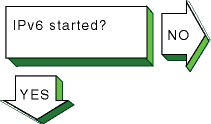
Verify that IPv6 was started by issuing
the following command:
# ping ::1
If the
host is unreachable
message appears, start IPv6 by issuing the following command:
# /usr/sbin/rcinet start inet6
This
creates and brings up the IPv6 interfaces, and starts the IPv6 daemons. |
15.4.1 Solving IPv6 Host Problems
|
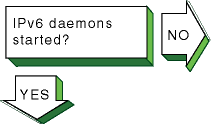
Verify that the
nd6hostd
daemon is running by issuing the following command:
# ps ax | grep nd6hostd
If
the daemon is not running, verify that your system is configured as an IPv6
host by issuing the following command:
# rcmgr get ND6HOSTD
If the
word
yes
is not displayed, run the
ip6_setup
utility and configure your system as an IPv6 host.
Then, restart IPv6 with
the following command:
# /usr/sbin/rcinet restart inet6
If the word
yes
is displayed, enable debugging for the
nd6hostd
daemon with the following command:
# rcmgr set ND6HOSTD_FLAGS "-d -l /usr/tmp/nd6hostd.log"
Then,
restart IPv6. |
|
|
If a remote node is not known, the
following message appears:
unknown host
Complete the following steps:
Verify that the user is using a valid node name to reach the
remote node.
Verify that the remote node is in another name domain and
that the user specified the full domain name.
If your site uses the DNS/BIND name service for name-to-address
translation, look in the
/etc/svc.conf
file to see if
bind
is specified as a service for the
hosts
database entry.
If it is not, configure your system as a DNS/BIND client.
See
Section 8.5.6
for more information.
Verify that your system is running IPv4.
If it is not, use the local
/etc/ipnodes
file for name-to-address translations.
Also, verify that the DNS/BIND service has information about the remote
node.
See the solutions for solving BIND client problems in
Section 15.8.
If your site uses only NIS name service for name-to-address translation,
you need to use another service for node names because NIS does not support
IPv6 addresses.
Edit the
/etc/svc.conf
file and add either
bind
(DNS/BIND) or
local
(/etc/ipnodes
file) as the service for the
hosts
database,
depending on which service has the information about the remote node.
If your
/etc/svc.conf
file lists
local
as the only name-to-address translation mechanism, edit the
/etc/ipnodes
file and verify that the node name and address are
present and accurate.
Make any necessary additions or corrections.
Also, verify that there are no formatting errors in previous lines in
the file.
Beginning with the first entry, issue the
ping
command to each node to locate any formatting errors.
|
|
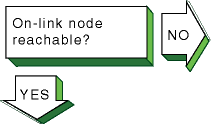 |
If an on-link node is not reachable,
one of the following messages can appear:
host is unreachable
network is unreachable
timeout
Verify that an on-link host or router, if
one exists, is reachable by using the
ping
command.
If
the command fails or if there are frequently dropped packets, complete the
following steps:
If the node is attached to a LAN, look at the datalink counters
by using the
netstat -I
device
-s
command.
The counters to look at and their possible causes are as follows:
Zero blocks sent or received can indicate a network hardware
failure or wiring problem.
High collision rates can indicate an improperly wired network
or a node sending excessive message traffic.
Data overrun and buffer unavailable errors indicate your system
is misconfigured.
Look at the IPv6 and ICMPv6 counters with the
netstat -p ipv6
and
netstat -p ipv6-icmp
commands, respectively.
The counters and their possible causes:
Packets discarded due to error or errors generated due to
ICMP errors indicate another node generating invalid messages.
Other counters
show more specific information.
Allocation errors can indicate excessive message traffic,
a misconfigured system, or a program that repeatedly allocates memory without
freeing it.
Verify that IPv6 network interfaces exist, are
UP, and have
inet6
addresses by using the
ifconfig
-a
command.
If they do not, verify that the configuration variables
in the
/etc/rc.config
file are correct.
Run the
ip6_setup
utility to correct any errors.
Also, look for
nd6hostd
errors in the
/var/adm/syslog.dated/current/daemon.log
file.
See
Section 16.10
for more information.
If your interface does not have a global or site-local address, contact
your network administrator to verify that your local router is advertising
a prefix on the link.
If there is no local router, you can define a prefix
by using the
ifconfig
command (see
Section 3.6.5).
Contact the on-link system's administrator and
verify that the on-link system is up and running, that it is configured for
IPv6 correctly, and that the address you are using is enabled on the node's
interface.
Issue the
ping
command to the
on-link node's IPv4 address, if IPv4 is configured on both systems.
If this
succeeds, verify the IPv6 configuration on both systems.
If the command fails,
see the solutions for solving IPv4 network problems in
Section 15.3.
Issue the
ping
command to other
nodes on the link to determine whether the failure is confined to just one
node or multiple nodes.
Partial connectivity might indicate a faulty network
device or cable on the link.
If the link is a configured tunnel, do the following:
Verify the tunnel source and destination addresses by using
the
ifconfig -a
command.
Contact the tunnel destination
node's administrator and verify that your source/destination addresses match
the destination/source addresses on that node.
Issue the
ping
command to the tunnel destination
address.
If the command fails, see the solutions for solving IPv4 network
problems in
Section 15.3.
|
|
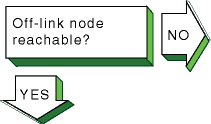 |
If an off-link node is not reachable,
one of the following messages can appear:
host is unreachable
network is unreachable
timeout
Verify that an off-link node is reachable
by issuing the
ping
command.
If there is 100% packet loss,
complete the following steps:
Verify connectivity between your system and an on-link router
by using the
ping
command.
If the command fails or shows
frequently dropped packets, follow the steps for
[On-link node reachable?].
If you do not know the address to
a router, issue the following command:
# ping -I interface ff02::2
Verify that the interface over which you are sending messages
has a global or site-local unicast address enabled by using the
ifconfig -a
command.
If it does not, contact your network administrator
to verify that your local router is advertising a prefix on the link.
If the link is a configured tunnel and the router is not advertising
an address prefix, manually define one for the tunnel by using the
ip6_setup
utility.
See
Section 3.5.1
for more information.
Contact the remote system's administrator to verify that the
system is up and running, that it is configured for IPv6, and that the IPv6
address on its interface is the same as you are using.
If the address is different,
look in your system's
/etc/ipnodes
file or have the remote
system administrator verify that the DNS entry is correct.
Verify that there is a default route (with U and G flags set)
to a router on the network by issuing the
netstat -rf inet6
command.
If not, contact the router administrator to verify that the router
is advertising itself as a default router.
Also, look at other routers to see if your messages are getting directed
on the wrong path.
Trace the path to the off-link node by using the
traceroute
command.
See
Section 16.5
and
traceroute(8)
for more information.
If there are frequently dropped packets, this might indicate network
congestion or an intermittent routing problem.
Do the following:
Verify connectivity between your system and an on-link router
by using the
ping
command.
Trace the path to the off-link node by using the
traceroute
command.
See
Section 16.5
and
traceroute(8)
for more information.
|
|
|
If someone reports a problem reaching
your node from another node, complete the following steps:
Verify that their node is reachable by issuing the
ping
command.
If the command fails, follow the steps for
[On-link node reachable?]
or
[Off-link-node reachable?], depending on the location of the
node.
If they are using a name from the DNS database, verify that
the address for your node in the DNS database matches one of the addresses
configured on your system's interfaces.
Use the
nslookup -type=AAAA
node-name
command to retrieve the address from DNS
and the
ifconfig -a
command to display addresses for your
system.
If they are using an address defined in their local
/etc/ipnodes
file, compare that address with the addresses configured
on your system's interfaces.
Use the
ifconfig -a
command.
|
|
|
If a remote node is not configured
to accept a connection from your application, the following message might
appear:
connection refused
Contact
the remote node's system administrator and ask if the correct socket-based
service definitions are defined in the
/etc/services
and
/etc/inetd.conf
files.
They might be missing or commented
out.
Verify that the service in the local
/etc/inetd.conf
file has either
tcp6
or
udp6
in the protocol field. |
|
Problem still exists? Report it to your service representative.
See
Chapter 18. |
If the connection terminates abnormally
or a network application appears to hang, complete the following steps:
Verify that there is network connectivity to the remote node
by using the
ping
command immediately after the failure.
If the
ping
command fails or shows a high rate of
packet loss, follow the steps for either
[On-link node reachable?]
or
[Off-link node reachable?], depending on the location of the
remote node.
If your application transfers a large amount of data over
the network, verify if large or fragmented messages are being handled correctly
by using the
ping -s 2000
nodename
command.
If the
ping
command fails, trace the path to the
remote node with 1200-byte packets by using the
traceroute
nodename
1200
command.
All IPv6 links must support
message sizes of at least 1280 bytes.
This command might show the location
of the problem in the network.
See
Section 16.5
and
traceroute(8)
for more information.
Run the application with different client and server nodes
located on different links in the network.
|
15.4.2 Solving IPv6 Router Problems
|
Verify that the
ip6rtrd
daemon is running by issuing the following command:
# ps ax | grep ip6rtrd
If
the daemon is not running, verify that your system is configured as an IPv6
router by issuing the following command:
# rcmgr get IP6RTRD
If the
word
yes
is not displayed, run the
ip6_setup
utility and configure your system as an IPv6 router.
Then, restart IPv6 with
the following command:
# /usr/sbin/rcinet restart inet6
If the word
yes
is displayed, enable debugging for the
ip6rtrd
daemon with the following command:
# rcmgr set IP6RTRD_FLAGS "-d -l /usr/tmp/ip6rtrd.log /etc/ip6rtrd.conf"
Then,
restart IPv6. |
|
|
If a remote node is not
known, the following message appears:
unknown host
Complete the following steps:
Verify that the user is using a valid node name to reach the
remote node.
Verify that the remote node is in another name domain and
that the user specified the full domain name.
If your site uses the DNS/BIND name service for name-to-address
translation, look in the
/etc/svc.conf
file to see if
bind
is specified as a service for the
hosts
database entry.
If it is not, configure your system as a DNS/BIND client.
See
Section 8.5.6
for more information.
Verify that your system is running IPv4.
If it is not, use the
/etc/ipnodes
file for name-to-address translation.
Also, verify that the DNS/BIND service has information about the remote
node.
See the solutions for solving BIND client problems in
Section 15.8.
|
|
If an on-link node is not reachable,
one of the following messages can appear:
host is unreachable
network is unreachable
timeout
Verify that an on-link host or router, if
one exists, is reachable by using the
ping
command.
If
the command fails or if there are frequently dropped packets, complete the
following steps:
If the node is attached to a LAN, look at the datalink counters
by using the
netstat -I
device
-s
command.
The counters to look at and their possible causes are as follows:
Zero blocks sent or received can indicate a network hardware
failure or wiring problem.
High collision rates can indicate an improperly wired network
or a node sending excessive message traffic.
Data overrun and buffer unavailable errors indicate your system
is misconfigured.
Look at the IPv6 and ICMPv6 counters with the
netstat -p ipv6
and
netstat -p ipv6-icmp
commands, respectively.
The counters to look at and their possible causes are as follows:
Packets discarded due to error or errors generated due to
ICMP errors indicate another node generating invalid messages.
Other counters
show more specific information.
Allocation errors can indicate excessive message traffic,
a misconfigured system, or a program that repeatedly allocates memory without
freeing it.
Verify that IPv6 network interfaces exist, are
UP, and have
inet6
addresses by using the
ifconfig -a
command.
If they do not, verify that the
/etc/rc.config
and
/etc/ip6rtrd.conf
files
are correct.
Also, look for
ip6rtrd
errors in the
/var/adm/syslog.dated/current/daemon.log
file.
See
Section 16.10
for more information.
Run the
ip6_setup
utility to correct any errors.
Contact the on-link system's administrator and
verify that the on-link system is up and running, that it is configured for
IPv6 correctly, and that the address you are using is enabled on the node's
interface.
Issue the
ping
command to the
on-link node's IPv4 address, if IPv4 is configured on both systems.
If this
succeeds, verify the IPv6 configuration on both systems.
If the command fails,
see the solutions for solving IPv4 network problems in
Section 15.3.
Issue the
ping
command to other
nodes on the link to determine whether the failure is confined to just one
node or multiple nodes.
Partial connectivity might indicate a faulty network
device or cable on the link.
If the link is a configured tunnel, do the following:
Verify the tunnel source and destination addresses by using
the
ifconfig -a
command.
Contact the tunnel destination
node's administrator and verify that your source/destination addresses match
the destination/source addresses on that node.
Issue the
ping
command to the tunnel destination
address.
If the command fails, see the solutions for solving IPv4 network
problems in
Section 15.3.
|
|
|
If an off-link node is not reachable,
one of the following messages can appear:
host is unreachable
network is unreachable
timeout
Verify that an off-link node is reachable
by issuing the
ping
command.
If there is 100% packet loss,
complete the following steps:
Verify connectivity between your system and the next router
in the path to the off-link node by using the
ping
command.
If the command fails or shows frequently dropped packets, follow the steps
for
[On-link node reachable?].
Verify that the interface over which you are sending messages
has a global or site-local unicast address enabled by using the
ifconfig -a
command.
If it does not, verify that the interface
address prefixes defined in the
/etc/ip6rtrd.conf
file
(see
ip6rtrd.conf(4)) are correct.
Run the
ip6_setup
utility
to correct any prefix errors.
Contact the remote system's administrator to verify that the
system is up and running, that it is configured for IPv6, and that the IPv6
address on its interface is the same as the address that you are using.
If
the address is different, look in the hosts database.
Verify that there is a specific route to the next router in the path
to the remote node by issuing the
netstat -rf inet6
command.
If the route is missing or incorrect, verify that the routes in
/etc/routes
and the address prefixes in
/etc/ip6rtrd.conf
are correct.
If your site uses RIPng, verify that RIP is enabled in the
/etc/ip6rtrd.conf
file.
If it is, contact the administrator of
the next router to verify that RIP is enabled.
Trace the path to the off-link node by using the
traceroute
command.
See
Section 16.5
and
traceroute(8)
for more information.
If there are frequently dropped packets, this might indicate network
congestion or an intermittent routing problem.
Do the following:
Verify connectivity between your system and an on-link router
by using the
ping
command.
Trace the path to the off-link node by using the
traceroute
command.
See
Section 16.5
and
traceroute(8)
for more information.
|
|
|
IPv6 hosts generate their
global and site-local unicast addresses automatically using address prefixes
provided by a router on the link.
If an on-link node cannot autoconfigure
its addresses, complete the following steps:
Verify that the host is reachable from your router by using
the
ping
command and specifying the host's link-local address.
If the command fails or shows a high rate of packet loss, follow the steps
for
[On-link node reachable?].
Edit the
/etc/ip6rtrd.conf
file and verify
that the router is configured to advertise the correct prefixes and that the
timers are reasonable.
See
Section 3.6.11
and
ip6rtrd.conf(4)
for more information.
|
|

|
If another network user
reports that message transmission appears to be failing at your router, complete
the following steps:
Obtain the source and destination addresses of the message
that your router is not forwarding.
Then, verify that your router can reach
each node by using the
ping
command.
If either command
fails or shows a high rate of packet loss, follow the steps for
[On-link node reachable?]
or
[Off-link node reachable?], as applicable.
If your router is running the RIPng protocol, verify that
the IPv6 router daemon is running by issuing the following command:
# ps ax | grep ip6rtrd
If it is running, edit the
/etc/ip6rtrd.conf
file and verify that the RIPng protocol is enabled on each IPv6
link.
If it is not, your node may not be propagating routes correctly.
Make sure that you are not using manual routes on some interfaces
and RIPng routes on other interfaces.
Manual routes defined in the
/etc/routes
file do not get propagated to other routers with RIPng.
|
|
|
If someone reports a problem reaching
your node from another node, complete the following steps:
Verify that their node is reachable by issuing the
ping
command.
If the command fails, follow the steps for
[On-link node reachable?]
or
[Off-link-node reachable?], depending on the location of the
node.
If they are using a name from the DNS database, verify that
the address for your node in the DNS database matches one of the addresses
configured on your system's interfaces.
Use the
nslookup -type=AAAA
node-name
command to retrieve the address from DNS
and the
ifconfig -a
command to display addresses for your
system.
If they are using an address defined in their local
/etc/ipnodes
file, compare that address with the addresses configured
on your system's interfaces.
Use the
ifconfig -a
command.
|
|
|
If a remote node is not configured
to accept a connection from your application, the following message might
appear:
connection refused
Contact
the remote node's system administrator and ask if the correct socket-based
service definitions are defined in the
/etc/services
and
/etc/inetd.conf
files.
They might be missing or commented
out.
Verify that the service in the local
/etc/inetd.conf
file has either
tcp6
or
udp6
in the protocol field. |
|
Problem still exists? Report it to your service representative.
See
Chapter 18. |
If the connection terminates abnormally
or a network application appears to hang, complete the following steps:
Verify that there is network connectivity to the remote node
by using the
ping
command immediately after the failure.
If the
ping
command fails or shows a high rate of
packet loss, follow the steps for either
[On-link node reachable?]
or
[Off-link node reachable?], depending on the location of the
remote node.
If your application transfers a large amount of data over
the network, verify if large or fragmented messages are being handled correctly
by using the
ping -s 2000
nodename
command.
If the
ping
command fails, trace the path to the
remote node with 1200-byte packets by using the
traceroute
nodename
1200
command.
All IPv6 links must support
message sizes of at least 1280 bytes.
This command might show the location
of the problem in the network.
See
Section 16.5
and
traceroute(8)
for more information.
Run the application with different client and server nodes
located on different links in the network.
|
|
15.5 Solving ATM Problems
|

|
Verify that the ATM subsets are installed.
Enter the following command:
# setld -i | grep OSFATM
The following messages is
displayed:
OSFATMnnn installed ATM Commands
   (Network-Server/Communications)
OSFATMBINnnn installed ATM Kernel
   Modules (Kernel Build Environment)
OSFATMBINCOMnnn installed ATM Kernel
   Header and Common Files
   (Kernel Build Environment)
OSFATMBINOBJECTnnn installed ATM Kernel
   Objects (Kernel Software Environment)
If the
OSFATM,
OSFATMBIN, and
OSFATMBINCOM
subsets are not installed, install them by using the
setld
command.
See
System Administration
for information on installing
the subset. |

|
Verify that the ATM support you want
is configured in the kernel.
Enter the following command:
# sysconfig -q atm
If
nothing is displayed, ATM is not configured in the kernel.
Reconfigure the
kernel with the ATM option and additional ATM options as needed.
See
Section 4.2.2
for a list of ATM kernel options and for information
on reconfiguring the kernel.
If ATM is configured in the kernel,
use the
sysconfig -q
command to verify that other ATM kernel
options are configured.
Reconfigure the kernel with additional options as
needed. |

Go to
Section 15.5.1
for Classical IP, go to
Section 15.5.2
for LAN Emulation, or go to
Section 15.5.3
for IP switching. |
Verify that the driver is configured
by using the
atmconfig drvlist
command.
If the driver is
configured, information similar to the following is displayed:
Name: lta0      Type: STS-3      State: UP
Driver ID: 1   ESIs: 8   PPAs: 9  VCs: 6
If
an entry for the driver does not exist, use the
genvmunix
kernel to reboot the system and run the
doconfig
utility
to build a kernel with the required driver.
If the driver state
is not
UP, run the
atmsetup
utility
for the ATM service you want.
See
Section 4.3.2.4,
Section 4.3.3.3,
and
Section 4.3.4.2
for information on configuring the driver
for Classical IP (CLIP), LAN emulation (LANE), and IP switching, respectively.
|
15.5.1 Solving CLIP Problems
|
|
Verify that signaling is configured.
Enter the following command:
# atmsig status driver=driver_name
If
the UNI version number is not displayed or the ILMI state is
Unknown, run the
atmsetup
utility and configure signaling.
See
Section 4.3.2.4
for information. |

|
Verify that the CLIP
lis
interfaces are created.
Enter the following command:
# atmarp -h
If a
lis
interface is created, the status of all created LISs and data
indicating whether the host is an ARP client or ARP server is displayed.
If no LISs are created, run the
atmsetup
utility and configure
CLIP.
See
Section 4.3.2.4
for more information. |

|
Verify that a
lis
interface is configured.
Enter the following command:
# ifconfig lisx
If
a
lis
interface is configured, information similar to the
following is displayed:
lis0: flags=c23<UP,BROADCAST,NOTRAILERS,MULTICAST,SIMPLEX>
    inet 10.140.120.52 netmask ffffff00 broadcast 10.140.120.255
   ipmtu 1500
If a
lis
interface is not configured, run the
netconfig
utility
to configure one or use the Interfaces application from the SysMan Menu.
See
Section 4.3.2.5
for more information. |
|
If a remote host is not known, the
following message is displayed:
unknown host
Complete the following steps:
Verify that the user is using a valid host name to reach the
remote host.
Verify that the remote host is in another name domain and
that the user specified the full domain name.
If your site uses DNS for name-to-address translation, look
in the
/etc/svc.conf
file to see if
bind
is specified as a service for the
hosts
database entry.
If it is not, edit the file and add it.
Also, verify that DNS has information about the remote host.
See
Section 15.8.
If your site uses NIS name service for name-to-address translation,
look in the
/etc/svc.conf
file to see if
nis
is specified as a service for the
hosts
database entry.
If it is not, edit the file and add it.
Also, verify that the NIS service has information about the remote host.
See
Section 15.10.
If your
/etc/svc.conf
file lists
local
as the only name-to-address translation mechanism, the
/etc/hosts
file does not have information on the remote host.
See
System Administration
for more information.
|
|
If a remote host is not reachable,
the following message is displayed:
host is unreachable
Complete the following steps:
Verify that the cabling between the local host and the switch
is properly installed and undamaged.
Verify that there is network connectivity to the IP controller
on the switch by using the
ping
command.
If the command
fails, it might be because the
ifconfig
command parameters
are wrong, or the IP controller is down or has an interface problem.
Contact
the switch administrator.
Verify that there is network connectivity to the target remote
host by using the
ping
command.
If the command fails, use
the
traceroute
command to verify the route to the remote
host.
|
Problem still exists? Report it to your service
representative.
See
Chapter 18. |
If the connection terminates abnormally,
complete the following steps:
Test the network to determine whether the problem is on the
local host, remote host, or a host on the path between the two.
See
Section 15.3.
Once you have identified the host with the problem, do the
following:
Confirm that the network device is properly configured.
Verify
that the broadcast address and address mask for the local host are correct.
See
Section 2.3
for information on configuring network devices.
Make sure the local host's
hosts
database
has the correct IP addresses.
Make sure the cabling from the local host to the network is
intact and properly connected.
If connected over a LAN, verify that the ARP entries are correct
and that the system is properly connected to the LAN.
|
15.5.2 Solving LANE Problems
|

|
Verify that signaling is configured.
Enter the following command:
# atmsig status driver=driver_name
If
no User-Network Interface (UNI) version number is displayed or the Integrated
Layer Management Interface (ILMI) state is
Unknown, run
the
atmsetup
utility and configure signaling.
See
Section 4.3.3.3
for information. |

|
Verify that an
elan
interface is created.
Enter the following command:
# atmelan show
If an
elan
interface is created, information similar to the following
is displayed:
.
.
.
control state: S_OPERATIONAL

.
.
.
If the control state is not
S_OPERATIONAL, do
the following:
Increase the message logging level for the
lane
subsystem.
See
Section 4.4.6
for more information.
Verify that the UNI version on the switch matches the UNI
version on your system.
Verify that the LAN Emulation Server (LES) on the switch is
configured correctly.
|

|
Verify that an
elan
interface is configured.
Enter the following command:
# ifconfig elanx
If
an
elan
interface is configured, information similar to
the following is displayed:
elan0: flags=c23<UP,BROADCAST,NOTRAILERS,MULTICAST,SIMPLEX>
     inet 10.140.120.52 netmask ffffff00 broadcast 10.140.120.255
   ipmtu 1500
If an
elan
interface is not configured, run the
netconfig
utility
to configure one or use the Interfaces application from the SysMan Menu.
See
Section 4.3.3.4
for more information. |
|
If a remote host is not known, the
following message is displayed:
unknown host
Complete the following steps:
Verify that the user is using a valid host name to reach the
remote host.
Verify that the remote host is in another name domain and
that the user specified the full domain name.
If your site uses DNS for name-to-address translation, look
in the
/etc/svc.conf
file to see if
bind
is specified as a service for the
hosts
database entry.
If it is not, edit the file and add it.
Also, verify that DNS has information about the remote host.
See
Section 15.8.
If your site uses NIS name service for name-to-address translation,
look in the
/etc/svc.conf
file to see if
nis
is specified as a service for the
hosts
database entry.
If it is not, edit the file and add it.
Also, verify that the NIS service has information about the remote host.
See
Section 15.10.
If your
/etc/svc.conf
file lists
local
as the only name-to-address translation mechanism, the
/etc/hosts
file does not have information on the remote host.
See
System Administration
for more information.
|
|
If a remote host is not reachable,
the following message is displayed:
host is unreachable
Complete the following steps:
Verify that the cabling between the local host and the switch
is properly installed and undamaged.
Verify that the addresses on the link are correct by using
the
ifconfig elanx
command.
Verify that there is network connectivity to the target remote
host by using the
ping
command.
If the command fails, use
the
traceroute
command to verify the route to the remote
host.
|
Problem still exists? Report it to your service
representative.
See
Chapter 18. |
If the connection terminates abnormally,
complete the following steps:
Test the network to determine whether the problem is on the
local host, remote host, or a host on the path between the two.
See
Section 15.3.
Once you have identified the host with the problem, do the
following:
Confirm that the network device is properly configured.
Verify
that the broadcast address and address mask for the local host are correct.
See
Section 2.3
for information on configuring network devices.
Make sure the local host's
hosts
database
has the correct IP addresses.
Make sure the cabling from the local host to the network is
intact and properly connected.
If connected over a LAN, verify that the ARP entries are correct
and that the system is properly connected to the LAN.
|
15.5.3 Solving IP Switching Problems
|

|
Verify that an IP switching
ips
interface is created.
Enter the following command:
# atmifmp showips
If an
ips
interface is created, information similar to the following is
displayed for each created
ips
interface:
ips0:
         Attached to driver lta0
         Default (SNAP) VC = 32
         IP Traffic VC = 1850 (Unused - peer does
                not support Flow Type 0)
         Min Tx VC = 1
         Max Tx VC = 2048
         Min Rx VC = 1
         Max Rx VC = 2048
         Driver Min Tx VC = 1
         Driver Max Tx VC = 2048
         Driver Min Rx VC = 1
         Driver Max Rx VC = 2048
         Peer does not support Flow Type 0
This example
shows that the
ips0
interface was created and is attached
to driver
lta0.
If no
ips
interfaces are found, create one or more
ips
interfaces.
See
Section 4.3.4
for more information. |

|
Verify that an
ips
interface is configured.
Enter the following command:
# ifconfig ipsx
If
an
ips
interface is configured, information similar to
the following is displayed:
ips0: flags=4d1<UP,POINTOPOINT,RUNNING,NOARP,MULTICAST>
   inet 16.142.128.129 --> 16.142.128.130 netmask fffffffc  ipmtu 1500
The example shows that the interface is up and running and that addresses
are configured for each end of the point-to-point link.
If an
ips
interface is not configured, run the
netconfig
utility to configure one or use the Interfaces application from the SysMan
Menu.
See
Section 4.3.4.3
for more information. |
|
If a remote host is not known, the
following message is displayed:
unknown host
Complete the following steps:
Verify that the user is using a valid host name to reach the
remote host.
Verify that the remote host is in another name domain and
that the user specified the full domain name.
If your site uses the DNS for name-to-address translation,
look in the
/etc/svc.conf
file to see if
bind
is specified as a service for the
hosts
database
entry.
If it is not, edit the file and add it.
Also, verify that DNS has information about the remote host.
See
Section 15.8.
If your site uses NIS name service for name-to-address translation,
look in the
/etc/svc.conf
file to see if
nis
is specified as a service for the
hosts
database entry.
If it is not, edit the file and add it.
Also, verify that the NIS service has information about the remote host.
See
Section 15.10.
If your
/etc/svc.conf
file lists
local
as the only name-to-address translation mechanism, the
/etc/hosts
file does not have information on the remote host.
See
System Administration
for more information.
|
|
If a remote host is not reachable,
the following message is displayed:
host is unreachable
Complete the following steps:
Verify that the addresses on the point-to-point link to the
switch are correct by using the
ifconfig ipsx
command.
Verify the connection to the IP controller on the switch by
using the
ping
command.
If the command fails, the local
host's
ifconfig
command parameters might be incorrect.
On the switch, the problem might be that the IP controller is down or has
an interface problem.
Contact the switch administrator.
Verify that there is an
ips
route to the
remote host's subnet by using the
netstat -r
command.
|

|
If the
ping
command
fails, complete the following steps:
Verify that the cabling between the local host and the switch
is properly installed and undamaged.
Verify that the default Subnetwork Attachment Point (SNAP)
virtual circuit (VC) specified on the local host matches the default SNAP
VC on the switch.
Contact the remote system administrator and verify that the
remote system is up and running and that it is configured correctly for IP
switching.
Verify the route to the remote host by using the
traceroute
command.
If the first hop in the output shows the default
network interface and not the IP controller, add a static route to the remote
subnet through the IP controller to your routing table.
Use the
netstat -r
command to verify the change.
If the route reaches the IP controller but goes no further, contact
the remote system's administrator to verify that the system is configured
correctly and that the routing tables are correct.
|
Problem still exists? Report it to your service
representative.
See
Chapter 18. |
If the connection terminates abnormally,
complete the following steps:
Test the network to determine whether the problem is on the
local host, remote host, or a host on the path between the two.
See
Section 15.3.
Once you have identified the host with the problem, do the
following:
Confirm that the network device is properly configured.
Verify
that the broadcast address and address mask for the local host are correct.
See
Section 2.3
for information on configuring network devices.
Make sure the
hosts
database on the local
host has the correct IP addresses.
Make sure the cabling from the local host to the network is
intact and properly connected.
|
15.6 Solving DHCP Problems
|
|
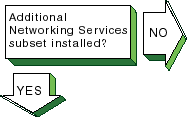
Verify that the Additional Networking
Services subset is installed.
Enter the following command:
# setld -i | grep OSFINET
If the subset is installed, the following message is displayed:
OSFINETnnn installed Additional Networking Services
  (Network-Server/Communications)
If the subset is
not installed, install it by using the
setld
command.
See
System Administration
for more information on installing the subset. |
|
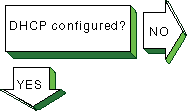
Complete the following steps to verify
that Dynamic Host Configuration Protocol (DHCP) has been configured on both
server and client:
Use the
rcmgr
utility to display the value
of the
JOIND
entry in the
/etc/rc.config.common
file on the DHCP server:
# rcmgr get JOIND
If nothing is returned, run the SysMan Menu
utility to configure your DHCP server.
See
Section 5.4
for more information.
Use the
rcmgr
utility to display the value
of the
IFCONFIG_n
entry in the
/etc/rc.config
file on the DHCP client.
For example:
# rcmgr get IFCONFIG_0
A value
similar to the following is displayed:
DYNAMIC netmask n.n.n.n
If a similar value is not returned, run the SysMan Menu utility
to configure your DHCP client.
See
Section 2.3
for more
information.
|
|
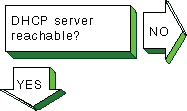
Verify that the DHCP server is running
and reachable, using the
ping
command. |

|
Verify that the DHCP daemon (joind) is running on the server.
Enter the following command:
# ps -e | grep joind
Alternatively, you can use the SysMan Menu
utility to view the status of the DHCP daemon.
You can skip directly to the
status dialog box by entering the following command:
# /usr/sbin/sysman dmnstatus
If the DHCP daemon is not running, start it by entering the following command:
# /usr/sbin/joind
|

Problem still exists? Report it to your service
representative.
See
Chapter 18. |
If a DHCP client has problems obtaining
DHCP information from the server, do the following:
Verify the Media Access Control (MAC) address you entered
for the client.
Users of Microsoft clients specifically must see
Section 5.3.5,
which explains how these clients modify their MAC addresses before sending
them to the DHCP server.
Run the
joind
daemon with the debugging
flag by doing the following:
Stop the
joind
daemon with the
kill -HUP
command.
Caution
Never use the
kill -9
command to stop the DHCP
server daemon; it can corrupt your database files.
Restart the
joind
daemon with the debug
flag as follows:
# /usr/sbin/joind -d4
If you are running
joind
from the
/etc/inetd.conf
file, do the following:
Edit the
/etc/inetd.conf
file and add the
-d4
flag.
Stop the
joind
daemon with the
kill -HUP
command.
Stop the
inetd
daemon with the
inetd -h
command.
This forces the
inetd
daemon
to reread the
/etc/inetd.conf
file.
Alternatively, you can run the SysMan Menu utility to configure
your DHCP server with the debug option.
See
Section 5.4
for more information.
Review the
/var/join/log
file for information
about the cause of any DHCP client problems.
The following example shows a
/var/join/log
file message that indicates a DHCP discover message arrived at
the server system, but the IP subnetwork address range is not defined:
DHCPDISCOVER from HW address 08:00:2b:96:79:b6 :
 network not administered by server
This problem can also occur if an address range is defined, but the
/etc/join/netmasks
file is missing the subnetwork mask definition
for this IP network.
In this case, edit the netmasks file, add an entry for
the subnetwork, and restart the DHCP server,
/usr/sbin/joind.
|
15.7 Solving DNS/BIND Server Problems
|
|
Verify that the Additional Networking
Services subset is installed.
Enter the following command:
# setld -i | grep OSFINET
If the subset is installed, the following message is displayed:
OSFINETnnn installed Additional Networking Services
  (Network-Server/Communications)
If the subset is
not installed, install it by using the
setld
command.
See
System Administration
for more information on installing the subset. |
|
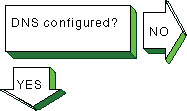
Use the
rcmgr
utility
to display the value of the
BIND_SERVERTYPE
entry in the
/etc/rc.config.common
file:
# rcmgr get BIND_SERVERTYPE
If
no type is specified, run the SysMan Menu utility to configure your DNS
server.
See
Section 8.5
for more information. |
|
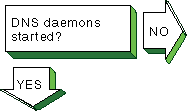
Verify that the BIND daemon (named) is running.
Enter the following command:
# ps -e | grep named
If no
named
process is running, start the
named
daemon, using the following command:
# /sbin/init.d/named start
|
|
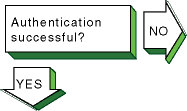
If you have enabled authentication,
and secure dynamic updates or secure zone transfers are not successful, look
for errors in the
daemon.log
file generated by the
syslogd
daemon.
For secure dynamic updates, examine the log
on the master server.
For secure zone transfers, examine the log on the master
server and the slave server.
See
Section 16.10
for more
information about viewing
syslogd
message files.
If you see a
syntax error near 'item'
message, look for syntax errors in your
named.conf
file and key file (possibly
named.keys).
Verify that there
are no missing braces, quotes, or semicolons.
If necessary, compare the contents
of these files with those in
Section 8.6.3.
If you see an
unknown key 'key-name'
message or an
Invalid TSIG secret "key-string"
message, do the following:
Verify that you are using the correct key for the update or
transfer.
Verify the spelling of the key name.
Verify the integrity of the key string.
There must be no line
feeds or spaces between the quotes that contain the key.
Verify that the algorithm specified for the key is
hmac-md5
and that the key was generated correctly.
If necessary,
generate a new key.
See
Section 8.6
for more information.
|
Problem still exists? Report it to your service
representative.
See
Chapter 18. |
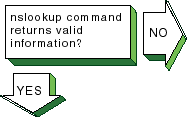
If the
nslookup
command does not return information for any host or the
host specified in the client
nslookup
command, use the
value of the
BIND_SERVERTYPE
entry you collected in a previous
step to select a course of action from the table: |
| If the type is: |
Go to: |
CLIENT |
Stop.
This system is not a DNS/BIND server
and cannot provide name resolution to clients. |
MASTER |
Section 17.4 |
SLAVE |
Section 17.4 |
FORWARDER |
Section 17.5 |
CACHING |
Section 17.9 |
15.8 Solving DNS/BIND Client Problems
|
|
Verify that the Additional Networking
subset is installed.
Enter the following command:
# setld -i | grep OSFINET
If the subset is installed, the following message is displayed:
OSFINETnnn installed Additional Networking Services
  (Network-Server/Communications)
If the subset is
not installed, install it by using the
setld
command.
See
System Administration
for more information on installing the subset. |
|
Use the
rcmgr
utility
to display the value of the
BIND_SERVERTYPE
entry in the
/etc/rc.config.common
file:
# rcmgr get BIND_SERVERTYPE
If
no type is specified, run the SysMan Menu utility to configure your DNS
client.
See
Section 8.5
for more information. |
Problem still exists? Report it to your service
representative.
See
Chapter 18. |
If you attempt to use one of the network
commands (for example,
telnet,
rlogin,
and
rsh
commands) and the remote host is not known, the
following message is displayed:
unknown host
Complete the following steps:
Look in the
/etc/svc.conf
file to determine
if DNS is being used for the
hosts
database lookup.
If
it is, go to step 2.
If it is not, add it to the file by using the
/usr/sbin/svcsetup
script.
Retrieve information about the remote host with which you
tried to communicate by using the
nslookup
command.
Enter
the following command:
# nslookup hostname
If the command
succeeds, the client is set up correctly; try the network command again.
If
the command fails, go to step 3.
View the
/etc/resolv.conf
file and retrieve
the addresses for the
nameserver
entries.
Verify that the servers are reachable by using the
ping
command.
If no servers are reachable, contact your network
administrator.
If any name server fails to respond to the
ping
command, delete the name server entry from the
resolv.conf
file.
Try the
nslookup
command again.
If the
command fails, see the solutions for solving DNS/BIND server problems in
Section 15.7.
|
15.9 Solving NIS Server Problems
|
|
Verify that the Additional Networking
Services subset is installed.
Enter the following command:
# setld -i | grep OSFINET
If the subset is installed, the following message is displayed:
OSFINETnnn installed Additional Networking Services
  (Network-Server/Communications)
If the subset is
not installed, install it by using the
setld
command.
See
System Administration
for more information on installing the subset.
|
|
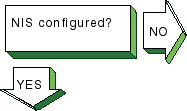
Use the
rcmgr
utility
to display the value of the
NIS_CONF
entry in the
/etc/rc.config.common
file:
# rcmgr get NIS_CONF
If nothing
is returned, run the SysMan Menu utility to configure your NIS server.
See
Section 9.3
for more information. |
|
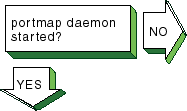
Verify that the
portmap
daemon is running.
Enter the following command:
# ps -e | grep portmap
If you do not find the
portmap
daemon, stop and restart
NIS, using the following commands:
# /sbin/init.d/nis stop
# /sbin/init.d/nis start
If the
portmap
daemon does not start, reboot the server.
|
|
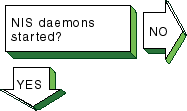
Verify that a
ypserv
process is running.
Enter the following command:
# ps -e | grep yp
If no
ypserv
process is running, stop and start NIS, using
the following commands:
# /sbin/init.d/nis stop
# /sbin/init.d/nis start
If a
ypserv
process is running, execute a
ypwhich
command.
Enter the following command:
# ypwhich
If
nothing is returned, find the process ID (PID) of the
portmap
process and kill it.
Enter the following commands:
# ps -e | grep portmap
# kill -9 portmap_PID
Note
Because other network services use the
portmap
daemon,
stopping it can affect network service.
Therefore, notify your users of potential
disruptions.
Stop and start NIS by using the following commands:
# /sbin/init.d/nis stop
# /sbin/init.d/nis start
|
|
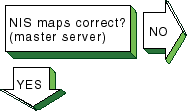
Verify that the information in the
map is correct.
Enter the following command:
# ypcat map_name
The
map_name
variable is the name of the NIS map.
If the information is incorrect, create a new map.
Enter the following commands:
# cd /var/yp
# make map_name
The following message is displayed:
map_name updated
If the
make
command indicates that the database is not updated, complete the following
steps:
Remove the
database_name.time
file in the
/var/yp
and
/var/yp/domainname
directories.
Create a new map by using the
make
command.
Enter the following commands:
# cd /var/yp
# make map_name
|
Problem still exists? Report it to your service
representative.
See
Chapter 18. |
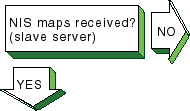
If you suspect that a slave server
is not getting NIS map updates, complete the following steps on the slave
server:
Verify that the NIS master server is running and reachable,
using the
ping
command.
See
Section 16.2
for more information on using the
ping
command.
Create a
ypxfr
log file.
Enter the following
commands:
# cd /var/yp
# touch ypxfr.log
Run
ypxfr
interactively to get map updates.
Enter the following command:
# ypxfr mapname
Examine the
ypxfr.log
file and resolve
any problems.
Remove the log file to turn logging off.
Verify the
ypxfr
entries in the
/var/spool/cron/crontabs/root
file.
Use either the
pg
command or the
/usr/bin/crontab -l
command.
The slave server entries are similar to the following:
# Network Information Service: SLAVE server entries
30 * * * * sh /var/yp/ypxfr_1perhour
31 1,13 * * * sh /var/yp/ypxfr_2perday
32 1 * * * sh /var/yp/ypxfr_2perday
Verify that the map has an entry in the corresponding
ypxfr
shell script.
Look in the
syslogd
daemon message files
for any NIS messages.
See
Section 16.10
for more information.
Verify that the slave server is in the
ypservers
map for the domain.
|
15.10 Solving NIS Client Problems
|
|
Use the
rcmgr
utility
to display the value of the
NIS_CONF
entry in the
/etc/rc.config.common
file:
# rcmgr get NIS_CONF
If nothing
is returned, run the SysMan Menu utility to configure your NIS client.
See
Section 9.3
for more information. |
|
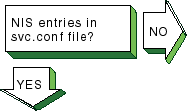
Use the
/usr/sbin/svcsetup
script to verify that the
svc.conf
file contains
entries for NIS.
NIS entries are indicated by the letters "yp."
For the
passwd
and
group
databases, the Security Integration Architecture (SIA) controls whether or
not NIS is used.
However, in order to use NIS, a plus sign followed by a colon
(+:) must be on the last line in both databases. |
|
Verify that the
portmap
daemon is running.
Enter the following command:
# ps -e | grep portmap
If no
portmap
daemon is running, stop and restart NIS,
using the following commands:
# /sbin/init.d/nis stop
# /sbin/init.d/nis start
If the
portmap
daemon does not start, reboot the client.
|
|
Verify that a
ypbind
process is running.
Enter the following command:
# ps -e | grep yp
If no
ypbind
process is running, stop and start NIS, using
the following commands:
# /sbin/init.d/nis stop
# /sbin/init.d/nis start
If a
ypbind
process is running, enter the
ypwhich
command:
# ypwhich
If the
ypwhich
command does not return an answer, kill the
portmap
process.
Enter the following command:
# kill -9 portmap_PID
Stop and start NIS, using the following commands:
# /sbin/init.d/nis stop
# /sbin/init.d/nis start
|
|
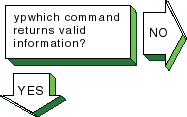
If the
ypwhich
command
displays inconsistent information when invoked several times in succession,
your client system is changing the server system to which it is bound.
This
can occur over time, especially if your system is on a busy network or if
the NIS servers are busy.
Once all clients get acceptable response time from
the NIS servers, the system will stabilize.
If the
ypwhich
command reports that the domain is not bound, your system
did not initially bind to a server system.
Issue a
ypcat
command, then reissue the
ypwhich
command. |

Problem still exists? Report it to your service
representative.
See
Chapter 18. |
If an NIS command hangs, the following
message is displayed on the console:
yp: server not responding for domain domainname.
Still trying
The client cannot communicate
with the server.
Complete the following steps:
Use the
rcmgr
command to verify that the
domain name returned by the
domainname
command matches
the value of the
NIS_DOMAIN
entry in the server's
/etc/rc.config.common
file:
# rcmgr get NIS_CONF
If the
domain name does not match, or is not correct for your environment (note that
the domain name is case-sensitive), reconfigure the client system by using
the SysMan Menu utility.
See
Section 9.3
for more information.
Verify that at least one NIS server for your domain is running
on your local subnetwork.
If there is not, reconfigure the client by using
the SysMan Menu utility, and choose to use the
-S
option to the
ypbind
command.
Determine if other clients on the subnetwork are having problems
with any of the NIS commands.
Verify that
ypserv
daemon was started on
the server by entering the following command:
# rpcinfo -p server_name
Also, verify that the
ypserv
daemon is currently
running on the server by entering the following command:
# rpcinfo -t server_name ypserv 2
If the server fails either test, stop and restart NIS on the server
as follows:
# /sbin/init.d/nis stop
# /sbin/init.d/nis start
Look in the
syslogd
daemon message files
for any NIS messages.
See
Section 16.10
for more information.
Verify that the server is running.
See the solutions for
solving NIS server problems in
Section 15.9.
If the previous steps do not solve the problem, complete the following
steps:
Stop and start NIS.
Enter the following commands:
# /sbin/init.d/nis stop
# /sbin/init.d/nis start
If this does not solve the problem, go to step 2.
Reboot the system.
Reconfigure NIS by running the SysMan Menu utility.
|
15.11 Solving NFS Server Problems
|
|
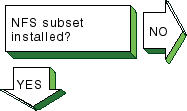
Verify that the NFS subset is installed.
Enter the following command:
# setld -i | grep OSFNFS
If the subset
is installed, the following message is displayed:
OSFNFSnnn  installed  NFS(tm) Utilities
  (Network-Server/Communications)
If the NFS subset is not installed, install it by using the
setld
command.
See
System Administration
for more information on installing
the subset. |
|
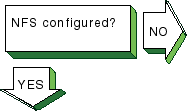
Use the
rcmgr
utility
to display the value of the
NFSSERVING
entry in the
/etc/rc.config.common
file:
# rcmgr get NFSSERVING
If nothing
is returned, run the SysMan Menu utility to configure your NFS server.
See
Section 10.3
for more information.
Verify that the network software has been configured.
See the solution at
[Network configured?]
in
Section 15.3. |
|
Verify that the
portmap
daemon is running.
Enter the following command:
# ps -e | grep portmap
If the
portmap
daemon is not running, stop and restart
NFS by using the following commands:
# /sbin/init.d/nfs stop
# /sbin/init.d/nfs start
If the
portmap
daemon does not start, reboot the server.
|
|
Verify that the NFS daemons are registered
with the
portmap
daemon.
Enter the following commands:
# rpcinfo -u server_name mount
# rpcinfo -u server_name nfs
If neither
is registered, start NFS by using the following command:
# /sbin/init.d/nfs start
|
|
To verify that the NFS daemons are
running, complete the following steps:
Verify that a
mountd
process is running.
Enter the following command:
# ps -e | grep mountd
If a
mountd
process is running, go to step 2.
If no
mountd
process
is running, stop and start NFS by using the following commands:
# /sbin/init.d/nfs stop
# /sbin/init.d/nfs start
Verify that an
nfsd
process is running.
Enter the following command:
# ps -e | grep nfsd
If no
nfsd
process is running, stop and start NFS by using the following commands:
# /sbin/init.d/nfs stop
# /sbin/init.d/nfs start
Alternatively, you can use the SysMan Menu
utility to view the status of some NFS daemons.
You can skip directly to the
status dialog box by entering the following command:
# /usr/sbin/sysman nfs_daemon_status
|
|
Problem still exists? Report it to your service representative.
See
Chapter 18. |
To verify that the files are being
exported, complete the following steps:
Verify that file is being exported.
Enter the following command:
# showmount -e
If the file is being exported, go to step 3.
If the file is not being exported, verify that the file has
an entry in the
/etc/exports
file.
If there is no entry
in the
/etc/exports
file, edit the file and create an entry.
Have the remote system mount the file.
If the file is being exported and the users cannot mount the
file, use the
rcmgr
utility to display the value of the
NONROOTMOUNTS
entry in the
/etc/rc.config
file
and determine if the users are allowed to mount the file:
# rcmgr get NONROOTMOUNTS
If
the
NONROOTMOUNTS
parameter is 0, only users running as
root can mount files from this server.
To allow users not running as root
to mount the files, enter the following command:
# rcmgr set NONROOTMOUNTS 1
Verify that the
mountd
daemon is running
with Internet address checking on.
Enter the following command:
# ps -e | grep mountd
If the
-i
option is displayed, the client's name
and address must be in the
/etc/hosts
file, or in the DNS
or NIS
hosts
database.
Only known hosts can mount the file
system.
If the
-d
or
-s
option is displayed, the client system must be in the same DNS domain or subdomain,
respectively, as the server.
If the
mountd
daemon is returning stale
file handles for exported files, send a hangup signal (SIGHUP) to the
mountd
daemon to force it to reread the
/etc/exports
file.
Enter the following commands:
# ps -e | grep mountd
# kill -1 mountd_pid
|
15.12 Solving NFS Client Problems
|
|
Verify that the NFS subset is installed.
Enter the following command:
# setld -i | grep OSFNFS
If the subset
is installed, the following message is displayed:
OSFNFSnnn  installed  NFS(tm) Utilities
  (Network-Server/Communications)
If the NFS subset is not installed, install it by using the
setld
command.
See
System Administration
for more information on installing
the subset. |
|
Use the
rcmgr
utility
to display the value of the
NFS_CONFIGURED
entry in the
/etc/rc.config.common
file:
# rcmgr get NFS_CONFIGURED
If
nothing is returned, run the SysMan Menu utility to configure your NFS
client.
See
Section 10.3
for more information.
Verify that the network software has been configured.
See the solution for
[Network configured?]
in
Section 15.3.
|
|
Verify that the
portmap
daemon is running.
Enter the following command:
# ps -e | grep portmap
If the
portmap
daemon is not running, stop and restart
NFS by using the following commands:
# /sbin/init.d/nfs stop
# /sbin/init.d/nfs start
If
the
portmap
daemon does not start, reboot the client. |

|
If the client cannot mount a remote
file system or directory, complete the following steps:
If an error message is displayed on the user's terminal, see
Appendix D
for the error message and a description.
Verify that the remote NFS server is on your local network
and in your
hosts
database.
Verify that the server daemons on the remote system are running.
Enter the following command:
# rpcinfo -p server_name
Verify that the server is exporting the files you want to
mount.
Enter the following command:
# showmount -e server_name
See the solutions for solving NFS server problems in
Section 15.11.
If the server is running and you still have problems,
verify the Ethernet connections and the Internet connections between the
client system and the remote server.
Determine if other clients on the network are having problems
with the remote server.
Verify that the mount command line or the entry in the
/etc/fstab
file is correct, and verify the following:
The host name matches the name of the remote NFS server.
The mount point exists on your system.
If you get an authentication error, verify the following:
If you are not a superuser, the server allows nonroot mounts.
Your host name is in the server's
hosts
database.
If your system is not in the same domain as the server, the
server performs domain checking.
See
mountd(8)
for more information
on server options.
|

Problem still exists? Report it to your service
representative.
See
Chapter 18. |
If application programs that perform
file-related tasks do not complete their tasks or take a long time to do so,
complete the following steps:
If an error message is displayed on the user's terminal, see
Appendix D
for the error message and a description.
Verify that the server is running.
See the solutions for
solving NFS server problems in
Section 15.11.
If the server
is running, verify that the
nfsd
daemon is accumulating
CPU time.
If it is not, kill it and restart it.
If this does not solve the
problem, reboot the server.
If the remote file systems or directories are
mounted with the
hard
option, the program continues when
the server is running once again.
Determine if other clients on the network are having problems
with the remote server.
If they are not, verify that the Ethernet connections
and the internet connections between the client system and the remote server
are working properly.
Determine if any
nfsiod
daemons are running.
Enter the following command:
# ps -e | grep nfsiod
If no
nfsiod
daemons are running, start some.
Enter the following command:
# /usr/sbin/nfsiod 7
Although
the
nfsiod
daemons are not necessary for a client, they
perform read-ahead and write-behind functions, which might make I/O faster.
If file access requests succeed but file locking requests
hang indefinitely, verify that the local
rpc.statd
and
rpc.lockd
daemons are running.
Enter the following commands:
# ps -e | grep rpc.statd
# ps -e | grep rpc.lockd
If they are not running, start them.
Enter the following
commands:
# /usr/sbin/rpc.statd
# /usr/sbin/rpc.lockd
Also, verify that the local
rpc.statd
and
rpc.lockd
daemons are running on the server.
Enter the following commands:
# rpcinfo -p server_name | grep status
# rpcinfo -p server_name | grep lockmgr
If they are not running, contact the server's system administrator.
Alternatively, you can use the SysMan Menu utility to view
the status of some NFS daemons.
You can skip directly to the status dialog
box by entering the following command:
# /usr/sbin/sysman nfs_daemon_status
|
15.13 Solving UUCP Problems
|
|
Verify that the
uucp
subset is installed.
Enter the following command:
# setld -i | grep OSFUUCP
If
the subset is installed, the following message is displayed:
OSFUUCPnnn  installed UNIX(tm)-to-UNIX(tm)Copy
Facility (General Applications)
If
the
uucp
subset is not installed, install it by using the
setld
command.
See
System Administration
for more information on installing
the subset. |
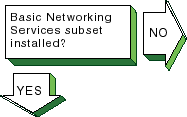
|
Verify that the Basic Networking Services
subset (containing the
tip
and
cu
utilities)
is installed.
Enter the following command:
# setld -i | grep OSFCLINET
If
the subset is installed, the following message is displayed:
OSFCLINETnnn
installed Basic Networking Services
 (Network-Server/Communications)
If
the Basic Networking Services subset is not installed, install it by using
the
setld
command.
See
System Administration
for more information
on installing the subset. |
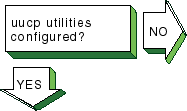
|
Look for entries in the
Permissions,
Devices, and
Systems
files
in the
/usr/lib/uucp
directory.
If there are no entries,
run the
uucpsetup
script.
See
Section 11.3
for more information. |
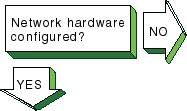
|
Configure the network hardware as follows:
Direct connections to remote host -- Use a null modem
or modem eliminator cable to connect your system to the remote host.
Phone line connection to remote host -- Use a cable to
connect your system to a modem and another cable to connect your modem to
a phone line.
The modem you use must be compatible with the modem at the
remote host.
Make sure the modem is configured as follows:
Forced data set ready (DSR) is disabled.
Full or verbose status messages are enabled.
Character echo is disabled.
Use 8-bit characters with no parity.
XON/XOFF flow control is disabled.
TCP/IP connection to remote host -- Use a cable to connect
your system to the network.
Then, run the Network Configuration application
to configure the network.
See
Section 2.3
for more information
on setting up the network.
|
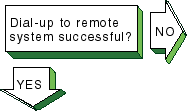
|
If you cannot dial up the remote system,
verify the following:
Make sure that the setup parameters (such as speed, parity,
modem control, flow control, and other terminal characteristics) on the local
and remote ends are properly defined for your modem type.
Dial the number to the remote node.
If you do not get an "Attached"
message or a login prompt, plug a telephone handset into the local telephone
line to verify that there is a dial tone.
If you do not hear a dial tone,
call you local carrier to fix this problem.
If you get no message, verify
that the cabling between the local system and the modem is properly installed
and undamaged.
If you get a dial tone, check that your modem is operational
and perform diagnostic tests on your modem.
See the modem manual for more
information.
From another handset, dial the local telephone line.
If the
local telephone rings and you can carry on a conversation, the telephone
line on the local end is good.
If you cannot pass voice traffic, or if there
is no ring, call your local carrier to fix this problem.
Repeat steps 2 and 3 on the remote node to resolve problems
with the remote end.
If the telephone line is operational, verify that the remote
modem is set up to automatically answer incoming calls when the system raises
the data terminal ready (DTR) signal.
The system raises the DTR signal by
issuing a
uugetty
or
getty
command on
the port.
|

|
Run the
uucp
tests
to test the connection to the remote system.
See
Section 16.7
and
Section 16.8.
If you can establish a
connection, but your file transfer eventually times out and exits, attempt
to set the type of flow control that the
uucico
daemon
uses, as described in
Section 11.3.5
and the
uucico(8)
reference page. |

Problem still exists? Report it to your service
representative.
See
Chapter 18. |
If the
tip
command
does not execute successfully, complete the following steps:
Verify that the system name, connection speed, and phone number
are in the
/etc/remote
file or that the system name and
connection speed are in the
/etc/remote
file and the phone
number is in the
/etc/phones
file.
See
remote(4)
and
phones(4)
for more information.
Examine the
at
entry in the
/etc/remote
file.
If the entry is correct, create an entry for the modem in
the
/etc/acucap
file.
See
acucap(4)
for more information.
Verify that the remote system is configured to answer incoming
calls.
|
15.14 Solving NTP Problems
|
|
Use the
rcmgr
utility
to display the value of the
XNTPD_CONF
entry in the
/etc/rc.config
file:
# rcmgr get XNTPD_CONF
If nothing is returned, run the SysMan Menu
utility to configure NTP.
See
Section 12.3
for more information.
|
|
Verify that an
xntpd
process is running.
Enter the following command:
# ps -e | grep xntpd
Alternatively,
you can use the SysMan Menu utility to view the status of the
xntpd
daemon.
You can skip directly to the status dialog box by
entering the following command:
# /usr/sbin/sysman ntp_status
If no
xntpd
process is running, start NTP by using the following command:
# /sbin/init.d/xntpd start
|
|
If the
ntpq
or
xntpdc
command cannot find the server host, the following message
is displayed:
***Can't find host hostname
The
hostname
is not in the
/etc/hosts
file, the DNS
hosts
database, or the NIS
hosts
database.
Edit
the appropriate file or database and add an entry for the server host. |
|
If you run one of the monitor programs
and in the output from the
peers
command the reach column
contains zeros (0s), complete the following steps:
Contact the system administrator of the server and verify
which NTP daemon the server is running.
The entry for the server in the
/etc/ntp.conf
file must contain the phrase
version
x
after the server name, as follows:
server host1 version x
Look in the
/etc/hosts
file and verify
that there is an entry for each NTP server specified in the
/etc/ntp.conf
file.
If you are using either DNS or NIS for host information,
verify that the
hosts
database has an entry for each NTP
server.
If the
xntpdc
hostname
command does not display any information, verify that the
hostname
server is running NTP. |
Problem still exists? Report it to your service
representative.
See
Chapter 18. |
If the
ntpq
or
xntpdc
request times out, the following message is displayed:
hostname: timed out, nothing received
***Request timed out
Complete the following
steps:
The
hostname
is not running the
xntpd
daemon.
Contact the system administrator for that system.
The network connection has gone down.
See the solutions for
[Host reachable?]
at the beginning of this chapter.
If you still cannot solve the problem, complete
the following steps:
Examine the
/etc/rc.config
file to make
sure it contains entries similar to the following:
XNTPD_CONF="YES"
export XNTPD_CONF
XNTP_SERV1=server1
export XNTP_SERV1
XNTP_SERV2=server2
export XNTP_SERV2
XNTP_SERV3=server3
export XNTP_SERV3
XNTPD_OPTS="-g"
export XNTPD_OPTS
If this entry does not exist
or is incorrect, run the SysMan Menu utility to configure NTP.
See
Section 12.3
for more information.
Examine the
/etc/ntp.conf
file and make
sure the information in it is accurate.
It must contain entries for hosts
running NTP with which you want to synchronize system time.
Make sure the
correct version number is specified for each server and peer.
Use the SysMan Menu
utility to correct any entries.
See
Section 12.3
for information.
Look in the
/var/adm/syslog.dated/current/daemon.log
file for information about NTP problems on the system.
See
Section 16.10
for more information.
|
15.15 Solving SLIP Problems
|
|
Verify that the correct number of Serial
Line Internet Protocol (SLIP) pseudodevices are supported in the kernel by
using the
netstat -in
command.
If SLIP is supported,
information similar to the following is displayed for each interface:
sl0* 296 <Link> 0 0 0 0 0
The
sl
prefix indicates that SLIP is supported on the system.
In this
example there is one SLIP interface.
If you need additional SLIP
interfaces, specify them by adding the
nslip=x
attribute under the
net: subsystem in the
/etc/sysconfigtab
file.
See
System Administration
for information on adding more SLIP
interfaces.
On systems with 24 megabytes of memory, SLIP is not
configured into the kernel.
To add SLIP into the kernel, edit the system configuration
file (/usr/sys/confhostname)
and add the following entry:
options SL
See
System Administration
for more information. |
|
Configure the network hardware as follows:
|
|
If a remote system cannot dial in to
your system successfully, complete the following steps:
Edit the
/etc/slhosts
file and include
the
debug
option in the login entry for the host that cannot
log in.
See
slhosts(4)
for more information.
Instruct the remote user to dial in again.
Look in the
/var/adm/syslog.dated/current/daemon.log
file for information on SLIP problems on the dial-in system.
See
Section 16.10
for more information.
|
|
If you cannot dial out to the remote
system, complete the following steps:
Verify that the modem is working correctly.
Edit the
/etc/acucap
file and include the
db
option in your modem's entry.
This option displays useful information
for debugging a new entry.
See
acucap(4)
for more information.
Verify SLIP setup.
Do the following:
Edit the
startslip
dial-out script file
and specify the
debug
subcommand and a debug log file.
Try to dial out again.
Look in the debug log file for information about SLIP dial-out
problems.
|
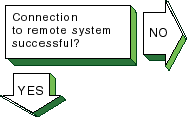
|
If you cannot communicate with the
remote host and none of the debug messages shows an error, complete the following
steps:
Verify that the IP addresses and netmasks are correct on both
ends of the connection.
Examine the following SLIP configuration parameters at each
end of the connection:
Internet Control Message Protocol (ICMP) traffic suppression --
If enabled at either end of the connection, the
ping
command
will fail.
TCP header compression -- If enabled at one end, TCP
header compression must be enabled or autoenabled on the other end.
|
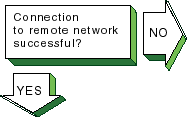
|
If you can communicate with the remote
host but not the network connected to the remote host, complete the following
steps:
If your local system is using the remote system as a gateway
system, issue the
netstat -rn
command on the local
system to verify that the remote SLIP address is the default gateway.
On the gateway system (remote system), issue the
iprsetup -d
command to see if the
ipforwarding
and
ipgateway
variables are on.
If the variables are off,
use the
iprsetup -s
command to turn them on.
On the gateway system, verify that the
gated
daemon is running.
See
gated(8)
for more information.
|

Problem still exists? Report it to your service
representative.
See
Chapter 18. |
If the
startslip
command does not complete successfully, complete the following steps:
Build your kernel with the
PACKETFILTER
option.
Use the
tcpdump
command to examine packets
sent and received through the SLIP interface.
See
tcpdump(8)
for more information.
|
15.16 Solving PPP Problems
|
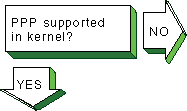
|
Verify that the Point-to-Point Protocol
(PPP) is supported in the kernel by using the
sysconfig -s | fgrep
ppp
command.
If PPP is supported, information similar to the following
is displayed:
ppp: loaded and configured
If PPP is not supported, add options
PPP
into the
/sys/conf/MACHINE
system configuration
file and rebuild the kernel.
|
|
Configure the network hardware as follows:
Direct connections to remote host -- Use a null modem
or modem eliminator cable to connect your system to the remote host.
Phone line connection to remote host -- Use a cable to
connect your system to a modem and another cable to connect your modem to
a phone line.
The modem you use must be compatible with the modem at the
remote host.
Make sure the modem is configured as follows:
|
|
If you are logging messages to the
console and the link comes up successfully, the following messages are displayed
on the console:
Local IP address: xx.xx.xx.xx
Remote IP address: yy.yy.yy.yy
If
the link does not come up, look at the following:
Verify that the serial connection is set up successfully.
Use the
chat -v
command to log the characters the
chat
program sends and receives.
Verify that
pppd
starts on the remote system.
Use the
chat -v
command to log the characters the
chat
program sends and receives.
Examine the PPP negotiation between the two peers.
Use the
pppd
command with the
debug
option to log the
contents of all control packets sent and received.
|
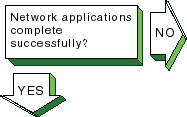
Problem still exists? Report it to your service
representative.
See
Chapter 18.
|
If network applications do not work
successfully, this might indicate a problem with assigning IP addresses or
routing.
Do the following:
Use the
netstat -i,
netstat -r,
ping, and
traceroute
commands
to diagnose the problem.
If you can communicate with the peer machine but not with
machines beyond that in the network, there is a routing problem.
For instances
where the local machine is connected to the Internet through the peer, do
the following:
Assign the local machine an IP address on the same subnet
as the remote machine.
Run the local
pppd
daemon with the
defaultroute
option.
Run the remote
pppd
daemon with the
proxyarp
option.
On the peer system (remote system), issue the
iprsetup -d
command to determine if the
ipforwarding
and
ipgateway
variables are on.
If these variables are off, use the
iprsetup -s
command to turn them on.
|
15.17 Solving LAT Problems
|
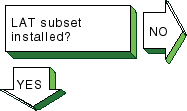
|
Verify that the Local Area Transport
subset is installed.
Enter the following command:
# setld -i | grep OSFLAT
If
the subset is installed, the following message is displayed:
OSFLATnnn installed Local Area Transport (LAT)
  (General Applications)
If the subset is not installed,
install it by using the
setld
command.
See
System Administration
for information on installing the subset. |
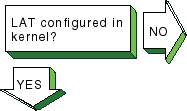
|
Verify that Local Area Transport is
configured in the kernel.
Enter the following command:
# sysconfig -q lat
If
no information is displayed, LAT is not configured in the kernel.
Reconfigure
the kernel with the LAT option.
See
System Administration
for information on reconfiguring
the kernel. |
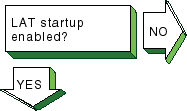
|
Use the
rcmgr
utility
to display the value of the
LAT_SETUP
entry in the
/etc/rc.config
file:
# rcmgr get LAT_SETUP
If 0 is returned, run the
latsetup
utility.
See
Section 7.3
for more information.
|

|
If
latsetup
fails
while creating new LAT ttys, verify that the
/usr/sbin
directory is included in the search path.
Enter the following command:
# echo $PATH
If
it is not, include it in your
PATH
environment variable.
Then, create new LAT ttys using the
latsetup
command. |
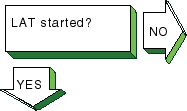
|
Verify that LAT has been started.
Enter
the following command:
# latcp -d
If LAT is running, the following line is
displayed:
LAT Protocol is active
If
LAT was not started, start it.
Enter the following command:
# latcp -s
|

|
If LAT starts and messages are continually
displayed on the system console, look for the following messages and perform
the required steps:
Message 1
getty: cannot open "/dev/lat/xx".
errno: 2
This means a LAT terminal device file (tty)
does not exist and the
/etc/inittab
file contains an entry
for this file.
The
latsetup
utility will also report that
no LAT entries are available.
Do the following:
Edit the
/etc/inittab
file and remove the
LAT
getty
entries.
If LAT terminal devices are required, create the LAT terminal
device files and corresponding entries in the
/etc/inittab
file by using the
latsetup
command.
See
latsetup(8)
for information.
Message 2
getty: cannot open "/dev/lat/xx".
errno: 19
This means the kernel was not configured
with the LAT option and the
/etc/inittab
file contains
at least one LAT
getty
entry.
Do either of the following:
Configure LAT into the kernel.
See
System Administration
for information
on configuring LAT into the kernel.
Remove the LAT
getty
entries from the
/etc/inittab
file, either manually or by using the
latsetup
command.
Message 3
INIT: Command is respawning too rapidly.
The
following meanings are possible:
You are using an optional service name, such as
lattelnet, and it is incorrectly defined.
Do the following:
Verify that the optional service name defined by the
latcp -A
command is correct by using the
latcp -d
command.
Edit the
/etc/inittab
file and verify that
a LAT entry has the optional service name specified correctly.
An attempt was made to use a nonexistent LAT terminal device
(tty).
Do the following:
Edit the
/etc/inittab
file and remove the
entry with the nonexistent terminal device name.
If LAT terminal devices are required, create the LAT terminal
device files and corresponding entries in the
/etc/inittab
file by using the
latsetup
command.
See
latsetup(8)
for more information.
|
|
If the user cannot connect to or display
a service from a terminal server via LAT, complete the following steps on
the system:
Verify that the service name is correct, using the
latcp -d
command.
If the service name is incorrect, delete the
service with the incorrect name.
Enter the following command:
# latcp -D -aservice_name
Then, add a service with the correct name.
Enter the following command:
# latcp -A -aservice_name
See
latcp(8)
for more information.
Display the group codes for the service to which the user
is attempting to connect, using the
latcp -d
command.
Check if any group code matches a group displayed by using the
show
port
command at the terminal server.
If no group code matches, do
either of the following:
Add at least one group displayed by the port to the service.
Enter the following command:
# latcp -glist -aservice_name
Change the port characteristics at the terminal server by
adding a group that matches the service.
See
latcp(8)
for more information.
Check if LAT is started on the system.
If it is not, start
it.
Enter the following command:
# latcp -s
If the problem persists, restart LAT.
Enter the following
command:
# latcp -s
|

|
If problems occur when
using an optional service, complete the following steps:
Verify that the service was added as an optional service.
Enter the following command:
# latcp -d
Look for the following line:
Service name: name (Optional)
If
Optional
is not displayed, the optional service was not defined
with the
-o
option.
Delete the service.
Enter the
following command:
# latcp -D -aservice_name
Then, add the service with the correct name and the
-o
option.
Enter the following command:
# latcp -A -aservice_name -o
See
latcp(8)
for more information.
Verify that the optional service name matches the name defined
in the
/etc/inittab
file.
If it does not, do either of
the following:
Edit the
/etc/inittab
file and specify
the optional service name.
Delete the service.
Enter the following command:
# latcp -D -aservice_name
Then, add the service with the correct
name and the
-o
option.
Enter the following command:
# latcp -A -aservice_name -o
See
latcp(8)
for more information.
|
|
If the user cannot connect to a host
using LAT, the following messages are displayed:
Connection
to node-name not established.
Service in use.
The
/etc/inittab
file does not contain a sufficient number of
getty
entries.
Create more LAT terminal devices (ttys) and add their corresponding entries
into the
/etc/inittab
file by using the
latsetup
command.
Then, restart LAT to advertise the available services.
Enter the following command:
# latcp -s
See
Section 7.3
for information. |
|
If a host-initiated
connection fails, verify that the port, host, and service names are specified
correctly.
Enter the following command:
# latcp -d -P -L
If
these names are not specified correctly, delete the application ports with
the incorrect names.
Enter the following command:
# latcp -D -pport_name
Then, add the application ports, using
correct spelling.
To create the application port by specifying the remote
port to which the LAT terminal device is to be mapped, use the following command:
# latcp -A -plocal_port -Hnode -Rrem_port
Or, to create the application port by specifying the remote service name to
which the LAT terminal device is to be mapped, use the following command:
# latcp -A -plocal_port -Hnode -Vsvc_name
See
latcp(8)
for information.
Note
When you delete an application port for a LAT printer, any print operations
that are currently executing continue until the printer buffer is empty.
The
print job might not be complete.
|
|
If you print a file to a printer attached
to a LAT application port, the printer is online, and no printing occurs,
look at the status of the print queue.
Enter the following command:
# lpc status
The
following line might be displayed:
waiting for printer to become ready (offline ?)
If
this line is displayed, verify that LAT has been started.
Enter the following
command:
# latcp -d
If LAT has not been started, start it.
Enter the following command:
# latcp -s
|
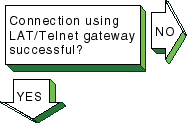
|
If problems are encountered with the
LAT/Telnet gateway, look in the
/var/adm/syslog.dated/current/daemon.log
file for error messages.
Use the error messages to diagnose the
problem.
See
Section 16.10
for more information on viewing
the
daemon.log
file.
The
lattelnet
utility uses the syslog message priority of LOG_INFO.
For example,
if you edit a LAT terminal entry in the
/etc/inittab
file,
reassign it to
lattelnet
while a
getty
process is still active for the terminal, and a user tries to connect to
lattelnet, the connection will fail.
The following error message
is posted in the
daemon.log
file:
No such file or directory
Terminate the
getty
process for the terminal port. |
Problem still exists? Report it to your service
representative.
See
Chapter 18. |
If the LAT connection terminates abnormally,
complete the following steps:
Examine the LAT terminal device (ttys) files for duplicate
minor numbers.
Enter the following command:
# ls -l /dev/lat/*
If any exist, remove the duplicate device files, leaving the original file.
Look in the
/etc/inittab
file for duplicate
LAT entries.
Remove the duplicate entries, leaving the original entry.
|
15.18 Solving sendmail Problems
|
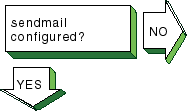
|
Verify that mail is configured by switching
to the
/var/adm/sendmail
directory and checking for the
presence of the
sendmail.cf
and
sendmail.cf.orig
files.
If one of the files does not exist, run the SysMan Menu
utility to configure mail.
See
Section 12.3
for more information.
|
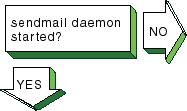
|
Verify that the
sendmail
command has been started.
Enter the following command:
# ps -e | grep sendmail
If
sendmail
is not running, start it using the following command:
# /sbin/init.d/sendmail start
|
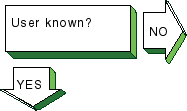
|
If a user cannot send mail to another
user, complete the following steps:
Determine if the
aliases
database was changed.
If it was, update the database by using the
newaliases
command.
Look in the
mail.log
files generated by
the
syslogd
daemon for the specific mail message.
If the
message reached its destination, the addressee is not on the destination system.
Verify that the user has the correct address.
See
Section 16.10
for information on viewing the
syslogd
message files.
|
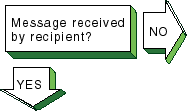
|
If you sent a mail message and the
recipient did not receive it, complete the following steps:
Verify that the address is correct.
Verify that the remote node is reachable by using the
ping
command.
Look in the
mail.log
files generated by
the
syslogd
daemon for the sender's user name.
See
Section 16.10
for information on viewing the
syslogd
message files.
If you find an entry, write down the message ID.
If no entry is found, send the message again.
Using the message ID, search through the
mail.log
files for the "from" and "to" entries.
If you find a "from" entry
but no "to" entry, either
sendmail
did not receive the
message or the message was corrupted.
Look in the
/var/spool/mqueue
directory for files containing the message ID by entering the following
command:
# ls -l /var/spool/mqueue/*fmessage_ID
Possible outcomes include:
The
qf*message_ID
control file is present but the (df*message_ID)
data file is not.
The message was lost.
A "from" entry and a "to" entry exist, and the status is deferred.
The message is in the queue.
There is no corresponding sent entry.
Use the
mailq
command to report the reason for the deferral.
A "from" entry and a "to" entry exist, the status is sent,
and the message was delivered.
If a local delivery, the message reached the
destination.
If a remote delivery, have the system administrator on the remote
host search for the message.
|
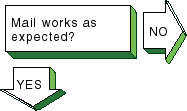
Problem still exists? Report it to your service
representative.
See
Chapter 18. |
If sendmail is not working correctly,
complete the following steps:
Look in the rejected message for an error message.
Look for error messages in the
mail.log
files generated by the
syslogd
daemon.
See
Section 16.10
for information on viewing the
syslogd
message files.
See
Appendix F
for a list of
sendmail
error messages. |
15.19 Solving POP and IMAP Problems
|
|
Verify that the Additional Networking
Services subset is installed on the server.
Enter the following command:
# setld -i | grep OSFINET
If the subset is installed, the following
message is displayed:
OSFINETnnn installed Additional Networking Services
  (Network-Server/Communications)
If the subset is
not installed, install it by using the
setld
command.
See
System Administration
for more information on installing the subset. |

|
If the user cannot connect to the Post
Office Protocol (POP) or Internet Message Access Protocol (IMAP) server:
Verify that the user is connecting to the correct server.
Verify that the server is reachable by using the
ping
command.
Verify the POP or IMAP entries in the
/etc/passwd,
/etc/services, and
/etc/inetd.conf
files on the server, as described in
Section 13.4.1
and
Section 13.5.1.
If necessary, restart network services
to effect the changes.
|

|
Verify that the user has specified
a valid user name and password.
Use the
mailusradm
utility
to verify the existence of the POP or IMAP account on the server or to change
the password, if necessary. |

|
If a user cannot retrieve
mail from the POP or IMAP server:
Verify that the user has a POP3 or IMAP4-compatible mail program.
For POP, look in the
/usr/spool/mail
directory
for a lock file named after the user.
If one exists, delete the file to remove
the lock.
For IMAP, verify that the user has proper ACLs for the IMAP
mail folder by using the
cyradm
command.
See
Section 13.5.8
and
cyradm(8).
Look in the
mail.log
files generated by
the
syslogd
daemon for error messages related to POP or
IMAP.
See
Section 16.10
for information on viewing the
syslogd
message files.
Create a directory with the user's account name in the
configdirectory/log
directory (usually, the log directory
is
/var/imap/log, see the
/etc/imapd.conf
file for the location of the
configdirectory
on
your system).
When the user attempts to access the server, examine the log
of the session to see where the error occurs.
|

Problem still exists? Report it to your service
representative.
See
Chapter 18. |
If the user is not receiving new mail:
Look in the
mail.log
files generated
by the
syslogd
daemon for errors.
See
Section 16.10
for information on viewing the
syslogd
message files.
For IMAP, look at the
user
and
quota
configuration directories to verify that subdirectories
a
through
z
exist (see
Section 13.5.2),
that the subdirectories contain the proper files for the given user (see
Section 13.5.6), and that all directories and files under
/var/imap
and
/var/spool/imap
are
owned by the
imap
user.
If the user cannot send mail:
Verify that the user is connecting to the correct SMTP server.
Verify that the SMTP server is reachable by using the
ping
command.
See
Section 15.18
on solving
sendmail
problems.
|