The Domain Name System (DNS) is a mechanism for resolving unknown host
names and Internet Protocol (IP) addresses that originate from sites on your
company's intranet or the Internet.
A database lookup service that is part
of the DNS daemon searches for the unknown hosts in local and remote
hosts
databases, which are distributed networkwide by the DNS.
The implementation of DNS in Tru64 UNIX is based on Version 8.2.2 of the Berkeley Internet Name Domain (BIND) service, which is maintained by the Internet Software Consortium.
This chapter describes:
The DNS environment
How to configure your system for DNS
How to manage DNS servers and clients
For introductory information on DNS, see
bind_intro(7).
For additional
information about BIND service, see
Appendix H
and the
BIND Configuration File Guide
(provided in HTML format on the Tru64 UNIX
Documentation CD-ROM).
You can also visit the Internet Software Consortium
website at the following URL:
For IPv6 environments, the BIND server daemon,
/usr/sbin/named, supports AAAA lookups over IPv4 (AF_INET) connections only.
The resolver and server have not been ported to IPv6, but IPv6 applications
can make
getaddrinfo
and
getnameinfo
calls to retrieve the AAAA records.
See the
Network Programmer's Guide
for information
on using these routines.
For troubleshooting information, see
Section 15.7
and
Chapter 17
for servers and
Section 15.8
for clients.
8.1 DNS Environment
In the DNS environment, systems can have the following roles:
Master server -- A system that is an authoritative source for information about a zone or zones and that maintains the master copy of the DNS database for the zone or zones.
This system runs the
named
daemon, answers requests
from clients and other servers, caches information, and distributes the databases
to slave servers.
Slave server -- A system that is an authoritative source for information about a zone or zones, but does not maintain the master copy of the DNS database for the zone or zones. Instead, a slave server loads its database files from the master server when the master server indicates that the files have been updated.
This system runs the
named
daemon, provides backup
for the master server, answers requests from clients and other servers, and
caches information.
Stub server -- A master server that delegates authority for a specified subzone to a server local to the subzone.
The stub server does not retain information in its configuration files about the machines in the specified subzone. Instead of searching the master DNS database, it queries the local server for information about machines in the subzone.
Typically, stub service is implemented so that the administrator of a subzone can change the configuration of the subzone without affecting the configuration file on the master server.
Caching-only server -- A system that is
not authoritative for any zones.
This system runs the
named
daemon and responds to queries from other servers and clients by querying
other servers for the information and caching the information it receives.
Information is stored until the data expires.
Typically, a caching-only server has direct access to the Internet and it answers queries exclusively about sites on the Internet.
Forward-only server -- A system that might be an authoritative source for information about a zone or zones, but is restricted as to how it obtains information about zones for which it is not authoritative.
This system runs the
named
daemon and responds to
queries from other servers and clients with information from its authoritative
date and cache data.
If the information is not present, the system forwards
queries to a list of systems specified as forwarders in its
named.conf
file.
The queries are forwarded to each forwarder system until
the list is exhausted or the query is satisfied.
Forward-only servers
store the information they receive until the data expires.
Typically, a forward-only server has restricted access to an intranet or the Internet. By providing a list of specific forwarders to contact, an administrator can prevent a forward-only server from attempting to contact servers that it cannot access.
Client -- A system that queries a server for host name and address
information, interprets responses, and passes information to requesting applications.
The client is also called a resolver.
A client does not run the
named
daemon.
Note
Documentation for BIND prior to Version 8.1.1 referred to the master server as a primary server and the slave server as a secondary server. Though the terminology has changed, master and slave servers are still referred to as having primary and secondary authority, respectively, for zones.
DNS runs on each system in your network. You must decide what role each system will play in the DNS environment that you create. For each domain, select one host to be the master server; there can be only one master server for each domain. Select one or more hosts to be slave, stub, and caching-only servers. Configure the rest of the hosts as DNS clients.
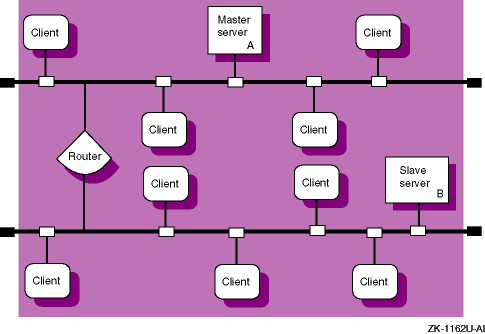
Figure 8-1
shows a domain in which there are two
servers, one on each subnet, and multiple clients.
Server A, the master server,
has primary authority for the zone and maintains the database files for the
zone.
Server B, the slave server, has secondary authority for the zone; it
obtains a copy of the zone database from Server A and responds to queries
from clients.
Figure 8-1: Sample Small DNS Configuration
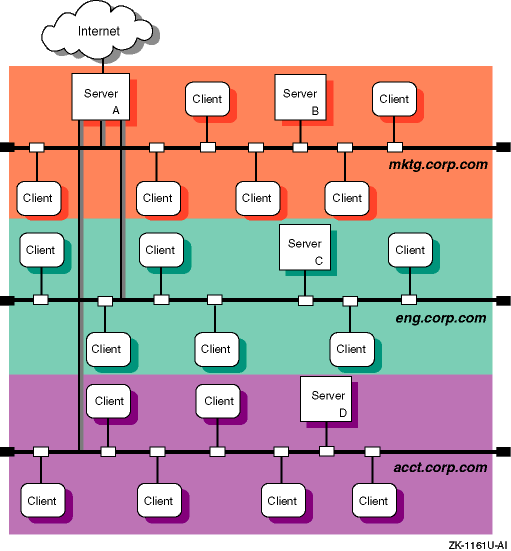
Figure 8-2 shows a domain in which there are three zones: mktg.corp.com, eng.corp.com, and acct.corp.com. Server B is the master server for the mktg.corp.com zone and a slave server for the other two zones. It has primary authority for mktg.corp.com and secondary authority for each of the other two zones. Server C has primary authority for the eng.corp.com zone and secondary authority for each of the other two zones. Server D has primary authority for the acct.corp.com zone and secondary authority for each of the other two zones. Server A is both a router and a caching-only server. As a caching-only server, it caches information it receives from queries out of the parent domain.
In the same example, if the three zones were located in three different cities or countries, you could configure Server A at mktg.corp.com as a stub server for the other two remote zones. That way, all of the resource records for the remote sites would reside on servers (Server C and Server D) local to the eng.corp.com and acct.corp.com domains. The master server, Server A, would retain only the resource records for the name server that is local to each subdomain. Server A would query Server C and Server D for information about the machines in the eng.corp.com and acct.corp.com domains instead of searching its own master DNS database.
Figure 8-2: Sample Large DNS Configuration
Typically, whenever you connect a new host to a network, you need to rebuild the DNS database as explained in Section 8.9. If you do not update the DNS database, other computers on the network will not be able to resolve the new host's address.
However, some clients, particularly Tru64 UNIX systems that
are configured for IPv6 networks and Microsoft Windows systems, can automatically
update the DNS database for you.
These clients support dynamic updates, which
allow hosts to inform the DNS master server that they are being added to or
removed from the network.
The clients simply specify their IP address and
host name, and the
named
daemon automatically makes the
appropriate changes in the DNS master data file.
There is no need for intervention
by the administrator of the master server, which saves the administrator a
lot of effort in larger networks.
See
Section 8.5.1.2
for information about configuring
dynamic updates on the DNS master server.
8.3 Authentication of Dynamic Updates and Zone Transfers
DNS servers can provide cryptographic authentication of the data they receive from other systems. Authentication reduces the possibility that a rogue system can assume the identity of another system and send bogus DNS data file updates to servers.
The operating system provides support for symmetric cryptography, where two or more systems share a single private key for DNS authentication. A system that sends a DNS update to another system can use this key to generate a unique digital signature that corresponds to the data in the update. The system then attaches this signature to the update and sends the entire package to the target system. When the target system receives the signed update, it verifies the data by using the same private key to generate a second digital signature from the data. If the signatures match, the target system knows that the update came from the a trusted system and that it is safe to use.
You can use cryptographic authentication for many purposes, including:
Secure dynamic updates -- Allow the master server to authenticate the updates it receives from clients.
Secure zone updates -- Allow the master server to authenticate zone transfer requests it receives from the slave servers, and subsequently, allow slave servers to authenticate the zone transfers they receive from the master server.
For either of these applications, if the data is not correctly signed (by a trusted host), it is rejected.
See
Section 8.6
for information about configuring
authentication for dynamic updates and zone transfers.
8.4 Planning DNS
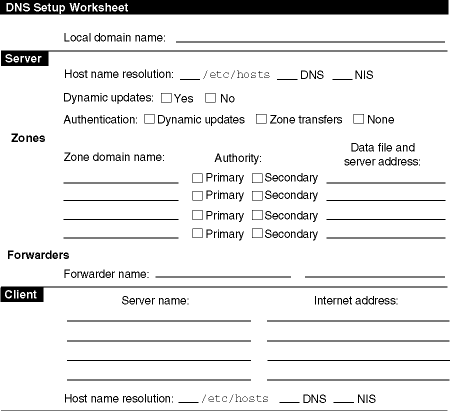
Figure 8-3
shows the DNS Setup Worksheet, which
you can use to record the information required to configure DNS.
If you are
viewing this manual online, you can use the print feature of your browser
to print a copy of this worksheet.
The following sections explain the information
you need to record on the worksheet.
Figure 8-3: DNS Setup Worksheet
For a
master server, the domain for which the server has primary authority.
For
client systems, the parent domain of which your local system is a part.
For
example, if your system's domain name is
cxcxcx.abc.xyz.com,
your local domain name is
abc.xyz.com.
The
order in which the local
/etc/hosts
file, DNS database,
and NIS database are to be queried for host name resolution.
Indicate the order on the worksheet by placing the appropriate number next to each item. The following order is recommended:
Local hosts file
DNS database
NIS database
Check Yes if you want to enable dynamic client updates; otherwise, check No.
If you want the master server to authenticate the DNS database updates it receives from clients, check Dynamic updates. If you want to authenticate zone transfers between master and slave servers, check Zone transfers. If you do not require authentication, check None.
If you plan to use the
nd6hostd
daemon to provide
dynamic updates for IPv6 zones, do not enable authentication for these zones.
The
nd6hostd
daemon does not support authentication.
The name of the top-level domain in the zone.
If the server is a master server for the zone (maintains the zone database file), check Primary. If the server is a slave server for the zone (copies the zone database file from the master), check Secondary.
For a master server, the full directory and file name specification for the file in which the master database of zone information will be stored.
For a slave server or stub server, the full directory and file name specification for the file in which a local copy of the database from the master server will be stored. Also, the IP address of the master server.
The host name of a system or systems to which your server forwards queries that it cannot resolve locally. When the server receives a query that it cannot answer from its cache, it sends the query to a forwarder for resolution. If the forwarder cannot answer the query, the server might contact other servers directly. If your system is a Forward-only server, you must include forwarder names; otherwise, forwarders are optional.
The name of a server to contact for host name resolution. Specify up to three servers.
A corresponding IP address for the server or servers.
The
order in which the local
/etc/hosts
file, DNS database,
and NIS database are to be queried for host name resolution.
Indicate the order on the worksheet by placing the appropriate number next to each item. The following order is recommended:
Local hosts file
DNS database
NIS database
Use the SysMan Menu application of the Common Desktop Environment (CDE) Application Manager to configure DNS on servers and clients. To invoke the SysMan Menu application, follow the instructions in Section 1.1.1.
When you configure DNS, you must first set up the master server.
You
can configure the other systems in any order.
8.5.1 Configuring a Master Server
To configure a master server, do the following:
Note
If you are configuring an IPv6 master server, see Section 8.5.1.1 for more information.
Copy into the
/etc/namedb/src
directory
the hosts file that you want to convert to the DNS hosts database.
To create the a new file from which the hosts database will be created,
you can update the master server's local
/etc/hosts
file
(see
Section 2.3.7) and copy it into the
/etc/namedb/src
directory with the same
hosts
file name.
If a system is in your DNS domain and is running DNS but is not
included in the master server's hosts database, other systems in the domain
cannot obtain its IP address.
From the SysMan Menu, select Networking-->Additional Network Services-->Domain Name Service (DNS(BIND))-->Configure system as a DNS server to display the DNS Server Configuration dialog box.
Alternatively, enter the following command on a command line:
#/usr/bin/sysman dns_server
Enter your local domain name, the domain for which the master server will have primary authority, in the Local Domain field.
Select MASTER in the DNS Server Type pull-down menu.
Indicate the order in which to resolve host name queries in
the Host Name Resolution Order field.
Open the pull-down menu and choose
from the list of options.
Administrators usually use either the DNS Database,
Local Host File, NIS option or the Local Host File, DNS Database, NIS option;
the latter is recommended.
Your choice is recorded in the
/etc/svc.conf
file.
Alternatively, you can run the
svcsetup
script to
customize service order selection.
See
Section 8.8
and
svcsetup(8)
for information about modifying the
svc.conf
file.
Select the Advanced DNS Options button to display the Advanced Options dialog box, which allows you to choose a different directory and files in which to save DNS server configuration information and cache data. Make changes, if necessary, then select OK to close the dialog box.
Select Next to display the Local Name Server list.
Select Add to display the Add Name Server dialog box.
Enter the host name and IP address for a name server that your master server will query for addresses it cannot resolve by itself.
Select OK to accept the entry.
If the server is not a known
host, select Yes to add it to the
/etc/hosts
file.
Repeat steps 7a through 7c, if necessary. It is best to specify two or three name servers.
Select OK to accept the list of name servers.
The addresses
are later recorded in the
/etc/resolv.conf
file.
Select the appropriate check box to create the DNS database.
Specify the name of the source file to use in the Hosts File field.
Use
/etc/namedb/src/hosts
for the file you created in step 1 or the
default for
/etc/hosts.
Select Next to continue.
Select the appropriate check box to start the
named
daemon and select Next to continue.
The utility prompts you to
change the host name of the system.
Select the appropriate check box to change the host name,
if necessary.
If you choose to change the host name, you are prompted to add
localhost
to the access control list.
Select Yes to allow graphical
user interfaces to be displayed properly on your newly renamed system.
Select Next to continue, then select Finish to save the configuration
and start the
named
daemon.
You are informed that you successfully configured the system as a DNS server. Select OK to close the DNS Server Configuration dialog box.
You can also modify your server configuration after the initial setup. See the online help for more information.
To enable dynamic updates on a DNS master server for IPv6 or Microsoft
Windows network environments, see
Section 8.5.1.2
and
Section 8.6.
8.5.1.1 Configuring an IPv6 Master Server
Configuring an IPv6 master server is similar to configuring an IPv4
master server with a few exceptions.
The following sections describe the exceptions.
8.5.1.1.1 DNS Configuration Files
The
/usr/examples/ipv6/namedb
directory contains
DNS configuration files that show sample IPv6 information for you to study
and adapt to your environment.
Of the files in that directory, the following
files contain IPv6 information that show reverse lookup addresses and dynamic
update examples:
/usr/examples/ipv6/namedb/ipv6.rev
/usr/examples/ipv6/namedb/ipv6.db
/usr/examples/ipv6/namedb/named.conf
After you customize these files for your environment, save the original
files in the
/etc/namedb
directory, then move the customized
files to that directory.
8.5.1.1.2 Server Guidelines
To configure a DNS server to operate in an IPv6 network environment, review the following guidelines:
Select a node to function as an IPv6 name server.
Dedicate a zone to IPv6 addresses or add IPv6 addresses to your enterprise's current zone.
If you want global IPv6 name services, you must delegate a
domain under the
ip6.int
domain for the reverse
lookup of IPv6 addresses.
Send mail to the following address to request a
domain for reverse lookups:
bmanning@isi.edu
See RFC 1886 for more information.
See Section 3.2.5 information on how to create a reverse lookup zone name.
If the system is already configured as a DNS server, change
the
/etc/resolv.conf
file to point to the local
node for name lookups, as follows:
nameserver 127.0.0.1
8.5.1.2 Enabling Dynamic Updates to the DNS Database
To enable dynamic updates on a DNS master server for IPv6 or Microsoft Windows network environments, do the following:
Caution
Each time you reconfigure your DNS master server with the SysMan Menu, you must reenable dynamic updates by repeating these steps because your
named.conffile will be rewritten.
Edit the
/etc/namedb/named.conf
file
and add the
allow-update
substatement to the master zone
statements (forward and reverse lookup) for which you want to enable dynamic
updates, as follows:
zone "zone-name" {
        type master;
        file "file-name";
        allow-update { any; };
};

zone  "rev-ip.in-addr.arpa" {
        type  master;
        file "file-name.rev";
        allow-update { any; };
};
For example, if you are enabling dynamic updates in an IPv6 zone, the zone statements might appear as follows after the change:
zone "ipv6.site1.corp.example" {
         type master;
         file "ipv6.site1.db";
         allow-update { any; };
};
zone "0.4.c.8.0.0.0.4.c.8.0.1.0.0.1.2.0.0.f.5.IP6.INT" {
        type master;
        file "ipv6.site1.rev";
        allow-update { any; };
};
Note that specifying
any
in the
allow-update
substatements allows any client to update the master DNS database.
If you prefer to limit access to the database, see
Section 8.6
for information about enabling authentication of dynamic updates.
(However,
note that the
nd6hostd
daemon on IPv6 clients does not
support authentication.)
Start or restart the
named
daemon.
See
the online help for more information.
For information about configuring Microsoft Windows 2000 systems on a network with Tru64 UNIX DNS servers, see the Best Practice for Integrating Windows 2000 DNS Clients with Tru64 UNIX DNS Services at the following URL:
http://www.tru64unix.compaq.com/faqs/publications/best_practices
To configure a slave server, invoke the SysMan Menu as documented
in
Section 1.1.1
and do the following:
From the SysMan Menu, select Networking-->Additional
Network Services-->Domain Name Service (DNS(BIND))-->Configure system
as a DNS server to display the DNS Server Configuration dialog box.
Alternatively, enter the following command on a command line:
Enter your local domain name in the Local Domain field.
Select SLAVE in the DNS Server Type pull-down menu.
Indicate the order in which to resolve host name queries in
the Host Name Resolution Order field.
Open the pull-down menu and choose
from the list of options.
Administrators usually use either the DNS Database,
Local Host File, NIS option or the Local Host File, DNS Database, NIS option;
the latter is recommended.
Your choice is recorded in the
Alternatively, you can run the
Select the Advanced DNS Options button to display the Advanced
Options dialog box, which allows you to choose a different directory and files
in which to save DNS server configuration information and cache data.
Make
changes, if necessary, then select OK to close the dialog box.
Select Next to display the Zones Served list.
Select Add to display the Add Zone dialog box.
Select the Slave radio button in the Authority field and enter
the name of the zone (domain) for which this server will have secondary authority.
Enter the name of the local file in which to store a copy
of the database of zone information from the master server.
Also, enter the
IP address of the master server.
Select OK to accept the entry.
Repeat steps 6a through 6d
for additional entries.
At the very least, you must add a forward lookup entry
and reverse lookup entry for each zone.
Given the following
Select Next to display the Local Name Server list.
Select Add to display the Add Name Server dialog box.
Enter the host name and IP address for a name server that
your slave server will query for addresses that it cannot resolve by itself.
Select OK to accept the entry.
If the server is not a known
host, select Yes to add it to the
Repeat steps 7a through 7c, if necessary.
It is best to specify two
or three name servers.
Select Next to accept the list of name servers.
The addresses
are later recorded in the
Select the appropriate check box to start the
Select the appropriate check box to change the host name,
if necessary.
If you choose to change the host name, you are prompted to add
Select Next to continue, then select Finish to save the configuration
and start the
You are informed that you successfully configured the system as a DNS
server.
Select OK to close the DNS Server Configuration dialog box.
You can also modify your server configuration after the initial setup.
See the online help for more information.
To configure a caching-only server, invoke the SysMan Menu
as documented in
Section 1.1.1
and do the following:
From the SysMan Menu, select Networking-->Additional
Network Services-->Domain Name Service (DNS(BIND))-->Configure system
as a DNS server to display the DNS Server Configuration dialog box.
Alternatively, enter the following command on a command line:
Enter your local domain name in the Local Domain field.
Select CACHING in the DNS Server Type pull-down menu.
Indicate the order in which to resolve host name queries in
the Host Name Resolution Order field.
Open the pull-down menu and choose
from the list of options.
Administrators usually use either the DNS Database,
Local Host File, NIS option or the Local Host File, DNS Database, NIS option;
the latter is recommended.
Your choice is recorded in the
Alternatively, you can run the
Select the Advanced DNS Options button to display the Advanced
Options dialog box, which allows you to choose a different directory and files
in which to save DNS server configuration information and cache data.
Make
changes, if necessary, then select OK to close the dialog box.
Select Next to display the Local Name Server list.
Select Add to display the Add Name Server dialog box.
Enter the host name and IP address for a name server that
your caching-only server will query for addresses that it cannot resolve by
itself.
Select OK to accept the entry.
If the server is not a known
host, select Yes to add it to the
Repeat steps 6a through 6c, if necessary.
It is best to specify two
or three name servers.
Select Next to accept the list of name servers.
The addresses
are later recorded in the
Select the appropriate check box to start the
Select the appropriate check box to change the host name,
if necessary.
If you choose to change the host name, you are prompted to add
Select Next to continue, then select Finish to save the configuration
and start the
You are informed that you successfully configured the system as a DNS
server.
Select OK to close the DNS Server Configuration dialog box.
You can also modify your server configuration after the initial setup.
See the online help for more information.
To configure a forward-only server, invoke the SysMan Menu as documented
in
Section 1.1.1
and do the following:
From the SysMan Menu, select Networking-->Additional
Network Services-->Domain Name Service (DNS(BIND))-->Configure system
as a DNS server to display the DNS Server Configuration dialog box.
Alternatively, enter the following command on a command line:
Enter your local domain name in the Local Domain field.
Select FORWARDER in the DNS Server Type pull-down menu.
Indicate the order in which to resolve host name queries in
the Host Name Resolution Order field.
Open the pull-down menu and choose
from the list of options.
Administrators usually use either the DNS Database,
Local Host File, NIS option or the Local Host File, DNS Database, NIS option;
the latter is recommended.
Your choice is recorded in the
Alternatively, you can run the
Select the Advanced DNS Options button to display the Advanced
Options dialog box, which allows you to choose a different directory and files
in which to save DNS server configuration information and cache data.
Make
changes, if necessary, then select OK to close the dialog box.
Select Next to display the Forwarders list.
Select the appropriate check box to indicate that you want
to configure the system as a forward-only server.
Select Add to display the Add Forwarder dialog box.
Enter the IP address for a forwarder, a name server that your
forward-only server will query for addresses on remote networks (like the
Internet).
Select OK to accept the entry.
If the server is not a known
host, select Yes to add it to the
Repeat steps 6b through 6d, if necessary.
It is best to specify two
or three forwarders.
Select Next to accept the list of forwarders.
The addresses
are later recorded in the
Select Next to display the Local Name Server list.
Select Add to display the Add Name Server dialog box.
Enter the host name and IP address for a name server that
your forward-only server will query for addresses on the local network.
Select OK to accept the entry.
If the server is not a known
host, select Yes to add it to the
Repeat steps 7a through 7c, if necessary.
It is best to specify two
or three name servers.
Select Next to accept the list of name servers.
The addresses
are later recorded in the
Select the appropriate check box to start the
Select the appropriate check box to change the host name,
if necessary.
If you choose to change the host name, you are prompted to add
Select Next to continue, then select Finish to save the configuration
and start the
You are informed that you successfully configured the system as a DNS
server.
Select OK to close the DNS Server Configuration dialog box.
You can also modify your server configuration after the initial setup.
See the online help for more information.
To configure a stub server, invoke the SysMan Menu as documented
in
Section 1.1.1
and do the following:
When configuring stub service, run the SysMan Menu application on
the server that will have authority for the subzone, not on the master server.
See the definition for a stub server in
Section 8.1
for more
information.
From the SysMan Menu, select Networking-->Additional
Network Services-->Domain Name Service (DNS(BIND))-->Configure system
as a DNS server to display the DNS Server Configuration dialog box.
Alternatively, enter the following command on a command line:
Enter your local domain name in the Local Domain field.
Select STUB in the DNS Server Type pull-down menu.
Indicate the order in which to resolve host name queries in
the Host Name Resolution Order field.
Open the pull-down menu and choose
from the list of options.
Administrators usually use either the DNS Database,
Local Host File, NIS option or the Local Host File, DNS Database, NIS option;
the latter is recommended.
Your choice is recorded in the
Alternatively, you can run the
Select the Advanced DNS Options button to display the Advanced
Options dialog box, which allows you to choose a different directory and files
in which to save DNS server configuration information and cache data.
Make
changes, if necessary, then select OK to close the dialog box.
Select Next to display the Zones Served list.
Select Add to display the Add Zone dialog box.
Select the Stub radio button in the Authority field.
Enter
the name of the stub zone (domain).
Enter the name of the local file in which to store a copy
of the database of zone information from the master server.
Also, enter the
IP address of the master server.
Select OK to accept the entry.
Repeat steps 6a through 6d
for additional entries.
At the very least, you must add a forward lookup entry
and a reverse lookup entry for each zone.
Given the following
Select Next to display the Local Name Server list.
Select Add to display the Add Name Server dialog box.
Enter the host name and IP address for a name server that
your stub server will query for addresses that it cannot resolve by itself.
Select OK to accept the entry.
If the server is not a known
host, select Yes to add it to the
Repeat steps 7a through 7c, if necessary.
It is best to specify two
or three name servers.
Select Next to accept the list of name servers.
The addresses
are later recorded in the
Select the appropriate check box to start the
Select the appropriate check box to change the host name,
if necessary.
If you choose to change the host name, you are prompted to add
Select Next to continue, then select Finish to save the configuration
and start the
You are informed that you successfully configured the system as a DNS
server.
Select OK to close the DNS Server Configuration dialog box.
You can also modify your server configuration after the initial setup.
See the online help for more information.
To configure a DNS client, invoke the SysMan Menu as documented
in
Section 1.1.1
and do the following:
From the SysMan Menu, select Networking-->Additional
Network Services-->Domain Name Service (DNS(BIND))-->Configure system
as a DNS client to display the Configure DNS Client dialog box.
Alternatively, enter the following command on a command line:
Enter your local domain name in the Local Domain field.
Select Add to add a name server.
Enter the host name and the IP address for the name server.
The addresses are recorded in the
Select OK to add the host name to the list of name servers.
If the specified host is not listed in the
To add other name servers, repeat steps 3 through 5.
You can specify
up to three name servers.
Indicate the order in which to resolve host name queries in
the Host Name Resolution Order field.
Open the pull-down menu and choose
from the list of options.
Administrators usually use either the DNS Database,
Local Host File, NIS option or the Local Host File, DNS Database, NIS option;
the latter is recommended.
Your choice is recorded in the
Alternatively, you can run the
Configure your system to search alternate domains for address
resolution by doing the following:
Select Domains Searched to display the associated dialog box.
Select Add to display the Add/Modify dialog box.
Enter the name of a domain to search.
Your local domain is
searched by default; you do not need to enter it.
Select OK to accept the entry.
Repeat steps 7b through 7d,
if necessary.
You can specify up to six domains.
Select OK to accept the list of domains to be searched.
Select OK to accept the configuration.
The script prompts
you to change the host name of the system.
Select Yes or No as appropriate.
If you choose Yes to change
the host name, you are prompted to add
Select OK to close the Configure DNS Client dialog box.
You can also modify your client configuration after the initial setup.
See the online help for more information.
For IPv6 network environments,
to enable dynamic updates for a DNS client, do the following:
Run the
Configure the DNS/BIND server to allow the updates (see
Section 8.5.1.2).
If you do not want to enable dynamic updates, you must still
run the
The following sections describe how to configure authentication on DNS
servers for the following purposes:
Authentication serves a purpose only when the private key remains a
secret between the servers; therefore, it is prudent to change this key frequently
and save the key file as specified in the following sections to prevent the
key from being compromised.
If you plan to use the
To configure a master server to authenticate dynamic updates it receives
from new DNS clients (Microsoft Windows systems), do the following:
Each time you reconfigure your DNS master server with the SysMan Menu,
you must reenable secure client updates by repeating these steps because your
Generate a private key using the
Valid key sizes are 512, 576, 640, 704, 768, 832, 896, 960, and 1024.
Larger keys are more cumbersome, but they are more secure.
You can supply any name for a key, but it is best to give the keys canonical
names so they are easy to distinguish.
For example, if hosts from the xyz.corp.com
zone send dynamic updates to your master server, marlin.xyz.corp.com, you
might want to name your key xyznet-marlin_update.
The
Hereafter, these files are referred to as the
For more information about generating keys, see the
Create a file, possibly
Incorporate the key information from the
In the key statement, replace
key-name
with
the name of the key and
generated-key
with the
entire private key as it appears in the
Add the following
Replace
key-config-file
with the name of
the key configuration file you created in steps 2 and 3.
When the
Enable secure dynamic updates for the master zone by adding
the
Replace
key-name
with the name of the file
you created in steps 2 and 3.
Specifying a key in this statement ensures that updates are successful
only if they are signed with the private key.
Restart the
Once you have configured the master server to support secure dynamic
DNS updates from new hosts, you can distribute the private key as necessary
to administrators who need to add these hosts to the network.
It is best to
physically distribute the key on magnetic or optical media as opposed to sending
it over the network where it can be compromised.
You can format a floppy for this purpose.
See
For information about configuring Microsoft Windows 2000 systems on
a network with Tru64 UNIX DNS servers, see the Best Practice for
Integrating Windows 2000 DNS Clients with Tru64 UNIX DNS Services
at the following URL:
http://www.tru64unix.compaq.com/faqs/publications/best_practices
Note that when clients send updates to the master server, the
To configure a master server and slave servers to use authentication
for zone transfers, do the following:
Each time you reconfigure DNS with the SysMan Menu, you must reenable
secure zone transfers by repeating these steps because your
On the master server, perform steps 1-4 as specified
in
Section 8.6.1.
When creating a key name, choose a name that describes the zone transfer.
For example, if the master server, marlin.xyz.corp.com, is sending updates
to the slave server, minnow.xyz.corp.com, for the xyz.corp.com zone, you might
name the key xyznet-marlin-minnow_transfer.
On the master server, add the
Replace
key-name
with the name of the key
as you specified it in the key configuration file you created in steps 2 and
3 of
Section 8.6.1.
Adding this server statement ensures that the master servers transfers
the zone only if the request is signed with the private key.
It also ensures
that the master server signs the zone transfer with the key before it sends
the data to the slave server.
Transfer the key configuration file (key-config-file
or
You can format a floppy for this purpose.
See
On the slave server(s), ensure that the permissions are set for read/writable
only by superuser:
On the slave server(s), add an
Replace
key-config-file
with the name of
the key configuration file you copied over from the master server.
Replace
ip-address
with the IP address of the master server.
Finally,
replace
key-name
with the name of the key you specifed
in the
key-config-file.
Adding the
Restart the
The following examples show sample
In
Example 8-1, the lines serve the following purpose:
Defines the
Specifies the encryption algorithm.
Keys for dynamic updates and zone transfers must be
Specifies the key string.
This
string must contain no spaces or carriage returns.
[Return to example] Defines the
In
Example 8-2, the lines serve the following
purpose:
Calls the aforementioned
Specify that dynamic updates for
the
Specify that zone transfer requests
for the
In
Example 8-3, the lines serve the following
purpose:
Specifies that the slave server
is to use the
Specify that
For more information about the statements in the
Use the SysMan Menu application of the Common Desktop Environment
(CDE) Application Manager to deconfigure DNS servers and clients.
To invoke
the SysMan Menu application, follow the instructions in
Section 1.1.1.
When you deconfigure DNS, the service stops and the DNS server and client
configuration information is deleted from the system.
This action cannot be
undone.
To restore DNS, you must configure it again using the SysMan Menu.
To deconfigure DNS, do the following:
From the SysMan Menu, select Networking-->Additional
Network Services-->Domain Name Service (DNS(BIND))-->Deconfigure DNS
on this system to display the Deconfigure DNS dialog box.
Alternatively, enter the following command on a command line:
Select Yes to deconfigure DNS on the system.
Select OK to close the Deconfigure DNS dialog box.
You can modify the
Once invoked, use the following steps to edit the
Press the Return key following the informational messages
to continue.
Press the Return key to choose the
Choose option 2 from the Change Menu.
Option 2 corresponds
to the
Enter the number that corresponds to the order in which you
want the services running on your system queried for
Listing local first means that the local
For better performance, it is best if the first service that your system
queries for all databases is local, regardless of what services you are running.
Choose option 3, 4, 5, or 6 to configure the
The
If you
have not configured dynamic updates, as discussed in
Section 8.2
and
Section 8.5.1.2, you will need to manually update the
DNS data files when you connect new hosts to the network.
To add a new host, follow these steps:
Edit the
Change to the
After you edit the
Create the new hosts databases:
Place the new databases in the
Send a signal to the
If you have manually entered mail exchanger (MX) records in the
The DNS database conversion scripts also increment the serial number
field of the start of authority (SOA) entry in the database file and inform
the slave servers that it is time to refresh their data.
The process is the same for all of the valid files in the master server's
There are several ways
that you can obtain information about host names, IP addresses, and user information
from a system using DNS.
The following sections provide an introduction to
two commands:
You can use the
For a noninteractive query, use the following syntax:
The output is the server name and address and the host name and address.
For an interactive query, use the following syntax:
The output is the default server name and address and the
For example, to obtain information about MX, you need to query
A good way to learn how to use the
For a detailed description of the many different types of DNS resource
records, see
Appendix H.
The
Network Information Center (NIC)
The name of the domain
The name and address of the organization responsible for the
domain
The domain's administrative, technical, and zone contacts
The host names and network addresses of sites providing DNS
for the domain
The registered users in the domain
For example, to use the NIC
To query other
8.5.2 Configuring a Slave Server
# /usr/bin/sysman dns_server
/etc/svc.conf
file.
svcsetup
script to
customize service order selection.
See
Section 8.8
and
svcsetup(8)
for information about modifying the
svc.conf
file.
/etc/namedb/named.conf
file
on the master server, you would add entries in the slave's Zones Served list
for the
domain.suffix
and
nn.nnn.in-addr.arpa
zones:
zone domain.suffix {
     type master;
     file "hosts.db";
     };

zone nn.nnn.in-addr.arpa {
     type master;
     file "hosts.rev";
     };
/etc/hosts
file.
/etc/resolv.conf
file.
named
daemon and select Next to continue.
The utility prompts you to
change the host name of the system.
localhost
to the access control list.
Select Yes to allow graphical
user interfaces to be displayed properly on your newly renamed system.
named
daemon.
8.5.3 Configuring a Caching-Only Server
# /usr/bin/sysman dns_server
/etc/svc.conf
file.
svcsetup
script to
customize service order selection.
See
Section 8.8
and
svcsetup(8)
for information about modifying the
svc.conf
file.
/etc/hosts
file.
/etc/resolv.conf
file.
named
daemon and select Next to continue.
The utility prompts you to
change the host name of the system.
localhost
to the access control list.
Select Yes to allow graphical
user interfaces to be displayed properly on your newly renamed system.
named
daemon.
8.5.4 Configuring a Forward-Only Server
# /usr/bin/sysman dns_server
/etc/svc.conf
file.
svcsetup
script to
customize service order selection.
See
Section 8.8
and
svcsetup(8)
for information about modifying the
svc.conf
file.
/etc/hosts
file.
/etc/resolv.conf
file.
/etc/hosts
file.
/etc/resolv.conf
file.
named
daemon and select Next to continue.
The utility prompts you to
change the host name of the system.
localhost
to the access control list.
Select Yes to allow graphical
user interfaces to be displayed properly on your newly renamed system.
named
daemon.
8.5.5 Configuring a Stub Server
Note
# /usr/bin/sysman dns_server
/etc/svc.conf
file.
svcsetup
script to
customize service order selection.
See
Section 8.8
and
svcsetup(8)
for information about modifying the
svc.conf
file.
/etc/namedb/named.conf
file
on the master server, you would add entries in the slave's Zones Served list
for the
domain.suffix
and
nn.nnn.in-addr.arpa
zones:
zone domain.suffix {
     type master;
     file "hosts.db";
     };

zone nn.nnn.in-addr.arpa {
     type master;
     file "hosts.rev";
     };
/etc/hosts
file.
/etc/resolv.conf
file.
named
daemon and select Next to continue.
The utility prompts you to
change the host name of the system.
localhost
to the access control list.
Select Yes to allow graphical
user interfaces to be displayed properly on your newly renamed system.
named
daemon.
8.5.6 Configuring a DNS Client
# /usr/bin/sysman dns_client
/etc/resolv.conf
file, where the resolver uses them to determine the IP addresses of name servers
it will query.
/etc/hosts
file,
the script prompts you to add it to that file.
Select Yes or No.
/etc/svc.conf
file.
svcsetup
script to
customize service order selection.
See
Section 8.8
and
svcsetup(8)
for information about modifying the
svc.conf
file.
localhost
to the
access control list.
Select Yes to allow graphical user interfaces to be displayed
properly on your newly renamed system.
ip6_setup
script and enable dynamic
updates of IPv6 addresses by answering
y
and provide a
fully qualified domain name for the IPv6 host.
See
Section 3.4.2
and
Section 3.5.1
for more information.
ip6_setup
script, but no special DNS configuration
is necessary.
8.6 Configuring Authentication
8.6.1 Configuring Secure Dynamic Updates
nd6hostd
daemon to dynamically
update IPv6 zones, do not enable authentication for these zones.
The
nd6hostd
daemon does not support authentication.
Caution
named.conf
file will be rewritten.
dnskeygen
command, as follows:
# dnskeygen -H size -h -c -n key-name
dnskeygen
command produces two files:
K<key-name><proto-id><key-id>.key
K<key-name><proto-id><key-id>.private
.key
and
.private
files.
dnskeygen(1)
reference
page.
named.keys, to
contain the key configuration statement for the update.
This file must be
read/writeable only by superuser to prevent the private key from being compromised.
For example:
# cd /etc/namedb
# touch key-config-file
# chmod 600 key-config-file
.private
file into the
key-config-file
by adding
the following
key
statement:
key key-name {
    algorithm hmac-md5;
    secret "generated-key";
};
.private
file.
It is best to enter the key by opening the
.private
file
in another window, copying the necessary key text, and pasting the text into
the text editor window.
There must be no line feeds or spaces between the
quotes that contain the key; if even one character is entered incorrectly,
authentication fails.
include
statement to
the top of the
/etc/namedb/named.conf
file:
include "/etc/namedb/key-config-file";
named
daemon starts and reads the DNS data
file, it calls the
key-config-file
and parses its
contents.
allow-update
substatement to the master
zone
statements (for forward and reverse lookups) in the
named.conf
file :
zone "zone-name" {
        type master;
        file "file-name";
        allow-update {
             key key-name;
        };
};

zone  "rev-ip.in-addr.arpa" {
        type  master;
        file "hosts.rev";
        allow-update {
             key key-name;
        };
};
named
daemon by issuing the
following command:
# /sbin/init.d/named restart
mtools(1)
for information
about formatting and reading Microsoft Windows-compatible floppy disks on
a Tru64 UNIX system.
If the described tools are not available, you need
to install the
OSFDOSTOOLS
subset.
named
daemon does not immediately update the master database files.
It creates temporary
database.ixfr
and
database.log
files where
it logs the changes until they can be incorporated into the database.
However,
the daemon does become aware of the updates almost immediately in memory.
You can verify them with the
nslookup
command as explained
in
Section 8.10.1.
8.6.2 Configuring Secure Zone Transfers
Caution
named.conf
file will be rewritten.
allow-transfer
substatement to the master
zone
statements (for forward
and reverse lookups) in the
/etc/namedb/named.conf
file.
include "/etc/namedb/key-file";
             .
             .
             .
zone "zone-name" {
        type master;
        file "hosts.db";
        allow-transfer {
             key key-name;
				};

zone  "rev-ip.in-addr.arpa" {
        type  master;
        file  "hosts.rev";
        allow-transfer {
             key key-name;
        };

};
named.keys) over from the master server
to the slave server(s).
It is best to physically transfer this file on magnetic
or optical media as opposed to sending it over the network where it can be
compromised.
mtools(1)
for information
about formatting and reading Microsoft Windows-compatible floppy disks on
a Tru64 UNIX system.
If the described tools are not available, you need
to install the
OSFDOSTOOLS
subset.
# chmod 600 key-config-file
include
statement to the
named.conf
file to call the
key-config-file.
Also, insert the
server
statement after the
include
statement and before any
zone
statements:
include "/etc/namedb/key-config-file";
        .
        .
        .
server ip-address {
        keys {key-name};
};
server
statement ensures that the slave
server signs requests for zone transfers from the master server with the private
key.
It also ensures that the slave server authenticates signed zone transfers
from the master server before it incorporates them into its data files.
named
daemon on the master
server and the slave server(s) by issuing the following command:
# /sbin/init.d/named restart
named.keys
and
named.conf
files that implement both secure dynamic updates and
secure zone transfers.
These configuration files describe a network in which
there is a DNS master server called marlin.ocean.corp.com and a slave server
called minnow.ocean.corp.com.
Example 8-1: Sample named.keys File for Authentication
key oceannet-client_update {[1]
        algorithm hmac-md5;[2]
        secret "lSYbJjbTOLH2DB+kRpf0fcTJk0mOca90GDGdn5R7L2vPhyCx
daGhHp0o2pDU+PSzclE3Yk6Xg8jOkpRExx+2yw==";[3]
};

key oceannet-marlin-minnow_transfer {[4]
        algorithm hmac-md5;
        secret "648NyJi33LMhf00iavHjbkgqcTMJ7lZD4/r0DF9wgIQ2WH2b
peHLYjz2qYMrx1dMYw9E9gDp6F6LTMDHHCvFlw==";
oceannet-client_update
key, which will be used for secure dynamic updates from clients
in the ocean.corp.com zone.
[Return to example]hmac-md5.
[Return to example]oceannet-marlin-minnow_transfer
key, which will be used for zone transfers between the master server,
marlin.ocean.corp.com, and the slave server, minnow.ocean.corp.com.
[Return to example]Example 8-2: Sample Master Server named.conf File for Authentication
include "/etc/namedb/named.keys";[1]

options {
        directory  "/etc/namedb/";
};

zone  "0.0.127.in-addr.arpa" {
        type  master;
        file  "named.local";
};

zone  "ocean.corp.com" {
        type  master;
        file  "hosts.db";
        allow-update {
                key oceannet-client_update;[2]
        };
        allow-transfer {
                key oceannet-marlin-minnow_transfer;[3]
        };
};

zone  "6.134.20.in-addr.arpa" {
        type  master;
        file  "hosts.rev";
        allow-update {
                key oceannet-client_update;[2]
        };
        allow-transfer {
                key oceannet-marlin-minnow_transfer;[3]
        };
};

zone  "." {
        type  hint;
        file  "named.ca";
};
named.keys
file into the
named.conf
file.
[Return to example]ocean.corp.com
zone must be authenticated with the
oceannet-client_update
key before they are incorporated into the
DNS database.
[Return to example]ocean.corp.com
zone must be authenticated with
the
oceannet-marlin-minnow_transfer
key before any data
is sent to the slave server(s).
[Return to example]Example 8-3: Sample Slave Server named.conf File for Authentication
include "/etc/namedb/named.keys";

server 20.134.6.2 {
        keys { oceannet-marlin-minnow_transfer };[1]
};

options {
        directory  "/etc/namedb/";
};

zone  "0.0.127.in-addr.arpa" {
        type  master;
        file  "named.local";
};

zone  "pubs.zk3.dec.com" {
        type  slave;
        file  "/etc/namedb/hosts.db";
        masters  {
                20.134.6.2[2];
        };
};

zone  "6.134.20.in-addr.arpa" {
        type  slave;
        file  "/etc/namedb/hosts.rev";
        masters  {
                20.134.6.2;[2]
        };
};

zone  "." {
        type  hint;
        file  "named.ca";
};
oceannet-marlin-minnow_transfer
key for authentication
of all communication between itself and
20.134.6.2
(marlin.ocean.corp.com).
[Return to example]20.134.6.2
is the master server for the
ocean.corp.com
zone, and that it will provide the authoritative data for that zone.
[Return to example]named.conf
file, see
named.conf(4)
and the
Bind Configuration File Guide
on the Tru64 UNIX Documentation CD-ROM.
8.7 Deconfiguring DNS
# /usr/bin/sysman dns_deconfigure
8.8 Modifying the svc.conf File with svcsetup
/etc/svc.conf
file without running
the DNS Configuration application.
To do this, you invoke the
svcsetup
script using the following command:
# /usr/sbin/svcsetup
/etc/svc.conf
file:
m
option
from the Configuration Menu.
hosts
database.
hosts
data.
/etc/hosts
file is searched first for the requested information.
If the information is
not found locally, then DNS servers, NIS servers, or both, are queried, depending
on which options you choose.
Note
svc.conf
file so that DNS serves
hosts
information.
svcsetup
script indicates that it is updating
the
/etc/svc.conf
file.
When
svcsetup
is finished updating the file, the script notifies you and the system prompt
(#) is displayed.
8.9 Updating DNS Data Files on the Master Server
/etc/namedb/src/hosts
file to
add the new host.
/etc/namedb
directory and
enter one of the following commands:
# make hosts
# make all
hosts
file and enter the
make
command, the DNS conversion scripts (which are in the
/etc/namedb/bin
directory) do the following for you:
named.local
and
named.ca.
/etc/namedb
directory.
named
daemon to reload
all databases that have changed.
Note
named.local
file, these records are lost.
You will have to edit
the
named.local
file and add the MX records.
/etc/namedb/src
directory.
Scripts are provided to create the
named.local
and
named.ca
databases.
8.10 Obtaining Host Name and IP Address Information
nslookup
and
whois.
8.10.1 The nslookup Command
nslookup
command to noninteractively and interactively query DNS
for information about hosts on local and remote domains.
You can also find
information about DNS resource records such as mail exchanger (MX), name server
(NS), and so forth.
nslookup
hostname
nslookup
nslookup
prompt, a greater than sign (>).
nslookup
interactively, supplying a valid domain name.
The following
example shows how to find the mail recipient for the domain
corp.com:
# nslookup
Default Server:  localhost
Address:  127.0.0.1

> set querytype=mx
> corp.com
Server:  localhost
Address:  127.0.0.1
findmx.corp.com      preference = 100, mail exchanger = gateway.corp.com
gateway.corp.com     inet address = 128.54.54.79
> [Ctrl/D]
#
nslookup
command
is to experiment with it.
To obtain a list of the interactive
nslookup
command options, enter a question mark (?) at the
nslookup
prompt.
For further information, see
nslookup(1).
8.10.2 NIC whois Service
whois
service allows you
to access the following information about a domain:
whois
service to obtain
information about a domain named
compaq.com, use the
whois
command and specify the domain name as follows:
# whois compaq.com
Registrant:
Compaq Computer Corporation (COMPAQ-DOM)
   P.O. Box 692000
   Houston, TX 77269

   Domain Name: COMPAQ.COM

.
.
.
The InterNIC Registration Services database contains ONLY
non-military and non-US Government Domains and contacts.
Other associated whois servers:
   American Registry for Internet Numbers - whois.arin.net
   European IP Address Allocations        - whois.ripe.net
   Asia Pacific IP Address Allocations    - whois.apnic.net
   US Military                            - whois.nic.mil
   US Government                          - whois.nic.gov
whois
servers, use the
-h
option:
# whois -h whois.nic.gov whitehouse.gov
 Whitehouse Public Access (WHITEHOUSE-DOM)
   725 17th Street NW Room NEOB 4208
   Washington, DC 20503

   Domain Name: WHITEHOUSE.GOV
   Status: ACTIVE
   Domain Type: Federal

.
.
.