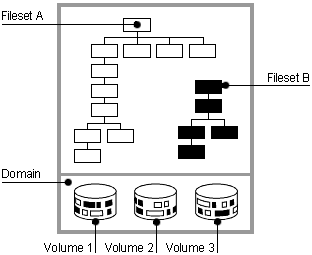
AdvFS differs from the traditional UNIX File System (UFS). The UFS model is rigid. Each disk (or disk partition) contains one separate file system; you mount the file system into the logical name space using mount points.
The directory hierarchy layer of UFS is bound tightly to the physical storage layer. When a file system becomes full, this tight binding makes it impossible to move selected files onto another disk without changing the full path names of those files. The task of dividing a logical directory into directory subtrees and mapping the subtrees onto separate disks requires careful consideration. Even with extensive planning, adjustments to the directory structure are limited with the UFS model.
In contrast, with AdvFS you can modify your system configuration at any time
without taking down the system.
As your system requirements change, AdvFS allows you
to easily adjust your storage up or down to meet your requirements.
1.1 File System Design
AdvFS consists of two distinct layers: the directory hierarchy layer and the physical storage layer. The directory hierarchy layer implements the file-naming scheme and POSIX-compliant functions such as creating and opening files, or reading and writing to files. The physical storage layer implements write-ahead logging, caching, file allocation, and physical disk I/O functions.
The decoupled file system structure enables you to manage the physical storage layer apart from the directory hierarchy layer. This means that you can move files between a defined group of disk volumes without changing path names for your files. Because the path names remain the same, the action is completely transparent to end users.
AdvFS can incorporate Logical Storage Manager (LSM) volumes into the file system
structure.
AdvFS configured with LSM improves file system reliability and availability
because AdvFS can take advantage of LSM features (see
Section 1.7).
1.1.1 Filesets, Domains and Volumes
AdvFS implements two unique file system concepts:
filesets
and
domains.
Filesets and domains enable a two-layer file system
structure in which the physical storage layer of the file system is independent of
its directory hierarchy.
With this unique architecture, you can manage the logical
structure of your file systems independently of the storage volumes that contain them.
Figure 1-1
is a representation of this structure.
Figure 1-1: AdvFS File System Design
A fileset follows the logical structure of a traditional UNIX file system. It is a hierarchy of directory names and file names, and it is what you mount. AdvFS goes beyond the traditional file system by allowing you to create multiple filesets that share a common pool of storage called a domain. See Section 1.5 for more information about filesets.
A domain is managed separately from the directory structure. You can add or remove volumes without affecting the directory structure. See Section 1.4 for more information.
A volume is any mechanism that behaves like a UNIX block device: an entire disk, a disk partition, or an aggregate volume provided by a logical storage manager (see Section 1.3). When first created, all domains consist of a single volume. If you have the optional AdvFS Utilities (see License Registration), you can transform a single-volume domain into a multivolume domain by adding one or more volumes.
Domain names must
be unique.
You cannot use slash (/), pound (#), colon (:), asterisk (*), question
mark (?), tab, newline, formfeed, return, vertical tab, and space characters.
Filesets
that are not in the same domain can have the same name and file names must be unique
in the directory.
1.1.2 Transaction Log
AdvFS is a log-based file system that employs write-ahead logging to ensure the integrity of the file system. Write-ahead logging means that modifications to the metadata (the on-disk file system structures) are completely written to a transaction log before the actual changes are written to disk. The log is implemented as a circular file buffer so that the contents of the transaction log are written to disk at regular intervals. By committing only completed transactions to disk, the file system is not left in an inconsistent state after an unexpected system crash.
When a domain is created, AdvFS creates a transaction log for it. The first time the domain is activated, 4 megabytes of storage are allocated for the log. It is separate from the user data but can be stored on the same device.
During crash recovery, AdvFS reads the transaction log to confirm file system
transactions.
All completed transactions are committed to disk and uncompleted transactions
are undone.
The number of uncommitted records in the log, not the amount of data in
the file system, dictates the speed of recovery.
This means that recovery usually
takes only a few seconds.
Traditional UNIX file systems rely on the
fsck
utility to recover from a system failure.
The
fsck
utility
can take hours to check and repair a large file system.
By default, only file system structures are logged, but you can choose to log
file data and change the way your system writes to storage (see
Section 4.1.4).
A file that has data logging turned on will remain internally consistent in the event
of a system crash.
However, enabling data logging can slow system performance.
1.1.3 File Storage Allocation
Files are not static; their space requirements change over time. To maintain contiguous file placement without overallocating space on the disk, AdvFS uses a unique file storage allocation scheme.
Key features of storage allocation are:
Extents
An extent is a contiguous area of disk space that AdvFS allocates to a file. Extents are composed of sets of one or more 8-kilobyte pages. When storage is added to a file, it is grouped in extents. There is an extent map for each volume on which the file system resides.
File I/O is most efficient when there are few extents. If a file consists of many small extents, it takes more I/O processing to read or write that file.
Given the dynamic nature of a file system, the file-storage allocation cannot always guarantee contiguous placement of pages. The following factors affect placement:
Excessive disk fragmentation
When a disk is fragmented, there are many small free spaces, so AdvFS writes data to isolated physical pages, based on availability, instead of writing to contiguous pages. This may result in files with many extents.
Multiple users
When there are many users on a system, requests for space increase, decreasing the likelihood of contiguous file allocation.
If you have a domain with many extents, you can decrease the number by running
the
defragment
utility (see
Section 4.3.1).
Preallocation
Each time a file is appended, AdvFS adds pages to the file by preallocating one-fourth of the file size, up to 16 pages. Excess preallocated space is truncated when the file is closed.
For multivolume domains, new files are allocated sequentially across volumes. Volumes that are more than 86% full (allocated) are not used for new file allocation unless all volumes are more than 86% full. When data is appended to existing files, storage is allocated on the volume on which the file was initially allocated until the volume is full.
Fragments
AdvFS writes files to disk in sets of 8-kilobyte pages. In files where holding the last bytes in an 8-kilobyte page would represent a waste of more than 5% of the allocated space, a file fragment is created. The fragment, which ranges in size from 1 kilobyte to 7 kilobytes, is allocated from the frag file, a special file used for storing the file fragments. This technique considerably reduces the amount of unused, wasted disk space.
Sparse files
A sparse file is one that does not have disk storage reserved for some of its pages. Reading a sparse file at a page that does not have storage reserved returns zeroes. Writing to a page that does not have storage reserved allocates a page of disk storage.
A sparse file is created by setting a file's end-of-file with
ftruncate(2)
or
by using
lseek(2)
and
write(2)
to skip over unwritten sections of the file.
Core files are sparse files. They have large areas with no information and don't use up disk blocks for locations where no data exists. Quota files are sparse because they are indexed by user ID. If there are gaps in the user IDs, there may be sections of the file with no data.
In contrast, database files generally reserve storage for the entire file even when data is not available. Database applications generally write zeroes in the pages that have no useful data so that storage is allocated. In addition, by writing the data sequentially, a database file is created with large sets of contiguous pages and a small number of extents.
To examine the length of a sparse file, including the pages that don't have
disk storage, use the
ls
command with the
-l
option.
The
ls
command with the
-s
option shows
the amount of storage actually used by the file.
The
du
command
gives the same information as the
ls -s
command.
When planning your configuration, consider setting up the root and
/usr
file systems on AdvFS.
Using AdvFS as the root file system enables
booting from an AdvFS domain.
By having the
/usr
file system on
AdvFS, you can significantly reduce the amount of time your system is down after a
system failure.
You can set up AdvFS to resemble a traditional UFS configuration with one partition (volume) per domain and each domain containing one fileset. If you have the optional AdvFS Utilities, when space is needed you can add volumes (except to the local root which is restricted to one volume) to increase the size of existing domains. You do not have to change anything in the existing configuration.
The minimum configuration needed for an active AdvFS file system is one domain and one mounted fileset.
To create an active domain:
Create a domain (see Section 1.4.5).
Create a fileset (see Section 1.5.4).
Create a mount-point directory (see Section 1.5.6).
Mount a fileset (see Section 1.5.6).
You can start with one fileset per domain or you can have many. See Section 1.4.1 and Section 1.5.1 for guidelines.
You can automatically mount a fileset at system reboot (see Section 1.5.2) or use the AdvFS GUI or the SysMan Menu to perform this activity. See Appendix B for a complete list of AdvFS commands.
For more detailed information on AdvFS configuration, see
System Configuration and Tuning.
1.3 Volumes
A volume on AdvFS can be a single disk partition, an entire disk, an aggregate volume provided by Logical Storage Manager (LSM), or hardware or software redundant array of independent disks (RAID) storage.
A volume can be assigned to only one domain. It is associated with its domain by a domain ID, which is automatically stored in the domain attributes table of the volume. Each volume in a domain is assigned a volume index number, starting with 1, when it is initialized. Numbers are reused when volumes are removed and new ones added. When a volume is removed from a domain, the domain ID is cleared in the domain attributes table.
If you have the optional AdvFS Utilities, adding volumes allows you to create a multivolume domain, increase the disk capacity of an existing domain, increase the storage available for the filesets, and perform preventative disk maintenance. You can add volumes immediately after creating the domain, even before creating and mounting filesets. To perform preventative disk maintenance, you can add a new volume to the domain, migrate your files to the new volume, and then remove the old volume.
For AdvFS to function properly, the number of volumes in a domain with the same
domain ID must remain consistent with the number of volumes.
In addition, each domain
is defined by an entry in the
/etc/fdmns
directory (see
Section 1.4.2).
This directory must be up-to-date; that is, the domain entries must correctly reference
the volumes associated with the domains.
The number of links to the volumes in the
/etc/fdmns
directory must equal the number of volumes.
All volumes are labeled (see
disklabel(8)) either
unused
or with
the file system for which they were last used (for example,
advfs).
You can only add a volume that is labeled
unused
to a domain (see
Section 5.4.2).
1.3.1 Volume Structure
Each volume in an AdvFS domain contains the following structures:
A bitfile metadata table (BMT), which is used to store file data structure (metadata), including file attributes, file extent maps, fileset attributes, and the POSIX file statistics.
A storage bitmap, which is used to track free and allocated disk space.
A miscellaneous metadata bitfile, which maps areas of the volume that do not represent AdvFS metadata, such as the disk label and boot blocks.
In addition to these structures, each domain has the following structures on one volume in the domain:
A transaction log, which stores all metadata changes until they are written to disk.
A root tag directory, which defines the location of all filesets in the domain.
This information is provided only to show how the volume is structured for AdvFS.
You cannot change the way AdvFS configures the volume.
1.3.2 Volume Attributes
AdvFS volumes are configured with attributes that determine how data is read, cached, written, and consolidated. When an AdvFS volume is incorporated into a domain, either by creating the initial domain or by adding a volume, the default volume attributes are set. Modifying these default attributes may improve performance in some system configurations.
To display or modify the current volume attributes, use the SysMan "Manage an AdvFS Domain"
or, from the command line, enter the
chvol
command:
chvol
device_name file_domain
See
Chapter 4
and
System Configuration and Tuning
for more complete
information on modifying attributes to improve system performance.
1.4 Domains
A domain is the physical storage layer of the AdvFS file system. It is a defined pool of physical storage that can contain one or more volumes. Because this storage is managed separately from the directory structure (see Section 1.4.2), you can expand and contract the size of the domain by adding or removing volumes. You can move files between disks in the domain without changing file path names.
Each domain has a unique ID that is
an encoding of the date and time the domain was created.
If you change the name of
the domain, it does not affect this ID.
1.4.1 Configuring Domains
How you configure domains depends on your organization's needs. You can assign all available storage to a few domain or group specific partitions or disks into many domains. You must also take into account how you will configure your filesets (see Section 1.5.1). With AdvFS Utilities, you can assign multiple volumes to a domain and distribute the filesets and files across the volumes.
Establishing multiple domains allows greater control over your physical resources. You can create domains to be used by specific projects, groups of users, departments, or any division that makes sense for your organization. For example, you could create domains for each of your organization's departments, such as engineering, finance, and personnel.
There are a number of factors to consider when configuring domains:
To maintain high performance, avoid splitting a disk between two domains.
For example, do not add partition
g
to one domain and partition
h
of the same disk to another domain.
Adding one partition containing the entire disk (typically, partitionc) to a domain is preferable to adding several partitions on the same disk.
Doing so may degrade performance.
You will get an error message if you try to assign
overlapping partitions to a domain (see
Section 1.4.6).
It is generally more efficient to spread your domain over several disks, assuming the disks are the same type and speed. For example, a domain with three volumes on separate disks is more efficient than one with three partitions on a single disk because the latter has only one I/O path.
The
defragment
utility processes each volume in
parallel.
Thus, creating a domain on several volumes can increase the defragment speed.
Combining multiple volumes within a single domain allows you to build larger domains and reduces the overall management effort because fewer domains require less administration. However, a single volume failure within a domain renders the entire domain inaccessible.
Limiting the number of volumes decreases the risk of disk errors that can cause the entire domain to become inaccessible. To improve reliability, you can set up LSM mirrors. See Section 1.7 for information about setting up AdvFS with LSM. See Logical Storage Manager for LSM functionality.
The
System Configuration and Tuning
guide provides detailed guidelines for planning
and configuring your file system.
The AdvFS Software Product Description (SPD) contains
information about system limits.
The SysMan "Manage an AdvFS Domain"
allows you to create and configure domains.
See
Chapter 6
if you
want to configure your domains using the AdvFS GUI.
1.4.2 The /etc/fdmns Directory
The
/etc/fdmns
directory defines domains by providing a subdirectory
for each domain you create.
The subdirectories contain a symbolic link to every volume
in the domain.
This directory is created and maintained automatically by AdvFS when you use
standard AdvFS commands.
You must have a current
/etc/fdmns
directory
in order to mount the filesets in a domain.
When you create a domain, a soft link is created from the domain entry in the
/etc/fdmns
directory to the block device.
You cannot create a domain simply
by creating a link in the directory.
Back up the
/etc/fdmns
directory regularly.
If the contents
of the directory become corrupted or deleted, restore the directory from your most
recent backup.
A damaged directory prevents access to the domain because the information
matching the domain to the physical volume containing the filesets is incorrect; the
filesets are not affected.
If you attempt to mount a fileset from a domain with a damaged directory, a
message similar to the following for the domain
accounts
will be
displayed:
Volume count mismatch for domain accounts.
accounts expects 2 volumes, /etc/fdmns/accounts has 1 links.
If you lose the
/etc/fdmns
directory or the volumes of a
domain are moved to a different system, use the
advscan
utility
to reconstruct the directory and to find the location of AdvFS domains on volumes
or LSM disk groups (see
Section 5.5.1).
1.4.3 Version 5 Domains
Version 5.0 and later operating system domains have an improved disk structure that provides support for quota values larger than 2 terabytes and increases performance for directories containing thousands of files. All domains that were created prior to Version 5.0 are recognized by later versions but are not automatically upgraded to the new structure.
A domain version number (DVN) is associated with a domain. The Version 5.0 operating system is the first for which a new domain carries a DVN of 4. Domains created earlier carry a DVN of 3.
You can mount a DVN3 fileset on a system running Version 5.0. You cannot locally mount a fileset in a DVN4 domain created under Version 5.0 or later (DVN4) on a system running a Version 4 operating system. If you need to access a DVN4 fileset, NFS mount it from a Version 5 or later server (see Section 5.1). Therefore, if your application requires backward compatibility, it is inadvisable to upgrade your domain to the new DVN.
See
Section 5.1.1
for a discussion of utility incompatibility.
1.4.3.1 Creating a Domain with DVN4
All domains created under Version 5.0 automatically have a DVN of 4. Therefore, if you do a full install of Version 5.0, all the domains created in the process will have the new structure.
If you update install Version 5.0, your existing domains will retain the DVN of 3.
This means that
/root,
/usr, and
/var
will also have a DVN of 3.
There is no conversion utility.
To move your
data to a DVN4 domain, back up your data, create a new DVN4 domain, and restore it
to the new domain.
1.4.3.2 Upgrading a Domain to DVN4
If you are running Version 5.0 and if you are running an application that requires quota limits larger than 2 terabytes or that uses directories containing thousands of files, you can improve performance by upgrading your old domain to a domain with a DVN of 4.
DVN4 domains automatically have an index created when the directory grows beyond
a page, that is, about 200 files.
Use the
showfile
command to determine
if a directory is indexed.
Choosing the
-i
option displays information
about the index.
See
showfile(8)
for more information.
To upgrade a domain, create a new domain on a Version 5.0 or later system and copy all the information from the old domain to it. If you are unfamiliar with creating domains, read Section 1.4.5 first. To upgrade a domain:
Back up the filesets in the domain to tape with the
vdump
command.
It is a good idea to use the
-x
option for
additional protection from saveset errors.
You will lose all the data in your domain
if you cannot restore it after creating a new domain.
Remove the old domain with the
rmfdmn
command.
This will also remove the old fileset.
Create a new domain with the
mkfdmn
command.
The
new domain has a DVN of 4.
Note that you do not need to use the
-x
and
-p
options for the
mkfdmn
command.
Version 5.0
takes care of BMT allocations.
Create the new filesets with the
mkfset
command.
Restore the filesets in the new domain with the
vrestore
command.
For example, to upgrade the domain
domain_p
on
/dev/disk/dsk1c
containing filesets
fset_p
and
fset_m
and put them back on the same volume with the same names:
#vdump -0 -N -x 8 /fset_p#vdump -0 -N -x 8 /fset_m#umount /fset_p#umount /fset_m#rmfdmn domain_p#mkfdmn /dev/disk/dsk1c domain_p#mkfset domain_p fset_p#mkfset domain_p fset_m#mount domain_p#fset_p /fset_p#mount domain_p#fset_m /fset_m#vrestore -x -D /fset_p#mt fsf 1#vrestore -x -D /fset_m
It is possible to create domains with a DVN of 3, which would be recognized
by older operating systems, on a Version 5 system.
See
mkfdmn(8)
for more information.
1.4.4 Displaying Domain Information
If a domain is active (at least one fileset is mounted), you can display detailed
information about the domain and the volumes included in it with the
showfdmn
command:
showfdmn
domain_name
For example, to display domain information for the
domain_1
domain:
#showfdmn domain_1Id Date Created LogPgs Version Domain Name 2bb0c594.00008570 Fri Mar 24 12:33 2000 512 4 domain_1 Vol 512-Blks Free % Used Cmode Rblks Wblks Vol Name 1L 8325 79210 90% on 128 128 /dev/disk/dsk1c 2 832527 1684 98% on 128 128 /dev/disk/dsk2c ------------------------- 1665054 80894 94%
The first step in setting up an AdvFS file system is creating a domain and assigning an initial volume to it. However, a domain is not a complete file system that you can mount. In order to mount an AdvFS file system, the domain must contain one or more filesets. You can access files as soon as you mount one or more filesets (see Section 1.5).
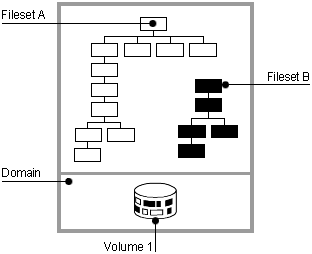
Creating a single-volume domain with a single fileset is equivalent to creating
a traditional UFS file system.
To set up an active, single-volume file system, as
illustrated in
Figure 1-2, use the SysMan "Create a New AdvFS Domain,"
the AdvFS GUI or, from the command line, enter the
mkfdmn(8)
command:
mkfdmn
volume_name domain_name
To create an active single-volume DVN4 domain:
Create a single-volume domain associated with a volume using the
mkfdmn
command.
Create one or more filesets with the
mkfset
command
and name each fileset the same as its mount-point directory; for example, if the mount-point
directory is
/tmp, name the fileset
tmp.
(This
naming scheme is recommended but is not required.)
Create the mount-point directory with the
mkdir
command.
Mount each fileset with the
mount
command.
To create a domain of DVN3, see the
mkfdmn(8)
reference page.
Caution
Do not use the
mkfdmncommand on a volume containing data that you want to keep. Doing so will destroy it. If you have accidentally used themkfdmncommand, you may be able to recover some of your data with thesalvageutility if the volume that was destroyed was an AdvFS volume (see Section 5.4.6).
Figure 1-2: Single-Volume Domain
The following example creates a single-volume DVN4 domain,
domain_2, and two filesets,
fset_a
and
fset_b,
in the domain.
Because the domain has only one volume, the files in both filesets
physically reside on one volume (this is allowed in AdvFS):
#mkfdmn /dev/disk/dsk2c domain_2#mkfset domain_2 fset_a#mkfset domain_2 fset_b#mkdir /fset_a#mkdir /fset_b#mount domain_2#fset_a /fset_a#mount domain_2#fset_b /fset_b
You can set up a domain with an LSM volume by naming the LSM volume in the
mkfdmn
command.
See
Section 1.7
for information about using
AdvFS with LSM.
If you have AdvFS Utilities, you can change the size of your domain
by adding more volumes.
You can transform a single-volume domain (except the root
domain) into a multivolume domain (see
Section 1.4.6
and
Chapter 6).
If you try to create a domain on a volume that is in use, you will get an error
message.
You can override the message and create the domain.
For example, if
/dev/disk/dsk3g
is in use and you try to create the domain
usr_domain, you will get the following message:
#mkfdmn /dev/disk/dsk3g usr_domainWarning: /dev/rdisk/dsk3g is marked in use for 4.2BSD. If you continue with the operation you can possibly destroy existing data. CONTINUE? [y/n] <y>
1.4.6 Increasing the Size of a Domain
You can expand a domain by replacing one of the volumes in the domain with a
larger storage device or, alternatively, adding another volume to the domain.
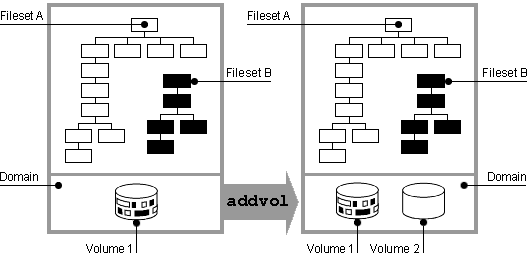
Figure 1-3
shows a graphic illustration of adding volumes to a domain.
Neither adding nor removing volumes affects the directory hierarchy layer; all path
names for the files remain the same.
Also, the file system can remain active during
the disk exchange.
Figure 1-3: Enlarging a Domain
If you plan to increase the size of a DVN3 domain, there may be performance benefits if you upgrade to the new file structure (see Section 1.4.3) before you do this.
Caution
If your domain is located on an LSM volume, do not use the LSM
growoption to increase its size.
A newly created domain consists of one volume, which can be a disk, disk partition,
or logical volume.
To add volumes, use the SysMan "Manage an AdvFS Domain," the AdvFS
GUI (see
Chapter 6) or, from the command line, enter the
addvol
command:
addvol device_name domain_name
For example, to add volume
dsk3c
to the domain
resources:
#
addvol /dev/disk/dsk3c resources
You can add volumes immediately after creating a domain, or you can wait until the domain requires additional space. You can add a volume to an active domain while its filesets are mounted and in use.
You cannot add a volume to the root domain unless you are running a cluster (see Cluster Administration). If you are running a cluster configuration, adding another root volume is the same procedure as adding any volume.
Caution
Do not use the
addvolcommand to add a volume containing data that you want to keep. Doing so will destroy it. If you have accidentally used theaddvolcommand, you may be able to recover some of your data with thesalvageutility if the volume that was destroyed was an AdvFS volume (see Section 5.4.6).
If you do not have AdvFS Utilities and want to increase the size of your domain,
you must move the domain to a different volume with the
vdump
and
vrestore
commands process (see
Section 4.3.3).
To increase the size of a domain if you have AdvFS Utilities:
Use the
showfdmn
command to display the contents
of the domain and the current disk capacity of each volume.
This step is optional.
Add the new volume to the domain.
Remove the old volume if you do not want it.
Run the
balance
utility to even the file distribution
between the volumes.
This step is not required.
The following example replaces one disk, the volume
/dev/disk/dsk2c, of the
domain_1
domain with a larger disk, the volume
/dev/disk/dsk3c:
#showfdmn domain_1Id Date Created LogPgs Version Domain Name 2bb0c594.00008570 Fri Mar 24 12:33 2000 512 4 domain_1 Vol 512-Blks Free % Used Cmode Rblks Wblks Vol Name 1L 832527 79210 90% on 128 128 /dev/disk/dsk1c 2 832527 1684 98% on 128 128 /dev/disk/dsk2c ------------------------- 1665054 80894 94%#addvol /dev/disk/dsk3c domain_1#rmvol /dev/disk/dsk2c domain_1#balance domain_1
AdvFS
will not add a volume that will cause partitions to overlap with a volume that is
mounted for another file system, a swap area, or a reserved partition.
To add an overlapping
partition, unmount all filesets and use the
addvol
command with
the
-F
option.
Note that disabling the overlap check can result
in extensive data loss and should be used with extreme caution (see
addvol(8)).
1.4.7 Reducing the Size of a Domain
When there is sufficient free space on the remaining volumes, you can remove volumes from a domain without interrupting users or affecting the logical structure of the filesets in the domain. The file system automatically migrates the contents of the selected volume to other volumes in the domain. Before you can remove a volume from a domain, all filesets in the domain must be mounted. An error will occur if you try to remove a volume from a domain with unmounted filesets.
If there is not enough free space on other volumes in the domain to accept the files offloaded from the departing volume, as many files as possible are moved to available free space on other volumes. Then a message is sent indicating that there is insufficient space. The domain is not damaged.
Caution
If your domain is located on an LSM volume, do not use the LSM
shrinkoption to reduce its size.
To remove a volume, use the SysMan "Manage an AdvFS Domain," the AdvFS GUI (see
Chapter 6) or, from the command line, enter the
rmvol
command:
rmvol
device_name domain_name
For example, to remove
dsk3c
from the domain
inventory:
#
rmvol /dev/disk/dsk3c inventory
You can interrupt the
rmvol
process (see
rmvol(8)) with Ctrl/c
or with the
kill -term
command without damaging
your domain.
Do not use the
kill -KILL
command.
Files already removed
will remain in their new location.
Under some circumstances interrupting an
rmvol
command with
the
kill
command can leave the volume in an inaccessible state.
If a volume does not allow writes after an aborted
rmvol
operation,
use the
chvol
command with the
-A
option to
reactivate the volume.
To reduce the size of a domain:
Use the
showfdmn
command to display the contents
of the domain and the current disk capacity of each volume.
This step is optional.
Remove the volume.
Run the
balance
utility to even the file distribution
between the remaining volumes.
This step is not required.
You cannot remove a volume if you are balancing or defragmenting a domain.
The following example shows how to remove one disk of the
domain_2
domain,
/dev/disk/dsk2c:
#showfdmn domain_2Id Date Created LogPgs Version Domain Name 2bb0c594.00008570 Fri Jun 9 10:23 2000 512 4 domain_2 Vol 512-Blks Free % Used Cmode Rblks Wblks Vol Name 1L 832527 386984 54% on 128 128 /dev/disk/dsk1c 2 832527 647681 22% on 128 128 /dev/disk/dsk2c 3 832527 568894 32% on 128 128 /dev/disk/dsk3c ---------------------- 249758 1603559 36%#rmvol /dev/disk/dsk2c domain_2#balance domain_2
If you remove an AdvFS volume that contains a stripe segment, the
rmvol
utility moves the segment to another volume that does not already
contain a stripe segment of the same file.
When a file is striped across all volumes
in the domain, a confirmation is required before removing the volume.
If you allow
the removal process to continue, more than one stripe segment will be placed on the
remaining volumes.
See
Section 4.3.4
for details on file striping.
1.4.8 Removing a Domain
You can remove a domain after all filesets in the domain are unmounted.
When
you remove a domain, the entry in the
/etc/fdmns
directory that
defined the domain is removed and you cannot mount the filesets.
Volumes that were
assigned to the removed domains are relabeled as unused and can be reused.
Note that removing the domain to inactivate filesets instead of using the
rmfset
command to remove each fileset may present a security hole because
no data on the volumes is changed.
It may be possible to access the data with the
salvage
command (see
Section 5.4.6).
To remove a domain, use the SysMan "Manage an AdvFS Domain," the AdvFS GUI (see
Chapter 6) or, from the command line, unmount all filesets and clone
filesets.
Then, enter the
rmfdmn
command:
rmfdmn
domain_name
For example, to remove the domain
promotions:
#rmfdmn promotionsrmfdmn: remove domain promotions? [y/n]yrmfdmn: domain promotions removed
If you attempt this command when there are mounted filesets, the system displays
an error message.
AdvFS will not remove an active domain.
1.4.9 Renaming a Domain
An existing domain can be assigned a new name without altering its
domain identifier, the set of numbers that identifies the domain.
When
you rename a domain, entries for all filesets in the domain must be updated in the
/etc/fstab
file (see
Section 1.5.2).
To rename a domain, use
the AdvFS GUI (see
Chapter 6) or, from the command line:
Unmount all the filesets and any related clones.
In the
/etc/fdmns
directory, change the old domain
name to the new one:
mv /etc/fdmns/old_dom_name/etc/fdmns/new_dom_name
Edit the
/etc/fstab
file to enter the new domain
name and remove the old.
Mount the filesets in the renamed domain.
For example, to rename the domain
marketing
to
advertising, assuming one fileset,
fset, is mounted at
/fset:
#umount /fset#mv /etc/fdmns/marketing /etc/fdmns/advertising#vi /etc/fstab
Change the line
marketing#fset /fset advfs rw,userquota,groupquota 0 2
to
advertising#fset /fset advfs rw,userquota,groupquota 0 2
Mount the fileset.
#mount /fset
A fileset represents a mountable portion of the directory hierarchy of a file system. Filesets and traditional UNIX file systems are equivalent in many ways: you mount AdvFS filesets, filesets contain files, are units on which you enable quotas, and are units for backing up data.
In contrast with traditional file systems, the directory hierarchy of AdvFS is independent of the storage. Therefore, you can change file placement without affecting the logical structure of the filesets.
Fileset names may be associated with their domain names as in
filedomain#fileset.
Here the pound sign (#) is part of the naming syntax
and does not represent a comment.
Fileset names must be unique within a domain. Each fileset has a unique ID composed of the domain ID and a fileset tag. Each domain has its own series of fileset tags.
AdvFS also supports
clone filesets.
A clone fileset is
a read-only copy of an existing fileset created to capture data at one instant in
time (see
Section 4.1.5).
1.5.1 Configuring Filesets
The filesets in a domain share the available space on the volumes in the domain and use the same domain transaction log. Each fileset has its own directory structure, root tag directory, quota files, and frag file. The optimal number of AdvFS filesets in a domain depends primarily on the requirements of the applications that use the filesets.
It is generally a good idea to have multiple filesets rather than one large one. Whether you place these filesets in a number of domains rather than in one large one depends on your application. If a fileset has critical access requirements, place it in its own domain. For applications that perform many file create and remove operations, configure multiple filesets and distribute the files across the filesets. This will reduce I/O and related contention.
Create multiple smaller filesets rather than a few large ones if you do not want to share space between filesets. It is a good idea to place each or a few filesets in a single domain on its own volume.
Create filesets containing files having similar requirements in the same domain. For example, do not place small temporary mail news server files in the same domain as the database.
Because filesets are managed independently of their physical storage, each fileset
can be backed up independently (see
Chapter 3) and can be assigned
its own quota limits (see
Chapter 2).
Multiple small filesets
can be backed up and restored more quickly than a single large fileset.
You can run
the
vdump
or
vrestore
commands on several filesets
simultaneously.
You can group files by their management requirements. For example, you could create a fileset for developer files that will be backed up twice a day and you could create another fileset with quotas imposed to limit the amount of disk space available to the marketing department.
Because the one transaction log in domain is shared by all filesets, filesets with a large amount of I/O can cause the transaction log to become a bottleneck (see Section 1.1.2). Balance the management gains of having multiple filesets in a domain against the potential performance reduction caused by having all of the log data for all filesets going to one transaction log (see Section 4.1.3).
You can create and mount filesets until the system runs out of system resources (such as memory or disk space). The Tru64 UNIX Software Product Description contains information about this and other system limits.
System Configuration and Tuning
provides detailed guidelines and suggestions for file
system configuration.
The SysMan "Manage an AdvFS Domain" allows you
to create and configure filesets.
Many configuration operations can be accomplished
with the AdvFS GUI (see
Chapter 6).
1.5.2 Designating Filesets in the /etc/fstab File
AdvFS filesets are added to the
/etc/fstab
file by listing
them with an
advfs
designation (see
fstab(4)).
This is similar to
the way that you add any other file system.
AdvFS filesets listed in the
/etc/fstab
file are mounted each time you reboot the system.
The fileset entry includes the domain name, fileset name, mount point, file
system type, and the mount point options.
The user quota and group quota options (see
Section 2.2) should be included along with the pass field numbers if quotas
are used.
If they are not desired, the user quota and group quota options can be omitted.
An AdvFS
/etc/fstab
entry with user and group quotas enforced should
include:
file_dmn#fileset /mount_point advfs rw,userquota,groupquota 0 2
For example, to automatically mount the
credit
fileset with
user and group quotas (assuming the fileset's mount point exists), add the following
line to the
/etc/fstab
file:
acct_domain#credit /usr/credit advfs rw,userquota,groupquota 0 2
1.5.3 Displaying Fileset Information
Any system user can display detailed information about mounted filesets and clones. Root user privilege is required only if the domain is inactive (filesets unmounted). To examine fileset information enter:
showfsets
domain_name
The following example displays the domain
big_domain, which
has four filesets:
#showfsets big_domainstaff1_fs Id : 2cb9d009.000419f4.1.8001 Files : 18554, SLim= 0, HLim= 0 Blocks(512) : 712230, SLim= 0, HLim= 0 Quota Status : user=on group=on guest_fs Id : 2cb9d009.000419f4.2.8001 Files : 4765, SLim= 0, HLim= 0 Blocks(512) : 388698, SLim= 0, HLim= 0 Quota Status : user=on group=on staff2_fs Id : 2cb9d009.000419f4.3.8001 Files : 12987, SLim= 0, HLim= 0 Blocks(512) : 842862, SLim= 0, HLim= 0 Quota Status : user=on group=on staff3_fs Id : 2cb9d009.000419f4.4.8001 Files : 48202, SLim= 0, HLim= 0 Blocks(512) : 1341436, SLim= 0, HLim= 0 Quota Status : user=on group=on
The following example displays
domain_2, which contains one
fileset and one clone fileset:
#showfsets domain_2test_fs Id : 3003f44f.0008ac95.4.8001 Clone is : clone_test Files : 7456, SLim= 0, HLim= 0 Blocks (512) : 388698, SLim= 0, HLim= 0 Quota Status : user=on group=on Clone_test Id : 3003f44f.0008ac95.5.8001 Clone of : test_fs Revision : 2
You can use the AdvFS GUI (see
Chapter 6) to obtain similar
information.
1.5.4 Creating a Fileset
A domain must contain at least one mounted fileset to be active (see Section 1.1.1). Any fileset can consume all of the storage available in the domain. You can also create multiple filesets within a domain that share the storage pool established for the domain.
Each fileset can be mounted and unmounted independently of the other filesets in the domain. You can limit fileset growth within a domain by assigning fileset quotas (see Chapter 2).
To create a fileset in a domain, use the SysMan "Create a New AdvFS Fileset," the
AdvFS GUI (see
Chapter 6) or, from the command line, enter the
mkfset
command:
mkfset
domain_name fileset_name
For example, to create the fileset
coupons
in the domain
advertising:
#
mkfset advertising coupons
See also
Section 1.4.5, which contains examples for configuring
an active (filesets mounted) domain.
1.5.5 Upgrading a Fileset
Filesets that are part of domains created for Version 5.0 and later (DVN4) support large quota values and have better performance for very large directories. Filesets in domains created earlier (DVN3) do not have these improvements. To upgrade a fileset to the new version, you must upgrade its domain (that is, create a new one) and restore the fileset to it. Then the restored fileset will have the new structure (see Section 1.4.3).
You cannot mount filesets with the new DVN on operating systems earlier than
Version 5.0 unless you NFS mount them from a Version 5.0 or later server (see
Section 5.1).
1.5.6 Mounting a Fileset
As with traditional UNIX file systems, AdvFS filesets must be mounted in order to access them. Filesets to be mounted must be compatible with the operating system on which they were created (see Section 5.1).
To mount a fileset, use the SysMan "Mount File Systems," the AdvFS GUI (see
Chapter 6)
or, from the command line, enter the
mount
command, where
mnt_point
is the path to the mount point:
mount
domain_name#fileset_name mnt_point
For example, to mount the fileset
coupons
in the domain
advertising:
#
mount advertising#coupons /coupons
Before a fileset is mounted, AdvFS verifies that all data in all volumes in a domain can be accessed. If there are problems, the mount may fail or the fileset may be mounted as read-only (see Section 5.4.9).
If you attempt to mount a fileset with an incorrect number of volumes, the mount
operation will fail.
See
Section 5.5.1.2
and
advscan(8)
for further information.
You will get an error message if you attempt to mount a fileset created under Version 5.0
on a system running Version 4 or earlier (see
Section 5.1).
1.5.7 Unmounting a Fileset
If you unmount a fileset, the fileset remains in the domain but it is not accessible. Mount the fileset to make it available again.
To unmount an AdvFS fileset, use the SysMan "Dismount an AdvFS Domain," the AdvFS GUI (see
Chapter 6) or, from the command line, enter the
umount
command:
umount
mnt_point
For example, to unmount the fileset
coupons
in the domain
advertising
that was mounted in
Section 1.5.6:
#
umount /coupons
1.5.8 Removing a Fileset
If you remove a fileset, it cannot be remounted. It is no longer part of the domain.
You must unmount a fileset before you can remove it. The fileset's clone must be removed first. If you have set up a trashcan directory (see Section 4.4) for the fileset, it is also removed.
To remove a fileset, use the SysMan "Manage an AdvFS Domain," the AdvFS GUI (see
Chapter 6) or, from the command line, enter the
rmfset
command:
rmfset
domain_name fileset_name
For example, to remove the
tmp_1
fileset in
domain_1:
#rmfset domain_1 tmp_1rmfset: remove fileset tmp_1? [Y/N]y
The fastest way to remove all filesets is to remove the domain with the
rmfdmn
command.
However, the
salvage
utility (see
Section 5.4.6) may be able to access some of the data.
The
rmfdmn
command removes the definition of the domain in the
/etc/fdmns/
directory and relabels the volumes, but it does not touch any data on the
volume.
Filesets removed with the
rmfset
command are not recoverable
with the
salvage
utility because the utility destroys pointers
to the fileset data (metadata) and all the files in the fileset.
1.5.9 Renaming a Fileset
An unmounted fileset can be renamed. Filesets are known to the system by their fileset identifier, which is a combination of the domain identifier and an additional set of numbers that identify the fileset within the domain. The fileset name is kept within the domain and is an attribute that you assign. When you rename a fileset, only this assignment is changed. The fileset identifier is not altered.
You can use the SysMan "Manage an AdvFS Domain," the AdvFS GUI, which updates the
/etc/fstab
file (see
Chapter 6) to rename a fileset or,
from the command line, enter:
renamefset
domain_name old_fileset_name
new_fileset_name
After renaming the fileset, you must update the corresponding entries in the
/etc/fstab
file (see
Section 1.5.2).
If you do not do this,
AdvFS will not mount the fileset when the system is booted.
For example, to rename the
public
fileset mounted at
/mntpt
to
private:
#umount /mntpt#renamefset dmn_1 public private#vi /etc/fstab
Change the line
dmn_1#public /mntpt advfs rw,userquota,groupquota 0 2
to
dmn_1#private /mntpt advfs rw,userquota,groupquota 0 2
and mount the fileset
#mount /mntpt
Note
If you rename a fileset, its clone can no longer track it. You cannot rename the clone. You must delete the old clone and create a new one.
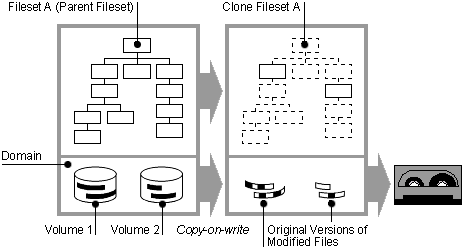
If you have the optional AdvFS Utilities, you can back up your files using a clone fileset, a read-only snapshot of fileset data structures (metadata). When you clone a fileset (create a clone fileset), the utility copies only the structure of the original fileset, not the actual data. Only when a file is modified does the file system copy the original, unchanged data to the clone fileset. (This is called copy-on-write.) Because the only data in the clone fileset is a copy of data that has been modified, the clone fileset is usually smaller than the original fileset. Figure 1-4 illustrates the relationship between parent and clone filesets.
Clone filesets increase the availability of data because they:
Preserve the system at a particular time
A clone is not a replacement for the backup process (using the
vdump
command, for example).
However, it can provide internal consistency if
you are trying to back up a system where files are changing rapidly and you want to
retain the information at a particular time.
Use the clone to make a snapshot of your
data, then use the
vdump
command to back up the clone.
Protect against accidental file deletion or corruption
Create a clone of each fileset that you plan to access or modify. By leaving the clone fileset on line, you can replace unintentionally deleted or corrupted files without loading backup tapes.
See Section 3.2 for command line instructions on using cloning for online backup and Section 6.4.3 for an explanation of cloning with the AdvFS GUI.
Note
Changing text files with an editor may cause the entire original file to be copied to the clone. Many editors rewrite the entire file regardless of what has changed. When this happens, your clone fileset may grow very large. There is no way for AdvFS to alter this process.
When you delete a file that existed when the clone was created, it remains available (but not visible in the original fileset) for the life of the clone. The file is not copied to the clone, but the actual delete is delayed until the clone is deleted. The version of the file that is retained is the one that existed when the clone was created. Later updates are lost.
The size of the clone fileset depends upon the number of updates that occur
during the life of the clone.
The
df
command, which displays statistics
on free disk space, does not accurately reflect the size of the clone fileset because
it constantly changes as files are updated.
Caution
When a domain runs out of disk space, the file system loses its ability to maintain the consistency of files within clone filesets. The original fileset is usable, but the clone fileset is not accurate. A warning message is displayed on both the user's terminal and the system console.
1.5.10.1 Creating a Clone Fileset
Cloning is transparent to the user and has little impact on system performance.
You do not have to be root user to create a clone.
To create a clone fileset, use
the SysMan "Manage
an AdvFS Domain," the AdvFS GUI (see
Chapter 6) or, from
the command line, enter the
clonefset
command:
clonefset
domain_name fileset_name clone_name
For example, to create a clone called
clone_day300
for the
fileset
day300
in the domain
transactions:
#
clonefset transactions day300
clone_day300
1.5.10.2 Mounting and Unmounting a Clone
Clones are mounted and unmounted the same as any other fileset (see
Section 1.5.6
and
Section 1.5.7).
1.5.10.3 Removing a Clone
Clones are removed the same as any other fileset (see
Section 1.5.8).
1.5.10.4 Renaming a Clone
A clone fileset cannot be renamed. To assign a new name, remove the old clone and create a new clone for the fileset. (Note that this new clone is a snapshot of the fileset at a later point in time than the deleted clone.)
If you have renamed a fileset that has a clone, you must delete the clone associated
with the old name before you can create a clone for the newly named fileset.
1.6 Configuring an AdvFS root File System
There are several advantages to configuring the root file system on AdvFS. You can:
Restart quickly after a crash.
You do not run the
fsck
utility after a crash.
Use one set of tools to manage all local file systems.
All features
of AdvFS except
addvol
and
rmvol
are available
to manage the root file system.
Use AdvFS with LSM to mirror the root file system. This allows your root file system to remain viable even if there is a media failure.
The following restrictions on the AdvFS root file systems are currently enforced:
Unless you are running a cluster (see Cluster Administration), the root domain can only contain one volume. You cannot add volumes to the root domain.
The volume must start from the beginning of the physical device (a
or
c
partitions).
The root fileset must be the first fileset created in the root domain.
You can assign any name to the root domain and fileset but the same
name must be entered in the
/etc/fstab
file.
You can put the root file system on AdvFS during the initial base-system installation
or you can convert your existing root file system after installation.
Note that when
you install AdvFS as root during the initial installation, root will default to the
a
partition.
If you construct your own root file system, you can configure it on the
a
or
c
partition.
See
Section C.2
for
instructions on converting an existing UFS root file system to AdvFS.
See the
Installation Guide
for instructions on installing AdvFS as the root file system during the initial installation.
1.6.1 Mounting the root File System in Single-User Mode
The root file system is automatically mounted as read-only when the system
is booted in single-user mode.
You can change the root fileset mount from
read-only
to
read-write
with the
mount -u
command:
mount -u /
Use this procedure when you need to make modifications to the root configuration.
For example, use it if you need to modify your
/etc/fstab
file.
1.6.2 Changing the Name of the root Domain
You can change the name of the root domain the same as any other domain (see
Section 1.4.9).
The name of a root domain is stored as the directory name in
the
/etc/fdmns
directory and in the entry for root in the
/etc/fstab
file.
1.6.3 Changing the Name of the root Fileset
Changing the name of the root fileset is similar to changing the name of any other fileset (see Section 1.5.9). There are, however, two complications:
The
renamefset
command requires that the fileset
be unmounted, and you cannot unmount the root fileset.
You must edit the
/etc/fstab
file to change the
name of the root fileset.
To do this, you must make the root fileset writable.
But
the root fileset cannot be mounted as writable unless the
/etc/fstab
entry is correct.
Therefore, you must use an alternate bootable partition and manipulate the root fileset you are changing as you would an ordinary fileset, make the changes, then reboot the changed fileset as root.
To rename the root fileset:
Boot a partition other than the one you want to change. (It can be UFS.)
Make a new entry in the
/etc/fdmns
directory of
the booted partition for the fileset whose name you want to change.
Change to the new directory and make a symbolic link to the device holding the original fileset.
Use the
renamefset
command to rename the root fileset.
Mount the newly named root fileset at a temporary location in order
to update its
/etc/fstab
file.
Change the
fstab
entry to correspond to the new
root fileset name.
Shut down the alternate system.
Reboot the original AdvFS system.
The following example changes the name of the root fileset from
root_fs
to
new_root.
Assume that the root fileset is in the
root_domain
domain on
/dev/disk/dsk2a.
Boot a device other than the one you want to change.
Make an entry for
tmp_root_domain
in the
/etc/fdmns
directory:
#mkdir /etc/fdmns/tmp_root_domain
Change to the new directory and make a symbolic link for
tmp_root_domain:
#cd /etc/fdmns/tmp_root_domain#ln -s /dev/disk/dsk2a
Rename the fileset from
root_fs
to
new_root:
#renamefset tmp_root_domain root_fs new_root
Mount the changed root to update the associated
fstab
file:
#mount tmp_root_domain#new_root /mnt
Edit the
/mnt/etc/fstab
entry for
tmp_root_domain:
#cd /mnt/etc#vi fstab
Change the line:
root_domain#root_fs / advfs rw,userquota,groupquota 0 2
to:
root_domain#new_root / advfs rw,userquota,groupquota 0 2
Shut down the alternate system.
#shutdown -h now
Reboot the AdvFS system.
Note
If you change the root domain and fileset names and forget to change the
/etc/fstabentries, you will not be able to boot past single-user mode. You will have to fix/etc/fstabfrom single-user mode using an editor before you can proceed.
LSM is a disk-management tool that allows you to create arbitrary-sized volumes independent of disk sizes and partition boundaries. You can create mirrored and striped volumes and change their attributes as performance and availability needs dictate. For more information see Logical Storage Manager.
AdvFS treats LSM volumes just like any other volume such as a disk or a disk partition. You can use LSM to create and manage the volumes that you use in AdvFS domains.
LSM and AdvFS together provide some performance enhancements:
Availability
Volume mirroring and RAID allow access to the same information on more than one volume. This provides backup in the case of a disk failure.
I/O performance
Mirroring can improve the read throughput because files can be accessed from either volume depending upon I/O load.
LSM's volume striping is useful when large files will be shared and when the transaction log is spread over multiple disks. AdvFS can only stripe individual files.
Performance monitoring
Detailed information on disk I/O activity is available with LSM disk monitoring.
Use AdvFS with or without LSM volumes to manage file systems and file-level activities:
Create domains and filesets.
Expand and shrink domains.
Perform online backups.
Set quotas on users, groups, and filesets.
Configure and maintain file systems online.
Stripe individual files rather than all files on a volume. Do not stripe individual files when using LSM striped volumes.
Recover from system failures quickly.
You can operate on LSM volumes running AdvFS either through the command line
or the AdvFS GUI (see
Chapter 6).
There is also an LSM GUI that
manipulates LSM volumes.
See
Logical Storage Manager
for further information.
1.7.1 Setting Up AdvFS with LSM Volumes
To use LSM with AdvFS from the command line:
Create the LSM volumes with the desired attributes.
You can specify mirrored volumes, striped volumes, mirrored and striped volumes, volume location, and volume size.
Create a domain with the
mkfdmn
command and identify
the LSM volume as the initial volume.
To create a multivolume domain, use the
addvol
command with either an LSM or non-LSM volume.
Caution
Do not use the
groworshrinkLSM options to change the size of AdvFS domains. Use theaddvolandrmvolcommands.
You will get an error message if you try to create an AdvFS domain on an LSM volume that is already opened or on a volume that is already labeled as in use by either UFS or AdvFS.
If you already have an AdvFS domain, you can encapsulate the domain into LSM using the encapsulation tools.
If mirrored or striped LSM volumes are part of an AdvFS domain that also includes non-LSM volumes, you do not have control over which files go to the mirrored or striped LSM volumes. To place specific data on mirrored or striped volumes, create an AdvFS domain that contains only LSM volumes with the attributes that you want. Then, put the files you want mirrored or striped in that domain.
The
showfdmn
command and the AdvFS GUI (see
Chapter 6)
include LSM volumes in the domain information display.
In addition, you can use the
advscan
command to locate AdvFS volumes in LSM disk groups.
It is better to add multiple small LSM volumes rather than a single, large, striped or concatenated volume to an AdvFS domain. This enables AdvFS to balance and stripe I/O across volumes if necessary.
Note that you must use the full LSM path name when referencing an LSM volume.
The following example creates a domain on an existing LSM volume:
#
mkfdmn /dev/vol/rootdg/vol01 domain_rs
You can also add volumes to an existing domain:
#
addvol /dev/vol/rootdg/vol02 domain_rs
The following example creates a 1-gigabyte domain with two LSM volumes:
#volassist make vol01 500m#volassist make vol02 500m#mkfdmn /dev/vol/rootdg/vol01 onegb_domain#addvol /dev/vol/rootdg/vol02 onegb_domain#mkfset onegb_domain onegb_fset1#mkdir /fset1#mount onegb_domain#onegb_fs et1 /fset1
1.7.2 Mirroring LSM Volumes Under AdvFS
You can place two (or more) LSM volumes in a mirror configuration for AdvFS domains. This configuration provides distributed processing and fail-over protection; since both disks contain the same information, either one can be accessed. Logical Storage Manager provides detailed instructions for creating LSM mirrored volumes.
The following example creates a 500-megabyte mirrored LSM volume with a domain and one mounted fileset:
#volassist make mirr_vol 500m nmirror=2#mkfdmn /dev/vol/rootdg/mirr_vol domain1#mkfset domain1 fset_1#mount domain1#fset_1 /mnt
To back up the LSM volume, split the mirror. Dissociate a plex from the volume, create a temporary volume with the plex, then start the volume:
#volplex dis mirr_vol-02 volplex#volmake -Ufsgen vol temp_mirr_vol plex=mirr_vol-02#volume start temp_mirr_vol
To mount the temporary volume, use the
mount
command with
the
dual
option.
If you do not use the
dual
option, you will get the error message:
E_DOMAIN_ALREADY_EXISTS
To mount the temporary volume:
#mkdir /bkup_fset#mkdir /etc/fdmns/domain2#ln -s /dev/vol/rootdg/temp_mirr_vol \ /etc/fdmns/domain2/ temp_mirr_vol#mount -o dual domain2#fset_1 /bkup_fset
Back up the temporary volume:
#vdump -0 -f /dev/tape/tape0 /bkup_fset
Remove the temporary volume and reattach the plex:
#umount /backup#rm /etc/fdmns/domain2/temp_mirr_vol#rmdir /etc/fdmns/domain2#volplex -f dis mirr_vol-02#voledit -rf rm temp_mirr_vol#volplex att mirr_vol mirr_vol-02 &
1.7.3 Striping LSM Volumes and Striping AdvFS Files
You can distribute I/O across multiple volumes by striping. AdvFS and LSM striping both work well on a busy system. LSM is better suited for general striping, while AdvFS striping allows the administrator finer-grained control for positioning individual files.
When you choose LSM striping, you preconfigure your volumes for file striping; then all files located on the volumes configured for striping will be striped. You can do this from the command line or from the LSM GUI (see Logical Storage Manager).
You can stripe an AdvFS file at any time (see
Section 4.3.4).
Therefore, if you find that a file has become large or has heavy I/O requirements,
you can use the AdvFS
stripe
command to stripe it.
It is not advisable to do both LSM and AdvFS striping because this may degrade system performance.
The following example creates a striped LSM volume and then creates an AdvFS domain using that striped LSM volume. All files created in this AdvFS domain will be striped across LSM volumes:
#volassist make vol06 600m layout=stripe nstripe=3#mkfdmn /dev/vol/rootdg/vol06 striped_domain