AdvFS provides a number of ways to configure and tune your file system.
Some
of the tuning functions are available through the AdvFS GUI (see
Chapter 6).
The
System Configuration and Tuning
manual provides detailed information.
4.1 AdvFS Organization
You will obtain the best performance if you carefully plan your AdvFS configuration.
You can control how you configure your domains and how you allocate disks.
You can
turn on direct I/O to speed data transfer.
You can make choices about transaction
logging and file structure.
4.1.1 Configuring Domains and Filesets
There is a trade-off in using one large domain instead of several smaller ones. Because each domain has one transaction log, creating a single large domain decreases maintenance complexity at the cost of putting a greater load on the log, which may become a bottleneck (see Section 1.4.1).
Domains that were created on operating systems prior to Version 5.0 do not have the structure necessary to provide large quota values and better performance for directories containing thousands of files. If either of these new features is important to you, update your domains (see Section 1.4.3).
Multiple filesets in a domain are generally more efficient than a single large one (see Section 1.5.1).
See
System Configuration and Tuning
for more detailed information about allocating
domains and filesets effectively.
4.1.2 Configuring Volumes
If you have AdvFS Utilities, you can add multiple volumes to an AdvFS domain. This may improve performance because I/O processes can run in parallel. However, without LSM disk mirroring, it is inadvisable to add more than eight volumes. If you lose a volume, the entire domain becomes inaccessible. The risk of losing a volume, and thus losing access to your domain, increases as the number of volumes increases.
In many cases, there is a significant performance advantage to dividing disks
on different SCSI busses.
See
System Configuration and Tuning
for more detailed information.
4.1.3 Improving Transaction Log Performance
Each domain has a transaction log that keeps track of fileset activity for all filesets in the domain. This requires a high volume of read/write activity to the log file. If the log resides on a congested disk or bus, or if the domain contains many filesets, system performance can degrade. You can shift the balance of I/O activity so that the log activity does not use up the bandwidth of the device.
Monitor performance of the volume with the SysMan "View Input/Output (I/O) Statistics"
or with the
iostat
utility.
If you have AdvFS Utilities, do one
of the following if the volume containing the log appears overloaded:
Divide the domain into several smaller domains. Because each domain has its own transaction log, each log will then handle transactions for fewer filesets.
Move the transaction log to a faster or less congested volume.
Isolate the transaction log on its own volume.
Moving the transaction log may also be useful when you are using LSM and wish to increase reliability by placing your transaction log on a volume that is mirrored.
To move the transaction log to another volume:
Use the
showfdmn
command to determine the location
of the log.
The letter
L
after the volume number indicates the
volume on which the log resides.
Use the
switchlog
command to move the log to another
volume.
For example, to move the transaction log for the domain
region1:
#showfdmn region1Id Date Created LogPgs Version Domain Name 31bf51ba.0001be10 Wed Feb 9 16:24 2000 512 4 region1 Vol 512-Blks Free % Used Cmode Rblks Wblks Vol Name 1L 1787904 885168 52% on 128 128 /dev/disk/dsk0g 2 1790096 1403872 22% on 128 128 /dev/disk/dsk0h ------------------------- 3578000 2259040 37%
#switchlog region1 2#showfdmn region1Id Date Created LogPgs Version Domain Name 31bf51ba.0001be10 Wed Feb 9 16:24 2000 512 4 region1 Vol 512-Blks Free % Used Cmode Rblks Wblks Vol Name 1 1787904 885168 52% on 128 128 /dev/disk/dsk0g 2L 1790096 1395680 22% on 128 128 /dev/disk/dsk0h ------------------------- 3578000 2250848 37%
Isolating the transaction log will allow all log I/O to be separate from other domain reads and writes. As there will be no other activity on this volume, the log I/O will not be slowed down and will not slow down other domain I/O.
To isolate the transaction log on its own volume:
Add a small partition (volume) to the domain for which you are going to isolate the log.
Remember that the I/O load of other partition(s) on the device will affect the performance of the entire disk including the log partition.
If the remaining partitions are allocated to other domains, there may be more than one transaction log on the same device. This may not be a problem on a solid state disk but may negate the value of isolating the log on slower devices.
Use the
switchlog
command to move the log to another
volume.
Use the
showfdmn
command to determine the number
of free blocks on the volume with the log.
With the
showfdmn
information, use the
dd
command to build a dummy file of the right size.
Migrate the dummy file to the volume that contains the log. This fills the volume completely and leaves no space for other files. Because you never access this file, only the transaction log file will be active on the volume.
For example, to isolate the transaction log for the domain
sales:
#addvol /dev/disk/dsk9a sales#switchlog sales 2
#showfdmn salesId Date Created LogPgs Version Domain Name 312387a9.000b049f Thu Mar 16 14:24 2000 512 4 sales Vol 512-Blks Free % Used Cmode Rblks Wblks Vol Name 1 2050860 1908016 7% on 128 128 /dev/disk/dsk10c 2L 131072 122752 6% on 128 128 /dev/disk/dsk9a ------------------------- 2181932 2030768 7%
Allocate all the free blocks on the volume containing the log to a dummy file,
/adv1/foo, then move the data to the log volume :
#dd if=/dev/zero of=/adv1/foo count=122752122752+0 records in122752+0 records out#migrate -d 2 /adv1/foo
4.1.4 Improving Data Consistency
The method you choose to write data can affect what is saved if a machine fails. Following are several ways of writing to a file:
Asynchronous I/O (default)
Write requests, by default, are cached; that is, data is written to the buffer cache, not immediately to disk. This method generally gives the highest throughput, in part because multiple writes to the same page can be combined into one physical write to disk. This not only decreases disk traffic, but it increases the concurrent access of common data by multiple threads and processes. In addition, delaying the write to disk increases the likelihood that a page may be combined with contiguous pages into a single, larger physical write, saving seek time and delays caused by rotational latency.
If a crash occurs, the next time a fileset in the domain is mounted, the completed log transactions are replayed to disk and incomplete transactions are backed out so that the original data on disk is restored. These log transactions, by default, save only metadata, not the data written to the file. This means that file sizes and locations on disk will be consistent but, depending on when the crash occurred, the data from recent writes may be out of date. This is a trade-off for the increased throughput gained using this method.
Asynchronous atomic-write data logging I/O
This method is similar to asynchronous I/O except that the data written to the buffer cache is also written to the log for each write request. This is done in 8-kilobyte increments. Eventually the data is also written to the file, meaning that the data will be written to disk twice: once to the log and then to the file. The extra write of the data to the log may degrade throughput compared with using asynchronous I/O.
If a crash occurs, the data is recovered from the log when the fileset is remounted. As is done in asynchronous I/O, all completed log transactions are replayed and incomplete transactions are backed out. Unlike asynchronous I/O, however, the user's data has been written to the log, so both the metadata and the data intended for the file can be restored. This guarantees that each 8-kilobyte increment of a write is either completely written to disk or not written. Because only completed write requests are processed, obsolete, possibly sensitive data located where the system was about to write at the time of the crash can never be accessed. Out-of-order disk writes, which might cause inconsistencies in the event of a crash, can never occur.
To turn atomic-write data logging I/O on and off, use
the
fcntl()
function or enter the
chfile
command
with the
-L
option:
chfile -L on
file_name
chfile -L off
file_name
If a file has a frag, atomic-write data logging cannot be activated.
To activate
data logging on a file that has a frag, append enough bytes to the file to bring it
up to the next 8-kilobyte boundary.
For example, if
fileb
had 6803
bytes, it would be stored in one 7-kilobyte frag.
To activate data logging, you would
need to add 1389 bytes so the file would terminate on an 8-kilobyte boundary:
dd if=/dev/zero of=fileb bs=1 seek=6803 count=1389 \ conv=notrunc
Files that use atomic-write data logging cannot be memory mapped through the
mmap
system call.
See
Section 5.2
for information
on conflicting file usage.
Synchronous I/O is similar to asynchronous I/O, but the data is written both to the cache and to the disk before the write request returns to the calling application. This means that if a write was successful, the data is guaranteed to be correct. The penalty for this is reduced throughput because the write will not return until after the I/O has completed. In addition, since the application, not the file system, determines when the data needs to be flushed to disk, the likelihood of consolidating I/Os may be reduced if synchronous write requests are small.
To turn synchronous I/O off and on, use
the
O_SYNC
or
O_DSYNC
flag to the
open()
system call (see the
Programmer's Guide).
To force all applications
to synchronous I/O even if files are not opened in that mode, enter the
chfile
command with the
-l
option:
chfile -l on
file_name
chfile -l off
file_name
Synchronous atomic-write data logging I/O
If you have activated atomic-write data logging on a file, you can open the
file for synchronous I/O with the
O_SYNC
or
O_DSYNC
flag to the
open()
system call (see the
Programmer's Guide).
The
fcntl()
function can be used to turn synchronous writes
and atomic-write data logging on and off.
See
fcntl(2)
and the
Programmer's Guide
for more information.
4.1.5 Improving Data Transfer Rate with Direct I/O
You can use direct I/O mode to synchronously read and write data from a file without copying the data into a cache (the normal AdvFS process). That is, when direct I/O is enabled for a file, read and write requests on it are executed to and from disk storage through direct memory access (similar to raw I/O), bypassing AdvFS caching. This may improve the speed of the I/O process for applications that access data only once.
Although direct I/O will handle I/O requests of any byte size, the best performance will occur when the requested transfer size is aligned on a disk sector boundary and the transfer size is an even multiple of the underlying sector size (currently 512 bytes).
Direct I/O is particularly suited for files that are used exclusively by a database. However, if an application tends to access data multiple times, direct I/O can adversely impact performance because caching will not occur. As soon as you specify direct I/O, it takes precedence and any data already in the buffer cache for that file will automatically be flushed to disk.
To open a file for direct I/O, use the
open()
function and
specify the
O_DIRECTIO
flag.
For
example, for
file_x
enter:
open (file_x, O_DIRECTIO|O_RDWR, 0644)
If the file is already open for direct I/O or is in cached mode, the new mode
will be direct I/O and will remain so until the last close of the file.
Note that
direct I/O, atomic-write data logging, and mmapping are mutually exclusive modes.
Therefore, if the file is already open for atomic-write data logging or is mmapped,
then calling the
open
function to initiate direct I/O will fail.
The
fcntl()
function can be used to determine whether the
file is open in cached or in direct I/O mode.
See
fcntl(2)
and
open(2)
or the
Programmer's Guide
for more information.
4.2 Monitoring Performance
There are a number of ways to gather performance information:
The
iostat
utility reports I/O statistics for terminals, disks, and the CPU.
It displays
the number of transfers per second (tps) and bytes per second in kilobytes (bps).
From this you can determine where I/O bottlenecks are occurring.
That is, if one device
shows sustained high throughput, this device is being utilized more than others.
Then
you can decide what action might increase throughput: moving files, obtaining faster
volumes, striping files, and so on.
You can view I/O statistics with the SysMan "View Input/Output
(I/O) Statistics" or from the command line (see
iostat(1)).
The
advfsstat
utility displays detailed information about the activity of filesets and
domains over time.
You can examine, for example, the activity of the buffer cache,
volume reads/writes, and the BMT record.
See
advfsstat(8)
for more information.
Collect for Tru64 UNIX
gathers and displays information for subsystems such as
memory, disk, tape, network or file systems.
Collect runs on all supported releases
of Tru64 UNIX.
For more information, contact
collect_support@compaq.com
There are a number of things you can do to operate AdvFS more efficiently.
You
can defragment a domain, balance a multivolume domain to even the storage distribution,
stripe files across disks to improve read/write performance, and migrate files to
faster volumes.
You can change caching attributes, I/O transfer parameters, and other
AdvFS attributes.
Detailed information about tuning is available in
System Configuration and Tuning.
4.3.1 Defragmenting a Domain
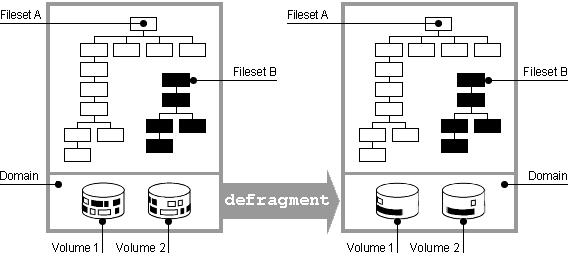
AdvFS attempts to store file data in contiguous blocks on a disk. This collection of contiguous blocks is called a file extent. If all data in a file is stored in contiguous blocks, that file has one file extent. However, as files grow, contiguous blocks on the disk may not be available to accommodate the new data, and the system will spread the file over discontiguous blocks. As a result, the file is fragmented on the disk and consists of multiple file extents. File fragmentation degrades the read/write performance because many disk addresses must be examined to access a file.
Figure 4-1: Defragmenting a Domain
The
defragment
utility reduces the amount of file fragmentation
in a domain by attempting to make the files more contiguous.
Defragmentation, as illustrated
in
Figure 4-1, is an iterative, two-step process that operates
on the domain:
Files are moved out of a region to create an area with contiguous, unallocated space.
Fragmented files are written into a region that has more contiguous space so they are less fragmented.
In addition to making files contiguous so that the number of file extents is reduced, defragmenting a domain often makes the free space on a disk more contiguous so files that are created later will also be less fragmented.
Files may be moved to other volumes in the defragmentation of a multivolume
domain.
You cannot control the placement of files as defragmentation occurs, but you
can identify where a file is stored with the
showfile
command.
If you want to move a file, use the
migrate
command (see
Section 4.3.3).
You can improve the efficiency of the defragment process by deleting any unneeded
files in the domain before running the
defragment
utility.
Aborting
the defragment process does not damage the file system.
Files that have been defragmented
remain in their new locations.
It is difficult to specify the load that defragmenting will place on a system. The time it takes to defragment a domain depends on:
The size of the volume(s).
The amount of free space available.
The activity of the system.
The configuration of your domain. A domain consisting of several small volumes is faster to defragment than one consisting of one large volume.
To defragment a domain, use the SysMan "Defragment an AdvFS Domain," the AdvFS GUI (see
Chapter 6) or, from the command line, enter the
defragment
command:
defragment
domain_name
The following restrictions apply to running the
defragment
command:
You must have root user privileges.
All filesets in the domain must be mounted. If you try to defragment an active domain that includes unmounted filesets, you will get an error message.
A minimum free space of 1% of the total space or 5 megabytes per volume (whichever is less) must be available.
The
defragment
utility cannot be run while the
addvol,
rmvol,
balance, or
rmfset
command is running in the same domain.
See
defragment(8)
for more information.
4.3.1.1 Choosing to Defragment
Run
defragment
on your domain when administratively necessary,
and then only when file system activity is low.
Run the
balance
utility before you run
defragment.
This will speed up the defragmentation
process.
If your file system has been untouched for a month or two, that is, if you do
not run full periodic backups nor regularly reference your whole file system, it is
a good idea, before you run
defragment, to run the
verify
utility.
Run
verify
when there is low file system activity.
It is not efficient to balance your files after you defragment because this may undo some of the defragmentation and free space consolidation.
How fragmented you should let your file system become before running the utility
depends on the size of the files and the number of extents.
This is largely application
dependent, so monitor the number of extents (see
defragment(8)) to see if elevated extent
counts correlate with decreased application performance.
In many cases, even a large,
fairly fragmented file will show no noticeable decrease in performance because of
fragmentation.
It is not necessary to run defragment:
If most of your files are less than 8 kilobytes.
On write-only domains.
On any system that is not experiencing performance-related problems because of excessive file fragmentation.
On mail servers.
To determine the amount of file fragmentation that exists in a domain, run
defragment
with the
-v
and
-n
options.
This will show how fragmented your domain is without altering the domain.
4.3.1.2 Defragment Example
You can defragment a file domain from the SysMan "Defragment an AdvFS Domain," from the command line, or from the AdvFS GUI (see Section 6.4.5.2).
From the command line:
To decide if defragmenting is necessary, run the
defragment
utility with the
-v
and
-n
options
to look at the file defragmentation in
the domain without starting the process.
or
Use the
showfile
command to check the file extents for a
particular file in the domain.
Run the
defragment
utility specifying how long
you want the process to continue.
The following example looks at the fragmentation of the
accounts_domain
file domain and at the number of extents
in the
orig_file_1
file.
It then defragments the domain for a maximum
of 15 minutes.
Verbose mode is requested to display the fragmentation data at the
beginning of each pass through the domain and at the end of the defragmentation process.
#defragment -vn accounts_domaindefragment: Gathering data for 'accounts_domain' Current domain data: Extents: 263675 Files w/ extents: 152693 Avg exts per file w/exts: 1.73 Aggregate I/O perf: 70% Free space fragments: 85574 <100K <1M <10M >10M Free space: 34% 45% 19% 2% Fragments: 76197 8930 440 7#showfile -x orig_file_1Id Vol PgSz Pages XtntType Segs SegSz I/O Perf File 6.8002 2 16 71 simple ** ** async 82% orig_file_1 extentMap: 1 pageOff pageCnt vol volBlock blockCnt 0 5 2 40720 80 5 12 2 41856 192 17 16 2 40992 256 33 7 2 42048 112 40 12 2 41360 192 52 15 2 42160 240 67 4 2 41792 64 extentCnt: 7 #defragment -v -t 15 accounts_domaindefragment: Defragmenting domain 'accounts_domain' Pass 1; Volume 2: area at block 144 ( 130800 blocks): 0% full Volume 1: area at block 468064 ( 539008 blocks): 49% full Domain data as of the start of this pass: Extents: 7717 Files w/extents: 6436 Avg exts per file w/exts: 1.20 Aggregate I/O perf: 78% Free space fragments: 904 <100K <1M <10M >10M Free space: 4% 5% 12% 79% Fragments: 825 60 13 6 Pass 2; Volume 1: area at block 924288 ( 547504 blocks): 69% full Volume 2: area at block 144 ( 130800 blocks): 0% full Domain data as of the start of this pass: Extents: 6507 Files w/extents: 6436 Avg exts per file w/exts: 1.01 Aggregate I/O perf: 86% Free space fragments: 1752 <100K <1M <10M >10M Free space: 8% 13% 11% 67% Fragments: 1574 157 15 6 Pass 3; Domain data as of the start of this pass: Extents: 6522 Files w/extents: 6436 Avg exts per file w/exts: 1.01 Aggregate I/O perf: 99% Free space fragments: 710 <100K <1M <10M >10M Free space: 3% 11% 21% 65% Fragments: 546 126 32 6 Defragment: Defragmented domain 'accounts_domain'
Information displayed before each pass and at the conclusion of the defragmentation
process indicates the amount of improvement made to the domain.
A decrease in the
Extents
and
Avg exts per file w/extents
values indicates
a reduction in file fragmentation.
An increase in the
Aggregate I/O perf
value indicates improvement in the overall efficiency of file-extent allocation.
4.3.2 Balancing a Multivolume Domain
The
balance
utility distributes the percentage of used space
evenly between volumes in a multivolume domain created with the optional AdvFS Utilities.
This improves performance and evens the distribution of future file allocations.
Figure 4-2: Balancing a Domain
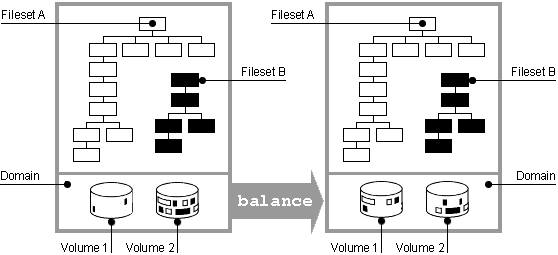
Files are moved from one volume to another, as illustrated in
Figure 4-2,
until the percentage of used space on each volume in the domain is as equal as possible.
Because the
balance
utility does not generally split files, domains
with very large files may not balance as evenly as domains with smaller files.
To redistribute files across volumes use the SysMan "Manage an AdvFS Domain," the AdvFS
GUI (see
Chapter 6) or, from the command line, enter the
balance
command:
balance
domain_name
If you interrupt the balance process, all relocated files remain at their new locations. The rest of the files remain in their original locations.
The following restrictions apply to running the
balance
utility:
You must have root user privileges.
All filesets in the domain must be mounted. If you try to balance an active domain that includes unmounted filesets, you will get an error message.
A minimum free space of 1% of the total space or 5 megabytes per volume (whichever is less) must be available.
The
balance
utility cannot run while the
addvol,
rmvol,
defragment, or
rmfset
command is running in the same domain.
See
balance(8)
for more information.
4.3.2.1 Choosing to Balance
Use the
showfdmn
command to display domain information.
From
the
% used
field you can determine if the files
are evenly distributed.
Use the
balance
utility to even file distribution after you
have added a volume with the
addvol
command or removed a volume
with the
rmvol
command (if there are multiple volumes remaining).
4.3.2.2 Balance Example
In the following example, the multivolume domain
usr_domain
is not balanced.
Volume 1 has 63% used space while volume 2, a smaller volume, has
0% used space (it has just been added).
After balancing, both volumes have approximately
the same percentage of space used.
#showfdmn usr_domainId Date Created LogPgs Version Domain Name 3437d34d.000ca710 Mon Apr 3 10:50:05 2000 512 4 usr_domain Vol 512-Blks Free % Used Cmode Rblks Wblks Vol Name 1L 1488716 549232 63% on 128 128 /dev/disk/dsk0g 2 262144 262000 0% on 128 128 /dev/disk/dsk4a --------- ------- ------ 1750860 811232 54%
#balance usr_domainbalance: Balancing domain 'usr_domain' balance: Balanced domain 'usr_domain'#showfdmn usr_domainId Date Created LogPgs Version Domain Name 3437d34d.000ca710 Mon Apr 3 10:50:05 2000 512 4 usr_domain Vol 512-Blks Free % Used Cmode Rblks Wblks Vol Name 1L 1488716 689152 54% on 128 128 /dev/disk/dsk0g 2 262144 122064 53% on 128 128 /dev/disk/dsk4a --------- ------- ------ 1750860 811216 54%
4.3.3 Moving Files to Different Volumes
If you suspect that a fileset or domain is straining system resources, run the
iostat
utility either from the SysMan "View Input/Output (I/O) Statistics,"
or from the command line (see
iostat(1)).
If the filesets or domains are located on
devices that appear to be a bottleneck, you can migrate files or pages of files to
equalize the load.
If a high-performance device is available, you can move an I/O-intensive
file to the more efficient volume.
If you do not have AdvFS Utilities, create a backup to move files using the dump and restore procedure. It is a good idea to mount the filesets you are moving as read only or to keep users from accessing the filesets at the time you are moving your files.
To move files:
Make a new domain on the new device. It must have a temporary new name.
For each fileset in the old domain, create a fileset with the same name in the corresponding new domain.
Create a temporary mount point directory.
Mount the new filesets on the temporary mount point.
Use the
vdump
command to copy the filesets from
the old device.
Use the
vrestore
command to restore them to the
newly mounted filesets.
Unmount the old and new filesets.
Rename the new domain to the old name.
Since you have not changed
the domain and fileset names, it is not necessary to edit the
/etc/fstab
file.
Mount the new filesets using the mount points of the old filesets. The directory tree will then be unchanged. Delete the temporary mount point directory.
If you are running Version 5.0 or later, the new domain is created with the new
DVN of 4 (see
Section 1.4.3).
However, if you must retain the DVN of
3 in order to use earlier versions of the operating system, see
mkfdmn(8).
The
vdump
and
vrestore
utilities are not affected by the change
of DVN.
The following example assumes you have only one volume and moves the domain
accounts
with the fileset
technical
to volume
dsk3c
using the same fileset names.
The domain
new_accounts
is the temporary domain.
Assume the fileset
accounts#technical
is mounted on
/technical.
Assume that the
/etc/fstab
file has an entry to mount
accounts#technical
on
/technical.
#mkfdmn /dev/disk/dsk3c new_accounts#mkfset new_accounts technical#mkdir /tmp_mnt#mount new_accounts#technical /tmp_mnt#vdump -dxf - /technical|vrestore -xf - -D /tmp_mnt#umount /technical#umount /tmp_mnt#rmfdmn accounts#mv /etc/fdmns/new_accounts/ /etc/fdmns/accounts/#mount /technical#rmdir /tmp_mnt
If you have the optional AdvFS Utilities, you can use the
migrate
utility to move heavily accessed or large files to a different volume in the domain.
The
balance
and
defragment
utilities also migrate
files but are not under user control.
With the
migrate
command,
you can specify the volume where a file is to be moved or allow the system to pick
the best space in the domain.
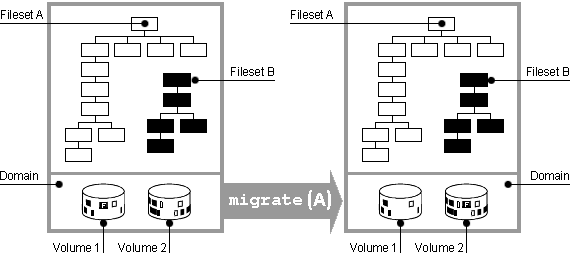
You can migrate either an entire file or specific pages
to a different volume.
Figure 4-3
illustrates the
migrate
process.
To move an entire file to a specific volume, use the
migrate
command with the
-d
option:
migrate -s-ddestination_vol_index file_name
A file that is migrated will be defragmented in the process if possible.
This
means that you can use the
migrate
command to defragment selected
files.
The following restrictions apply to the
migrate
utility:
You must have root user privilege.
You can only perform one migrate operation at a time on the same file.
When you migrate a striped file, you can only migrate from one volume at a time.
The
migrate
utility does not evaluate your migration
decisions.
For example, you can move more than one striped file segment to the same
disk, which defeats the purpose of striping the file.
Choose the
migrate
utility over the
balance
utility when you want to control the files that are moved.
The
balance
utility moves files only to optimize distribution.
For example, it might move many
small files when moving a single larger one would be a better solution for your system.
Choose the
migrate
utility over the
defragment
utility when you want to defragment an individual file.
If you have a large enough
contiguous area on disk, you can migrate the file to that area to defragment it.
You can use the
showfile -x
command to look at the extent
map and the performance percentage of a file.
A low performance percentage (less than
80%) indicates that the file is fragmented on the disk.
The extent map shows whether
the entire file or a portion of the file is fragmented.
4.3.3.2 Migrate Example
The following example displays the extent map of a file called
src
and migrates the file.
The file, which resides in a two-volume domain,
shows a change from 11 file extents to one and a performance efficiency improvement
from 18% to 100%:
#showfile -x srcId Vol PgSz Pages XtntType Segs SegSz I/O Perf File 8.8002 1 16 11 simple ** ** async 18% src extentMap: 1 pageOff pageCnt vol volBlock blockCnt 0 1 1 187296 16 1 1 1 187328 16 2 1 1 187264 16 3 1 1 187184 16 4 1 1 187216 16 5 1 1 187312 16 6 1 1 187280 16 7 1 1 187248 16 8 1 1 187344 16 9 1 1 187200 16 10 1 1 187232 16 extentCnt: 11
#migrate -d 2 src#showfile -x srcId Vol PgSz Pages XtntType Segs SegSz I/O Perf File 8.8002 1 16 11 simple ** ** async 100% src extentMap: 1 pageOff pageCnt vol volBlock blockCnt 0 11 2 45536 176 extentCnt: 1
The file
src
now resides
on volume 2, consists of one file extent, and has a 100% performance efficiency.
Note
that in the output above, the first data line of the display lists the metadata.
The
metadata does not migrate to the new volume.
It remains in the original location.
The
extentMap
portion of the display lists the migrated files.
You can tailor the
migrate
utility to the needs of your system.
You can let the system pick a new location in the domain.
You can migrate specified
pages of a file or you can move the pages of a striped file to different volumes within
a domain.
See
migrate(8)
for a detailed examples.
4.3.4 Striping Files
Striping distributes files across a number of volumes. This increases the sequential read/write performance because I/O requests to the different disk drives can be overlapped. Virtual storage solutions, such as LSM, RAID, and storage area networks (SAN), stripe whole systems and are usually configured at system setup. AdvFS striping is applied to single files and is executed any time.
Use AdvFS striping only on directly attached storage that does not include LSM, RAID, or a SAN. Combining AdvFS striping with system striping may conflict with optimal placement and cause system degradation.
The AdvFS
stripe
utility distributes file segments across
specific disks (or volumes) of a domain.
You must have the Advanced Utilities to run
this command.
The stripe width is fixed at 64 kilobytes, but you can specify the number
of volumes over which to stripe the file.
To stripe a file, create a new, empty file. Stripe it, specifying the number of volumes over which it should be striped. If desired, copy the content of the old file to the new.
As the file is appended, AdvFS determines the number of pages per stripe segment; the segments alternate among the disks in a sequential pattern. For example, the file system allocates the first segment of a two-disk striped file on the first disk and the next segment on the second disk. This completes one sequence, or stripe. The next stripe starts on the first disk, and so on. Because AdvFS spreads the I/O of the striped file across the specified disks, the sequential read/write performance of the file increases.
To stripe a file, enter the
stripe
command:
stripe -n
volume_count filename
You cannot use the
stripe
utility to modify the number of
disks that an already striped file crosses or to restripe a file that is already striped.
To change the configuration of a striped file, you must create a new file, stripe
it, then copy the original file data to it.
You cannot stripe the
/etc/fstab
file.
4.3.4.1 Choosing to Stripe an AdvFS File
Before you use the
stripe
utility, run the
iostat
utility either from the SysMan "View Input/Output (I/O) Statistics" or from the
command line (see
iostat(1)) to determine if disk I/O is causing the bottleneck.
The
blocks per second and transactions per second should be cross checked with the drive's
sustained transfer rate.
If the disk access is slow, then striping is one of the ways
to improve performance (see
Section 5.3).
Maximum stripe performance
will be achievable if each stripe disk is on its own disk controller.
It is not advisable to use AdvFS striping when system-wide striping is in effect.
This may degrade performance.
4.3.4.2 AdvFS Stripe Example
To stripe a file,
Create an empty file and stripe it across the number of volumes desired.
Copy the data from the original file to the striped file.
Delete the original file and rename the striped file, if desired.
The following example creates an empty file, stripes it, copies data into the striped file, then shows the extents of the striped file:
#touch file_1#ls -l file_1-rw-r--r-- 1 root system 0 Oct 07 11:06 file_1#stripe -n 3 file_1#cp orig_file_1 file_1#showfile -x file_1Id Vol PgSz Pages XtntType Segs SegSz I/O Perf File 7.8001 1 16 71 stripe 3 8 async 100% file_1 extentMap: 1 pageOff pageCnt volIndex volBlock blockCnt 0 8 2 42400 384 24 8 48 8 extentCnt: 1 extentMap: 2 pageOff pageCnt volIndex volBlock blockCnt 8 8 3 10896 384 32 8 56 8 extentCnt: 1 extentMap: 3 pageOff pageCnt volIndex volBlock blockCnt 16 8 1 186784 368 40 8 64 7 extentCnt: 1
4.3.4.3 Removing AdvFS Striping
You can alter the pattern of striping in your domain:
Remove striping from a file
If you have a striped file that you no longer want to be striped, copy it to a file that is not striped. Delete the original.
Removing a striped volume
If you remove a volume that contains an AdvFS stripe segment, the
rmvol
utility moves the segment to another volume that does not already
contain a stripe segment of the same file.
If all remaining volumes contain stripe
segments, the system requests confirmation before the segment is moved to a volume
that already contains a stripe segment of the file.
To retain the full benefit of
striping when this occurs, stripe a new file across existing volumes and copy the
file with the doubled-up segments to it.
Caching improves performance when data is frequently reused. AdvFS uses a dynamic memory cache called the Unified Buffer Cache (UBC) for managing file metadata and user data.
Dynamic caching gives AdvFS the ability to cache data up to available memory. The UBC shrinks the cache size as other system demands require memory.
Cache size limits are set and adjusted by tunable parameters (see
System Configuration and Tuning).
There are also parameters that limit the number of dirty pages cached.
4.3.6 Changing Attributes to Improve System Performance
A number of attributes can be changed to improve system performance.
System Configuration and Tuning
details the significance of each and the trade-offs engendered when they are changed.
See
sysconfig(8)
for more information.
You can modify attributes to:
Increase the dirty-data caching threshold.
Dirty or modified data is data that has been written by an application and cached
but has not yet been written to disk.
You can modify the amount of dirty data that
AdvFS will cache for each volume in a domain with the
chvol -t
command or for all new volumes of a file system with the
AdvfsReadyQLim
attribute (see
chvol(8)).
Promote continuous
I/O with
smooth sync.
The
smooth sync
queue improves AdvFS asynchronous I/O performance;
that is, it increases file system efficiency in writing modified pages to disk.
The
smooth sync
functionality is controlled by the
vfs
attribute
smoothsync_age.
By default
smooth sync
is enabled on
the system.
Change the I/O transfer size.
AdvFS reads and writes data by 8-kilobyte pages.
The maximum transfer size depends
on the underlying storage configuration but is typically 128 or 256 blocks.
LSM may
assign a larger maximum transfer size.
The maximum transfer size is adjustable using
the
chvol
command (see
chvol(8)).
Flush modified mmapped pages.
The
AdvfsSyncMmapPages
attribute controls whether modified
mmapped pages are flushed to disk during a
sync
system call.
Increase the memory available for access structures.
AdvFS allocates access structures until the percentage of pageable memory used
for the access structures is
AdvfsAccessMaxPercent.
Increasing
the value of the
AdvfsAccessMaxPercent
attribute may improve AdvFS
performance on systems that open and reuse many files, but this will decrease the
memory available for the virtual memory subsystem and the Unified Buffer Cache (UBC).
Decreasing the value of the attribute frees pageable memory but may degrade AdvFS
performance on systems that open and reuse many files.
4.3.7 Controlling Domain Panic Information
The
AdvfsDomainPanicLevel
attribute allows you to choose
whether to have crash dumps created when a domain panic occurs.
Values of the attribute
are:
0 - Create crash dumps for no domains.
1 - Create crash dumps only for domains with mounted filesets (default).
2 - Create crash dumps for all domains.
3 - Promote the domain panic to a system panic. The system will crash.
See
sysconfig(8)
for information on changing attributes.
See
Section 5.4.8
for information about recovering from a domain panic.
4.4 Using a Trashcan
If you have the optional AdvFS Utilities, end users can configure their systems
to retain a copy of files they have deleted.
Trashcan directories
can be attached to one or more directories within the same fileset.
Once attached,
any file deleted from an attached directory is automatically moved to the trashcan
directory.
The last version of a file deleted from a directory with a trashcan attached
can be returned to the original directory with the
mv
command.
Trashcan directories are a trade off, however. The convenience of recovering files without accessing backup comes at the cost of the additional writes to disk that are required when files are deleted.
Root user privilege is not required to use this command. However, the following restrictions apply:
You can restore only the most recently deleted version of a file.
You can attach more than one directory to the same trashcan directory; however, if you delete files with identical file names from the attached directories, only the most recently deleted file remains in the trashcan directory.
Only files you delete directly are removed to the trashcan.
If you
delete a complete fileset using the
rmfset
command, the files in
it are not saved.
Deleted files in an attached trashcan count against your quota.
When you delete files in the trashcan directory, they are unrecoverable.
Table 4-1
lists and defines the commands for setting up
and managing a trashcan:
Table 4-1: Trashcan Commands
| Command | Description |
mktrashcan |
Creates the trashcan. |
shtrashcan |
Shows the contents of the trashcan. |
rmtrashcan |
Removes the trashcan directory. |
For example, to attach the trashcan directory
keeper
to the
directory
booklist:
#mkdir keeper#mktrashcan keeper /booklist'keeper' attached to '/booklist'
To remove a file, and look for it in the trashcan directory:
#rm old_titles#shtrashcan /booklist'//keeper' attached to '/booklist'#cd keeper#lsold_titles
To remove the connection between the trashcan and the directory:
#rmtrashcan /booklist'/booklist' detached