This chapter includes the following information:
A description of how the operating system is updated from the current version to the new version
Updating a cluster to the next version of the operating system
Supported update paths if your system is running a version of the operating system other than Version 4.0G or Version 5.0A
A summary of the Update Installation features that you control and the features that already are built into the process
If you are not interested in reading about the features or the theory
of operation behind an Update Installation; go directly to
Chapter 3,
which gives step-by-step instructions for performing the Update Installation.
2.1 Description of an Update Installation
An Update Installation updates the operating system from Version 4.0G or Version 5.0A to Version 5.1. An Update Installation preserves disk partitions, file systems, file customizations, the network, print, and mail environments, user accounts, user created files, and any other system setup you may have done. For details about the affects an Update Installation has on existing files, see Appendix E.
If software patches have been applied to your current operating system, it is not necessary to remove the patches before you begin the Update Installation process. The Update Installation process is designed to detect patches and recommends that you install the latest patch kit for the new version of the operating system when the Update Installation is complete.
The software subsets that comprise the operating system are known as base software subsets. During an Update Installation, the base software subsets, Worldwide Language Support (WLS) software subsets, and TruCluster Server Software Support (TCR) software subsets that already are installed on the current version of the operating system are updated to Version 5.1. In addition, any mandatory base, WLS, and TCR software subsets that are introduced in Version 5.1 are installed automatically.
You cannot install
additional
optional software
subsets
during an Update Installation.
Additional optional software
subsets can be installed by using the
setld
command when the Update Installation is complete.
Refer
to
Chapter 9
for more information about using the
setld
command to install
base operating system
software, and refer to the
Installation Guide -- Advanced Topics
for information about installing WLS software.
Layered products are not updated by the Update Installation process. To update layered products, it may be necessary to delete the existing version and reinstall the new version that is designed to operate with Version 5.1. The Update Installation process notifies you accordingly.
Do not perform an Update Installation if you want to change the type,
location, or size of
file systems
or if you want to install additional optional software because those features
are not offered during an Update Installation.
2.2 Cluster Rolling Upgrades
An Update Installation is one of several stages in a cluster rolling upgrade. A rolling upgrade of a cluster is performed while the cluster is in operation. One member at a time is rolled and returned to operation while the cluster transparently maintains a mixed-version environment for the base operating system, cluster, and Worldwide Language Support (WLS) software. Clients accessing services are not aware that a rolling upgrade is in progress. A cluster currently installed with and running Version 5.0A can be rolled to Version 5.1.
The cluster rolling upgrade procedure is documented in the TruCluster Server Software Installation manual, which you received as part of the TruCluster Server documentation kit. After running several cluster-specific commands to prepare the cluster for the software upgrade, at some point in the process you are referred back to Chapter 3 of this manual to perform one Update Installation on the lead member of the cluster. The lead member is the cluster member that you choose to roll first.
Refer to the TruCluster Server
Software Installation
manual for step by
step instructions for performing a cluster rolling upgrade.
2.3 What Versions of the Operating System Can Be Updated to Version 5.1?
The Update Installation process updates your operating system from Version 4.0G or Version 5.0A to Version 5.1.
If your system is installed with a
version
other than Version 4.0G or Version 5.0A, you must perform successive updates
to reach Version 5.1.
The only other option to performing successive updates
is to perform a
Full Installation.
Table 2-1
shows the successive update paths
to reach Version 5.1.
The
installupdate
command invokes
the Update Installation process.
Certain update paths require the use of the
setld -l
command.
To update a system from the current release to the next release in
the update path, you must have the
distribution media
associated with the version you want to update to.
Table 2-1: Update Installation Paths
| Current Installed Operating System Version and Revision Level | Can Be Updated to This Version of the Operating System |
| Version 3.2, 3.2A, or 3.2B | Version 3.2C |
| Version 3.2C (Rev. 214) , 3.2D-1, or 3.2D-2 | Version 4.0 |
| Version 3.2E-1, 3.2E-2, or 3.2F | Version 3.2G [Footnote 1] |
| Version 3.2G (Rev. 62) | Version 4.0A |
| Version 4.0 (Rev. 386) or 4.0A (Rev. 464) | Version 4.0B |
| Version 4.0B (Rev. 564) or 4.0C (Rev. 564.32) | Version 4.0D |
| Version 4.0E (Rev. 1089) | Version 4.0F |
| Version 4.0D (Rev. 878) or 4.0F (Rev. 1229) | Version 5.0 |
| Version 4.0F (Rev. 1229) or 5.0 (Rev. 910) | Version 5.0A |
| Version 4.0G (Rev. 1530) or 5.0A (Rev. 1094) | Version 5.1 |
If you do not have the version of the operating system
distribution media
you need, contact your support representative.
2.3.1 How to Determine the Version Number and Revision Level of the Operating System
To determine the operating system version number and revision level currently installed on your system, enter the following command:
#sizer -vCompaq Tru64 UNIX V5.0A (Rev. 1094); Fri Aug 25 10:27:47 EST 2000
In the previous command output,
5.0A
is the operating system version, and
1094
is the revision
level.
2.4 Update Installation Features
An Update Installation can be invoked in either a
graphical or text-based interface.
When you invoke the Update Installation
and your system has graphics capabilities, a graphical interface is presented.
If your system does not have graphics capabilities, the text-based interface
is presented.
If your system has graphics capabilities, but you want to use
the text-based interface, you can force the text-based interface by using
the
-nogui
flag.
However, the reverse is not true.
See
Section 3.3
for instructions about forcing the text-based interface.
The Update Installation features are classified into two types: the features you control and the features that are built into the Update Installation process:
Table 2-2 lists the features and options that you control when you begin an Update Installation.
Table 2-3 lists the features that are built into the Update Installation process.
Table 2-2
shows the Update Installation
features that you can turn on or off.
Table 2-2: User-Controlled Features and Options of the Update Installation Process
| User Option | Description | Detailed Information Located in |
|
Unattended
|
If you do not need to select
optional kernel components
or
archive
obsolete files, you can
invoke the Update Installation with the
-u
flag to run
the Update Installation without any user intervention. |
Section 3.3 |
|
Kernel
|
You have the option to interactively select optional kernel components. | Section 3.5.3 |
|
Archive
|
You have the option to archive obsolete files before they automatically are removed by the Update Installation. | Section 3.5.6 |
Table 2-3
describes the features that are built
into the Update Installation process.
Table 2-3: Built-In Features of the Update Installation Process
| Built-In Feature | Description | Detailed Information Located in |
|
Notification of
|
Notifies you when an installed layered product may not be compatible with the new version of the operating system; this layered product may need to be reinstalled later. | Section 3.5.1 |
|
Removes layered
|
Upon your confirmation, removes layered products that prevent the Update Installation from continuing. | Section 3.5.1.2 |
|
Updates base
|
Updates existing installed subsets and installs new mandatory subsets introduced in the new version of the operating system. | Section 3.5.2 |
|
Checks for
|
Checks for file types that have been changed. The Update Installation might not be able to proceed if certain conflicts are found. | Section 3.5.5 |
|
Disk space recovery
|
Provides the option to remove unnecessary
software subsets
and
.PreUPD,
core
and extra kernel files to recover disk space if there is not
enough file space to complete the Update Installation. |
Section 3.5.7 |
|
Executes instructions
|
You can customize an Update Installation by creating and moving user-supplied scripts, programs, or executables to the right location. The files are executed if the Update Installation process finds properly named files that have been placed in predefined, supported locations. | Installation Guide -- Advanced Topics |
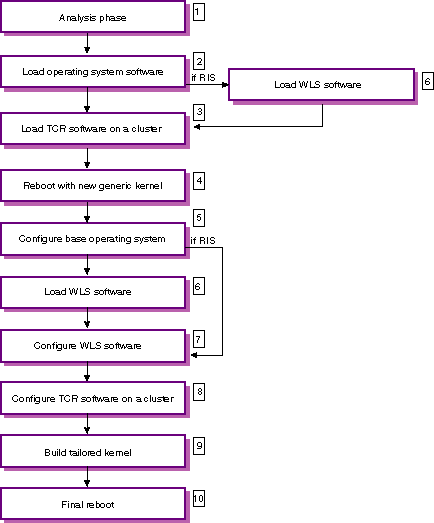
Figure 2-1 shows the operational flow of an Update Installation.
Figure 2-1: Update Installation Theory of Operation
During the analysis phase the Update Installation analyzes the system for the following items:
During the analysis phase, there may be a situation where one or more actions may be taken to correct the situation. You make the decision as to which action is correct. If the Update Installation process discovers any problems during the analysis phase, you can correct them or exit the Update Installation without making any changes to the current system.
An Update Installation changes the following in real time:
Removal of blocking layered products
Changes in disk space caused by user actions
Archiving and removal of obsolete files
For example, if conflicting software is detected and you choose to remove that software, when the analysis step is complete, the conflicting software has been removed, and it is no longer available in the current system even if the Update Installation is canceled.
An Update Installation installs the new version of the operating
system
software subsets
that match the
operating system software subsets previously installed on your system.
Additionally,
all new
mandatory software
subsets
that were introduced in the new version of the operating system
are installed automatically.
Optional software subsets
are loaded only if they were installed previously.
When all software subsets are installed successfully and verified, customized
protected system files (files with a
.new..
prefix) from the previous version of the operating
system are merged automatically with the files provided by the new version
of the operating system.
If you are performing a cluster rolling upgrade, the TruCluster Server
(TCR) software is read here.
There is no need to have the TCR CD-ROM available
at this time nor have the software in a
RIS
area.
When you followed the rolling upgrade instructions documented
in the TruCluster Server
Software Installation
manual, the
clu_upgrade
-preinstall
command copied the TCR kit to the
/var/adm/update/TruClusterKit
area on the lead member so that it is available to the Update
Installation process.
The system reboots using a copy of the
generic kernel
(/genvmunix) that is shipped with
the new version of the operating system.
The new version of the operating system that was loaded in Step 4 is configured.
If the previous version of the operating system was installed with WLS software, the new versions of WLS subsets are loaded here.
If new versions of the WLS software subsets were loaded, they are configured here.
If new versions of the TCR software subsets were loaded, they are configured here.
A machine-specific kernel is built at this time. If you selected optional kernel components during the Analysis Phase, they are also built into this kernel.
The system reboots with the newly-built tailored kernel. The Update Installation is complete, and you can log in to the updated system.
Update Installations typically complete in 45 to 120 minutes. Actual time depends on your processor type, the number of software subsets to be updated, the type of media used to perform the Update Installation (CD-ROM or remote server), the speed of your CD-ROM drive if you are using CD-ROM, and the volume of network traffic if you are using a remote server.