This chapter discusses the following topics:
An overview of software management tools
Using the SysMan Menu to perform software management tasks
Using the
setld
utility
to perform software management tasks
A description of the
command
line options
supported by the
setld
utility and
tasks that can be performed, including:
Rebuilding the kernel after installing kernel build environment software subsets
9.1 Software Management Overview
Optional operating system software subsets, worldwide language support (WLS) software subsets, and layered product software subsets can be installed or removed from a system after a Full or Update Installation.
Software subsets can be installed from any CD-ROM shipped with the operating system, a Remote Installation Services (RIS) server, a mounted disk or file system, or a third-party software CD-ROM.
This chapter describes the two software management tools that can be
used to perform software management tasks: the SysMan Menu and the
setld
utility.
Both tools provide the same features.
The difference
between the two is that
setld
is strictly a command line
utility, while the SysMan Menu can be invoked and run in three environments:
X, text-based, or the Internet.
This chapter focuses more on the
setld
command line
utility because the SysMan Menu software management tasks have an online
help system, which is available if you need assistance.
9.2 Software Management from the SysMan Menu
The SysMan Menu is a menu of system management tasks, which is organized in a tree-like hierarchy with main branches of general functionality. Selecting a leaf invokes a task, which opens a dialog box for performing the task.
Depending on the capabilities of your display device, the SysMan Menu provides either a graphical or text-based interface. The SysMan Menu can be invoked from the command line or from the CDE Application Manager if your system is running the CDE desktop.
Invoke the SysMan Menu from the command line by entering the following command:
#/usr/sbin/sysman &
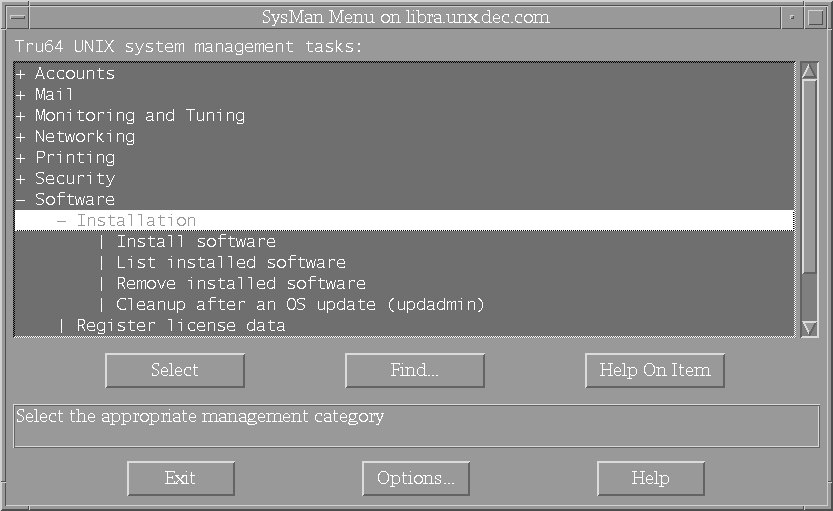
From the SysMan Menu, expand the Software and Installation branches to view the software management tasks as shown in Figure 9-1.
Note
The SysMan Menu is not supported for software load and delete operations on clusters. Use the
setldutility to install or remove software subsets on a cluster.
Figure 9-1: SysMan Menu: Expanded Software and Installation Branches
The following is a brief description of each software management task shown in Figure 9-1:
Install software
Installs additional optional software subsets after a Full or Update Installation of the operating system. Supported distribution media includes CD-ROM, RIS server, or mounted disk or file system.
List installed software
Lists the software subsets that are installed and displays a list of the system files contained within a particular software subset.
Remove installed software
Removes software already installed on the system. Dependencies between software subsets automatically are recognized and reported.
Cleanup after an OS update
Invokes the Update Administration Cleanup utility, which is used to remove the backup files created by an Update Installation. This utility is described in Section 3.10.
Each software management task has online help that is available by selecting
Help
from within the task.
The online help describes the functions
that can be performed as well as a detailed description of all windows, dialog
boxes, and fields that require entries.
9.3 Using the setld Utility
The
setld
command line
utility lets you add, list, or remove
software
subsets
after a Full or Update Installation.
The syntax of the
setld
utility is:
setld
[-D root-path]
-c subset-id message
setld
[-D root-path]
-d [-f] subset-id
[
subset-id...
]
setld
[-D root-path]
-i
[subset-id [ subset-id... ] ]
setld
[-D root-path]
-l location
[subset-id [ subset-id... ] ]
setld
[-D root-path]
-v subset-id
[
subset-id...
]
Table 9-1
provides a brief description of the
options for the
setld
utility.
Table 9-1: Options for the setld Utility
| Option | Description |
-D |
In conjunction with any other option, specifies an alternate root directory. For example:
The directory specified must be the root directory of an entire file system hierarchy. Do not attempt to use this option to place software in a directory that is not a system root. |
-c |
Runs the configuration phase of the named software subset's subset control program (SCP). Refer to the documents supplied by your software vendor for the command syntax. For example:
|
-d |
Deletes the named software subset or software subsets. For example:
|
-f |
Forces the continuation of a delete operation despite receiving errors from a subset control program. |
-h |
Displays command line usage examples. |
-i |
Displays a list of software subsets and their installation status. If a software subset is named, displays a list of that software subset's contents. For example:
|
-l |
Loads the software kits that are in the specified location; if software subsets are specified, only the named software subsets are installed. For example:
|
-v |
Runs an Installation Verification Procedure (IVP) for the named software subset. For example:
To verify the files of a specific subset, use the
|
9.4 Listing Installed Software
You can use
the
setld
utility to list the software subsets recognized
by your system, showing the status (installed,
incomplete, or
not installed) of each software
subset.
Enter the following command to list installed software:
#/usr/sbin/setld -iSubset Status Description ------ ------ ----------- OSFACCT510 System Accounting Utilities (System Administration) OSFBASE510 installed Base System (- Required -) OSFBIN510 installed Standard Kernel Objects (Kernel Build Environment)
.
.
.
9.5 Listing Files Contained in a Subset
If
you use the
-i
option and specify a software subset,
the
setld
utility displays a list of the files in the specified
software subset.
This is useful if you want to determine which software subset
you need to reload or delete if a particular file is damaged or deleted.
The following command displays the files in the
OSFMANOS510
software subset:
#/usr/sbin/setld -i OSFMANOS510./usr/share/man/.OSFMANOS.hardlinks ./usr/share/man/.OSFMANOS.whatis ./usr/share/man/man1/MH.1.gz
.
.
.
9.6 Deleting Software Subsets from a Single System
Deleting
a software subset requires that you know the subset name (OSFACCT510
for example).
Refer to
Appendix C
for the name and description
of each software subset.
To delete a software subset, log in as
root, and use the
setld
-d
command with the following syntax:
/usr/sbin/setld
[-D root_path]
-d [-f]
[subset-id [ subset-id... ] ]
If you attempt to delete a software subset on which another subset depends, a message similar to the following is displayed:
# setld -d OSFDCMT510

The following subsets need "Doc. Preparation Tools" (OSFDCMT510)
to operate correctly:

  Ref Pages: CDE Development (OSFCDEMANOP510)
  Ref Pages: CDE Admin/User (OSFCDEMANOS510)
  Doc. Preparation Tools Extensions (OSFDCMTEXT510)
  Ref Pages: Programming (OSFMANOP510)
  Ref Pages: Admin/User (OSFMANOS510)
  Ref Pages: Windows Programming (OSFMANWOP510)
  Ref Pages: Windows Admin/User (OSFMANWOS510)

Are you sure you wish to delete "Doc. Preparation Tools"
(OSFDCMT510)? (y/n): y

Deleting "Doc. Preparation Tools" (OSFDCMT510).
#
In the previous example, the reference page software subsets depend
on the
Doc.
Preparation Tools (OSFDCMT510)
subset in order to operate properly.
If you do not delete the
dependent subsets, the dependent subsets will not function properly.
9.7 Deleting Software Subsets from a Cluster
Deleting one or more software subsets from a cluster is no different than deleting one or more software subsets from a single system.
To delete a software subset from a cluster, log in as
root
to any member in the cluster, and use the
setld -d
command with the following syntax:
/usr/sbin/setld
-d
[subset-id [ subset-id... ] ]
The
setld -d
command can be invoked from any member
in the cluster, and the delete operation takes place across all cluster members.
If a cluster member is down at the time of a subset deletion, the delete operation
takes place as soon as the cluster member comes back online.
Subset deletion messages appear on the member on which the operation was initiated.
For a record of the software subset deletion activity for each cluster
member, review the log file located at
/var/adm/smlogs/setld.log
on each cluster member.
9.8 Installing Software Subsets on a Single System
This section describes how to install software subsets from a
specified location.
Refer to
Appendix C
for the name
and description of all software subsets.
To install a software subset, log
in as
root, and use the
setld -l
command
with the following syntax:
/usr/sbin/setld
[-D root_path]
-l location
[subset-id [ subset-id... ] ]
The location parameter specifies the location of the software subset that you want to install. The following are valid locations:
ris_server:
specifies the name of the remote host (RIS
server) appended with a colon ( : ).
directory
specifies the disk distribution
directory.
The directory specified must be the parent of the
instctrl
directory.
The subset-id variable specifies the name of the software subset. If you do not specify a subset-id variable, a list of software subsets is displayed, which lets you choose the software subsets to install. If you specify one or more subset-id variables, only those software subsets are installed.
Use the following procedure to install software subsets from a CD-ROM. The distribution path shown in the following examples is for the base operating system CD-ROM. For other distribution kits, refer to the document supplied by your software vendor.
Insert the CD-ROM into the disc drive.
As superuser or
root
create a directory
to be the mount point for the CD-ROM.
This example creates a directory called
/cdrom:
#mkdir /cdrom
Mount the CD-ROM on
/cdrom.
Refer
to
Appendix B
if you do not know the CD-ROM
device name.
The following example assumes a single CD-ROM device
is attached to the system:
#mount -r /dev/disk/cdrom0c /cdrom
After mounting the
CD-ROM, you can change to the
/cdrom
( cd /cdrom ) directory to view the directories located on
the CD-ROM.
Enter a command similar to the following to install the base operating system software subsets:
#setld -l /cdrom/ALPHA/BASE
Note
If you are using a RIS server as the source of the software, make sure your system is registered as a client of the RIS server, then enter a command similar to the following:
#setld -lris_server_name:
The
setld
utility displays a numbered list
of software subset descriptions and prompts you to enter the number of the
software subsets you want to install.
Enter the number or numbers associated with the software subsets you want to install. There may be more software subsets presented in the menu than can be displayed on a single screen. You either can select software subsets in each screen or select them all together on the last screen. If you select software subsets as each screen is displayed, all your choices are presented for you to confirm on the final screen. You also can change your choices or redisplay the software subset options.
Only the software subsets not yet installed on your system are displayed. The software subset selection list looks similar to the following:
The subsets listed below are optional: There may be more optional subsets than can be presented on a single screen. If this is the case, you can choose subsets screen by screen or all at once on the last screen. All of the choices you make will be collected for your confirmation before any subsets are installed. - General Applications : 1) Additional Terminfo databases 2) Computer Aided System Tutor 3) DOS tools 4) Local Area Transport (LAT) 5) Perl Runtime 6) UNIX(tm) SVID2 Compatibility 7) UNIX(tm) to UNIX(tm) Copy Facility - Kernel Build Environment : 8) Logical Storage Manager Kernel Modules 9) POLYCTR advfs Kernel Modules - Kernel Software Development : 10) Hardware Kernel Objects 11) POLYCTR advfs Kernel Objects 12) Standard Kernel Objects - Mail Applications : 13) DECwindows Mail Interface 14) RAND Corp. Mail Handler (MH) - Network-Server/Communications : 15) ATM Commands 16) Additional Networking Services 17) Dataless Management Services 18) Remote Installation Service - Printing Environment : 19) Adobe Font Metric Files --- MORE TO FOLLOW --- Enter your choices or press RETURN to display the next screen. Estimated free diskspace(MB) in root:62.3 usr:405.6 Choices (for example, 1 2 4-6):11
At the bottom of each screen, the disk space available in the
/,
/usr,
var, and
i18n
file systems
is shown.
As you select additional subsets, the amount of free disk space is reduced
accordingly.
If you choose a subset that depends on another subset to be installed,
the
setld
utility automatically selects the
dependent subset
or subsets.
For example, if you choose
POLYCTR
advfs Kernel Objects
, the following is displayed:
The chosen subset(s) require one or more additional subset(s)
which will be loaded automatically:

 * 9 POLYCTR advfs Kernel Modules        (OSFADVFSBIN510)

 - Software Development :

    20) CDA(tm) Software Development
    21) CDA(tm) for X/Motif Development
    22) CDE Software Development and Programming Examples
    23) GNU Revision Control System
    24) Ladebug Debugger Version 4.0-43
    25) Ladebug Debugger Version 4.0-43 Release Notes
    26) Ladebug Debugger graphical user interface
    27) Ladebug Debugger remote server
    28) Programming Examples
    29) Software Development Desktop Environment
    30) Software Development Tools and Utilities
    31) Source Code Control System
    32) Standard Header Files
    33) Standard Programmer Commands
    34) Static Libraries
    35) X Window and X/Motif Header Files
    36) X Window and X/Motif Programming Examples
    37) X Window and X/Motif Software Development
    38) X Window and X/Motif Static Libraries

 - Supplemental Documentation :

    39) XIE Version 5 Online Documentation

 - System Administration :

    40) ATM Configuration Application
    41) Advanced File System Daemon
    42) Advanced File System Graphical User Interface
    43) C2-Security
    44) C2-Security GUI

--- MORE TO FOLLOW ---

Add to your choices or press RETURN to display the next screen.

Estimated free diskspace(MB) in root:61.2 usr:403.9

Choices (for example, 1 2 4-6):  11 40
After you enter all your choices, the following confirmation message is displayed:
You are installing the following optional subsets:

 - Kernel Build Environment :
        POLYCTR advfs Kernel Modules

 - Kernel Software Development :
        POLYCTR advfs Kernel Objects

 - System Administration :
        ATM Configuration Application
        POLYCTR advfs

Estimated free diskspace(MB) in root:56.6 usr:402.8

Is this correct? (y/n): y
After you confirm your choices, messages similar to the following are displayed as the software subsets are loaded and configured:
Checking file system space required to install selected subsets:

File system space checked OK.

4 subset(s) will be installed.

Loading subset 1 of 4 ...

POLYCTR advfs Kernel Modules
   Copying from risserver1 (inet)
   Verifying

Loading subset 2 of 4 ...

POLYCTR advfs
   Copying from risserver1 (inet)
        Working....Fri Aug 25 14:48:02 EST 2000
   Verifying

Loading subset 3 of 4 ...

ATM Configuration Application
   Copying from risserver1 (inet)
   Verifying

Loading subset 4 of 4 ...

POLYCTR advfs Kernel Objects
   Copying from risserver1 (inet)
        Working....Fri Aug 25 14:48:34 EST 2000
   Verifying

4 of 4 subset(s) installed successfully.

Configuring "POLYCTR advfs Kernel Modules" (OSFADVFSBIN510)

Configuring "POLYCTR advfs" (OSFADVFS510)

Configuring "ATM Configuration Application" (OSFATMGUI510)

Configuring "POLYCTR advfs Kernel Objects" (OSFADVFSBINOBJECT510)
If you are installing from CD-ROM, unmount the CD-ROM after the software subsets are installed:
#cd/#umount /dev/disk/cdrom0c
9.9 Installing Optional Software Subsets on a Cluster
Installing one or more optional software subsets onto a cluster is no different than installing one or more software subsets onto a single system.
To install optional software subsets onto a cluster, log in as
root
to any member in the cluster, and follow the step-by-step instructions
for mounting the
distribution media
and invoking
setld
as shown in
Section 9.8.
The software load takes place across all cluster members.
If a cluster member
is down at the time of a subset load, the load information is stored, and
the load operation takes place as soon as the cluster member comes back online.
Subset load and configuration messages are displayed on the member on
which the load operation was initiated.
For example, if you initiate the load
operation of the
OSFDCMT510
subset on
member2
of a three member cluster, messages similar to the following
are displayed on
member2:
Checking file system space required to install selected subsets:

File system space checked OK.

1 subset(s) will be installed.

Loading subset 1 of 1 ...

Doc. Preparation Tools
   Copying from risserver1 (inet)
        Working....Fri Aug 25 14:48:02 EST 2000
   Verifying

1 of 1 subset(s) installed successfully.

Configuring "Doc. Preparation Tools" (OSFDCMT510) on member 0.
Configuring "Doc. Preparation Tools" (OSFDCMT510) on member 1.
Configuring "Doc. Preparation Tools" (OSFDCMT510) on member 2.
Configuring "Doc. Preparation Tools" (OSFDCMT510) on member 3.
In the previous example,
member0
is not a physical machine; it is a directory that serves as a general repository
for cluster member specific information.
For a record of the software subset load activity for each cluster member,
review the log file located at
/var/adm/smlogs/setld.log
on each cluster member.
9.10 Recovering from Subset Load or Delete Failures on a Cluster Member
If a subset fails to load or is not removed from one or more members of a cluster, the installation status of that subset across the entire cluster is corrupted.
Load and delete operation failures from all cluster members will be
displayed on the member on which the operation is initiated.
After recovering
from the failure, invoke the
setld
utility using the appropriate
recovery option shown in
Table 9-2
to make
the cluster installation status consistent among all members in the cluster.
Table 9-2
lists the
setld
flags that are used to recover from load or delete failures on individual
cluster members.
Table 9-2: Cluster Load and Delete Recovery Options of the setld Utility
| Option | Description |
-m |
Specifies the cluster member ID to recover when a load or delete operation fails on one or more members in a cluster. This flag is used in conjunction with the -C and -Z flags. Use the
|
-C |
Runs the configure install phase of the named software subset's SCP on the named cluster member. For example, to recover from a load failure of the
|
-Z |
Runs the configure delete phase of the named software subset's SCP on the specified cluster member. For example, to recover from a delete operation failure of the
|
For a software subset load recovery operation, the command syntax is:
setld
[-D root-path]
[-m member-ID]
-C
[subset-id [ subset-id... ] ]
For a software subset delete recovery operation, the command syntax is:
setld
[-D root-path]
[-m member-ID]
-Z
[subset-id [ subset-id... ] ]
For more information about software subset control programs (SCPs) and
the various phases of the
setld
utility, refer to the
Guide to Preparing Product Kits.
9.11 Rebuilding the Kernel After Installing Kernel Build Environment Subsets
Certain
base operating system
products (such as the Logical Storage Manager,
Advanced File System, and Asynchronous Transfer Mode) contain a
kernel
component.
If you use
setld
to install one
of these software subsets after the installation, you must run the
doconfig
utility to rebuild the kernel with the new kernel component;
otherwise you will not be able to use the software product.
After building
a new kernel, move the new kernel to the
/
(root) file system, and
reboot
with the new kernel to make the product available for use.
Refer to
Appendix C
for a list of the software
subsets that contain kernel components for which you must run the
doconfig
utility to build a new kernel.
Refer to the
doconfig(8)
reference page for more information.
If you install the Asynchronous
Transfer Mode (ATM) DGLTA adapter after installing the operating system, you
must boot the system off the
generic
kernel
genvmunix, install the ATM software subsets
from the CD-ROM, and then run the
doconfig
utility to rebuild
your system kernel to enable the added ATM support.
To configure the adapter,
run the ATM configuration utility from the SysMan Menu.