7 Testing a User or Kernel Product Kit
Before shipping a user or kernel product kit to customers, you should
test the installation of the kit by using the same procedures that your customers
will use.
You should run these tests on hardware configurations that resemble
your customers' systems.
When you know that the installation procedure works
correctly, you should document it and ship it as part of the product kit.
Note
Procedures for testing hardware product kits are documented in
Section 5.4.
There are several ways to test a user or kernel product
kit:
The
setld
utility can install a kit either
during system installation or after the system is running.
During system installation, the
setld
utility
installs the kit so that it is available for subsequent reboots of the system.
The
ris
utility integrates a user or kernel
product kit into a RIS environment.
Client systems can then install the kit
from the RIS area by calling the
setld
utility.
This chapter describes how to test the installation of a user product
or kernel product kit and how to install a kit in a RIS environment.
7.1 Testing a User Product Kit
To test a user product
kit, log in to the system as superuser or
root
and run
the
setld
utility.
For example, the ODB product could be
tested as follows.
In this example, the kit is distributed on CD-ROM.
Place the CD-ROM in the drive.
Create a directory to be the mount point for the CD-ROM,
such as
/cdrom:
# mkdir /cdrom
Mount the CD-ROM on
/cdrom.
For example,
if the CD-ROM device were located on the
c
partition
of
rz4, you would enter the following command:
# mount -r /dev/rz4c /cdrom
After mounting the CD-ROM, you can change to the
/cdrom
directory and view the directories on the CD-ROM.
Install the user product subsets:
# setld -l /cdrom/OAT100/kit
The
setld
utility displays prompts and messages to guide
you through the process of selecting the subsets you want to install.
After
it loads the subsets, the
setld
utility calls the subset
control program for each subset.
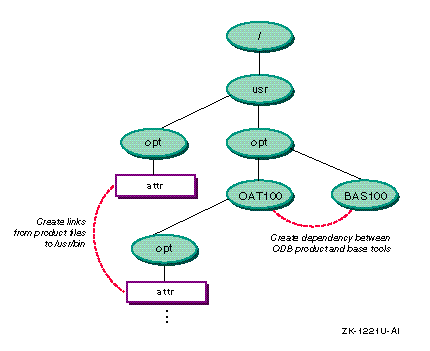
Figure 7-1
shows
the links and dependencies that the ODB subset control program creates.
Figure 7-1: Defining Links and Dependencies for the ODB User Product
When the installation is complete, unmount the CD-ROM:
# umount /cdrom
See the
Installation Guide
for more information on using the
setld
utility to install layered products.
7.2 Testing a Kernel Product Kit
To test a kernel product
kit, log in to the system as superuser or
root
and run
the
setld
utility.
If the driver is statically configured,
you must also reconfigure the kernel to incorporate the driver into the system.
For example, the
edg
driver would be installed as
follows, if the kit were distributed on CD-ROM:
Insert the CD-ROM in the drive.
Create a directory to be the mount point for the CD-ROM,
such as
/cdrom:
# mkdir /cdrom
Mount the CD-ROM on
/cdrom.
For example,
if the CD-ROM device were located on the
c
partition
of
rz4, you would enter the following command:
# mount -r /dev/rz4c /cdrom
Install the device driver subsets:
# setld -l /cdrom/ESA100/kit
The
setld
utility displays prompts and messages to guide
you through the process of selecting the subsets you want to install.
After
it loads the subsets onto the system,
setld
invokes the
subset control program to statically or dynamically configure the driver.
Figure 7-2
shows the steps the subset control program takes
to statically configure the driver;
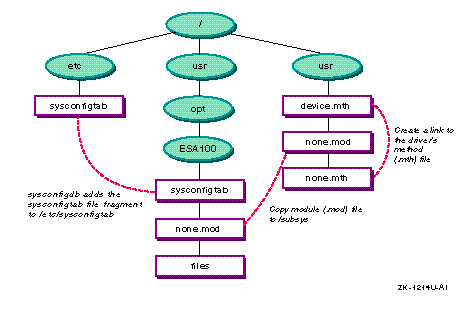
Figure 7-3
shows
the steps the subset control program takes to dynamically configure the driver.
Unmount the CD-ROM when the installation is complete:
# umount /cdrom
Restart the system with the new kernel:
# /usr/sbin/shutdown -r now
When the system starts up, the
edg
device driver is available
on the system.
Figure 7-2: Statically Configuring a Driver
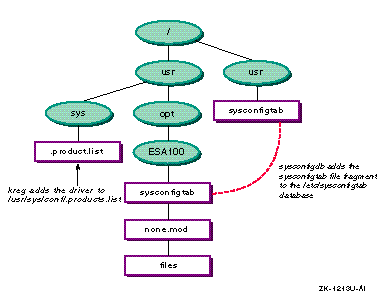
Figure 7-3: Dynamically Configuring a Driver
See the
Installation Guide
for more information on using the
setld
utility to install layered products.
7.3 Testing a User or Kernel Product in a RIS Area
You can use the
ris
utility to test a kernel product kit on a RIS server to be used
by RIS client installations.
To install the product in the RIS area on the server, run the
ris
utility as follows:
Log onto the server as
root
and invoke
the
ris
utility:
# /usr/sbin/ris
Choose
INSTALL software products
from the
RIS Utility Main Menu by entering
i
at the prompt:
*** RIS Utility Main Menu ***

Choices without key letters are not available.

    a) ADD a client
    d) DELETE software products
    i) INSTALL software products
     ) LIST registered clients
     ) MODIFY a client
     ) REMOVE a client
    s) SHOW software products in remote installation
       environments
    x) EXIT
Enter your choice: i
The
RIS Software Installation Menu is displayed.
Enter option 1,
Install software into a new area
or option 2,
Add software into an existing area:
RIS Software Installation Menu:

    1) Install software into a new area
    2) Add software into an existing area
    3) Return to previous menu
Enter your choice:
To install the product kit from the RIS server onto the client system,
register the client system with the RIS server, then use the
setld
utility, as follows:
Run the
ris
utility on the server, and
choose
ADD a client
from the main menu:
# /usr/sbin/ris

*** RIS Utility Main Menu ***

Choices without key letters are not available.

    a)  ADD a client
    d)  DELETE software products
    i)  INSTALL software products
     )  LIST registered clients
     )  MODIFY a client
     )  REMOVE a client
    s)  SHOW software products in remote installation
        environments
    x)  EXIT
Enter your choice: a
Enter the client information requested by the prompts as
described in
Sharing Software on a Local Area Network.
When the client is registered to the RIS server, log in to
the client as superuser or
root.
Use the
setld
utility to install the product
subsets from the RIS area.
For example, if the RIS server was named
visier, you would enter the following command:
# setld -l visier:
The
setld
utility displays prompts and messages to guide
you through the installation process.
See the
Installation Guide
for more information
on using the
setld
utility to install layered products.