This chapter introduces file systems, disk partitions, and swap space, and explains how to perform the following system administration tasks related to the UNIX File System (UFS):
Adding swap space
Managing file system directories and files
Configuring file system types and locks
Creating file systems
Mounting and unmounting file systems
Tuning and checking file systems
Managing disk space and troubleshooting disks
Repartitioning disks
Cloning disks
Checking for overlapping partitions on disks
The Tru64 UNIX operating system supports many file systems and logical storage schemes, including:
UNIX File System (UFS)
POLYCENTER Advanced File System (AdvFS)
For more information about AdvFS, refer to the
advfs(4)
reference page
and the
AdvFS Administration
guide.
ISO 9660 Compact Disk File System (CDFS)
dvdfs - The Digital Versatile Disk File System
Network File System (NFS)
Virtual File System (VFS) interface and framework
Logical Storage Manager (LSM)
For a survey of these capabilities, read the Tru64 UNIX Technical Overview manual. For information about administering these file systems, see AdvFS Administration for AdvFS and Chapter 8 for LSM.
Administration of the NFS is documented in the Network Administration manual.
The Technical Overview points you to sources of information about these file systems:
Memory File System (MFS)
/proc
File System (PROCFS)
File-on-File Mounting File System (FFM)
File Descriptor File System (FDFS)
A disk consists of storage units called sectors. Each sector is usually 512 bytes. A sector is addressed by the logical block number (LBN). The LBN is the basic unit of the disk's user-accessible data area that you can address. The first LBN is numbered 0, and the highest LBN is numbered one less than the number of LBNs in the user-accessible area of the disk.
Sectors are grouped together to form up to
eight disk partitions.
However, disks differ in the number and size of partitions.
The
/etc/disktab
file contains a list of supported
disks and the default partition sizes for the system.
Refer to the
disktab(4)
reference page for more information.
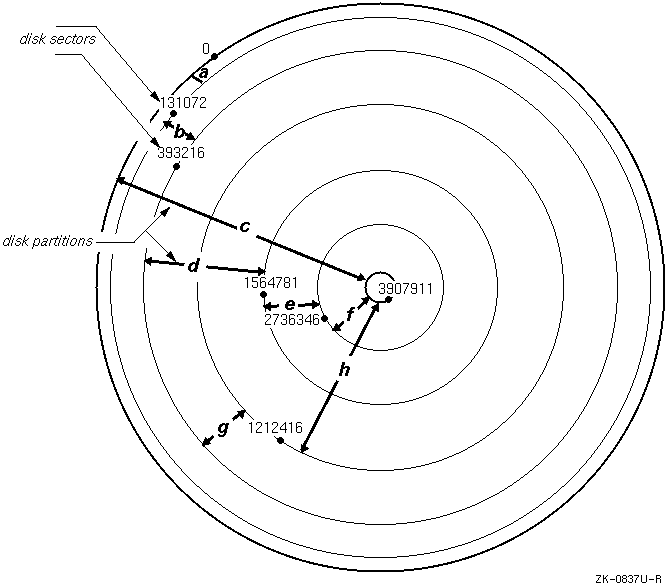
Disk partitions are logical divisions of a disk that allow you to organize files by putting them into separate areas of varying sizes. Partitions hold data in structures called file systems and can also be used for system operations such as paging and swapping. File systems have a hierarchical structure of directories and files, which is described in Section 7.1.3. By selecting the file systems to be placed in a partition, you can monitor the growth and activity of the disk.
Disk partitions have default sizes that depend on the type of disk and
that can be altered by using the
disklabel
command.
Partitions
are named
a
to
h.
While the allocated
space for a partition can overlap another partition, a properly partitioned
disk should not have file systems on overlapping partitions.
Figure 7-1 shows the default partitions and starting (offset) sectors for an RZ73 disk:
The disk label is located in block 0 (zero) in one of the first sectors of the disk. The disk label provides detailed information about the geometry of the disk and the partitions into which the disk is divided. The system disk driver and the boot program use the disk label information to recognize the drive, the disk partitions, and the file systems. Other information is used by the operating system to use the disk most efficiently and to locate important file system information.
The disk label description of each partition contains an identifier
for the partition type (for example, standard file system, swap space, and
so on).
There are two copies of a disk label, one located on the disk and
one located in system memory.
Because it is faster to access system memory
than to perform I/O, when a system recognizes a disk, it copies the disk label
into memory.
The file system updates the in-memory copy of the label if it
contains incomplete information about the file system.
If a disk is not labeled
and does not contain an ULTRIX-style partition table, the partitions are obtained
from the
/etc/disktab
file.
You can change the label with
the
disklabel
command.
Refer to
Section 7.8
and to the
disklabel(8)
reference page for more information.
The Tru64 UNIX operating system uses a combination of physical memory and disk space to create virtual memory, which can be much larger than the physical memory. Virtual memory can support more processes than the physical memory alone. This section and the sections that follow describe important virtual memory concepts that you should consider when configuring swap space.
The basic unit of virtual memory and physical memory is the page. Virtual memory attempts to keep a process' most recently referenced virtual pages in physical memory. When a process references virtual pages, they are brought into physical memory from their storage locations on disk. Modified virtual pages can be moved to a temporary location on the disk called swap space if the physical pages (the pages in physical memory) that contain the virtual pages are needed by either a newly referenced virtual page or by a page with a higher priority. Therefore, a process' virtual address space can consist of pages that are located in physical memory, stored temporarily in swap space, and stored permanently on disk in executable or data files. The operating system uses two operations to move virtual pages between physical memory and disk: paging and swapping.
Paging involves moving a single virtual page or a small cluster of pages between disk and physical memory. If a process references a virtual page that is not in physical memory, the operating system reads a copy of the virtual page from its permanent location on disk or from swap space into physical memory. This operation is called a pagein. Pageins typically occur when a process executes a new image and references locations in the executable image that have not been referenced before.
If a physical page is needed to hold a newly referenced virtual page or a page with a higher priority, the operating system writes a modified virtual page (or a small cluster of pages) that has not been recently referenced to the swap space. This operation is called modified page writing or a pageout. Note that only modified virtual pages are written to swap space because there is always a copy of the unmodified pages in their permanent locations on disk.
Swapping involves moving a large number of virtual pages between physical memory and disk. The operating system requires a certain amount of physical memory for efficient operation. If the number of free physical pages drops below the system-defined limit, and if the system is unable to reclaim enough physical memory by paging out individual virtual pages or clusters of pages, the operating system selects a low priority process and reclaims all the physical pages that it is using. It does this by writing all of its modified virtual pages to swap space. This operation is called a swapout. Swapouts typically occur on systems that are memory constrained.
Swap space is initially allocated during system
installation.
You can add swap space after the installation by including
swap space entries in the
/etc/fstab
file and then rebooting.
Additionally, you can use the
swapon
command to add more
swap space--overriding the
/etc/fstab
definitions--until
the next time the system is rebooted.
Refer to
Section 7.4
and the
swapon(8)
reference page for more information.
See Section 7.10 for information about how this command interacts with overlapping partitions. The amount of swap space that your system requires depends on the swap space allocation strategy that you use and your system workload. Strategies are described in the following section.
There are two strategies for swap space allocation: immediate mode and deferred or over-commitment mode. The two strategies differ in the point in time at which swap space is allocated. In immediate mode, swap space is allocated when modifiable virtual address space is created. In deferred mode, swap space is not allocated until the system needs to write a modified virtual page to swap space.
Note
The operating system will terminate a process if it attempts to write a modified virtual page to swap space that is depleted.
Immediate mode is more conservative than deferred mode because each modifiable virtual page is assigned a page of swap space when it is created. If you use the immediate mode of swap space allocation, you must allocate a swap space that is at least as large as the total amount of modifiable virtual address space that will be created on your system. Immediate mode requires significantly more swap space than deferred mode because it guarantees that there will be enough swap space if every modifiable virtual page is modified.
If you use the deferred mode of swap space allocation, you must estimate the total amount of virtual address space that will be both created and modified, and compare that total amount with the size of your system's physical memory. If this total amount is greater than the size of physical memory, the swap space must be large enough to hold the modified virtual pages that do not fit into your physical memory. If your system's workload is complex and you are unable to estimate the appropriate amount of swap space by using this method, you should first use the default amount of swap space and adjust the swap space as needed.
You should always monitor your system's use of swap
space.
If the system issues messages that indicate that swap space is almost
depleted, you can use the
swapon
command to allocate additional
swap space.
If you use the immediate mode, swap space depletion prevents you
from creating additional modifiable virtual address space.
If you use the
deferred mode, swap space depletion may result in one or more processes being
involuntarily terminated.
To determine which swap space allocation method is being used, check
for the existence of a soft link named
/sbin/swapdefault,
which points to the primary
swap partition.
If the
/sbin/swapdefault
file
exists, the system uses the immediate method of swap space allocation.
To
enable the deferred method, rename or delete this soft link.
You may receive the following informational messages when you remove
the
/sbin/swapdefault
file and when you boot a system that
is using the deferred method:
vm_swap_init:  warning sbin/swapdefault swap device not found
vm_swap_init:  in swap over-commitment mode
If the
/sbin/swapdefault
file does not exist and
you want to enable the immediate method of swap allocation, become the root
user and create the file by using the following command syntax:
ln -s
../dev/rzxy
/sbin/swapdefault
The
x
variable specifies the device number
for the device that holds the primary swap partition, and the
y
variable specifies the swap partition.
Usually, the swap
device number is the same as the boot device number, and the primary swap
partition is partition
b.
You must reboot the system for the new method to take effect.
This section discusses the UNIX File System (UFS). For information on the Advanced File System (AdvFS) structure, refer to AdvFS Administration.
A UFS file system has four major parts:
Boot block
The first block of every file system (block 0) is reserved for a boot, or initialization, program.
Superblock
Block 1 of every file system is called the superblock and contains the following information:
Total size of the file system (in blocks)
Number of blocks reserved for inodes
Name of the file system
Device identification
Date of the last superblock update
Head of the free-block list, which contains all of the free blocks (the blocks available for allocation) in the file system
When new blocks are allocated to a file, they are obtained from the free-block list. When a file is deleted, its blocks are returned to the free-block list.
List of free inodes, which is the partial listing of inodes available to be allocated to newly created files
Inode blocks
A group of blocks follows the superblock. Each of these blocks contains a number of inodes. Each inode has an associated inumber. An inode describes an individual file in the file system. There is one inode for each possible file in the file system. File systems have a maximum number of inodes; therefore there is a maximum number of files that a file system can contain. The maximum number of inodes depends on the size of the file system.
The first inode (inode 1) on each file system is unnamed and unused. The second inode (inode 2) must correspond to the root directory for the file system. All other files in the file system are under the file system's root directory. After inode 2, you can assign any inode to any file. You can also assign any data block to any file. The inodes and blocks are not allocated in any particular order.
If an inode is assigned to a file, the inode can contain the following information:
File type
The possible types are regular, device, named pipes, socket, and symbolic link files.
File owner
The inode contains the user and group identification numbers that are associated with the owner of the file.
Protection information
Protection information specifies read, write, and execute access for
the file owner, members of the group associated with the file, and others.
The protection information also includes other mode information specified
by the
chmod
command.
Link count
A directory entry (link) consists of a name and the inumber (inode number) that represents the file. The link count indicates the number of directory entries that refer to the file. A file is deleted if the link count is zero; the file's inode is returned to the list of free inodes, and its associated data blocks are returned to the free-block list.
Size of the file in bytes
Last file access date
Last file modification date
Last inode modification date
Pointers to data blocks
These pointers indicate the actual location of the data blocks on the physical disk.
Data blocks
Data blocks contain user data or system files.
The
standard Tru64 UNIX system directory hierarchy is set up for efficient organization.
It separates files by function and intended use.
Effective use of the file
system includes placing command files in directories that are in the normal
search path as specified by the users'
.profile
or
.login
file, as appropriate.
Figure 7-2
shows the
major directories in the file system.
Not all of the directories in the Tru64 UNIX
hierarchy are shown; you should use those shown in
Figure 7-2
to ensure that your product will be portable to other systems.
Some of the
directories are actually symbolic links.
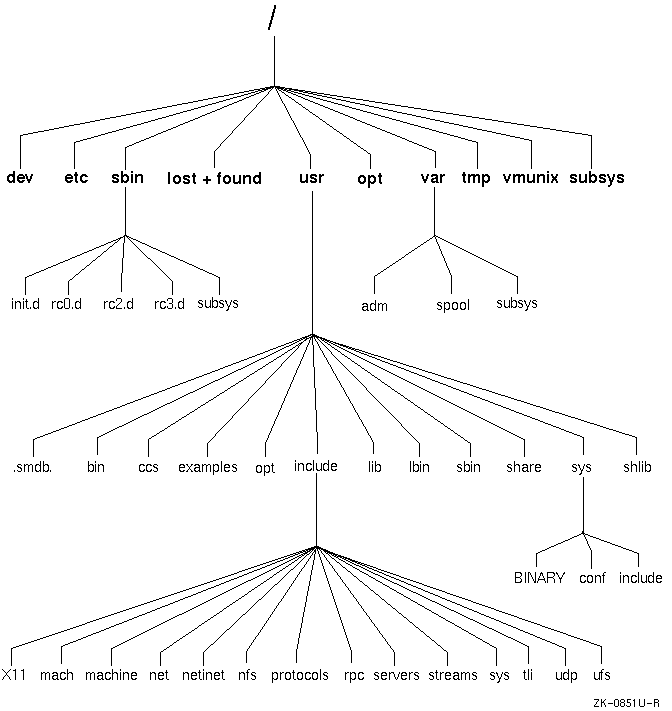
Table 7-1 describes the contents and purposes of the directories shown in Figure 7-2.
| Directory | Description |
/ |
The root directory of the file system. |
dev |
Block and character device files. |
etc |
System configuration files and databases; nonexecutable files. |
sbin/ |
Commands essential to boot the system.
These
commands do not depend on shared libraries or the loader and can have other
versions in
/usr/bin
or
/usr/sbin. |
init.d |
System initialization files. |
rc0.d |
The rc files executed for system-state 0 (single-user state). |
rc2.d |
The rc files executed for system-state 2 (nonnetworked multiuser state). |
rc3.d |
The rc files executed for system-state 3 (networked multiuser state). |
subsys |
Loadable kernel modules required in single-user mode. |
lost+found |
Files recovered by
fsck. |
usr/ |
Most user utilities and applications.
Most
of the commands in
/usr/bin,
/usr/sbin,
and
/usr/lbin
have been built with the shared version of
libc
and will not work unless
/usr
is mounted. |
.smdb. |
Installation control files used by
setld. |
bin |
Common utilities and applications. |
ccs |
C compilation system; tools and libraries used to generate C programs. |
examples |
Source code for example programs. |
opt |
Optional application packages such as layered products. |
include/ |
Program header (include) files; not all subdirectories are listed here. |
X11 |
X11 include files. |
mach |
Mach-specific C include files. |
machine |
Machine-specific C include files. |
net |
Miscellaneous network C include files. |
netinet |
C include files for Internet standard protocols. |
nfs |
C include files for NFS. |
protocols |
C include files for Berkeley service protocols. |
rpc |
C include files for remote procedure calls. |
servers |
C include files for servers. |
streams |
C include files for Streams. |
sys |
System C include files (kernel data structures). |
tli |
C include files for Transport Layer Interface. |
udp |
C include files for User Datagram Protocol. |
ufs |
C include files for UFS. |
lib |
Libraries, data files, and symbolic links to library files located elsewhere; included for compatibility. |
lbin |
Back-end executables. |
sbin |
System administration utilities and system utilities. |
share |
Architecture-independent ASCII text files. These files include word lists, various libraries, and online reference pages. |
sys |
Directories that contain system configuration files. |
shlib |
Binary loadable shared libraries; shared
versions of libraries in
/usr/ccs/lib. |
opt |
Optional application packages such as layered products. |
var/ |
Multipurpose log, temporary, transient, varying, and spool files. |
adm |
Common administrative files and databases.
These files include the crash area, files for the
cron
daemon, configuration and database files for
sendmail,
and files generated by
syslog. |
spool |
Miscellaneous printer and mail system spooling directories. |
tmp |
System-generated temporary files that are usually not preserved across a system reboot. |
vmunix |
Pure kernel executable (the operating system loaded into memory at boot time). |
Mounting a file system makes
it available for use.
Use the
mount
command to attach file
systems to the file system hierarchy under the system root directory; use
the
umount
command to detach them.
When you mount a file
system, you specify a location (the mount point under the system root directory)
to which the file system will attach.
The root directory of a mounted file system is also its mount point. Only one system root directory can exist because the system uses the root directory as its source for system initialization files. Consequently, file systems are mounted under the system root directory.
The operating system views files as bit streams, allowing you to define and handle on-disk data, named pipes, UNIX domain sockets, and terminals as files. This object-type transparency provides a simple mechanism for defining and working with a wide variety of storage and communication facilities. The operating system handles the various levels of abstraction as it organizes and manages its internal activities.
While you notice only the external interface, you should understand the various file types recognized by the system. The system supports the following file types:
Regular files contain data in the form of a program, a text file, or source code, for example.
Directories are a type of regular file and contain the names of files or other directories.
Character and block device files identify physical and pseudodevices on the system.
UNIX domain socket files provide a connection between network
processes.
The
socket
system call creates socket files.
Named pipes are device files that communicating processes operating on a host machine use.
Linked files point to target files or directories. A linked file contains the name of the target file. A symbolically linked file and its target file can be located on the same file system or on different file systems. A file with a hard link and its target file must be located on the same file system.
Device special
files represent physical devices, pseudodevices, and named pipes.
The
/dev
directory contains device special files.
Device special files
serve as the link between the system and the device drivers.
Each device
special file corresponds to a physical device (for example, a disk, tape,
printer, or terminal) or a pseudodevice (for example, a network interface,
a named pipe, or a UNIX domain socket).
The driver handles all read and write
operations and follows the required protocols for the device.
Note
Support for
rzSCSI device names will be retired in a future release. Any code that derives knowledge about a device from the ASCII name or minor number may be impacted. All code that uses the current device names will be compatible when the change occurs because a mechanism that ensures binary compatability will be provided. Existing interfaces such as names and minor numbers will be fully supported.
There are three types of device files:
Block device files
Block device files are used for devices whose driver handles I/O in
large blocks and where the kernel handles I/O buffering.
Physical devices
such as disks are defined as block device files.
An example of the block device
files in the
/dev
directory follows:
brw-------  1 root  system     8,   1 Jan 19 11:20 /dev/rz0a
brw-------  1 root  system     8,   1 Jan 19 10:09 /dev/rz0b
Character device files
Character device files are used for devices whose drivers handle their
own I/O buffering.
Disk, terminal, pseudoterminal, and tape drivers are typically
defined as character device files.
An example of the character device files
in the
/dev
directory follows:
crw-rw-rw-  1 root  system    7,    0 Jan 31 16:02 /dev/ptyp0
crw-rw-rw-  1 root  system    7,    1 Jan 31 16:00 /dev/ptyp1
crw-rw-rw-  1 root  system    9, 1026 Jan 11 14:20 /dev/rmt1h
Socket device files
The printer daemon ( lpd ) and error
logging daemon ( syslogd ) use the socket
device files.
An example of the socket device files in the
/dev
directory follows:
srw-rw-rw-  1 root  system         0 Jan 22 03:40 log
srwxrwxrwx  1 root  system         0 Jan 22 03:41 printer
Because disk and tape drivers often handle more than one device, each device file has a major and a minor number. The major number specifies (to the kernel) the driver that handles the device. The minor number is passed to the appropriate driver and tells it the device on which to perform the operation.
For static drivers, use the
MAKEDEV
command or the
mknod
command to create device special files.
The
kmknod
command creates device special files for third-party kernel layered
products.
Refer to the
MAKEDEV(8),
mknod(8), and
kmknod(8)
reference pages for more information.
For loadable drivers, the
sysconfig
command creates
the device special files by using the information specified in the driver's
stanza entry in the
/etc/sysconfigtab
database file.
System log files, such as those found in
/var/adm/syslog.dated, are often created and updated automatically.
On a well managed
system where everything is running smoothly, log files will not grow excessively
and will provide important data for administering the system.
You will therefore
want to keep a certain number of recent log files on hand and ensure that
others are archived or recorded in system backups.
On systems with little available disk space, you may want to actively
manage the log files.
For example the
/var/adm/syslog.dated
directory contains preserved copies of log files that are used for debugging.
Normally, these files do not contain many entries.
However, under certain
error conditions, a kernel subsystem might log an excessive amount of entries
to a file and cause a problem.
You should either physically check the logs
on a regular basis or use the
cron
utility to set up a
regular job to clear the log files.
The default root crontab file in the
/var/spool/cron/crontabs
directory contains the following sample line for clearing up the
/var/adm/syslog.dated
directory:
40 4 * * * find /var/adm/syslog.dated -depth -type d -ctime +5 -exec rm -rf {} ;
If enabled, this
cron
job will be activated every
morning at 4:40 a.m.
and will delete any log file in
/var/adm/syslog.dated
that has not been updated for the last five days.
You can edit
the
crontab
file to uncomment and modify this line or add
a similar line by using the following command:
#crontab -e
For more information, see the crontab(8) reference page.
Other log files that you may want to administer in this way are:
The default printer log file,
/usr/adm/lperr.
Note that you can specify alternate locations for these log files when configuring
printers.
The binary error log file,
/usr/adm/binary.errlog.
The
newfs
command formats a disk partition
and creates a usable UNIX file system.
For information on creating an AdvFS,
refer to
AdvFS Administration.
Using the information
in the disk label or the default values specified in the
/etc/disktab
file, the
newfs
command builds a file system
on the specified disk partition.
You can also use
newfs
command options to specify the disk geometry.
Note
Changing the default disk geometry values may make it impossible for the
fsckprogram to find the alternate superblocks if the standard superblock is lost.
The
newfs
command has the following syntax:
/sbin/newfs
[-N]
[fs_options]
device
[disk_type]
You must specify the unmounted, raw device (for example,
/dev/rrz0a).
Refer to the
newfs(8)
reference page for information on the command
options specific to file systems.
See Section 7.10 for information about how this command interacts with overlapping partitions.
The
fsck
program checks
UNIX
file systems and performs some corrections
to help ensure a reliable environment for file storage on disks.
The
fsck
program can correct file system inconsistencies such as unreferenced
inodes, missing blocks in the free list, or incorrect counts in the superblock.
File systems can become corrupted in many ways, such as improper shutdown procedures, hardware failures, and power outages and power surges. A file system can also become corrupted if you physically write protect a mounted file system, take a mounted file system off line, or if you do not synchronize the system before you shut the system down.
At boot time, the system runs
fsck
noninteractively,
making any corrections that can be done safely.
If it encounters an unexpected
inconsistency, the
fsck
program exits, leaves the system
in single-user mode, and displays a recommendation that you run the program
manually, which allows you to respond yes or no to the prompts that
fsck
displays.
The command to invoke the
fsck
program has the following
syntax:
/usr/sbin/fsck
[options ...]
[file_system ...]
If you do not specify a file system, all the file systems in the
/etc/fstab
file are checked.
If you specify a file system, you
should always use the raw device.
Refer to the
fsck(8)
reference page for information about command
options.
See Section 7.10 for information about how this command interacts with overlapping partitions.
Note
To check the root file system, you must be in single-user mode, and the file system must be mounted read only. To shut down the system to single-user mode, use the
shutdowncommand.
AdvFS uses write-ahead logging instead of the
fsck
utility.
As your system mounts, AdvFS checks all records in the recovery
log for system inconsistencies and makes corrections as needed.
Refer to
AdvFS Administration
for more information.
You
attach a file system to the file system tree by using the
mount
command, which makes the file system available for use.
The
mount
command attaches the file system to an existing directory (mount
point).
Note
The Tru64 UNIX operating system does not support 4-KB block-size file systems. The default block size for Tru64 UNIX file systems is 8 KB. To access the data on a disk that has 4-KB block-size file systems, you must back up the disk to either a tape or a disk that has 8-KB block-size file systems.
When you boot the system, file systems that are defined in the
/etc/fstab
file are mounted.
The
/etc/fstab
file contains entries that specify the device and partition where the file
system is located, the mount point, and additional information about the file
system, such as file system type.
If you are in single-user mode, the root
file system is mounted read only.
Note
To change a file system's mount status, use the
mountcommand with the-uoption. This is useful if you try to reboot and the/etc/fstabfile is unavailable.If you try to reboot and the
/etc/fstabfile is corrupted, use a command similar to the following:#mount -u /dev/rz0a /
The
/dev/rz0adevice is the root file system.
The operating system uses the UFS for the root file system.
The operating
system supports only one root file system from which it accesses the executable
kernel ( /vmunix ) and other binaries and
files that it needs to boot and initialize.
The root file system is mounted
at boot time and cannot be unmounted.
The
/etc/fstab
file contains descriptive information about file systems
and swap space and is read by commands such as the
mount
command.
When you boot the system, the
/etc/fstab
file
is read and the file systems described in the file are mounted in the order
that they appear in the file.
A file system or swap space is described on
a single line; information on each line is separated by tabs or spaces.
Refer
to the
swapon(8)
reference page for more information about adding swap space.
The order of entries in the
/etc/fstab
file is important
because the
mount
and
umount
commands
read the file entries in the order that they appear.
You must be root user to edit the
/etc/fstab
file.
To apply the additions that you make to the file, use the
mount -a
command.
Any changes you make to the file become
effective when you reboot.
The following is an example of an
/etc/fstab
file:
/dev/rz2a        /                  ufs     rw      1       1
/dev/rz0g        /usr               ufs     rw      1       2
/dev/rz2b        swap1              ufs     sw      0       2
/dev/rz0b        swap2              ufs     sw      0       2
/dev/rz2g        /var               ufs     rw      1       2
/usr/man@tuscon  /usr/man           nfs     rw,bg   0       0
proj_dmn#testing /projects/testing  advfs   rw      0       0
  [1]                  [2]             [3]       [4]     [5]      [6]
Each line contains an entry and the information is separated either
by tabs or spaces.
An
/etc/fstab
file entry has the following
information:
Specifies the block special device or remote file system to be mounted. For UFS, the special file name is the block special file name, not the character special file name. [Return to example]
Specifies the mount point for the file system or remote directory
(for example,
/usr/man) or
swapn
for a swap partition.
[Return to example]
Specifies the type of file system, as follows:
cdfs |
Specifies an ISO 9600 or HS formatted (CD-ROM) file system. |
nfs |
Specifies NFS. |
procfs |
Specifies a
/proc
file
system, which is used for debugging. |
ufs |
Specifies a UFS file system or a swap partition. |
advfs |
Specifies an AdvFS file system. |
Describes the mount options associated with the partition. You can specify a list of options separated by commas. Usually, you specify the mount type and any additional options appropriate to the file system type, as follows:
ro |
Specifies that the file system is mounted with read-only access. |
rw |
Specifies that the file system is mounted with read-write access. |
sw |
Specifies that the partition is used as swap space. |
rq |
Specifies that the file system is mounted with read-write access and quotas imposed. |
userquota
groupquota |
Specifies that the file system is automatically
processed by the
By default,
user and group quotas for a file system are contained in the
|
xx |
Specifies that the file system entry should be ignored. |
Used by the
dump
command to determine which
UFS file systems should be backed up.
If you specify the value 1, the file
system is backed up.
If you do not specify a value or if you specify 0 (zero),
the file system is not backed up.
[Return to example]
Used by the
fsck
command to determine the
order in which the UNIX file system is checked at boot time.
For the root
file system, specify 1; for other file systems that you want to check, specify
2.
If you do not specify a value or if you specify 0 (zero), the file system
is not checked.
File systems that use the same disk drive are checked sequentially.
File systems on different drives are checked simultaneously to utilize the
available parallelism.
[Return to example]
You use the
mount
command to make a file system available
for use.
Unless you add the file system to the
/etc/fstab
file, the mount will be temporary and will not exist after you reboot the
system.
The
mount
command supports the UFS, AdvFS, NFS,
CDFS, and
/proc
file system types.
The following
mount
command syntax is for all file
systems:
mount
[- adflruv ]
[-o option ]
[-t type]
[file_system ]
[ mount_point ]
For AdvFS, the file system argument has the following form:
filedomain#fileset
Specify the file system and the mount point, which is the directory on which you want to mount the file system. The directory must already exist on your system. If you are mounting a remote file system, use one of the following syntaxes to specify the file system:
host
:
remote_directory
remote_directory
@
host
The following command lists the currently mounted file systems and the file system options. The backslash contained in this example indicates line continuation and is not in the actual display.
#mount -l/dev/rz2a on / type ufs (rw,exec,suid,dev,nosync,noquota) /dev/rz0g on /usr type ufs (rw,exec,suid,dev,nosync,noquota) /dev/rz2g on /var type ufs (rw,exec,suid,dev,nosync,noquota) /dev/rz3c on /usr/users type ufs (rw,exec,suid,dev,nosync,noquota) /usr/share/man@tuscon on /usr/share/man type nfs (rw,exec,suid,dev, nosync,noquota,hard,intr,ac,cto,noconn,wsize=8192,rsize=8192, timeo=10,retrans=10,acregmin=3,acregmax=60,acdirmin=30,acdirmax=60) proj_dmn#testing on /alpha_src type advfs (rw,exec,suid,dev,nosync,\ noquota)
The following command mounts the
/usr/homer
file
system located on host
acton
on the local
/homer
mount point with read-write access:
#mount -t nfs -o rw acton:/usr/homer /homer
Refer to the
mount(8)
reference page for more information on general
options and options specific to a file system type.
See Section 7.10 for information about how this command interacts with overlapping partitions.
Use the
umount
command to unmount a file system.
You must unmount a file system if you want to check it with the
fsck
command or if you want to change its partitions with the
disklabel
command.
The
umount
command has the following syntax:
umount
[- afv ]
[- h host ]
[- t type ]
[ mount_point ]
If any user process (including a
cd
command) is in
effect within the file system, you cannot unmount the file system.
If the
file system is in use when the command is invoked, the system returns the
following error message and does not unmount the file system:
mount device busy
You cannot unmount the root file system with the
umount
command.
To enhance the efficiency of UFS reads, use the
tunefs
command to change a file system's dynamic parameters, which affect
layout policies.
The
tunefs
command has the following syntax:
tunefs
[- a maxc ]
[- d rotd ]
[- e maxb ]
[- m minf ]
[- o op t]
[ file_s ]
You can use the
tunefs
command on both mounted and
unmounted file systems; however, changes are applied only if you use the command
on unmounted file systems.
If you specify the root file system, you must also
reboot to apply the changes.
You can use command options to specify the dynamic parameters that affect
the disk partition layout policies.
Refer to the
tunefs(8)
reference page
for more information on the command options.
The
radisk
program and the
scu
program allow you to maintain your
Digital Storage Architecture (DSA) and Small Computer System Interface (SCSI)
disk devices, respectively.
With the
radisk
program, you can perform the following
tasks on a DSA disk device:
Clear a forced error indicator
Set or clear the exclusive access attribute
Replace a bad block
Scan the disk for bad blocks
Refer to the
radisk(8)
reference page for more information.
The
scu
program allows you to perform the following
tasks on SCSI disk devices, in addition to other tasks:
Format media
Reassign a defective block
Reserve and release a device
Display and set device and program parameters
Enable and disable a device
Refer to
Appendix B
and to the
scu(8)
reference page
for more information.
To ensure an adequate amount of free disk space, you should regularly monitor the disk use of your configured file systems. You can do this in any of the following ways:
Check available free space by using the
df
command
Check disk use by using the
du
command
or the
quot
command
Verify disk quotas (if imposed) by using the
quota
command
You can use the
quota
command only if you are the
root user.
To ensure
sufficient space for your configured file systems, you should regularly use
the
df
command to check the amount of free disk space in
all of the mounted file systems.
The
df
command displays
statistics about the amount of free disk space on a specified file system
or on a file system that contains a specified file.
The
df
command has the following syntax:
df
[- eiknPt ]
[-F fstype ]
[file ]
[ file_system ...]
With no arguments or options, the
df
command displays
the amount of free disk space on all of the mounted file systems.
For each
file system, the
df
command reports the file system's configured
size in 512-byte blocks, unless you specify the
-k
option, which reports the size in kilobyte blocks.
The command displays the
total amount of space, the amount presently used, the amount presently available
(free), the percentage used, and the directory on which the file system is
mounted.
For AdvFS file domains, the
df
command displays disk
space usage information for each fileset.
If you specify a device that has no file systems mounted on it,
df
displays the information for the root file system.
You can specify a file pathname to display the amount of available disk space on the file system that contains the file.
Refer to the
df(1)
reference page for more information.
Note
You cannot use the
dfcommand with the block or character special device name to find free space on an unmounted file system. Instead, use thedumpfscommand.
The following example displays disk space information about all the mounted file systems:
#/sbin/dfFilesystem 512-blks used avail capacity Mounted on /dev/rz2a 30686 21438 6178 77% / /dev/rz0g 549328 378778 115616 76% /usr /dev/rz2g 101372 5376 85858 5% /var /dev/rz3c 394796 12 355304 0% /usr/users /usr/share/man@tsts 557614 449234 52620 89% /usr/share/man domain#usr 838432 680320 158112 81% /usr
Note
The
newfscommand reserves a percentage of the file system disk space for allocation and block layout. This can cause thedfcommand to report that a file system is using more than 100 percent of its capacity. You can change this percentage by using thetunefscommand with the-minfreeflag.
If you determine
that a file system has insufficient space available, check how its space is
being used.
You can do this with the
du
command or the
quot
command.
The
du
command pinpoints disk space allocation by
directory.
With this information you can decide who is using the most space
and who should free up disk space.
The
du
command has the following syntax:
/usr/bin/du
[- aklrsx ]
[ directory ... filename ...]
The
du
command displays the number of blocks contained
in all directories (listed recursively) within each specified directory, file
name, or (if none are specified) the current working directory.
The block
count includes the indirect blocks of each file in 1-kilobyte units, independent
of the cluster size used by the system.
If you do not specify any options, an entry is generated only for each
directory.
Refer to the
du(1)
reference page for more information on command
options.
The following example displays a summary of blocks that all main subdirectories
in the
/usr/users
directory use:
#/usr/bin/du -s /usr/users/*440 /usr/users/barnam 43 /usr/users/broland 747 /usr/users/frome 6804 /usr/users/morse 11183 /usr/users/rubin 2274 /usr/users/somer
From this information, you can determine that user rubin is using the most disk space.
The following example displays the space that each file and subdirectory
in the
/usr/users/rubin/online
directory uses:
#/usr/bin/du -a /usr/users/rubin/online1 /usr/users/rubin/online/inof/license 2 /usr/users/rubin/online/inof 7 /usr/users/rubin/online/TOC_ft1 16 /usr/users/rubin/online/build . . . 251 /usr/users/rubin/online
Note
As an alternative to the
ducommand, you can use thels -scommand to obtain the size and usage of files. Do not use thels -lcommand to obtain usage information;ls -ldisplays only file sizes.
You can use the
quot
command to list the number of
blocks in the named file system currently owned by each user.
You must be root user to use the
quot
command.
The
quot
command has the following syntax:
/usr/sbin/quot
[-c]
[-f]
[-n]
[file_system]
The following example displays the number of blocks used by each user
and the number of files owned by each user in the
/dev/rz0h
file system:
#/usr/sbin/quot -f /dev/rrz0h
Note
The character device special file must be used to return the information, because when the device is mounted the block special device file is busy.
Refer to the
quot(8)
reference page for more information.
This section provides information on setting user and group quotas for UFS. As a system administrator, you establish usage limits for user accounts and for groups by setting file system quotas, also known as disk quotas, for them. For information on setting AdvFS user and group quotas, refer to AdvFS Administration. For more information on user and group quotas on UFS, refer to Section 9.3.4.
You can apply quotas to file systems to establish a limit on the number
of blocks and inodes (or files) that a user account or a group of users can
allocate.
You can set a separate quota for each user or group of users on
each file system.
You may want to set quotas on file systems that contain
home directories, such as
/usr/users, because the sizes
of these file systems can increase more significantly than other file systems.
You should avoid setting quotas on the
/tmp
file system.
File systems can have both soft and hard quota limits. When a hard limit is reached, no more disk space allocations or file creations that would exceed the limit are allowed. The soft limit may be reached for a period of time (called the grace period). If the soft limit is reached for an amount of time that exceeds the grace period, no more disk space allocations or file creations are allowed until enough disk space is freed or enough files are deleted to bring the disk space usage or number of files below the soft limit.
Caution
With both hard and soft limits, you can end up with a partially-written file if the quota limit is reached while you are writing to the file.
If you are in an editor and exceed a quota limit, do not abort
the editor or write the file because data may be lost.
Instead, use the editor
exclamation point ( ! ) shell escape command
to remove files.
You can also write the file to another file system, such
as
/tmp, remove files from the file system whose quota
you reached, and then move the file back to that file system.
It is important to note that a hard limit is one more unit (blocks, files, or inodes) than will be allowed when the quota limit is active. The quota is up to, but not including the limit. For example, if you set a hard limit of 10,000 disk blocks for each user account in a file system, an account reaches the hard limit when 9,999 disk blocks have been allocated. If you want a maximum of 10,000 complete blocks for the user account, you must set the hard limit to 10,001.
To activate quotas on a UNIX file system, perform the following steps.
Configure the system to include the disk quota subsystem by
editing the
/sys/conf/NAME
system configuration file to include the following line:
options QUOTA
Edit the
/etc/fstab
file and change the
fourth field of the file system's entry to read
rw,
userquota, and
groupquota.
Use the
quotacheck
command to create a
quota file where the quota subsystem stores current allocations and quota
limits.
Refer to the
quotacheck(8)
reference page for command information.
Use the
edquota
command to activate the
quota editor and create a quota entry for each user.
For each user or group you specify,
edquota
creates
a temporary ASCII file that you edit with the
vi
editor.
Edit the file to include entries for each file system with quotas enforced,
the soft and hard limits for blocks and inodes (or files), and the grace period.
If you specify more than one user name or group name in the
edquota
command line, the edits will affect each user or group.
You can also use prototypes that allow you to quickly set up quotas for groups
of users.
Refer to the
edquota(8)
reference page for more information.
Use the
quotaon
command to activate the
quota system.
Refer to the
quotaon(8)
reference page for more information.
To check and enable disk quotas during system startup, use
the following command to set the disk quota configuration variable in the
/etc/rc.config
file:
#/usr/sbin/rcmgr set QUOTA_CONFIG yes
If you want to turn off quotas, use the
quotaoff
command.
Also, the
umount
command turns off quotas before
it unmounts a file system.
Refer to the
quotaoff(8)
reference page for
more information.
If you
are enforcing user disk quotas, you should periodically verify your quota
system.
You can use the
quotacheck,
quota,
and
repquota
commands to compare the established limits
with actual use.
The
quotacheck
command verifies that the actual block
use is consistent with established limits.
You should run the
quotacheck
command twice: when quotas are first enabled on a file system
and after each reboot.
The command gives more accurate information when there
is no activity on the system.
The
quota
command displays the actual block use for
each user in a file system.
Only the root user can execute the
quota
command.
The
repquota
command displays the actual disk use
and quotas for the specified file system.
For each user, the current number
of files and the amount of space (in KB) is displayed along with any quotas.
If you find it necessary to change the established quotas, use the
edquota
command, which allows you to set or change the limits for
each user.
Refer to the
quotacheck(8),
quota(8), and
repquota(8)
reference pages for more information on disk quotas.
This section provides the information you need to change the partition scheme of your disks. In general, you allocate disk space during the initial installation or when adding disks to your configuration. Usually, you do not have to alter partitions; however, there are cases when it is necessary to change the partitions on your disks to accommodate changes and to improve system performance.
The disk label provides detailed information about the geometry of the
disk and the partitions into which the disk is divided.
You can change the
label with the
disklabel
command.
You must be the root
user to use the
disklabel
command.
There are two copies of a disk label, one located on the disk and one
located in system memory.
Because it is faster to access system memory than
to perform I/O, when the system boots, it copies the disk label into memory.
Use the
disklabel
-r
command
to directly access the label on the disk instead of going through the in-memory
label.
Note
Before you change disk partitions, back up all the file systems if there is any data on the disk. Changing a partition overwrites the data on the old file system, destroying the data. Refer to Section 7.1.1 for more information on disk partitions.
The following rules apply to changing partitions:
You cannot change the offset, which is the beginning sector, or shrink any partition on a mounted file system or on a file system that has an open file descriptor.
If you need only one partition on the entire disk, use partition
c.
Specify the raw device for partition
a,
which begins at the start of the disk sector (sector 0), when you change the
label.
Before changing the size of a disk partition,
review the current partition setup by viewing the disk label.
The
disklabel
command allows you to view the partition sizes.
The bottom,
top, and size of the partitions are in 512-byte sectors.
To review the current disk partition setup, use the following
disklabel
command syntax:
disklabel
-r device
Specify the device with its directory name
(/dev)
followed by the raw device name, drive number, and partition
a
or
c.
You can also specify the disk unit and number, such
as
rz1.
An example of using the
disklabel
command to view
a disk label follows:
#disklabel -r /dev/rrz3atype: SCSI disk: rz26 label: flags: bytes/sector: 512 sectors/track: 57 tracks/cylinder: 14 sectors/cylinder: 798 cylinders: 2570 rpm: 3600 interleave: 1 trackskew: 0 cylinderskew: 0 headswitch: 0 # milliseconds track-to-track seek: 0 # milliseconds drivedata: 0 8 partitions: # size offset fstype [fsize bsize cpg] a: 131072 0 4.2BSD 1024 8192 16 # (Cyl. 0 - 164*) b: 262144 131072 unused 1024 8192 # (Cyl. 164*- 492*) c: 2050860 0 unused 1024 8192 # (Cyl. 0 - 2569) d: 552548 393216 unused 1024 8192 # (Cyl. 492*- 1185*) e: 552548 945764 unused 1024 8192 # (Cyl. 1185*- 1877*) f: 552548 1498312 unused 1024 8192 # (Cyl. 1877*- 2569*) g: 819200 393216 unused 1024 8192 # (Cyl. 492*- 1519*) h: 838444 1212416 4.2BSD 1024 8192 16 # (Cyl. 1519*- 2569*)
You must be careful when you change partitions because you can
overwrite data on the file systems or make the system inefficient.
If the
partition label becomes corrupted while you are changing the partition sizes,
you can return to the default partition label by using the
disklabel
command with the
-w
option, as follows:
#disklabel -r -w /dev/rrz1a rz26
The
disklabel
command allows you to change the partition label of an
individual disk without rebuilding the kernel and rebooting the system.
Use
the following procedure:
Display disk space information about the file systems by using
the
df
command.
View the
/etc/fstab
file to determine if
any file systems are being used as swap space.
Examine the disk's label by using the
disklabel
command with the
-r
option.
Refer to the
rz(7)
and
ra(7)
reference
pages and to the
/etc/disktab
file for information on the
default disk partitions.
Unmount the file systems on the disk whose label you want to change.
Calculate the new partition parameters. You can increase or decrease the size of a partition. You can also cause partitions to overlap.
Edit the disk label
by using the
disklabel
command with the
-e
option to change the partition parameters, as follows:
disklabel
-e
[-r]
disk
An editor, either the
vi
editor or that specified by the EDITOR environment variable,
is invoked so you can edit the disk label, which is in the format displayed
with the
disklabel
-r
command.
The
-r
option writes the label directly to
the disk and updates the system's in-memory copy, if possible.
The
disk
parameter specifies the unmounted disk (for example,
rz0
or
/dev/rrz0a).
After you quit the editor and save the changes, the following prompt is displayed:
write new label? [?]:
Enter
y
to write the new label or
n
to discard the
changes.
Use the
disklabel
command with the
-r
option to view the new disk label.
Edit the
/etc/fstab
file to include the
new file systems.
You can use the
dd
command to clone a complete disk
or a disk partition; that is, you can produce a physical copy of the data
on the disk or disk partition.
Because the
dd
command was not meant for copying
multiple files, you should clone a disk or a partition only on a disk that
is used as a data disk or one that does not contain a file system.
Use the
dump
and
restore
commands described in
Chapter 11
to clone disks or partitions that contain a file
system.
For example the following command can be used to clone the/usr
partition of a disk to a new disk partition mlunted on
/newdisk
#dump -0f - /usr | (cd /newdisk ; restore -xf -)
Using this command, you can clone a complete disk. For example, if you wanted to move your system disk to a disk with larger capacity. To clone a complete disk, use the following procedure:
set up the target disk using
diskconfig.
The new disk should have target partitions for each partition on the source
disk and requires a boot block if it is to be a boot disk.
Not that you do
not need identical partitions if you do not plan to clone all data, however,
you will need to adjust your
/etc/fstab
file before using
the new disk.
Identify the device special files for the source and target disks (dev/disk/dskNx).
Use
dsfmgr
or
hwmgr
to identify and check disk characteristics.
Before exiting
diskconfig, note the physical
location (bust, target, and lun) of the source and target disks.
The
/etc/sysconfigtab
file lists the swap
partitions that you will need to recreate on the target disk.
Use the
swapon
command to check the swap partitions.
Create a
/newdisk
mount point and mount
each partition of the target in turn, beginning with the
apartition.
For example:
#/mount /dev/disk/disk6a /newdisk
Dump each partition in turn using the following command syntax:
#dump -0u -f - /dev/disk/disk0a | (cd /newdisk ; restore -r -f -)
Verify file ownerships and protection and ensure that all
required filesystem branches were dumped.
You can do this by using the
diff
command on the directory listings for the source and target
disks.
Tru64 UNIX protects the first block of a disk with a valid disk label because this is where the disk label is stored. As a result, if you clone a partition to a partition on a target disk that contains a valid disk label, you must decide whether you want to keep the existing disk label on that target disk.
If you want to maintain the disk label on the target disk, use the
dd
command with the
skip
and
seek
options to move past the protected disk label area on the target disk.
Note
that the target disk must be the same size as or larger than the original
disk.
To determine if the target disk
has a label, use the following
disklabel
command syntax:
disklabel
-r
target_device
You must specify the target device directory name
(/dev)
followed by the raw device name, drive number, and partition
c.
If the disk does not contain a label, the following message is displayed:
Bad pack magic number (label is damaged, or pack is unlabeled)
The following example shows a disk that already contains a label:
#disklabel -r /dev/rrz1c
type: SCSI
disk: rz26
label:
flags:
bytes/sector: 512
sectors/track: 57
tracks/cylinder: 14
sectors/cylinder: 798
cylinders: 2570
rpm: 3600
interleave: 1
trackskew: 0
cylinderskew: 0
headswitch: 0           # milliseconds
track-to-track seek: 0  # milliseconds
drivedata: 0

8 partitions:
#      size  offset  fstype [fsize bsize  cpg]
 a:  131072       0  unused 1024 8192 # (Cyl.    0 - 164*)
 b:  262144  131072  unused 1024 8192 # (Cyl.  164*- 492*)
 c: 2050860       0  unused 1024 8192 # (Cyl.    0 - 2569)
 d:  552548  393216  unused 1024 8192 # (Cyl.  492*- 1185*)
 e:  552548  945764  unused 1024 8192 # (Cyl. 1185*- 1877*)
 f:  552548 1498312  unused 1024 8192 # (Cyl. 1877*- 2569*)
 g:  819200  393216  unused 1024 8192 # (Cyl.  492*- 1519*)
 h:  838444 1212416  unused 1024 8192 # (Cyl. 1519*- 2569*)
If the target disk already contains a label and you do not want to keep
the label, you must zero (clear) the label by using the
disklabel
-z
command.
For example:
#disklabel -z /dev/rrz1c
To clone the original disk to the target disk and keep the target disk
label, use the following
dd
command syntax:
dd
if=original_disk
of=target_disk
skip=16 seek=16 bs=512
Specify the device directory name
(/dev)
followed
by the raw device name, drive number, and the original and target disk partitions.
For example:
#dd if=/dev/rrz0c of=/dev/rrz1c skip=16 seek=16 bs=512
Commands to mount or create
file systems, add a new swap device, and add disks to the Logical Storage
Manager first check whether the disk partition specified in the command already
contains valid data, and whether it overlaps with a partition that is already
marked for use.
The
fstype
field of the disk label is used
to determine when a partition or an overlapping partition is in use.
If the partition is not in use, the command continues to execute.
In
addition to mounting or creating file systems, commands like
mount,
newfs,
fsck,
voldisk,
mkfdmn,
rmfdmn, and
swapon
also modify the disk label, so that the
fstype
field specifies how the partition is being used.
For example, when you add
a disk partition to an AdvFS domain, the
fstype
field is
set to
AdvFS.
If the partition is not available, these commands return an error message and ask if you want to continue, as shown in the following example:
#newfs /dev/rrz8cWARNING: disklabel reports that rz8c currently is being used as "4.2BSD" data. Do you want to continue with the operation and possibly destroy existing data? (y/n) [n]
Applications, as well as operating system commands, can modify the
fstype
of the disk label, to indicate that a partition is in use.
See the
check_usage(3)
and
set_usage(3)
reference pages for more information.