The Logical Storage Manager (LSM) software provides disk management capabilities that increase data availability and improve disk I/O performance. System administrators use LSM to perform disk management functions dynamically without disrupting users or applications accessing data on those disks.
LSM replaces the Logical Volume Manager (LVM) on Digital UNIX systems. Refer to the Logical Storage Manager manual for information about how to migrate from LVM to LSM.
Table 8-1 summarizes the LSM features and benefits.
| Feature | Benefit |
| Manages disks | Frees you from the task of partitioning disks and allocating space. However, LSM allows you to keep control over disk partitioning and space allocation, if desired. |
| Allows transparent disk configuration changes | Allows you to change the disk configuration without rebooting or otherwise interrupting users. Also allows routine administrative tasks, such as file system backup, with reduced down time. |
| Stores large file systems | Enables multiple physical disks to be combined to form a single, larger logical volume. This capability, called concatenation, removes limitations imposed by the actual physical properties of individual disk sizes. It does this by combining the storage potential of several devices. |
| Note that disk concatenation is available on all systems, including those that do not have an LSM software license. | |
| Ease of system management | Simplifies the management of disk configurations by providing convenient interfaces and utilities to add, move, replace, and remove disks. |
| Protects against data loss | Protects against data loss due to hardware malfunction by creating a mirror (duplicate) image of important file systems and databases. |
| Increases disk performance | Improves disk I/O performance through the use of striping, which is the interleaving of data within the volume across several physical disks. |
This chapter provides an overview of LSM concepts and some commonly
used commands.
The
volintro(8)
reference page provides a quick reference of
LSM terminology and command usage.
Refer to the manual
Digital UNIX Logical Storage Manager
for more complete information on
LSM concepts and commands.
LSM consists of physical disk devices, logical entities, and the mappings that connect the physical and logical objects.
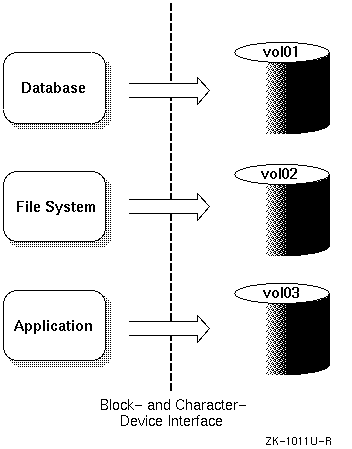
LSM builds virtual disks, called volumes, on top of UNIX system disks. A volume is a special device that contains data managed by a UNIX file system, a database, or other application. LSM transparently places a volume between a physical disk and an application, which then operates on the volume rather than on the physical disk. A file system, for instance, is created on the LSM volume rather than a physical disk. Figure 8-1 shows disk storage management in an LSM configuration.
On a system that does not have LSM installed, I/O activity from the UNIX system kernel is passed through disk device drivers that control the flow of data to and from disks. When LSM is installed, the I/O passes from the kernel to the LSM volume device driver, then to the disk device drivers.
The LSM software maps the logical configuration of the system to the physical disk configuration. This is done transparently to the file systems, databases, and applications above it because LSM supports the standard block device and character device interfaces to store and retrieve data on LSM volumes. Thus, you do not have to change applications to access data on LSM volumes.
The block device special files associated with LSM volumes exist in
the
/dev/vol
directory and the character device special
files associated with LSM volumes exist in the
/dev/svol
directory.
LSM logically binds together the disk devices into a volume that represents the disks as a single virtual device to applications and users. LSM uses a structure of LSM objects to organize and optimize disk usage and guard against media failures. The structure is built with the objects in the following logical order:
Subdisks
Plexes (mirrors)
Volumes
Each object has a dependent relationship on the next-higher element, with subdisks being the lowest-level objects in the structure and volumes the highest level. LSM maintains a configuration database that describes the objects in the LSM configuration and implements utilities to manage the configuration database. Multiple mirrors, striping, and concatenation are additional techniques you can perform with the LSM objects to further enhance the capabilities of LSM.
Table 8-2 describes the LSM objects used to represent portions of the physical disks.
| Object | Description |
| Volume | Represents an addressable range of disk blocks
used by applications, file systems, or databases.
A volume is a virtual disk
device that looks to applications and file systems like a regular disk-partition
device.
In fact, volumes are logical devices that appear as devices in the
/dev
directory.
The volumes are labeled
fsgen
or
gen
according to their usage and content type.
Each
volume can be composed of from one to eight plexes (two or more plexes mirror
the data within the volume). |
| Due to its virtual nature, a volume is not restricted to a particular disk or a specific area thereof. You can change the configuration of a volume (using LSM utilities) without disrupting applications or file systems using that volume. | |
| Plex | A collection of one or more subdisks that represent specific portions of physical disks. When more than one plex is present, each plex is a replica of the volume; the data contained at any given point on each is identical (although the subdisk arrangement may differ). Plexes can have a striped or concatenated organization. |
| Subdisk | A logical representation of a set of contiguous disk blocks on a physical disk. Subdisks are associated with plexes to form volumes. Subdisks are the basic components of LSM volumes that form a bridge between physical disks and virtual volumes. |
| Disk | A collection of nonvolatile, read/write data blocks that are indexed and can be quickly and randomly accessed. LSM supports standard disk devices including SCSI and DSA disks. Each disk LSM uses is given two identifiers: a disk access name and an administrative name. |
| Disk Group | A collection of disks that share the same
LSM configuration database.
The
rootdg
disk group is a
special disk group that always exists. |
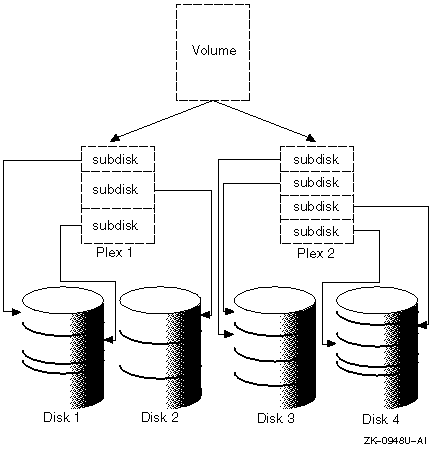
LSM objects have the following relationships:
A volume consists of one to eight plexes
A plex consists of one or more subdisks
A subdisk represents a specific portion of a disk
Disks are grouped into disk groups
Figure 8-2 shows an LSM configuration that includes two plexes to protect a file system or a database against data loss.
You must add physical disks to the LSM environment as LSM disks before
you can use them to create LSM volumes.
Refer to
Section 8.6.3
and the
voldiskadd(8)
reference page for information about adding physical
disks to LSM.
An LSM disk typically uses the following two regions on each physical disk:
A small region, called the private region, in which LSM keeps its disk media label and a configuration database
A large region, called the public region, that forms the storage space for building subdisks
Figure 8-3 illustrates the three types of LSM disks: simple, sliced, and nopriv. You can add all of these types of disks into an LSM disk group.

In Figure 8-3:
Simple disks have both public and private regions in the same
partition
(rz3g).
Sliced disks use the entire disk (
rz7)
and use the disk label on a disk to identify the private
(rz7h)
and the public
(rz7g) regions.
Nopriv disks have no private region, and so they do not contain LSM configuration information. Therefore, you can add nopriv disks only to an existing disk group that includes a simple disk or a sliced disk.
LSM configuration databases are stored on the private region of each LSM disk except the nopriv disk. The public regions of the LSM disks collectively form the storage space for application use. For purposes of availability, each simple and sliced disk contains two copies of the configuration database. A sliced disk takes up the entire physical disk, but simple and nopriv disks can reside on the same physical disk. The disk label tags identify the partitions to LSM as LSM disks.
When you perform disk operations, you should understand the disk-naming conventions for a disk access name and disk media name. Disk access names and disk media names are treated internally as two types of LSM disk objects. Some operations require that you specify the disk access name, while others require the disk media name.
The following definitions describe these disk-naming conventions:
Disk access name (also referred to as devname or device name)
The device name or address used to access a physical disk. A disk access name is of the form:
dd l n nnn p
The elements in the disk access name are described in the following table:
| Element | Description |
dd |
A two-character device mnemonic that shows
the disk type.
Use
ra
for DSA disks and
rz
for SCSI disks. |
| [l] | The SCSI logical unit number (LUN), in the range from a to h, to correspond to LUNs 0 through 7. This argument is optional and used for SCSI Redundant Arrays of Independent Disks (RAID) devices. |
| n[nnn] | The disk unit number ranging from 1 to 4 digits. |
| [p] | The partition letter, in the range from a to h, to correspond to partitions 0 through 7. This argument is optional. |
For example, rz in the device name
rz3 represents a pseudonym for a SCSI disk, and rzb10h (LUN 1) represents
a disk access name for a Digital SCSI RAID device having a LUN of one and
using partition
h.
For an LSM simple disk or an LSM nopriv disk, you must specify a partition
letter (for example,
rz3d).
For an LSM sliced disk, you
must specify a physical drive that does not have a partition letter (for example,
rz3).
The proper full pathname of the
d
partition
on this simple device is
/dev/rz3d.
For easier reading,
this document often lists only the disk access name and
/dev
is assumed.
Also, note that you do not specify
/dev
in
front of the device name when using LSM commands.
Disk media name (also referred to as the disk name)
An administrative name for the disk, such as disk01.
If you do not assign
a disk media name, it defaults to
disknn,
where
nn
is a sequence number if the disk is being
added to
rootdg.
Otherwise, the default disk media name
is
groupnamenn, where
groupname
represents the name of the disk group to which the disk
is added.
You can organize a collection of physical disks that share a common configuration or function into disk groups. LSM volumes are created within a disk group and are restricted to using disks within that disk group.
Use disk groups to simplify management and provide data availability. For example:
On a system with a large number of disks, you might want to divide disk usage into a few disk groups based on function. This would reduce the size of the LSM configuration database for each disk group as well as reduce the amount of overhead incurred in configuration changes.
If a system will be unavailable for a prolonged amount of time due to a hardware failure, you can move the physical disks in a disk group to another system. This is possible because each disk group has a self-describing LSM configuration database.
All systems with LSM installed have the
rootdg
disk
group.
By default, operations are directed to this disk group.
Most systems
do not need to use more than one disk group.
Note
You do not have to add disks to disk groups when a disk is initialized; disks can be initialized and kept on standby as replacements for failed disks. Use a disk that is initialized but has not been added to a disk group to immediately replace a failing disk in any disk group.
Each disk group maintains an LSM configuration database that contains detailed records and attributes about the existing disks, volumes, plexes, and subdisks in the disk group.
An LSM configuration database contains records describing all the objects (volumes, plexes, subdisks, disk media names, and disk access names) being used in a disk group.
Two identical copies of the LSM configuration database are located in the private region of each disk within a disk group. LSM maintains two identical copies of the configuration database in case of full or partial disk failure.
The contents of the
rootdg
configuration
database is slightly different from that of an ordinary database in that the
rootdg
configuration database contains records for disks outside
of the
rootdg
disk group in addition to the ordinary disk-group
configuration information.
Specifically, a
rootdg
configuration
includes disk-access records that define the disks and disk groups on the
system.
The LSM volume daemon,
vold, uses the
volboot
file during startup to locate copies of the
rootdg
configuration database.
This file may list disks that contain configuration
copies in standard locations, and can also contain direct pointers to configuration
copy locations.
The
volboot
file is located in
/etc/vol.
When a disk is added to a disk group it is given a disk media name,
such as
disk02.
This name relates directly to the physical
disk.
LSM uses this naming convention (described in
Section 8.2.3)
because it makes the disk independent of the manner in which the volume is
mapped onto physical disks.
If a physical disk is moved to a different target
address or to a different controller, the name
disk02
continues
to refer to it.
You can replace disks by first associating a different physical
disk with the name of the disk to be replaced, and then recovering any volume
data that was stored on the original disk (from mirrors or backup copies).
Once a disk is under the control of LSM, all system administration tasks relating to that disk must be performed using LSM utilities and commands. For instance, if you install a file system on an LSM-controlled disk using physical disk paths rather than the LSM interfaces, LSM will be unaware that the new file system exists and will reallocate its space.
LSM provides three interfaces for managing LSM disks: a command line interface, a menu interface, and a graphical user interface. You can use any of these interfaces (or a combination of the interfaces) to change volume size, add plexes, and perform backups or other administrative tasks. You can use the LSM interfaces interchangeably. LSM objects created by one interface are fully interoperable and compatible with objects created by the other interfaces. Table 8-3 describes these LSM interfaces.
| Interface | Type | Description |
| Visual Administrator (dxlsm) | Graphical | Uses windows, icons, and menus to manage LSM volumes. The dxlsm graphical interface requires a workstation. The interface interprets the mouse-based icon operations into LSM commands. The Visual Administrator (dxlsm) interface requires the LSM software license. |
| Support Operations (voldiskadm) | Menu | Provides a menu of disk operations. Each entry in the main menu leads you through a particular operation by providing you with information and asking you questions. Default answers are provided for many questions. This character-cell interface does not require a workstation. |
| Command line | Command | Provides two approaches to LSM administration.
With the top-down approach, you use the LSM
volassist
command
to automatically build the underlying LSM objects.
With the bottom-up approach,
you use individual commands to build individual objects to customize the construction
of an LSM volume. |
The following sections summarize some useful commands from the command line interface. Examples of how to use some of these commands are included in Section 8.6.
See also the appropriate reference pages and the manual Logical Storage Manager for detailed information and examples.
The top-down approach to managing storage means placing disks in one
large pool of free storage space.
You then use the
volassist
utility to specify to LSM what you need, and LSM allocates the space from
this free pool.
You can use
volassist
to create, mirror,
grow, or shrink a volume.
With
volassist, you can use the
defaults that the utility provides, or you can specify volume attributes on
the command line.
The
volassist
command has the following syntax:
volassist
[- b ]
[- g diskgroup ]
[- U usetype ]
[- d file ]
keyword argument ...
The bottom-up approach to storage management allows you to control the placement and definition of subdisks, plexes, and volumes. Bottom-up commands allow a great deal of precision control over how LSM creates and connects objects together. You should have a detailed knowledge of the LSM architecture before using these commands.
Bottom-up commands include
volmake
to create LSM
objects, and
volume, volplex,
and
volsd
to manipulate volume, plex, and subdisk objects.
The syntax for these commands
is as follows:
volmake
[-Uusetype]
[-ouseopt]
[-dfile]
[type name[attribute]]...
volume
[-Uusetype]
[-ouseopt]
[-Vq]
keyword argument...
volplex
[-Uusetype]
[-ouseopt]
[-V]
[-vvolume]
keyword argument...
volsd
[-Uutype]
[-ouopt]
[-V]
[-vvolume]
[-pplex]
keyword argument...
The
volprint
command, which has built-in parsing
and formatting features, displays most of the LSM configuration and status
information.
The
volprint
command has the following syntax:
volprint
[-AvpsdGhnlafmtqQ]
[-gdiskgroup]
[-epattern]
[-Ddatabase]
[-F[type:]format-spec]
[name...]
Before setting up LSM volumes, plexes, and subdisks, you should consider the needs of your site, the hardware available to you, and the rationale for creating volumes and disk groups.
Table 8-4 presents some configuration options and describes the planning considerations that apply to LSM configurations.
| Configuration | Description |
| Concatenated volumes | You concatenate multiple LSM disks
together to form a big volume.
You can use a concatenated volume to store
a large file or file systems that span more than one disk.
Disk concatenation
frees you from being limited by the actual physical sizes of individual disks
so that you can combine the storage potential of several devices.
Use the
default disk group,
rootdg, to create a concatenated volume
from the public regions available.
You can also add more LSM disks and create
volumes from the new disks you added. |
| Mirrored volumes | You associate multiple plexes with the same volume to create a mirrored volume. If you are concerned about the availability of your data, then plan to mirror data on your system. You should map plexes that are associated with the same volume to different physical disks. For systems with multiple disk controllers, you should map a volume's plexes to different controllers. |
The
volassist
command will fail if you specify a device that is already in the volume as
the mirrored plex; the bottom-up commands will not fail. |
|
| Striped volumes | For faster read/write throughput, use a volume with a striped plex. On a physical disk drive, the drive performs only one I/O operation at a time. On an LSM volume with its data striped across multiple physical disks, multiple I/Os (one for each physical disk) can be performed simultaneously. |
The basic components of a striped
plex are the size of the plex in multiples of the stripe width used, the actual
stripe width, and number of stripes.
Stripe blocks of the stripe width size
are interleaved among the subdisks, resulting in an even distribution of accesses
among the subdisks.
The stripe width defaults to 128 sectors, but you can
tune the size to specific application needs.
The
volassist
command automatically rounds up the volume length to multiples of stripe width. |
|
| Mirrored and striped volumes | Use mirrored and striped volumes when speed and availability are important. LSM supports mirroring of striped plexes. This configuration offers the improved I/O performance of striping while also providing data availability. |
| The different striped plexes in a mirrored volume do not have to be symmetrical. For instance, a three-way striped plex can be mirrored with a two-way striped plex as long as the plex size is the same. Reads can be serviced by any plex in a mirrored volume. Thus, a mirrored volume provides increased read performance. However, LSM issues writes to all plexes in a mirrored volume. Because the writes are issued in parallel, there is a small amount of additional overhead as the result of a write I/O to a mirrored volume. |
After installing and licensing the LSM software (as described in the Installation Guide), you can use the information in the following sections to quickly get LSM up and running.
The following sections provide quick reference information to help you reenable LSM after an installation, start up LSM for the first time, and perform several common LSM operations. The examples provided use the command-line interface. See the Logical Storage Manager guide for complete information about using the command line interface, and for information about the LSM graphical user interface and menu interface.
If you are already running LSM and the
rootdg
disk
group is already initialized, you do not need to reenable LSM.
For example,
if you performed an upgrade installation, skip this section.
If you had LSM initialized on a system before doing a full installation, you can reenable the LSM configuration by performing the following steps:
Copy the
/etc/volboot
file from a backup:
#cp /backup/volboot /etc/volboot
Create the LSM special device file:
#/sbin/volinstall
Start the LSM daemons and volumes:
#/sbin/vol-startup
If you are setting up LSM for the first time,
you can use the
volsetup
utility to initialize LSM and
create the LSM configuration database for the first time.
Then, use the
voldiskadd
utility to add more disks into LSM.
This is the simplest
method to set up an LSM configuration.
The
volsetup
utility automatically modifies disk labels, initializes disks for LSM, creates
the default disk group,
rootdg, and configures disks into
the
rootdg
disk group.
You invoke the
volsetup
utility only once.
To later add more disks, use the
voldiskadd
utility.
The
volsetup
utility prompts you to estimate how
many disks will be managed by LSM.
The utility uses the estimate to define
optimal values for the private region size (in sectors), and the number of
configuration and log copies per disk.
Follow these steps to use
volsetup:
If you are in single-user mode, set the host name for your system before initializing LSM.
Execute the
/sbin/volsetup
interactive
utility by entering the following command:
#/sbin/volsetup rz1
In this
example, the rz1 disk is used to initialize the
rootdg
disk group.
If you do not give the name of a disk, LSM prompts you for one.
Note
When you are first setting up LSM, do not include the boot disk in the disks you specify to
volsetup. After you initialize LSM, you can encapsulate the root and swap partitions and add them to therootdgdisk group or another disk group.
The
volsetup
utility modifies the
/etc/inittab
file.
When the system
reboots, LSM is started automatically by the initialization process when it
reads the LSM entries in the
inittab
file.
(See
inittab(4)
for more information.)
The LSM
/sbin/lsmbstartup
script starts
the LSM
vold
daemon and the
voliod
error
demon.
After running the
volsetup
procedure, check that
the
vold
daemon is running.
The
volsetup
utility creates the
/etc/vol/volboot
file.
This file is used to locate copies of the
rootdg
disk group configuration when the system starts up.
Note
Do not delete or manually update the
/etc/vol/volbootfile; it is critical for starting LSM.
Once LSM has been initialized with the
/sbin/volsetup
utility, you can add more physical disks or disk partitions to
the
rootdg
disk group or add a new disk group by executing
the interactive
voldiskadd
utility.
This utility requires
that a disklabel already exist on the device.
Refer to the
disklabel(8)
reference page for complete information.
For example, you could add a disk
partition to the
rootdg
disk group by executing the following
command:
#voldiskadd rz3
To initialize a disk without adding it to a disk group, use the
voldisksetup(8)
command.
This command allows you to add an LSM simple disk or sliced disk.
To add a physical disk to LSM with a specific private region size, use
the
voldisksetup(8)
command.
For example, use the following command
to initialize a sliced LSM disk with a private region size of 2048 sectors:
#voldisksetup -i rz3 privlen=2048
Use the
voldg
command to add the LSM disk to a disk
group.
After you create a disk group and add disks, use the
volassist
command to create volumes.
For example:
#volassist -g disk_group make volume length attribute=value
To create a volume in a disk group, use the instructions in the following list, or use the dxlsm graphical user interface (GUI).
To use nonreserved disks to create a 10 MB volume in the
rootdg
disk group, enter the following command:
#volassist -g rootdg make vol01 10m
To use nonreserved disks to create a 1024 Kb volume in the
dg1
disk group, enter the following command:
#volassist -g dg1 make vol02 1024k
To create a volume on a specified disk in the
rootdg
disk group, enter the following command:
#volassist -g rootdg make vol03 200000s rz7
To use nonreserved disks to create a 200,000 sector volume
in the
rootdg
disk group and exclude the rz9 disk, enter
the following command:
#volassist -g rootdg make vol03 200000s !rz9
To create a 20 MB striped volume from the
rootdg
disk group using three LSM disks with a stripe width of 64 Kb (the
default), enter the following command:
#volassist -g rootdg make vol04 20m layout=stripe nstripe=3
Once a volume is created
and enabled, use the
volassist
utility to create and attach
new plexes to the volume.
The following command creates three plexes of the vol02 volume in the dg1 disk group. The command is executed in the background because it may take a long time for the command to complete:
#volassist -g dg1 mirror vol02 nmirror=3 &
The following command creates a 30 MB mirrored volume named
vol05 from the
rootdg
disk group.
The
mirror=yes
option specifies the number of mirrors as two.
This is the default.
#volassist -g rootdg make vol05 30m mirror=yes
You can use
the
volassist
utility to increase or decrease the size
of a volume.
To change the size of a volume, use the following examples as
guidelines:
Enter the following command to increase the size of the vol01 volume by 2 MB:
#volassist growby vol01 2m
Enter the following command to decrease the size of the vol01 volume by 1024 Kb:
#volassist shrinkby vol01 1024k
Caution
The following restrictions apply to grown LSM volumes:
A volume containing one or more striped plexes cannot grow in size.
Neither UFS nor AdvFS file systems can take advantage of the extra space in a grown LSM volume.
Shrinking an LSM volume with either a UFS or AdvFS file system causes loss of data.