After you develop a software product, you package the product files to process them into a kit. First you must organize these files by function and use, then place them into a kit-building directory structure. When you design the kit-building directory structure, consider where you want to place the product files on the customer's system and then create a kit directory structure that closely mirrors that on the customer's system.
This chapter discusses the following topics:
Obtaining a unique three-letter manufacturer's product code (Section 2.1)
Creating the directory structure needed to build a product kit (Section 2.2)
Populating the source directory on the kit-building system (Section 2.3)
2.1 Obtaining a Unique Product Code
Before you can create a product kit, you must have a unique three-letter
product code.
To obtain this product code,
send electronic mail to
product@dssr.sqp.zko.dec.com.
You
use this product code and a product version number that you assign to name
your product-specific subdirectories.
Examples in this book use
OAT
as the prefix as the
unique three-letter product code for the Orpheus Document Builder (ODB) product
kit.
Assuming this is the first release of the product, the examples use
100
as the version number.
2.2 Creating a Kit Building Directory Structure
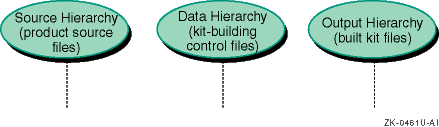
To create a kit, you need three separate directory hierarchies on the
kit development system.
Figure 2-1
illustrates these directory
hierarchies.
Figure 2-1: Kit Directory Hierarchies
The following definitions describe each directory hierarchy:
Source hierarchy
The source hierarchy exactly mirrors the directory structure into which customers install your finished kit. You must place each file that is to become part of your kit into the required directory in the source hierarchy. You can create the source hierarchy under any directory you choose.
Data hierarchy
The data hierarchy contains the following files to specify the contents of the kit and how it is organized:
A master inventory file lists each of the files in the kit and defines which subset contains each file.
A key file specifies the kit's attributes, such as the product name and version and whether the subsets are in compressed or uncompressed format.
A subdirectory named
scps
contains any subset control programs that the product requires.
Additional files may be required, depending on the kit type.
The
kits
utility is run from this data directory.
There is no specific requirement for the location of the data hierarchy, but
it is good practice to place it under the same directory as the source hierarchy.
Output hierarchy
The output hierarchy contains the results of building the kit in the same format that the distribution media will contain when it is delivered to the customer. There is no specific requirement for the location of the output hierarchy, but it is good practice to place it under the same directory as the source and data hierarchies.
Example 2-1
shows how you can create the kit-building
directories:
Example 2-1: Creating the Kit-Building Directories
#mkdir /mykit#mkdir /mykit/src#mkdir /mykit/data#mkdir /mykit/output
2.3 Populating the Source Directory
The components of a kit can be installed in any directory on the customer's system. However, guidelines exist for kit file placement. The standard system directory structure separates files by function and use and is designed for efficient organization.
This section discusses the following topics:
Using standard directory structures (Section 2.3.1)
Using context-dependent symbolic links (Section 2.3.2)
Placing files in the kit source directory (Section 2.3.3)
Setting up the sample product kit source directory (Section 2.3.4)
You can choose any method for populating the source hierarchy.
For example,
you could create a
Makefile
to use with the
make
command, or you could copy files with the
cp
command.
2.3.1 Using Standard Directory Structures
File placement in a standard directory structure depends upon whether
the system has a separate
var
file system.
If the system has a separate
var
file system,
use the
/var/opt
directory.
If the system does not have a separate
var
file system, use the
/usr/var/opt
directory.
Examples in this manual assume that
var
is not a
separate file system, and show the
/usr/var/opt
directory.
A standard directory structure has the following advantages:
Avoiding name conflicts
When a layered product installs a file that overwrites a file shipped
by another product, it is known as a name space conflict.
Shipping the files
in the product-specific
opt
subdirectories of root,
usr
and
var
avoids this conflict because each
three-letter product code is unique to a particular manufacturer.
The product-specific
directories for the examples in this manual are
/opt/OAT100,
/usr/opt/OAT100, and
/usr/var/opt/OAT100.
Locating kit components
If disk partition restructuring or product maintenance becomes necessary,
it is easier to find all of your kit if its components are in the
/opt
directories rather than scattered throughout the standard directories.
Serving multiple versions of the same product to different clients
Exporting software to share across a network is simplified and more
secure.
You need to export only the specific directories under
/opt,
/usr/opt, and
/usr/var/opt
that contain the product you want, then create links on the importing system.
You can set up a server with multiple versions of a given product, using the
links created on the client systems to determine which version a given client
uses.
In this way, you can maintain software for multiple dissimilar hardware
platforms on the same server.
Specific directory requirements exist for each type of product kit. In some cases, additional files are required for the kit to build successfully.
You do not need any additional installation files for a user product.
Section 5.2 describes the additional installation files you need for a kernel product. Figure 5-1 illustrates these files.
Install product files in product-specific subdirectories of the root
( / ),
/usr, and
/usr/var
directories, as described in the following list:
Boot files reside under
/opt
Install files that are required at bootstrap time, such as device drivers,
in a product-specific subdirectory of the
/opt
directory,
such as
/opt/OAT100.
This also includes any files to be
accessed before file systems other than root are mounted.
Read-only files reside under
/usr/opt
Install read-only files (such as commands), startup files (not modified
by individual users), or data files in a product-specific subdirectory of
the
/usr/opt
directory, such as
/usr/opt/OAT100.
Read/write files reside under
/usr/var/opt
Install files that users can read and modify, such as data lists, in
a product-specific subdirectory of the
/usr/var/opt
directory.
2.3.2 Using Context-Dependent Symbolic Links
If you are preparing a product kit that may run on a cluster, you need to create context-dependent symbolic link (CDSL) to a member-specific file instead of using a shared file in your product kit's inventory.
A member-specific file is used by a specific cluster member. The contents of a member-specific file differ for each cluster member, and each member has its own copy of a member-specific file.
For example, the
sysconfigtab
file contains information
that can be different for each cluster member, so the
/etc/sysconfigtab
file is a CDSL that points to the member's
sysconfigtab
file.
A shared file is used by all members of a cluster. There is only one copy of a shared file.
For example, executable files may be shared by all cluster members.
A context-dependent symbolic link (CDSL) is a special kind of symbolic link that points to a member-specific file. The CDSL references the member-specific file for the member that accesses the CDSL -- the member that accesses the CDSL determines its target.
This section provides the following information:
When to use CDSLs in your product kit (Section 2.3.2.1)
How to identify CDSLs (Section 2.3.2.2)
How to create CDSLs for your product kit (Section 2.3.2.3)
Restrictions on using CDSLs in your product kit (Section 2.3.2.4)
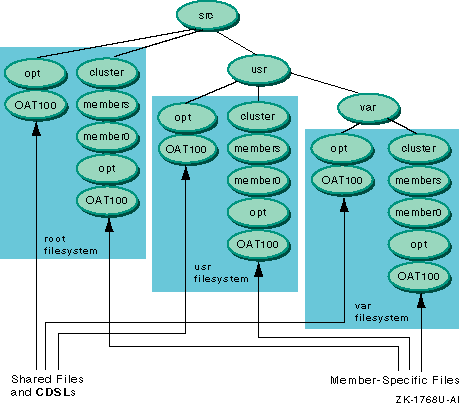
Figure 2-2
shows member-specific directories in
the ODB product kit source hierarchy.
Figure 2-2: Member-Specific Directories in Source Hierarchy
Caution
Layered product kits always should refer to CDSLs and not to the corresponding member-specific files. Doing this isolates CDSL awareness from the layered product and keeps it in the file system hierarchy, making it easier for you to maintain and upgrade your layered product kit. CDSL references access the correct file whether the product is installed on a cluster or on a single system, and continue to work if file types change in a future version of the product.
For example, refer to the
/usr/var/X11/Xserver.conffile rather than to the/usr/var/cluster/members/member0/X11/Xserver.conffile. These are the same if the/usr/var/X11/Xserver.conffile is a CDSL.
2.3.2.1 Knowing When to Use CDSLs
If your product kit might run on a cluster, you may need to create CDSLs.
Use CDSLs if you need a file to be different on every machine running the product kit software.
Use shared files if the file is always the same on every machine running the product kit software.
Do not make a directory into a CDSL.
Once a directory is a CDSL you
cannot change it back to a regular directory.
If a directory contains all
member-specific files, make each file a CDSL.
2.3.2.2 Identifying CDSLs
You can identify a CDSL by the presence of the
{memb}
variable in its pathname.
For example:
lrwxrwxrwx  1   root    system      57 May 19 10:54 /etc/sysconfigtab -> \
  ../cluster/members/{memb}/boot_partition/etc/sysconfigtab
Note
The backslash (
\) character in this example indicates line continuation, and is not present in the actual output.
To resolve a CDSL's pathname, the kernel replaces the
{memb}
variable with the string
memberN,
where
N
is the member ID of the cluster member
that is referencing the file.
If a cluster member with member ID 2 is accessing
the
/etc/sysconfigtab
file in this example, the pathname
is resolved to
/cluster/members/member2/boot_partition/etc/sysconfigtab.
2.3.2.3 Creating CDSLs
Follow these steps to create CDSLs:
Determine the file system where the CDSLs should reside: root
( / ),
/usr, or
/usr/var.
Log in as
root
or use the
su
command to gain superuser privileges.
Use the
mkdir
command to create member-specific
directories for each file system.
For example, if you are building the
OAT100
kit in
the
/mykit
directory, enter the following commands for
the root ( / ),
/usr,
and
/usr/var
file systems:
#mkdir -p /mykit/src/cluster/members/member0/opt/OAT100#mkdir -p /mykit/src/usr/cluster/members/member0/opt/OAT100#mkdir -p /mykit/src/usr/var/cluster/members/member0/opt/OAT100
Copy the
odb_log
file to the member-specific
area, creating directories as needed.
Refer to
Figure 2-2
and to the sample
OAT100
product kit source directory shown
in
Figure 2-3.
If you are working on a single system, use the
ln
-s
command to create the CDSLs in the shared file directories.
Specify
relative pathnames, as shown in the following example:
#cd /mykit/src#mkdir -p usr/var/opt/OAT100/log_files#cd usr/var/opt/OAT100/log_files#ln -s \ ../../../cluster/members/{memb}/opt/OAT100/log_files/odb_log
Note
In the previous step, you created member specific files in the
cluster/members/member0path, but in this step you are creating symbolic links to thecluster/members/{memb}paths. When your product kit is installed on a cluster, this lets the system resolve the{memb}variable tomemberN, where N is the member ID of the cluster member that is referencing the file.The backslash (
\) character in the sample user input shows line continuation. You do not need to use a backslash to continue your input line.
Use the
ls -l
command to verify the symbolic
link, as shown in the following example:
# ls -l odb_log
lrwxrwxrwx  1 root  system    36 May 19 15:46 odb_log@ -> \
  ../../../cluster/members/member0/opt/OAT100/log_files/odb_log
Note
The backslash (
\) character shows line continuation and is not present in the actual output.
If you are working on a cluster, you can use the
mkcdsl
command to create CDSLs.
Refer to the
mkcdsl(8)
reference page
for information about this command.
2.3.2.4 Restrictions
The following restrictions apply when you use CDSLs in product kits:
If you are creating a product kit to run on a version of the operating system prior to Version 5.0A, you cannot use CDSLs.
If you are creating a product kit on a system that is running a version of the operating system prior to Version 5.0A, you can use CDSLs in your product kit but you must test it on a system running Version 5.0A or higher of the operating system.
If you are creating a product kit on a cluster member running
Version 5.0A or higher of the operating system, CDSLs cannot be
resolved to the member-specific areas in the
cluster/members/member0
directories.
The kernel resolves
{memb}
to the
cluster ID of the member where you are creating the kit,
memberN.
2.3.3 Placing Files in the Kit Source Directory
Files in the kit source directory hierarchy should match their intended
installation location under the
root
( / ),
/usr, and
/var
file systems.
Plan to install all of your kit files in product-specific subdirectories
in the
/opt,
/usr/opt, and
/usr/var/opt
directories to prevent name space conflicts with the
base operating system and other layered products.
Table 2-1
shows where to place kit files that
will be installed in the root ( / ),
/usr, and
/var
file systems:
Table 2-1: File Locations in Kit Directories
| Location in Kit src Directory | Installed File System |
opt/PRODCODE |
root ( / ) |
|
/usr |
|
/usr/var |
If you overwrite base operating system files, you may encounter the following problems:
Your product can be corrupted during an Update Installation of the operating system. The Update Installation will overwrite any file that was shipped as part of the old version of the operating system with the version of the file shipped with the operating system.
An Update Installation may not complete successfully if you overwrite a base operating system file. This can make the system unusable.
Your product may have to be removed from the system to complete an Update Installation. Your product would have to be reinstalled after the Update Installation is completed.
Removing your product corrupts the operating system.
2.3.4 Setting Up the Sample Product Kit Source Directory
Figure 2-3
shows how the Orpheus Document
Builder (ODB) product is installed in the standard directory structure, under
/opt,
/usr/opt, and
/usr/var/opt.
The directories shown between the
src
and the
OAT*
directories are the existing directories on the customer's
system.
All directories and files created by the product are shipped under
the
OAT*
directories.
In this example, directory names
begin with
OAT
because
OAT
is the three-letter
product code assigned to
Orpheus Authoring Tools, Inc..
Caution
File attributes (ownership and permissions) for files and directories in the kit's source hierarchy must be set exactly as they should be on the customer's system. This means that you must be superuser when populating the source hierarchy so that you can change these file attributes.
Do not attempt to circumvent this requirement by setting file attributes in your subset control programs. If a superuser on the customer's system runs the
fverifycommand on your subsets, attributes that have been modified by the subset control programs are reset to their original values in the kit's master inventory files.
Figure 2-3
shows a sample source directory
for the OAT product.
Figure 2-3: Sample Product Kit Source Directory
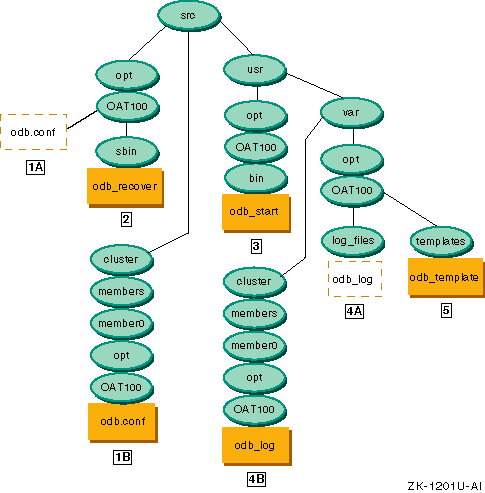
The following files have been provided by the ODB developers for the OAT kit. Each of these files has a path and an associated description, and must be placed correctly in the source hierarchy for the OAT product to build successfully.
/odb.conf
-- the ODB product configuration
file
If the product kit can be installed on a cluster, each cluster member must have its own copy of the configuration file. To accommodate this requirement, create a context-dependent symbolic link (CDSL) targeted to the member-specific file.
The context-dependent symbolic link (CDSL) for the
odb.conf
file is linked to the member-specific
cluster/members/{memb}/opt/OAT100/odb.conf
file.
This CDSL is installed in the root file system and placed
in the
opt/OAT100
source directory.
The member-specific file
odb.conf
can differ
on each cluster member.
This file is installed in the cluster member's root
file system and is placed in the
cluster/members/member0/opt/OAT100
source directory.
Refer to Section 2.3.2 for information about CDSLs.
/sbin/odb_recover
-- a utility to recover
corrupt ODB documents when the system boots.
The
odb_recover
script executes when the system boots and the
/usr
file
system may not be mounted.
This file is installed in the root file system and is placed in the
opt/OAT100/sbin
source directory.
/usr/bin/odb_start
-- the ODB product
startup script.
The
odb_start
script is a user command.
This file is installed in the
/usr
file system and
is placed in the
usr/opt/OAT100/bin
source directory.
/usr/var/log_files/odb_log
-- the ODB
product log file
If the product kit can be installed on a cluster, each cluster member must have its own copy of the log file. To accommodate this requirement, create a context-dependent symbolic link (CDSL) targeted to a member-specific file.
The context-dependent symbolic link (CDSL) for the
odb_log
file is linked to the member-specific
usr/var/cluster/members/{memb}/opt/OAT100/log_files/odb.log
file.
This CDSL is installed in the
/usr/var
file system and placed in the
usr/var/opt/OAT100/log_files
source directory.
The member-specific file
odb_log
can differ
on each cluster member.
This file is installed in the cluster member's
/usr/var
file system and is placed in the
/usr/var/cluster/members/member0/opt/OAT100/log_files
source directory.
Refer to Section 2.3.2 for information about CDSLs.
/usr/var/templates/odb_template
--
a document template that can be modified by a user.
This file is installed in the
/var
file system and
is placed in the
usr/var/opt/OAT100/templates
source directory.
opt/OAT100
inserted into the pathname.
For users to make effective use of your product after it is installed,
they should add the directories that contain your product commands to the
search path in their
.profile
or
.login
files.
For example, the Orpheus Document Builder (ODB) product is installed
in the standard directory structure under
/opt,
/usr/opt
and
/usr/var/opt.
The
src
directory mirrors the
root
( / )
directory on the customer's system.
The commands for the product are located
in the
/opt/OAT100/sbin
and
/usr/opt/OAT100/bin
directories.
To use ODB commands without specifying the full path
on the command line, the user can add these directory names to the
PATH
environment variable.
You can ship a symbolic link to make commands accessible through the
standard directories.
For example, the ODB kit contains the command
/usr/opt/OAT100/bin/odb_start.
A symbolic link can be created from
/usr/bin/odb_start
to
/usr/opt/OAT100/bin/odb_start.
This also makes the
odb_start
command available to users
as a part of their normal search path, since
/usr/bin
is
part of the standard path.
You can ship a symbolic link only if one of the following conditions apply:
The symbolic link does not conflict with any base operating system file.
Using our example, it means that you could create the
/usr/bin/odb_start
link only if the operating system does not already contain a
/usr/bin/odb_start
file.
If the operating system did contain a
/usr/bin/odb_start
file, shipping the symbolic link would overwrite
an existing file on the customer's operating system.
The command name does not conflict with any standard operating system command.
For example, if the
/usr/opt/OAT100/bin/odb_start
command is shipped in the ODB kit and was part of the standard operating system
in
/bin/odb_start, when a user entered the
odb_start
command there would be a command name conflict.
Depending upon
whether
/bin
or
/usr/bin
is first in
the search path, the user could be accessing the operating system version
or the symbolically linked ODB product version.