This chapter describes how to manage LSM objects, including disks, disk groups, volumes, plexes, and subdisks using the Storage Administrator GUI. The tasks described in this chapter can also be accomplished by using:
The command line.
The
voldiskadm
menu interface.
See
Appendix C
for more information on the
voldiskadm
menu interface.
The Visual Administrator. See Appendix D for more information on the Visual Administrator.
See
Appendix B
for more information on how to track
Storage Administrator activities, and how to customize the Storage Administrator
GUI.
A.1 Overview
The Storage Administrator is a Java-based graphical user interface (GUI) for LSM. The Storage Administrator displays a hierarchical view of LSM objects and their relationships. You use the Storage Administrator to view and manage LSM objects on a local or remote (client) system.
The Storage Administrator provides dialog boxes in which you enter information to create or manage LSM objects. Completing a dialog box might be the equivalent of entering several commands.
The Storage Administrator consists of a server (daemon) and a client. The Storage Administrator server runs on a system on which the LSM software is initialized and running. The Storage Administrator client runs on any machine that supports the Java run-time environment.
Note the following considerations when using the Storage Administrator:
If you are working in a TruCluster environment, some restrictions apply. Dialog box options for invalid tasks are grayed out.
Mirrors are allowed in clusters unless the disk to be mirrored is a clusterwide root, an individual member boot partition, a quorum disk, or swap disk.
Software-based RAID 5 technology is not supported in clusters. If you want RAID 5 functionality, you must use hardware RAID devices.
AdvFS file systems are supported in all modes.
UFS file systems are supported in read-only mode.
A.1.1 Installing and Starting the Storage Administrator
To install the Storage Administrator, choose the LSM GUI option during the LSM installation. Install the Storage Administrator on all systems on which you want to use the Storage Administrator to remotely manage the LSM software. See Chapter 3 for information on initializing the LSM software.
To use the Storage Administrator, you must log in as
root
unless your user name is in the
/etc/group
file for the
system, in the group defined for the Storage Administrator administration
(lsmsa_admin
by default).
To start Storage Administrator, enter:
#/usr/bin/lsmsa
The Session Initiation dialog box is displayed in which you enter the following information, then click on Ok:
The name of the system to be administered in the Host Server field
root
or your user name
The password associated with the account
When the GUI is started, the system attempts to connect it with the server process on the indicated host.
If the GUI cannot connect, the system then attempts to connect
it to the indicated host at the port,
initlsmsad, defined
in the
/etc/services
file, and
vrts.remote.server.initLsmsadPort, defined in the
/usr/lib/java/applications/lsmsa/properties
file.
The port number defined in these two files must be the same.
When the GUI connects to the
initlsmsad port, the
inetd server executes the
/usr/lib/java/applications/initlsmsad
program, which creates a subprocess where the
/usr/sbin/lsmsad
script will run.
The
lsmsad
script starts the LSMSA server
processes
VMServerImpl,
VRTSRegistry
and
cmdserver.
Once the LSMSA server processes are started,
the GUI then connects and operates normally.
If the GUI cannot connect to a port, the error message "Cannot connect to the server" is shown. When LSMSA exits and disconnects from the server, the server continues to exist in an idle state until another GUI connects or an LSM configuration event occurs (such as creation, deletion or modification of a LSM object). When the server receives notification of a LSM configuration event, if no GUIs are connected, the server exits. When the server exits, all of the LSMSA server processes exit, as well.
If the GUI cannot connect to the server, try the following:
Check the
/var/lsmsa/logs/server.log
file
for startup and error messages.
Run the
/usr/lib/java/applications/initlsmsad
program to view error messages.
You must be root user.
On a very slow network, you might need to adjust the value
assigned to the
CONNECTION_TIMEOUT
variable in the
/usr/sbin/lsmsadscript.
This is the amount of time after startup
that the LSMSA server will wait for a connection from the client.
The default
value is 30 seconds.
When the server process receives a LSM configuration
event, if no GUIs have been or are currently connected the
CONNECTION_TIMEOUT
seconds have elapsed, the server exits.
A.1.2 Storage Administrator Main Window
The Storage Administrator main window consists of two panes.
The left
pane displays a hierarchical tree of objects.
The right pane displays an object
table that lists the properties of the object selected on the left.
The window
also has a menu bar and a command launcher that you can hide or display to
initiate LSM options.
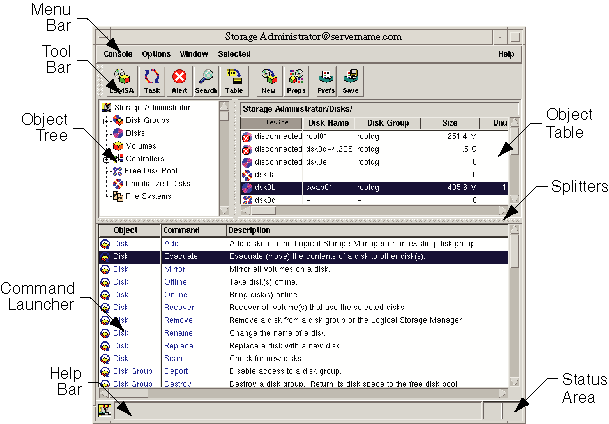
Figure A-1
shows the components
of the main window.
Figure A-1: The Storage Administrator Main Window
The Object Tree displays the hierarchical relationship between LSM objects. Each object represents a group of components of the same type. When you select the icon to the left of an object, components of that type appear in the right pane. You can expand objects (by clicking on the plus sign) to display their hierarchy.
The Object Table displays component objects that belong to the currently selected object in the Object Tree. The Object Table is dynamic and constantly updates its contents to reflect changes to the system.
The Command Launcher displays a list of tasks that you can perform on objects. When you click on a task in the Command Launcher list, the task starts and the dialog box for the task appears.
The menu bar contains the following menus:
Console menu--Provides access to the New menu, which creates volumes, disk groups, or file systems. It also closes the Main window, provides access to an object Properties dialog box, or exits the Storage Administrator.
Options menu--Provides access to the Preferences dialog box and saves or loads user preferences for Storage Administrator components. The Options menu also removes alert icons from the status area.
Window menu--Opens additional Storage Administrator Main windows, the Task Request Monitor, the Alert Monitor window, the Search window, a copy of the Object Table, or the Command Launcher.
Selected menu--By default, the Selected menu is grayed out and changes its options based on the type of object that you select. Until you have selected an object, you see the grayed Selected entry on the menu bar. When you select an object, for example Volumes, the Selected entry changes to Volumes.
Help menu--Provides access to online Storage Administrator help.
The toolbar consists of the following buttons that provide access to the following windows:
LSMSA button--Launches an additional Storage Administrator Main window
Task button--Launches the Task Request Monitor window
Alert button--Launches the Alert Monitor window
Search button--Launches the Object Search window
Table button--Launches a window that contains a copy of the main Object Table
New button--Launches the New Volume dialog box that is used to create a volume
Props button--Launches the Object Properties dialog box for a selected object
Prefs button--Launches the Preferences dialog box
Save button--Saves the current preference settings for use in future the Storage Administrator sessions
A.2 Performing Tasks with the Storage Administrator
You perform most tasks by selecting objects or tasks, then providing information in resulting dialog boxes. You perform tasks using:
The menu bar
A pop-up menu
The Command Launcher
To select a single object, click on it. To deselect the object, click on it again.
To select or deselect multiple objects, hold down the Control key while selecting the objects. The objects that you select do not have to be adjacent.
To select a range of adjacent objects, select the first object and then
hold down the Shift key while selecting the last object in the range.
You
can also select multiple adjacent objects by dragging the mouse over the desired
objects while pressing the Shift key.
A.2.2 Using the Menu Bar
You can launch tasks from the Console and Selected menus in the menu bar. Choose New from the Console menu to create new LSM volumes, disk groups, and file systems. The context-sensitive Selected menu changes to reflect which object you selected in the Object Table.
For example, to change a volume name, select Volumes in the Object Tree
and the volume you want to rename in the Object Table.
From the Volumes
menu, choose Rename, enter information in the Rename Volume dialog box, and
click on OK.
A.2.3 Using the Right Mouse Button to Display a Pop-Up Menu
Click on the right mouse button to access a context-sensitive pop-up menu to display common task information that you can apply to the selected object. Additional tasks are available through the menu bar or the Command Launcher.
For example, to create a new volume in a disk group, select Disk Groups
in the Object Tree, right-click on the disk group in the Object Table, choose
New Volume from the pop-up menu, enter information in the New Volume dialog
box, and click on OK.
A.2.4 Using the Command Launcher
The Command Launcher window contains a list of objects and associated tasks. To display the Command Launcher, choose Command Launcher from the Window menu. To hide the Command Launcher, choose Command Launcher again from the Window menu.
To perform a task on a specific type of object, select the appropriate object-command combination from the Command Launcher list. For example, to create a volume, choose Volume-New from the Command Launcher, enter information in the New Volume dialog box, and click on OK.
Caution
The Command Launcher does not restrict context. If you choose inappropriate commands and ignore the warning dialogs, you can perform operations that might result in permanent loss of data.
A.2.5 Exiting the Storage Administrator
To exit the Storage Administrator, choose Exit from the Console menu.
If you choose Close and there is no other Storage Administrator Main window
open, the system exits.
A.3 Managing Disks
The following sections describe disk management tasks that you can complete
using the Storage Administrator.
A.3.1 Adding a Disk
When you add a disk for use with the LSM software, the disk is either initialized or encapsulated. If the disk is not set up, initialize it. If you want to use a disk with partitions that are in use, encapsulate it. Encapsulation preserves any existing data on the disk in the form of volumes. Initialization destroys any existing data on the disk. Initialized disks are placed in the free disk pool and are available to add to disk group.
To add a disk for use with the LSM software:
In the Object Tree, select Disk and in the Object Table, choose a disk to place under LSM control.
If the disk is new and does not show up in the Object Table when you highlight Disks, click on the Storage Administrator (at the top of the Object Tree) and choose Scan Disks from the Disk menu.
In the Scan Disks dialog box, click on the Ok button to begin the search. From the Object Tree displayed, select a disk to add.
From the Disk menu, choose Add.
The Add Disk(s) dialog box is displayed:
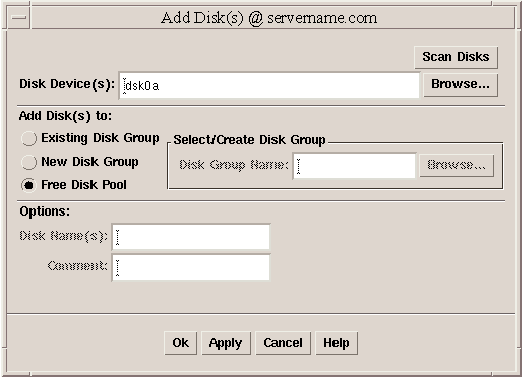
In the Add Disk(s) dialog box:
If the correct disk device name is not displayed, type the disk device name or click on Browse to select the disk. You can type more than one name separated by spaces.
Specify where to add disks:
To add disks to an existing disk group, select Existing Disk Group. Type the disk group name in the Disk Group Name field or click on Browse to select a disk group.
To add disks to a new disk group, select New Disk Group. Type the name of the new disk group in the Disk Group Name field. The new disk group is created.
To place disks in the free disk pool, select Free Disk Pool. Disks in the free disk pool are under LSM control (initialized) but do not belong to a disk group and cannot be used to create volumes.
In the Options section:
Specify the LSM disk names for the disks by typing a disk name in the Disk Name(s) field. This name must be unique within the disk group. If no LSM disk name is specified, the Storage Administrator assigns a default name to the disk.
Enter a comment if desired.
Click on Ok.
You can add one or more unused disks to a disk group and designate them as hot-spare disks. If an I/O failure occurs, the hot-spare feature automatically relocates any redundant (mirrored or RAID 5) subdisks to the spare disk and restores the affected LSM objects and data. You are notified of the failure and relocation details by electronic mail. See Section 3.4.4 for more information on the hot-spare feature.
If you designate a hot-spare disk, provide at least one per disk group. In the event of disk failure, the hot-spare disk automatically replaces the failed disk. Volumes can use hot-spare disks only from within the same disk group.
To add a disk as a hot-spare disk:
In the Object Tree, select Disk Group and in the Object Table, select the LSM disk to be designated as a hot-spare disk.
Choose Properties from the Disk Groups menu.
In the Disk Properties window:
Select the General tab.
Select Spare.
Click on Ok.
Note
The Properties dialog box is associated with the disk you have highlighted when you choose Properties. If you select a different disk from the Object Table, you must open a new Properties dialog box.
You can evacuate (or move) the contents of the volumes to other disks in the same disk group if there is sufficient free space. If no target disk is specified, LSM uses available disks with sufficient free space. Evacuating a disk is useful in the event of disk failure.
If the disk being evacuated contains part of a mirrored, striped, or RAID 5 volume, do not move the contents of the disk to another disk containing a copy of the mirrored volume or part of the striped/RAID 5 volume.
To evacuate a disk from LSM control:
In the Object Tree, select Disk and in the Object Table, select the disk that contains the objects and data to be moved.
From the Disk menu, choose Evacuate.
The Evacuate dialog box is displayed:
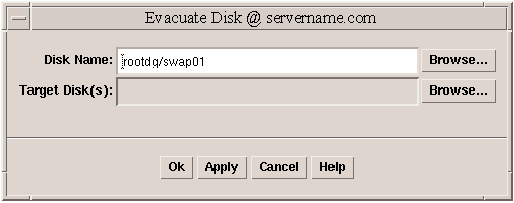
In the Evacuate Disk dialog box:
If the correct disk name is not displayed in the Disk Name field, type the disk name or click on Browse then click on the Object Tree to select the disk.
Type the name of the target disk to which you want to move the contents of the evacuated disk or click on Browse then click on the Object Tree to select one or more target disks.
If you choose Browse, the total evacuated space (in kilobytes) is displayed so you can choose your target disk accordingly.
Click on Ok.
You can mirror a disk to provide high availability for the volumes on that disk. Mirroring also improves read performance, because multiple reads to the same volume can be done simultaneously using the multiple copies of data.
If possible, mirror a disk onto a disk on a different bus to reduce the risk of a single point of failure for the volume.
To mirror all concatenated volumes on a disk:
In the Object Tree, select Disk and in the Object Table, select the disk that contains the volumes to be mirrored onto another disk.
From the Disk menu, choose Mirror.
The Mirror Disk dialog box is displayed:
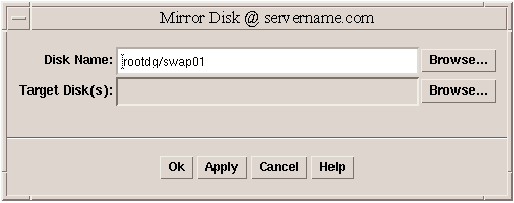
In the Mirror Disk dialog box:
If the correct disk name is not displayed in the disk name field, type the disk name or click on Browse to select the disk.
If you choose Browse, the total space being mirrored is displayed so you can choose your target disk accordingly.
To specify the disks to contain the new mirrors, type the target disk name or click on Browse and complete the Target Disk dialog box.
Click on Ok.
Placing a disk on line restores access to a disk that is off line. The disk is placed in the free disk pool and is accessible to LSM again. After bringing a disk back online, the disk must be added to a disk group before it can be used for volumes.
Only disks that are off line can be placed on line.
To place a disk on line:
In the Object Tree, select Disk and in the Object Table, select the disk to be brought on line.
From the Disks menu, choose Online.
The Online Disk dialog box is displayed.
In the Online Disk dialog box:
If the correct disk name is not displayed, type the disk name or click on Browse to select the disk.
Click on Ok.
A.3.5 Recovering Volumes on a Disk
A recovery operation depends on the types of volumes on the disk and includes starting disabled volumes, resynchronizing mirrors in mirrored volumes, and resynchronizing parity in RAID 5 volumes. After successful recovery, the volumes should be available for use.
Alert icons and the Alert Monitor window might provide information when a volume recovery is needed.
If recovery of a volume is not possible, restore the volume from backup.
To recover all volumes on a disk:
In the Object Tree, select Disk and in the Object Table, select the disk that contains the volumes to be recovered.
From the Disks menu, choose Recover.
The Recover Disk dialog box is displayed.
In the Recover Disks dialog box:
If the correct disk name is not displayed, type the disk name or click on Browse to select the disk.
Click on Ok.
A.3.6 Removing a Disk from an LSM Disk Group
An LSM disk no longer in use can be removed from a disk group. Do not remove LSM disks that are currently in use (for example, disks that contain subdisks for a volume); doing so can result in loss of data or of data redundancy.
After an LSM disk is removed from a disk group, it is still initialized for use with the LSM software. Therefore, after removing the disk from a disk group, it can be either immediately added to another disk group, removed from LSM, or left for later use.
To remove a disk from an LSM disk group:
In the Object Tree, select Disk and in the Object Table, select the disk to be removed.
From the Disks menu, choose Remove.
The Remove Disk dialog box is displayed:
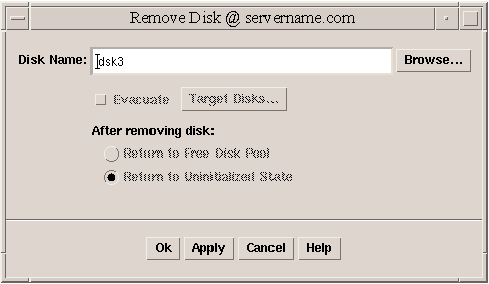
In the Remove Disk dialog box:
If the correct disk name is not displayed, enter the disk name or click on Browse to select the disk.
To move the contents of the disk to another disk before the disk is removed, select Evacuate. Click Target Disks to specify one or more disks to which you want the contents moved.
Specify how to handle the disk after removal:
To remove the disk from its disk group and place it in the free disk pool, select Return to Free Disk Pool. The disk remains under LSM control.
To remove the disk from LSM control, select Return to Uninitialized State.
Click on Ok.
Because disk access names are defined by the operating system and media names are defined by you, you can rename only disk media names for disks in a disk group.
To rename the disk media name for an LSM disk:
In the Object Tree, select Disk and in the Object Table, select the disk to be renamed.
From the Disks menu, choose Rename.
The Rename Disk dialog box is displayed.
In the Rename Disk dialog box:
If the correct disk name is not displayed, enter the disk name or click on Browse to select the disk.
Enter the new LSM disk name.
Click on Ok.
You can replace an existing disk with a new physical disk, move volumes to the new disk, and attempt to recover any redundant (mirrored or RAID 5) volumes on the disk. You cannot recover nonredundant volumes. You should restore nonredundant volumes from backup. If the disk being replaced is a boot disk, you can set up the new disk as a boot disk. You might need to replace a disk if the disk fails and needs to be removed and repaired.
If you replace a good disk, you need to remove the disk from its disk group and place it in the free disk pool before you replace the disk. If you replace a disk that has failed and is disconnected, you do not need to remove the disk from the disk group.
To replace a disk:
In the Object Tree, select Disk and in the Object Table, select the disk to be replaced.
From the Disks menu, choose Replace.
The Replace Disk dialog box is displayed:
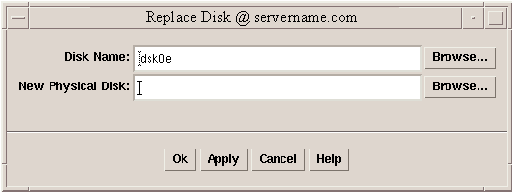
In the Replace Disk dialog box:
If the correct disk name is not displayed, enter the LSM disk name for the disk to be replaced or click on Browse to select the disk.
Enter the physical disk name for the new (replacement) disk or click on Browse to select a disk.
Click on Ok.
You can search your configuration for disks that are not under LSM control. Disks that are found are added to the free disk pool.
To scan for a new disk:
Select a disk from the Object Table and choose Add... from the Disks menu.
Click on the Scan Disk button.
To view disks that are found, click on Free Disk Pool in the Object Tree.
You can take a disk off line to prevent LSM from accessing it. You must remove a disk from its disk group before you take it off line. An offline disk remains unavailable until you restore access to the disk by placing it on line.
You take a disk off line to protect it from unintentional use, for example, if attempts to access it might have a negative effect on the system. You cannot take a disk that is in use off line.
To take a disk off line:
In the Object Tree, select Disk and in the Object Table, select the disk to be taken offline.
From the Disks menu, choose Offline.
The Offline Disk dialog box is displayed.
In the Offline Disk dialog box:
If the correct disk name is not displayed, enter the disk name or click on the Browse button to select the disk.
Click on Ok.
The following sections describe disk group management tasks that you
can complete using the Storage Administrator.
A.4.1 Adding a Disk to a Disk Group
To add a disk to a disk group, follow the instructions for adding a disk as described in Section A.3.1, and in the Add Disk dialog box, specify an existing disk group.
The LSM disk name must be unique within the disk group. If multiple disks are specified in the Disk Device(s) field and only one disk name is specified in the Disk Name(s) field, LSM appends numbers to the disk name so that each disk name is unique within its disk group.
You must place disks that belong to a disk group in the free disk pool before you can add them to another disk group. You must add disks in the free disk pool to a disk group before you can use them to create volumes.
Disks must be on line before they can be added to a disk group or the free disk pool. Disks cannot be added to deported disk groups.
You must place the root disk in the root disk group (rootdg).
If the
root disk is placed in any other disk group, you cannot use the root disk
to boot the system.
A.4.2 Creating a Disk Group
You must place disks into a disk group before you can use them to create volumes. The default disk group (rootdg) is created during LSM installation and always exists on a system running LSM. You can create additional disk groups to organize your disks into logical sets.
Each new disk group must contain at least one disk and must have a unique name. You can use only disks that are online and do not already belong to a disk group to create a disk group.
To create a disk group:
From the Console menu, choose New then Disk Group.
The New Disk Group dialog box is displayed:
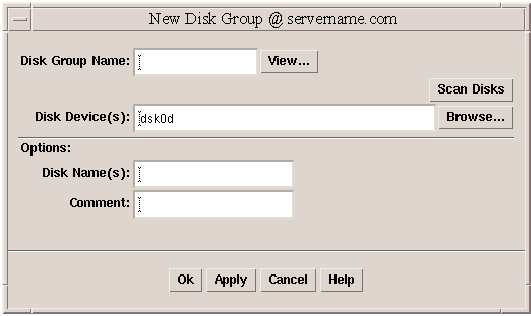
In the New Disk Group dialog box:
Enter the name of the disk group to be created. Click View to view the names of existing disk groups.
To set up any new disks on the system, click Scan Disks. This runs the disk setup commands appropriate for the operating system.
Select the disk devices to be placed in the new disk group or click on Browse to select the devices.
There are two options:
To specify the LSM disk name for the disk, enter a disk name in the Disk Name(s) field. If no LSM disk name is specified, Storage Administrator assigns a default name to the disk.
Enter a comment if desired.
Click on Ok.
After a disk group is created, the LSM software automatically imports it for use whenever the system is booted.
To disable access to a disk group, you deport the disk group. You must stop all the volumes within the disk group before deporting it.
To deport a disk group:
Select the Storage Administrator (at the top of the Object Tree).
From the Disk Group menu, choose Deport...
The Deport Disk Group dialog box is displayed:
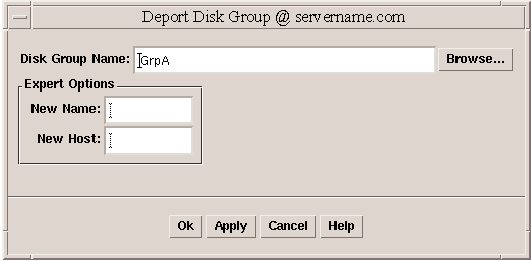
In the Deport Disk Group dialog box:
If the correct disk group name is not displayed, enter the disk group name or click on Browse to select the disk group.
Use the following Expert Options with caution:
To change the name of the disk group at deport, enter a new disk group name in the New Name field.
To set up a host machine to import the deported disk group at reboot, enter the host ID in the New Host field.
Click on Ok.
You can import a disk group to make a deported (inaccessible) disk group and its volumes accessible again. To import a deported disk group, you must know the disk group's former name and this disk group name must have remained unused. In addition, at least one disk formerly assigned to the deported disk group must remain unused. If all disks associated with a deported disk group were reused because the disk group was deported, that disk group cannot be imported.
The import might fail for a number of reasons. It might fail if the host cannot find one or more disks in the disk group. If the import fails because a disk has failed, you can import the disk group by selecting the Force Import expert option. If the import fails for another reason, a forced import can cause serious problems.
When you import a disk group, the system stamps its host ID on all disks in the disk group. A disk group import fails if one of the disks is stamped with a host ID that does not match the others. This ensures that dual-ported disks cannot be managed (and possibly corrupted) by two systems at the same time. If you are sure that the disk group is not in use by another host, you can clear the host IDs and import the disk group by selecting the Clear Host ID expert option.
To import a disk group:
Select the Storage Administrator (at the top of the Object Tree), then select Disk Group from the Object Table
From the Disk Group menu, choose Import Disk Group...
The Import Disk Group dialog box is displayed:
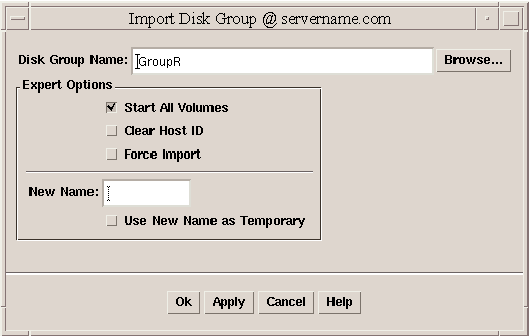
In the Import Disk Group dialog box:
If the correct disk group name is not displayed, enter the disk group name or click on Browse to select the disk group.
Use the following Expert Options with caution:
To start all volumes in the disk group at import, select Start All Volumes.
To clear the existing host ID stamp on all disks in the disk group at import, select Clear Host ID. Do not use this option if another host is using any disk in the disk group.
To force the disk group import when the host cannot access all disks in the disk group, select Force Import. Use this option with caution.
Enter the name of the disk group to be imported or click on Browse to select the disk group.
To change the name of the disk group at import, enter a new disk group name in the New Name field. To indicate that the name change is temporary, select Use New Name as Temporary. If you indicate a temporary name change, the original name is returned when the system is rebooted.
Click on Ok.
You can destroy a disk group permanently to remove the group from LSM control. It reinitializes all of the disks in the disk group as empty disks and places them in the free disk pool for reuse. You cannot destroy a disk group if any volumes in that disk group are in use. When a disk group is destroyed, the volumes in the disk group are removed.
Destroy a disk group only if you are sure that you no longer need the volumes and data in the disk group. Because the last disk in an existing disk group cannot be removed, destroying a disk group is a way to free the last disk in a disk group for reuse.
You cannot destroy the rootdg disk group.
To destroy a disk group:
Select the Storage Administrator (at the top of the Object Tree).
From theSystem menu, choose Destroy Disk Group.
The Destroy Disk Group dialog box is displayed.
In the Destroy Disk Group dialog box:
Enter the name of the disk group to be destroyed or click on Browse to select the disk group.
Click on Ok.
You can move a disk group (and LSM objects in that disk group) from one system to another. LSM and the Storage Administrator (server) must be running on both systems.
To move a disk group from one system to another:
Unmount and stop all volumes in the disk group to be moved.
Follow the instructions in Section A.4.3 to deport the disk group to be moved to the other system.
Attach all of the physical disks in the disk group to the new system.
On the new system, follow the instructions in Section A.4.4 to import the disk group.
Select the Storage Administrator (at the top of the Object Tree) and from the System menu, choose Scan Disks to set up the newly attached disks on the system. This runs the disk setup commands appropriate for the operating system.
Follow the instructions in Section A.4.7 to restart and recover all volumes in the disk group on the new system.
A.4.7 Recovering Volumes in a Disk Group
You can recover volumes in a given disk group. The recovery operations depend on the types of volumes in the disk group and include starting disabled volumes, resynchronizing mirrors in mirrored volumes, and resynchronizing parity in RAID 5 volumes. After successful recovery, the volumes are available for use.
Alert icons and the Alert Monitor window might provide you information to know when volume recovery is needed.
In some cases, recovery might not be possible. If the volume recovery fails, you can attempt to restore the volume from backup.
To recover all volumes in a disk group:
In the Object Tree, select Disk Group and in the Object Table, select the disk group containing the volumes to be recovered.
From the Disk Group menu, choose Recover.
The Recover Disk Groups dialog box is displayed.
In the Recover Disk Groups dialog box:
Enter the name of the disk group to be recovered or click on Browse to select the disk group.
Click on Ok.
You can rename a disk group.
If volumes in the disk group are in use
(mounted), the disk group is not renamed.
Renaming a disk group updates the
/etc/fstab
file.
The new disk group name must be unique.
To rename a disk group:
In the Object Tree, select Disk Group and in the Object Table, select the disk group to be renamed.
From the Disk Group menu, choose Rename.
The Rename Disk Group dialog box is displayed:
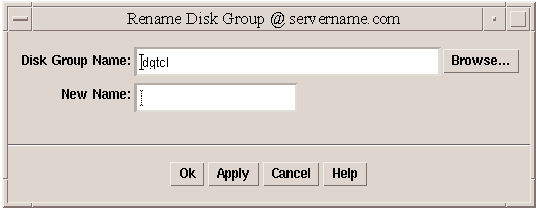
In the Rename Disk Group dialog box:
If the correct disk group name is not displayed, enter the disk group name or click on Browse to select the disk group.
Enter the new name for the disk group.
Click on Ok.
Subdisks are created as the result of creating a volume. You cannot use the Storage Administrator to create subdisks.
The following sections describe the subdisk management tasks that you
can complete by using the Storage Administrator.
A.5.1 Joining Subdisks
You can join two or more subdisks to form a single, larger subdisk. Subdisks can be joined only if they belong to the same volume and occupy adjacent regions of the same disk and mirror. The joined subdisk can retain the name of one of the subdisks being joined.
For a volume with a striped plex, the subdisks must be in the same column.
To join subdisks:
In the Object Tree, select Volume and in the Object Table, select the volume with the subdisks to be joined.
From the Volume menu, choose Show Layout.
In the Volume Layout Details window, hold down the Shift key and click to select the subdisks to be combined. Subdisks must be contiguous.
From the Subdisk menu, choose Join.
The Join Subdisk dialog box is displayed:
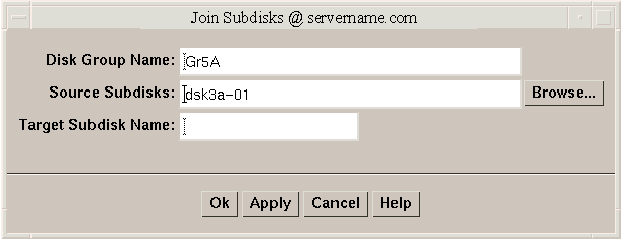
In the Join Subdisks dialog box:
Enter the name of the disk group that contains the subdisks to be joined.
If the correct subdisk names are not displayed, enter the subdisk names or click on Browse to select the subdisks. Specify at least two subdisk names separated by a space.
Enter the name of the new, combined subdisk.
Click on Ok.
Close the Volume Layout Details window. The new volume layout can be viewed by reopening the window.
You can move portions of a volume to a different disk to improve performance. The disk space occupied by the original subdisk is returned to the free space pool.
Do not move a subdisk in a mirrored, striped, or RAID 5 volume to a disk that already contains a copy or part of that volume.
If this task fails and leaves some unused subdisks (that is, subdisks that are not associated with a volume) on the system, you can remove the subdisk (see Section A.5.3) to free the space occupied by the unused subdisks.
To move a subdisk:
In the Object Tree, select Volume and in the Object Table, select the volume with the subdisk to be moved.
From the Volume menu, choose Show Layout.
In the Volume Layout Details window, select the subdisk to be moved to another disk.
From the Subdisk menu, choose Move.
The Move Subdisks dialog box is displayed:
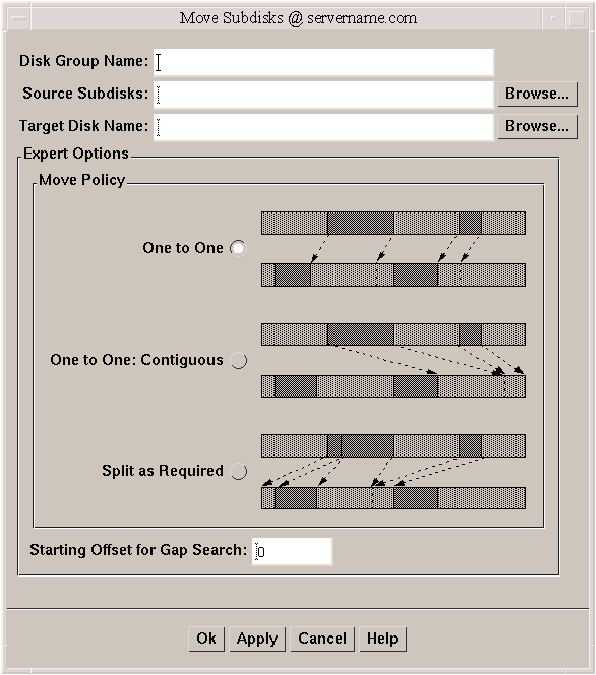
In the Move Subdisks dialog box:
Enter the name of the disk group that contains the subdisk to be moved.
If the correct source subdisk name is not displayed, enter the subdisk's name or click on Browse to select the subdisk.
Enter the name of the target disk to which the subdisk should be moved or click on Browse to select a disk.
Choose the Move Policy to specify whether the subdisk can be split into smaller subdisks that fit in available space(s) on the target disk. The One to One options do not split the subdisk. The Split as Required option allows the subdisk to be split if needed.
Specify the minimum disk offset for the subdisk. Enter the offset in the Starting Offset for Gap Search field.
Click on Ok.
Close the Volume Layout Details window. You can view the new volume layout by reopening the window.
You can remove a subdisk that is not associated with a volume. This returns the disk space occupied by unused subdisks to the free space pool.
To remove a subdisk:
In the Object Tree, select Disk and in the Object Table, select the volume with the subdisk to be removed.
From the Volume menu, choose Show Layout.
In the Volume Layout Details window, select the subdisk to remove.
From the Subdisk menu, choose Remove.
The Remove Subdisks dialog box is displayed:
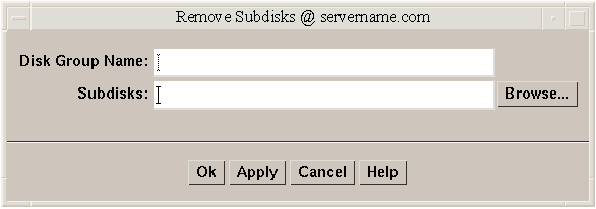
In the Remove Subdisks dialog box:
Enter the name of the disk group that contains the subdisks to be removed.
If the correct subdisk names are not displayed, enter the subdisk names or click on Browse to select the subdisks.
Click on Ok.
Close the Volume Layout Details window. You can view the new volume layout by reopening the window.
You can divide a subdisk into two or more subdisks. Once split, the smaller subdisks can be moved elsewhere or rejoined later. This is useful for reorganizing volumes or for improving performance. The original subdisk must contain a sufficient number of sectors for the specified split to work.
The name of the first subdisk remains the same as the selected subdisk. Other subdisks are automatically named by the Storage Administrator. The new, smaller subdisks occupy the same regions of the disk that the original subdisk occupied.
A log subdisk cannot be split.
To split a subdisk into multiple subdisks:
In the Object Tree, select Volume and in the Object Table, select the volume with the subdisk to be split.
From the Volume menu, choose Show Layout.
In the Volume Layout Details window, select the subdisk to be split into multiple subdisks.
From the Subdisks menu, choose Split.
The Split Subdisk dialog box is displayed:
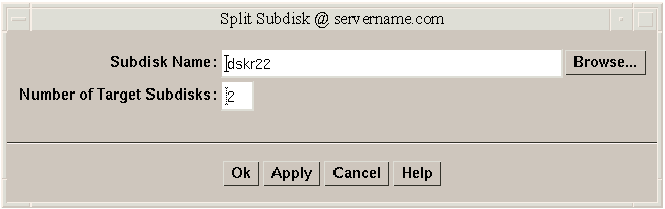
In the Split Subdisk dialog box:
If the correct subdisk name is not displayed, enter the subdisk's name or click on Browse to select the subdisk.
Enter the number of subdisks into which the subdisk should be split. A subdisk can be split into two or more subdisks.
Click on Ok.
Close the Volume Layout Details window. You can view the new volume layout by reopening the window.
The following sections describe the volume management tasks that you can complete by using the Storage Administrator. Most tasks described in this section are appropriate only for UFS.
AdvFS file domains (file systems) operate differently from UFS file systems. Once you assign a volume to AdvFS, it is out of the control of the Storage Administrator. Therefore, you cannot stop, remove, rename, mount, or unmount an AdvFS volume. That is, you cannot use the Storage Administrator to perform tasks that compromise the integrity of the AdvFS file domain.
In a cluster, AdvFS file systems are supported in all modes; UFS file
systems are supported in read-only mode.
A.6.1 Analyzing Activity on Volumes, Disks, and Subdisks
You can use the Volume to Disk Mapping window to display information about the performance of volumes, disks, and subdisks.
The statistical values for the performance data are represented by different colors. When the analysis starts or changes, the color behind the object will change. Clicking on any of the green dots in the table highlights the path between the volume and its related disks. Statistics can be collected only on volumes. Only disks and subdisks associated with volumes can be analyzed.
You can open Volume to Disk Mapping windows for more than one disk group; however, only one disk group can be analyzed at a time.
To open the Volume to Disk Mapping window:
In the Object Tree, select disk groups and in the Object Table, select the disk to map.
Right-click on a disk group in the Object Table and choose Disk/Volume Map... from the pop-up menu.
The Volume to Disk Mapping window is displayed:
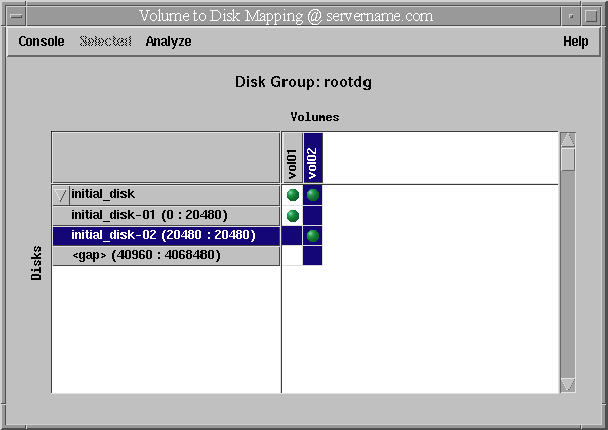
In the Volume to Disk Mapping window:
To display all of the subdisks and gaps on a particular disk, click the arrow to the left of the disk name.
To select a disk, subdisk or volume for analysis, click on the name of that object. The background for the object changes color when selected.
To view the volumes, disks, or subdisks that are associated, click on the green dot at the intersection between the disk and volume.
To analyze the use of an object, select a volume, disk, or subdisk and choose a command from the Analyze... menu:
Start Analysis--Adds the selected item(s) to the list of objects being analyzed. The selected items begin to display information about their performance characteristics.
Stop Analysis--The selected items will return to their normal state (colors disappear) while all other items being analyzed will continue to display their performance characteristics.
Analyze All--Starts analysis on all volumes and LSM disks in a view.
Stop All--Stops analysis for all items in all views. Once this happens all items return to their normal state (the colors disappear).
Parameters--Opens the Analysis Parameters dialog box, which lets you set the high and low threshold values for each object under analysis.
Note
When you choose the Start Analysis and Stop Analysis command on the Analyze menu, you must have selected an object. When you choose the Analyze All command you need not select an object.
To see the Statistics form showing numerical equivalents for the colors, right-click on the volume or disk being analyzed.
To use the pop-up menu for volumes, disks, or subdisks, right-click on the disk or volume object.
To close the Volume to Disk Mapping window, choose Close from the Console menu.
A.6.2 Adding a File System to a Volume
You can place a new file system on an existing volume and mount the
file system.
If Mount at Boot is selected, the
/etc/fstab
file is automatically updated.
To add a file system to an existing volume:
In the Object Tree, select Volume and in the Object Table, select the volume to contain the file system.
From the Volume menu, choose File System then New.
The New File System dialog box is displayed:
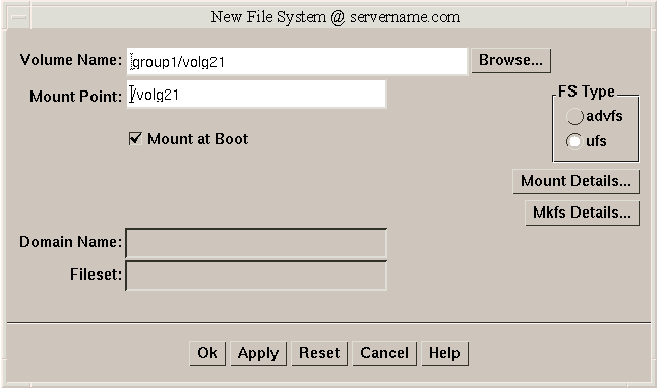
In the New File System dialog box:
If the correct volume name is not displayed, enter the volume name or click on Browse to select the volume.
Type the mount point for the file system.
The mount point
must be an absolute pathname (that is, it must begin with root
(/)).
If the path specified for the mount point does not exist, it
is created.
Select Mount at Boot if desired.
Select the file system type:
If you select AdvFS, enter the Domain Name and the Fileset name.
To add a volume to an existing AdvFS domain, you must have an AdvFS Advanced Utilities license. If you supply an existing domain name and do not have a license, an error message is displayed. You can create a new domain for the volume without the Advanced Utilities license.
If you select UFS, you can also select Extra Options in the Mkfs Details dialog box. Click on Help in the Mkfs Details dialog box for more information. This option is not available in a cluster.
Click on Mount Details to make the file system read-only or to add extra options. Click on Help in the Mount Details dialog box for more information.
Click on Ok.
A.6.3 Adding a Log to a Volume
You can add a log to a mirrored or RAID 5 volume.
When you add a log to a mirrored volume, dirty region logging (DRL) is activated for that volume. DRL uses the log to track the regions of the volume that change due to I/O writes. If a system failure occurs, DRL uses the information in the log to recover only the portions of the volume that need recovery. This speeds up recovery time for mirrored volumes.
For DRL to be in effect, a mirrored volume must have at least one DRL log. You can create additional DRL logs (on different disks) to mirror the DRL information.
A RAID 5 volume log speeds up the resynchronization time for RAID 5 volumes after a system failure. A RAID 5 log maintains a copy of the data and parity being written to the volume at any given time. If a system failure occurs, LSM can replay the RAID 5 log to resynchronize the volume. This copies the data and parity that was being written at the time of failure from the log to the appropriate areas of the RAID 5 volume.
You can create multiple RAID 5 logs (on different disks) to mirror the log information. Ideally, each RAID 5 volume should have at least two logs.
To add a log to a volume:
In the Object Tree, select Volume and in the Object Table, select the volume to contain the log.
From the Volumes menu, choose Log then Add.
The Add Log dialog box is displayed:
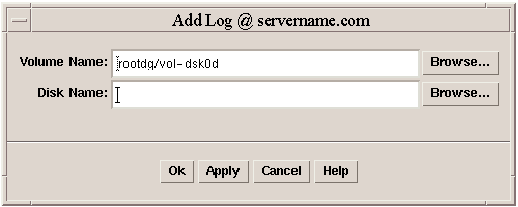
In the Add Log dialog box:
If the correct volume name is not displayed, enter the volume name or click on the Browse button to select the volume.
To place the log on a specific disk, enter the name of the disk in the Disk Name field or click on Browse to select a disk.
Click on Ok.
A.6.4 Adding a Mirror to a Volume
You can create a mirror (copy) of a volume on a disk that is not being used. Once mirrored, the data in the volume is redundant. If a disk fails, the data remains available on the surviving mirror. A volume can have multiple mirrors, but each must reside on a separate disk. Sufficient disk space must be available. You cannot mirror a RAID 5 volume.
You can use only disks in the same disk group to create a new mirror. If no disks are assigned, LSM uses available disk space to create the mirror. Adding a mirror requires resynchronization, so this task might take some time.
A volume can contain up to 32 mirrors.
To add one or more mirrors to an existing volume:
In the Object Tree, select Volume and in the Object Table, select the volume to be mirrored.
From the Volumes menu, choose Mirror then Add.
The Add Mirror dialog box is displayed:
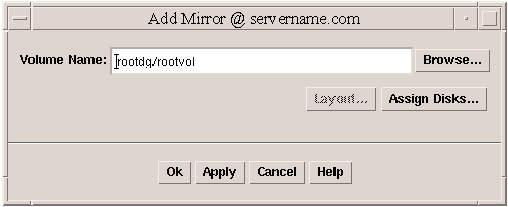
In the Add Mirror dialog box:
If the correct volume name is not displayed, enter the volume name or click on Browse to select the volume.
Click on the Layout button to:
Specify the layout for the mirror (concatenated or striped) and, if striped, the stripe unit size.
Add more than one mirror and supply comments.
Click on the Assign Disks button to place the mirror on a specific disk.
Click on Ok.
A.6.5 Disabling a Mirror in a Volume
You can disable a mirror to temporarily detach the mirror from its volume. However, this can result in a loss of data redundancy because the mirroring process is not occurring. A detached mirror is inaccessible for reads and writes, but is still associated with its volume.
Once disabled, the mirror remains detached from its volume until you either reattach the mirror or restart the volume. If a volume has only two mirrors and one mirror is disabled, the volume is not redundant while the mirror is disabled.
The last mirror in a volume cannot be disabled.
When a volume is restarted, any disabled (detached) mirrors are reattached to the volume automatically.
To disable a mirror in a volume:
In the Object Tree, select Volume and in the Object Table, select the volume that contains the mirror to be disabled.
From the Volumes menu, choose Mirror then Disable.
The Disable Mirror dialog box is displayed:
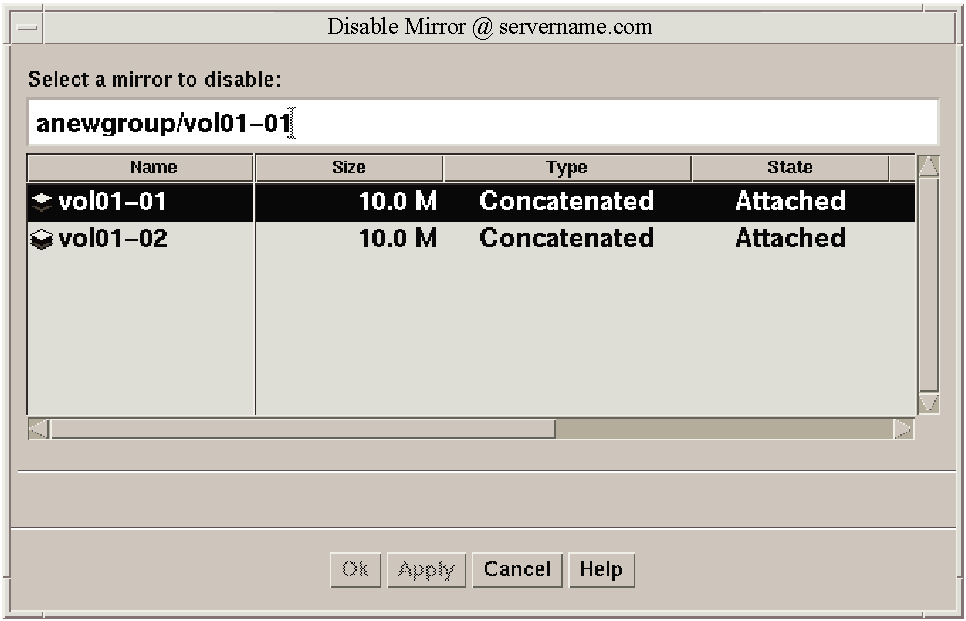
In the Disable Mirror dialog box:
Select the mirror to be disabled.
Click on Ok.
A.6.6 Repairing a Mirror in a Volume
You can repair a disabled mirror and reattach it to its volume. Repairing a mirror involves copying data from an active mirror on the volume to the mirror being attached. Once attached, the mirror is accessible for reads and writes. This task recovers the mirror so that it has the same contents as other mirrors in the volume.
Alert icons and the Alert Monitor window might provide you with information when a mirror needs to be repaired.
Depending on the amount of data in the volume, this task might take some time.
To repair a mirror:
In the Object Tree, select Volume and in the Object Table, select the volume that contains the mirror to be repaired.
From the Volumes menu, choose Mirror then Repair.
The Repair Mirror dialog box is displayed:
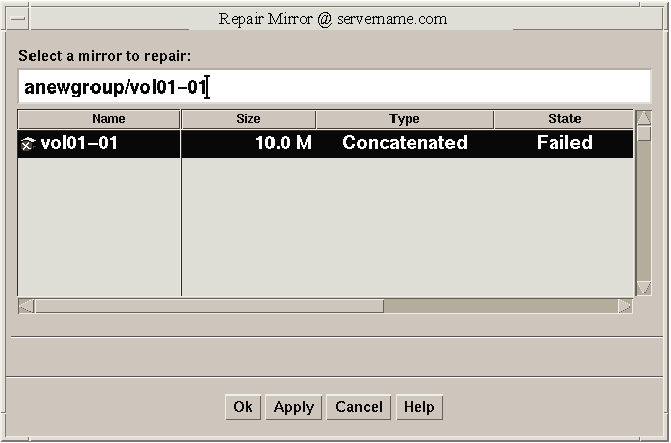
In the Repair Mirror dialog box:
Select the mirror to be repaired.
Click on Ok.
A.6.7 Checking a File System on a Volume
Checking a file system applies only to UFS file systems because it uses
the
fsck
utility, which is not compatible with AdvFS file
systems.
You can check the file system with or without repairing it.
Checking
a file system might take some time.
If you are running a cluster, UFS file systems are mounted read-only, so the Storage Administrator cannot check the file system.
To check a UFS file system on a volume:
From the Object Tree, select File System and in the Object Table, select a UFS file system.
From the File Systems menu, choose Check.
The Check File System dialog box is displayed:
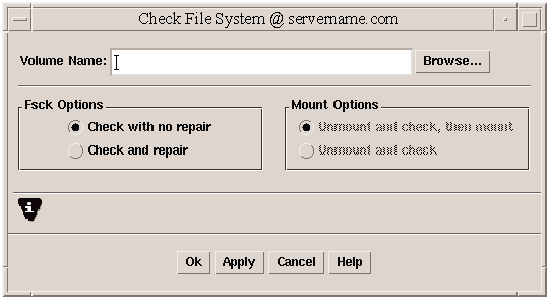
In the Check File System dialog box:
If the correct file system name is not displayed, enter the file system name or click on Browse to select the file system.
Choose the
fsck
option:
Check with no repair
Check and repair
Choose the mount option:
Unmount and check then mount
Unmount and check
Click on Ok.
A.6.8 Creating a Copy of Volume Data
You can create a shapshot (temporary mirror) of a volume that tracks volume activity. In a cluster, you cannot take a snapshot of the clusterwide root.
To create or stop a volume snapshot:
From the Object Tree, select Volume and in the Object Table, select a volume for which to create or stop a snapshot.
From the Volumes menu, choose Snapshot.
The Volume Snapshot dialog box is displayed:
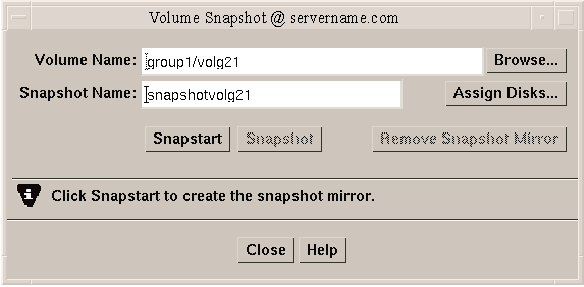
In the Volume Snapshot dialog box:
If the correct volume name is not displayed, enter the volume name or click on Browse to select the volume.
If the correct snapshot name (volume) is not displayed, enter the volume name or click on Assign Disks to select the volume.
You can create the mirror, start, or stop it:
Click on the Snapstart button to create the snapshot mirror.
Click on the Snapstop button to stop the snapshot process and create a new volume to attach to the snapshot mirror so you can access it.
Click on the Remove Snapshot Mirror button to remove the volume that was created.
You can create a volume that is less than or equal to the available free space on the disks. If no disks are assigned, the Storage Administrator uses available space on disks in the selected disk group.
The data in a striped or concatenated volume is not protected against disk failure unless the volume is mirrored.
To create a volume:
From the Console menu, choose New then Volume.
The New Volume dialog box is displayed:
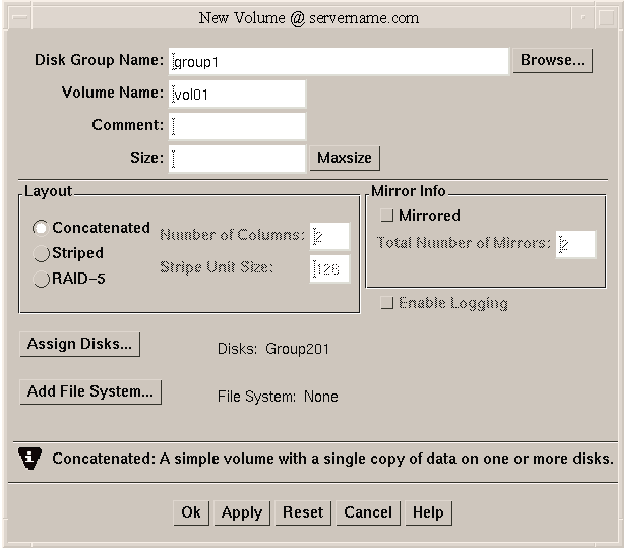
In the New Volume dialog box:
If the correct disk group name is not displayed, enter the disk group name or click on Browse to select the disk group.
Accept the default new volume name or enter a new volume name.
Enter a comment if desired.
Enter the volume size.
To specify a size unit, attach an
s
(sectors),
k
(kilobytes),
m
(megabytes), or
g
(gigabytes) to the size.
The default size unit is sectors.
To determine the largest possible size for the volume, click Maxsize. Units are displayed in kilobytes.
Choose the volume layout:
Concatenated
Striped--Enter the number of columns and stripe unit size.
RAID 5--Enter the number of columns and stripe unit size. This option is not available in a cluster.
If you have chosen a concatenated or striped volume, you can choose to mirror it.
To mirror the volume, select Mirrored. In the Total Number of Mirrors field, type the total number of mirrors for the volume. Note that each plex is a mirror, so if you create a volume and one mirror of that volume, the total number of mirrors is 2.
Check the Enable Logging box to create logging for mirrored or RAID 5 volumes.
To place the volume on a specific disk, click Assign Disks. Select the disk you want to use from the Space Allocation-New Volume dialog box and click on Ok.
To place a file system on the volume, click Add File System.
In the Add File System dialog box:
Type the mount point for the file system.
The mount point
must be an absolute pathname; that is, it must begin with root (/).
If the path specified for the mount point does not exist, it
will be created.
Select Mount at Boot if you want the
/etc/fstab
file automatically updated and the file system mounted at reboot.
Select the file system type. If you select AdvFS, enter the Domain Name and the Fileset name. If you select UFS, you can also select Extra Options in the Mkfs Details dialog box. This option is not available in a TruCluster environment.
Click on Mount Details to make the file system read-only or to add extra options. Click on Help in the Mount Details dialog box for more information.
Click on Ok to close the Add File System dialog box.
Click on Ok.
A.6.10 Mounting a UFS File System on a Volume
You can mount an existing UFS file system on a volume.
If Mount at Boot
is selected, the
/etc/fstab
file is automatically updated.
To mount a file system on an existing volume:
In the Object Tree, select Volume and in the Object Table, select the volume that contains the UFS file system to be mounted.
From the Volumes menu, choose File System then Mount.
The Mount File System dialog box is displayed:
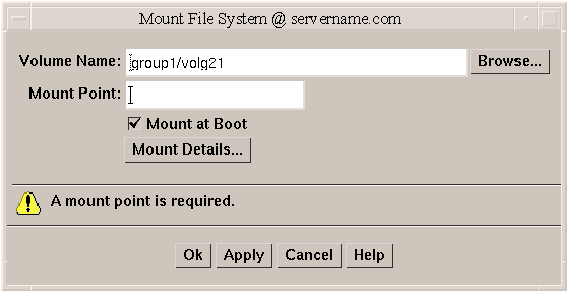
In the Mount File System dialog box:
If the correct volume name is not displayed, enter the volume name or click on the Browse button to select the volume.
Enter the mount point for the file system.
The mount point
must be an absolute pathname; that is, it must begin with root (/).
If the path specified for the mount point does not exist, it
is created.
Select Mount at Boot if desired.
Click on Mount Details to make the file system read-only or to add extra options. Click on Help in the Mount Details dialog box for more information.
Click on Ok.
Note
AdvFS file sets do not appear as mounted on volumes because AdvFS does not associate file sets with a specific volume.
A.6.11 Preparing to Restore a Volume from Backup
To restore a volume from backup, you can stop the volume, set the volume to an uninitialized state, and restart the volume (without resynchronizing the volume's mirrors). This procedure will not work for an AdvFS file domain.
If the volume contains a mounted UFS file system, you must unmount the file system before you proceed. This task does not remount the file system.
This procedure is useful for disaster recovery. If a volume's data is corrupted and you need to restore the volume from backup, this procedure prepares the volume for restoration.
To prepare a volume to restore it from backup:
In the Object Tree, select Volume and in the Object Table, select the volume to be restored from backup.
From the Volumes menu, choose Prepare For Restore.
The Prepare Volume For Restore dialog box is displayed.
In the Prepare Volume For Restore dialog box:
If the correct volume name is not displayed, enter the volume name or click on Browse to select the volume.
Click on Ok.
You can recover a volume. The recovery operations depend on the type of volume and include starting disabled volumes, resynchronizing mirrors in mirrored volumes, and resynchronizing parity in RAID 5 volumes. After successful recovery, the volume should be available for use.
Alert icons and the Alert Monitor window might provide information when a volume recovery is needed.
In some cases, recovery might not be possible. If the volume recovery fails, you can attempt to restore the volume from backup.
To recover a failed volume:
In the Object Tree, select Volume and in the Object Table, select the volume to be recovered.
From the Volumes menu, choose Recover.
The Recover Volume dialog box is displayed.
In the Recover Volume dialog box:
If the correct volume name is not displayed, enter the volume name or click on the Browse button to select the volume.
Click on Ok.
Removing a volume destroys all of the data in that volume. Remove a volume only if you are sure that you do not need the data in the volume (or the data is backed up elsewhere). When a volume is removed, the space it occupied is returned to the free space pool.
Removing a volume that has a file system on it will work only if the file system is UFS.
To remove a volume:
In the Object Tree, select Volume and in the Object Table, select the volume remove.
From the Volumes menu, choose Remove.
The Remove Volume dialog box is displayed.
In the Remove Volume dialog box, click on the Yes button to remove the volume.
A.6.14 Removing a Log from a Volume
You can remove a DRL log or a RAID 5 log from a volume.
If you remove a volume's only log, logging (either DRL or RAID 5 logging) is no longer in effect for that volume. If logging is disabled, recovery time increases.
To remove a log from a volume:
In the Object Tree, select Volume and in the Object Table, select the volume that contains the RAID 5 or DRL log to be removed.
From the Volumes menu, choose Log then Remove.
The Remove Log dialog box is displayed:
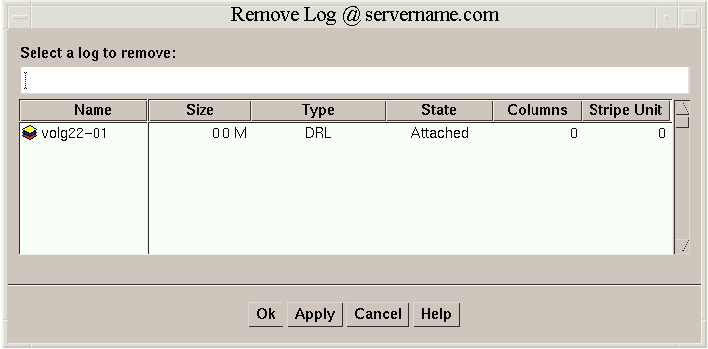
In the Remove Log dialog box:
If the correct volume name is not displayed, enter the volume name or click on the log table to select the volume.
Click on Ok.
A.6.15 Removing a Mirror from a Volume
Removing a mirror from a volume breaks the link between the mirror and its volume and returns the mirror's disk space to the free space pool for reuse. However, this might leave the volume unmirrored and unprotected against disk failure.
If a volume has only two mirrors and one mirror is removed, the volume is no longer redundant. The last mirror cannot be removed from a volume, for that is equivalent to removing the volume.
To remove a mirror from a volume:
In the Object Tree, select Volume and in the Object Table, select the volume that contains the mirror to be removed.
From the Volumes menu, choose Mirror then Remove. The Remove Mirror dialog box is displayed.
In the Remove Mirror dialog box:
If the correct mirror name is not displayed, enter the mirror name.
Click on Ok.
When you rename a volume, the new name must be unique within the disk
group.
If the volume has a file system, renaming the volume automatically
updates the
/etc/fstab
file and allows you to specify a
new mount point for the file system.
You cannot rename volumes that are part
of an AdvFS domain.
To rename a volume:
In the Object Tree, select Volume and in the Object Table, select the volume to be renamed.
From the Volumes menu, choose Rename.
The Rename Volume dialog box is displayed:
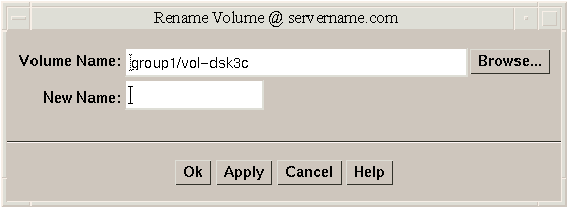
In the Rename Volume dialog box:
If the correct volume name is not displayed, enter the volume name or click on Browse to select the volume.
Enter the new name for the volume.
Click on Ok.
You can increase or decrease the size of a volume. If the volume contains a UFS file system, this procedure also resizes the file system, which destroys the data in it. A volume containing an unmounted file system cannot be shrunk.
You cannot resize an AdvFS file domain with the Storage Administrator.
If you want to resize a domain, use the AdvFS command line commands
addvol
and
rmvol.
See
AdvFS Administration
for more
information.
You can specify either the desired size or the amount of space to add to or subtract from the volume size. When a volume is shrunk, the resulting extra space is returned to the free disk pool. When the volume size is increased, sufficient disk space must be available. When increasing the size of a volume, LSM assigns the necessary new space from available disks.
To resize a volume:
In the Object Tree, select Volume and in the Object Table, select the volume to be resized.
From the Volumes menu, choose Resize.
The Resize Volume dialog box is displayed:
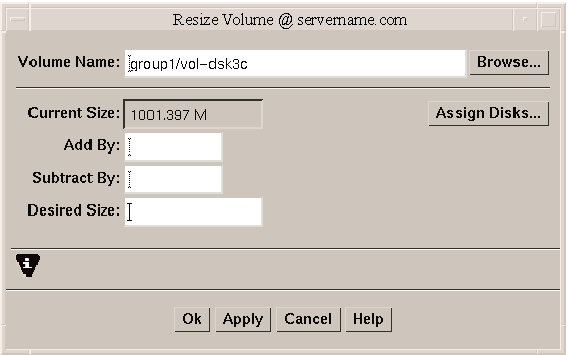
In the Resize Volume dialog box:
If the correct volume name is not displayed, enter the volume name or click on Browse to select the volume.
To use a specific disk for the additional space, click Assign Disks and select the disk you want to use from the Space Allocation-Resize dialog box.
Specify one of the following:
To increase the volume size by a specific amount of space, use the Add By field to specify how much space to add.
To decrease the volume size by a specific amount of space, use the Subtract By field to specify how much space to remove.
To specify the new volume size, type the size in the Desired Size field.
To specify a size unit, attach an
s
(sectors),
k
(kilobytes),
m
(megabytes), or
g
(gigabytes) to the size.
The default unit is sectors.
Click on Ok.
You can start a volume. If you are not running a cluster, starting a RAID 5 volume enables the volume and resynchronizes parity, if necessary. Starting a mirrored volume enables the volume and resynchronizes the mirrors to ensure that they are consistent. When a volume is successfully restarted, the volume is again available for use.
Under normal circumstances, volumes are automatically started when the system reboots. You can restart a volume that you stopped manually or to attempt to restart a volume that was stopped in some other manner. If you cannot start a volume, the volume remains unusable. If the volume contains an AdvFS file domain, you cannot start it using the procedure described below.
To start a volume:
In the Object Tree, select Volume and in the Object Table, select the (stopped) volume to be started.
From the Volumes menu, choose Start.
The Start Volume dialog box is displayed.
In the Start Volume dialog box:
If the correct volume name is not displayed, enter the volume name or click on the Browse button to select the volume.
Click on Ok.
The volume's state in the Object Table changes to Started.
You can stop a volume. When you stop a volume, it is not available for use until you restart it. You cannot stop a volume if it is in use or it has a mounted file system. If the volume contains an AdvFS file domain, you cannot stop it using the procedure described below.
To stop a volume:
In the Object Tree, select Volume and in the Object Table, select the volume to be stopped.
From the Volumes menu, choose Stop.
The Stop Volume dialog box is displayed.
In the Stop Volume dialog box:
If the correct volume name is not displayed, enter the volume name or click on the Browse button to select the volume.
Click on Ok.
The volume's state in the Object Table changes to Stopped.
A.6.20 Unmounting a File System on a Volume
You can unmount a mounted UFS file system.
To unmount a file system on a volume:
In the Object Tree, select Volume and in the Object Table, select the volume containing the file system to be unmounted.
From the Volumes menu, choose File System then Unmount.
The Unmount File System dialog box is displayed.
In the Unmount File System dialog box:
If the correct volume name is not displayed, enter the volume name or click on Browse to select the volume.
Click on Ok.