The Tru64 UNIX system supports point-to-point connections using the Serial Line Internet Protocol (SLIP) and the Point-to-Point Protocol (PPP).
This chapter describes how to plan for and configure dial-in and dial-out systems for:
For troubleshooting information, see
Section 10.8
for SLIP
and
Section 10.9
for PPP.
8.1 Serial Line Internet Protocol (SLIP)
The Serial Line Internet Protocol (SLIP) is a protocol used to
run IP over serial lines between two hosts.
You can connect the two hosts
either directly or over telephone circuits using modems.
TCP/IP commands
(such as
rlogin,
ftp, and
ping) can be run over the SLIP connection.
8.1.1 SLIP Environment
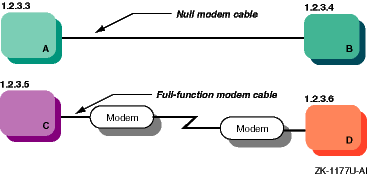
In the SLIP environment, systems can be directly connected to
each other, if they are in close proximity, or connected through modems and
a telephone network, if they are not.
Figure 8-1
shows
both of these simple SLIP configurations.
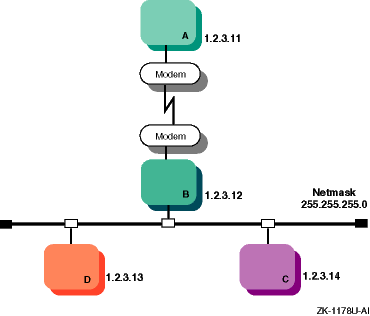
Figure 8-2
shows a SLIP connection between two systems with host B acting as a gateway
system.
Figure 8-1: Sample Simple SLIP Configuration
Figure 8-2: SLIP Configuration with Gateway System
This section describes those tasks you must complete
before configuring SLIP.
8.1.2.1 Verifying the Hardware
When you verify the hardware, you need to verify both the cables and modems, if used.
Make sure you use the correct cables. If you do not, you might experience signal degradation and the software will fail to function properly. If you are connecting two computers directly to each other, follow these guidelines to obtain the appropriate cable:
Use a serial cable, not a parallel cable.
Use a null modem cable, which is designed specifically to connect two computers directly to each other.
Use a well-shielded cable that contains at least 9 wires. (Do not use a DECconnect cable, which contains an insufficient number of wires for a serial connection.)
Verify the gender and number of pins for the connectors on each side of the cable. The appropriate cable typically has a male DB25 or DB9 pin connector on each side. See the hardware documentation for your computer if you are uncertain about which serial port to use.
If the two systems are connected through modems and telephone lines, see Section 8.3.1 for modem cable guidelines.
When using modems with SLIP, adhere to the following guidelines for the best results:
Use modems that can handle a serial port speed of 38,400 bits per second (bps). If the modems you plan to use cannot handle a serial port speed of 38,400 bps, set them to the highest speed to which they can be set.
Use modems that are V.34bis compliant with V.42bis compression. Alternatively, you can use modems that support the Microcom Network Protocol (MNP) because both V.42bis and MNP implement a subset of the other protocol.
Set the modems to 8 bits, no parity, and connect them to the telephone network.
Use hardware flow control, if possible. High-speed modems often fall back to a lower data rate when line degradation occurs.
Note
Do not use software flow control (XON/XOFF) for SLIP. It will corrupt the data stream causing the TCP layer over IP to issue retransmit requests for overruns.
8.1.2.2 Preparing for the Configuration
After you verify the communication hardware, you can set up the system to run SLIP.
Figure 8-3 shows the SLIP Setup Worksheet, which you can use to record the information that you need to configure SLIP. The following sections explain the information you need to record on this worksheet. If you are viewing this manual on line, you can use the print feature to print the worksheet.
Figure 8-3: SLIP Setup Worksheet
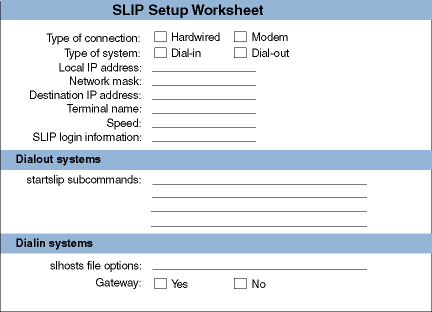
Check Hardwired if the two systems are connected by a null modem cable. Check Modem if the two systems are connected by modem cables, modems, and a telephone network.
Check dial-in if the system is to answer calls from remote systems. Check dial-out if the system is to place calls to a remote system.
Your system's
SLIP interface IP address.
Each SLIP interface must have an IP address.
For more information on SLIP, see the
Technical Overview
and
startslip(8)
Your network's subnetwork mask. This must be the same for both systems. See Section 2.2 for more information on the network mask.
The destination system's SLIP interface IP address.
The name
of a valid terminal device in the
/dev
directory
that has a cable connection.
This can be either the full path name (for example,
/dev/tty00) or the name in the
/dev
directory (for example,
tty00).
For more information
on the terminal line specification, see
startslip(8)port(7)
The serial port speed
used to connect the systems to each other or a system and the modem.
The default
speed is 9600 bps.
For more information on the speed, see
startslip(8)
The login information for the SLIP connection. This includes user name, password, and login sequence; for example, the login prompt used on dial-out connections.
For
dial-out systems,
Table 8-1
shows the mandatory
startslip
subcommands that you specify when you create a setup script
file.
Table 8-2
shows the optional
startslip
subcommands.
Table 8-1: Mandatory startslip Subcommands
| Subcommand | Information Required |
myip |
Your system's IP address. |
dstip |
The destination system's IP address. |
netmask |
The network mask for the subnetwork. |
hardwired |
None. Specifies that the two systems are connected by a null modem cable. |
modemtype |
The type of modem used, unless you have a direct connection. |
opentty |
The serial line and line speed. |
dial |
The telephone number to dial. |
expect |
The information that you expect to receive on the serial line; for example, login sequences. |
send |
The information that you want to send on the serial line. |
connslip |
Configures the network interface and attaches the serial line to the network interface. |
Table 8-2: Optional startslip Subcommands
| Subcommand | Description |
debug |
Generates debugging messages to the log file specified. |
gateway |
Specifies that the destination system is a gateway to another system on a LAN. |
icmpsup |
Suppresses Internet Control Message Protocol
(ICMP) traffic.
ICMP traffic (such as that generated by the
ping
command) cannot be sent over the SLIP connection.
This frees line
bandwidth for more critical traffic. |
tcpauto |
Specifies that the local system compress TCP headers when it detects that the remote system is compressing them. This option can be useful if you do not know whether the remote system is doing TCP header compression. |
Note: If the
tcpauto
option is enabled on both systems, TCP header compression does
not occur.
One of the two systems must explicitly enable TCP header compression. |
|
tcpcomp |
Compresses TCP headers before they are sent over the SLIP connection. Compressing the TCP header allows for faster data transfers. The remote system must support this option to decompress the headers when they arrive at the remote end. |
See
startslip(8)startslip
subcommands.
For dial-in
systems,
Table 8-3
shows a list of options for each SLIP
link specified in the
/etc/slhosts
file.
Table 8-3: slhosts File Options
| Option | Description |
debug |
Generates debugging messages to the
daemon.log
file. |
icmpsup |
Suppresses Internet Control Message Protocol
(ICMP) traffic.
ICMP traffic (such as that generated by the
ping
command) cannot be sent over the SLIP connection.
This frees line
bandwidth for more critical traffic. |
tcpauto |
Specifies that the local system compress TCP headers when it detects that the remote system is compressing them. This option can be useful if you do not know whether the remote system is doing TCP header compression. This is the default. |
tcpcomp |
Compresses TCP headers before they are sent
over the SLIP connection.
Compressing the TCP header allows for faster data
transfers.
The remote system must support this option to decompress the headers
when they arrive at the remote end.
Do not specify the
tcpcomp
and
tcpauto
options together. |
See
slhosts(4)
For dial-in systems, if your system is to act as a gateway for a dial-out system to access the LAN, check Yes; otherwise, check No.
To configure SLIP, you must have verified the communications hardware and completed the configuration worksheet.
A system in a SLIP environment can have one of the following roles:
You edit system files and use the
startslip
program
to configure both dial-in connections and dial-out connections.
8.1.3.1 Configuring a Dial-In System
To configure a dial-in system, log in as root and complete the following steps:
If you are using a modem, set up the modem for dial-in access. See Section 8.3.2 for more information.
Note
Use a
gettyprocess for SLIP dial-in access.
Edit the
/etc/passwd
file and create a
dedicated entry for a SLIP user.
For the login shell field, specify
/usr/sbin/startslip.
The login name you specify here is used to
find an entry in the
/etc/slhosts
file, for example:
slip1:password:20:20:Remote SLIP User:/usr/users/guest:/usr/sbin/startslip
Edit the
/etc/slhosts
file and create an
entry for the login name using the information from the worksheet.
An
/etc/slhosts
file entry has the following syntax:
login_name remote_ip local_ip netmask option
For example, if host D is the dial-in system in Figure 8-1, the entry is as follows:
slip1 1.2.3.6 1.2.3.5 255.255.255.0 nodebug
See
slhosts(4)
Edit the
/etc/inittab
file and create an
entry for each terminal device that is to run SLIP.
An
/etc/inittab
file entry has the following syntax:
Identifier:Runlevel:Action:Command
For example:
nullmodem:3:respawn:/usr/sbin/getty /dev/tty00 M38400 vt100
See
inittab(4)
Issue the
init q
command to start the
getty
process immediately.
If the dial-in system will be a gateway for the dial-out system
to
reach other
systems on the LAN, the dial-in system must be configured as an IP router
and must also run the
gated
daemon.
See
Chapter 2
for basic network setup information.
If problems occur while using SLIP, see
Section 10.8.
8.1.3.2 Configuring a Dial-Out System
To configure a dial-out connection, log in as root and complete the following steps:
If you are using a modem, verify that there is an entry for
your modem name in the
/etc/acucap
file.
If your modem
does not have an entry in the
/etc/acucap
file, do the
following:
Copy an entry similar to that of your modem.
Modify the modem attributes to match your modem's attributes.
Set up
the modem for dial-out access by including the
AT commands listed in
Table 8-4
in the synchronization
string (ss) of the entry.
The other modem settings can
remain as they are.
Table 8-4: Modem Commands for Dial-Out Access
| Command | Description |
at&c1 |
Normal Carrier Detect (CD) operation. Tells the modem to not raise Carrier Detect until it sees Carrier Detect from the other modem. |
at&d2 |
Normal Data Terminal Ready (DTR) operation. This tells the modem to hang up the line when DTR drops; for example, when the user logs off the system. |
ate1 |
Turns on echoing. |
atq0 |
Displays the result codes. |
ats0=0 |
Does not answer the phone. |
In addition, include the debug option (db).
With
debugging turned on, the modem will provide you with additional information
with which to tune the modem attributes in the file.
See
acucap(4)
If you use the
getty
command to provide
access to the system from a modem and a
getty
process is
already running, do the following:
Edit the
/etc/inittab
file and change the
Action field of the modem entry from
respawn
to
off
as follows:
modem:23:off:/usr/sbin/getty /dev/tty00 M38400 vt100
See
inittab(4)
Issue the
init q
command to terminate the
getty
process.
Check the
/usr/spool/locks
directory for
LCK..ttynn
lock files.
If
any exist for the terminal device you are configuring for SLIP, remove them.
When you establish a connection over a terminal device, the system generates a lock file to prevent the connection from being disrupted by another application. If the connection terminates abnormally, the lock file might persist, preventing you from establishing new connections.
Create a file that contains
startslip
subcommands
for SLIP dial-out connections by doing the following:
Copy
the sample script file from
startslip(8)
Use the
tip
command to dial out and log
in to the remote system, writing down the exact prompt and login sequence
on the worksheet.
Edit the script file, modify the
expect
subcommands with the prompt and login information, and modify other
subcommands with information from the worksheet.
Note
The sample script file specifies the
debugsubcommand and a debug file name at the beginning of the file.
See
startslip(8)
Invoke the
startslip
command with the
-i
filename
option.
The
filename
is the name of the file containing
the
startslip
subcommands.
After making the connection, the
startslip
command
runs in the background.
The telephone number (if any) and the process ID
are logged in the
/var/run/ttyxx
.tel-pid
file.
If problems occur while using SLIP, see
Section 10.8.
8.1.4 Terminating a SLIP Dial-Out Connection
To terminate a SLIP dial-out connection, do the following:
Determine the process ID of the
startslip
process to kill by using the following command:
# cat /var/run/ttyxx.tel-pid
phonenum  8021455  pid 821
In the previous command,
ttyxx
specifies the terminal line used for the SLIP
connection.
If multiple SLIP connections are active on your system, there
will be multiple files in the
/var/run
directory.
Kill the
startslip
process by using the
following command and specifying the process ID that you found in step 1:
# kill 821
Do not use a SIGKILL (kill -9) to terminate the process,
as it might corrupt the tty files.
Alternatively, you can turn off your modem to terminate the dial-out
connection.
8.2 Point-to-Point Protocol (PPP)
The Point-to-Point Protocol (PPP) provides a standard way to transmit datagrams over a serial link and a standard way for the systems at either end of the link (peers) to negotiate various optional characteristics of the link. Using PPP, a serial link can be used to transmit IP datagrams, allowing TCP/IP connections between the peers.
The Tru64 UNIX PPP subsystem is derived from public domain ppp-2.3.1, and supports IP datagrams. See RFC 1661, RFC 1662, RFC 1332, and RFC 1334 for more information about PPP.
Establishing a PPP connection between two systems basically involves
setting up a serial link and running the
pppd
daemon on
both ends of the link.
Systems in a PPP environment can have the following roles:
Dial-out system
Dial-in system
Systems using PPP can be directly connected to each other if they are in close proximity, or connected through modems and a telephone network if they are not. Figure 8-4 shows two simple PPP configurations with PPP connections between two systems.
Figure 8-4: Simple PPP Configurations
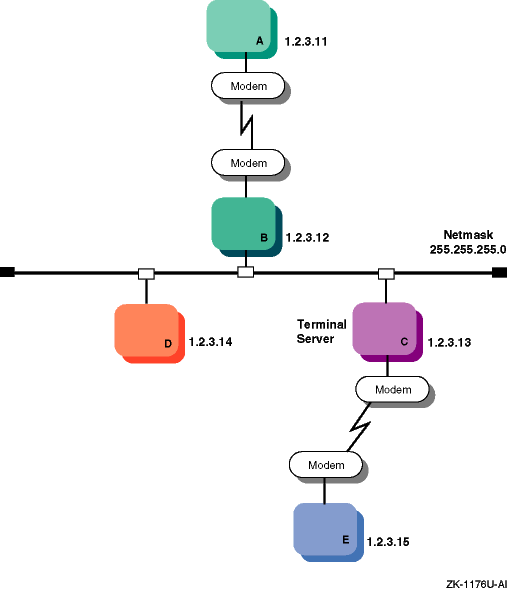
Figure 8-5
shows two PPP connections.
The first
is between host A and host B, with host B acting as a gateway system.
The
second is between personal computer E and host D through terminal server C.
The latter configuration might be common for employees working at home and
dialing in to a system at work.
Figure 8-5: Network PPP Configuration
A
chat
script can be used to automate the dial-out
process for a PPP connection.
You can configure it to wait for output from
a remote system and reply with responses that you specify.
Each entry in a
chat
script has the following format:
string_chat_expects string_chat_sends
For
example, a
chat
script might contain the following information:
ABORT "NO CARRIER"  [1]
ABORT "NO DIALTONE"
ABORT "ERROR"
ABORT "NO ANSWER"
ABORT "BUSY"
"" at   [2]
"" atdt2135476   [3]
CONNECT   [4]
login: myname   [5]
Password: "\qmypassword"   [6]
"$ " "\qpppd"  [7]
When this
chat
script is executed, the following
steps are taken:
Instructs the
chat
program to abort the PPP connection if any of the messages are encountered.
[Return to example]
The
chat
program initializes
the modem.
[Return to example]
The
chat
program
expects nothing and sends a dial command to the modem.
[Return to example]
The
chat
program
expects a
CONNECT
message and sends a carriage return (implied).
[Return to example]
The
chat
program
expects the
login:
string and sends the
myname
string.
[Return to example]
The
chat
program
expects the
Password:
string and sends the
mypassword
string.
The
\q
prevents
chat
from logging the password when you use the
-v
option.
[Return to example]
The
chat
program
expects the shell prompt ($) and sends
pppd
to start the
pppd
daemon on the remote machine.
The
\q
cancels the effect of the previous
\q.
[Return to example]
You can create a unique
chat
script for each remote
system to which you connect.
Once you create a script, you can use it to connect
to the system by specifying a
chat
command string as an
argument for the
pppd
daemon.
For example:
% pppd /dev/tty01 38400 connect 'chat -f /etc/ppp/chat-script'
When you execute this command, the
pppd
daemon opens
the serial port and allows the
chat
program to dial out
to the remote modem.
If the
chat
program successfully establishes
a modem connection, the
pppd
daemon subsequently negotiates
a PPP connection with the remote system.
See
chat(8)chat
command
and
chat
scripts.
8.2.1.2 PPP Options
When you invoke the
pppd
daemon, you can specify
options for it on the command line.
These options allow you to configure
basic settings such as the speed of the connection, the local and remote IP
addresses, and the netmask for the network interface.
They also allow you
to configure advanced settings such as the types of flow control, authentication,
and routing to use.
If you use certain settings each time you initiate a PPP connection, you can automatically enable these settings for each connection by editing the following files:
/etc/ppp/options
— This file contains
system default options that are read before user default options and command
line options.
This file contains any options that you want the
pppd
daemon to use whenever it runs.
Note
The
/etc/ppp/optionsfile must exist and must be readable bypppd; otherwise, the daemon will not run. Set the file permissions so that only root has write access.
/etc/ppp/options.tty.xx
—
This file contains options specific to the serial port
/tty.xx.
$HOME/.ppprc
— This file contains
the user default options that are read before command line options.
Depending on your configuration, one options file might overrule another
for certain parameters.
For example, if you specify one set of values for
parameters in the
/etc/ppp/options
file, then specify a
different set of values for the same parameters in a
/etc/ppp/options.tty.xx
file, the settings in the latter file are used
when you connect through the specified serial port.
You can create and edit PPP options files with the SysMan Menu utility
(see
Section 8.2.3.2
for more information).
Or,
you can copy the options file template from
/etc/ppp.common/options
to the
/etc/ppp
directory and manually edit
the new file with a text editor.
See
pppd(8)pppd
options.
8.2.1.3 Authentication
When you configure PPP, you can implement one of three protocols to verify the identity of the peer system. Each of these protocols exchanges passwords, or secrets, to complete the authentication process:
Password Authentication Protocol (PAP)
Similar to a normal login process, in that the client sends a user name and password to the server system for comparison to a database of trusted users. If the login information matches the informaton in the database, the server allows the PPP connection.
Challenge Handshake Authentication Protocol (CHAP)
The server sends its local system name and a randomly generated challenge string to the client system. The client uses the server's system name to find the associated secret in a database. It then formulates and sends an encrypted response to the server based on a combination of the secret and the challenge string. If the server arrives at the same result, confirming that the client knows the secret, it allows the PPP connection.
Microsoft Challenge Handshake Authentication Protocol (MS-CHAP)
A proprietary Microsoft protocol that is similar to CHAP, except that the server does not send its local system name to the client system; the client system must know the server's system name beforehand to find the correct secret in the database. Also, when generating the encrypted challenge response, the client sends an associated user name and possibly a domain name to the server for login purposes.
The CHAP-based protocols provide more security, because they inherently encrypt the secrets they use for authentication; encryption of PAP secrets is optional. Furthermore, even after the login process, CHAP-based protocols continue to challenge the client system at regular intervals. PAP authenticates the client only once, which allows a third party to intervene and assume the identity of the client.
If you are configuring a dial-out system, you need to contact your Internet service provide to determine the type of encryption that they use, then set up the appropriate PPP options and secrets on your system. If you are configuring a dial-in system, you must determine the level of security necessary for your environment. For a highly-secure connection, it is best to use a CHAP-based authentication protocol.
You can create and edit the database files for each protocol with the SysMan Menu utility (see Section 8.2.3.2 for more information), or, optionally, you can use a text editor to manage the files by creating entries in one of the following formats. When you save the files, ensure that only the root user has read access; otherwise, other users on the system can see the passwords or secrets.
Note
The
/etc/pppdirectory contains the files of secrets used for authentication, and must not be in a partition that is exported using NFS and accessible by other hosts.
PAP secrets are contained in the
/etc/ppp/pap-secrets
file, which has the following format:
client server secret [address...]
client
— Name of client or
login name of the user to be authenticated, can be a wildcard (*) if unspecified
server
— Name of the machine
requesting the authentication, can be a wildcard (*) if
unspecified
secret — Password or secret known by both client and server
address — Zero or more host names or IP addresses that the client can use (this field is used only on the server)
For example, if a user called
ichiro
with the password
blade
must provide PAP authentication when connecting to the server
gatekeeper.forest.com, the
/etc/ppp/pap-secrets
file on each machine must contain an entry similar to the following:
ichiro gatekeeper.forest.com blade
If the server administrator wants to limit the client system to a particular
host name, the
/etc/ppp/pap-secrets
file on the server
must contain the address field, as follows:
ichiro gatekeeper.forest.com blade palm.forest.com
CHAP secrets are contained in the
/etc/ppp/chap-secrets
file, which has the following format:
client server secret [address...]
client — Name of the client to be authenticated
server — Name of the machine requesting the authentication
secret — Password or secret known by both client and server
address — Zero or more host names or IP addresses that the client can use (this field is used only on the server)
For example, if a client named
home
must provide
CHAP authentication when connecting to the server
work,
the
/etc/ppp/chap-secrets
file on each machine must contain
an entry similar to the following:
home work "open sesame"
As shown in this example, if the secret contains spaces, you must enclose it in quotes for it to be parsed as one field.
If the server administrator wants to limit the client system to a particular
host name or names, the
/etc/ppp/chap-secrets
file must
contain the address field, as follows:
home work "open sesame" home.gingerbread.com house.gingerbread.com
In this case, the client can be known as
home
or
house
when it connects to the server.
MS-CHAP secrets are also located in the
/etc/ppp/chap-secrets
file; however, the entries have the following format:
username server secret
user — Login name of the user to be authenticated, which might include a Microsoft domain name
server
— Name of the machine
requesting the authentication, can be a wildcard (*) if
unspecified
secret — Password or secret known by both client and server
For example, if the user
bill
on a Tru64 UNIX client
must provide MS-CHAP authentication when dialing out to the Microsoft Windows
RAS server
keymaster, the
/etc/ppp/chap-secrets
file on the Tru64 UNIX client must contain an entry similar to
the following:
bill keymaster fireworks
If the server is not a standalone system, you might need to specify
the entry as follows, where
finance
is the name of a domain
in a Microsoft Windows network:
finance\\bill * fireworks
See
Section 8.2.3.6
for more information about establishing
a dial-out connection with a Microsoft Windows RAS server.
8.2.2 Planning PPP
This section describes the tasks you
must complete before configuring PPP.
8.2.2.1 Verifying the Hardware
When you are verifying the hardware for PPP, you can use the same general
guidelines as for SLIP.
See
Section 8.1.2.1.
8.2.2.2 Verifying PPP Support in the Kernel
To verify that PPP is supported in the kernel, enter the following command:
# sysconfig -s ppp
If PPP is not loaded and configured, do the following:
Log in as root.
Rebuild the kernel by running the
doconfig
utility and selecting the Point-to-Point (PPP) option.
Make a backup copy of the current
/vmunix
kernel file.
Copy the newly-created
/sys/HOSTNAME/vmunix
kernel file to the
/vmunix
file.
Reboot the system.
8.2.2.3 Preparing for Configuration
After you verify PPP support in the kernel, you can configure PPP. If necessary, use the information in the following sections to determine the PPP options you need to implement to establish the PPP connection.
These sections describe only the most commonly used PPP options.
See
pppd(8)8.2.2.3.1 Basic Connection Options
Figure 8-6
shows the PPP Setup Worksheet.
This section
explains the information you need to record on the worksheet.
If you are viewing
this manual on line, you can use the print feature to print the worksheet.
Figure 8-6: PPP Setup Worksheet
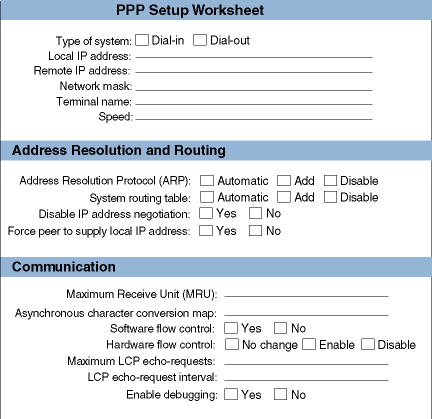
Check dial-in if the system is to answer calls from remote systems. Check dial-out if the system is to place calls to a remote system.
The local system's IP address.
For a dial-in system, this address is already assigned if you configured your system for a local area network; it is the address of your primary network interface. If your system is not connected to the Internet, you must assign it an IP address.
For a dial-out system, if you are connecting to an ISP, your IP address is typically assigned by the ISP; there is no need to specify it. If you are connecting to a remote host that does not assign addresses, and that host is already connected to the Internet, assign the local system an address on the same subnetwork as the remote host. If the other host is not connected to the Internet, assign any IP address to the local system.
For the purpose of creating a PPP connection between two systems that are not attached to the Internet, you can use an address in the 192.168.*.* range, which is set aside for use in private networks according to RFC 1918.
The remote system's IP address.
For a dial-in system, although you can accept the address that the remote system assigns for itself, it is best if you assign an address to the remote system for security purposes.
For a dial-out system, if you are connecting to an ISP, you typically do not need to specify this address. If you are connecting to another type of remote host, it is best to specify this address for security purposes.
Your network's subnetwork mask. This must be the same for both systems. See Section 2.2 for more information on the network mask.
For a dial-out system, if you are connecting to an ISP, you typically do not need to specify the network mask.
The name
of any valid terminal device in the
/dev
directory.
This
can be either the full path name (for example,
/dev/tty01) or the name in the
/dev
directory (for example,
tty01).
If you are unsure of the terminal device, see
ports(7)
The speed of the modem (or null modem) used to connect the systems and the terminal line specification. If your modem automatically senses the line speed or if you are using a null modem cable between hosts, you can specify any speed up to the maximum supported by the hosts. This is usually 38400 bps.
The Address Resolution and Routing section of the worksheet describes options that allow you to control changes to your local address and routing tables. It also describes options for controlling the assignment of your local IP address:
For a dial-in connection, if you explicitly want to add an entry for the remote system to your local system's ARP table, select Add. If you explicitly do not want to add an entry, select Disable.
To allow the system to automatically modify the ARP tables as necessary, select Automatic.
For a dial-out connection, if you explicitly want to add an entry for the remote gateway system to your local system's routing table, select Add. If you explicitly do not want to add an entry, select Disable.
To allow the system to automatically modify the routing tables as necessary, select Automatic.
If you want to force the remote system to accept your local IP address, select Yes. If you want to allow the remote system to specify your local IP address, select No.
If you want the remote system (ISP) to supply your local IP address, select Yes. If you want to specify your own local IP address, select No.
The Communication section of the worksheet describes options that allow you to fine-tune your PPP connection for better performance and reliability:
Note
It is best to leave these settings unchanged unless you cannot successfully establish or maintain a connection.
Specify the maximum size of packets (in bytes) that the system can receive.
For IPv4 links, the minimum MRU value is 128, but it is best to set the value
to 296 (40 bytes for the TCP/IP header and 256 bytes of data).
The value in
the default PPP
options
file is 296.
For IPv6 connections, the minimum MRU value is 1298, but it is best
to set the value to 1500.
If IPv6 is enabled in the kernel, PPP automatically
configures an IPv6 address whether you intend to use it or not; therefore,
you must set an MRU value of 1298 or higher, or specify the
noip6
option if you do not intend to use IPv6 over the PPP link.
(The
noip6
option is not available through the SysMan Menu.
You must
include it on the command line with the
pppd
command, or
manually edit the appropriate
options
files to specify
it.
See
Section 8.2.1.2
for more information about
options
files.)
Specify a 32-bit hexadecimal number containing control characters
that cannot be received over a serial line.
It is best to keep the default
value of 200a000, which is appropriate if the serial link includes a
telnet
link.
If your system does not support hardware flow control, select Yes to enable software flow control (XON/XOFF). Otherwise, it is best to select No for no software flow control.
If you want to explicitly enable hardware flow control (RTS/CTS), select Enable. If you want to explicitly disable hardware flow control, select Disable.
It is best to keep the default, No Change, which allows hardware flow control for the serial connection, if available.
Specify the maximum number of Link Control Protocol (LCP) echo-request frames to send before tearing down the connection. If the local system does not receive a response from the remote system after a default of five LCP echo-request frames, it considers the link inactive and terminates it.
Specify the rate at which the local system sends LCP echo-request frames to the remote system. The default is 60 seconds.
If you want to enable debugging, select Yes; otherwise, select No.
All messages are sent to the file specified in the
/etc/syslog.conf
file.
If you cannot connect or maintain a connection, you can use
the log file for troubleshooting.
8.2.2.3.2 Authentication Options
Figure 8-7 shows the PPP Authentication Worksheet. This section explains the information you need to record on this worksheet. If you are viewing this manual on line, you can use the print feature to print a copy of the worksheet.
Note
It is best not to enable authentication until you succesfully negotiate your first connection with the peer system.
Figure 8-7: PPP Authentication Worksheet
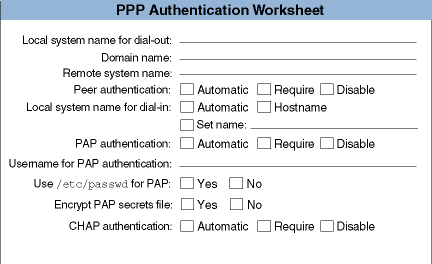
Specify the local system name for dial-out authentication purposes.
Specify the domain name to append to the local system name for dial-out authentication purposes.
Specify the remote system name for dial-out or dial-in authentication purposes.
If you want to require the remote host to authenticate itself by specifying the same host name and IP address that you assigned to it, select Require. If you do not want to require authentication, select Disable.
To allow the system to automatically respond to authentication requests, select Automatic.
In general, if your system is connected to a LAN, it is best to require the remote host to authenticate itself and to restrict the remote host's choice of IP address based on its identity. Otherwise, a remote host might impersonate another host on the local subnet.
For a dial-in system, if you want to use the host name as the local system name, select Host Name. To allow the system to automatically select the local system name (as either the host name, or, if undefined, a name selected by the remote system), select Automatic.
If you need to specify a particular local system name, write it in the field provided.
If authentication is enabled, the local system name must match the system
name that the remote system expects.
However, it need not match the local
system's host name as defined in the
/etc/rc.config
file.
If you want to require the remote host to authenticate itself with PAP, select Require. If you do not want to require or respond to PAP authentication, select Disable.
To allow the system to automatically respond to PAP authentication requests, select Automatic.
Specify the username for PAP authentication.
If the remote host requires
PAP authentication, you might need to supply a username on the
pppd
command line.
See
Section 8.2.3.5.
If you want to use the
/etc/passwd
file in addition to
the
/etc/ppp/pap-secrets
file for PAP authentication,
select Yes; otherwise, select No.
If you want to use only encrypted secrets for PAP authentication, select Yes; otherwise, select No.
If you want to require the remote host to authenticate itself with CHAP, select Require. If you do not want to require or respond to CHAP authentication, select Disable.
To allow the system to automatically respond to CHAP authentication requests, select Automatic.
8.2.3 Configuring a Dial-Out System with PPP
If your system places calls to a remote system, you must establish a dial-out connection, which requires you to perform the following tasks:
The following sections discuss these configuration tasks, and Section 8.2.3.6 describes additional steps you need to take if you are connecting to a Microsoft Windows Remote Access Server (RAS).
8.2.3.1 Setting Up Initial Communications for a Dial-Out System
After you physically connect your system to a modem or directly to a remote system, do the following:
Check the
/usr/spool/locks
directory for
LCK..ttynn
lock files.
If any exist
for the terminal device you are configuring for PPP, remove them.
When you establish a connection over a terminal device, the system generates a lock file to prevent the connection from being disrupted by another application. If the connection terminates abnormally, the lock file might persist, preventing you from establishing new connections.
If you are using a modem to establish the PPP connection, verify that you can communicate with the modem:
Edit the
/etc/remote
file and copy the
kdebug
entry.
Modify the new entry, providing a system name, the terminal
device name (tty00
or
tty01
depending
on your system), the speed, and parity.
See
remote(4)
Use the
tip
command to access the modem
as follows:
% tip system_name
The
system_name
is stored in the
/etc/remote
file.
If your modem is using the AT command language, enter the following command:
at [RETURN]
If the modem is not in quiet mode, it responds with an
OK
message.
When you are satisfied that the modem is working, you can enter
~
and Ctrl/D (~^D) or
~
and
a period (~.) to end the
tip
session.
For more information about the
tip
command, see
tip(1)
Contact the administrator of the remote system or your Internet Service Provider (ISP) and obtain the following information:
Your remote IP address and netmask, unless the remote system assigns these dynamically
Characters that might need to be escaped
Instructions on how to log in and use the remote service
Create a
chat
script, as described in
Section 8.2.1.1, to automate the dial-out process.
Note
You can use the
tipcommand to dial out and log in to the remote system to collect additional information about the connection process. Write down the exact prompt, login sequence, andpppdstart-up sequence for use in thechatscript.
8.2.3.2 Creating Options Files for a Dial-Out System
Use the SysMan Menu of the Common Desktop Environment (CDE) Application Manager to create PPP options files. To invoke the SysMan Menu application, follow the instructions in Section 1.2.1.
To create an options file for a dial-out system, do the following:
From the SysMan Menu, select Networking->Additional Network Services->Serial Line Networking->Point-to-Point Protocol (PPP)->Create option files to display the PPP Option Files dialog box.
Alternatively, enter the following command on a command line:
# /usr/bin/sysman ppp_options
Select a file from the list that is displayed and select Modify. Or, do the following to create a new options file:
Select the New File... option to display the Create PPP Options File dialog box.
Enter the new file name and select OK.
The Modify PPP Options File dialog box is displayed.
Select Dial-Out Options and select Configure to display the Dial-Out Options dialog box. Complete the fields using the information that you gathered on the PPP Setup Worksheet.
See
pppd(8)pppd
options.
Select OK to close the Dial-Out Options dialog box.
Select Advanced PPP Options if you need to configure additional PPP options. Select each menu item in the associated dialog box and complete the fields, as necessary, with the information that you gathered on the PPP Setup Worksheet and the PPP Authentication Worksheet.
When you are finished, select OK in the Advanced PPP Options dialog box to close the dialog box.
Select OK in the Modify PPP Options File dialog box to save the changes and to close the dialog box.
Select Exit to close the PPP Option Files dialog box.
You can use the SysMan Menu utility to copy, modify, and delete
option files.
See the online help for more information.
8.2.3.3 Creating Secrets Files
The
chap-secrets
and
pap-secrets
files contain entries that can be used for authentication purposes, as discussed
in
Section 8.2.1.3.
The following sections describe how to create
entries in these files.
8.2.3.3.1 Creating Entries in the PAP Secrets File
Use the SysMan Menu of the Common Desktop Environment (CDE) Application
Manager to create entries in the
pap-secrets
file.
To invoke
the SysMan Menu application, follow the instructions in
Section 1.2.1.
To create entries in the
pap-secrets
file, follow
these steps:
From the SysMan Menu, select Networking->Additional Network Services->Serial Line Networking->Point-to-Point Protocol (PPP)->Modify pap-secrets file to display the Modify pap-secrets File dialog box.
Alternatively, enter the following command on a command line:
# /usr/bin/sysman pap
Select Add to display the Add pap-secrets Entry dialog box. Supply the requested information.
Select OK to save the current changes and close the dialog box. The Modify pap-secrets File dialog box displays the new entry.
Repeat steps 2 and 3 as many times as necessary.
Select Exit to close the Modify pap-secrets File dialog box.
You can also use the SysMan Menu utility to modify or delete entries
in the PAP secrets file.
See the online help for more information.
8.2.3.3.2 Creating Entries in the CHAP Secrets File
Use the SysMan Menu of the Common Desktop Environment (CDE) Application
Manager to create entries in the
chap-secrets
file.
To
invoke the SysMan Menu application, follow the instructions in
Section 1.2.1.
To create entries in the
chap-secrets
file, follow
these steps:
From the SysMan Menu, select Networking->Additional Network Services->Serial Line Networking->Point-to-Point Protocol (PPP)->Modify chap-secrets file to display the Modify chap-secrets File dialog box.
Alternatively, enter the following command on a command line:
# /usr/bin/sysman chap
Select Add to display the Add chap-secrets Entry dialog box. Supply the requested information.
Select OK to save the current changes and close the dialog box. The Modify chap-secrets File dialog box displays the new entry.
Repeat steps 2 and 3 as many times as necessary.
Select Exit to close the Modify chap-secrets File dialog box.
You can also use the SysMan Menu utility to modify or delete entries
in the CHAP secrets file.
See the online help for more information.
8.2.3.4 Setting Up Message Logging
To set up message logging, complete the following steps:
Edit the
/etc/syslog.conf
file, as follows:
Note
White space in the
/etc/syslog.conffile must consist of tab characters. Spaces are not acceptable. Seefor further information. syslogd(8)
Add the
local2
facility (used by the
pppd
daemon and the
chat
program) to the line
that specifies
/dev/console
as the message destination,
as follows:
kern.debug;local2.notice /dev/console
In this example, the
notice
severity level is
specified.
For more information about this severity level and logging system
messages in general, see the
System Administration
manual.
Add the following entry to the file to create a
ppp-log
file:
local2.debug /etc/ppp/ppp-log
Save the edits and close the file.
Create the PPP log file by issuing the following command:
# touch /etc/ppp/ppp-log
Stop and restart the
syslogd
daemon by
entering the following commands:
# /sbin/init.d/syslog stop
# /sbin/init.d/syslog start
8.2.3.5 Initiating a PPP Connection
When you finish configuring your system for a PPP dial-out connection,
invoke the
pppd
daemon on the local system to connect to
the remote system.
For example, the following command executes a
chat
script to establish a PPP connection to the remote system over
tty01:
% pppd /dev/tty01 38400 connect 'chat -f /etc/ppp/chat-script'
If you already specify the terminal name and speed options in a PPP
options file, you can execute
pppd
without these options,
as follows:
% pppd connect 'chat -f /etc/ppp/chat-script'
If you initiate a PPP connection with a remote system that requires
PAP authentication, you might need to specify a username with the
pppd
command, as follows:
% pppd user username connect 'chat -f /etc/ppp/chat-script'
For information about monitoring and terminating the PPP connection, see Section 8.2.5.
Note
Do not use the
ifconfigcommand to configure the addresses of thepppinterface. Thepppddaemon assigns addresses and identifies the interface as running.
8.2.3.6 Connecting to a Microsoft Windows Remote Access Server
This section describes how to establish a dial-out connection from a Tru64 UNIX system to a Microsoft Windows Remote Access Server (RAS).
You will need to supply the following information in the
/etc/ppp/chap-secrets
file:
Microsoft Windows domain login name and password
Microsoft Windows domain name
For details on creating the
/etc/ppp/chap-secrets
file, refer to
Section 8.2.3.3.2
and
pppd(8)8.2.3.6.1 Configuring a RAS Server
To configure a Tru64 UNIX system to allow dial-out access to a RAS server, do the following:
Log in as root.
Create an
/etc/ppp/chap-secrets
file.
For
example, if you are dialing into a server named
money
with
a username of
monopoly
and a password of
candlestick, create the
chap-secrets
file as follows:
#
# secret for logging into an RAS server
#
monopoly   money   candlestick
Issue the
pppd
command with the user and
remote name arguments to select the secret for the server
money.
For example:
# pppd tty00 38400 user monopoly remotename money \
connect 'chat -f /etc/ppp/chat-script'
If the RAS server you dial out to is not a standalone
server or a domain controller, you might need to prepend your domain name
to your username.
To do this from the command line, enter a command similar
to the following in which
empire
is the domain name:
# pppd tty00 38400 user 'empire\\monopoly' remotename money \
connect 'chat -f /etc/ppp/chat-script'
Note
Single quotes are required in the previous example to escape the backslash characters.
Alternatively, you can place this information in the
/etc/ppp/chap-secrets
file as follows:
#
# secret for logging into an RAS server
#
empire\\monopoly    money   candlestick
You can also use the
chat
program to automate any
dialog that is required to establish a dial-out connection.
See
Section 8.2.1.1
for information on using the
chat
program.
During authentication, Microsoft Windows does not send its node name
to the PPP peer.
The peer must know beforehand the node name of the Microsoft
Windows system to select the correct secret from the
chap-secrets
file.
You can do this by setting the
remotename
option of the
pppd
daemon.
If this is not done, authentication
might fail and the PPP link will be disconnected.
8.2.3.6.2 Solving Microsoft CHAP Authentication Problems
Microsoft CHAP (MS-CHAP) returns error codes if authentication fails.
To log the error messages, invoke the
pppd
command with
the
debug
option.
The error code format is as follows:
rcvd [CHAP Failure id=0x0 "E=NUM R=1"]
NUM is the error code that MS-CHAP returns.
Error Code |
Explanation |
| E=646 | Your account has restricted log-in hours. At this time of day you may not log on. |
| E=647 | Your account has been disabled. |
| E=648 | Your account password has expired.
(Note
that the
pppd
daemon cannot negotiate a change of password.) |
| E=649 | You are not permitted to dial in. |
| E=691 | The RAS server could not validate your username. You supplied an incorrect password, or you need to prepend your domain name to your username. |
8.2.4 Configuring a Dial-In System with PPP
If your system answers calls from remote systems, you must establish a dial-in connection, which requires you to perform the following tasks:
The following sections discuss the first two configuration tasks.
For
the latter, see
Section 8.2.3.3
and
Section 8.2.3.4.
8.2.4.1 Setting Up Initial Communications for a Dial-In System
After you physically connect your system to a modem or directly to a remote system, do the following:
If you are using a modem, set up your modem for dial-in access. See Section 8.3.2 for more information.
Check the
/usr/spool/locks
directory for
LCK..ttynn
lock files.
If any exist
for the terminal device you are configuring for PPP, remove them.
When you establish a connection over a terminal device, the system generates a lock file to prevent the connection from being disrupted by another application. If the connection terminates abnormally, the lock file might persist, preventing you from establishing new connections.
Edit the
/etc/passwd
file and create a dedicated entry for a PPP user.
For the login
shell field, specify
/usr/sbin/startppp, which starts the
pppd
daemon for dial-in connections.
For example:
ppp1:password:20:20:Remote PPP User:/usr/users/guest:/usr/sbin/startppp
Edit the
/etc/inittab
file and create an
entry for each terminal device that is to run PPP.
For example:
nullmodem:3:respawn:/usr/sbin/getty /dev/tty00 M38400 vt100
See
inittab(4)
Issue the
init q
command to immediately
start the
getty
process.
If the dial-in system will be a gateway for
the dial-out system to reach other systems on the LAN, the dial-in system
must be configured as an IP router and must run the
gated
daemon.
Edit the
/etc/gated.conf
file and delete the
nobroadcast
option (if specified) in the
rip
statement.
See
Chapter 2
for basic network setup information
and
gated.conf(4)gated
options.
8.2.4.2 Creating Options Files for a Dial-In System
Use the SysMan Menu of the Common Desktop Environment (CDE) Application Manager to create PPP options files. To invoke the SysMan Menu application, follow the instructions in Section 1.2.1.
To create an options file for a dial-in system, do the following:
From the SysMan Menu, select Networking->Additional Network Services->Serial Line Networking->Point-to-Point Protocol (PPP)->Create option files to display the PPP Option Files dialog box.
Alternatively, enter the following command on a command line:
# /usr/bin/sysman ppp_options
Select a file from the list that is displayed and select Modify. Or, do the following to create a new options file:
Select the New File option to display the Create PPP Options File dialog box.
Enter the new file name and select OK.
The Modify PPP Options File dialog box is displayed.
Select Dial-In Options and select Configure to display the Dial-In Options dialog box. Complete the input fields using the information that you gathered on the PPP Setup Worksheet.
See
pppd(8)pppd
options.
Select OK to close the Dial-In Options dialog box.
Select Advanced PPP Options if you need to configure additional PPP options. Select each menu item in the associated dialog box and complete the fields, as necessary, with the information that you gathered on the PPP Setup Worksheet and the PPP Authentication Worksheet.
When you are finished, select OK in the Advanced PPP Options dialog box to close the dialog box.
Select OK in the Modify PPP Options File dialog box to save the changes and to close the dialog box.
Select Exit to close the PPP Option Files dialog box.
You can also use the SysMan Menu utility to copy, modify, and delete option files. See the online help for more information.
When you are finished creating the PPP options files, see
Section 8.2.3.3
and
Section 8.2.3.4
for the procedures to create secrets
files and set up message logging.
8.2.5 Monitoring and Terminating PPP Connections
When the
pppd
daemon starts, it first establishes
the serial or modem connection, if necessary, then it attempts to establish
a PPP link over that connection.
If the PPP link is successful, and you enabled
message logging as described in
Section 8.2.3.4, the
daemon reports basic information about the connection in the console log.
For example:
Aug  7 17:35:43 packrat pppd[79322]: pppd 2.3.1 started by jensen, uid 283
Aug  7 17:36:24 packrat pppd[79322]: Connect: ppp0 <--> /dev/tty01
Aug  7 17:36:32 packrat pppd[79322]: local  IP address 201.146.128.25
Aug  7 17:36:32 packrat pppd[79322]: remote IP address 201.146.128.2
If you enabled message logging, you can also view the
ppp-log
file to see more detailed information about the connection process
for troubleshooting purposes.
For example:
% more /etc/ppp/ppp-log
.
.
Aug  7 18:07:35 packrat pppd[79605]: sent [PAP AuthReq id=0x1 user="jensen"
 password="sailboa"]
Aug  7 18:07:35 packrat pppd[79605]: pap_sauth: Sent id 1.
Aug  7 18:07:35 packrat pppd[79605]: Timeout 120012d80:14000a318 in 3 seconds.
Aug  7 18:07:38 packrat pppd[79605]: sent [PAP AuthReq id=0x2 user="jensen"
 password="sailboa"]
Aug  7 18:07:38 packrat pppd[79605]: pap_sauth: Sent id 2.
Aug  7 18:07:38 packrat pppd[79605]: Timeout 120012d80:14000a318 in 3 seconds.
Aug  7 18:07:38 packrat pppd[79605]: rcvd [PAP AuthNak id=0x2 ""]
Aug  7 18:07:38 packrat pppd[79605]: pap_rauthnak: Rcvd id 2.
Aug  7 18:07:38 packrat pppd[79605]: Remote message:
Aug  7 18:07:38 packrat pppd[79605]: PAP authentication failed
.
.
In the previous excerpt from the
ppp-log
file,
PAP authentication fails.
A possible cause is that the user misspelled his
password in the
/etc/pap-secrets
file.
To display the statistics associated with the PPP interface, execute
the
netstat
and
pppstats
commands, as
follows:
% netstat -I ppp0
Name  Mtu    Network      Address            Ipkts Ierrs   Opkts Oerrs  Coll
ppp0  1500   <Link>                             18     0      22     0     0
ppp0  1500   201.146.128  p82.dialup.company    18     0      22     0     0
% pppstats
IN   PACK VJCOMP  VJUNC  VJERR  |      OUT   PACK VJCOMP  VJUNC NON-VJ
1132   26      0      0      0  |     1425     33      0      0     33
For more information about these commands, see
pppstats(8)netstat(1)
To terminate the PPP link, send a TERM or INTR signal to one of the
pppd
daemons by issuing the following command:
# kill `cat /etc/ppp/pppxx.pid`
In the previous command,
pppxx
specifies the
pppd
interface used for the PPP connection.
The
kill
command notifies related processes to terminate,
clean up, and exit.
If the
pppd
daemon is running over a hardware serial
port that is connected to a modem, it will receive a HUP signal when the modem
hangs up, which causes it to clean up and exit.
This action depends on the
driver and its current settings.
Do not use a SIGKILL (kill -9) to kill the process.
It might not allow the
pppd
daemons to terminate properly,
which could corrupt the tty files.
8.3 Guidelines for Using Modems
The operating system software enables you to use a variety of modems for point-to-point connections to systems that are not in close proximity to each other. These connections can be Serial Line Internet Protocol (SLIP), Point-to-Point Protocol (PPP), and UNIX-to-UNIX Copy Program (UUCP) connections. In addition, these connections can be basic dial-out or dial-in connections; for example, you can log in to a remote system to perform remote system administration.
This section presents general guidelines for using modems on Tru64 UNIX
systems for all types of connections.
See
Section 8.1.2.1
for
specific information on SLIP and PPP connections and see
Network Administration: Services
for information about UUCP connections.
8.3.1 Using the Correct Modem Cables
You must use the correct cable to connect a modem to the serial port. Use of an incorrect cable might result in signal loss and associated software errors.
It is best to use the cable that came packaged with your modem. However, if you cannot find that cable, follow these guidelines to find a suitable replacement:
Use a serial cable, not a parallel cable.
Do not use a null modem cable, which is designed to connect two computers directly to each other.
Use a well-shielded cable that contains at least 9 wires. (Do not use a DECconnect cable, which contains an insufficient number of wires for full modem control.)
Verify the gender and number of pins for the connectors on each side of the cable. The end of the cable that you connect to the modem conventionally has a 25-pin male connector. The end of the cable that you connect to the computer typically has a 9-pin or 25-pin female connector. See the hardware documentation for your computer if you are uncertain about which serial port to use.
The appropriate cable is often clearly labeled as a modem cable in stores.
8.3.2 Configuring a System for Dial-In Access
After you obtain the correct cable and connect your modem to it and the telephone network, do the following:
Edit the
/etc/remote
file and create an
entry similar to the
kdebug
entry.
For example, if your modem is connected to the tty00
port and you will use a speed of 38,400 bps to access the modem, create an
entry similar to the following:
b38400:dv=/dev/tty00:br#38400:pa=none
Note
Some modems set their speed to the serial port rate. Be sure to access the modem using the same speed that you will specify to the
gettyoruugettyutility. Otherwise, you might not be able to log in because of the mismatch.
Check the
/usr/spool/locks
directory for
LCK..ttynn
lock files.
If any exist
for the terminal device you are configuring for use with the modem, remove
them.
When you establish a connection over a terminal device, the system generates a lock file to prevent the connection from being disrupted by another application. If the connection terminates abnormally, the lock file might persist, preventing you from establishing new connections.
Use the
tip
command to access the modem
as follows:
%tip b38400
The
tip
utility responds with a
connected
message.
You can now communicate with the modem.
If your modem uses the AT command set, a standard language for communication between terminals and modems, enter the following command to verify that the modem is ready and listening:
at [Return]
If the modem is not in quiet mode, it responds with an OK message.
You can end the
tip
session at any time by entering
~
and Ctrl/D (~^D) or
~
and
a period (~.).
For more information about the
tip
command, see
tip(1)
Configure the modem for dial-in access as specified in Section 8.3.2.1.
Edit the
/etc/inittab
file and create an
entry for the modem.
If you want to use the modem line in nonshared mode,
create an entry similar to the following:
modem:23:respawn:/usr/sbin/getty /dev/tty00 M38400 vt100
If you want to use the modem line in shared mode (for dial-out
and dial-in connections), use the
uugetty
utility instead
of the
getty
utility and create an entry similar to the
following:
modem:23:respawn:/usr/lib/uucp/uugetty -r -t 60 tty00 38400
With the
uugetty
utility, you can use the
tip
and
cu
utilities, but differences in file
locking might prevent the use of third-party utilities.
Note
If you want to use the
uugettyutility, you must install the UNIX-to-UNIX Copy Facility subset.
As root, start the
getty
or
uugetty
process by entering the following command:
# init q
The
getty
or
uugetty
process starts, then goes to sleep,
waiting for someone to dial in to the system.
8.3.2.1 Setting Up a Modem for Dial-In Access
To configure your modem for dial-in access, you need to send various
commands to the modem by using the AT command set.
Table 8-5
lists the AT commands required.
These command settings are generally the
same as the default settings for most modems, but you can enter them again
to verify that your modem is correctly configured.
Table 8-5: Modem Commands for Dial-In Access
| Command | Description |
at&c1 |
Normal Carrier Detect (CD) operation. Tells the modem not to raise Carrier Detect until it sees Carrier Detect from the other modem. |
at&d2 |
Normal Data Terminal Ready (DTR) operation. This tells the modem to hang up the line when DTR drops. For example, when the user logs off the system. |
atq1 |
Sets the modem to quiet mode. Result codes are not sent to the system. |
ate0 |
Echo off.
This prevents the modem from echoing
the login prompt issued by the
getty
process. |
ats0=n |
Specifies the number of rings to wait before answering. If n = 0 (zero), the modem will not answer. |
at&w0 |
Saves the current modem settings in NVRAM.
Most modems contain user profiles where modem settings can be stored for future
use.
This command stores the settings in the default profile,
0. |
You can enter these commands individually or as one command. For example:
at&c1&d2q1e0s0=n&w0 [Return]
Enter the following command to verify the results (these characters
are not displayed on the screen because you turned echo off with the
e0
command):
at&v [Return]
The active profile and stored profile 0 will reflect the values you entered. The active (or current) profile is lost when you turn the modem off, but the stored profile will preserve the modem settings for future use.
In addition to the specified settings, configure the type of flow control
to use for the connection between the computer and the modem.
The operating
system supports both hardware and software flow control.
If your computer
supports hardware flow control, set the modem and the serial line to use hardware
flow control by using the appropriate commands.
If hardware flow control
is not supported, use software flow control.
See the manuals for your computer
and your modem for more information.
8.3.3 Configuring Your System for Dial-Out Access
After you obtain the correct cable and connect your modem to it and the telephone network, do the following:
Verify that there is an entry for the modem specified with
the
modemtype
subcommand in the
/etc/acucap
file.
If an entry does not exist, do the following:
Copy an entry similar to that of your modem.
The following
entry is for a US Robotics modem for use in shared mode with the
tip
command:
us|US|US Robotics (28.8 fax/data modem):\
      :cr:hu:ls:re:ss=AT\rATE1Q0&C0X0&A0\r:sr=OK:\
      :sd#250000:di=ATD:dt\r:\
      :dd#50000:fd#50:os=CONNECT:ds=\d+++\dATZ\r\dATS0=2\r:\
      :ab=\d+++\dATZ\r\dATS0=2:
Modify the modem attributes to match those of your modem and
include the debug option (db).
With debugging turned on,
the modem will provide you with additional information with which to tune
the modem attributes in the file.
See
acucap(4)
Create an entry in the
/etc/remote
file
for the system you want to call, as specified in
Section 8.3.3.1.
If you use the
getty
utility to provide
access to the system from a modem and a
getty
process is
already running, do the following:
Edit the
/etc/inittab
file and change the
Action field of the modem entry from
respawn
to
off
as follows:
modem:23:off:/usr/sbin/getty /dev/tty00 M38400 vt100
See
inittab(4)
Issue the
init q
command to terminate the
getty
process.
Check the
/usr/spool/locks
directory for
LCK..ttynn
lock files.
If any exist
for the terminal device you are configuring for use with the modem, remove
them.
When you establish a connection over a terminal device, the system generates a lock file to prevent the connection from being disrupted by another application. If the connection terminates abnormally, the lock file might persist, preventing you from establishing new connections.
Use the
tip
command, specifying the
-baud_rate
flag and the telephone number to dial out as follows:
%tip -38400 8881234
In this example,
tip
strips
the minus sign (-) from the baud rate and concatenates the
tip
command name and the baud rate to create the string
tip38400.
Then,
tip
searches the
/etc/remote
file for the entry matching the string.
The entry in the
/etc/remote
file points to the capability information in the
us38400
entry to initialize the modem.
You can specify the telephone number on the command line to share the same modem attributes for outgoing connections that have different telephone numbers.
When you log off the remote system and exit the
tip
utility, the saved settings are restored and the modem is ready for the next
user.
If used in shared mode, the modem is available for dial-in access.
You can end a
tip
session at any time by entering
~
and Ctrl/D (~^D) or
~
and
a period (~.).
For more information about the
tip
command, see
tip(1)
8.3.3.1 Creating Entries in the /etc/remote File
The
/etc/remote
file stores information about the
dial-out connections that you establish.
You can use this file to supply the terminal device name, connection
speed, and the
/etc/acucap
file that defines your modem.
For example, the following two entries are for the modem specified in step
1a of
Section 8.3.3:
tip38400:tc=us38400   [1]
us38400|38400 Baud dial out via US Robotics modem:\   [2]
      :el=^U^C^R^O^D^S^Q@:ie=#%$:oe=^D:\   [3]
      :dv=/dev/tty00:br#38400:ps=none:at=us:du:      [4]
Points to the
us38400
entry specifying shared capabilities for modems
[Return to example]
First line of the
us38400
entry
[Return to example]
Defines end-of-line characters, and input and output end-of-file marks [Return to example]
Defines the device to open for the connection,
the speed, the parity, the name of the
/etc/acucap
entry,
and the dial-up line
[Return to example]
You might use generic entries like these to connect to any number of remote systems.
Optionally, you can create an entry for each remote system you contact.
Then you can include settings that are specific to those systems, for example,
their phone numbers.
See
remote(4)