The software for this version of the operating system is distributed on read-only compact disks (CD-ROM). These CD-ROMs are identified as follows:
Operating System Volume 1 contains the operating system software subsets. The software subsets included on this CD-ROM are documented in Appendix D.
Associated Products Volume 1 contains additional software that is shipped with the operating system, including software for Worldwide Language Support (WLS). The software subsets included on this CD-ROM are documented in Appendix E.
Associated Products Volume 2 contains more additional software. The software subsets included on this CD-ROM are also documented in Appendix E.
Documentation Volume 1 contains the operating system documentation set in HTML and PDF formats. The online documentation included on this CD-ROM are documented in Chapter 8.
This appendix describes how to perform the following tasks:
Before you insert a CD-ROM in its drive, make sure you know how to operate the disk drive. The Optical Disk Drive Owner's Manual contains instructions for using the CD-ROM drive.
A CD-ROM must be placed in a caddy before it can be inserted in an RRD42 or RRD44 disk drive. Caddies are not required for RRD43 or RRD45 disk drives. Follow these steps to load a CD-ROM in a caddy:
If a protective cellophane wrapper is on the caddy, remove the wrapper before using the caddy.
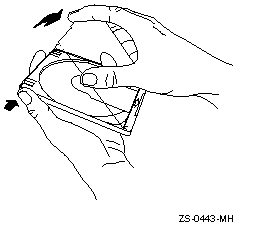
Press the tabs on both sides of the caddy and lift the lid.
Remove the CD-ROM from its packaging. Hold the CD-ROM by its edge.
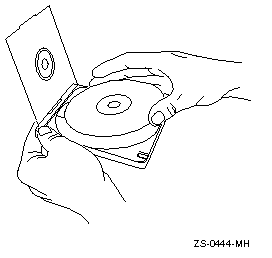
Place the CD-ROM in the caddy, making sure that the labeled side faces up.
Close the lid of the caddy by pressing both corners down firmly.
Figure B-1 shows how to press the tabs of the caddy and lift the lid:
Figure B-2 shows how to place the disk in the caddy:
After placing the CD-ROM in a caddy, follow these steps to insert the disk caddy in to a disk drive:
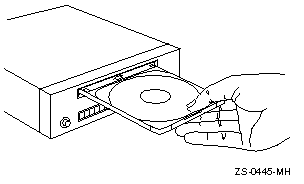
Insert the caddy in to the slot in the disk drive. The disk label should be facing up.
Push the caddy in until it stops.
Figure B-3 shows a CD-ROM (in its caddy) being inserted in to a disk drive:
Before you can access the files and directories on a CD-ROM, it must be mounted on a mount point. Follow these steps to mount a CD-ROM:
Log in as root or become superuser.
If you do not know the system device name of your CD-ROM drive, log
in as
root
or use the
su
command to gain
root
privileges, and enter the following command:
#file /dev/rrz*c | grep RRD/dev/rrz4c: character special (8/4098) SCSI #0 RRD44 disk #32 (SCSI ID #4)
In
this example, the CD-ROM device is
RRD44
on device
/dev/rz4c.
If you have more than one
RRD
device connected to your
system, determine the device where you will mount the CD-ROM.
Note
You must have
rootprivileges to get this information with thefilecommand.
Standard device names begin with
rz
for the block special
file and
rrz
for the raw (character) special file.
The result of
the
file
command displays the
raw
device name,
but you must specify the block special file when mounting the CD-ROM device.
In this
example, the displayed device name is
/dev/rrz4c, but you will
use
/dev/rz4c.
Make a directory that will be the mount point for the CD-ROM, using
the
mkdir
command.
Then mount the CD-ROM using the
mount
command with the following syntax, substituting the unit number of your
CD-ROM drive for the
unit_number.
mount
-r /dev/rzunit_numberc /mount-point
For example, to mount the CD-ROM in drive
/dev/rz4c
on the directory
/cdrom, enter the following commands:
#mkdir /cdrom#mount -r /dev/rz4c /cdrom
To ensure that the CD-ROM is remounted in the event that your system
crashes or is rebooted, you can use the text editor of your choice and open the
/etc/fstab
file.
Add a line similar to the following:
/dev/rz4c /cdrom ufs ro 0 0
When you have ensured
that your edits are correct, write and quit the file.
The system will now mount the
CD-ROM on the
/cdrom
mount point on every reboot.
You must unmount a CD-ROM by using the
umount
command before
you can eject it from the disk drive.
To unmount a CD-ROM, you must be superuser or
root
and you must be one directory above the mount point of the CD-ROM.
Use a command similar to the following to unmount a CD-ROM:
#umount /dev/rz4c
If you do not
unmount the CD-ROM before trying to remove it, the CD-ROM will not eject from
the drive when you press the eject button.
If you are not one directory above the
mount point of the CD-ROM when you execute the
umount
command,
you will see the message
device busy.
To remove the disk from the disk drive after it is unmounted, press the eject button on the disk drive.
If the eject button is disabled by software or if the drive does not eject the caddy after you press the eject button, refer to your Optical Disk Drive Owner's Manual for instructions.