This appendix describes the use of user-supplied files in the full installation process (default or custom) and the installation cloning process. Table C-1 summarizes these features.
| Feature | Applies To: |
The installation process searches for and invokes
user-supplied files to enable customizations on the system to be installed.
The files
can be on diskette, a RIS server, the
/var/tmp
directory on your
system, or on CD-ROM. |
Full installations and installation cloning |
| Administrators can modify the configuration description file (CDF) to enable an unattended installation cloning process. | Installation cloning |
The following information is included in this appendix:
Overview of the installation cloning process and support of user-supplied files
Role of the administrator
Theory of operation for invoking user-supplied files and CDFs
Description of the CDF
Relationship between the user-supplied files and the CDF
Acceptable differences between the CDF and the systems to be cloned
Modifying the CDF to enable unattended installation cloning of client systems
Creating files for execution during a full installation or installation cloning
Moving the CDF and files to the appropriate distribution media (diskette, RIS server, or CD-ROM)
Installation cloning allows you to replicate the installation configuration from a model system that is already installed with this release of the operating system onto one or more target systems with the same or similar hardware configurations.
When a system is installed with this release of the operating system, a configuration
description file (CDF) is generated that contains the results of the questions answered
during the installation.
This file is located on the installed system in the
/var/adm/smlogs
directory under the file name
install.cdf.
The CDF contains all the configuration information required to perform an initial
system installation on a client system.
Caution
CDFs used in previous versions of the operating system may not be compatible with this version of the operating system.
The only prerequisite for installation cloning is that the target system has
the same disk configuration as the system where the CDF was generated.
This means
that the disks used for the
/
( root ),
usr, and
var
file systems and
swap
areas on both systems must have the same disk type and the same device name.
It is possible, however, to support slight differences in configuration. Section C.7.1 describes these acceptable differences.
The benefits to using installation cloning to mass-install systems are:
Installation cloning produces identical installations.
You can set up the installation cloning process to run with very little user intervention.
Installation cloning is ideal for environments in which there are many of the same or similar systems that need to be installed with this release of the operating system because it eliminates the need to perform duplicate installations on all systems.
Once a suitable CDF has been located and optionally modified, the administrator has minimal involvement in the installation cloning process at the client systems.
The files necessary for the installation cloning process can be placed on a
diskette, the
/var/adm/ris/clients/sets/profile_set
directory on a RIS server or in the
/isl
directory
on a CD-ROM or extracted RIS area.
A CD-ROM is a read-only device and
data cannot be written to it.
However, if you have a special license agreement to
copy and repackage the operating system, files can be written to the
/isl
directory of the image, which will be written to the CD-ROM.
Refer
to
Section C.11.4
for more information about burning (writing
to) CD-ROMs.
In older versions of the operating system, installation cloning could be done only from a network connection to a remote installation services (RIS) server and required user intervention. In this version of the operating system, however, installation cloning can be done from either a network connection or CD-ROM. In addition, installation cloning can be set up so that it automatically bypasses the following actions that previously required user intervention:
Confirming use of the CDF to start an installation cloning
Building a tailored kernel automatically
The full installation and installation cloning processes can invoke user-supplied
files that contain scripts, programs, or executables to perform user-defined customizations.
This ability provides administrators with the opportunity to customize the installation
procedure.
The files can be provided on diskette, a RIS server, or in the
/isl
directory of the distribution media (either CD-ROM or an extracted
RIS area).
Refer to
Section C.11.2
for things to consider when
moving files to an extracted RIS area.
The first invocation of user-supplied files occurs before the actual installation
process begins, that is, before any file systems are created and software is installed.
At that point, for example, an administrator may want to write a new disk label onto
a specific disk to customize disk partitions.
This file must be named
preinstall.
The second invocation is allowed after software is installed.
At that point,
for example, an administrator may want to install a customized software application
after the installation of the base operating system software subsets.
This file must
be named
postload.
Refer to
Section C.9
and
Section C.10
for more information about creating
preinstall
and
postload
files for execution during a full installation or installation cloning
process.
CDFs are used only for an installation cloning process. User-supplied files are invoked and executed during both types of full installations (default and custom) and the installation cloning processes.
CDFs and user-supplied files can be used independently or in any combination.
The CDFs and user-supplied files can be located on different sources.
For example,
the
install.cdf
file may be on a diskette, the
preinstall
file might come from the RIS server, and the
postload
file might come from the
/isl
directory of the distribution media.
The installation process searches for the
install.cdf,
preinstall, and
postload
files in the following order
of priority:
The
/
( root )
directory of diskette drive
fd0
or
fd1.
If a
diskette is used, it requires a standard UNIX File System (UFS).
The
/var/adm/ris/clients/sets/profile_set
directory on a RIS server where
profile_set
is a user-created directory name.
The
/var/tmp
directory on the system to be installed.
Keep in mind that CDFs or user-supplied files cannot be delivered in the
/var/tmp
directory.
They can, however, be copied into this directory by
executing the
preinstall
file, which previously has been customized
to manipulate a CDF or other user-supplied file.
In the
/isl
directory of the distribution media
(for CD-ROM or RIS installations) or the
/isl
directory of
an extracted RIS area (for RIS installations only).
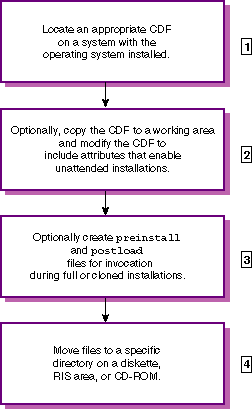
To set up a system for installation cloning, an administrator performs the tasks described in Figure C-1. To execute user-supplied files during a full installation, the administrator performs Tasks 3 and 4 only. The numbered list after the task summary describes the tasks in more detail and provides pointers to more information.
An administrator locates a CDF that is suitable to use for installation
cloning.
On systems that are installed with this version of the operating system,
the CDF is located in the
/var/adm/smlogs
directory as the file
named
install.cdf.
There is one CDF generated per system installation.
Refer to
Section C.6
for a description of the contents of the
CDF.
Refer to
Section C.7
for information about what
makes a CDF suitable for installation cloning and for information about acceptable
differences between the CDF and the target systems.
The administrator copies and moves the CDF to a working area where
it optionally can be modified for installation cloning.
The administrator should make
a copy of the
/var/adm/smlogs/install.cdf
file and move and modify
the copy.
The original CDF should be retained in the
/var/adm/smlogs
directory because it contains information about the initial system installation that
could be valuable for future troubleshooting.
The administrator has the option to
modify the CDF so that the installation bypasses all user responses usually required
during an installation cloning process.
Refer to
Section C.8
for information about the attributes in the CDF that can be modified to attain unattended
installation cloning.
The administrator optionally creates scripts or programs to be executed
at two predefined points in the full installation and installation cloning processes.
The actions performed by these user-supplied files are determined by the administrator.
Refer to
Section C.9
and
Section C.10
for more information about creating
preinstall
and
postload
files for execution during an installation.
The administrator moves the modified CDF and any user-supplied files
either to the
/
( root ) directory
on a diskette, to the
/var/adm/ris/clients/sets/profile_set
directory on a RIS server, or to the
/isl
directory on a CD-ROM if the operating system distribution media is being repackaged.
The files also can be copied to the
/isl
directory within an extracted
RIS area.
Refer to
Section C.11
for information about copying
the CDF to the appropriate place and the guidelines surrounding each type of distribution
media.
This section contains a synopsis of how the installation process uses the user-supplied files and CDFs during full and cloned installations. Detailed information is provided in subsequent sections. The work flow shown in Figure C-2 assumes that the administrator has completed the tasks shown in Section C.4.
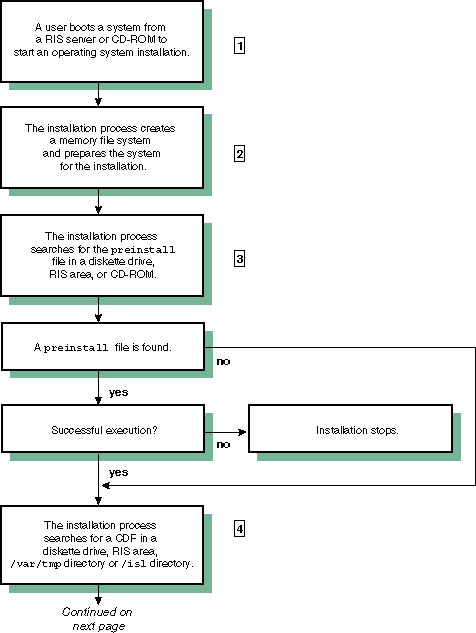
To start an installation process, users boot the system from the operating system CD-ROM or over a network connection to a RIS server.
The Memory File System (MFS) provides writable space required by the installation process.
The installation process searches for a file named
preinstall, which is a user-supplied script, program, or executable containing
specific actions to be carried out before the installation process begins.
If this
file is found, it is executed.
If execution is successful, the installation process
begins.
If execution is not successful, the installation process stops.
If a
preinstall
file is not found, the installation process begins the search
for a CDF.
Refer to
Section C.9
for more information about
creating a
preinstall
file.
The installation process searches for a CDF that, if found, drives
the rest of the installation and begins an installation cloning process.
This file,
named
install.cdf, is searched for in the same order as the
preinstall
file.
If an
install.cdf
file is not found,
the full installation process continues.
Section C.6
provides
more information about the CDF.
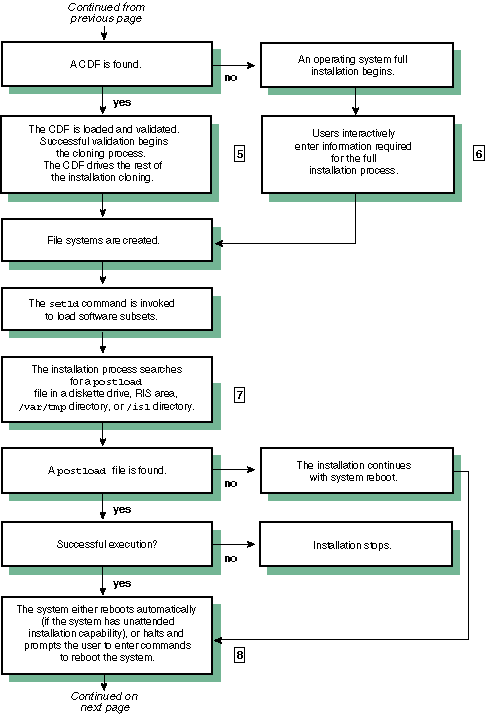
The installation process validates the CDF before beginning an installation cloning process. Validation includes ensuring that the disk name and disk type specified in the CDF exists on the system to be cloned. A CDF validation failure causes the process to stop. Validation includes comparing the versions of the software subsets included in the CDF with the software subset versions that are installed in the RIS environment. Diagnostic messages display the reason for validation failures. Upon successful CDF validation, an installation cloning process continues.
The user responses required during a full installation depend upon the type of full installation being performed (default or custom) and the user interface being used (text-based or graphical). Chapter 5 describes the responses required during a full installation process.
Upon completion of the software subset load phase, the installation
process searches for a file named
postload, which is a user-supplied
script, program, or executable containing specific actions to be carried out after
software subsets are loaded.
If this file is found, it is executed.
If execution fails,
the installation process stops.
Refer to
Section C.10
for
information about creating a
postload
file.
If your system has unattended installation capability, the system automatically reboots after the software subsets are loaded. If your system does not have unattended installation capability, the installation process halts and prompts you to enter commands to reboot the system from the newly installed disks. The screen displays the boot commands that must be entered to reboot the system.
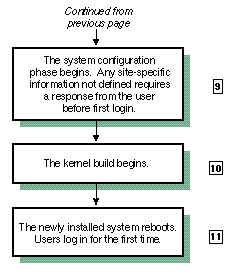
The configuration phase begins automatically after the system reboots.
Configuration refers to the process of tailoring the software subsets; setting the
host name,
root
password, date, time, geographic location, and
time zone; system tuning; and building a kernel.
For installation cloning processes,
refer to
Section C.8.4
about setting these site-specific
attributes in the CDF.
If values are not defined for these attributes or if the user
did not enter a response during the full installation, the installation process becomes
interactive to request it.
For installation cloning, the type of kernel build is defined in the
CDF by the
kernel_options=
attribute.
Refer to
Section C.8.3
for the options that are available.
For full installations, the type of kernel build depends on whether a default or custom installation was performed. Default installations have noninteractive kernel builds that select mandatory kernel options. Custom installations have interactive kernel builds to give users the opportunity to choose the options to build into the kernel.
Refer to Table C-6 for information about setting site-specific information if it was not defined in the CDF nor entered during a full installation. If any of these attributes is null, the installation process becomes interactive to request a response from the user.
When this version of the operating system is installed on a system, the installation process creates a configuration description file (CDF). As described previously, the information stored in the CDF can be used to mass-install machines with the same or similar hardware configurations.
The CDF contains the following information about an installation:
File systems that were created:
/
( root ),
/usr, and
var
Swap space that was created
Disk types and disk names where file systems reside
File system layout (the specific partitions where file systems reside)
File system types (UNIX File System or Advanced File System)
System-specific information such as host name and
root
password and site-specific information such as geographic location, time zone, and
date and time
Type of distribution media (CD-ROM or RIS) from which the installation took place
Software subsets that were installed
The CDF,
install.cdf, is located on a newly installed system
in the
/var/adm/smlogs
directory.
Caution
CDFs used in previous versions of the operating system may not be compatible with the current version of the operating system.
The
CDF is in stanza file format, and is organized logically as groupings of
attribute-value
pairs.
Each attribute-value pair is separated with an
equal sign ( = ).
Each logical grouping of attribute-value
pairs is defined as an
item.
Refer to the
stanza(4)
reference page for more
information about stanza file format.
Four items are defined in the installation CDF:
Inst_islinfo
contains initial system load information
that conveys the state of the system before the start of the installation process
Inst_filesystem
contains file system information
such as the number and type of file systems that were created on the installed system.
There is one
Inst_filesystem
item for every file system and swap
area that was created.
At a minimum, there are four
Inst_filesystem
items in the CDF to describe the
/
( root ),
/usr, and
/var
file systems and the swap device.
Inst_subsets
contains a list of the installed base
operating system software subsets.
Inst_cinstall
conveys client system configuration
information to the installation process.
All of the attributes specified in the
Inst_cinstall
item are optional.
If values are not provided for these attributes,
the installation process becomes interactive to request this information during the
installation configuration phase.
In the sample CDF shown in
Example C-1, attributes marked
with an asterisk ( * ) must be included manually
into the CDF when it is retrieved from an installed system because the installation
interfaces do not provide the ability to set these values.
Section C.8
defines these attributes and shows you how to include them in the CDF.
Section C.6.2 provides definitions of all attribute-value pairs in the CDF.
install:
      _item=Inst_islinfo
      prompt=no			*
      media_type=REMOTE
      server_timezone=Eastern
      timeset=1
      server_locality=US
      server=daria
      risdir=/
      _action=create
      srcloc=daria:
      client=kramer

install:
      _item=Inst_filesystem
      maj_min_num=8388608
      disk_number=0
      disk_name=rz0
      controller_type=SCSI
      name=root
      partition=a
      controller_number=0
      disk_type=RZ26L
      _action=create
      file_system_type=UFS

install:
      _item=Inst_filesystem
      maj_min_num=8388608
      disk_number=0
      disk_name=rz0
      controller_type=SCSI
      name=usr
      partition=g
      controller_number=0
      disk_type=RZ26L
      _action=create
      file_system_type=UFS

install:
      _item=Inst_filesystem
      maj_min_num=8388608
      disk_number=0
      disk_name="in /usr"
      controller_type=SCSI
      name=var
      partition=g
      controller_number=0
      disk_type=RZ26L
      _action=create
      file_system_type=UFS

install:
	     _item=Inst_filesystem
	     maj_min_num=8388608
	     disk_number=0
	     disk_name=rz0
	     controller_type=SCSI
	     name=swap1
	     partition=b
	     controller_number=0
	     disk_type=RZ26L
	     _action=create
	     file_system_type=swap

install:
	     _item=Inst_subsets
	     names=OSFBASE440,OSFBIN440,OSFBINCOM440,OSFCDEDT440,OSFCDEMAIL440,
OSF CDEMIN440,OSFCLINET440,OSFCMPLRS440,OSFDPSFONT440,OSFFONT15440,OSFHWB
ASE440,OSFHWBIN440,OSFHWBINCOM440,OSFKBDLK401440,OSFMITFONT440,OSFNETCON
F440,OSFNETSCAPE440,OSFNFS440,OSFNFSCONF440,OSFOLDX11440,OSFPRINT440,OSF
SER440,OSFSERTC440,OSFSYSMAN440,OSFTCLBASE440,OSFTKBASE440,OSFX11440,OSF
XADMIN440,OSFXPRINT440,OSFXSYSMAN440
	     _action=create
	     advflag=1

install:
	     _item=Inst_cinstall
	     kernel_option=all			*
	     password=C36V.nMSW0j/o
	     timeset=yes
	     timezone=Eastern
	     locality=US
	     _action=create
	     hostname=kramer
This section provides definitions for all attribute-value pairs in the CDF.
The attribute-value pairs within individual items differ as a result of the distribution method (CD-ROM or RIS) that was used to perform the initial installation of the model system.
Caution
Only experienced system administrators should modify the attributes-value pairs in the CDF. Do not edit the CDF other than for those attribute-value pairs in the
Inst_cinstallitem and those marked with an asterisk in the sample CDF shown in Example C-1. Typographical errors and inserting attribute-value pairs into the incorrect item may result in serious corruption on the cloned systems and may render the systems unusable.In addition, attribute-value pairs cannot contain blank spaces. Blank spaces cause data validation errors. Be very careful to remove all blank spaces especially at the end of a line. When you want to give an attribute a null value, make sure there is nothing (null) after the equal sign (
=).Do not modify or remove attributes that are prefixed with an underscore (
_). These attributes, for example_action=create, are internal variables required by the full installation and installation cloning processes.
Table C-2
defines the attributes in the
Inst_disklabel
CDF item.
The
Inst_disklabel
item is
used to support the default disk partition tables.
| Attribute | Definition |
name |
A required attribute specifying the software name
of the disk to which the recommended partition will be applied (for example:
rz0) |
a_size |
The size of the
a
partition in
512-byte blocks |
a_offset |
The offset of the
a
partition
from block 0 in 512-byte blocks |
b_size |
The size of the
b
partition in
512-byte blocks |
b_offset |
The offset of the
b
partition
from block 0 in 512-byte blocks |
c_size |
The size of the
c
partition in
512-byte blocks |
c_offset |
The offset of the
c
partition
from block 0 in 512-byte blocks |
d_size |
The size of the
d
partition in
512-byte blocks |
d_offset |
The offset of the
d
partition
from block 0 in 512-byte blocks |
e_size |
The size of the
e
partition in
512-byte blocks |
e_offset |
The offset of the
e
partition
from block 0 in 512-byte blocks |
f_size |
The size of the
f
partition in
512-byte blocks |
f_offset |
The offset of the
f
partition
from block 0 in 512-byte blocks |
g_size |
The size of the
g
partition in
512-byte blocks |
g_offset |
The offset of the
g
partition
from block 0 in 512-byte blocks |
h_size |
The size of the
h
partition in
512-byte blocks |
h_offset |
The offset of the
h
partition
from block 0 in 512-byte blocks |
You can specify multiple
Inst_disklabel
items so that several
disks can be repartitioned automatically during the cloning process, based on the
values contained within the individual items.
The following example shows a sample
Inst_disklabel
item
in a CDF:
install:
        _item=Inst_disklabel
        name=rz1
        a_size=262144
        a_offset=0
        b_size=262144
        b_offset=0
        g_size=1090979
        g_offset=524288
        h_size=435593
        h_offset=1615276
        _action=create
Table C-3
defines the attributes in the
Inst_islinfo
item in the CDF.
The
Inst_islinfo
item is used to convey
the system state before the start of the installation process.
| Attribute | Definition |
client= |
This attribute is valid only for RIS full installations
(not installation cloning) and specifies the client name of the system that was cloned.
The client name is determined automatically as a result of the
bootp
request to the server.
Do not modify this attribute for installation cloning because
the value in this attribute does not have to match the client systems to be cloned. |
clone= |
This attribute is inserted automatically into the CDF as a result of an installation cloning process and is only valid during the installation cloning process. This attribute-value pair should not be set manually. |
media_type= |
This attribute is used by the full installation and
installation cloning processes to indicate the type of distribution media for the
current installation.
This is the only required entry in the
Inst_islinfo
item.
Valid values are
REMOTE
and
CDROM.
Edit this attribute when the type of distribution media used for the initial installation
is different from the installation cloning that is to take place. |
prompt= |
This attribute is used by the installation cloning
process to indicate whether the start of an installation cloning process requires
a confirmation response from the user.
This attribute
must be entered manually into the CDF for an installation cloning process because
the installation interfaces do not provide the ability to insert this attribute into
the CDF.A value of
yes
indicates
that the process should prompt for confirmation to use the CDF.
A value of
no
indicates that the installation cloning process should use this CDF and
bypass the confirmation question.
If this attribute
is not included in the CDF, the default is
prompt=yes.
Setting
the attribute to
no
should be used with caution because the installation
cloning begins as soon as the installation process detects a CDF.
If you wanted to
boot the system from the distribution media and perform system management or disk
maintenance tasks, for example, you would not want the installation cloning to begin
immediately. |
risdir= |
This attribute is specific to RIS full installations and is set automatically to the base RIS directory of the product environment to which the client system is registered. Do not modify this attribute for installation cloning. |
server= |
This attribute is specific to RIS full and cloning installations and identifies the RIS server to which the client system is currently registered. Do not modify this attribute for installation cloning. |
server_locality= |
This attribute is specific to RIS full installations and specifies to the installation interfaces the current geographic location. Do not modify this attribute for installation cloning. |
server_timezone= |
This attribute is specific to RIS full installations and specifies to the installation interfaces the current geographic time zone. This value is set automatically during a RIS full installation. Do not modify this attribute for installation cloning. |
srcloc= |
This attribute is not used by either the full installation
or installation cloning processes; it is used by the operating system for internal
purposes.
This attribute identifies the location of the software to load.
For RIS
installations, this value specifies the server name (appended with a colon).
For
CD-ROM installations, this value is the directory path
/ALPHA/BASE.
Do not modify this attribute unless the
media_type
attribute is changed because this value must be consistent with the value of
media_type. |
timeset= |
This attribute applies to full installations and
indicates to the installation interfaces whether the date and time on the client system
have been successfully set and whether the date and time can be displayed during the
installation.
Valid values are:
0-
Date and time have not been set and will not be displayed during the installation
process
1- Date and time have been
successfully set and will be displayed where appropriate during the installation process Do
not modify this attribute for installation cloning. |
Table C-4
defines the attributes in the
Inst_filesystem
item in the CDF.
The
Inst_filesystem
item is used to convey information about the number and type of file systems that
are to be created on the cloned system.
At a minimum, there must be at least four
file system items to describe the
/
( root ),
/usr, and
/var
file systems and one
swap
area.
Except where noted, you optionally can modify all attribute-value pairs in
this item, although it is not recommended.
| Attribute | Definition |
name= |
This attribute is a required attribute that specifies
the name of the file system to be made.
Valid values are:
root,
usr,
var,
swap1, and
swap2.
There only can be one item each for
root,
usr,
var,
swap1, and
swap2. |
file_system_type= |
This attribute is a required attribute that
specifies the file system type to be created for the named file system.
Valid values
are:
|
disk_name= |
This attribute is a required attribute that specifies
the disk name for the named file system as it is known to the operating system (for
example,
rz0).
The value in this attribute must be consistent with
(or match) the value in the
disk_type=
attribute.
If you change
this attribute, you must validate the change with respect to the
disk_type=
attribute.
For example, if you change this value to
disk_name=rz1, you must determine the type of disk at
rz1.
If it is
an
RZ58
type of disk, make sure the value of the
disk_type=
attribute is
RZ58. |
disk_type= |
This attribute is a required attribute that indicates
the type of disk for the specified
disk_name
(for example
RZ26).
The value in this attribute must be consistent with the
disk_name=
attribute.
Refer to the
disk_name=
attribute
for more information. |
partition= |
This attribute is a required attribute that specifies
the disk partition on which the named file system will be created.
Valid values are
the letters
a
through
h
inclusive.
The
root
file system must always be located on partition
a.
If you change the value in this attribute for any file system other than
root, make sure the partition you choose does not overlap another partition. |
controller_type= |
This attribute identifies the controller type to which the specified disk for the named file system is connected. During a full installation, this value is provided automatically for informational purposes. During an installation cloning process this attribute is not used, and can be omitted from the CDF. |
controller_number= |
This attribute identifies the controller number to which the specified disk for the named file system is connected. During a full installation, this value is provided automatically for informational purposes. During an installation cloning process this attribute is not used, and can be omitted from the CDF. |
maj_min_num= |
This value is calculated automatically for full and
cloned installations so there is no need to modify it.
This attribute is required
for the
root
file system item and specifies the major and minor
number of the specified disk for the named file system.
The major and minor number
is used to map the software device name (as known to the operating system) to the
firmware device name (as known to the SRM console) so that the proper boot commands
are displayed on the screen during the manual boot phase of the installation. |
Table C-5
defines the attributes in the
Inst_subsets
item in the CDF.
The
Inst_subsets
item is used to convey
information to the installation cloning process about the base operating system software
subsets that are to be installed on the system to be cloned.
| Attribute | Definition |
advflag= |
You should not modify this attribute. This attribute is a required attribute that specifies the type of installation (custom or default) that is to occur. Valid values are: |
|
0- Default installation
1- Custom installation |
|
|
|
Setting this attribute to
0
nullifies
the
kernel_option=
attribute in the
Inst_cinstall
item because default installations provide noninteractive kernel builds with mandatory
kernel options. |
names= |
This attribute is a required attribute that specifies the list of base operating system software subsets to be installed. Each software subset name is separated by a comma (,) and must be on one continuous line (let the line wrap). If you add software subset names to this attribute, you must consider available disk space and dependencies upon other software subsets. Refer to Appendix D for software subset dependency information and disk space requirements. |
Table C-6
defines the attributes in the
Inst_cinstall
item in the CDF.
The
Inst_cinstall
item is used to
convey client system configuration information to the installation cloning process.
All of the attributes specified in the installation configuration item are optional.
If values are not provided for these attributes, the installation process becomes
interactive to request this information during the installation configuration phase.
To use a single CDF to clone many systems, consider leaving the system-specific attributes such as host name and password null, but provide attributes for site-specific attributes such as kernel option, time zone, geographic location, and date and time.
| Attribute | Definition |
hostname= |
This attribute specifies the client system's host name to the installation process. Host names for client systems that exist on the same network must be unique. Refer to the Installation Guide for guidelines on choosing a proper host name. During a RIS installation cloning process, this value is set automatically to the host name of the client system. For CD-ROM installations, make sure this value is set correctly or is null. A null value means that the installation process becomes interactive during the installation configuration phase to request a host name. |
kernel_option= |
This attribute specifies to the installation process whether the tailored kernel build should be interactive or noninteractive. |
|
This attribute must be entered manually in the CDF for an installation cloning process because the installation interfaces do not provide the ability to insert this attribute in the CDF. |
|
In an interactive kernel build session, a kernel options menu is presented allowing selection of any or all optional kernel options. To specify an interactive tailored kernel build, use the following value: |
|
kernel_option=interactive |
|
For noninteractive kernel builds, two options are provided: |
|
kernel_option=mandatory
|
|
kernel_option=all |
|
The
mandatory
value builds a tailored
kernel with only mandatory kernel options.
The
all
value builds
a tailored kernel with all mandatory and optional kernel options. |
|
The default behavior of a full, custom installation
is the
interactive
type of kernel build.
Full, default installations
have
mandatory
type kernel builds. |
|
If the value of the
advflag
attribute
in the
Inst_subsets
item is zero ( 0 ),
the value given to the
kernel_option
attribute value is ignored. |
locality= |
This attribute specifies the geographic location
of the client system.
Valid values for this attribute are located on an installed
system in the
/etc/zoneinfo
directory, which contains an entry
(a file or a directory) for each geographic location.
During a RIS installation cloning
process, this value is set automatically to the geographic location of the RIS server.
A null value means that the installation process becomes interactive during the installation
configuration phase to request a geographic location. |
password= |
This attribute specifies to the installation process
the encrypted
root
password for the client system.
The presence
of a value here means that all cloned systems share the same
root
password.
A null value means that the installation process becomes interactive during
the installation configuration phase to request a password. |
|
Because the value of
password=
must be encrypted, you cannot enter manually a new value for this attribute. |
timeset= |
This attribute specifies to the installation process
that the system date and time have already been set on the client system.
In the
case of a RIS full installation or RIS installation cloning, this value is always
set to
yes.
Valid values are: |
|
no- System date and time have
not been set.
The installation process becomes interactive to request the date and
time.
|
|
yes- System date and time have
been set.
For CD-ROM installations, users should verify the accuracy of the
date and time after logging in for the first time because the installation process
may not have set it correctly. |
timezone= |
This attribute specifies the time zone within a specific
geographic location (if applicable).
Valid values for this attribute are located in
the subdirectories of the
/etc/zoneinfo
directory.
During a RIS
installation cloning process, this value is set automatically to the time zone of
the RIS server.
The value of
timezone
must be a valid time zone
for the geographic location defined in the
locality=
attribute.
For example, if
locality=US, only time zones in the United States
are valid.
If the geographic location does not have a time zone, leave this value
null.
The installation process recognizes geographic locations that do not have time
zones, and will not request a time zone during the configuration phase. |
|
If the geographic location has valid time zones, a null value means that the installation process becomes interactive during the installation configuration phase to request a time zone. |
When generating a CDF through the installation of a system or selecting which CDF to use to clone other similar systems, you must consider the disk configuration, graphics adapter, font sizes and keyboard types of the systems to be cloned. Ideally, however, you should clone systems with identical hardware configurations.
To reduce the disk space required when the operating system is installed, the software required to support the different graphics adapters, font sizes, and keyboard types has been packaged so that only the software subsets required to support options present on the system are mandatory and installed automatically. All other software subsets are considered optional and are not installed unless you specifically select them. Determining the mandatory software subsets for a system is done automatically by the installation process and guarantees that only appropriate software subsets are installed.
However, when a system is installed using installation cloning, the software subsets installed on to the system are defined in the CDF. Therefore, if the system to be cloned has a different graphics adapter, font size, or keyboard type than the system on which the CDF was created, the appropriate software subsets will not be installed and the cloned system may not be usable.
To generate a CDF that is versatile enough for use across differing systems, you may want to consider installing a system to use as a model. That is, perform a custom installation on a model system so that the CDF generated from that installation is usable by systems with different graphics adapters, font sizes, and keyboards. You do this by installing the software subsets to support all graphics adapters, font sizes, and keyboard types required by the systems to be cloned even though they are not required by the model system.
Acceptable differences in disk configuration, graphics adapter, font sizes, and keyboard type are explained in the following sections.
The system to be installed by the installation cloning process should have the same hardware configuration as the system where the CDF was generated. However, it is possible to support slight differences in configuration.
The system to be cloned must have the same disk configuration for the disks
on which
root,
usr,
swap1,
var
(if it is not a directory under
/usr) and
swap2
(if allocated) are to be installed as the system on which the CDF
was generated.
The same disk configuration means that the disk type (for example
RZ26) and the device name (for example
rz0) must match.
If the partition tables for these disks are not identical on both systems, the software
defined in the CDF may not fit on to the system to be cloned or would overlap the
disk partitions.
Note
You may want to consider writing a
preinstallscript to install a common disk label on all systems to be cloned. Example C-2 contains a sample script that installs a common disk label.
It does not matter if disks other than those used for the file systems and swap areas created during an installation are different on the system to be cloned.
Table C-7 illustrates acceptable differences in disk configuration between a CDF generated from a model system and a system to be cloned.
| System | Disk Type | Device Name |
| model system | RZ26RZ25 |
rz0
[Footnote 17]
rz1 |
| system to be cloned | RZ26RZ26 |
rz0rz1 |
Assuming there are no other differences in disk configuration, the system to
be cloned can use the CDF generated from the model system.
The difference in disk
type at device name
rz1
is acceptable because the file systems
and swap space were not placed on it.
If the disk device at
rz0
were different, however, an installation cloning could not be performed.
When you install a model system from which you will use the CDF to clone other systems, you must consider the graphics options of the systems that will be cloned. If any of the systems to be cloned have different graphics options, the software subsets required to support the graphics options needed by those systems must be installed on the model system.
When selecting software subsets, look in the
Windowing Environment
category for software subsets starting with the words
X Servers
for name.
Replace
name
with the name that describes the graphics options supported by the software subset.
In this version of the operating system, the following graphics software subsets are
available:
X Servers Base
-- Device independent X Server
support (always installed)
X Servers
for Open3D
-- Supports the ZLXp-L
graphics adapter
X Servers for PCbus
-- Supports EISA bus
and PCI bus graphics adapters
X Servers for TurboChannel
-- Supports TurboChannel
bus graphics adapters
Note
X Servers for PCbusadapters supported by the operating system are specified in the Software Product Description (SPD).
Table C-8 displays the graphics adapters on a model system and a system to be cloned. The hardware configuration of the model system and the system to be cloned are determined to be similar enough to allow the CDF from the model system to be used for the installation cloning.
| System | Graphics Adapter |
| model system | Open3D |
| system to be cloned | QVision (PCbus) |
During the installation of the model system, the
X Servers
for Open3D
software subset is considered mandatory for the model system
and is installed automatically.
The
X Servers for PCbus
software
subset is considered optional for the model system.
Installing this optional software
subset on the model system ensures that the appropriate software is available for
the system to be cloned.
If you do not install the
X Servers for PCbus
onto the model system, the graphics capabilities of the system to be cloned are likely
to be disabled.
Caution
Do not use the CDF from a system that does not have graphics capabilities to clone systems that have the hardware to support graphics. There are several software subsets, most notably those associated with the common desktop environment (CDE), that will not be loaded on systems without graphics capabilities that are mandatory for systems with graphics capabilities. If you use a CDF from a system without graphics capabilities to clone a system with graphics capabilities, the desktop environment on the cloned system will be corrupted.
If you are unsure of which graphics options are available on the systems you want to clone, install all of the graphics software subsets that are available. However, installing all of the software subsets requires more disk space than loading only selected graphics software subsets.
To reduce the disk space required when the operating system is installed, the
software required to support the
75dpi
(dots per inch) and
100dpi
font sizes are contained in separate software subsets.
During an installation cloning, the font software subsets to be installed are defined in the CDF. If the system to be cloned requires a different size font than those defined by the software subsets in the CDF, the system to be cloned will not have the appropriate fonts loaded.
When generating the CDF through the full installation of a model system, you must consider the font sizes required by the systems to be cloned from the CDF. If the systems to be cloned require different size fonts, load the appropriate font software subset when installing the model system.
The need for
DECwindows 75dpi Fonts
or
DECwindows
100dpi Fonts
depends on the resolution of the graphics adapter being used.
On a system with the operating system already installed, this value can be determined
by entering the following command:
#sizer -gr
When the resolution is 1024x768 or less, the
DECwindows
75dpi Fonts
are required.
When the resolution is greater, the
DECwindows 100dpi Fonts
are required.
If you are unsure of the resolution
available on the systems to be cloned, select both font software subsets to ensure
that the correct font is available.
Systems with multiple graphics adapters may require both the
DECwindows
75dpi Fonts
and
DECwindows 100dpi Fonts
if the adapters
include those with 1024x768 or less resolution and those with greater resolution.
While there are other software subsets that contain fonts, only the DECwindows fonts are packaged separately by size.
Table C-9 displays the different font sizes required on a model system and a system to be cloned. The hardware configuration of the model system and the system to be cloned are determined to be similar enough to allow the CDF from the model system to be used for the installation cloning.
| System | Graphics Resolution | Required Font Size |
| model system | 1024x680 |
DECwindows 75dpi Fonts |
| system to be cloned | 1280x1024 |
DECwindows 100dpi Fonts |
During the installation of the model system, the
DECwindows
75dpi Fonts
software subset is mandatory and is installed automatically;
the
DECwindows 100dpi Fonts
software subset is optional.
You should
install the optional software subset to provide the necessary fonts for the installation
cloning of the client system.
If you are unsure of the fonts available on the systems you want to clone, you can ensure that you provide the appropriate fonts by installing all of the font software subsets on to the model system. Installing all of the font software subsets will require more space than loading selected fonts.
To reduce the disk space required when the operating system is installed, the software subsets required to support the different keyboard types is contained in separate software subsets.
During an installation cloning, the keyboard support software subset to be installed is defined in the CDF. If the system to be cloned has a different keyboard type than the model system, the cloned system will not have the appropriate keyboard software installed.
When generating the CDF through the installation of a model system, you must
consider the keyboard type of the systems that will be cloned using the CDF.
If the
systems that will be cloned have different keyboard types, load the appropriate keyboard
support software subset when installing the model system.
The keyboard type can be
determined from the
sizer -wk
command.
Refer to the
sizer(8)
reference
page for more information.
Table C-10 displays the keyboard types on a model system and a system to be cloned. The hardware configuration of the model system and the system to be cloned are determined to be similar enough to allow the CDF from the model system to be used for the installation cloning.
| System | Keyboard Type |
| model system | PXCAL |
| system to be cloned | LK444 |
During the installation of the model system, the software subset
PCXAL Keyboard Support
is mandatory and is installed automatically.
The
software subset for
LK444 Keyboard Support
is optional.
Selecting
this optional software subset results in some unnecessary software being loaded on
the model system but allows the CDF to be appropriate to clone the client system.
If you are unsure of the keyboard types available on the systems you want to clone, you can ensure that you provide the appropriate keyboard type by installing all of the keyboard software subsets. However, loading all keyboard software subsets will require more disk space than loading selected keyboard software subsets.
Only experienced system administrators modify the attributes-value pairs in the CDF. Before modifying the CDF, make sure you read the information in the Caution in Section C.6.2.
Do not modify the original CDF located in the
/var/adm/smlogs
directory of an installed system.
Instead, make a copy of
install.cdf
and modify the copy.
The original
install.cdf
file contains information
related to the system installation that could be valuable for future use.
You should
retain the
install.cdf
file in the
/var/adm/smlogs
directory.
Some attribute-value pairs must be added manually to the CDF for an installation cloning process because the installation interfaces do not currently provide the ability to set these values. The following sections describe the attribute-values pairs that can be added manually to the CDF to attain unattended installations.
While modifying a CDF, a common error is to include a trailing blank space after an attribute-value pair. If the validation process detects a trailing blank space in the CDF, a message similar to the following will be displayed:
- ----------------------------------------
Some errors occurred:
SetItmAttr: invalid attribute value kernel_option=all
- ----------------------------------------
This error causes the installation
process to stop.
In the previous example, the validation process found a trailing
blank space after the word
all
in the
kernel_option=all
attribute-value pair.
The corrective action is to edit the CDF and remove
the blank space.
Then, restart the installation process at the client system.
Previous versions of the installation cloning process required the user to confirm that the CDF was to be used to start an installation cloning rather than a full installation. The purpose of this confirmation was to protect a system from an inadvertent installation cloning if the system was mistakenly still registered to a RIS environment and CDF.
The CDF confirmation prompt is configurable through the
prompt=
attribute-value pair in the
Inst_islinfo
item in the CDF.
The
value of the
prompt=
attribute determines whether confirmation
is required before the CDF is used to start an installation cloning process.
Valid
values are:
prompt=yes
-- means that the user will be
asked to confirm that the CDF should drive the installation cloning process.
prompt=no
-- means that the installation cloning
process will bypass the CDF use confirmation question and begin an installation cloning
process automatically.
If this attribute-value pair is not defined or is null, the installation
cloning process defaults to
prompt=yes.
A portion of a CDF in the following example shows you where to include the
prompt=
attribute-value pair in the
Inst_islinfo
item:
install:

_item=Inst_islinfo
prompt=no
media_type=CDROM
server=cosmo
_action=create
srcloc=/ALPHA/BASE
A default installation provides a noninteractive kernel build with mandatory kernel options enabled. A custom installation provides an interactive kernel build and allows you to tailor the kernel by allowing you to select mandatory and optional kernel options.
The
kernel_option
attribute in the
Inst_cinstall
item allows a noninteractive tailored kernel build with all kernel options
(mandatory and optional) or mandatory kernel options only.
In addition, the
interactive
value can be specified to allow you to tailor the kernel.
The
values for the
kernel_option
attribute are defined as follows:
kernel_option=interactive
-- Provides an interactive
kernel build.
This is the default setting for this attribute.
kernel_option=mandatory
-- Provides a noninteractive
kernel build that selects mandatory kernel options only.
kernel_option=all
-- Provides a noninteractive
kernel build that selects all (mandatory and optional) kernel options.
A portion of a CDF in the following example shows you where to include the attribute-value
pair into the
Inst_cinstall
item:
install:

_item=Inst_cinstall
kernel_option=all
password=SdDt78fuPrMkE
timeset=yes
timezone=Eastern
locality=US
_action=create
hostname=kramer
Kernel build failures that occur during a noninteractive kernel build cause the kernel build process to become interactive and provides the user with options for proceeding.
You must read this section if you plan to perform installation cloning from CD-ROM.
Setting site- and system-specific information such as host name, geographic location, time zone, date, and time are trivial in the case of a RIS installation because these values are obtained automatically from the RIS server during the installation. This statement is true for full installations from RIS or from a RIS installation cloning process.
In the case of a standalone system installed by a CD-ROM installation cloning process, however, setting these values must be determined from the CDF that drives the installation cloning. If the CDF does not define these attributes, the values must be entered interactively during the software configuration phase of the installation cloning process that occurs after software has been loaded.
The system-specific attributes to be considered are:
Host Name
A system's host name is contained in the
hostname=
attribute-value
pair in the
Inst_cinstall
item.
Refer to
Section 5.4
if you need guidelines for choosing a proper host name.
Host
names for client systems that exist on the same network must be unique.
If the
hostname=
attribute does not exist in the CDF, or if the value associated
with this attribute is null, the installation process becomes interactive during the
software configuration phase of the installation cloning process to request this information.
Password
Be aware that an encrypted value in the
password=
attribute
means that all cloned systems share the same
root
password.
You
may want to consider leaving this value null so that the installation process becomes
interactive to request a
root
password.
For security reasons,
sharing passwords among systems is not recommended.
If you choose to retain the encrypted
password in the CDF, remember that the password came from the model system and you
should change the password on that model system to protect it from unauthorized users.
Because the value of the
password=
attribute must be encrypted,
this value cannot be set manually.
If you need to change the password on the model
system,
Section 5.5
contains guidelines
for choosing appropriate passwords.
The site-specific attributes to be considered are:
Geographic Location and Time Zone
A system's geographic location and time zone are contained in the
locality=
and
timezone=
attribute-value pairs in the
Inst_cinstall
item.
On a system with this version of the operating system
already installed, valid values for these attributes are located in the
/etc/zoneinfo
directory.
Section 5.7
defines the acronyms shown in the
/etc/zoneinfo
directory.
Geographic
locations that are divided into time zones are shown as directories in
/etc/zoneinfo.
The contents of the
/etc/zoneinfo
directory is similar
to the following.
Geographic locations directories are identified by a slash ( / ):
Australia/  GMT      GMT+7    GMT-6    GMT4        Japan     Singapore
Belfast     GMT+0    GMT+8    GMT-7    GMT5        Libya     SystemV/
Brazil/     GMT+1    GMT+9    GMT-8    GMT6        London    Turkey
CET         GMT+10   GMT-0    GMT-9    GMT7        MET       UCT
Canada/     GMT+11   GMT-1    GMT0     GMT8        Mexico/   US/
Chile/      GMT+12   GMT-10   GMT1     GMT9        NZ        UTC
Cuba        GMT+13   GMT-11   GMT10    Greenwich   NZ-CHAT   Universal
Dublin      GMT+2    GMT-12   GMT11    Hongkong    Navajo    W-SU
EET         GMT+3    GMT-2    GMT12    Iceland     PRC       WET
Egypt       GMT+4    GMT-3    GMT13    Iran        Poland    Zulu
Factory     GMT+5    GMT-4    GMT2     Israel      ROC       localtime@
GB-Eire     GMT+6    GMT-5    GMT3     Jamaica     ROK       sources/
The
geographic location directories contain the time zones within that specific geographic
location.
When you specify a value for
locality=, you must choose
a valid time zone for that geographic location.
When the geographic location (and when relevant, time zone) are specified in the CDF, these values are used to configure the system accordingly.
If the
locality=
and
timezone=
attributes
do not exist in the CDF, or if the value associated with these attributes is null,
the installation process becomes interactive during the software configuration phase
to request this information.
A
locality=
attribute can be present
without a
timezone=
attribute because not all geographic locations
are divided into multiple time zones.
For example, the geographic location
Japan
does not have multiple time zones.
In that situation, the installation
process recognizes the fact that Japan does not have multiple time zones and bypasses
the request for a time zone.
Date and Time
It is not possible to specify dynamic values such as date and time in a CDF
and still retain accuracy at the cloned system.
The ability does exist, however,
for the CDF to indicate that the date and time have been set previously either by
invocation of one of the installation interfaces, or through a RIS installation cloning
invocation.
The method used is the
timeset=
attribute-value pair
in the
Inst_cinstall
item:
timeset=no
-- Means that the system date and
time have not been set previously.
The installation cloning process becomes interactive
to acquire this information.
timeset=yes
-- Means that the system date
and time have been set previously.
It is possible through the use of the
timeset=
attribute set to
yes
to continue the installation
in an unattended fashion, even if the system time actually had not been set.
The value
of date and time is undetermined until the first user logs in and sets the date and
time to the proper value using the
date
command.
The installation process tests for the existence of user-supplied files at predefined
invocation points.
The first invocation point is between the creation of the memory
file systems (MFS) and the search for a CDF.
At this point, the installation process
searches for a file named
preinstall, which is a user-supplied
script, program, or executable containing specific actions to be carried out before
the file system creation and software subset load phases of the installation process.
Actions to be carried out before file systems are created and software subsets are loaded might include writing a customized disk label to one or more disks.
You would not want the
preinstall
file to execute any function
that requires the installed file systems and software to be available because these
phases of the installation have not yet been completed.
The user-supplied file must be named
preinstall, and the
preinstall
file and any files that it calls require execute permission.
It is not necessary that this file be contained in the same location in which
the CDF and
postload
files are found.
If execution of the
preinstall
file fails, the
preinstall
file is responsible for supplying its own status or error messages.
There is no guarantee of the results after script or program execution but if it completes
successfully, the installation process proceeds.
The installation process queries the return status from the execution of the
preinstall
file and terminates the installation process if a non-zero return
status is received.
The installation process searches for the
preinstall
file
in the following order of priority:
The
/
( root )
directory of diskette drive
fd0
or
fd1.
If a
diskette is used, it requires a standard UNIX File System (UFS).
The
/var/adm/ris/clients/sets/profile_set
directory on the RIS server.
Profile set directories are created by the RIS or system
administrator.
Refer to
Section C.11.2
for more information
about profile set directories on RIS servers.
In the
/isl
directory of the distribution media
or to the
/isl
directory of an extracted RIS area.
The sample
preinstall
script shown in the following example
applies a customized disk label to an
RZ26
disk.
#!/sbin/sh

#
# Write a custom disk label to the
# system disk before starting the installation.
#

# NOTE:  THIS FILE ASSUMES A DISK NAME OF rz0 AND DISK TYPE OF RZ26

#
# Make the device special file for rz0
#
(cd /dev; ./MAKEDEV rz0)

#
# First, zero the label
#
2>/dev/null disklabel -z rz0

#
# Next, restore the label
#
disklabel -Rr rz0 ./DLSAVE RZ26 ||                      [1]
{
	echo "\nError restoring disklabel on rz0\n"
	exit 1
}

echo "\nThe disklabel that has been applied is:\n"
disklabel -r rz0 | tail -10
exit 0
The
DLSAVE
file called by the
preinstall
script must reside in the same directory as the
preinstall
script.
[Return to example]
The sample
DLSAVE
file required by the
preinstall
script is shown in
Example C-3.
The
DLSAVE
file contains a disk label that was created by reading the disk label
of the disk at
rz0
and redirecting the output into a file.
To
create this file, you would enter commands similar to the following:
#disklabel -r rz0 > DLSAVE
# /dev/rrz8a:
type: SCSI
disk: rz26
label:
flags:
bytes/sector: 512
sectors/track: 57
tracks/cylinder: 14
sectors/cylinder: 798
cylinders: 2570
sectors/unit: 2050860
rpm: 3600
interleave: 1
trackskew: 0
cylinderskew: 0
headswitch: 0		# milliseconds
track-to-track seek: 0	# milliseconds
drivedata: 0

8 partitions:
#      size  offset  fstype [fsize bsize  cpg]
 a:  131072       0  4.2BSD   1024  8192   16  # (Cyl.    0 - 164*)
 b:  262144  131072  unused   1024  8192       # (Cyl.  164*- 492*)
 c: 2050860       0  unused   1024  8192       # (Cyl.    0 - 2569)
 d:  552548  393216  unused   1024  8192       # (Cyl.  492*- 1185*)
 e:  552548  945764  unused   1024  8192       # (Cyl. 1185*- 1877*)
 f:  552548 1498312  unused   1024  8192       # (Cyl. 1877*- 2569*)
 g: 1210000  393216  4.2BSD   1024  8192   16  # (Cyl.  492*- 2009*)
 h:  447644 1603216  4.2BSD   1024  8192   16  # (Cyl. 2009*- 2569*)
Upon completion of the file system creation and software subset load phases
and the preparation of the configuration environment for the pending configuration
phase, the installation process searches for a file named
postload,
which contains specific actions to be carried out.
Actions to be carried out after software subsets are loaded might include creating additional file systems or installing additional software that was not installed as part of the base operating system.
The
postload
file and any files that
postload
calls require execute permission.
The installation process searches for the
postload
file in the following order of priority:
The
/
( root )
directory of diskette drive
fd0
or
fd1.
If a
diskette is used, it requires a standard UNIX File System (UFS).
The
/var/adm/ris/clients/sets/profile_set
directory on the RIS server.
Profile set directories are created by the RIS or system
administrator.
Refer to
Section C.11.2
for more information
about profile set directories on RIS servers.
In the
/var/tmp
directory on the system to be installed.
In the
/isl
directory of the distribution media
or to the
/isl
directory of an extracted RIS area.
It is not necessary that the
postload
file be contained on
the same media on which the CDF and
preinstall
files are found.
The installation process queries the results of the execution of the
postload
file and terminates the installation process upon a non-zero return
status.
It is important to know that at this invocation point, the newly created
root,
/usr, and
/var
file systems
on the magnetic media are mount-relative with respect to the directory
/mnt
until the system is rebooted from the default boot device.
That is, the
root file system is
/mnt, the
usr
file system
is
/mnt/usr, and so on.
The sample
postload
script shown in
Example C-4
is creating a new file system called
users
and is then adding the
entry into the
/etc/fstab
file to mount the new file system upon
every reboot.
#!/sbin/sh
#
# postload - script which is invoked after the subset load of a full
#	installation.  The script creates a new file system and
#	adds an entry in the fstab file.  Doing this will make the
#	file system available as soon as the installation completes.

#
# Create a new file system on rz2c which is to be mounted at /usr/users
#

echo "postload:  creating new file system on rz2c\n"

# First, make sure that all device special files exist

(cd /dev; ./MAKEDEV rz2)

# Next, create the UFS file system on rz2c, an RZ26L disk.

/usr/sbin/newfs -F /dev/rrz2c RZ26L ||
{
	   echo "postload:  failed to create a new file system on rz2c\n"

	   # We consider this a nonfatal error and allow the install to
	   # continue.  This is done by returning 0.  Otherwise, exit with a
	   # non-zero value.

	   exit 0
}

# Next, add an entry to fstab so that this new file system is
# automatically mounted when the system boots.

# NOTE:  the actual installed file systems are mounted at /mnt.
# Therefore, we want to add the entry to /mnt/etc/fstab and
# not /etc/fstab.

echo "/dev/rz2c	/usr/users	ufs rw 1 2" >> /mnt/etc/fstab

# Finally, make sure the mount point is created.  Once again, create it
# relative to /mnt.

/bin/mkdir /mnt/usr/users

# Process complete!

exit 0
It is the administrator's responsibility to place the
install.cdf
file, the
preinstall
and
postload
files and
all files required by
preinstall
and
postload
into the appropriate directories so the installation process can find them.
Depending
upon how you want to deliver the CDF and all related files, you can copy them to the
following destinations:
The
/
( root )
directory of diskette drive
fd0
or
fd1.
Refer
to
Section C.11.1
for more information about formatting the
diskette and copying the CDF and files there.
The
/var/adm/ris/clients/sets/profile_set
directory on the RIS server to which the client system is registered.
Refer to
Section C.11.2
for more information about moving the
CDF and files to a profile set on the RIS server.
The
/var/tmp
directory.
Refer to
Section C.11.3
for more information about moving the CDF and files there.
The
/isl
directory of a CD-ROM image.
Refer
to
Section C.11.4
for information about burning data onto a
CD-ROM.
You also can move the files to the
/isl
directory
of an extracted RIS area.
During an installation cloning, the cloning process searches for the CDF and user-supplied files in the following order of priority:
Diskette drive
fd0
or
fd1.
The
/var/adm/ris/clients/sets/profile_set
subdirectory on the RIS server.
The
/var/tmp
directory on the system to be installed.
The
/isl
directory on the distribution media (local
CD-ROM or extracted RIS area).
Refer to
Section C.11.2
for things to consider when moving files to an extracted RIS area.
Before you can copy the CDF and user-supplied files to the diskette, you must first format the diskette, write a new disk label, and then create a new file system using the following command syntax:
fddisk
-fmt raw_diskette_device
disklabel
-wr diskette_drive disk_type
newfs
raw_diskette_device_partition
Use commands similar to the following to format the diskette in diskette
drive
fd0, write a new disk label specifying the
rx23
type of diskette, and creating a new file system on the entire diskette
(partition c):
Enter commands similar to the following to format a diskette drive
fd0:
#fddisk -fmt /dev/rfd0
Enter commands similar to the following to write a new disk label
to an
rx23
type of diskette.
The diskette type is printed on the
diskette.
#disklabel -wr fd0 rx23
Use commands similar to the following to create a new file system
on the entire diskette, the
c
partition:
#newfs /dev/rfd0c
If either the
preinstall
or
postload
files
are located on the diskette, all files called by the
preinstall
or
postload
files must be located on the diskette.
Use commands similar to the following to mount the diskette drive and copy the CDF and all related files to the diskette:
Mount the diskette drive on the
/mnt
mount point:
#mount /dev/fd0c /mnt
Enter the
chmod
command to ensure all files have
execute permissions:
#chmod 777 *
The asterisk ( * )
is a wildcard character that represents all files in the directory.
Assuming that you are in the directory in which the files are located, enter the following copy commands to copy the files to the diskette:
#cp ./install.cdf /mnt/install.cdf#cp ./preinstall /mnt/preinstall#cp ./postload /mnt/postload#cp ./file_name/mnt/file_name
Unmount the diskette drive:
#umount /mnt
The information contained in this section applies to RIS servers running a previous version or the current version of the operating system. For information about moving the CDF and user-supplied files to a RIS server running an older version of the operating system, see the appropriate documentation supplied with that version of the operating system.
The Remote Installation Services (RIS) utility has been modified to support
client registration to both RIS environments and profile set directories.
RIS maintains
the CDFs and user-supplied files in logically organized subdirectories that are created
by the RIS administrator.
These subdirectories, known as
profile sets
must be located within the
/var/adm/ris/clients/sets
directory.
The administrator uses the
mkdir
command to make profile
set directories.
A
profile set is a directory that contains the files used during an installation process.
The
sets
directory can contain many profile sets.
Each of the profile
set directories may contain a CDF ( install.cdf ),
a preinstallation file ( preinstall ), a postinstallation
file ( postload ), and all files called by the
preinstall
and
postload
files.
All files are optional;
they can be used independently or in any combination.
It is the RIS administrator's
responsibility to place the appropriate files into the correct profile set directory.
The
profile_set
directories you
create depend upon your working environment and how you want to logically organize
the functions of the CDFs and files.
If, for example, your site or facility requires
engineering workstations to be installed and configured differently from the workstations
in the accounting department, you might want to create two profile set directories;
one named
engineering
and one named
accounting.
Those profile sets would contain the CDFs and files that were created to suit the
configuration needs of both departments.
Another hypothetical situation for defining profile sets is one in which separate
CDFs and files are maintained for server type systems and workstation type systems.
Profile set directories named
server
and
workstation
might be set up under that scenario.
Use procedures similar to the following to copy the CDF,
preinstall
and
postload
files, and related files to a profile set
directory:
Change to the
/var/adm/ris/clients/sets
directory,
and using the naming scheme of your choice, create a profile set directory with an
appropriate name:
#cd /var/adm/ris/clients/sets#mkdir engineering
Change to the new profile set directory to ensure files are copied to the correct directory:
#cd engineering
Copy the modified CDF and optionally the
preinstall,
postload, and all other related files from your working area to the new
engineering
profile set directory, using the copy tool you usually use (for
example,
ftp,
dcp, or ,rcp).
Enter the
chmod
command to ensure all files have
execute permissions:
#chmod 755 *
The asterisk ( * )
is a wildcard character that represents all files in the directory.
After you copy the appropriate CDF and other files to the profile sets directory, you can register RIS clients for installation cloning or for user-defined file invocation during a full RIS installation. You do this by registering new clients to a RIS environment as well as to a profile set. If a RIS client is registered to a profile set and boots across the network to start an installation, the order of priority in which a search for a CDF and other optional files is done is shown in Section C.11. If a CDF is found, it is retrieved and used by the installation process to provide the answers to all installation configuration questions.
If an
install.cdf,
preinstall, or
postload
file is moved to the
/isl
area of an extracted
RIS area, the files will be used by all client systems installing from that RIS area.
If this action is not appropriate, the administrator should create profile set directories to supply these files on a client-by-client basis.
Follow the general procedures in Sharing Software on a Local Area Network to register a client system to a RIS environment and a profile set.
To determine if a RIS client is registered to
a profile set, examine the RIS database file,
/var/adm/ris/clients/risdb, on the RIS server.
The name of the profile set is specified in the fourth
field; fields are separated by a colon.
In the following sample entry in the
risdb
file, the client system
kramer
is registered to
the
engineering
profile set:
kramer:08-00-2b-58-89-1c:ris2.alpha,product_1:engineering
You can remove a client from profile set
registration by using the
Modify
option from the RIS Utility Main
Menu.
When you are prompted to specify a profile set for the client, enter
n
or press Return to register the client without specifying a profile set.
If a profile set is no longer needed, you can
delete it by removing the appropriate
profile_set
directory
from the directory
/var/adm/ris/clients/sets.
Examine the RIS database file on the RIS server,
/var/adm/ris/clients/risdb, before deleting a profile set to ensure that no clients are registered
to it.
The name of the profile set is specified in the fourth field; fields are separated
by a colon ( : ).
In the following sample entry in
the
risdb
file, the client
newman
is registered
to the
accounting
profile set:
newman:08-00-2b-58-89-1c:ris2.alpha,product_1:accounting
The
/var/tmp
directory is a writable directory created during
the installation process and, therefore, cannot be used to ship the CDF and user-supplied
files.
However, if a
preinstall
script is used, it can copy dynamically
the CDF,
postload, and any files needed by
postload
into
/var/tmp
during the installation process.
The
preinstall
file itself cannot be invoked from
/var/tmp
as it is
the only mechanism available to move files into
/var/tmp.
This feature is valuable for users repackaging the operating system and who
are providing the CDF and user-supplied files on the CD-ROM.
When there is a need
to modify or select a CDF or
postload
file as part of the installation
process, a writable location is needed because the CD-ROM cannot be written to.
For
example, assume that several CDFs are shipped on the CD-ROM for the purpose of supporting
different hardware or configurations from one distribution media.
In this case, you
can create a
preinstall
file that examines the system on which
the installation is being executed, and based on the examination, select the appropriate
CDF file from among those shipped.
The
preinstall
file can then
copy this CDF to
/var/tmp/install.cdf
where it will later be read
by the installation process.
Similarly, the
preinstall
file could
choose from among several
postload
files and copy the one you want
to
/var/tmp/postload.
The
preinstall
script should assure that files copied to/var/tmp
have the appropriate permission codes (chmod 777 *
is the safest way to ensure appropriate permissions).
You can repackage the operating system CD-ROM to include CDFs and user-supplied
files in the
/isl
directory.
Note
Copying software may be done only for the purpose of licensed use of the operating system . A valid license agreement must be present for all instances of use of the copied operating system.
Use the method you usually use to burn (write onto) a CD-ROM if you plan
to provide the
install.cdf,
preinstall, and
postload
files on a CD-ROM.
The method you use depends upon the
type of CD-ROM burner you have.
The basic steps to create an image and burn a CD-ROM are:
Mount the operating system CD-ROM to determine how much disk
space is required on the magnetic disk to which you will be copying the contents of
the CD-ROM.
For example, to mount the CD-ROM in drive
/dev/rz4c
on the directory
/mnt, enter commands similar to the
following:
#mkdir /mnt#mount -r /dev/rz4c /mnt#cd /mnt
Enter the following command to determine disk space in kilobytes:
#df -k
Remember this figure and make sure you have a disk large enough to meet the space requirement.
Unmount the CD-ROM using commands similar to the following:
#umount /mnt
Create an image of the operating system by copying the contents of
an operating system CD-ROM on to a disk that is at least as large as the figure
obtained in Step 2.
Use commands similar to the following to copy the contents of
the CD-ROM to disk.
In the example, the input file is the CD-ROM device,
( /dev/rz4c ), the output file is the magnetic disk
( /dev/rz2c ), and the input and output block size
is 32 kilobytes ( 32k ).
#dd if=/dev/rz4c of=/dev/rz2c bs=32k
Caution
The output file (
of=) must specify a disk partition that starts at block zero (usuallyaorc). Specifying a partition that does not start at zero (0) results in an operating system image that is not bootable.
Mount the disk to which you just copied the contents of the operating
system CD-ROM, and use the
cp
command to copy the
install.cdf,
preinstall,
postload
files and any files called by the files into the
/isl
directory
of the image:
#mount /dev/rz2c /mnt#cp ./preinstall /mnt/isl/preinstall#cp ./install.cdf /mnt/isl/install.cdf#cp ./postload /mnt/isl/postload#cp ./file_name/mnt/isl/file_name
Depending upon the type of CD-ROM burner you have, use the recommended method to burn a CD-ROM from the modified image on the disk.
Note
To ensure that you have a valid, bootable operating system image, you should verify the ability to boot from the image on the disk before burning the CD-ROM.