This chapter describes how to set up the Logical Storage Manager (LSM). It describes how to reenable LSM after an installation, as well as how to set up LSM for the first time.
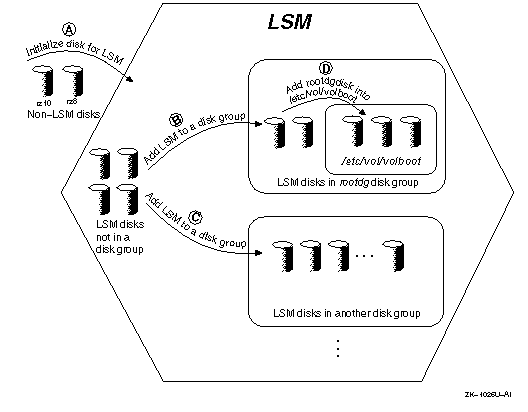
To begin using LSM, you must initialize disks or partitions for LSM use and configure the disks into an LSM disk group. Figure 3-1 is a conceptual representation showing how disks are placed under LSM control.
If you are already running LSM, perform the following steps before performing a full installation of Digital UNIX:
/etc/vol/volboot
file. You will need to restore this file after the full installation.
root
(/),
swap,
/usr,
or
/var
file systems, unencapsulate the LSM volumes.
Refer to
Section C.20
and
Section C.19
for unencapsulation instructions and examples.
You will need to reencapsulate the file systems and swap devices after the installation of Digital UNIX.
/usr/sbin/volsave
command to save the current copy of the LSM configuration.
Copy the saved LSM configuration to tape.
Refer to
Section 7.4
and
Section C.21
for details.
See the Installation Guide for complete information on preinstallation tasks for LSM.
If you are already running LSM and the
rootdg
disk group is already initialized, you do not need
to reenable LSM. For example, if you have already
performed an upgrade installation,
skip this section.
If you had LSM initialized on a system before doing a full installation, you can reenable the LSM configuration by performing the following steps:
/etc/volboot
file from a backup:
#
cp /backup/volboot /etc/volboot
#
/sbin/volinstall
#
/sbin/vol-startup
If you are setting up LSM for the first time, you can use either of the following approaches to initialize and configure disks for use with LSM.
volsetup
utility to create the LSM configuration database for the first time.
Then, use the
voldiskadd
utility to add more disks into LSM. This is the simplest method to set
up an LSM configuration.
voldisksetup,
voldg,
voldctl)
to create the database for the first time and later add new disks into
an existing LSM configuration. Although this method is more complicated, it
allows more control over your LSM configuration and environment.
These two approaches are described in the following sections. See also Appendix C for detailed examples of setup procedures.
The
volsetup
utility provides an easy way to initialize LSM. This utility
automatically
modifies disk labels, initializes disks for LSM, creates the
default disk group,
rootdg,
and configures disks into the
rootdg
disk group.
Note that you invoke the
volsetup
utility only once. To later add more disks, use the
voldiskadd
utility (as described in
Section 6.2.1).
The
volsetup
utility prompts you to estimate how many disks will be managed by LSM.
The utility uses the estimate to define optimal values
for the private region size (in sectors), and the number of
configuration and log copies per disk. The default values for LSM
configurations are shown in
Table 3-1.
| Number of Disks | Private Region Size | nconfig and nlog |
| 1 to 4 | 1024 | 2 |
| 5 to 8 | 1024 | 1 |
| More than 8 | 1024 | 1 for first 8 disks, 0 for others |
| More than 128 | 1536 | 1 for first 8 disks, 0 for others |
| More than 256 | 2048 | 1 for first 8 disks, 0 for others |
Follow these steps to use
volsetup:
/sbin/volsetup
interactive utility by entering the following command:
#
/sbin/volsetup rz1
In this example, the disk
rz1
is used to initialize the
rootdg
disk group. If you do not give the name of a disk, LSM prompts you.
Refer to the
volsetup(8)
reference page for information on how to handle partition overlap error
messages.
Note
When you are first setting up LSM, do not include the boot disk in the disks you specify to
volsetup. After you have initialized LSM, you can encapsulate the root and swap partitions and add them to therootdgdisk group. See Section 5.2 for details.
volsetup
utility modifies the
/etc/inittab
file. On a system reboot, LSM is started
automatically by the LSM entries in the
inittab
file. (See
inittab(4)
for more information.)
/sbin/lsmbstartup
starts the LSM daemon
vold
and the error daemon
voliod.
After running the
volsetup
procedure, check that the
vold
daemon is running. See
Section 14.4
for more information.
The
volsetup
utility creates the
/etc/vol/volboot
file. This file is used to locate copies of the
rootdg
disk group configuration when the system starts up. Do not delete the
/etc/vol/volboot
file; it is critical for starting LSM.
To update the
volboot
file, use
voldctl;
do not manually edit
/etc/vol/volboot.
As an alternative to using the
volsetup
command (described in
Section 3.3),
you can use individual LSM commands to initialize and configure disks
for use with LSM. Use individual LSM commands when you need
additional flexibility and control to match the LSM configuration to a
site's particular needs and to optimize performance. You use individual
LSM commands to perform the following tasks:
/etc/vol/volboot
file.
The following sections describe how to use LSM commands to accomplish these tasks.
Follow these steps to initialize
/etc/vol/volboot,
start the
vold
daemon and initialize the
rootdg
disk group:
#
/sbin/hostname
hostname
#
/sbin/volinstall
vold
in the disabled mode using the following command:
#
/sbin/vold -m disable
/etc/vol/volboot
using the following command:
#
voldctl init
rootdg
disk group using the following command:
#
voldg init rootdg
Note
You can use the
voldg initcommand only once to create a disk group.
Use the LSM individual commands described here to create and initialize the private region on the disk:
nconfig
and
nlog
options, respectively, using the guidelines described in
Table 3-2.
Starting with LSM Version 4.0, the default value for
these options is 1.
Whenever a disk group contains a large number of disks, distribute the disks that contain a configuration database and kernel change log across different controllers. By distributing the data across multiple controllers, you obtain higher availability.
| If you expect to have... | Then... |
| Up to four disks in the disk group |
Set the
nconfig
and
nlog
options to 2.
|
| Up to eight disks in the disk group |
Use the default value of 1
for the
nconfig
and
nlog
options.
|
| More than eight disks in the disk group |
Initialize the first eight disks by setting the
nconfig
and
nlog
options to 1, and initialize the remaining disks by setting the
nconfig
and
nlog
options to 0.
|
privlen
option using the guidelines described in
Table 3-3.
| If you plan to add the disk to... | Then... |
| An existing disk group | Set the private region size for the disk large enough to accommodate the disk group's current database size. |
| A new disk group that does not currently exist (but you plan to create the new diskgroup) | Try to estimate the future growth of the disk group and include additional space as you determine the disk's private region size. |
Note
Adding a disk with a smaller private region size than what is in use by other disks in a disk group can shrink the diskgroup's configuration database size.
Typically, the private region size should be a minimum of 512 sectors and a maximum of 2048 sectors. Starting with LSM Version 4.0, the default private region size is 1024 sectors. For systems configured with 128 or fewer physical disks, you can use the default private region size. With this value, the private region's configuration database can usually contain up to 1400 records, which is sufficient for systems configured with as many as 128 disks (assuming a typical configuration that has approximately 8 records per disk).
rootdg
disk group need one record for each LSM disk group.
rootdg
disk group need one record for each disk in all other disk groups.
The following sections show how to initialize and add disks to an LSM environment.
Use the
voldisksetup
utility to initialize a disk for LSM use. The disk must already have
a disk label.
The utility modifies the disk's label and initializes the private region. The private region contains:
The
voldisksetup
utility performs actions that are equivalent to using the
disklabel
and
voldisk
commands.
The following examples of the
voldisksetup
command demonstrate how to initialize a complete disk and how to
initialize a disk partition (
rz8
and
rz10d)
for use with LSM:
#
voldisksetup -i rz8 nconfig=1 privlen=1024
#
voldisksetup -i rz10d nconfig=1 privlen=1024
See the
voldisksetup(8)
reference page for more information about the
voldisksetup
command, its options, and partition overlap error messages.
Note
To add a disk with no configuration database, set the
nconfigattribute to 0 when initializing the disk withvoldisksetup. Do not initialize a new disk as a nopriv disk - this disk type is appropriate only for encapsulation of existing data.
To create a new disk group, use the
voldg init
command, as show
in
Section 3.3.2.1.
After the disk group is
created, you can add other disks into the disk group using the
voldg adddisk
command. For example, the following command line shows how to add
another disk to the
rootdg
disk group:
#
voldg -g rootdg adddisk disk02=rz10d
See the
voldg(8)
reference page for more information about this command and its options.
When LSM is initialized, the disks in
rootdg
are added to the
/etc/vol/volboot
file.
When the system is booted, LSM uses information contained in the
/etc/vol/volboot
file to find the location of at least one disk that was added to
the
rootdg
disk group. Using the configuration database on the disk listed in
/etc/vol/volboot,
LSM obtains information about the LSM disks, disk groups, and other
configuration data necessary to start up LSM.
To manually start LSM, take the following actions:
#
voliod set 2
vold
in enabled mode by entering the following:
#
vold -k
If
vold
is running in disabled mode, enter the following:
#
voldctl enable
#
volrecover -sb
When you configure LSM, the default limit set for the number of volumes and plexes allowed per system is smaller than the maximum number allowed. The default and maximum LSM limits are shown in Table 3-4.
| LSM Object | Default Limit per System | Maximum Limit per System |
|
Volumes |
1021 | 4093 |
| Plexes | 1024 | 4096 |
| Subdisks per plex | 4096 | 4096 |
Table note:
rootvol
and
swapvol.
Three additional volume minor numbers are reserved for future use.
You can increase the default number of volumes allowed on
a system by editing the
/etc/sysconfigtab
file. For example, to increase the maximum number of volumes
allowed on the system from 1024 to 2048 volumes, edit the
/etc/sysconfigtab
file and add the following lines:
lsm:
       max-vol=2048
The change to
/etc/sysconfigtab
will take affect on the next system reboot.
Note that in this example
lsm
is the name of the subsystem and
max-vol
is the attribute that is being changed.
The maximum number of plexes allowed per system is the
same as the maximum number of volumes configured on the system.
If the attribute
max-vol
is not specified in
/etc/sysconfigtab,
LSM uses its default.
To boot the system with a different value for
max-vol
than either the default
number of volumes or the value of
max-vol
specified in
/etc/sysconfigtab,
boot the system in interactive mode. For example, the value of
max-vol
can be set to 3072 by specifying
maxvol=3072
when the system is booted interactively, as shown here:
>>>
boot -fl i
...............


...............


...............


[Enter kernel name ... ]
vmunix maxvol=3072
In this example, the value 3072 overrides the value of
max-vol
that is set in the
/etc/sysconfigtab
file and the default value of 1024.
See the
sysconfigtab(4)
reference page for information on the format
used for the
/etc/sysconfigtab
file.
After you have initialized LSM, there are several other steps you should complete to begin using LSM:
volsave
command to save copies of your configuration files.
See
Section 7.4
for information on using this command.