The Tru64 UNIX kernel is a memory-resident executable image that handles all the system services -- hardware interrupts, memory management, interprocess communication, process scheduling -- and makes all other work on the operating system possible. In addition to the code that supports these core services, the kernel contains a number of subsystems.
A subsystem is a kernel module that extends the kernel beyond the core kernel services. File systems, network protocol families, and physical and psuedodevice drivers are all examples of supported subsystems. Some subsystems are required in the kernel, while others are optional. You configure your kernel by adding and removing these optional subsystems.
You also configure your kernel by tuning certain values stored in it. For example, the kernel contains values that can be adjusted to help make disk access faster. Modifying those values to optimize disk access can improve your system's performance.
The system provides two methods of configuring your kernel: the dynamic method and the static method. Dynamic system configuration entails using commands to configure the kernel. Static system configuration entails modifying system files and rebuilding the kernel. Modifying system files and rebuilding the kernel can be a difficult process, so use dynamic kernel configuration whenever possible.
This chapter helps you understand kernel configuration by explaining the following:
How the kernel is configured at installation time
How to determine whether you need to configure your kernel and which configuration method to use, static or dynamic
How to configure your system dynamically, using commands
How to configure your system statically, by modifying system files and rebuilding the kernel
When you install Tru64 UNIX, the installation program initially copies a kernel image to the root partition of your system disk. This kernel image, known as the generic kernel, supports all processors and hardware options that are available for use with the current version of the operating system. In this way, the installation program ensures that you can boot your system regardless of its configuration.
Towards the end of the installation, after all the subsets you selected
have been written to disk and verified, the installation program calls the
/usr/sbin/doconfig
program.
As part of its processing, the
/usr/sbin/doconfig
program calls another program, known as the
sizer
program.
The
sizer
program determines what hardware
and software options are installed on your system and builds a target configuration
file specific to your system.
(The configuration file is the system file that
controls what hardware and software support is linked into the kernel.) The
/usr/sbin/doconfig
program then builds your target kernel from this
target configuration file.
Unlike the generic kernel copied to the system at installation time, the target kernel is tailored to your system. Only the hardware and software options available on your system are compiled into the target kernel. As a result, the target kernel is much smaller than the generic kernel.
When the installation is complete, the target kernel resides either in the root partition of your system disk or in memory, depending upon how your system was built. (See Section 5.4 for information about the different ways in which your kernel can be built.) If the appropriate console boot variables are set, your system always boots the target kernel automatically. (For information about setting console boot variables, see Chapter 3.)
After your target kernel is built and started by the installation procedure, you can use it without modifications, unless one of the following occurs:
You decide to add new subsystems to the kernel, for example by installing a new device.
You decide to remove subsystems from the kernel, for example by removing a device.
The performance of your system is poor, so you decide to tune values in the kernel. These values are called subsystem attributes if they are dynamically configurable or system parameters if they are statically configurable.
You must reconfigure your kernel, either dynamically or statically, when one of these situations occurs. The method you use to reconfigure your kernel depends upon the support provided by the subsystem or subsystem attributes.
Some kernel subsystems are dynamically loadable, meaning that you can
add the subsystem to or remove the subsystem from the kernel without rebuilding
the kernel.
Often, subsystems that are dynamically loadable also allow you
to dynamically configure the value of their attributes.
Therefore, you can
tune the performance of these subsystems without rebuilding the kernel.
If you decide to add or remove these subsystems from the kernel or configure
the value of their attributes, use
dxkerneltuner
or the
procedures described in
Section 5.3.
Some subsystems, such as required subsystems, are not dynamically loadable. However, these subsystems might allow you to dynamically configure the value of attributes. If so, you can configure the value of these subsystem attributes without rebuilding the kernel.
Tru64 UNIX offers two comman-line methods of dynamically configuring attributes:
You can configure the value of attributes in the currently
running kernel using the
sysconfig -r
command.
Only a few
kernel subsystems support this run-time configuration.
You can configure the value of attributes in the dynamic subsystem
database,
/etc/sysconfigtab.
When you want to begin running
a kernel that contains the new attribute values, you reboot your system.
The following subsystems provided by Compaq support this type of
boot-time modification:
dli
- Data link interface subsystem
generic
- Generic kernel subsystem
ipc
- Interprocess communication
subsystem
lsm
- Logical Storage Manager
net
- Network subsystem
presto
- Prestoserve subsystem
proc
- Process subsystem
pts
- Pseudoterminal subsystem
rt
- Realtime subsystem
snmpinfo
- snmpinfo subsystem
streams
- STREAMS subsystem
tty
- Terminal subsystem
ufs
- UNIX File System
vfs
- System V File System
vm
- Virtual memory subsystem
xpr
- XPR kernel tracing subsystem
If you decide to configure attributes of these subsystems, use the procedures described in Section 5.3.8.
If you purchase a device driver or other kernel subsystem from a company other than Compaq, that product might also be dynamically loadable or allow you to dynamically configure attribute values. For information about dynamically configuring your kernel when working with products from other vendors, see the documentation for that product and Section 5.3.
If the subsystem you want to add, remove, or configure does not support dynamic configuration, you must use the static configuration method. You must also use this method to configure system parameters that do not support dynamic configuration. For information about the static configuration method, see Section 5.4.
You can view and configure the attributes of loaded subsystems using
the
dxkerneltuner
graphical user interface (/usr/bin/X11/dxkerneltuner).
The graphical interface can be invoked in any X-compliant windowing
interface, or started from the Tools Drawer on the Common desktop Environment
(CDE) front panel.
From the Application Manager, choose System_Admin then
MonitoringTuning.
Refer to the
dxkerneltuner(8X)
reference page and
the online help for more information on invoking and using
dxkerneltuner.
The kernel tuner allows you four main options:
Viewing Kernel Subsystem Attributes
Loading Attribute Values from a File
Modifying Kernel Subsystem Attributes
Saving Kernel Subsystem Attributes to a File
You are prompted to confirm or discard and changes before committing them to the running kernel or to the next boot.
Unlike the command line methods of administering attributes,
dxkerneltuner
provides immediate information on what subsystems
are loaded, and which attributes can be dynamically or only statically modified.
You can also see the current and permissible values for any modifiable attribute.
When you invoke
dxkerneltuner, a window is displayed
listing all the currently-loaded subsystems.
For example:
envmon
       lan_common
       kds
       vga
       gpc_input
       ws
       pci
.
.
.
Selecting one of these subsystems by double-clicking on it will display all the attributes for that subsystem in a table headed as follows:
Attribute Name - The name of an attribute, such as
enable_extended_uids
in the
proc
subsystem.
Current Value - the value currently loaded for the listed attribute. If this value appears in a modifiable data field, you can modify the run-time value and apply it to the running kernel.
Boot time Value - the value currently loaded for the listed attribute at boot time. This value appears in a modifiable data field and you can modify it for loading at the next boot.
Minimum and Maximum - The lowest and highest values allowed for the listed attribute.
In addition to manipulating the attributes directly using
dxkerneltuner, you can load and save attribute files.
This provides
a way of quickly changing the configuration of a system.
The File pull-down
menu on the
dxkerneltuner
main window provides the following
options:
Load into current - read in a file of attribute values for the subsystems and apply them to the running kernel.
Load into boot time - read in a file of attribute values for the subsystems and apply them at the next boot.
Save as current - Save the current attribute values for the subsystems to a file.
Save as boot time - Save the boot attribute values for the subsystems to a file.
You will be prompted to enter a file name for the saved file, or choose an existing file to load. The following shows a sample of part of a saved file:
        # File created from tuning app


kds:
        kds_print_flag=0

gpc_input:
        kbd_scancode=3
        Num_Units_Installed=1
        gpc_developer_debug=0

pci:
        PCI_Developer_Debug=0

ace:
        dcd_timer=2

isa:
        ISA_Developer_Debug=0
 .
 .
 .
 .
As with any kernel configuration tasks, there is a risk that modifying attributes can leave your system in an unusable state. Take care only to change attributes with which you are familiar and only change them when you are certain of the effect. Refer to the System Configuration and Tuning guide for more information on attributes.
When you need to load, unload, or modify a dynamic subsystem, you use the
/sbin/sysconfig
command.
This command has the following syntax:
/sbin/sysconfig
[-h hostname ]
[-i index [ -v | -c | -m | -q | -Q | -r | -s | -u ] ]
[subsystem-name]
[attribute-list]
You must be the superuser to load and unload subsystems.
You must also know the name of the subsystem you want to manage.
You
can determine the name of a subsystem by looking in the documentation that
accompanies the subsystem or in the directories into which the subsystem is
installed.
Subsystems are installed in either the
/subsys
directory or the
/var/subsys
directory.
When a subsystem
is installed, a file named
subsystem-name.mod
appears in one of those two directories.
You use that subsystem
name as input to the
/sbin/sysconfig
command.
The sections
that follow describe the commands you use to manage subsystems.
You can load and unload subsystems on a local system or a remote system. For information about adding and removing subsystems on remote systems, see Section 5.3.7
If you are writing a loadable device driver or other loadable subsystem, refer to the Writing Device Drivers: Tutorial manual and the Programmer's Guide. The Writing Device Drivers: Tutorial manual describes the tasks performed by the system when you install a loadable device driver. This manual also describes how to write and package loadable device drivers. The Programmer's Guide gives general information about creating subsystems that are dynamically configurable and discusses the framework that supports dynamic configuration of subsystems and attributes.
To configure (load) a subsystem,
enter the
sysconfig
command using the
-c
flag.
Use this command whether you are configuring a newly installed
subsystem or one that was removed using the
/sbin/sysconfig -u
command.
For example, to configure the DECnet network (decnet)
subsystem, issue the following command:
#/sbin/sysconfig -c decnet
Subsystems can be known to
the kernel, but not available for use.
To determine which subsystems are
available for use, use the
/sbin/sysconfig -s
command.
This command displays the state of all subsystems.
Subsystems can have the
following states:
Loaded and configured (available for use)
Loaded and unconfigured (not available for use but still loaded)
This state applies only to static subsystems, which can be unconfigured, but cannot be unloaded.
Unloaded (not available for use)
This state applies only to loadable subsystems, which are automatically unloaded when you unconfigure them.
If you use the
/etc/sysconfig -s
command without
specifying a subsystem name, a list of all the configured subsystems is displayed.
For example:
#/sbin/sysconfig -scm: loaded and configured generic: loaded and configured proc: loaded and configured io: loaded and configured vm: loaded and configured vfs: loaded and configured ufs: loaded and configured ipc: loaded and configured tty: loaded and configured xpr: loaded and configured rt: loaded and configured net: loaded and configured dli: loaded and configured lat: loaded and configured bufcall: loaded and configured strstd: loaded and configured streams: loaded and configured kinfo: loaded and configured timod: loaded and configured tirdwr: loaded and configured xtiso: loaded and configured dlb: loaded and configured ldtty: loaded and configured pts: loaded and configured bba: loaded and configured sfbp: loaded and configured
This list includes both statically linked subsystems and dynamically loaded subsystems.
To get information about the state of a single subsystem, include the name of the subsystem on the command line:
#/sbin/sysconfig -s lsmlsm: unloaded
You can
determine whether a subsystem is dynamically loadable or static by using the
/sbin/sysconfig -m
command, as shown:
#/sbin/sysconfig -m kinfo latkinfo: static lat: dynamic
The output from this command indicates that the
kinfo
subsystem is static, meaning that you must rebuild the kernel
to add or remove that subsystem from the kernel.
The
lat
subsystem is dynamic, meaning that you can use the
sysconfig -c
command to configure the subsystem and the
sysconfig -u
command to unconfigure it.
To unconfigure (and possibly unload) a subsystem,
use the
/sbin/sysconfig -u
command, as shown:
#/sbin/sysconfig -u decnet
If you frequently configure and unconfigure device drivers you might
notice that the device special files associated with a particular device driver
differ from time to time.
This behavior is normal.
When you configure a device
driver using the
/sbin/sysconfig
command, the system creates
device special files.
If you unload that device driver and load another one
that uses the same
cdev
or
bdev
major
numbers, the system removes the device special files for the unloaded device
driver.
Therefore, it must create new device special files the next time
you configure the device.
The
system determines which subsystems to configure into the kernel at system
reboot time by checking the list of automatically configured subsystems.
The system configures each subsystem on that list, using the
sysconfig -c
command at each system reboot.
You maintain the list of automatically configured subsystems by using
the
/sbin/init.d/autosysconfig
command.
This command has the following syntax:
/sbin/init.d/autosysconfig list
[add subsystem-name]
[delete subsystem-name]
Use the
/sbin/init.d/autosysconfig list
command
to see a list of the loadable subsystems that the system automatically configures
at each reboot.
To add a subsystem to the list, use the
/sbin/init.d/autosysconfig
add
command.
For example to add the
lat
subsystem,
issue the following command:
#/sbin/init.d/autosysconfig add lat
If you unload a subsystem
that is on the automatically configured subsystem list, you should remove
that subsystem from the list.
Otherwise, the system will configure the subsystem
back into the kernel at the next system reboot.
To remove the subsystem from
the automatically configured subsystems list, issue the
/sbin/init.d/autosysconfig
delete
command.
For example, to delete the
lat
subsystem, issue the following command:
#/sbin/init.d/autosysconfig delete lat
Occasionally, to improve the performance of a subsystem or of the system
as a whole, you might modify the value of subsystem attributes.
You use the
/sbin/sysconfig
command to determine the names and values of subsystem
attributes.
You can also use the command to modify the value of a small number
of attributes in the currently running kernel.
If you modify an attribute at run time by using the
/sbin/sysconfig
command, the modification persists as long as the system is running.
If you shut down and reboot the system, the modification is lost.
To modify
subsystem attributes so that changes persist across reboots, store the attribute's
value in the
/etc/sysconfigtab
database, as described in
Section 5.3.8.
The system parameters that are set in the system configuration file
and in the
param.c
file continue to define the system tables,
and should be viewed as establishing default values in the kernel.
You can
override these values by using the
/sbin/sysconfig
command
or by storing a value in the
/etc/sysconfigtab
database.
For more information about the configuration file and
param.c,
see
Section 5.4.
You can manage dynamic subsystem attributes either locally or remotely.
For information on how to use the
/sbin/sysconfig
command
remotely, see
Section 5.3.7.
Use the
/sbin/sysconfig
-q
command to determine the value assigned to subsystem attributes.
When you issue the
/sbin/sysconfig -q
command the subsystem
you specify on the command line must be loaded and configured.
For information
about getting a list of the loaded and configured subsystems, see
Section 5.3.2.
The following example shows how to use this command to determine which
attributes are part of the
generic
subsystem:
#/sbin/sysconfig -q genericgeneric: clock-frequency = 1024 booted_kernel = vmunix booted_args = vmunix modules=0xfffffc00005ea000 lockmode = 0 lockdebug = 0 locktimeout = 15 max-lock-per-thread = 8 lockmaxcycles = 0 rt_preempt_opt = 0 rt-preempt-opt = 0 cpu_enable_mask = 18446744073709551615 cpu-enable-mask = 18446744073709551615 msgbuf_size = 4096 message-buffer-size = 4096 dump-sp-threshold = 4096 lite-system = 0
The
/sbin/sysconfig -q
command
lists all subsystem attributes and their values.
Some attributes are configurable
with the
/sbin/sysconfig -r
command.
For information
about which attributes are configurable, see
System Configuration and Tuning.
You can identify
which of a subsystem's attributes are dynamic by using the
/sbin/sysconfig -Q
command:
#/sbin/sysconfig -Q max-vnodesvfs: max-vnodes - type=INT op=CRQ min_val=0 max_val=2147483647
This
example shows using the
-Q
flag to get information
about the
max-vnodes
attribute of the
vfs
subsystem.
The
max-vnodes
attribute has the
integer
datatype, a minimum value of zero (0), and a maximum value
of 2147483647.
The
op
field indicates the operations that
can be performed on the
max-vnodes
attribute.
The following
list describes the values that can appear in this field:
C -- The attribute can be modified when the subsystem is initially loaded.
R -- The attribute can be modified while the subsystem is running.
Q -- The attribute can be queried.
You can modify the value of an attribute at run time by issuing the
/sbin/sysconfig -r
command.
The modification you make with
this command persists until the next time the system is rebooted.
When the
system reboots, any changes made with the
/sbin/sysconfig -r
command are lost because the new value is not stored.
The
-r
flag to the
/sbin/sysconfig
command
is useful for testing a new subsystem attribute value.
If the new value causes
the system to perform as expected, you can later store it in the subsystem
attribute database as described in
Section 5.3.8.
When you use the
/sbin/sysconfig -r
command
you specify the attribute, its new value, and the subsystem name on the command
line.
For example, to modify the
dump-sp-threshold
attribute
for the
generic
subsystem, issue a command like the following:
#/sbin/sysconfig -r generic dump-sp-threshold=20480
To modify the value of more than one attribute at a
time, include a list on the
/sbin/sysconfig
command line.
For example, to modify the
dump-sp-threshold
attribute
and the
locktimeout
attribute, issue a command like the
following:
#/sbin/sysconfig -r generic dump-sp-threshold=20480 locktimeout=20
You do not include a comma between the two attribute specifications.
You can use the
/sbin/sysconfig -h
command to administer configurable subsystems
and dynamic subsystem attributes remotely on a local area network (LAN).
This
ability allows you to administer several systems from a single machine.
Each system you want to administer remotely must have an
/etc/cfgmgr.auth
file that contains the full domain name of the local system.
The
name in the
/etc/cfgmgr.auth
file should be identical to
the name in either the
/etc/hosts
file or in the Berkeley
Internet Domain (BIND) or Network Information Service (NIS) hosts databases,
if you are using
BIND or NIS.
You must create the
/etc/cfgmgr.auth
file;
it is not on your system by default.
The following shows an example
cfgmgr.auth
file:
salmon.zk3.dec.com
trout.zk3.dec.com
bluefish.zk3.dec.com
To manage subsystems and attributes on remote systems, you include the
-h
flag and a hostname with the
/sbin/sysconfig
command.
For example, to load the
decnet
subsystem on a
remote host named MYSYS, you issue the following command:
#/sbin/sysconfig -h MYSYS -c decnet
In the previous example, a
decnet.mod
file must exist
in either the
/subsys
directory or the
/var/subsys
directory on the remote system before the subsystem can be loaded.
If the loadable subsystem subset is kitted correctly, the
subsystem-name.mod
file is installed on the remote
system when you use the
setld
command to install the loadable
subsystem.
Information about dynamically configurable subsystem attributes
is stored in the
/etc/sysconfigtab
database.
You use this
database to record the values you want to be assigned to subsystem attributes
each time the system is rebooted or a subsystem is configured.
No attributes
are set automatically in this database.
If you want to change the default
values of any attributes, you must include the subsystem name, the attribute
name, and the value in the database yourself.
You must be the superuser to
modify the
/etc/sysconfigtab
database.
Note
The
/etc/sysconfigtabdatabase might contain stanza entries from a configurable subsystem'sstanza.loadablefile. This file and the entry in the/etc/sysconfigtabdatabase are created automatically when you install certain configurable subsystems. You should not modify these entries in the database.
To add, update, or remove entries in the database, you create a stanza-format
file containing names and values for attributes you want to modify.
(For information
about stanza-format files, see
stanza(4)).
For example, suppose you want to
set the
lockmode
attribute in the
generic
subsystem to 1.
To set this attribute, create a file named, for example,
generic_attrs
that has the following contents:
generic:
         lockmode = 1
After
you create the stanza-format file, you use the
/sbin/sysconfigdb
command to update the
/etc/sysconfigtab
database.
You name the stanza-format file on the command line using the
-f
flag.
The
sysconfigdb
command reads the specified
file and updates both the on-disk and in-memory copy of the database.
However,
the running kernel is not updated.
(Use the
sysconfig -r
command to update the running kernel, as described in
Section 5.3.6.3.)
The
sysconfigdb
command has the following syntax:
/sbin/sysconfigdb
[
-a
| -d
| -l
| -m
| -r
| -s
| -u
]
[-f file]
[subsystem-name]
The sections that follow explain how to use the
/sbin/sysconfigdb
command to manage entries in the
/etc/sysconfigtab
database.
Although it is possible to use a text editor to add, update, or delete
subsystem attributes in the
/etc/sysconfigtab
database,
sysconfigdb
or
dxkerneltuner
are recommended.
For example it is possible to include multiple entries in the file which override
each other, and the behaviour of such entries can be confusing and difficult
to diagnose.
Entries that appear towards the end of the file may not override
similar entries that appear at the beginning.
However, if you edit the
/etc/sysconfigtab
database, you must run the
/sbin/sysconfigdb -s
command after you write and quit the file so that the in-memory
copy of the database is updated.
To list the entries in the
/etc/sysconfigtab
database, use the
/sbin/sysconfigdb -l
command.
If you specify a subsystem name on the command line, the attributes
of that subsystem are listed.
Otherwise, all attributes defined in the database
are listed.
For example, to list the attribute settings for the
generic
subsystem, issue the following command:
#/sbin/sysconfigdb -l genericgeneric: lockmode = 0
To add subsystem attributes
to the
/etc/sysconfigtab
database, enter the
sysconfigdb -a
command.
For example, to add the entries stored in a file named
add_attrs
to the database, issue the following command:
#/sbin/sysconfigdb -a -f add_attrs generic
To merge new definitions
for attributes into an existing entry in the
/etc/sysconfigtab
database, enter the
sysconfigdb -m
command.
The
sysconfigdb
command merges the new definitions
into the existing database entry as follows:
If an attribute name does not appear in the database, the definition for that attribute is added to the database.
If an attribute name does appear, the attribute receives the value specified by the new definition.
If an attribute appears in the database, but is not included among the new definitions, its definition is maintained in the database.
For example, suppose that the following entry for the
generic
subsystem exists in the
/etc/sysconfigtab
database:
generic:
   lockmode = 4
   dump-sp-threshold = 6000
Suppose that you create a file named
merge_attrs
for updating this entry, which contains the following information:
generic:
  lockmode = 0
  lockmaxcycles = 4294967295
To merge the information in the
merge_attrs
file
into the
/etc/sysconfigtab
database, issue the following
command:
#/sbin/sysconfigdb -m -f merge_attrs generic
After the
command finishes, the entry for the
generic
subsystem in
the database appears as follows:
generic:
   lockmode = 0
   lockmaxcycles = 4294967295
   dump-sp-threshold = 6000
You can merge definitions for
more than one subsystem into the
/etc/sysconfigtab
database
with a single
sysconfigdb -m
command.
For example, the
merge_attrs
file could contain new definitions for attributes in
the
lsm
and
generic
subsystems.
If you
include more than one subsystem name in the
merge_attrs
file, you omit the subsystem name from the command line, as shown:
#/sbin/sysconfigdb -m -f merge_attrs
To update the entire
definition of a subsystem that is already in the
/etc/sysconfigtab
database, enter the
/sbin/sysconfigdb -u
command.
For example, suppose the
generic
subsystem is defined
as follows in the
/etc/sysconfigtab
file:
generic:
   lockmode = 4
   dump-sp-threshold = 6000
Suppose that you create a file named
update_attrs
for updating this entry, which contains the following information:
generic:
  lockmode = 0
  lockmaxcycles = 4294967295
To update the attributes, you issue the
sysconfigdb
command, as follows:
#/sbin/sysconfigdb -u -f update_attrs generic
After the
command finishes, the entry for the
generic
subsystem in
the database appears as follows:
generic:
   lockmode = 0
   lockmaxcycles = 4294967295
To remove the definitions
of selected attributes from the
/etc/sysconfigtab
database,
enter the
/sbin/sysconfigdb -r
command.
The
-r
flag specifies that you want to remove the attribute definitions
stored in a file from the database.
For example, suppose the
generic
subsystem is defined
as follows in the
/etc/sysconfigtab
database:
generic:
  lockmode = 4
  dump-sp-threshold = 6000
To remove the definition of the
dump-sp-threshold
attribute, first create a file named
remove_attrs
that
contains the following information:
generic:
   dump-sp-threshold = 6000
Then, issue the following command:
#/sbin/sysconfigdb -r -f remove_attrs generic
After the command finishes, the entry for the
generic
subsystem in the database appears as follows:
generic:
   lockmode = 4
The
/sbin/sysconfigdb
command removes only identical entries.
In other words, the entries must
have the same attribute name and value to be removed.
You can remove definitions of more than one attribute and for attributes
in more than one subsystem from
/etc/sysconfigtab
database
with a single
sysconfigdb -r
command.
For example, the
remove_attrs
file could contain attribute definitions that you want
to remove for the
lsm
and
generic
subsystems.
If you include more than one subsystem in the
remove_attrs
file, you omit the subsystem name from the command line, as shown:
#/sbin/sysconfigdb -r -f remove_attrs
To delete the definition
of a subsystem from the
/etc/sysconfigtab
database enter
the
/sbin/sysconfigdb
-d
command.
For example, to delete the
generic
subsystem entry
in the database, issue the following command:
#/sbin/sysconfigdb -d generic
The
generic
subsystem receives its default values the next
time it is configured.
Static system configuration refers to the commands and files used to build and boot a new kernel and its static subsystems. The subsystems are viewed as static because they are linked directly into the kernel at build time. The steps you take to build a statically linked kernel vary depending upon why you want to modify the kernel.
If you modify the kernel to add a device driver, from Compaq or from a company other than Compaq, you follow these general steps:
Install the device driver.
If necessary, edit the target configuration file.
In some cases, the device driver provides a Subset Control Program (SCP) that executes during the installation procedure and registers the driver in the necessary system configuration files. In this case, you need not edit the target configuration file yourself.
If the device driver does not provide an SCP, you must edit the target configuration file yourself.
Build a new kernel.
If your device driver includes an SCP, build a new kernel by running
the
/usr/sbin/doconfig
program as described in
Section 5.4.3.
If you need to edit the target configuration file before you build a new kernel,
refer to
Section 5.4.1.
Shut down and reboot your system.
If you modify the kernel to add support for certain kernel options,
you can build the new kernel by running the
/usr/sbin/doconfig
program and choosing the kernel option from a menu displayed during processing.
You then shutdown and reboot your system.
To determine which kernel options you can configure in this way, issue
the
/usr/sbin/kopt
command.
The command displays a list
of kernel options and prompts you for kernel options selections.
To exit
from the
/usr/sbin/kopt
command without choosing options,
press the Return key.
For information about running the
/usr/sbin/doconfig
program to add kernel options using a menu, see
Section 5.4.2.
If you build a new static kernel for any other reason, you must modify one or more system files as part of rebuilding the kernel. The system files you modify depend upon the change you want to make to the kernel:
You modify the target configuration file to make changes to keywords that, for example, define the kernel you want to build, define devices, or define pseudodevices. You can also edit this file to change the value of system parameters. For details about the contents of the target configuration file, see Section 5.5.
You remove certain static subsystems from the kernel by removing
(or commenting out) their entry from a file in the
/usr/sys/conf
directory.
For information about this file, see
Section 5.5.2.
You modify the
param.c
file to change the
value of system parameters.
You modify these parameters to tune your system's
performance.
For information about the
param.c
file, see
Section 5.5.3.
Normally, you make these changes using the text editor of your choice
before you begin building the kernel.
(Alternatively, you can edit the system
configuration file during the kernel building procedure.
However, if you choose
to edit the configuration file during the procedure, define the
EDITOR
environment variable to be the editor of your choice.
The
default editor is the
ed
line editor.) For information
about running the
/usr/sbin/doconfig
program to build a
kernel after editing system files, see
Section 5.4.3.
When you add a new device to the system and the device installation includes no SCP, you must edit the target configuration file to allow the operating system to support the new device. You include the device definition keyword in the target configuration file. Because Tru64 UNIX supports many devices, determining which keyword to add to your target configuration file can be difficult.
The following procedure explains how to determine which device definition keyword to add to your target configuration file and how to rebuild the kernel once you have edited the target configuration file. The procedure assumes that you do not know the appropriate keyword to add. In some cases, you might be able to determine the appropriate keyword by looking at documentation supplied with the hardware or with a new version of Tru64 UNIX. Another source of this information is an existing configuration file on another system that already has the device connected to it. If you know what keyword you need to add to your system, use a text editor to add that keyword to your target configuration file and rebuild the kernel as described in Section 5.4.3.
If you are unsure of the keyword you need to add to the target configuration file for your system, connect the new device to the system as directed in the hardware manual and use the following procedure:
Log in as root or become the superuser and set your default
directory to the
/usr/sys/conf
directory.
Save a copy of the existing
/vmunix
file.
If possible, save the file in the root (/) directory,
as follows:
#cp /vmunix /vmunix.save
If there are disk space constraints, you can save the kernel file in a file system other than root. For example:
#cp /vmunix /usr/vmunix.save
Shutdown and halt the system as follows:
#shutdown -h now
At the console prompt, boot the generic kernel,
/genvmunix.
The generic kernel contains support for all valid devices,
so if you boot it during the process of adding a new device to your target
kernel, the new device is known to the kernel.
To boot the generic kernel,
issue the following command:
>>>boot -fi "genvmunix"
Note
If the
/genvmunixfile does not exist on your system, or the generic kernel fails to recognize the device you are adding, rebuild the generic kernel.To rebuild the generic kernel, you must have installed all the required and optional kernel subsets. You can get a list of the kernel subsets, including information about whether or not they are installed, by issuing the following command:
#/usr/sbin/setld -i | grep Kernel
After all kernel subsets are installed, issue the following command:
#doconfig -c GENERIC
The
-cflag specifies that you want to build a kernel using an existing configuration file, in this case theGENERICconfiguration file. For more information about building a kernel from an existing configuration file, see Section 5.4.3.After the generic kernel is running and recognizes the new device, continue with step 5. When the build ends, condider using the
stripcommand to reduce the size of the kernel. See thestrip(1) reference page.
At the single-user mode prompt, check and mount local file systems by issuing the following command, unless you are using the Logical Storage Manager software (LSM):
#/sbin/bcheckrc
If you are using the Logical Storage Manager (LSM) software, check local file systems and start LSM by issuing the following command:
#/sbin/lsmbstartup
Run the
sizer
program to size your system
hardware and create a new target configuration file that includes the new
device:
#sizer -n MYSYS
The
sizer -n
command
creates a new target configuration file for your system that includes the
appropriate device definition keyword for the new deivce.
(This process is
similar to the process that occurs at system installation time.
For more
information, see
Section 5.1.) The
sizer
program stores the new target configuration file in the
/tmp
directory.
Compare the new target configuration file created by
sizer
with the existing target configuration file for your system:
#diff /tmp/MYSYS MYSYS
Check the differences between these files until you
find the new device definition keyword.
(The two files might differ in other
ways if you have customized your existing configuration file, such as by specifying
a nondefault value for the
maxusers
option.)
Use the text editor of your choice to add the new device definition keyword to your existing configuraton file (in this case, MYSYS). Adding the new keyword allows your existing configuration file to support the new device, without losing any changes you made to that file in the past.
Note
If you add or remove communications devices from your configuration file, you must edit the
/etc/inittabfile and the/etc/securettysfile to match your new configuration; that is, to match the/dev/ttynnspecial device files. For more information, seeinittab(4) andsecurettys(4).
Build a new kernel by issuing the following
/usr/sbin/doconfig
command:
#/usr/sbin/doconfig -c MYSYS*** KERNEL CONFIGURATION AND BUILD PROCEDURE *** Saving /usr/sys/conf/MYSYS as /usr/sys/conf/MYSYS.bck
Answer the following prompt to indicate that you do not want to edit the configuraton file:
Do you want to edit the configuration file? (y/n) [n]:n*** PERFORMING KERNEL BUILD ***
.
.
.
The new kernel is /usr/sys/MYSYS/vmunix
When the kernel configuration and build process completes
without errors, move the new
vmunix
file to
/vmunix.
On a system named
MYSYS, issue the following
command:
#mv /usr/sys/MYSYS/vmunix /vmunix
Reboot the system as follows:
#/usr/sbin/shutdown -r now
If the new
/vmunix
file fails to boot, boot using
the kernel you saved at the beginning of the procedure.
To use the saved kernel,
follow these steps:
Check all local file systems by using the
fsck -p
command as follows:
#fsck -p
Write-enable the
root
file system by using
the
mount -u
command as follows:
#mount -u /
If necessary, mount the file system where the
/vmunix.save
file is stored.
For example, if you copied the
/vmunix
file to the
/usr
file system, issue the following
command:
#mount /usr
Restore the saved copy.
For example, if you saved your running
kernel in the
/vmunix.save
file, issue the following command:
#mv /vmunix.save /vmunix
Shutdown and reboot the system, as follows:
#shutdown -r now
After your system is running again, you can modify the target configuration file as needed and rebuild the kernel starting at step 3.
If you invoke the
/usr/sbin/doconfig
program without using flags, you are given the opportunity to modify
the kernel using a menu.
To modify the kernel using a menu, follow these steps:
Log in as root or become the superuser and set your default
directory to the
/usr/sys/conf
directory.
Save a copy of the existing
/vmunix
file.
If possible, save the file in the root (/) directory,
as follows:
#cp /vmunix /vmunix.save
If there are disk space constraints, you can save the kernel file in a file system other than root. For example:
#cp /vmunix /usr/vmunix.save
Run the
/usr/sbin/doconfig
program using
no flags, as follows:
#/usr/sbin/doconfig*** KERNEL CONFIGURATION AND BUILD PROCEDURE ***Saving /usr/sys/conf/MYSYS as /usr/sys/conf/MYSYS.bck
Enter the name of the configuration file at the following prompt:
Enter a name for the kernel configuration file. [MYSYS]:MYSYS
The kernel configuration
processes convert the system name to uppercase when determining what name
to supply as the default configuration file name.
For example, on a system
named
mysys, the default configuration file is named
MYSYS.
If the configuration file name you specify does not currently exist,
the
/usr/sbin/doconfig
program builds one with that name.
Continue this process by selecting the kernel options in step 10.
If the configuration file name you specify exists, answer the following prompt to indicate that you want to overwrite it:
A configuration file with the name MYSYS already exists.Do you want to replace it? (y/n) [n]:y
Select kernel options from a menu similar to the following one:
*** KERNEL OPTION SELECTION ***

 Selection   Kernel Option
--------------------------------------------------------------
     1       System V Devices
     2       NTP V3 Kernel Phase Lock Loop (NTP_TIME)
     3       Kernel Breakpoint Debugger (KDEBUG)
     4       Packetfilter driver (PACKETFILTER)
     5       Point-to-Point Protocol (PPP)
     6       STREAMS pckt module (PCKT)
     7       X/Open Transport Interface (XTISO, TIMOD, TIRDWR)
     8       File on File File System (FFM)
     9       ISO 9660 Compact Disc File System (CDFS)
     10      Audit Subsystem
     11      ACL Subsystem
     12      LAN Emulation over ATM (LANE)
     13      Classical IP over ATM (ATMIP)
     14      ATM UNI 3.0/3.1 Signalling for SVCs
     15      Asynchronous Transfer Mode (ATM)
     16      Advanced File System (ADVFS)
     17      All of the above
     18      None of the above
     19      Help
--------------------------------------------------------------

Enter the selection number for each kernel option you want.
For example, 1 3 [18]:
Answer the following prompt to indicate whether or not you want to edit the configuration file:
Do you want to edit the configuration file? (y/n) [n]:
You need not edit the configuraton file unless you have changes other than adding one or more of the subsystems in the menu to the kernel.
If you choose to edit the configuration file, the
/usr/sbin/doconfig
program invokes the editor specified by the
EDITOR
environment variable.
For information about the configuration file, see Section 5.5
After you finish editing the configuration file, the
/usr/sbin/doconfig
program builds a new kernel.
When the kernel configuration and build process completes
without errors, move the new
vmunix
file to
/vmunix.
On a system named
MYSYS, issue the following
command:
#mv /usr/sys/MYSYS/vmunix /vmunix
Reboot the system as follows:
#/usr/sbin/shutdown -r now
If the new
/vmunix
file fails to boot, boot using
the kernel you saved at the beginning of the procedure.
To use the saved kernel,
follow these steps:
Check all local file systems by using the
fsck -p
command as follows:
#fsck -p
Write-enable the
root
file system using
the
mount -u
command as follows:
#mount -u /
If necessary, mount the file system where the
/vmunix.save
file is stored.
For example, if you copied the
/vmunix
file to the
/usr
file system, issue the following
command:
#mount /usr
Restore the saved copy.
For example, if you saved your running
kernel in the
/vmunix.save
file, issue the following command:
#mv /vmunix.save /vmunix
Shutdown and reboot the system, as follows:
#shutdown -r now
After your system is running again, you can modify the target configuration file as needed and rebuild the kernel starting at step 3.
If
you or an SCP modify system files, such as the target configuration file,
you can rebuild your kernel using the
/usr/sbin/doconfig -c
command.
The
-c
flag allows you to name an existing
configuration file, which the
/usr/sbin/doconfig
program
uses to build the kernel.
To build a new kernel using an existing configuration
file, follow these steps:
Log in as root or become the superuser and set your default
directory to the
/usr/sys/conf
directory.
Save a copy of the existing
/vmunix
file.
If possible, save the file in the root (/) directory,
as follows:
#cp /vmunix /vmunix.save
If there are disk space constraints, you can save the kernel file in a file system other than root. For example:
#cp /vmunix /usr/vmunix.save
Run the
/usr/sbin/doconfig
program specifying
the name of the target configuration file with the
-c
flag.
For example on a system named MYSYS, enter the following command:
#/usr/sbin/doconfig -c MYSYS*** KERNEL CONFIGURATION AND BUILD PROCEDURE ***Saving /usr/sys/conf/MYSYS as /usr/sys/conf/MYSYS.bck
Answer the following prompt to indicate whether or not you want to edit the configuration file:
Do you want to edit the configuration file? (y/n) [n]:
If you modified the configuration file before you started this procedure, indicate that you do not want to edit the configuration file.
If you choose to edit the configuration file, the
/usr/sbin/doconfig
program invokes the editor specified by the
EDITOR
environment variable.
For information about the configuration file, see Section 5.5
After you finish editing the configuration file, the
/usr/sbin/doconfig
program builds a new kernel.
When the kernel configuration and build completes without
errors, move the new
vmunix
file to
/vmunix.
On a system named
MYSYS, issue the following command:
#mv /usr/sys/MYSYS/vmunix /vmunix
Reboot the system as follows:
#/usr/sbin/shutdown -r now
If the new
/vmunix
file fails to boot, boot using
the kernel you saved at the beginning of the procedure.
To use the saved kernel,
follow these steps:
Check all local file systems by using the
fsck -p
command as follows:
#fsck -p
Write-enable the
root
file system using
the
mount -u
command as follows:
#mount -u /
If necessary, mount the file system where the
/vmunix.save
file is stored.
For example, if you copied the
/vmunix
file to the
/usr
file system, issue the following
command:
#mount /usr
Restore the saved copy.
For example, if you saved your running
kernel in the
/vmunix.save
file, issue the following command:
#mv /vmunix.save /vmunix
Shutdown and reboot the system, as follows:
#shutdown -r now
After your system is running again, you can modify the target configuration file as needed and rebuild the kernel starting at step 3.
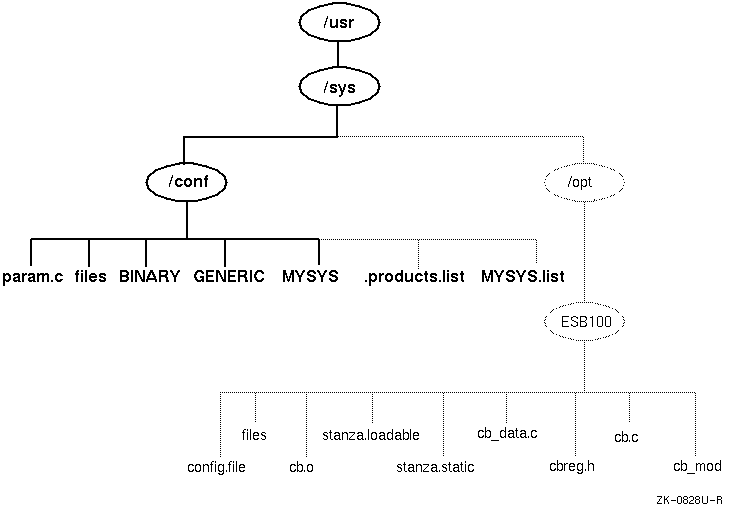
To build and run a working kernel, the system depends on the presence
of specific directories under the
/usr/sys
directory.
Figure 5-1
shows the directory structure of the system configuration
files.
The dotted lines indicate optional directories and files for third-party
static subsystems.
As shown in
Figure 5-1,
the
/usr/sys/conf
directory contains files that define
the kernel configuration for the generic and target kernels.
These files represent
the configuration of the static portion of the kernel.
When you work with
the system files to reconfigure the kernel, you are interested primarily in
five files:
/usr/sys/conf/NAME
/usr/sys/conf/GENERIC
/usr/sys/conf/.product.list
/usr/sys/conf/NAME
.list
/usr/sys/conf/param.c
The sections that follow provide more information about these files.
The
/usr/sys/conf
directory contains two important
system configuration files:
The target configuration file,
/usr/sys/conf/NAME,
is a text file that defines the components
that the system builds into your kernel.
By convention, the
NAME
portion of the pathname is the name of your system in capital
letters.
For example, a system named MYSYS is described by a file named
/usr/sys/conf/MYSYS.
Each system has a target configuration file
built for it by the
sizer
program during system installation.
You modify the target configuration file when you want to change one of the
following keyword definitions:
Global keywords that, if you are managing more than one system, are often defined the same across systems
System definition keywords that describe the kernel you want to build for a particular system
Device definition keywords that describe the devices connected to a particular system
callout
keyword definitions that allow
you to run shell command subprocesses during kernel configuration
options
keyword definitions that specify
software to be compiled into the system
makeoptions
keyword definitions that are
passed to the compiler, assembler, and linker when building the kernel
pseudodevice
keyword definitions that describe
psuedodevices used on the system
Table 5-2 lists the entries that can be included in the target configuration file.
The
/usr/sys/conf/GENERIC
configuration
file is the configuration file that describes the generic kernel.
The generic
kernel supports all valid devices and is useful when you are adding a new
device to the system.
You can also use the generic kernel as a back-up kernel
should your target kernel be corrupted in some way.
Avoid deleting the
/genvmunix
file, which contains
the generic kernel.
If you accidentally delete the generic kernel, you can
rebuild it by using the
doconfig -c GENERIC
command.
For
more information about building a kernel using an existing configuration file,
see
Section 5.4.3.
Note
Never delete the
/usr/sys/conf/GENERICfile.
The
/usr/sys/conf
directory contains two optional configuration files that describe
extensions to the target configuration file.
These are the
/usr/sys/conf/.product.list
file and the
/usr/sys/conf/NAME
file.
These files store information about static kernel subsystems, sometimes
called kernel layered products.
When you install a static subsystem, its SCP normally edits the
/usr/sys/conf/.product.list
file and adds an entry for the subsystem.
After the SCP completes, you run the
/usr/sbin/doconfig
program to configure the new subsystem into the kernel.
The
/usr/sbin/doconfig
program creates the
NAME.list
file.
The
NAME
variable is the same as the target configuration file, and by convention,
is your system name in capital letters.
For example, the
NAME.list
file for a system named MYSYS is
MYSYS.list.
If you need to modify your system because of a third-party layered product
(for example, to remove a layered product from the kernel being built), make
the necessary modifications to the
NAME.list
file and build a new kernel.
Each entry in the
NAME.list
file consists of six fields separated by a colon ( : ).
The following example is part of a
NAME.list
file and shows an entry for a static kernel subsystem that has
been loaded into the
/usr/sys/opt/ESB100
directory:
/usr/sys/opt/ESB100:UNXDASH100:920310100739:DASH Systems:controlsys:100
     [1]           [2]       [3]        [4]       [5]     [6]
The fields in this entry contain the following information:
The full pathname where the system configuration tools will find extensions to input data. This location can contain files such as:
Product-specific configuration files
The
config.file
file fragment (contains
keywords related only to the product)
The
files
file fragment (contains information
about the location of the product's source code, when the product should be
loaded into the kernel, and whether source or binary code is provided)
The
stanza.static
file (contains information
about a static driver's major number requirements and the names and minor
numbers of the device special files)
Object files
Source code files
The
setld
subset identifier.
[Return to example]
The date and time that the product is ready for distribution. [Return to example]
The name of the company that provided the subsystem. [Return to example]
The product name. [Return to example]
The
setld
3-digit product version code.
[Return to example]
The order of the line entries in the
NAME.list
file reflects the order in which the entries are processed.
The
/usr/sbin/doconfig
program creates the
NAME.list
file by copying the
.product.list
file, if it exists.
Note that when using the
/usr/sbin/doconfig
-c
command,
/usr/sbin/doconfig
uses the existing
NAME.list
file.
If the
.product.list
file changes (for example, a new kernel layered product
was installed) and the
-c
flag is used, either delete
the
NAME.list
file or manually
edit it before invoking
/usr/sbin/doconfig
to propagate
the change in the
.product.list
file to the
NAME.list
file.
You can also create the file by copying the
.product.list
file to the
NAME.list
file.
You can then edit the
NAME.list
file and either delete the lines that you do not want built into the kernel
or comment them out by putting a number sign ( # )
as the first character in each line that you do not want.
Note
Never edit the
.product.listfile.
Refer to the
Writing Device Drivers: Tutorial
manual for more information on the
NAME.list
and
.product.list
files.
The
param.c
file contains default
values for a number of system parameters.
You use these parameters to tune
your system's performance.
Table 5-1
lists system parameters
that you can modify.
For information about deciding what values to assign
to these parameters, see
System Configuration and Tuning.
In some cases, as noted in
Table 5-1, a parameter
in the
param.c
file can also be included in your target
configuration file.
In this case, a value specified in the configuration file
overrides the value specified in the
param.c
file.
Therefore,
if you modify the value of a system parameter in the
param.c
file, be sure to remove the corresponding entry from the target configuration
file.
| Parameter | Default Value | Configuration File Equivalent |
| autonice | 0 | Set to 1 if AUTONICE defined |
| bufcache | 3 | bufcache |
| bufhsz | 512 | None |
| hz | 100 CLOCKS_PER_SEC | None, defined in <machine/ mach time.h> |
| create_fastlinks | 1 | None |
| inohsz | 512 | None |
| maxuprc | 64 | maxuprc |
| maxuthreads | 256 | maxuthreads |
| maxusers | system dependent | maxusers |
| ncallout | 36+8*maxuser+threadmax | maxcallouts |
| nchsize | NVNODE*11/10 | None |
| nchsz | 128 | None |
| nclist | 120 if clist ptys (pseudo-device pty #) are configured, the default value is 60+12*maxusers | nclist |
| ndquot | NVNODE+(MAXUSERS * NMOUNT/4 | None |
| nmount_max | 256 | None |
| nquota | (MAXUSERS*9)/7+3 | None |
| nvnode | NPROC+(2*MAXUSERS)+128 | None |
| open_max_hard | 4096 | None |
| open_max_soft | 4096 | None |
| path_num_max | 64 | None |
| port_hash_max_num | 50*(6*threadmax+2000) | Based on threadmax |
| port_max_num | 6*threadmax+2000 | Based on threadmax |
| port_reserved_max_num | 6*threadmax+2000 | Based on threadmax |
| set_max_num | 2*threadmax+200 | Based on threadmax |
| select_max_elements | 1024+NPROC*4 | None |
| select_chunk_elements | 256 | None |
| spechsz | 64 | None |
| sys_v_mode | 0 | sys_v_mode |
| task_max | 1 + (20 + (8*maxusers)) | task_max |
| threadmax | 8192 | threadmax |
| ucred_max | 128 | None |
| ubc_minpercent | 10 | ubcminpercent |
| ubc_maxpercent | 100 | ubcmaxpercent |
| ufs_blkpref_lookbehind | 8 | None |
| vm_max_wrpgio_kluster | 32*1024 | writeio_kluster |
| vm_max_rdpgio_kluster | 16*1024 | readio_kluster |
The system configuration file contains the following keyword definitions:
Global keyword definitions
System definition keywords
Device definition keywords
callout
keyword definitions
options
keyword definitions
makeoptions
keyword definitions
pseudo-device
keyword definitions
Table 5-2 lists the available configuration options. The first column specifies the configuration file keyword. The second column provides the default value assigned to the keyword if it is not included in the configuration file. The third column states whether you can change the value of the keyword. The fourth column states whether the keyword is required to be present in the configuration file.
The sections that follow the table define some of these entries.
Note
The configuration files supplied with Tru64 UNIX, the
GENERICfile and the target configuration file for your system that is generated by thesizerprogram at installation time, override the default values for certain options. For example, the default value for themaxdsizoption is 32 MB; however, the configuration files supplied with Tru64 UNIX increasemaxdsizto 1 gigabyte.
| Default | Configurable | Required | |
| Global Keywords: | |||
| bufcache | 3 | ||
| cpu | DEC2000_300 | ||
| DEC2100_500 | |||
| DEC3000_300 | |||
| DEC3000_400 | |||
| DEC3000_500 | |||
| DEC4000 | |||
| DEC7000 | |||
| dfldsiz | 134217728 | Yes | No |
| dflssiz | 1048576 | Yes | No |
| heappercent | 7 | Yes | No |
| ident | GENERIC | No | Yes |
| kentry_zone_size | 16777216 | Yes | No |
| machine | alpha | Yes | Yes |
| mapentries | 200 | Yes | No |
| maxcallouts | system dependent | Yes | No |
| maxdsiz | 1073741824 | Yes | No |
| maxssiz | 33554432 | Yes | No |
| maxuprc | 64 | Yes | No |
| maxuthreads | 256 | Yes | No |
| maxusers | system dependent | Yes | Yes |
| maxvas | 1073741824 | Yes | No |
| max_vnodes | system dependent | Yes | No |
| msgmax | 8192 | Yes | No |
| msgmnb | 16384 | Yes | No |
| msgmni | 50 | Yes | No |
| msgtql | 40 | Yes | No |
| processors | 1 | No | Yes |
| scs_sysid | 1 | No | Yes |
| segmentation | 1 | Yes | No |
| semaem | 16384 | Yes | No |
| semmni | 10 | Yes | No |
| semmns | 60 | Yes | No |
| semmsl | 25 | Yes | No |
| semopm | 10 | Yes | No |
| semume | 10 | Yes | No |
| semvmx | 32767 | Yes | No |
| shmmin | 1 | Yes | No |
| shmmax | 4194304 | Yes | No |
| shmmni | 100 | Yes | No |
| shmseg | 32 | Yes | No |
| swapbuffers | 128 | Yes | No |
| sys_v_mode | 0 | Yes | No |
| task_max | system dependent | Yes | No |
| threadmax | system dependent | Yes | No |
| timezone | 0 dst 0 | Yes | No |
| ubcbuffers | 256 | Yes | No |
| vpagemax | 16384 | Yes | No |
| zone_size | 67108864 | Yes | No |
| System Definition Keyword: | |||
| config | vmunix swap generic | Yes | Yes |
| Device Definition Keywords: | |||
| controller | All supported controller types | Yes | Yes |
| bus | All supported bus types | Yes | Yes |
| device disk | All supported disk device types | Yes | Yes |
| device tape | All supported tape device types | Yes | Yes |
| callout Keywords: | |||
| at_start | none | Yes | No |
| at_exit | none | Yes | No |
| at_success | none | Yes | No |
| before_h | none | Yes | No |
| after_h | none | Yes | No |
| before_makefile | none | Yes | No |
| after_makefile | none | Yes | No |
| before_c | none | Yes | No |
| after_c | none | Yes | No |
| before_conf | none | Yes | No |
| after_conf | none | Yes | No |
| options Keywords: | |||
| AUTONICE | Off | Yes | No |
| BSD_TTY | On | No | Yes |
| BUFCACHE_STATS | On | No | Yes |
| BIN_COMPAT | On | No | Yes |
| CDFS | On | Yes | No |
| COMPAT_43 | On | No | Yes |
| DLI | Off | Yes | No |
| DLB | On | Yes | No |
| FFM_FS | Off | Yes | No |
| GENERIC | On | No | Yes |
| INET | On | No | Yes |
| INOCACHE_STATS | On | No | Yes |
| KDEBUG | Off | Yes | No |
| LABELS | On | No | Yes |
| LAT | On | Yes | No |
| LDTTY | On [Footnote 1] | Yes | No |
| _LMF_ | On | No | Yes |
| MACH | On | No | Yes |
| MACH_COMPAT | On | No | Yes |
| MACH_CO_INFO | On | No | Yes |
| MACH_DEVICE | On | No | Yes |
| MACH_IPC_STATS | On | No | Yes |
| MACH_IPC_TCACHE | On | No | Yes |
| MACH_IPC_WWA | On | No | Yes |
| MACH_IPC_XXXHACK | On | No | Yes |
| MACH_NET | On | No | Yes |
| MACH_SCTIMES | On | No | Yes |
| MAX_BDEVSW | 70 (minimum is 50) | Yes | No |
| MAX_CDEVSW | 125 (minimum is 75) | Yes | No |
| NFS | On | No | Yes |
| NFS_SERVER | On [Footnote 1] | Yes | No |
| NTP_TIME | Off | Yes | No |
| OSF | On | No | Yes |
| OSF_MACH_O | Off | No | No |
| PACKETFILTER | Off | Yes | No |
| PCKT | Off | Yes | No |
| PROC_FS | On [Footnote 1] | Yes | No |
| QUOTA | On [Footnote 1] | No | Yes |
| RT [Footnote 2] | On | No | Yes |
| RT_PML | Off | Yes | Yes |
| RT_PREEMPT | On | Yes | No |
| RT_PREEMPT_OPT | Off | Yes | Yes |
| RT_SCHED | On | No | Yes |
| RT_SCHED_RQ | On | No | Yes |
| RT_SEM | On | No | Yes |
| RT_TIMER | On | No | Yes |
| SER_COMPAT | On | No | Yes |
| SL | On [Footnote 1] | Yes | No |
| SNMPINFO | On | No | Yes |
| STAT_TIME | On | No | Yes |
| STREAMS | On [Footnote 1] | No | Yes |
| STRIFNET | Off | Yes | No |
| STRKINFO | On [Footnote 1] | No | Yes |
| SYSV_COFF | On | No | Yes |
| SYSV_ELF | On | No | Yes |
| SYSV_FS | Off | No | No |
| RPTY [Footnote 3] | On [Footnote 1] | Yes | No |
| TIMOD | Off | Yes | No |
| TIRDWR | Off | Yes | No |
| TRN | Off | Yes | No |
| TRSRCF | Off | Yes | No |
| UFS | On | No | Yes |
| UIPC | On | No | Yes |
| ULT_BIN_COMPAT | On | No | Yes |
| UNIX_LOCKS | On | No | No |
| VAGUE_STATS | On | No | Yes |
| XTISO | Off | Yes | No |
| makeoptions Keywords: | |||
| ASOPTS | ="-w" (Off) | Yes | No |
| CDEBUGOPTS | ="-g3" | No | Yes |
| LDOPTS | ="-x" (Off) | Yes | No |
| LOADADDR | ="fffffc000023000" | Yes | No |
| Pseudodevice Keywords: | |||
| cpus <16> | On, 1 | No | Yes |
| ether | On | No | Yes |
| gwscreen | Off | Yes | No |
| loop | On | No | Yes |
| lv <num> | On, 3 | Yes | Yes |
| lsm | On, 1 | Yes | Yes |
| presto | Off | Yes | No |
| pty <num> [Footnote 3] | Off | Yes | Yes |
| rt_hab | On | No | Yes |
| soe_two_hab | On | No | Yes |
| strpush <num> | On, 16 | Yes | Yes |
| svid_three_hab | On | No | Yes |
| svr_four_hab | On | No | Yes |
| sysv_hab | On | No | Yes |
| ws | Off (On for workstations) | Yes | No |
Global keywords specify system-wide definitions. The following sections describe these keywords.
The
ident
keyword identifies
the kernel that you are building.
In general, you identify the kernel according
to the machine it runs on; by convention, the kernel name is in uppercase
letters.
For example, the identification for a kernel that runs on a machine
named MYSYS would have the following
/usr/sys/conf/MYSYS
configuration file entry:
ident MYSYS
The Tru64 UNIX
kernel does not store time zone information.
The
timezone
keyword sets the initial value of the kernel's
tz
structure,
which is used only for backward compatibility with executables that use the
gettimeofday
function.
The
tz
structure maintains
its initial value as long as the system is in single-user mode.
The
tz
structure is overwritten by the local time zone when the system
boots to multiuser mode.
By default, the
timezone
keyword is specified as
follows:
timezone 0 dst 0
Refer to Section 4.4 for information about configuring the time zone.
Some keywords define the default and maximum size limits for the data
and stack segments in the address space of a process.
The default size is
the initial limit.
The maximum size is the hard limit or the absolute limit.
You can use the C shell
limit
command and the
getrlimit
and
setrlimit
system calls to change
these limits.
You can set these limits in the configuration file by using
the following keywords:
| Keyword | Usage |
dfldsiz |
Default data segment size limit |
maxdsiz |
Maximum data segment size limit |
dflssiz |
Default stack size limit |
maxssiz |
Maximum stack size limit |
The
sys_v_mode
keyword specifies whether the kernel exhibits System
V behavior when it sets the group ID and file mode for newly created files.
If the
sys_v_mode
keyword is set to 0 (zero), System V
functionality is not enabled; this is the default.
If the
sys_v_mode
keyword is set to 1, System V functionality is enabled.
This system keyword directly affects the
open( ),
creat( ),
and
mkdir(
)
system calls.
The following tables describe how the
sys_v_mode
keyword affects behavior during file creation, directory creation, and file
creation using the
open(
)
system call.
During file creation, the value of the group ID of any created file
is affected regardless of how the
S_ISGID
bit is set initially.
In the following table, the first column indicates that the System V keyword
is enabled.
The second column specifies how the
S_ISGID
bit is set in the parent directory.
The third and fourth columns reflect
how a created file is affected by the settings in columns 1 and 2.
| Keyword | Parent Directory S_ISGID bit | New File Group ID | New File S_ISGID bit |
1 |
Clear | Same as process GID | Clear |
1 |
Set | Same as parent directory | Clear |
For directory creation, both the value of the group ID of any created directory
and the value of the
S_ISGID
bit are affected.
In the
following table, the first column indicates that the System V keyword is enabled.
The second column specifies how the
S_ISGID
bit is set
in the parent directory.
The third and fourth columns reflect how a created
directory is affected by the settings in columns 1 and 2.
| Keyword | Parent Directory S_ISGID bit | New Directory Group ID | New Directory S_ISGID bit |
1 |
Clear | Same as process GID | Clear |
1 |
Set | Same as parent directory | Set |
The next table shows how a created file is affected when the
open( )
system call is used to forcibly set the
S_ISGID
bit.
Note
that the System V keyword is also enabled.
Column 1 indicates the setting
of the
S_ISGID
bit and columns 2 and 3 show how the created
file is affected.
| File Creation Mode S_ISGID bit | New File Group ID Equals Effective Group ID of Process or Support Group Member | New File S_ISGID bit |
| Clear | Yes | Clear |
| Clear | No | Clear |
| Set | Yes | Set |
| Set | No | Clear |
If the keyword is not set as in the previous table, the
S_ISGID
bit is always cleared, as per the base operating system and the
POSIX interface.
The following keywords define the System V IPC parameters (messages, semaphores, and shared memory):
| Messages Keywords | Usage |
msgmax |
Maximum message size |
msgmnb |
Maximum number of bytes on queue |
msgmni |
Number of message queue identifiers |
msgtql |
Number of system message headers |
| Semaphores Keywords | Usage |
semaem |
Adjust on exit maximum value |
semmni |
Number of semaphore identifiers |
semmns |
Number of semaphores in the system |
semmsl |
Maximum number of semaphores per ID |
semopm |
Maximum number of semaphores per semop call |
semume |
Maximum number of undo entries per process |
semvmx |
Semaphore maximum value |
| Shared Memory Keywords | Usage |
shmmax |
Maximum shared memory segment size |
shmmin |
Minimum shared memory segment size |
shmmni |
Number of shared memory identifiers |
shmseg |
Maximum number of attached shared memory segments per process |
The
maxusers
keyword defines the number of simultaneous users that your
system can support without straining system resources.
The number should not
be taken literally; from a performance standpoint, the number should always
be greater than the expected number of real users.
This number also is not
the number of logins specified in your system software license.
Refer to
the Software Product Description (SPD) for information on the maximum number
of supported users.
The default value assigned to
maxusers
depends upon
the size of your system.
For systems that have 24 MB of memory (small memory
systems), the default value is 16.
For all other systems, the default value
is 32.
System algorithms use the
maxusers
keyword to size
a number of system data structures and to determine the amount of space allocated
to system tables.
One such table is the system process table, which is used
to determine how many active processes can be running at one time.
Increasing the value of
maxusers
allocates more system
resources for use by the kernel.
However, it also increases the amount of
physical memory consumed by the kernel.
Decreasing the value of
maxusers
reduces kernel memory usage, but also allocates less system
resources.
The setting of
maxusers
should be a balance
between the number of users and the system hardware configuration (primarily
memory size).
Use the following general guidelines to set the value of the
maxusers
keyword:
For systems with limited physical memory and a small number
of users, set
maxusers
to 8 or 16.
Setting
maxusers
to 32 is reasonable for
most systems with moderate hardware configurations and a moderate number of
users.
For larger systems with heavy workloads, set
maxusers
to 64.
When you modify
maxusers, you also modify the value
of a number of other keywords that are based upon
maxusers.
The keywords that are based on
maxusers
are all keywords
that control system resources that are needed by users and should, therefore,
be raised or lowered depending upon the normal user load for your system.
The best way to adjust these keywords is to adjust the
maxusers
keyword.
The following keywords are based on the
maxusers
keyword:
maxcallouts
nclist
nquota
nvnode
ndquot
task_max
The
nclist
keyword is based on the
maxusers
keyword and defines the number of clists available on the system.
Each clist is a buffer for terminal I/O.
The
nclist
keyword
overrides the default value for
nclist
in the
param.c
file.
The default value should be sufficient for most configurations.
Exceptions include third-party asynchronous boards and layered products that
perform terminal emulation.
The
max_vnodes
keyword defines the maximum number of VFS files that
can be open at a given time system-wide.
Each open file is associated with
a
vnode.
If more
vnodes
are available
on the system, more files can be open.
However, more system memory is consumed.
On 24 MB systems, this keyword is defined to 1000 by default.
For larger
systems, the default value is calculated based on system memory size and the
percentage of total memory that can be used for
vnodes
(5 percent by default).
The following example shows the
max_vnodes
keyword
set to 1000:
max_vnodes 1000
The
maxuthreads
keyword defines the maximum number of threads per task.
This limit applies to nonprivileged tasks.
A task running with superuser
privilege can exceed the
maxuthreads
limit.
The
threadmax
keyword defines the maximum number of threads that can
be allocated on the system.
This limit is systemwide.
The following message
is displayed if the system reaches the
threadmax
limit
while creating a new process:
fork/procdup: thread_create failed. Code: 6
The
task_max
keyword is based
on the
maxusers
keyword and sets a limit on the number
of processes that can be running on the system.
Normally, you should modify
the
maxusers
keyword, rather than the
task_max
keyword.
Initially,
task_max
is set to the following:
1+ (20 + (8 * maxusers))
This value is not absolute.
It is used to determine the size of a data structure that controls the number
of user processes that can run simultaneously.
Increasing the value of
task_max
allows more user processes to be active at the same time.
Decreasing this value limits the number of user processes.
The system displays the following message if it reaches the
task_max
limit:
pid: table is full
You can find the previous message in the
/var/adm/messages
file and in the kernel event-logging file.
Truncated Messages
Where system configurations that are large, containing many adapters and devices, messages logged in the /var/adm/messages file. If this happens, you should compensate for the large system configuration by increasing the value of the
msgbuf_sizeattribute in the generic subsystem usingsysconfigdbor thedxkerneltuner. The default value for msgbuf_size is 4096. Setting it to 8192 is sufficient to resolve the problem.
The
task_max
kernel parameter in the
param.c
file is equivalent to the
task_max
keyword in
the configuration file.
The
maxuprc
keyword defines the maximum number of processes one user
can run simultaneously.
A task running with superuser privilege can exceed
the
maxuprc
limit.
The
maxcallouts
keyword is based on the
maxusers
keyword and defines the maximum number of callouts on the system.
It is used
to size the kernel's callout table.
The default number of callouts is determined
automatically based on the value of the
maxusers
keyword
and other system parameters.
Use of the default
maxcallouts
definition is strongly recommended.
In the unlikely event that the default value of
maxcallouts
is not large enough, your system will panic with a "timeout table
overflow" message.
To override the default number of callouts, use the following
syntax to add the
maxcallouts
keyword to your configuration
file:
maxcallouts
[number]
To determine the correct value for
number,
you need to understand the
maxcallouts
sizing algorithm
and to find the current number of callouts.
To examine the sizing algorithm,
edit the
/usr/sys/conf/param.c
file.
Search for the string
MAXCALLOUTS, and print the next several lines.
You will notice
the algorithm differs for a realtime kernel.
To determine the current number
of callouts, enter the following commands:
#dbx -k /vmunix(dbx)p ncallout1316(dbx)q
Tru64 UNIX utilizes a unified buffer cache (UBC). The UBC enables physical memory to be shared between the file system and virtual memory. The Advanced File System (AdvFS) uses UBC. However, the file system code that deals with the UNIX File System (UFS) metadata (including directories, indirect blocks, and inodes) uses the traditional BSD buffer cache.
The
bufcache
keyword defines the size of the kernel's
metadata cache.
The value for
bufcache
is the percentage
of the system's physical memory that is allocated for the metadata cache.
The default metadata cache memory allocation is 3% of physical memory.
Note that any additional memory that you allocate to the metadata cache is taken away from the rest of the system. This means that the memory is not available to the UBC that caches file data and virtual memory data and is involved in running processes. If you allocate too much memory to the metadata cache, system performance may decline.
The
machine
keyword defines the architecture of the machine on which
the kernel will run.
For example:
machine alpha
The
cpu
keyword defines the specific architectural machine type on which
the kernel will run.
For example:
cpu "DEC3000_400"
The
scs_sysid
keyword identifies each device on the CI to the SCS subsystem.
The devices supported on the CI are RA class devices.
The argument must be a unique value. During the installation, a value is automatically included in the configuration file. If a CI is not detected during installation, the default value 1 is used.
You can use the following parameters to tune virtual memory:
heappercentSpecifies the percentage of kernel virtual address space to allocate for use by the heap. The default is 7%.
kentry_zone_sizeSpecifies the amount of kernel virtual address space that
is available to create kernel virtual address map entries.
The default is
16777216, which is adequate for most system environments.
If the system panics
and issues a message indicating that the
kentry_zone_size
parameter value is too small to support the current workload, increase the
parameter value until it is sufficient for the workload.
mapentriesSpecifies the maximum number of virtual memory map entries. The default is 200.
maxvasSpecifies the maximum virtual address space for a user map. The default is 1073741824.
segmentationEnables or disables shared page tables. The default is 1 (enabled).
swapbuffersSpecifies the maximum number of swap buffers that are available for swap I/O. The default is 128.
ubcbuffersSpecifies the minimum number of buffers that the unified buffer cache can contain. The default is 256.
vpagemaxSpecifies the maximum
vpage
for user map,
or the maximum number of individually protected pages.
The default is 16384.
zone_sizeSpecifies the amount of kernel virtual address space that
is available for many of the system's dynamic data structures.
The default
is 67108864, which is sufficient for most system environments.
If the system
panics and issues a message indicating that the
zone_size
value is too small to support the current workload, increase the parameter
value until it is sufficient for the workload.
The
config
keyword defines
the kernel configuration in terms of the location of the root file system
and the dump and swap areas.
The recommended
config
keyword
entry selects the
a
partition of the disk from which the
kernel was booted as the root file system.
For example:
config vmunix swap generic
You can use the
swapon
command to allocate swap areas
from the
/etc/fstab
file.
By default, the system assigns
the dump area to the same partition as the first swap area found in the
/etc/fstab
file.
You should use the default dump area; however,
you can override the default by adding the
dumps
keyword
to the
config
specification.
For example, to dump to the
b
partition of an RZ-class
disk configured as unit 1, add the following line to the configuration file:
config vmunix root on rz1a dumps on rz1b
You
must also list
rz1b
as a swap device in the
/etc/fstab
file, as shown:
/dev/rz1b dump1 ufs sw 0 2
Note that the kernel will unconditionally write the crash dump to
rz1b, thus destroying any data on that partition.
In most cases,
crash dumps should be written to one of the swap partitions.
For more information
about controlling how the system writes crash dumps, see
Kernel Debugging.
When you specify the
dumps
keyword, you also need
to specify the location of the root file system with the
root on
keyword.
In the previous example, the root file system is located
on the
a
partition of the
rz1
disk.
The root file system must be located on the specified partition, otherwise
the system will not boot.
The configuration file contains
entries that define hardware devices for your system.
These entries include
buses, controllers, and storage devices.
When your system is initially configured,
the
sizer
program identifies all the devices physically
attached to your system and places their associated entries in the configuration
file.
For a complete list of supported devices, refer to the
GENERIC
configuration file, the
Software Product Description
(SPD), or
Appendix A.
The
callout
keyword definitions allow you to run any shell command subprocess
during kernel configuration.
The
callout
keyword definition
invokes a subprocess, and the
config
program waits for
the subprocess to complete before continuing the configuration.
For example,
you can define a
callout
keyword to send mail at a specific
time during the configuration.
You can invoke any function with a
callout
keyword
definition.
If you use a
callout
keyword, you must make
sure that the command is in the search path or that the full pathname is specified.
Also, any system resources required, such as memory, disks, or tapes, must
be available.
There is no mechanism for determining if a subprocess succeeds
or fails; the
config
command behaves as if the subprocess
succeeded.
The function must handle its own error conditions.
The
callout
keyword definition specifies the point
in the configuration sequence at which to invoke the subprocess.
The
CONFIG_NAME
environment variable specifies the configuration file
that is used as an argument to the
config
command.
The
subprocess that is called out uses the environment variable to identify the
configuration file.
The following table describes the
callout
keyword
definitions and the times at which they are invoked by the
config
command:
| Definition | Time Invoked |
at_start |
After the
config
command
has parsed the configuration file syntax but before processing any input |
at_exit |
Immediately before the
config
command exits, regardless of its exit status |
at_success |
Before the
at_exit
process,
if specified, and only if the
config
command exits with
a success exit status |
before_h |
Before the
config
command
creates any
*.h
files |
after_h |
After the
config
command
creates any
*.h
files |
before_c |
Before the
config
command
creates any
*.c
files |
after_c |
After the
config
command
creates any
*.c
files |
before_makefile |
Before the
config
command
creates the
Makefile
file |
after_makefile |
After the
config
command
creates the
Makefile
file |
before_conf |
Before the
config
command
creates the
conf.c
file |
after_conf |
After the
config
command
creates the
conf.c
file |
More than one
callout
keyword with the same parameter
can be in the configuration file, and the subprocesses are invoked in the
order that they appear in the file.
The following is an example of some configuration
file entries:
callout at_exit "echo Exit 1 | mail root"
callout at_exit "echo Exit 2 | mail root"
callout at_success "echo Configuration successful | mail root"
If the
config
command exits successfully, the sequence
of the information mailed to root is as follows:
Configuration successful
Exit 1
Exit 2
The configuration file contains several
definitions that are preceded by the
options
keyword.
In general, these definitions specify the components that define the kernel
itself, the subsystems, and additional functionality that is required for
the target system to operate correctly.
These dependency options usually are
mandatory and should not be removed from the configuration file or altered.
See
Table 5-2
for a complete list of dependency
options.
You do not have to add special configuration options for symmetrical multiprocessing (SMP). The system determines at boot time whether it has multiple CPUs and configures itself accordingly. The default for multiprocessor systems is to configure SMP. For information on how to override this default, see System Configuration and Tuning.
The following mandatory configuration file options have been added to support SMP:
| Option Definition | Required |
SER_COMPAT |
Yes |
UNIX_LOCKS |
Yes |
You can enable real-time preemption on your system by defining the
RT_PREEMPT_OPT
keyword.
When this keyword is defined, the system
interrupts lower priority processes more often than normal in favor of higher
priority processes.
Defining this keyword might degrade the throughput performance of your
system because the system spends more time context-switching than it does
when you omit the
RT_PREEMP_OPT
keyword from the configuration
file.
Other, required kernel options keywords that are related to real-time processing are as follows:
RT_PML
RT_PREEMPT_OPT
RT_SCHED
RT_SCHED_RQ
RT_SEM
RT_TIMER
Do not remove these required options keywords from your configuration file.
To accommodate loadable subsystems, you
might need to increase the number of entries in the block and character switch
tables.
The following example shows an error message from the
config
program that indicates the need for more entries in the block and
character switch tables:
cfe: Error: conf.c, line 925: Too many initial values for 'bdevsw'
If you receive a message similar to this one, edit the the configuration
file and define the
options
keywords
MAX_BDEVSW
and
MAX_CDEVSW.
For example, the following line
sets the
MAX_BDEVSW
keyword to 64:
options MAX_BDEVSW=64
Refer to Table 5-2 for information about the default values for these keywords.
The operating system views file systems as kernel subsystems. The file systems supported by your system are listed in the configuration file using options keywords, as follows:
| Options Keyword | Required | Use |
BUFCACHE_STATS |
Yes | File system statistics gathering |
CDFS |
No | ISO 9660 CDFS |
COMPAT_43 |
Yes | Backward compatibility with 4.3BSD |
QUOTA |
Yes | UFS disk quota functionality |
The following configuration file entries define code dependencies for the supported file system types. Include in your configuration file the entries that apply to your configuration:
| Option Definition | Required | Use |
CDFS |
Yes | ISO 9660 compact disk file system |
COMPAT_43 |
Yes | 4.3BSD backwards compatibility |
FFM_FS |
No | File-on-File File System; needed for STREAMS
fattach
and
mkfifo |
LABELS |
Yes | OSF/1 disk labels |
MSFS |
No | Advanced File System (AdvFS) |
NFS |
Yes | Network File System (NFS) |
NFS_SERVER |
No | Server for NFS |
OSF_MACH_O |
Yes | Format of load files |
PROC_FS |
No | /proc
file system (used
by
DECladebug) |
QUOTA |
Yes | Disk quotas |
SYSV_COFF |
Yes | Format of load files: System V COFF executables |
SYSV_ELF |
Yes | System V |
SYSV_FS |
No | System V File System |
UFS |
Yes | UNIX File System |
UNIX_LOCKS |
No [Footnote 4] | Locking version (parallel) |
The following configuration file entries define some of the features and dependencies that relate to the Tru64 UNIX kernel: In your configuration file, include those entries that define the requirements of your configuration:
| Options Keyword | Required | Use |
OSF |
Yes | OSF/1 kernel |
GENERIC |
Yes | Generic kernel |
MACH |
Yes | Standard Mach features |
MACH_CO_INFO |
Yes | Call-out queue information |
MACH_COMPAT |
Yes | Vendor syscall compatibility |
MACH_DEVICE |
Yes | Mach I/O support |
MACH_IPC_STATS |
Yes | Collect IPC statistics |
MACH_IPC_TCACHE |
Yes | IPC translation cache |
MACH_IPC_WWA |
Yes | IPC wakeup-when-available |
MACH_IPC_XXXHACK |
Yes | Mach IPC backward compatibility |
MACH_NET |
Yes | Fast network access |
MACH_SCTIMES |
Yes | Dummy system calls for timing |
ULT_BIN_COMPAT |
Yes | Enables ULTRIX binary compatibility |
The
KDEBUG
keyword
controls your ability to use the
dbx -remote
command.
If your kernel is built with
KDEBUG, you can debug the
running kernel using
dbx -remote.
Note that
ikdebug
is the integrated interactive mode
of the
kdebug
kernel debugger.
It provides interactive
symbolic kernel debugging without the need of a second host system to run
dbx
or
kdbx.
See the
dbx(8),
kdbx(8)
and
ikdebug(8)
reference pages and the
Kernel Debugging
guide.
The
NTP_TIME
keyword enables the
kernel phase lock loop (PLL) time adjusting algorithm.
This algorithm is
described by the DARPA Network Working Group Report RFC-1589, for use with
the Network Time Protocol (NTP) V3 daemon.
The
AUTONICE
keyword lowers the priority
of threads that exceed 10 minutes of CPU user time.
It does this by automatically
"nicing" up the priority of the thread by 4.
By default, the
AUTONICE
feature is off.
You should enable this feature if you want threads
that run for a long time to have their priority lowered, relative to other
threads.
You should not enable this feature if you routinely run threads
that accumulate significant amounts of CPU time and do not want the priority
of these threads lowered.
The following configuration file entries define the code dependencies that enable statistics-gathering functionality. In your configuration file, include the entries that you need:
| Options Keywords | Required | Use |
BUFCACHE_STATS |
Yes | Buffer cache statistics |
INOCACHE_STATS |
Yes | Inode cache statistics |
STAT_TIME |
Yes | Use statistical timing |
VAGUE_STATS |
Yes | Vague counts (parallel) |
The following configuration file entries define the code dependencies for network and communications functionality. In your configuration file, include the entries that correspond to the network functionality at your site:
| Options Keywords | Required | Use |
DLI |
No | Data Link Interface |
DLPI |
No | Data Link Provider Interface |
INET |
No | Internet protocols |
LAT |
Yes | LAT protocols |
PACKETFILTER |
No | Kernel packetfilter support |
PPP |
No | Point-to-Point Protocol (PPP) for TCP/IP support |
SL |
No | Serial Line Interface Protocol (SLIP) for TCP/IP support |
STREAMS |
Yes | STREAMS Framework |
STRKINFO |
Yes | STREAMS kernel information |
TIMOD |
No | Transport Interface Streams Module |
TIRDWR |
No | Transport Interface Read/Write Streams Module |
TRN |
No | Token Ring Network support for DECnet |
TRSRCF |
No | Token Ring Source Routing Module |
UIPC |
Yes | UNIX domain sockets |
XTISO |
No | X/Open Transport Interface |
The DLPI option is dependent on the DLI option. Therefore, if you select the DLPI option, you must also select the DLI option. The DLI option is not dependent on the DLPI option.
Selection of the DLPI option configures the Datalink Bridge Driver (DLB), which implements a partial subset of the DLPI specification. See the Network Programmer's Guide for more information.
The
PPP
option is dependent upon the
INET
option.
The number of PPP lines is configurable using the
nppp
parameter in the
/etc/sysconfigtab
file.
The default value for
nppp
is 1.
The
SL
option is dependent upon the
INET
option.
The number of SLIP lines is configurable using the
nslip
parameter in the
/etc/sysconfigtab
file.
The default value for
nslip
is 1.
The TRSRCF option is for Token Ring driver developers who want to use the Token Ring Source Routing functionality for the extended Token Ring Network. See the Network Programmer's Guide for more information.
The following configuration file entries define the code dependencies for terminal subsystems. To determine which terminal subsystem is configured into your kernel, include an entry from the following table in your configuration file:
| Options Keyword | Required | Use |
| BSD_TTY | Yes | Berkeley ( clist-based )
TTY |
| LDTTY | No | STREAMS-based TTY |
| PCKT | No | STREAMS packet module |
Certain options
are passed to the compiler, assembler, and linker when the kernel is built.
These options are identified with the
makeoptions
keywords
and take an argument of the form
argument=
value.
# makeoptions     ASOPTS="-w"
makeoptions     CDEBUGOPTS="-g3"
makeoptions     PROFOPTS="-DPROFILING -DPROFTYPE=4"
makeoptions     LOADADDR="ffffffff00000000"
# makeoptions     LDOPTS="-x"
Note
The
ASOPTS=-wmakeoption is commented out because using it disables C compiler warning messages.
The configuration file contains
several keywords that are categorized under the broad
pseudo-device
keyword.
These include terminal services, the Logical Storage
Manager (LSM), and additional network protocol families and services definitions.
The configuration file must contain definitions that correspond to the network
protocols and services upon which file systems and communications services
depend.
The following sections list the related dependencies that are defined
with the
pseudo-device
keyword.
See Table 5-2 for a complete list of pseudo-device keyword definitions.
Refer to the Network Administration manual for detailed information about supported network and communications services.
The following
pseudo-device
keyword definitions are
required in the configuration file:
pseudo-device	cpus	1
pseudo-device	rt_hab
The following keyword definition must be included if you want the System V habitat:
pseudo-device sysv_hab
The following definition must be included if you want the ULTRIX compatibility module:
pseudo-device ult_bin
The following
pseudo-device
keyword definitions are
required to enable graphic device support for workstations:
pseudo-device	ws
pseudo-device	xcons
If your system is equipped with the Prestoserve hardware, the
/usr/sbin/doconfig
program includes the following entry during the
initial system configuration:
pseudo-device presto
The previous entry must be present in the configuration file for Prestoserve to operate properly.
Certain Prestoserve hardware implementations require an additional entry in the system configuration file. For information on the Prestoserve hardware and its supporting software, see the Guide to Prestoserve.
The
pty
configuration file entry specifies the number
of available pseudo-ttys (used for incoming network logins and for windows).
Define this entry according to the maximum number of ptys supported by your
configuration.
You can set the value to any number greater than 16 and less
than or equal to 3162.
The number of logins (users) is not the same as the
number of pseudo-ttys.
There are two implementations of
ptys
available:
STREAMS-based and
clist-based.
The default is STREAMS-based
and is specified with the
RPTY
keyword.
You set the number
of psuedo-ttys in the
/etc/sysconfigtab
file as follows:
pts:
   nptys = 512
The default is 255.
Note that you must also have the
LDTTY
option defined
for STREAMS-based ptys.
You define the
clist-based implementation
as follows:
pseudo-device pty 255
You may use either the
RPTY
option or the
pty
psuedodevice, but not both.
The Logical Storage Manager (LSM) expands and enhances the standard UNIX system mechanism for data storage, data retrieval, and data protection.
Note
The Logical Volume Manager was retired in Tru64 UNIX Version 4.0. To continue using enhanced disk management software, you must migrate to the Logical Storage Manager (LSM) software. Information about migration to LSM using a process called encapsulation is provided in the document Logical Storage Manager.
LSM provides a virtual disk that enables you to store and replicate data without physical boundaries. LSM is composed of physical devices and logical entities to offer you a mechanism for transparently and dynamically storing and retrieving files and file systems across devices and in multiple copies.
If you perform an Advanced Installation and select the LSM subsets, the following line that enables LSM is automatically placed in your target configuration file:
pseudo-device lsm 1
When the
/usr/sbin/doconfig
runs during installation, LSM
is built into the kernel.
However, if you install the LSM subsets after installation with the
setld
utility, you must add LSM to the kernel by following these
steps:
Run the
/usr/sbin/doconfig
program without
any options, as described in
Section 5.4.2.
Select the LSM kernel option from the KERNEL OPTIONS menu to add LSM to the target configuration file and build a new kernel.
To enable LSM, you boot the new kernel, as described in Section 5.4.2.
If your system
uses Ethernet Address Resolution Protocol (ARP) hardware, the
/usr/sbin/doconfig
program includes the following entry during initial system configuration.
This entry must be present in the configuration file:
pseudo-device ether
If you set your system up as a router and you plan to use the gateway screen feature, add the following line to your system configuration file:
pseudo-device gwscreen
For more information on the gateway screen, see the
screend(8)
reference page.
To configure the kernel packetfilter device, include the following line in the configuration file:
"options PACKETFILTER"
If your configuration requires the software loopback interface definition, the following entry must be present in the configuration file:
pseudo-device loop
If your configuration supports STREAMS protocols, the following entry should be present in the configuration file:
pseudo-device strpush 16
The
strpush
entry specifies the number of modules that you can push
in a single stream.