Dynamic Host Configuration Protocol (DHCP) enables you to centralize and automate IP address administration. Using a graphical application, you can configure several computers at once, ensuring that configurations are consistent and accurate. Even portable computers can be automatically configured each time they attach to the network.
This chapter describes the DHCP implementation on Digital UNIX systems, and
provides information for setting up and maintaining the DHCP database. In
addition, this chapter provides information on the
xjoin
application, and the different DHCP configurations.
The Digital UNIX DHCP implementation is based on the JOIN software product from
Competitive Automation. For additional introductory information on DHCP, see
dhcp(7).
In the DHCP environment, systems can have the following roles:
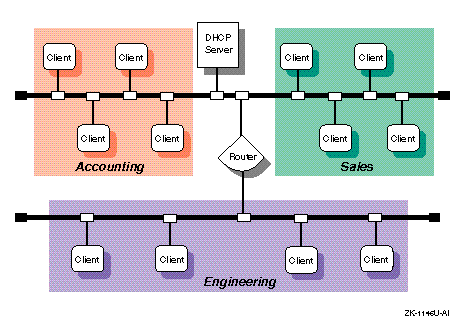
Figure 3-1
shows a sample corporate LAN in which a DHCP
server is configured to supply IP addresses to clients in three different
functional areas. In this configuration, the router must be configured to
forward BOOTP packets. DHCP packets are BOOTP packets with DHCP extensions.
See
bprelay(8)
for more information.
In the DHCP environment, DHCP parameters can be assigned to the following named entities:
You can group nodes by logical area, by functional area, by physical area, or in any way you want. Groups can also be grouped together with other groups, subnets, and nodes.
These entities and their parameters have a hierarchical relationship to each
other in your network. For example,
Figure 3-1
shows a small business network named
acme-net,
comprising two subnets and three distinct groups, Accounting, Sales, and
Engineering. A DHCP administrator might look at this network as one group
named
acme-net,
consisting of two subnets
(floor1
and
floor2)
that contain the individual nodes.
The
acme-net
group is at the top level of the hierarchy and
specifies those parameters that apply to all systems in the network. At the
next level down, the
floor1
subnet specifies those parameters
that apply to all nodes on that subnet and the
floor2
subnet specifies those parameters that apply to all nodes on that subnet. If
it were necessary to assign parameters on a group basis, the administrator
could have
floor1
subnet consist of the Accounting and Sales groups, with
the individual nodes assigned to their respective groups. However, since these
two groups are on the same subnet, this is probably unnecessary.
If
Figure 3-1
showed a single LAN network with no subnets
(no router), a DHCP administrator might look at this network as one group named
acme-net,
consisting of three groups (Accounting, Sales, and
Engineering) that contain the individual nodes, respectively.
Groups can also be used to define a group of settings for one Ethernet or subnet number, allowing you to reuse the settings for other nodes or subnet configurations.
You can restrict client access to the DHCP server by creating a MAC address database. Only those clients whose addresses are in the database are allowed to receive an IP address. See Section 3.8 for more information.
This section describes those tasks you need to do before configuring DHCP.
For a DHCP server system, verify that the DHCP server is installed by entering the following command:
#
setld -i | grep OSFINET400
If the subset is not installed, install it by using the
setld
command. For more information on installing subsets, see
setld(8),
the
Installation Guide,
or the
System Administration
manual.
For DHCP client systems, the DHCP client software is installed with the mandatory subsets.
After you verify that the DHCP software is installed, you configure DHCP by
using the
xjoin
utility. DHCP configuration consists of the following parts:
The information you need depends on how you define the DHCP environment. Appendix A contains a worksheet that you can use to record the information that you need to provide to configure DHCP.
Figure 3-2 shows Part 2A of the Configuration Worksheet.
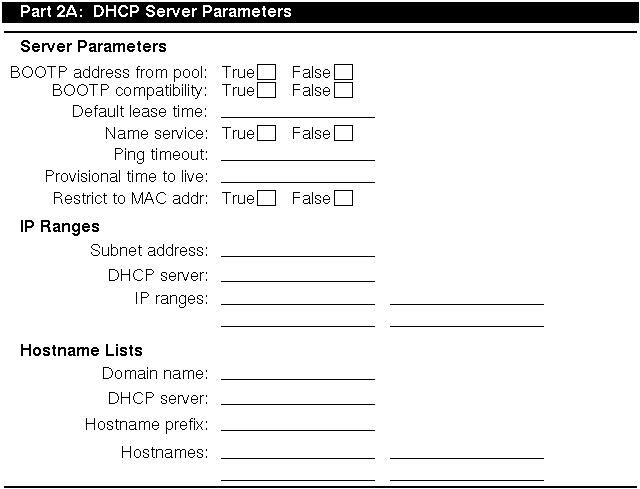
If you are viewing this manual online, you can use the print feature to print part of the worksheet. The following sections explain the information you need to record in Part 2A of the worksheet.
/etc/bootptab
file (the usual method), check FALSE; this is the default.
/etc/hosts
file with information about dynamically assigned names and addresses.
ping
timeout. The
ping
command is used to find out if a client on your network
is available. When the
ping
program sends a request to the
client, the client responds to the request and includes its IP
address in the response. The Ping Timeout parameter is used to check that no
other client is using an IP address prior to it being assigned by the server.
After the timeout, the
ping
command stops checking.
IP ranges are those IP addresses available for assignment to clients on the network. Although multiple DHCP servers can reside on the same subnetwork, the IP address ranges administered by each server must not overlap. For IP ranges, supply the following information:
The IP address is divided into four fields, each separated by a period. Each field represents an element of the address; for example, the following is a typical IP address:
128.174.139.47
In the preceding example,
128.174
is the network address,
139
is the subnet address, and
47
is the host address; therefore, the subnet address would be
128.174.139.0.
A subnet address may have more than one corresponding IP Address Range.
The DHCP server can configure clients on more than one subnet as long as the
routers between the server and the client forward BOOTP packets. See
Section 3.2.2.2
and
bprelay(8)
for information about boot file and BOOTP parameters.
A hostname list contains the names that are assigned clients when they are also assigned an IP address. For hostname lists, supply the following information:
Write down the domain name exactly as it was assigned by the NIC Domain
Registrar, and include its top-level domain extension; for example,
school.edu,
Company.com,
and
city.gov.
company.com
domain, if the names in the Hostname
list box have all been assigned and the hostname prefix is
net12host,
the next two computers to request hostnames would receive
net12host1
and
net12host2
as their hostnames, respectively.
Figure 3-3 shows Part 2B of the Configuration Worksheet.
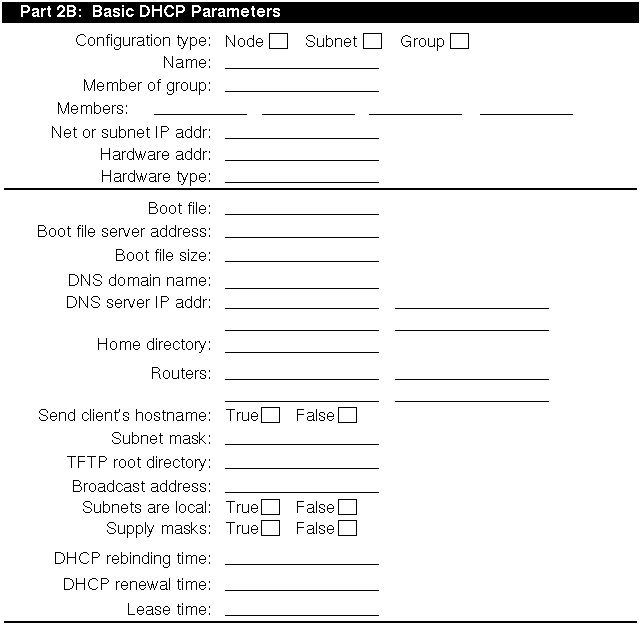
If you are viewing this manual online, you can use the print feature to print part of the worksheet. The following sections explain the information you need to record in Part 2B of the worksheet.
ddd.ddd.ddd.ddd.
For example, if your subnet is
16.128, enter 16.128.0.0; you must include the trailing zeros.
For node, subnet, and group configuration, BOOTP parameters allow you to specify how to pass configuration information to hosts on the network. For BOOTP parameters, supply the following information:
ddd.ddd.ddd.ddd.
ddd.ddd.ddd.ddd.
ddd.ddd.ddd.ddd.
ddd.ddd.ddd.ddd.
ddd.ddd.ddd.ddd.
For subnet and group configuration, IP layer parameters affect the operation of the IP layer on a per-host basis. The required IP layer parameter is as follows:
ddd.ddd.ddd.ddd.
For a list of additional parameters and a description of each, see the
xjoin
application online help.
For node, group, and subnet configuration, lease parameters allow you to specify information about IP lease times. Lease times determine the length of time an IP address is used. The lease parameters, supply the following information:
2 months 5 days 45 minutes.
The actual lease time is negotiated between the client and server.
You use the
xjoin
application to configure a DHCP server. To
start the application, enter the following command:
#
/usr/bin/X11/xjoin
You can configure the following server information:
To update the server so that the new configuration takes effect, select
File and Update. To exit the application, select File and Exit. Then, click
on Save and Exit to save your changes and exit the application. See
xjoin(8)
for more information.
To configure the server parameters, do the following:
xjoin
Main Window, click on the Server/Security tab.
To configure IP ranges, do the following:
xjoin
Main Window, click on the Server/Security tab.
You configure hostname lists only if you have set the Accept Client Name server parameter to False. (See Section 3.2.2.1.) If you have set Accept Client Name server parameter to True, the server automatically accepts the name a client suggests for itself; do not configure hostname lists.
To configure a host name, do the following:
xjoin
Main Window, click on the Server/Security tab.
To configure a subnet, do the following:
xjoin
online help for a description of these parameters.
Note
You do not have to change every value for the parameters in the Subnets tab; only those that describe your particular network configuration.
/etc/join/netmasks
file and add an entry for each
subnetwork in your network. The format of each entry is as follows:
subnet_address subnet_mask
To configure a node, do the following:
If you are using the hardware address (MAC address) of the node, enter it in the format 08:00:26:75:31:81. The hardware address is assigned when a workstation is manufactured, and is often displayed when the workstation is turned on or rebooted. The hardware address is also called the Ethernet address.
Note
All address numbers in this guide are examples only. Do not use them for your own purposes.
xjoin
online help for a description of these parameters.
Note
You do not have to change every value for the parameters in the Nodes tab, only those that describe your particular network configuration.
To define a group, do the following:
xjoin
online help for a description of these parameters.
Note
You do not have to change every value for the parameters in the Groups tab, only those that describe your particular network configuration.
After you install the OSFINET400 optional subset, run the installation script, and configure the server, you must start the server so that the new configuration takes effect. Digital recommends that you use the Network Configuration application of the Common Desktop Environment (CDE) Application Manager for starting the DHCP server on systems with graphics capabilities.
To start up the Network Configuration application, log in as root, double click on Network Configuration icon in the Configuration group. The Network Configuration main window is displayed, showing available network components and configured network components.
To exit the Network Configuration application, choose File then Exit.
See
netconfig(8X)
for more information.
To start the DHCP server, do the following:
For more information about
joind,
see
joind(8).
When you configure the basic network connections on the client system you must specify an Internet address source. If you specify DHCP server and restart the network, the DHCP client daemon starts and uses DHCP to obtain IP configuration information. From then on, the DHCP client automatically starts each time the client computer is booted.
After the initial DHCP server configuration, you can check the status of a DHCP client by doing the following:
xjoin
application by entering the following:
#
/usr/bin/X11/xjoin
You can also modify client configuration information, permanently map a
hardware address to an IP address, import a file into the active IP database,
and remove records from this window. See
xjoin(8)
and the
xjoin
online help for more information.
Typically, a client is assigned any free IP address from the pool of IP addresses. However, you might want to permanently map or assign an IP address to a client's hardware address. The IP address mapped to a hardware address does not need to come from the IP addresses you have already defined. To map an IP address to a client's hardware address permanently, do the following:
xjoin
application by entering the following command:
#
/usr/bin/X11/xjoin
xjoin
Main Window, click on the Server/Security tab.
You restrict client access to the DHCP server only if you have set the Restrict to Known MAC Address server parameter to True. (See Section 3.2.2.1.) If you have set Restrict to Known MAC Address server parameter to True, you must create a list of MAC addresses to be allowed access to and accept IP address assignment from the DHCP server. If you have set the server parameter to False, do not create a list of MAC addresses.
To create a list of MAC addresses to be allowed access to the DHCP server, do the following:
xjoin
Main Window, click on the Server/Security tab.
Alternatively, you can import a file into the MAC address database. To do
this, click on Import and enter a file name. See
jdbmod(8)
for information on the imported file format.
To remove records from the MAC address database, select a MAC address on the left side of the window and click on Delete.
To register a client to use BOOTP only, do the following:
xjoin
application by entering the following:
#
/usr/bin/X11/xjoin
xjoin
Main Window, click on the Nodes tab.
In some cases, you might want to disable DHCP address assignment and use the
BOOTP and DHCP server daemon
(/usr/sbin/joind)
to respond to BOOTP requests only. To disable all DHCP address assignment
features in the DHCP and BOOTP server, do not specify an IP address range for
any subnet (this is the default). If no IP address ranges are defined, the
server never sends a DHCP reply in response to a DHCP client request.
If DHCP address assignment is disabled, DHCP clients that have previously registered with this server continue to operate until their leases timeout; the server will fail to renew the client lease.
If DHCP clients are having problems obtaining DHCP information from the server, do the following:
joind
daemon.
joind
daemon with the debug flag as follows:
#
/usr/sbin/joind -d4
If you are running
joind
from the
/etc/inetd.conf
file, do the following:
/etc/inetd.conf
file and add the
-d4
flag.
joind
daemon.
inetd
daemon with a HUP. This forces
inetd
to reread the
/etc/inetd.conf
file.
/var/join/log
file for information about the cause of any DHCP client problems.
Example 3-1
shows a
/var/join/log
file message that indicates a DHCP discover message arrived at the server
system, but the IP subnet address range is not defined.
DHCPDISCOVER from HW address 08:00:2b:96:79:b6 : network not administered
        by server
This problem can also occur if an address range is defined, but
the
/etc/join/netmasks
file is missing the subnet mask definition for this IP network. In this case,
edit the netmasks file, add an entry for the subnetwork, and restart the DHCP
server,
/usr/sbin/joind.