This chapter explains how to administer the Prestoserve software.
It explains how to select file systems to
accelerate and how to use the
presto
and
dxpresto
commands to perform the administrative procedures for the day-to-day operation
of Prestoserve. It also describes how to check to determine if Prestoserve
is working properly.
The following sections explain how Prestoserve operates. It describes the Prestoserve buffers and states.
Prestoserve is implemented as a pseudodevice driver and uses nonvolatile memory to cache synchronous write requests. Write requests are written synchronously to the Prestoserve cache buffers; as the cache fills, old data is written asynchronously to the appropriate disks.
Prestoserve is interposed between other disk drivers and the rest of the Digital UNIX kernel. Stubs replace the original driver's entry points in the device switch tables. Whenever Prestoserve needs to perform actual I/O (for example, when the data in the cache needs to be written to disk), it uses the real device driver routines.
Buffers in the Prestoserve cache undergo several phases or states. The buffer transition diagram is roughly as follows:
inval -> dirty -> active -> clean -> dirty
The following list describes the buffer states:
inval
|
An invalid buffer does not presently contain a disk block image. |
dirty
|
A dirty buffer contains a valid disk block image that has not yet been written to disk. |
active
|
An active buffer is currently in transition to the disk, which means that a write operation has started, but it has not been completed on that buffer. |
clean
|
A clean buffer contains a valid disk block image that has been written to disk. |
The Prestoserve buffer cache is similar to a disk because it contains data. At appropriate times, the data is written to the actual disks. The Prestoserve driver tries to ensure that data is not lost. When a failure occurs, the driver does not discard cache data unless explicitly requested to do so by the system administrator.
Prestoserve is always in one of three states:
UP
(enabled),
DOWN
(disabled), or
ERROR
(error). When the Prestoserve state is
UP,
Prestoserve improves I/O performance to accelerated file systems
by caching synchronous disk write operations to nonvolatile memory.
When the Prestoserve state is
DOWN,
all I/O requests are passed to the actual devices.
Whenever Prestoserve makes a state transition from
UP
to
DOWN,
all Prestoserve buffers are successfully flushed (that is, the data
is written to disk) and invalidated.
If there are dirty buffers in the
Prestoserve cache when the system is rebooted, they are flushed,
and Prestoserve enters the
DOWN
state unless an error occurred during the flushing. Some possible disk
errors are: the disk drive is write protected or off line, a cable problem
exists, or a bad disk block exists.
Note
Because the Prestoserve state is
DOWNafter a reboot, you may want to set up Prestoserve so that file systems are automatically enabled when the system starts up. Refer to Chapter 2 for information about automatically acclerating file systems.
If an error occurs, Prestoserve
enters the
ERROR
state. When in the
ERROR
state, the Prestoserve cache
is effectively read-only until the error condition is cleared; then,
Prestoserve enters the
DOWN
state. After you fix the disk error, use the
presto -u
or the
presto -U
command to verify that the error is corrected. If there are no
disk errors, the remaining cached data is written to
disk and Prestoserve is reenabled. Refer to
Section 3.2.1
for more information about the
presto -u
and
presto -U
commands.
The commands that use the
reboot
system call cause Prestoserve to enter the
DOWN
state if all dirty
buffers can be successfully flushed. If the buffers cannot be successfully
flushed, Prestoserve enters the
ERROR
state. Commands that are used to reboot the system include the
halt,
shutdown,
and
reboot
commands. Refer to
Chapter 4
for more information on recovering from the
ERROR
state.
The following sections describe how to manage the Prestoserve software. They describe how to select file systems to accelerate, perform remote Prestoserve administration, display status, and manage the Prestoserve buffer cache.
The
presto
command is used to administer Prestoserve. The
dxpresto
command is used to perform some administrative tasks and also
to monitor Prestoserve.
The
presto
command can perform the following administrative tasks:
Refer to
presto(8),
dxpresto(8X),
and the following sections for more information.
Prestoserve can accelerate all mounted file systems on a server, regardless of how many disks or controllers are involved. You should accelerate file systems that receive many synchronous write requests. Read-only file systems do not generate synchronous write requests; therefore they are usually not accelerated.
The following list describes some of the types of file systems that may derive benefits from Prestoserve:
Prestoserve maintains full block and raw disk semantics. The performance benefits of Prestoserve are not available to raw character device disk partitions. Raw character device reads and writes will flush blocks that are in the Prestoserve cache to disk.
You can use the
presto
command with the
-u
or
-U
option to set the Prestoserve state to
UP
and enable acceleration on the specified file systems.
The
-U
option sets the Prestoserve state to
UP
only if the specified directory is the root of a mounted file system.
Otherwise, the following message is displayed:
presto: directory is not a file system root
Note that you can set up Prestoserve to automatically accelerate mounted
file systems when the system starts up by specifying the
appropriate run-time variables in the
/etc/rc.config
file and including the file systems in the
/etc/prestotab
file. Otherwise, you will have to manually accelerate the file systems
each time you reboot. Refer to
Chapter 2
for more information.
The
presto
command with the
-u
or
-U
option has the following syntax:
presto -u | -U
 [
filesystem ...
 ]
Only those file systems
specified by the
filesystem
variable will have Prestoserve enabled. You specify
filesystem
as a directory mount point (for example,
/usr).
Do not specify a block device because some functional subsystems, such as
the Advanced File System (advfs), can map more than one block device to
a mount point. If
filesystem
is not specified, all local writable file systems that are mounted
will have Prestoserve enabled. File systems that are presently
accelerated will remain accelerated.
If the Prestoserve state was
DOWN,
the
-u
and
-U
options also reset the Prestoserve statistics and buffers to their
initial values. If Prestoserve was in the
ERROR
state, Prestoserve attempts to
write to disk any blocks that are still in its cache to make sure that
the error has been corrected.
If you mount a local file system using the
mount
command after the system is running in multiuser mode, you must use the
presto -u
or
presto -U
command and specify the mount point to accelerate the file system.
Note
When you use the
prestocommand option-hwith the-uor-Uoption, Prestoserve is enabled only on those remote file systems that were previously accelerated and have not been disabled by the remote host's administrator.
The following examples enable Prestoserve on all mounted read/write local file systems, on all previously accelerated file systems on a remote host, on a specific mounted file system, and on a directory mount point that is the root of a mounted file system, respectively:
#
presto -u
#
presto -h mmate3 -u
#
presto -u /rz1g
#
presto -U /usr
You can use the
presto
command with the
-d
or
-D
option to stop Prestoserve acceleration and write any
Prestoserve cache data to disk.
The
-D
option is similar to the
-d
option, but it sets the Prestoserve state to
DOWN
only if
the specified directory is the root of a mounted file system. Otherwise,
the following message is displayed:
presto: directory is not a file system root
The
presto
command with the
-d
or
-D
option has the following syntax:
presto -d | -D
 [
filesystem ...
 ]
Only those file systems
specified by the
filesystem
variable are disabled. You specify
filesystem
as a directory mount point (for example,
/usr).
If
filesystem
is not specified, all accelerated file systems
are disabled, and the Prestoserve state is set to
DOWN.
Note that the
-d
and
-D
options do not reset Prestoserve statistics, and they take effect before the
-u,
-U,
or
-R
option.
The following command disables the mounted file system
/usr:
#
presto -d /usr
You can use the
presto
command with the
-h
option to administer Prestoserve on a remote machine by
using a Remote Procedure Call (RPC) protocol. You can combine the
-h
option with all the
presto
command options except
-R
and
-L.
The
presto
-h
command has the following syntax:
presto -h
hostname
The
hostname
variable specifies the name of the remote host.
The remote machine must be running the
prestoctl_svc
Prestoserve control daemon to allow remote operations on that host.
In addition, the remote host must be running
prestoctl_svc
with the
-n
option to allow the use of the
-u,
-U,
-d,
-D,
and
-s
administrative options on the remote host. Refer to
Chapter 2
and to
prestoctl_svc(8)
for more information.
You can automatically start the
prestoctl_svc
daemon when the system starts up by setting the
PRESTO_SVC_ENABLE
and
PRESTO_SVC_ANY
run-time variables in the
/etc/rc.config
file on the remote host. This enables the remote host to use the
presto -h
command each time it starts up. Refer to
Chapter 2
for more information.
You can use the
presto
command with the
-l
and
-L
options to display information about the accelerated file systems.
The
-l
option lists the accelerated file systems and their mount points in a format
that is similar to the
mount
command.
The
-l
option also displays NFS file systems if the server is running the
prestoctl_svc
daemon and if the NFS file systems have been accelerated.
For example:
#
presto -l
/dev/rz0a on /
/dev/rz1g on /usr/staff
/dev/rz2a on /rz2a
/dev/rz2g on /rz2g
mmate3:/usr/staff on /mmate3
The
-L
option displays
NFS file systems if the server is running the
prestoctl_svc
daemon.
In addition, the
-L
option displays any unusual Prestoserve state for the file systems.
The unusual states include the following:
bounceio
|
Instead of directly accessing the Prestoserve cache, the disk device receives the data only after it is first copied to main memory. |
disabled
|
The file system is not accelerated. |
error
|
An error occurred using the file system, and the data has still not been written successfully. |
For example:
#
presto -L
/dev/rz0a on /
/dev/rz0g on /usr (disabled)
/dev/rz1a on /rz1a
/dev/rz1g on /usr/staff
/dev/rz2a on /rz2a
/dev/rz2g on /rz2g
mmate3:/usr/staff on /mmate3
sunk:/home on /sunk (bounceio)
If invoked with no options, the
presto
command displays the Prestoserve state (either
UP,
DOWN,
or
ERROR),
the number of bytes of nonvolatile memory the Prestoserve cache is using,
the length of time the cache has been enabled, the write cache efficiency, and
the current condition of the batteries.
The following is an example of the
presto
command with no options specified:
#
presto
state = DOWN, size = 0x7e000 bytes
statistics interval: 00:00:00  (0 seconds)
write cache efficiency: 0%
All batteries are ok
You can use the
presto
command with the
-p
option to display additional
information about the current Prestoserve state and the statistics for write,
read, and total operations. The information displayed by the
-p
option is similar to the information displayed by the
dxpresto
command.
Example 3-1
shows an example of the
presto -p
command and its output. A description of the output follows the example.
#
presto -p
dirty = 0, clean = 61, inval = 0, active = 0
        [1]        [2]          [3]          [4]           [5]           [6]
       count  hit rate  clean hits  dirty hits  allocations  passes
write:  1188     65%       595         182          93        318
 read:     6      0%         0           0           0          6
total:  1194     65%       595         182          93        324
state = UP, size = 0x7e000 bytes
statistics interval: 00:00:35  (35 seconds)
write cache efficiency: 21%      [7]
All batteries are ok         [8]
For each cache read or write operation, Prestoserve increments a counter. A hit occurs when a requested block is matched to a block in a buffer. The previous example shows the following information:
count
specifies the sum of the
clean hits,
dirty hits,
allocations,
and
passes
counters.
[Return to example]
hit rate
percentage is the ratio of the
clean hits
and
dirty hits
counters to the
count.
Note
The
hit ratepercentage for Prestoserve cache writes indicates the effectiveness of the Prestoserve cache. If the number of read operations is high in proportion to the total count of read and write operations (75% or more), you may improve system performance by increasing the amount of main memory allocated to the file system buffer cache.
clean hits
counter specifies the number of hits on the clean buffers.
[Return to example]
dirty hits
counter specifies the number of hits on the
dirty buffers. Each dirty hit represents a physical
disk write that was avoided entirely.
[Return to example]
allocations
counter specifies the number of new buffers that had to
be allocated for disk block images.
[Return to example]
passes
counter specifies the number of I/O operations that Prestoserve
passed directly to the real device driver.
[Return to example]
write cache efficiency,
percentage is computed from the ratio of write dirty hits
to the number of writes copied into the Prestoserve cache
(write count - write passes).
[Return to example]
OK,
low,
or
disabled,
but some processors support chargeable batteries and use self-tests to
determine if a battery needs charging. If your processor supports
chargeable batteries and is running
Prestoserve locally, the battery state can also be specified as
in self-test
or
is charging.
Note that if you use the
-p
option with the
-h
option (or if you use the
dxpresto
command), batteries that are being self-tested or
charged will be displayed as
disabled.
[Return to example]
The following is an example of the
presto
command with the
-l
and the
-p
options specified:
#
presto -lp
dirty = 54, clean = 3, inval = 0, active = 4
       count hit rate clean hits dirty hits allocations passes
write:  1236      65%          0        808         421      6
 read:     2       0%          0          0           0      2
total:  1238      65%          0        808         421      8
state = UP, size = 0x7e000 bytes
statistics interval: 00:00:10  (10 seconds)
write cache efficiency: 66%
All batteries are ok
/dev/rz0a on /
/dev/rz0g on /usr
/dev/rz1a on /rz1a
/dev/rz1g on /usr/staff
/dev/rz2c on /rz2c
mmate3:/usr/staff on /mmate3
sunk:/home on /sunk
The following example shows the output of the
presto
command when you use the
-h
option with the
-p
option:
#
presto -h mmate3 -p
mmate3:
dirty = 0, clean = 0, inval = 126, active = 0
       count hit rate clean hits dirty hits allocations passes
write:    46      61%          0         28          17      1
 read:     0     100%          0          0           0      0
total:    46      61%          0         28          17      1
state = DOWN, size = 0xffc00 bytes
statistics interval: 00:00:01  ( seconds)
write cache efficiency: 62%
All batteries are ok
The
dxpresto
command starts the worksystem software application that graphically displays
information about Prestoserve in a window. You can use the
command to monitor Prestoserve activity. It also allows you to
enable or disable Prestoserve on
machines that allow that operation.
You can invoke the
dxpresto
command on a machine running Prestoserve to obtain that machine's Prestoserve
information, or you can specify a remote host running Prestoserve to obtain
that host's Prestoserve information by using remote procedure calls.
Note
Because
dxprestois a worksystem software application, the DISPLAY environment variable must be set to a machine that is running the worksystem software. Seeputenv(3) for information on setting environment variables.
The
dxpresto
command displays the following information:
dxpresto
command error messages
The
dxpresto
command also allows you to modify the displayed information by:
Enabled
(UP)
or
Disabled
(DOWN)
The
dxpresto
command has the following syntax:
/usr/sbin/dxpresto
 [
hostname
 ]
The
hostname
variable specifies the name of the machine you want to monitor; this machine
must be running the Prestoserve software. If you do not specify the
hostname
variable, the local machine running the Prestoserve
software is monitored. If the
hostname
variable is not specified and the local machine is not running the
Prestoserve software, the
dxpresto
window opens but is not functional until you enter the name of a host
running the Prestoserve software in the Host field in the
dxpresto
window. See
dxpresto(8X)
for more information.
Note
To use the
dxprestocommand to monitor a machine's Prestoserve activity, theprestoctl_svcdaemon must be running on that machine. Refer to Chapter 2 for information on theprestoctl_svcdaemon.
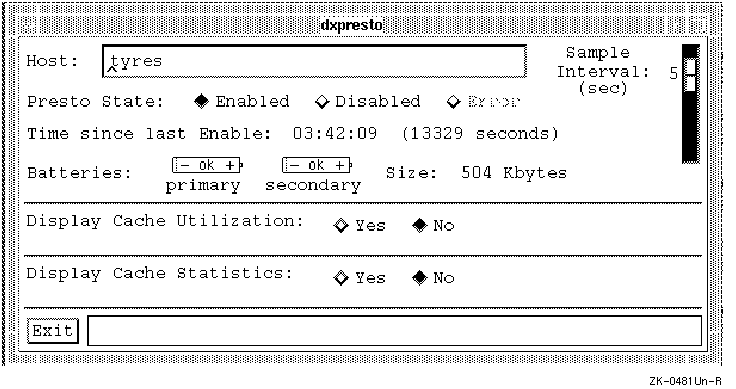
An example of the
dxpresto
command is as follows:
#
dxpresto tyres
Figure 3-1
shows a
dxpresto
window.
Figure 3-1 shows the following:
Host
Presto State
Enabled,
Disabled,
or
Error.
If the machine being monitored is running the
prestoctl_svc
daemon with the
-n
option, you can change the machine's Prestoserve state to either
Enabled
or
Disabled.
You cannot change an
Error
state; contact
your Digital Customer Services representative if an
Error
state occurs.
Sample Interval
dxpresto
command, the default
Sample Interval
is 5; therefore Prestoserve information is gathered every 5 seconds.
If you want Prestoserve queried more often, move the slider to
the left and click on MB1 until 2 appears for example;
Prestoserve is then queried every two seconds.
Time since last Enable
Batteries
ok
indicates that
the battery has sufficient power. An intact battery with the word
low
indicates that the battery's power is low. A broken battery
indicates that the battery is disabled. Prestoserve goes into the
ERROR
state when the backup battery power falls below a minimum amount.
Refer to your hardware documentation
to determine the minimum amount of backup battery power.
Contact your hardware
Field
Service representative if a battery has insufficient power or is disabled.
Size
presto -s
command.
Display Cache Utilization
Display Cache Statistics
Exit
dxpresto
window.
dxpresto
command and for Prestoserve. For example, if the
prestoctl_svc
daemon with the
-n
option is not running on the machine you are monitoring, then
a message is displayed indicating that changes to Prestoserve operation
are not allowed.
Error messages, such as those indicating RPC communication failure,
are displayed on the terminal from which you invoked
dxpresto.
Figure 3-2
shows an example of the
dxpresto
window with both the
Display Cache Utilization
graphs and the
Display Cache Statistics
table displayed. The example shows the
Writes per second
and
Hits per second
trend line graphs.
Each point in the horizontal axis of each graph
represents a sample time interval as determined by the
Sample Interval
slider; the maximum number of samples that can be shown is 210.
When you reach the maximum number of samples, the graph shifts to the
left so you can see at least the last 105 samples, which is half the
maximum number of samples.
If you choose 5 in the
Sample Interval
slider, Prestoserve is queried every 5 seconds; therefore it takes
1050 seconds (5 x 210) to obtain the maximum of 210 samples.
The vertical axis shows the average number of
writes performed per
second within the sample time interval.
For example, if you choose 2 in the
Sample Interval
slider, Prestoserve is queried every 2 seconds, and each point in the
graph shows the average number of writes performed within the interval
of 2 seconds. If the graph shows that an average of 5 writes per second were
performed within 2 seconds, Prestoserve actually performed 10
writes within those 2 seconds.
If you change hosts, each graph displays a vertical line of dashes to distinguish the new host's information from the previous host's information.
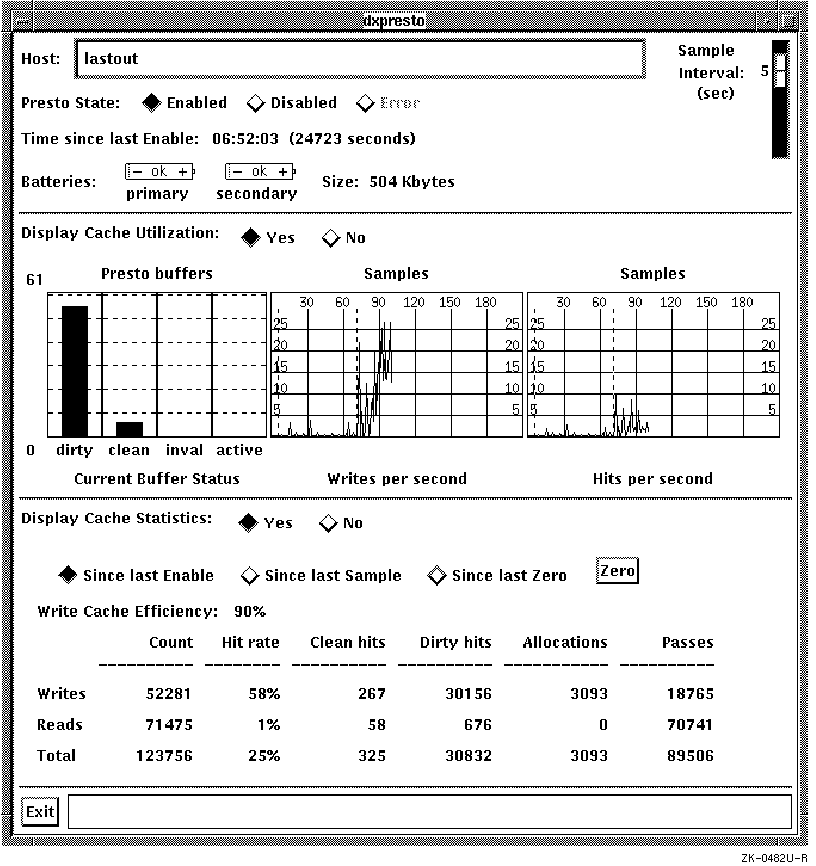
Figure 3-2 shows the following:
Current Buffer Status
presto -s
command. See
Section 3.3.3
for more information.
Writes per second
Sample Interval
slider.
Hits per second
Sample Interval
slider. The Prestoserve cache hits represent the total number of
clean and dirty read and write hits.
Since last Enable
Since last Sample
Sample Interval
slider. If no Prestoserve activity occurs during the time interval,
the numbers in the statistics table remain at zero. For example, if the
Sample Interval
slider is set to 5 and the
Since last Sample
button is enabled, the statistics table shows the Prestoserve
statistics for each interval of 5 seconds.
Since last Zero
Zero
button. This button allows you to determine how
Prestoserve performs over a specific period of time.
Zero
Since last Zero
button to display the Prestoserve statistics since you clicked on the
Zero
button.
Write Cache Efficiency
presto -p
command. For each Prestoserve cache read or write operation, Prestoserve
increments an appropriate counter. The table shows the following:
count
clean hits,
dirty hits,
allocations,
and
passes
hit rate percentage
clean hits
and
dirty hits
to the total
count
clean hits
dirty hits
allocations
passes
The following sections describe how to write the contents of the cache to disk, how to reset Prestoserve and clear the cache, and how to change the size of the cache.
You can use the
presto
command with the
-F
option to write the contents of the Prestoserve cache to the
available disks but keep the contents of the cache intact.
If the
-F
option is used
and the Prestoserve state is
UP,
the contents of the cache are
written to disk, and the state remains
UP.
If the Prestoserve state is
DOWN,
then there is nothing to write to disk, and the state remains
DOWN.
If the Prestoserve state is
ERROR,
as much of the contents of the cache as possible is written to disk.
Note that, unlike the
-R
option, the data in the cache remains after it is written to disk.
The state remains
ERROR
until all the
cache data is successfully written to disk.
Note that if you cannot write all the cache data to disk and the state
remains
ERROR,
you can use the
presto -R
command to reset Prestoserve, clear the cache, and set the state to
DOWN.
The
presto -F
command can be used to flush dirty Prestoserve buffers to a disk that was
temporarily disabled. For example, if a disk is powered down
or disconnected from a bus, the Prestoserve cache could enter the
ERROR
state. When the disk is again available, you can use the
presto -F
command to move the cache data to disk and change the Prestoserve state
from
ERROR
to
UP.
If you are unable to clear the contents of the Prestoserve cache and
write the data to disk, you can force Prestoserve out of the
ERROR
state. You reset Prestoserve and clear the cache by using the
presto
command with the
-R
option. The
-R
option writes as much of the Prestoserve cache data as possible
to the appropriate disks, discards the data it cannot write,
purges all Prestoserve buffers, and sets the Prestoserve state to
DOWN.
Note
The
-Roption clears the Prestoserve cache by writing the data to the appropriate disks if possible. If a disk is unavailable, the data from the cache is lost, so you should use the option carefully.
Unlike the
-d,
-D,
and
-F
options, the
-R
option discards the Prestoserve cache data that it could not write to
disk. The option is useful when cache data is not needed.
Note that the
-R
option takes effect before the
-u
or
-U
option.
In the following example, the
-R
option changes the Prestoserve state to
DOWN:
#
presto -Rp
dirty = 0, clean = 61, inval = 0, active = 0
       count hit rate clean hits dirty hits allocations passes
write:  1188      65%        595        182          93    318
 read:    10       0%          0          0           0     10
total:  1198      65%        595        182          93    328
state = DOWN, size = 0x7e000 bytes
statistics interval: 00:00:00  (0 seconds)
write cache efficiency: 0%
All batteries are ok
You can use the
presto
command with the
-s
option to change the size of the Prestoserve cache to the specified
number of bytes. The size of the Prestoserve cache should be specified
in the Prestoserve hardware documentation or product description.
The
presto
-s
command has the following syntax:
presto -s
size
You can specify the
size
variable using
decimal or hexadecimal conventions. For example, both 262144 and 0x40000
represent 256 kilobytes.
You may want to use the
-s
option to determine how Prestoserve performs with a reduced amount of
nonvolatile memory. Note that the size of the Prestoserve cache
cannot exceed the default maximum size;
the default maximum size is used if you specify a size
larger than this size.
Refer to your processor hardware documentation
for information about the default maximum size of the Prestoserve cache.
If you specify the
-s
option and the current Prestoserve state is
UP,
the state is set to
DOWN,
the Prestoserve cache is resized, and the state is set to
UP.
For example, the following command changes the size of a Prestoserve cache to 512 kilobytes:
#
presto -h mate -s 0x80000 -p
mate:
dirty = 119, clean = 3, inval = 0, active = 4
       count hit rate clean hits dirty hits allocations passes
write:  1350      66%          0        893         455      2
 read:     0     100%          0          0           0      0
total:  1350      66%          0        893         455      2
state = UP, size = 0x80000 / 0xffc00 bytes
statistics interval: 00:00:00  (0 seconds)
write cache efficiency: 33%
All batteries are ok
You can use the
presto
command with the
-v
option to obtain information that you can use to debug Prestoserve
operation.
The
-v
option is used with other
presto
command options and displays extra information to standard output.
The system administrator can check to determine if Prestoserve is working properly by performing the following steps:
#
presto -d
See
Chapter 3
for information on the
presto
command.
\/vmunix
file or some other large file.
Use a mount point where the client can create files.
The following example uses
/usr/tmp
as a mount point; the commands establish the client's level
of performance without Prestoserve:
client%
mount  server:/usr/tmp  /mnt
client%
cd /mnt
client%
/bin/time  cp  /vmunix  bigfile
34.1 real 0.0 user 1.1 sys
client%
rm  bigfile
server#
presto -u
client%
/bin/time  cp  /vmunix  bigfile
10.3 real 0.0 user 1.1 sys
client%
rm  bigfile
client%
cd /
client%
umount  /mnt
The real time reported by the commands in step 4 is expected to be about one third of (or about three times faster than) the real time reported by the commands in step 2 while Prestoserve was disabled. Your improvement will vary, but the expected range is between three and five times faster with Prestoserve enabled. If you see much less than a factor of three, make sure that all the other clients are idle and that your network is not being used by others at this time.