This chapter discusses kernel configuration during and after installation, and dynamic and static configuration. The following topics are discussed in this chapter:
An overview of kernel configuration (Section 4.1)
Pointers to other relevant documentation, in particular the individual reference pages that document all the attributes for every available kernel subsystem (Section 4.2)
A description of kernel configuration at installation (Section 4.3)
Information on determining when to configure your kernel (Section 4.4)
A discussion on dynamic system configuration, including the
Kernel Tuner graphical user interface,
/usr/bin/X11/dxkerneltuner
(Section 4.5)
A discussion on static system configuration (Section 4.6)
A description of the configuration files (Section 4.7)
The operating system kernel is a memory-resident executable image that handles all the system services - hardware interrupts, memory management, interprocess communication, process scheduling - and makes all other work on the operating system possible. In addition to the code that supports these core services, the kernel contains a number of subsystems.
A subsystem is a kernel module that extends the kernel beyond the core kernel services. File systems, network protocol families, and physical and pseudodevice drivers are all examples of supported subsystems. Some subsystems are required in the kernel, and others are optional. You configure your kernel by adding and removing these optional subsystems, either during installation or later when you need to change the system.
Another way to configure your kernel is by tuning certain values stored in it. For example, the kernel contains values that you can adjust for faster disk access. Modifying values to optimize disk access can improve your system's performance, however it can affect performance in other areas. Detailed information on system tuning and the interaction of attributes is included in the System Configuration and Tuning manual.
The system provides two methods of configuring your kernel: the dynamic method and the static method.
You use commands to configure the kernel while it is running.
You modify system files and rebuild the kernel.
Modifying system files and rebuilding the kernel is often a difficult
process, so use dynamic kernel configuration whenever possible.
You cannot
make all modifications dynamically, and dynamic changes may not be preserved
across reboots.
4.2 Related Documentation and Utilities
The following sources provide information on system attributes, configuration
tools, and utilities, as well as detailed reference information on configuration
options.
These sources, which are discussed in the following sections, are
in the form of
manuals,
reference pages, and
online help.
4.2.1 Manuals
The following manuals in the Tru64 UNIX operating system documentation set discuss system configuration.
The Installation Guide and Installation Guide — Advanced Topics manuals provide information about initial kernel configuration during installation.
The Network Administration: Connections and Network Administration: Services manuals provide information on configuring the network.
The System Configuration and Tuning manual provides detailed information on system configuration and tuning.
The reference pages listed here provide information on system attributes and utilities.
sys_attrs(5)
Contains information about system attributes
and provides a pointer to several
sys_attrs*
reference
pages that cover individual kernel subsystems such as
streams
or
socket.
Several subsystems have no configurable attributes
and are not listed here.
Note
See the appropriate reference page and the System Configuration and Tuning manual before changing the value of any attribute.
sys_attrs_vm(5)Describes attributes for
subsystems that are mandatory when the kernel is built.
These subsystems include:
Configuration Manager (cm), Generic Kernel (generic), Interprocess Communication (ipc), Process
(proc), Virtual File System (vfs), and
Virtual Memory (vm).
sys_attrs_advfs(5)Describes the attributes
for the Advanced File System (advfs) kernel subsystem.
sys_attrs_atm(5)Describes attributes for
Asynchronous Transfer Mode (ATM) kernel subsystems: Base ATM support (atm), ATM Forum Integrated Layer Management Interface (atmilmi3x), Classical IP services (atmip), ATM
Forum signaling and Integrated Layer Management Interface support (atmuni), ATM Forum LAN Emulation (lane), and
ATM Forum signaling (uni3x).
sys_attrs_*(5)Describe the attributes for single subsystems. The following table lists these reference pages, but reference pages for kernel subsystems that have not tunable attributes are omitted.
| Reference Page | Description |
sys_attrs_ace(5) |
Serial Device (ace) kernel subsystem |
sys_attrs_alt(5) |
alt kernel subsystem, used by the Gigabit Ethernet adapters |
sys_attrs_autofs(5) |
AutoFS kernel subsystem |
sys_attrs_bparm(5) |
Boot Parameters kernel subsystem |
sys_attrs_bsd_tty(5) |
BSD Terminal kernel subsystem |
sys_attrs_cam(5) |
SCSI CAM I/O kernel subsystem |
sys_attrs_cm(5) |
Configuration Manager kernel subsystem |
sys_attrs_dli(5) |
Data Link Interface kernel subsystem |
sys_attrs_dlpi(5) |
Data Link Provider Interface kernel subsystem |
sys_attrs_ee(5) |
ee kernel subsystem, used by the 10/100 MB/s Ethernet adapters |
sys_attrs_eisa(5) |
EISA Bus kernel subsystem |
sys_attrs_fta(5) |
fta kernel subsystem, used by the Fiber Distributed Data Interface (FDDI) adapters |
sys_attrs_generic(5) |
Generic kernel subsystem |
sys_attrs_gpc_input(5) |
GPC Input kernel subsystem |
sys_attrs_io(5) |
Input/Output kernel subsystem |
sys_attrs_ipc(5) |
Interprocess Communication kernel subsystem |
sys_attrs_iptunnel(5) |
Internet Protocol Tunneling kernel subsystem |
sys_attrs_ipv6(5) |
Internet Protocol Version 6 kernel subsystem |
sys_attrs_isa(5) |
ISA Bus kernel subsystem |
sys_attrs_kevm(5) |
Kernel Event Manager kernel subsystem |
sys_attrs_lag(5) |
Link Aggregation Group kernel subsystem |
sys_attrs_lfa(5) |
lfa kernel subsystem |
sys_attrs_lsm(5) |
Logical Storage Manager kernel subsystem |
sys_attrs_net(5) |
Network kernel subsystem |
sys_attrs_netrain(5) |
Redundant Array of Independent Network adapters (NetRAIN) kernel subsystem |
sys_attrs_pci(5) |
PCI kernel subsystem |
sys_attrs_ppp(5) |
Point-to-Point Protocol kernel subsystem |
sys_attrs_presto(5) |
PrestoServe kernel subsystem |
sys_attrs_proc(5) |
Process kernel subsystem |
sys_attrs_psm(5) |
Process Set Manager kernel subsystem |
sys_attrs_pts(5) |
Pseudoterminal kernel subsystem |
sys_attrs_pwrmgr(5) |
Power Manager (pwrmgr) kernel subsystem |
sys_attrs_rt(5) |
Realtime kernel subsystem |
sys_attrs_scc(5) |
Serial driver kernel subsystem |
sys_attrs_scc_input(5) |
Serial driver keyboard driver kernel subsystem |
sys_attrs_sec(5) |
Security kernel subsystem |
sys_attrs_snmp_info(5) |
Simple Network Management Protocol kernel subsystem |
sys_attrs_socket(5) |
Socket kernel subsystem |
sys_attrs_streams(5) |
STREAMS kernel subsystem |
sys_attrs_tc(5) |
TURBOchannel Bus kernel subsystem |
sys_attrs_tu(5) |
tu kernel subsystem, used by the 10/100 Mb/s Ethernet adapters |
sys_attrs_ufs(5) |
UNIX File System kernel subsystem |
sys_attrs_uipc(5) |
AF_UNIX interprocess communication kernel subsystem |
sys_attrs_vfs(5) |
Virtual File System kernel subsystem |
doconfig(8)Describes the utility that you use to build the kernel with the settings specified in the current system configuration files.
kopt(8)Describes a utility that enables you to select kernel options.
sysconfig(8)sysconfigtab(4)sysconfigdb(8)Describe the command line utility and database used to maintain
the kernel subsystem configuration and to modify or display kernel subsystem
attributes.
The
sysconfigtab
command documents the file
format of the configuration database; use the
sysconfigdb
utility to manage this configuration database.
sysconfigdb(8)stanza(4)Describe the
command line utility used to manage the subsystem configuration database.
The
stanza
command documents the format of a configuration
stanza file.
This is a file fragment that is built into the configuration
database when you run
sysconfigdb.
autosysconfig(8)Describes a utility used to maintain the list of dynamic kernel subsystems that are configured automatically.
cfgmgr(8)Describes a server that the
sysconfig
and other utilities use to manage kernel subsystems.
See
the
kloadsrv(8)
dxkerneltuner(8)Describes the Kernel Tuner graphical user interface, which enables you to modify or display kernel subsystem attributes.
sys_check(8)Describes the
sys_check
utility, which examines various system attributes and makes recommendations
for their appropriate settings.
See
Chapter 3
for
more information.
The Kernel Tuner graphical user interface offers its own online help.
4.3 System Configuration at Installation Time
When you
install the operating system, the installation program initially copies a
kernel image to the root partition of your system disk.
This kernel image,
known as the generic kernel, supports all processors and hardware options
that are available for use with the current version of the operating system.
In this way, the installation program ensures that you can boot your system
regardless of its configuration.
The file for the generic kernel is
/genvmunix.
Toward the
end of the installation, after all the subsets you selected have been written
to disk and verified, the installation program calls the
/usr/sbin/doconfig
program.
When it runs, the
/usr/sbin/doconfig
program calls another program, known as the
sizer
program.
The
sizer
program determines what hardware and software options are installed
on your system and builds a target configuration file specific to your system.
(The configuration file is the system file that controls what hardware and
software support is linked into the kernel.) The
/usr/sbin/doconfig
program then builds your custom
/vmunix
kernel
from this target configuration file.
This kernel is built using the default
values for all subsystem attributes.
Unlike the generic kernel copied to the system at installation time, the target kernel is tailored to your system. Only the hardware and software options available on your system are compiled into the target kernel. As a result, the target kernel is much smaller and more efficient than the generic kernel.
When the installation is complete, the target kernel resides either
in the root partition of your system disk or in memory, depending upon how
your system was built.
(See
Section 4.6
for information
about the different ways in which you can build a kernel.) If the appropriate
console boot variables are set, your system always boots the target kernel
automatically.
For information about setting and using console boot variables,
see
Chapter 2
and the Owner's Manual for your system.
4.4 Deciding When and How to Reconfigure Your Kernel
After your target kernel is built and started by the installation procedure, you can use it without modifications, unless one of the following occurs:
You decide to add new subsystems to the kernel, for example by installing new devices or to use additional options such as Asynchronous Transfer Mode (ATM).
You decide to remove subsystems from the kernel, for example by removing a device or a feature such as the Logical Storage Manager (LSM).
You decide to change the default attribute values in the kernel because system performance is not acceptable (perhaps because you are running an intensive application). Examples of such intensive applications may be internet web servers or databases. System tuning requires that you fully understand the affect of changing kernel attributes so that you do not create an unusable kernel or degrade system performance.
For example, you may decide to run the
sys_check
utility as part of your normal system monitoring operations.
Based on its
analysis of system use, the report generated by
sys_check
may suggest new values for kernel attributes or the loading of additional
subsystems.
However, you should see the
System Configuration and Tuning
manual for
information on potential affects on other aspects of system performance before
you modify an attribute's value.
Most devices are recognized automatically by the system and configured into the kernel at boot time; see Hardware Management for information on adding devices. However, some devices, such as third-party disk drives, older types of drives, or products such as scanners and PCMCIA cards must be added manually. For these devices, you must reconfigure your kernel, either dynamically or statically, when one of these situations occurs. The method you use to reconfigure your kernel depends upon the support provided by the subsystem or subsystem attributes.
Some kernel subsystems, such as the
envmon
environmental monitoring subsystem, are dynamically loadable,
meaning that you can add the subsystem to or remove the subsystem from the
kernel without rebuilding the kernel.
Often, subsystems that are dynamically
loadable also allow you to dynamically configure the value of their attributes.
Therefore, you can tune the performance of these subsystems without rebuilding
the kernel.
To determine whether an attribute is dynamically configurable,
use the
-m
with the
sysconfig
and search
for the
dynamic
identifier as follows:
# sysconfig -m | grep dynamic
lat: dynamic
envmon: dynamic
hwautoconfig: dynamic
If you decide to add or remove these subsystems from the kernel or configure the value of their attributes, use the procedures described in Section 4.5.
Some subsystems, such as required subsystems, are not dynamically loadable. However, these subsystems may allow you to configure the value of attributes dynamically. If so, you can configure the value of these subsystem attributes without rebuilding the kernel.
You can dynamically configure attributes using the following methods:
You can configure the value of attributes in the running kernel
using the
sysconfig
-r
command.
Only a
few kernel subsystems support this run-time configuration.
You can use the Kernel Tuner (dxkerneltuner)
graphical user interface, which performs most of the same display and set
functions as
sysconfig.
Launch this utility from the command
line as follows:
# /usr/bin/X11/dxkerneltuner
Alternatively, open the Application
Manager from the CDE front panel and select the Monitoring/Tuning folder.
When the folder is opened, select the Kernel Tuner icon.
See the
dxkerneltuner(8)
The Kernel Tuner GUI displays all the available kernel subsystems in the main window. Select a subsystem to display the subsystem attributes, their current values, and the maximum and minimum values. If any attribute is modifiable, it is displayed with a text entry field where you enter a revised value for the attribute.
You can configure the value of attributes in the dynamic subsystem
database,
/etc/sysconfigtab.
When you want to run a kernel
that contains the new attribute values, you reboot your system specifying
the new kernel.
If you decide to configure attributes of these subsystems,
use the procedures described in
Section 4.5.8.
It is recommended
that you do not manually edit system files such as
/etc/sysconfigtab.
Instead, use a command or utility such as
dxkerneltuner
to make any changes.
If you purchase a device driver or other kernel subsystem from a third-party company, that product may be dynamically loadable or allow you to dynamically configure attribute values. For information about dynamically configuring your kernel when working with products from other vendors, see the documentation for the product and Section 4.5.
If the subsystem you want to add, remove, or configure does not support
dynamic configuration, you must use the static configuration method.
Also,
you must use this method to configure system parameters that do not support
dynamic configuration.
For information about the static configuration method,
see
Section 4.6.
4.5 Dynamic System Configuration
When you need to load, unload, or modify a dynamic
subsystem, you use the
/sbin/sysconfig
command.
This command
has the following syntax:
/sbin/sysconfig
[-h hostname ]
[-i index [ -v | -c | -d | -m | -o | -q | -Q | -r | -s | -u ] ]
[subsystem-name]
[attribute-list | opcode]
You must be the superuser to load and unload subsystems, and
you must know the name of the subsystem you want to manage.
Determine the
name of a subsystem by looking in the documentation that accompanies the subsystem
or in the directories into which the subsystem is installed.
Subsystems are
installed in either the
/subsys
directory or the
/var/subsys
directory.
When a subsystem is installed, a file named
subsystem-name.mod
appears
in one of those two directories.
You use that subsystem name as input to the
/sbin/sysconfig
command.
The following sections describe the commands
that you use to manage subsystems.
You can load and unload subsystems on a local system or a remote system. For information about adding and removing subsystems on remote systems, see Section 4.5.7.
If you are writing a loadable device driver or other loadable subsystem,
see the device driver documentation and the
Programmer's Guide.
The device driver
documentation describes the tasks performed by the system when you install
a loadable device driver.
These manuals also describe how to write and package
loadable device drivers.
The
Programmer's Guide
provides general information
about creating subsystems that are dynamically configurable and discusses
the framework that supports dynamic configuration of subsystems and attributes.
4.5.1 Configuring Subsystems
To
configure (load) a subsystem, enter the
sysconfig
command
using the
-c
option.
Use this command whether you are configuring
a newly installed subsystem or one that was removed using the
/sbin/sysconfig
-u
-u
(unconfigure) command option.
For example,
to configure the environmental monitoring
envmon
subsystem,
enter the following command:
# /sbin/sysconfig -c envmon
4.5.2 Listing the Configured Subsystems
Subsystems can be known to the kernel,
but not available for use.
To determine which subsystems are available for
use, use the
/sbin/sysconfig -s
command.
This command
displays the state of all subsystems.
Subsystems can have the following states:
Loaded and configured (available for use)
Loaded and unconfigured (not available for use but still loaded)
This state applies only to static subsystems, which you can unconfigure, but you cannot unload.
Unloaded (not available for use)
This state applies only to loadable subsystems, which are automatically unloaded when you unconfigure them.
If you use the
/etc/sysconfig
-s
command without specifying a subsystem name, a list of all the configured
subsystems is displayed.
For example:
# /sbin/sysconfig -s
cm: loaded and configured
hs: loaded and configured
ksm: loaded and configured
generic: loaded and configured
io: loaded and configured
ipc: loaded and configured
proc: loaded and configured
sec: loaded and configured
socket: loaded and configured
rt: loaded and configured
advfs: loaded and configured
.
.
.
envmon: unloaded
This list (which is truncated) includes both statically linked subsystems and dynamically loaded subsystems.
To get information about the state of a single subsystem, include the name of the subsystem on the command line:
# /sbin/sysconfig -s lsm
lsm: unloaded
4.5.3 Determining the Subsystem Type
You can determine
whether a subsystem is dynamically loadable or static by using the
/sbin/sysconfig
-m
command, as shown:
# /sbin/sysconfig -m kinfo lat
kinfo: static
lat: dynamic
The output from this command indicates that the
kinfo
subsystem is static, meaning that you must rebuild the kernel
to add or remove that subsystem from the kernel.
The
lat
subsystem is dynamic, meaning that you can use the
sysconfig
-c
command to configure the subsystem and the
sysconfig
-u
command to unconfigure it.
4.5.4 Unloading a Subsystem
To unconfigure (and possibly
unload) a subsystem, use the
/sbin/sysconfig
-u
command, as shown:
# /sbin/sysconfig -u hwautoconfig
If you frequently configure and unconfigure device drivers you may notice
that the device special files associated with a particular device driver differ
from time to time.
This behavior is normal.
When you configure a device driver
using the
/sbin/sysconfig
command, the system creates device
special files.
If you unload that device driver and load another one that
uses the same
cdev
or
bdev
major numbers,
the system removes the device special files for the unloaded device driver.
Therefore, it must create new device special files the next time you configure
the device.
See the
Hardware Management
manual and
dsfmgr(8)4.5.5 Maintaining the List of Automatically Configured Subsystems
The system
determines which subsystems to configure into the kernel at system reboot
time by verifying the list of automatically configured subsystems.
The system
configures each subsystem on the list, using the
sysconfig
-c
command at each system reboot.
You maintain the list of automatically configured subsystems by using
the
/sbin/init.d/autosysconfig
command.
This command has the following syntax:
/sbin/init.d/autosysconfig
[list]
[add subsystem-name]
[delete subsystem-name]
Use the
/sbin/init.d/autosysconfig list
command
to see a list of the loadable subsystems that the system automatically configures
at each reboot.
To add a subsystem to the list, use the
/sbin/init.d/autosysconfig
add
command.
For example to add the
lat
subsystem,
enter the following command:
# /sbin/init.d/autosysconfig add lat
If you unload a subsystem
that is on the automatically configured subsystem list, you should remove
that subsystem from the list.
Otherwise, the system configures the subsystem
back into the kernel at the next system reboot.
To remove the subsystem from
the automatically configured subsystems list, use the
/sbin/init.d/autosysconfig
delete
command.
For example, to delete the
lat
subsystem, enter the following command:
# /sbin/init.d/autosysconfig delete lat
4.5.6 Managing Subsystem Attributes
To improve the performance or behavior of a subsystem, or of the system
as a whole, you may modify the values of subsystem attributes.
You can make
such modifications using
sysconfig,
sysconfigdb, or the Kernel Tuner GUI.
Under certain circumstances, such as
recovering a crashed system, you may need to use the debugger
dbx
to examine and change the attributes in a damaged kernel.
See the
Kernel Debugging
manual for information on this procedure.
If you modify an attribute at run time, the modification persists only
during the current run session.
If you shut down and reboot the system, the
modification is lost.
To modify subsystem attributes so that changes persist
across reboots, you must store the attribute's modified value in the
/etc/sysconfigtab
database, as described in
Section 4.5.8.
The persistence of a modified attribute value depends on what command or utility
option you use, according to the following guidelines:
For permanent modifications that persist across reboots, use
sysconfigdb
(or
dbx) at the command line.
Alternatively,
use the Kernel Tuner GUI, specifying and saving the change using the Boot
Time Value field.
For temporary modifications that do not persist across reboots,
use
sysconfig -r
at the command line.
Alternatively, use
the Kernel Tuner graphical user interface, specifying a change to the current
value of an attribute.
Note
In previous releases of the operating system, the
/etc/sysconfigtabfile was documented as a system file that you could modify with a text editor, such asvi. In recent releases, maintenance of the subsystem stanzas has become important for update installations and for the kernel to recognize changes. To maintain the correct structure of/etc/sysconfigtab, use only thesysconfigdbcommand or the Kernel Tuner graphical user interface to make changes.See
, sysconfig(8), sysconfigdb(8), and sysconfigtab(4)for information. dxkerneltuner(8)
The system parameters that are set in the system configuration file
define the system tables, and should be viewed as establishing default values
in the kernel.
You can override these values by using the
/sbin/sysconfig
command or by storing a value in the
/etc/sysconfigtab
database.
For more information about the configuration file (and
the
param.c
file), see
Section 4.6.
You can manage dynamic subsystem attributes either locally or remotely.
For information on how to use the
/sbin/sysconfig
command
remotely, see
Section 4.5.7.
4.5.6.1 Determining the Current Value of Subsystem Attributes
Use the
/sbin/sysconfig
-q
command or
dxkerneltuner
to determine the value assigned to subsystem attributes.
When you enter the
/sbin/sysconfig
-q
command, the subsystem you specify
on the command line must be loaded and configured.
For information about getting
a list of the loaded and configured subsystems, see
Section 4.5.2.
The following example shows how to use this command to determine which
attributes belong to the
generic
subsystem:
# /sbin/sysconfig -q generic
generic:
booted_kernel = vmunix
booted_args = vmunix
lockmode = 0
lockdebug = 0
locktimeout = 15
max_lock_per_thread = 16
lockmaxcycles = 0
rt_preempt_opt = 0
cpu_enable_mask = 0x1
binlog_buffer_size = 0
msgbuf_size = 32768
dump_sp_threshold = 4096
use_faulty_fpe_traps = 0
partial_dump = 1
make_partial_dumps = 1
compressed_dump = 1
make_compressed_dumps = 1
expected_dump_compression = 500
expect_1000b_to_compress_to = 500
dump_to_memory = 0
dump_allow_full_to_memory = 0
leave_dumps_in_memory = 0
dump_user_pte_pages = 0
live_dump_zero_suppress = 1
live_dump_dir_name = /var/adm/crash
include_user_ptes_in_dumps = 0
lite_system = 0
physio_max_coalescing = 65536
kmem_percent = 25
kmemreserve_percent = 0
kmem_debug = 0
kmem_debug_size_mask = 0
kmem_protected_size = 0
kmem_protected_lowat = 1000
kmem_protected_hiwat = 0
kmem_protected_kmempercent = 75
kmem_audit_count = 1024
kmemhighwater_16 = 4
.
.
.
kmemhighwater_12k = 4
old_obreak = 1
user_cfg_pt = 45000
memstr_buf_size = 0
memstr_start_addr = 0
memstr_end_addr = 0
memlimit = 0
insecure_bind = 0
memberid = 0
memberseq = 0
clu_configured = 0
clu_active_member = 0
old_vers_high = 0
old_vers_low = 0
act_vers_high = 1441151880873377792
act_vers_low = 15044
new_vers_high = 1441151880873377792
new_vers_low = 15044
versw_switch = 0
versw_transition = 0
rolls_ver_lookup = 0
login_name_max = 12
enable_async_printf = 1
(This display output has been truncated.)
4.5.6.2 Identifying Run-time Configurable Subsystem Attributes
You can identify which of a subsystem's
attributes are configurable at run time using the
/sbin/sysconfig
-Q
command:
# /sbin/sysconfig -Q vfs max-vnodes
vfs:
max-vnodes -    type=INT op=CRQ min_val=0 max_val=1717986918
This example shows using the
-Q
option to get information
about the
max-vnodes
attribute of the
vfs
subsystem.
The
max-vnodes
attribute has the
integer
datatype, a minimum value of zero (0), and a maximum value
of 1717986918.
The
op
field indicates the operations that
you can perform on the
max-vnodes
attribute.
The following
list describes the values that can appear in this field:
You can modify the attribute when the subsystem is loaded initially.
You can modify the attribute while the subsystem is running.
You can query the attribute for information.
4.5.6.3 Modifying Attribute Values at Run Time
You can modify the value of an attribute at run time using the
/sbin/sysconfig
-r
command,
dxkerneltuner
or the source level debugger
dbx.
The modification
you make persists until the next time the system is rebooted.
When the system
reboots, any changes made with the
/sbin/sysconfig
-r
command are lost because the new value is not stored.
The
-r
option to the
/sbin/sysconfig
command is useful
for testing a new subsystem attribute value.
If the new value causes the
system to perform as expected, you can store it in the subsystem attribute
database as described in
Section 4.5.8.
See
dbx(1)
When you use the
/sbin/sysconfig
-r
command you specify the attribute, its new value, and the subsystem name on
the command line.
For example, to modify the
dump-sp-threshold
attribute for the
generic
subsystem, enter a command similar
to the following:
# /sbin/sysconfig -r generic dump-sp-threshold=20480
To
modify the value of more than one attribute at a time, include a list on the
/sbin/sysconfig
command line.
For example, to modify the
dump-sp-threshold
attribute and the
locktimeout
attribute, enter a command similar to the following:
# /sbin/sysconfig -r generic dump-sp-threshold=20480 \
locktimeout=20
You do not include a comma between the two attribute specifications.
To make the attribute value permanent, you must add it to the
/etc/sysconfigtab
file using the appropriate method, for example,
by specifying it as a boot time value using the Kernel Tuner graphical user
interface.
4.5.7 Managing Subsystems and Attributes Remotely
You
can use the
/sbin/sysconfig
-h
command
to administer configurable subsystems and dynamic subsystem attributes remotely
on a local area network (LAN).
This allows you to administer several systems
from a single machine.
Each system you want to administer remotely must have an
/etc/cfgmgr.auth
file that contains the full domain name of the
local system.
The name in the
/etc/cfgmgr.auth
file should
be identical to the name in either the
/etc/hosts
file
or in the Berkeley Internet Domain (BIND) or Network Information Service (NIS)
hosts databases,
if
you are using BIND or NIS.
You must create the
/etc/cfgmgr.auth
file; it is not on your system by default.
The following shows
an example
cfgmgr.auth
file:
salmon.zk3.dec.com
trout.zk3.dec.com
bluefish.zk3.dec.com
To manage subsystems and attributes on remote systems, you include the
-h
option and a host name with the
/sbin/sysconfig
command.
For example, to load the environmental monitoring
lat
subsystem on a remote host named MYSYS, enter the following command:
# /sbin/sysconfig -h MYSYS -c lat
In this example, a
lat.mod
file must exist in either
the
/subsys
directory or the
/var/subsys
directory on the remote system before you can load the specified subsystem.
If the loadable subsystem subset is kitted correctly, the
subsystem-name.mod
file is installed on the remote
system when you use the
setld
command to install the loadable
subsystem.
4.5.8 Managing the Subsystem Attributes Database
Information
about dynamically configurable subsystem attributes is stored in the
/etc/sysconfigtab
database.
This database records the values assigned
to subsystem attributes each time the system is rebooted or a subsystem is
configured.
No attributes are set automatically in this database.
You must
be the superuser to modify the
/etc/sysconfigtab
database
and you must use the
sysconfigdb
command line utility or
Kernel Tuner graphical user interface to make the change.
See the Kernel Tuner's
online help for more information on using that method.
Note
The
/etc/sysconfigtabdatabase may contain stanza entries from a configurable subsystem'sstanza.loadablefile. This file and the entry in the/etc/sysconfigtabdatabase are created automatically when you install certain configurable subsystems. You should not modify these entries in the database.
There are multiple numbered versions
of the
sysconfigtab.*
file in the
/etc
directory, but only the
/etc/sysconfigtab
version is
used during normal operations.
The versions are present to support the dynamic
linking of modules to create a
/vmunix
kernel.
This feature
is called bootlinking and is documented in the
Guide to Preparing Product Kits
manual.
You may
not be able to use bootlinking if you delete any copies of the
sysconfigtab.*
file.
To add, update, or remove entries in the database, you create a stanza-format
file containing names and values for attributes you want to modify.
See
stanza(4)lockmode
attribute in the
generic
subsystem to 1.
To set this attribute, create a file named, for example,
generic_attrs
that has the following contents:
generic:
         lockmode = 1
After you create the stanza-format file, you use the
/sbin/sysconfigdb
command to update the
/etc/sysconfigtab
database.
You name the stanza-format file on the command line using the
-f.
option.
The
sysconfigdb
command reads the specified file
and updates both the on-disk and in-memory copy of the database.
However,
the running kernel is not updated.
Use the
sysconfig
-r
command to update the running kernel, as described in
Section 4.5.6.3.
The
sysconfigdb
command has the following syntax
options:
/sbin/sysconfigdb
{-s}
/sbin/sysconfigdb
-toutfile
[-f infile -a | -usubsystem-name]
/sbin/sysconfigdb
-toutfile
[-f infile -m | -rsubsystem-name]
/sbin/sysconfigdb
-toutfile
[-f infile -d subsystem-name]
/sbin/sysconfigdb
-toutfile
[-f infile -l [ subsystem-name... ] ]
The following sections explain how to use the
/sbin/sysconfigdb
command to manage entries in the
/etc/sysconfigtab
database.
4.5.8.1 Listing Attributes in the Database
To
list the entries in the
/etc/sysconfigtab
database, use
the
/sbin/sysconfigdb
-l
command.
If you
specify a subsystem name on the command line, the attributes of that subsystem
are listed.
Otherwise, all attributes defined in the database are listed.
For example, to list the attribute settings for the
generic
subsystem, enter the following command:
# /sbin/sysconfigdb -l generic
generic:
        memberid = 0
        new_vers_high = 1441151880873377792
        new_vers_low = 15044
4.5.8.2 Adding Attributes to the Database
To add subsystem attributes to the
/etc/sysconfigtab
database, enter the
sysconfigdb
-a
command.
For example, to add the entries stored in a file named
add_attrs
to the database, enter the following command:
# /sbin/sysconfigdb -a -f add_attrs generic
4.5.8.3 Merging New Definitions into Existing Database Entries
To merge new definitions
for attributes into an existing entry in the
/etc/sysconfigtab
database, enter the
sysconfigdb -m
command.
The
sysconfigdb
command merges the new definitions
into the existing database entry as follows:
If an attribute name does not appear in the database, the definition for that attribute is added to the database.
If an attribute name does appear, the attribute receives the value specified by the new definition.
If an attribute appears in the database, but is not included among the new definitions, its definition is maintained in the database.
For example, assume that the following entry for the
generic
subsystem already exists in the
/etc/sysconfigtab
database:
generic:
   lockmode = 4
   dump-sp-threshold = 6000
You then create a file named
merge_attrs
for updating
this entry, which contains the following information:
generic:
  lockmode = 0
  lockmaxcycles = 4294967295
To merge the information in the
merge_attrs
file
into the
/etc/sysconfigtab
database, enter the following
command:
# /sbin/sysconfigdb -m -f merge_attrs generic
After the
command finishes, the entry for the
generic
subsystem in
the database appears as follows:
generic:
   lockmode = 0
   lockmaxcycles = 4294967295
   dump-sp-threshold = 6000
You can merge definitions for
more than one subsystem into the
/etc/sysconfigtab
database
with a single
sysconfigdb
-m
command.
For example, the
merge_attrs
file could contain new definitions
for attributes in the
lsm
and
generic
subsystems.
If you include more than one subsystem name in the
merge_attrs
file, you omit the subsystem name from the command
line, as shown:
# /sbin/sysconfigdb -m -f merge_attrs
4.5.8.4 Updating Attributes in the Database
Use the
/sbin/sysconfigdb
-u
command to update a subsystem that is already
in the
/etc/sysconfigtab
database.
For example, suppose
the
generic
subsystem is defined as follows in the
/etc/sysconfigtab
file:
generic:
   lockmode = 4
   dump-sp-threshold = 6000
Suppose that you create a file named
update_attrs
for updating this entry, which contains the following information:
generic:
  lockmode = 0
  lockmaxcycles = 4294967295
To update the attributes, you enter the
sysconfigdb
command, as follows:
# /sbin/sysconfigdb -u -f update_attrs generic
After the
command finishes, the entry for the
generic
subsystem in
the database appears as follows:
generic:
   lockmode = 0
   lockmaxcycles = 4294967295
4.5.8.5 Removing Attribute Definitions from the Database
To remove the definitions
of selected attributes from the
/etc/sysconfigtab
database,
enter the
/sbin/sysconfigdb
-r
command.
The
-r
option specifies that you want to remove the attribute
definitions stored in a file from the database.
For example, suppose the
generic
subsystem is defined
as follows in the
/etc/sysconfigtab
database:
generic:
  lockmode = 4
  dump-sp-threshold = 6000
To remove the definition of the
dump-sp-threshold
attribute, first create a file named
remove_attrs
that
contains the following information:
generic:
   dump-sp-threshold = 6000
Then, enter the following command:
# /sbin/sysconfigdb -r -f remove_attrs generic
After the command finishes, the entry for the
generic
subsystem in the database appears as follows:
generic:
   lockmode = 4
The
/sbin/sysconfigdb
command removes only identical entries.
In other words, the entries must
have the same attribute name and value to be removed.
You can remove definitions of more than one attribute and for attributes
with a single
sysconfigdb
-r
command.
For example, the
remove_attrs
file could contain attribute
definitions that you want to remove for the
lsm
and
generic
subsystems.
If you include more than one subsystem in the
remove_attrs
file, you omit the subsystem name from the command
line, as shown:
# /sbin/sysconfigdb -r -f remove_attrs
4.5.8.6 Deleting Subsystem Entries from the Database
To delete the definition of
a subsystem from the
/etc/sysconfigtab
database enter
the
/sbin/sysconfigdb
-d
command.
For example, to delete the
generic
subsystem entry
in the database, enter the following command:
# /sbin/sysconfigdb -d generic
The
generic
subsystem receives its default values the next
time it is configured.
4.6 Static System Configuration
Static system configuration refers to the commands and files used to build and boot a new kernel and its static subsystems. The subsystems are viewed as static because they are linked directly into the kernel at build time. The steps you take to build a statically linked kernel vary depending upon why you want to modify the kernel.
If you modify the kernel to add a device driver, you follow these general steps:
Install the device driver.
If necessary, edit the target configuration file.
In some cases, the device driver provides a Subset Control Program (SCP) that executes during the installation procedure and registers the driver in the necessary system configuration files. In this case, you need not edit the target configuration file yourself.
If the device driver does not provide an SCP, you must edit the target configuration file yourself.
Build a new kernel.
If your device driver includes an SCP, build a new kernel by running
the
/usr/sbin/doconfig
program as described in
Section 4.6.3.
If you need to edit the target configuration file before you build a new kernel,
see
Section 4.6.1.
Shut down and reboot your system.
If you modify the kernel to add support for certain kernel options,
you can build the new kernel by running the
/usr/sbin/doconfig
program and choosing the kernel option from a menu displayed during processing.
You then shut down and reboot your system.
To determine which kernel options you can configure in this way, enter
the
/usr/sbin/kopt
command.
The command displays a list
of kernel options and prompts you for kernel options selections.
To exit
from the
/usr/sbin/kopt
command without choosing options,
press the Return key.
For information about running the
/usr/sbin/doconfig
program to add kernel options using a menu, see
Section 4.6.2.
If you build a new static kernel for any other reason, you must modify one or more system files as part of rebuilding the kernel. The system files you modify depend upon the change you want to make to the kernel:
You modify the target configuration file to make changes to keywords that, for example, define the kernel you want to build, define devices, or define pseudodevices. Also, you can edit this file to change the value of system parameters. For details about the contents of the target configuration file, see Section 4.7.
You remove certain static subsystems from the kernel by removing
(or commenting out) their entry from a file in the
/usr/sys/conf
directory.
For information about this file, see
Section 4.7.2.
For information about running the
/usr/sbin/doconfig
program to build a kernel after editing system files, see
Section 4.6.3.
For examples of adding and configuring devices, see the
Hardware Management
manual.
4.6.1 Building the Kernel to Add Support for a New Device
When you add a new device to the system and the device installation includes no SCP, you must edit the target configuration file to allow the operating system to support the new device. You include the device definition keyword in the target configuration file. Because the operating system supports many devices, determining which keyword to add to your target configuration file can be difficult.
The following procedure explains how to determine which device definition keyword to add to your target configuration file. It also explains how to rebuild the kernel after you have edited the target configuration file. The procedure assumes that you do not know the appropriate keyword to add. In some cases, you may be able to determine the appropriate keyword by looking at documentation supplied with the hardware or with a new version of the operating system. Another source of this information is an existing configuration file on another system that already has the device connected to it. If you know what keyword you need to add to your system, use a utility to add that keyword to your target configuration file and rebuild the kernel as described in Section 4.6.3.
Caution
This procedure is risky and you should ensure that you have a copy of your custom
/vmunixkernel file, a copy of the generic kernel/genvmunix, and copies of the current configuration files. You may need the copies to revert to your previous configuration.
If you are unsure of the keyword you need to add to the target configuration file for your system, connect the new device to the system as directed in the hardware manual and use the following procedure:
Make certain you have a copy of the generic kernel,
/genvmunix; you need to boot it later in the procedure.
If the
/genvmunix
file does not exist on your system, or the generic kernel
fails to recognize the device you are adding, copy the generic kernel from
the software distribution media.
See the
Installation Guide
for information
on the location of the generic kernel on the distribution CD-ROM.
In rare cases, you may need to rebuild the generic kernel.
However,
you cannot rebuild the generic kernel if you have installed any layered applications
or a third-party device driver.
In this case, if the original
/genvmunix
is corrupt or has been deleted, and you have no distribution media
you should contact your technical support organization and obtain a copy of
the generic kernel
/genvmunix.
To verify whether layered applications have been installed, verify the
contents of the
usr/sys/conf
directory for a file named
.product.list.
To rebuild the generic kernel, you must have installed all the required and optional kernel subsets. You can get a list of the kernel build subsets, including information about whether or not they are installed, by issuing the following command:
# /usr/sbin/setld -i | grep Kernel Build
After all kernel subsets are installed, enter the following command:
# doconfig -c GENERIC
The
-c
option specifies that you want to build a kernel using an existing
configuration file, in this case the
GENERIC
configuration
file.
For more information about building a kernel from an existing configuration
file, see
Section 4.6.3.
After the generic kernel is running and recognizes the new device, continue
with step 5.
When the build ends, consider using the
strip
command to reduce the size of the kernel.
See
strip(1)
Log in as root or become the superuser and set your default
directory to the
/usr/sys/conf
directory.
Save a copy of the existing
/vmunix
file.
If possible, save the file in the root (/) directory,
as follows:
# cp /vmunix /vmunix.save
If there are disk space constraints, you can save the kernel file in a file system other than root. For example:
# cp /vmunix /usr/vmunix.save
Shut down and halt the system as follows:
# shutdown -h now
At the console prompt, boot the generic kernel,
/genvmunix.
The generic kernel contains support for all valid devices,
so if you boot it during the process of adding a new device to your target
kernel, the generic kernel already knows the new device.
To boot the generic kernel, enter the following command:
>>> boot -fi "genvmunix"
At the single-user mode prompt, verify and mount local file systems by issuing the following command, unless you are using the Logical Storage Manager software (LSM):
# /sbin/bcheckrc
If you are using the Logical Storage Manager (LSM) software, verify the local file systems and start LSM by issuing the following command:
# /sbin/lsmbstartup
Run the
sizer
program to size your system
hardware and create a new target configuration file that includes the new
device:
# sizer -n MYSYS
The
sizer
-n
command creates a new target configuration file for your system
that includes the appropriate device definition keyword for the new device;
this process is similar to the process that occurs at system installation
time.
See
Section 4.3
for more information.
The
sizer
program stores the new target configuration file in the
/tmp
directory.
Compare the new target configuration file created by
sizer
with the existing target configuration file for your system:
# diff /tmp/MYSYS MYSYS
Examine the differences between these files until you
find the new device definition keyword.
(The two files may differ in other
ways if you have customized your existing configuration file, such as by specifying
a nondefault value for the
maxusers
option.)
Use the text editor of your choice to add the new device definition keyword to your existing configuration file (in this case, MYSYS). Adding the new keyword allows your existing configuration file to support the new device, without losing any changes you made to that file in the past.
Note
If you add or remove communications devices from your configuration file, you must edit the
/etc/inittabfile and the/etc/securettysfile to match your new configuration; that is, to match the/dev/ttynnspecial device files. Seeand inittab(4)for more information. securettys(4)
Build a new kernel by issuing the following
/usr/sbin/doconfig
command:
# /usr/sbin/doconfig -c MYSYS

*** KERNEL CONFIGURATION AND BUILD PROCEDURE ***

Saving /usr/sys/conf/MYSYS as /usr/sys/conf/MYSYS.bck
Answer the following prompt to indicate that you do not want to edit the configuration file:
Do you want to edit the configuration file? (y/n) [n]: n
*** PERFORMING KERNEL BUILD ***
.
.
.
The new kernel is /usr/sys/MYSYS/vmunix
When the kernel configuration and build process completes
without errors, copy the new
vmunix
file to
/vmunix.
On a system named
MYSYS, enter the
following command:
# cp /usr/sys/MYSYS/vmunix /vmunix
Always use copy (cp) instead of move (mv) to preserve the context
dependent symbolic link (CDSL).
See
Chapter 6
for more
information on CDSLs.
Reboot the system as follows:
# /usr/sbin/shutdown -r now
If the new
/vmunix
file fails to boot, boot using
the kernel you saved at the beginning of the procedure.
To use the saved kernel,
follow these steps:
Verify all local file systems by using the
fsck -p
command as follows:
# fsck -p
Write-enable the
root
file system by using
the
mount
-u
command as follows:
# mount -u /
If necessary, mount the file system where the
/vmunix.save
file is stored.
For example, if you copied the
/vmunix
file to the
/usr
file system, enter the following
command:
# mount /usr
Restore the saved copy.
For example, if you saved your running
kernel in the
/vmunix.save
file, enter the following
command:
# mv /vmunix.save /vmunix
Shut down and reboot the system, as follows:
# shutdown -r now
After your system is running again, you can modify the target configuration
file as needed and rebuild the kernel starting at step 3.
4.6.2 Building the Kernel to Add Selected Kernel Options
If you invoke the
/usr/sbin/doconfig
program without
using options, you are given the opportunity to modify the kernel using a
menu.
To modify the kernel using a menu, follow these steps:
Log in as root or become the superuser and set your default
directory to the
/usr/sys/conf
directory.
Save a copy of the existing
/vmunix
file.
If possible, save the file in the root (/) directory,
as follows:
# cp /vmunix /vmunix.save
If there are disk space constraints, you can save the kernel file in a file system other than root. For example:
# cp /vmunix /usr/vmunix.save
Run the
/usr/sbin/doconfig
program using
no options, as follows:
# /usr/sbin/doconfig

*** KERNEL CONFIGURATION AND BUILD PROCEDURE ***

Saving /usr/sys/conf/MYSYS as /usr/sys/conf/MYSYS.bck
Enter the name of the configuration file at the following prompt:
Enter a name for the kernel configuration \
file. [MYSYS]: MYSYS
The
kernel configuration processes convert the system name to uppercase when determining
what name to supply as the default configuration file name.
For example, on
a system named
mysys, the default configuration file is
named
MYSYS.
If the configuration file name you specify does not currently exist,
the
/usr/sbin/doconfig
program builds one with that name.
Continue this process by selecting the kernel options in step 10.
If the configuration file name you specify exists, answer the following prompt to indicate that you want to overwrite it:
A configuration file with the name MYSYS already exists.
Do you want to replace it? (y/n) [n]: y
Select kernel options from a menu similar to the following one:
*** KERNEL OPTION SELECTION ***
-----------------------------------------------------------

  Selection  Kernel Option
-----------------------------------------------------------
     1     System V Devices
     2     NTP V3 Kernel Phase Lock Loop (NTP_TIME)
     3     Kernel Breakpoint Debugger (KDEBUG)
     4     Packetfilter driver (PACKETFILTER)
     5     Point-to-Point Protocol (PPP)
     6     STREAMS pckt module (PCKT)
     7     Data Link Bridge (DLPI V2.0 Service Class 1)
     8     X/Open® Transport Interface (XTISO, TIMOD, TIRDWR)
     9     ISO 9660 Compact Disc File System (CDFS)
     10    Audit Subsystem
     11    Alpha CPU performance/profiler (/dev/pfcntr)
     12    ACL Subsystem
     13    Logical Storage Manager (LSM)
     14    ATM UNI 3.0/3.1 ILMI (ATMILMI3X)
     15    IP Switching over ATM (ATMIFMP)
     16    LAN Emulation over ATM (LANE)
     17     Classical IP over ATM (ATMIP)
     18    ATM UNI 3.0/3.1 Signalling for SVCs (UNI3X)
     19    Asynchronous Transfer Mode (ATM)
     20    All of the above
     21    None of the above
     22    Help
     23    Display all options again
-----------------------------------------------------------

Enter the selection number for each kernel option you want.
For example, 1 3 [18]:
Answer the following prompt to indicate whether or not you want to edit the configuration file:
Do you want to edit the configuration file? (y/n) [n]:
You need not edit the configuration file unless you have changes other than adding one or more of the subsystems in the menu to the kernel.
If you choose to edit the configuration file, the
/usr/sbin/doconfig
program invokes the editor specified by the
EDITOR
environment variable.
For information about the configuration file, see Section 4.7
After you finish editing the configuration file, the
/usr/sbin/doconfig
program builds a new kernel.
When the kernel configuration and build process is completed
without errors, move the new
vmunix
file to
/vmunix.
On a system named
MYSYS, enter the
following command:
# mv /usr/sys/MYSYS/vmunix /vmunix
Reboot the system as follows:
# /usr/sbin/shutdown -r now
If the new
/vmunix
file fails to boot, boot using
the kernel you saved at the beginning of the procedure.
To use the saved kernel,
follow these steps:
Verify all local file systems by using the
fsck
-p
command as follows:
# fsck -p
Write-enable the
root
file system using
the
mount
-u
command as follows:
# mount -u /
If necessary, mount the file system where the
/vmunix.save
file is stored.
For example, if you copied the
/vmunix
file to the
/usr
file system, enter the following
command:
# mount /usr
Restore the saved copy.
For example, if you saved your running
kernel in the
/vmunix.save
file, enter the following
command:
# mv /vmunix.save /vmunix
Shut down and reboot the system, as follows:
# shutdown -r now
After your system is running again, you can modify the target configuration
file as needed and rebuild the kernel starting at step 3.
4.6.3 Building a Kernel After Modifying System Files
If
you or an SCP modify system files, such as the target configuration file,
you can rebuild your kernel using the
/usr/sbin/doconfig
-c
command.
The
-c
option allows you to name an existing
configuration file, which the
/usr/sbin/doconfig
program
uses to build the kernel.
To build a new kernel using an existing configuration
file, follow these steps:
Log in as root or become the superuser and set your default
directory to the
/usr/sys/conf
directory.
Save a copy of the existing
/vmunix
file.
If possible, save the file in the root (/) directory,
as follows:
# cp /vmunix /vmunix.save
If there are disk space constraints, you can save the kernel file in a file system other than root. For example:
# cp /vmunix /usr/vmunix.save
Run the
/usr/sbin/doconfig
program specifying
the name of the target configuration file with the
-c
option.
For example on a system named MYSYS, enter the following command:
# /usr/sbin/doconfig -c MYSYS

*** KERNEL CONFIGURATION AND BUILD PROCEDURE ***

Saving /usr/sys/conf/MYSYS as /usr/sys/conf/MYSYS.bck
Answer the following prompt to indicate whether or not you want to edit the configuration file:
Do you want to edit the configuration file? (y/n) [n]:
If you modified the configuration file before you started this procedure, indicate that you do not want to edit the configuration file.
If you choose to edit the configuration file, the
/usr/sbin/doconfig
program invokes the editor specified by the
EDITOR
environment variable.
For information about the configuration file, see Section 4.7.
After you finish editing the configuration file, the
/usr/sbin/doconfig
program builds a new kernel.
When the kernel configuration and build are completed without
errors, move the new
vmunix
file to
/vmunix.
On a system named
MYSYS, enter the following
command:
# mv /usr/sys/MYSYS/vmunix /vmunix
Reboot the system as follows:
# /usr/sbin/shutdown -r now
If the new
/vmunix
file fails to boot, boot using
the kernel you saved at the beginning of the procedure.
To use the saved kernel,
follow these steps:
Verify all local file systems by using the
fsck -p
command as follows:
# fsck -p
Write-enable the
root
file system using
the
mount
-u
command as follows:
# mount -u /
If necessary, mount the file system where the
/vmunix.save
file is stored.
For example, if you copied the
/vmunix
file to the
/usr
file system, enter the following
command:
# mount /usr
Restore the saved copy.
For example, if you saved your running
kernel in the
/vmunix.save
file, enter the following
command:
# mv /vmunix.save /vmunix
Shut down and reboot the system, as follows:
# shutdown -r now
After your system is running again, you can modify the target configuration
file as needed and rebuild the kernel starting at step 3.
4.7 Configuration Files
To build and run a working kernel, the system depends on the presence
of specific directories under the
/usr/sys
directory.
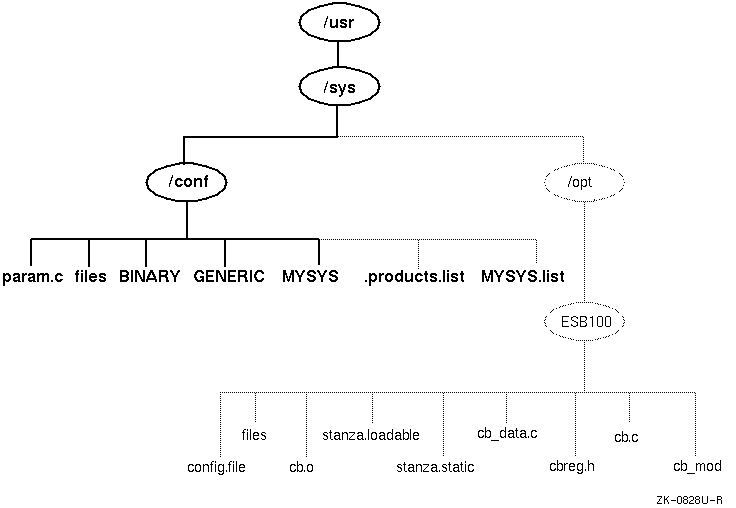
Figure 4-1
shows the directory structure of the system configuration
files.
The dotted lines indicate optional directories and files for third-party
static subsystems.
Figure 4-1: Configuration Files Directory Hierarchy
As shown in
Figure 4-1,
the
/usr/sys/conf
directory contains files that define
the kernel configuration for the generic and target kernels.
These files represent
the configuration of the static portion of the kernel.
When you work with
the system files to reconfigure the kernel, you are interested primarily in
five files:
/usr/sys/conf/MYSYS,
where
MYSYS
is the system name.
/usr/sys/conf/GENERIC
/usr/sys/conf/.product.list
/usr/sys/conf/NAME
.list
/usr/sys/conf/param.c
The following sections provide more information about these files.
4.7.1 Configuration Files in /usr/sys/conf
The
/usr/sys/conf
directory contains two important
system configuration files: the target configuration file and the GENERIC
configuration file.
4.7.1.1 The Target Configuration File
The target configuration file,
/usr/sys/conf/NAME,
is a text file that defines the components that the system
builds into your kernel.
By convention, the
NAME
portion of the pathname is the name of your system in capital letters.
For
example, a system named MYSYS is described by a file named
/usr/sys/conf/MYSYS.
Each system has a target configuration file built for it by the
sizer
program during system installation.
You modify the target
configuration file when you want to change one of the following keyword definitions:
Global keywords that, if you are managing more than one system, are often defined the same across systems
System definition keywords that describe the kernel you want to build for a particular system
Device definition keywords that describe the devices connected to a particular system
callout
keyword definitions that allow
you to run shell command subprocesses during kernel configuration
options
keyword definitions that specify
software to be compiled into the system
makeoptions
keyword definitions that are
passed to the compiler, assembler, and linker when building the kernel
pseudodevice
keyword definitions that describe
pseudodevices used on the system
4.7.1.2 The GENERIC Configuration File
The
/usr/sys/conf/GENERIC
configuration file is
the configuration file that describes the generic kernel.
The generic kernel
supports all valid devices and is useful when you are adding a new device
to the system.
Also, you can use the generic kernel as a backup kernel should
your target kernel be corrupted in some way.
Avoid deleting the
/genvmunix
file, which contains
the generic kernel.
If you accidentally delete the generic kernel, you can
rebuild it by using the
doconfig -c GENERIC
--c
GENERIC
command.
For more information about
building a kernel using an existing configuration file, see
Section 4.6.3.
Note
Never delete the
/usr/sys/conf/GENERICfile.
4.7.2 Extensions to the Target Configuration File
The
/usr/sys/conf
directory
contains two optional configuration files that describe extensions to the
target configuration file.
These are the
/usr/sys/conf/.product.list
file and the
/usr/sys/conf/NAME
file.
These files store information about static kernel subsystems, sometimes
called kernel layered products.
When you install a static subsystem, its SCP normally edits the
/usr/sys/conf/.product.list
file and adds an entry for the subsystem.
After the SCP has completed, run the
/usr/sbin/doconfig
program to configure the new subsystem into the kernel.
The
/usr/sbin/doconfig
program
creates the
NAME.list
file.
The
NAME
variable is the same as the target configuration
file, and by convention is your system name in capital letters.
For example,
the
NAME.list
file for a
system named MYSYS is
MYSYS.list.
If you need to modify your system because of a third-party layered product
(for example, to remove a layered product from the kernel being built), make
the necessary modifications to the
NAME.list
file and build a new kernel.
Each entry in the
NAME.list
file consists of six fields separated by a colon (:NAME.list
file and shows an entry for a static kernel subsystem that has
been loaded into the
/usr/sys/opt/ESB100
directory:
/usr/sys/opt/ESB100:UNXDASH100:920310100739:DASH Systems:controlsys:100
     [1]         [2]     [3]      [4]     [5]   [6]
The fields in this entry contain the following information:
The full pathname where the system configuration tools find extensions to input data. This location can contain files such as:
Product-specific configuration files
The
config.file
file fragment (contains
keywords related only to the product)
The
files
file fragment (contains information
about the location of the product's source code, when the product should be
loaded into the kernel, and whether source or binary code is provided)
The
stanza.static
file (contains information
about a static driver's major number requirements and the names and minor
numbers of the device special files)
Object files
Source code files
The
setld
subset identifier.
[Return to example]
The date and time that the product is ready for distribution. [Return to example]
The name of the company that provided the subsystem. [Return to example]
The product name. [Return to example]
The
setld
3-digit product version code.
[Return to example]
The order of the line entries in the
NAME.list
file reflects the order in which the entries are processed.
The
/usr/sbin/doconfig
program creates the
NAME.list
file by copying the
.product.list
file, if it exists.
When you use the
/usr/sbin/doconfig
-c
command option,
/usr/sbin/doconfig
uses the existing
NAME.list
file.
If the
.product.list
file changes (for example,
a new kernel layered product was installed) and the
-c
option
is used, either delete the
NAME.list
file or manually edit it before invoking
/usr/sbin/doconfig
to propagate the change in the
.product.list
file to the
NAME.list
file.
You can create the file by copying the
.product.list
file to the
NAME.list
file.
Then you can edit the
NAME.list
file and either delete the lines that you do not want built into the kernel
or comment them out by putting a number sign (#
Note
Never edit the
.product.listfile.
See the device driver documentation for more information on the
NAME.list
and
.product.list
files.
4.7.3 The param.c File
The
param.c
file contains default values for a number of system parameters.
Do not modify these parameters unless instructed to do so in a document or
by your technical support organization.
The precedence order in which attribute values are read and used is as follows:
The run-time value of the attribute.
The value recorded in the
/etc/sysconfigtab
file.
The value recorded in the
/usr/sys/conf/SYSTEM_NAME
file.
The value recorded in the
/usr/sys/conf/param.c
file.
In some cases, a parameter in the
param.c
file
also exists in your target configuration file.
In this case, a value specified
in the configuration file overrides the value specified in the
param.c
file.
Therefore, if you modify the value of a system parameter
in the
param.c
file, be sure to remove the corresponding
entry from the target configuration file.
4.7.4 System Configuration File Entries
The system configuration file contains the following keyword definitions:
Global keyword definitions
System definition keywords
Device definition keywords
callout
keyword definitions
options
keyword definitions
makeoptions
keyword definitions
pseudo-device
keyword definitions
Avoid performing manual tuning or custom configuration options in this file. See the System Configuration and Tuning manual for information on configuring a kernel and tuning it.