Monitoring nodes means looking at performance data in real time. This section introduces metrics and thresholds, explains sessions and the types of displays you can choose, and includes information on additional monitoring methods.
When creating a session, you can use the default session settings or select which nodes to monitor and which metrics to watch, and set up any thresholds or archives. One session window can contain both display and threshold metrics, and is identified by file name. The following image of the main window calls out the controls you have in a session.
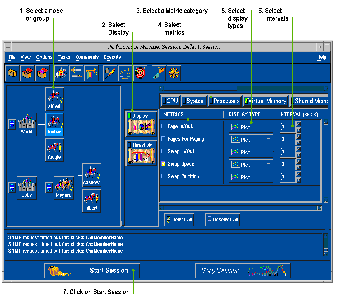
Starting the session puts everything in motion; the displays you specified will open. Starting the session puts everything in motion: the displays you specified will open and the thresholds you specified will be set.
When you are through, stop the session. Sessions can be saved and recalled later, which eliminates the need to respecify your choices, but you can change anything about a session.
After creating a new session or opening a previously saved session, you need to start it in order to open the session window and monitor data.
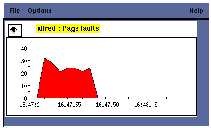
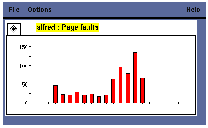
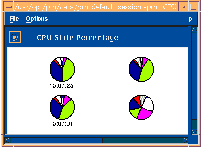
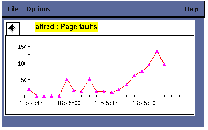
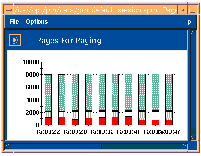
Each performance metric can be displayed in several display types. Display types are chosen from the option menus to the right of each metric in the main window. The following images are examples of each display type:
When a new session is opened, all displays are shown in the session window; however, individual displays can be expanded, collapsed, or floated out in their own separate windows.
Metric display selection |
The display now appears in its own window.
You must save a session after floating displays if you want the displays to appear in their own windows when the session is reopened.
You can interact with the graph displays in Performance Manager in the following ways:
|
Scaling
Press Ctrl and hold down MB2 |
|
Move mouse down to increase the graph's size
Move mouse up to decrease the graph's size |
|
| Translation Press Shift and hold down MB2 |
|
|
|
|
Zooming Press Ctrl and hold down MB1 |
|
Move mouse to select the area to zoom into |
|
|
Rotation
(3-D bar/pie charts only) Hold down MB2 |
|
Move mouse left and right to change the rotation angle (bars only) |
|
|
Return to default Press "r" |
|
All scaling, translation, and zooming removed; displays default graph margins |
|
You can change the data styles chosen for the Performance Manager displays by modifying the PM resource file. The resource file is in this location:
A copy of the resource file is included in the reference section of the Performance Manager Help Volume.
The following information may help you work with the resource file:
The XrtDataStyle data structure contains all the information about how a set of data will be represented graphically. The fields are broken down as follows:
For further information, please see your Xt Intrinsics documentation.
! change the graph data styles
pmgr*xrtDataStyles: (( LpatSolid FpatSolid "blue" 1 PointDot "blue" 4 ) \
( LpatSolid FpatSolid "yellow" 1 PointTri "yellow" 4 ) \
( LpatSolid FpatHorizStripe "magenta" 1 PointBox "magenta" 4 ) \
( LpatSolid Fpat25Percent "cyan" 1 PointDiamond "cyan" 4 ) \
( LpatSolid FpatVertStripe "#6699ff" 1 PointStar "#6699ff" 4 ) \
( LpatSolid FpatDiagHatched "#ff9900" 1 PointCircle "#ff9900" 4 ) \
( LpatSolid Fpat45Stripe "#33cc99" 1 PointSquare "#33cc99" 4 ) \
( LpatSolid FpatCrossHatched "#cc3333" 1 PointCross "#cc3333" 4 ))
For further information on resource files and their usage, please see your Xt Intrinsics documentation.
Performance Manager supports two additional monitoring methods:
The following UNIX commands are provided for command-line access to the metrics servers:
The getbulk command uses the SNMPv1 extensions and requires that you access the metrics servers via their private SNMP request ports rather than the well-known SNMP request port. The port to be used is specified by the environment variable PMGR_SNMP_PORT. The appropriate port numbers should be listed in the /etc/services file on the management station.
The following example shows how to query pmgrd using the getmany command:
pmCmSysProcessorType.0 = alpha(2)
pmCmSysOperatingSystem.0 = digital-unix(2)
pmCmSysDate.0 = 7.204.1.17.17.58.57.0.-.8.0
pmAoVmSwapDefault.0 = /dev/re3c
pmAoVmSiPartition.1 = /dev/re3c
pmAoVmSiPagesAllocated.1 = 256896
You can also use SNMP Network Management Systems (NMS) to access Performance Manager's metrics servers. Examples of available systems include:
| Commercially available | Freely available |
|---|---|
| DIGITAL NetView | scotty/tkined |
| IBM NetView/6000 | |
| HP OpenView | |
| SunNet Manager |
dec appears in at least two places in the OSI naming tree; iso.org.dod.internet.private.enterprises.dec is another well known place). In the NetView browser, click Up Tree until you reach org and then go down dec to find the PM MIB variables.
If you are running the DIGITAL UNIX extensible agent ( snmpd ) shipped with DIGITAL UNIX 3.2D (and later), you do not require this section as you are able to access Performance Manager's agents via the SNMP port (UDP/161). The snmpd forwards relevant requests to Performance Manager's agents using the eSNMP subagent supported by Performance Manager's agents.
| 1161 | 35076 |
| 36100 | |
| 161 | 41216 |
| Go to Main | Go to Previous | Go to Next |